Chrome extensions for freelancers are supposed to make your workday lighter — fewer tabs, faster billing, cleaner inboxes. But in 2026, the freelance workload looks nothing like it did a few years ago. You’re not just writing copy or designing logos anymore; you’re logging into five different client Google Ads accounts, three Amazon Seller Central dashboards, a dozen social media profiles, and a project management tool, often all before lunch. A single browser extension can help you write a better email. It cannot stop your client accounts from bleeding into each other, triggering fraud flags, or getting flagged for “suspicious login activity” because you switched between six accounts on the same IP address in ten minutes.
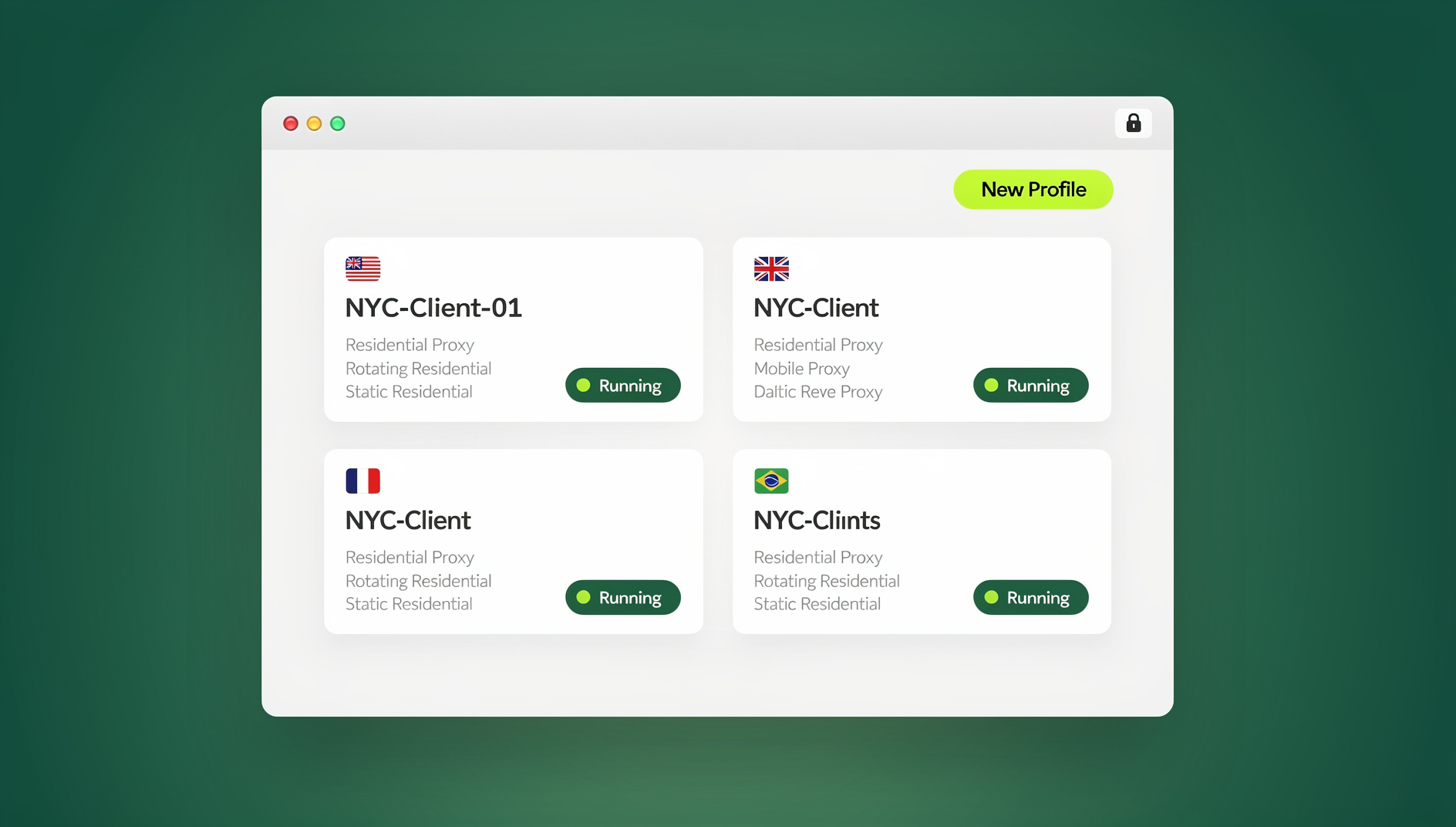

This guide covers the seven Chrome extensions freelancers genuinely rely on in 2026 — writing, time tracking, email, video, research, tab management, and text automation — plus the blind spot none of them solve: safely managing multiple client logins from one machine without cross-contaminating sessions or getting an account banned. If you’re building a serious freelance practice on one of the best freelance websites in 2026, that second problem matters just as much as the first.
Why the Right Browser Tools Matter More Than Ever for Freelancers in 2026
Freelancing has changed shape. Clients now expect freelancers to work directly inside their tools — their Google Analytics property, their Meta Business Suite, their Shopify admin, their client portal — rather than emailing files back and forth. That’s great for collaboration, but it means the average freelancer juggling 4-6 active clients is realistically managing 15-20+ separate logins across ad platforms, CMS backends, email tools, and marketplaces, often for accounts that belong to direct competitors.
Two things go wrong when this is handled in a single default Chrome profile:
- Productivity leaks. Constant tab-switching, forgotten follow-ups, and manual repetitive data entry eat hours every week — this is the problem most Chrome extensions genuinely solve well.
- Account and security risk. Cookies, cached logins, autofill data, and browser fingerprints from Client A’s account can bleed into Client B’s session. Platforms like Amazon, Meta, and Google increasingly flag accounts that share a device fingerprint or IP pattern with other accounts they don’t recognize as related — sometimes resulting in review holds or suspensions that have nothing to do with anything the freelancer did wrong.
The extensions below solve the first problem exceptionally well. For the second, you need a different category of tool entirely — more on that after the list.
Quick Comparison: 7 Best Chrome Extensions for Freelancers in 2026
| Extension | Best For | Free Plan? | Standout Feature |
|---|---|---|---|
| Grammarly | Client emails, proposals, contracts | Yes | Real-time tone and clarity checks |
| Toggl Track | Time tracking and billing | Yes (up to 5 users) | One-click timers per project |
| Boomerang for Gmail | Email scheduling and follow-ups | Yes (limited monthly credits) | Inbox Pause + send-later scheduling |
| Loom | Async video updates for clients | Yes (limited videos) | Instant shareable recording link |
| Save to Pocket | Research and content curation | Yes | Cross-device read-later queue |
| OneTab | Tab overload and RAM usage | Yes | Collapses all tabs into one list |
| Magical | Repetitive typing and data entry | Yes (limited snippets) | Autofill across tabs with keystrokes |
The 7 Best Chrome Extensions for Freelancers in 2026
Here’s the full breakdown of each tool, why it’s worth installing, and what it actually fixes in a freelancer’s day-to-day workflow. For a broader roundup of tools beyond this list, our best chrome extensions for productivity guide covers general-purpose picks too.
1. Grammarly — Writing and Communication
Every piece of client-facing writing — proposals, invoices, cold pitches, Slack messages — reflects on your professionalism. Grammarly checks grammar, tone, and clarity in real time across Gmail, Google Docs, LinkedIn, and virtually any text field in the browser, catching mistakes before a client ever sees them.
Why freelancers use it
- Flags tone issues before you hit send on a sensitive client email
- Rewrites clunky sentences in proposals and contracts
- Works across every site, not just one app
- Free tier covers spelling, grammar, and basic clarity suggestions
2. Toggl Track — Time Tracking and Billing
If you bill hourly — or even if you bill fixed-price and want to know your real effective rate — Toggl Track’s one-click browser timer removes the guesswork. Start a timer when you open a client’s project board, stop it when you’re done, and let the reports build your invoice for you.
Why freelancers use it
- One-click start/stop timers tied to specific clients and projects
- Automatic reminders if you forget to start tracking
- Exportable reports for invoicing and rate audits
- Free plan supports small teams and unlimited tracking
3. Boomerang for Gmail — Email Scheduling and Follow-Ups
Boomerang lets you write an email now and send it later — useful when you’re working across time zones with international clients. It can also bring an email back to the top of your inbox if nobody replies within a set window, and its Inbox Pause feature stops new mail from interrupting deep work sessions.
Why freelancers use it
- Schedule emails to land at the right time in a client’s time zone
- Automatic follow-up reminders when a client goes quiet
- Inbox Pause for distraction-free focus blocks
- Read receipts to confirm a proposal was actually opened
4. Loom — Async Video Communication
Instead of writing a 400-word email explaining a design change, Loom lets you record your screen and voice, then drop a shareable link in Slack or email. It’s become a default expectation on many remote client teams and saves enormous back-and-forth time on feedback loops.
Why freelancers use it
- Explain feedback or bugs visually instead of in a wall of text
- Async-friendly — clients watch on their own schedule
- Comments and reactions right on the video timeline
- Faster than scheduling another call
5. Save to Pocket — Research and Content Curation
Freelance work is research-heavy — competitor analysis, industry trends, reference articles for client content. Pocket saves anything you find on the web into a clean, distraction-free reading queue that syncs across every device, so you’re not losing half-read tabs at the end of the day.
Why freelancers use it
- One click to save an article, video, or link for later
- Syncs across desktop, phone, and tablet
- Tag and organize research by client or project
- Distraction-free reading view strips ads and clutter
6. OneTab — Tab and Memory Management
Freelancers juggling multiple clients tend to accumulate 40+ open tabs by mid-afternoon. OneTab collapses them all into a single, organized list with one click, freeing up to 95% of the memory those tabs were consuming and making Chrome noticeably faster on lower-spec machines.
Why freelancers use it
- Instantly clears tab clutter without losing anything
- Restore tabs individually or all at once
- Frees RAM, which matters on older laptops
- Export tab lists to share a research set with a client
7. Magical — Text Expander and Autofill
If you find yourself typing the same client update, invoice note, or onboarding message over and over, Magical turns it into a two-keystroke shortcut. It can also pull data from one open tab and drop it into a form or spreadsheet in another, which is a genuine time-saver for freelancers doing repetitive data entry across client CRMs.
Why freelancers use it
- Expand frequently used text with a simple keyboard shortcut
- Autofill data between tabs without copy-paste
- Share templates with subcontractors or a small team
- Free tier covers a solid number of shortcuts for solo freelancers
The Extension Blind Spot: Managing Multiple Client Logins Safely
Here’s what none of the seven extensions above can do: keep your client accounts from bleeding into one another. Chrome extensions run inside one browser profile with one set of cookies, one cached fingerprint, and — if you’re not using a VPN or proxy — one IP address for every client you touch that day. If you manage several clients’ ad accounts, marketplace stores, or social profiles from that same profile, you’re stacking risk in ways that have nothing to do with the quality of your work:
- Cross-contamination. Logging into Client A’s Amazon Seller Central right after Client B’s, from the same browser and IP, can look identical to platform fraud-detection systems as one person operating both accounts covertly.
- Fingerprint flags. Canvas, WebGL, and font fingerprints stay largely the same across tabs in a default browser, so even switching accounts in separate windows doesn’t fully separate you.
- Accidental data leaks. Autofill, saved passwords, and shared clipboard history can quietly leak one client’s information into another client’s session.
This is exactly the gap that pushes many experienced freelancers to look for a way to juggle multiple clients without burning out — and it’s where a purpose-built browser isolation tool like Send.win earns a spot next to your extension stack rather than inside it.
Send.win is an anti-detect, multi-login browser built for exactly this scenario. Instead of one shared profile, you get isolated browser “profiles” — each with its own cookies, cache, local storage, and a unique, consistent browser fingerprint — so Client A’s session never touches Client B’s. Built-in proxy options let you assign each profile a stable, matching IP so a client’s account always looks like it’s being accessed from the same consistent location, rather than jumping around every time you switch tabs. If you’ve been asking how to safely operate more than one account per platform without tripping alarms, our multi-login browser guide walks through the mechanics in more depth.
How to Set Up a Multi-Client Freelance Workflow with Send.win
You don’t need to overhaul your whole workflow to add this layer of protection. Here’s a practical setup freelancers can follow in under 30 minutes:
- Start the free trial. Send.win offers a 30-day free trial with no credit card required, so you can test it against your real client accounts before committing.
- Create one isolated profile per client. Each profile gets its own cookies, cache, and fingerprint — name profiles by client so you never mix them up (e.g., “ClientA-AmazonSeller,” “ClientB-MetaAds”).
- Attach a proxy to each profile. Use Send.win’s built-in residential proxies, or bring your own, so each client’s profile connects from a consistent, matching location every session.
- Install the Desktop app. Send.win’s native Windows, macOS, and Linux desktop app gives you full functionality — faster profile switching, local performance, and offline access to your saved profiles — beyond what the web dashboard alone offers.
- Invite subcontractors without sharing passwords. On the Team plan, you can share specific client profiles with a virtual assistant or subcontractor without ever handing over the underlying login credentials — and revoke access instantly when a project ends.
- Automate the repetitive parts, if you code. Freelance developers and growth marketers on the Team plan can plug directly into Send.win’s Automation API, driving isolated profiles with Selenium, Puppeteer, or Playwright — useful for scripting repetitive client reporting, monitoring, or QA tasks without breaking session isolation.
Chrome Extensions vs. Send.win: What’s the Difference?
| Need | Chrome Extensions | Send.win |
|---|---|---|
| Faster writing, scheduling, tab cleanup | Excellent — this is exactly what they’re built for | Not the focus |
| Isolating multiple client logins | No native isolation between accounts | Dedicated profile per client, unique fingerprint each |
| Consistent IP per client account | Requires a separate VPN/proxy tool | Built-in residential proxies per profile |
| Sharing access without passwords | Not supported | Team plan session sharing with revocable access |
| Scripting repetitive client tasks | Limited to extension-specific automations | Automation API (Selenium/Puppeteer/Playwright, Team plan) |
| Native desktop performance | Runs inside Chrome only | Dedicated Windows/macOS/Linux desktop app |
🏆 Send.win Verdict
Chrome extensions like Grammarly, Toggl Track, and Loom will genuinely make you a faster, more organized freelancer — keep all of them. But none of them protect the client accounts you log into every day from cross-contamination, fingerprint flags, or accidental bans. Send.win fills that exact gap with isolated, fingerprint-unique profiles per client, built-in proxies, a native desktop app, password-free team sharing, and an Automation API for freelancers who script their own workflows.
Try Send.win free today — start your 30-day free trial, no credit card required, and give every client a clean, isolated profile.
Frequently Asked Questions
What are the best Chrome extensions for freelancers in 2026?
The most useful categories are writing assistance (Grammarly), time tracking (Toggl Track), email management (Boomerang for Gmail), async video (Loom), research/read-later (Save to Pocket), tab management (OneTab), and text automation (Magical). Together they cover the core daily friction points of freelance work: communication, billing, and repetitive tasks.
Are these Chrome extensions free?
Yes — all seven have usable free tiers. Grammarly, Toggl Track, Save to Pocket, and OneTab are free for core functionality, while Boomerang, Loom, and Magical offer free plans with usage limits (like a monthly cap on scheduled emails or recorded videos) before you’d need a paid upgrade.
Can Chrome extensions help me manage multiple client accounts safely?
Not really. Extensions operate inside a single browser profile, so they don’t isolate cookies, fingerprints, or IP addresses between different client accounts. For that, you need a dedicated multi-login or anti-detect browser tool rather than an extension.
Why would a freelancer need something like Send.win instead of just Chrome profiles?
Standard Chrome profiles reduce some mixing of cookies, but they typically still share the same underlying browser fingerprint and, unless you configure it separately, the same IP address. Send.win assigns each profile its own unique fingerprint and can pair it with a dedicated proxy, which is a meaningfully stronger separation for managing accounts platforms actively watch for shared-device patterns.
Does Send.win require installing separate software?
Send.win is used through a browser-based dashboard, but full functionality — including faster profile switching and local performance — runs through its native Desktop app for Windows, macOS, and Linux. Most active users install the desktop app rather than relying on the web dashboard alone.
What is the Send.win Automation API used for?
It lets developers and technical freelancers drive isolated Send.win profiles programmatically using Selenium, Puppeteer, or Playwright — useful for automating repetitive client tasks like scheduled reporting, monitoring, or QA testing while keeping each client’s session properly isolated. It’s included on the Team plan.
How much does Send.win cost?
Send.win offers a 30-day free trial with no credit card required. The Pro plan is $19/month (with 150 profiles and 5GB of proxy bandwidth), and the Team plan is $49/month, which adds the Automation API, 500 profiles, 20GB of bandwidth, and 16 seats for sharing access with a team or subcontractors.
Can I share a client’s browser profile with a subcontractor without giving them the password?
Yes. On Send.win’s Team plan, you can share access to a specific isolated profile with a virtual assistant or subcontractor without ever exposing the underlying account password, and revoke that access instantly once the project wraps up.