What’s the Best Container Extension in 2026?
The best container extension depends on your browser: Firefox users get the most capable option in Mozilla’s own Multi-Account Containers — free, unlimited, and color-coded by default — while Chrome users are best served by SessionBox for true multi-login on the same site. Both isolate cookies and storage per container, but neither changes your browser’s fingerprint or IP, which is the real ceiling on how many accounts you can safely run side by side.
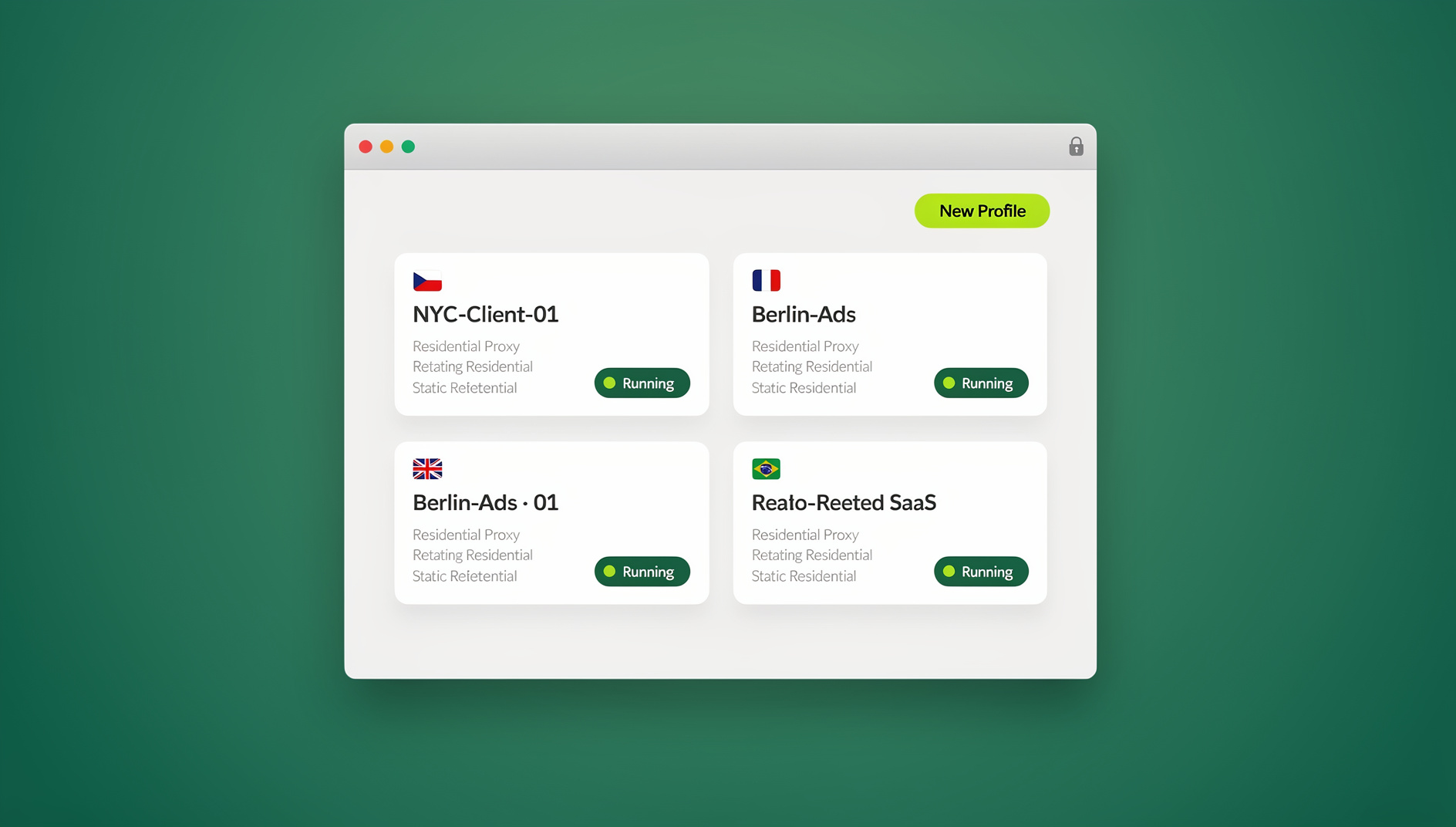

Below is a full comparison of the seven container extensions worth knowing in 2026, where each one breaks down, and when a cookie-isolation extension simply isn’t enough for the accounts you’re managing.
Quick Comparison: Top Container Extensions at a Glance
| Extension | Browser | Price | Best For |
|---|---|---|---|
| Firefox Multi-Account Containers | Firefox | Free | Foundation-level compartmentalization |
| Temporary Containers | Firefox | Free | Disposable, privacy-first browsing |
| SessionBox | Chrome, Firefox, Edge | Free / $4.99mo Pro | Multi-login on Chrome |
| Containers for Chrome | Chrome | Free | Basic Firefox-style containers on Chrome |
| Tab Manager Plus | Chrome, Firefox | Free | Tab organization, not true isolation |
| Cookie AutoDelete | Chrome, Firefox | Free | Automatic tracking cleanup |
| Facebook Container | Firefox | Free | Isolating Meta tracking only |
What Are Browser Container Extensions?
A browser container extension isolates your tabs into separate environments — each container keeps its own cookies, local storage, and login state. That means you can be logged into the same website with two different accounts in two different tabs, without one session leaking into the other.
Container extensions solve a real browser limitation: by default, every tab in a browser window shares the same cookie jar. Open Gmail in one tab, and every other tab in that window can see you’re authenticated with Google. Containers break that link, creating walled gardens inside a single browser window.
Why You Need a Container Extension
The Multi-Account Problem
Without containers, running more than one account on the same site means awkward workarounds:
| Method | Accounts Supported | Convenience | Issues |
|---|---|---|---|
| Incognito + regular window | 2 max | Low | Only two accounts, no persistence |
| Multiple Chrome profiles | Unlimited | Low | Separate windows, identical fingerprint |
| Multiple physical browsers | 3-4 | Very low | Limited, becomes a management nightmare |
| Container extension | Unlimited | High | Same fingerprint across containers |
| Cloud browser profiles | Unlimited | High | Full isolation, including fingerprint |
The Real Cost of Skipping Isolation
The multi-account problem isn’t just inconvenient — it has a measurable cost when it goes wrong. Logging into a second account in the same unisolated tab session can trigger a platform’s duplicate-account detection, which typically results in one of a few outcomes: a forced logout of one session, a temporary lock pending verification, or on stricter platforms, an outright suspension of every account sharing that device signature. E-commerce sellers and social media managers running several storefronts or profiles are the group that feels this most, since a single flagged session can cascade into losing access to all of them at once.
Container extensions exist specifically to prevent the first, cheapest failure mode — cookies leaking between tabs. They don’t address the second, more expensive failure mode: a shared device fingerprint linking accounts that were never supposed to be connected in the first place.
The 7 Best Container Extensions Reviewed
1. Firefox Multi-Account Containers
The original and still the most polished container extension. Built by Mozilla, it’s free, supports unlimited custom containers with color coding, and can auto-assign specific domains to specific containers so sites always open in the right place. Container assignments sync across devices through Firefox Sync.
Pros: deeply integrated with Firefox, zero measurable performance impact, excellent for separating work, personal, shopping, and banking sessions.
Cons: Firefox-only, and every container still shares the same browser fingerprint and IP address.
2. Temporary Containers
Automatically spins up a fresh, disposable container for every new tab. The container — and any cookies it collected — is destroyed the moment the tab closes, and it runs alongside Multi-Account Containers without conflict.
Pros: the strongest tab-level isolation on this list, no tracking cookies survive between sessions.
Cons: no persistence — closing a tab means losing your login state, and it’s Firefox-only.
3. SessionBox
The closest thing Chrome has to true multi-login. SessionBox works across Chrome, Firefox, and Edge, with a free tier and a $4.99/month Pro plan that adds cloud sync of sessions across devices.
Pros: works on the browser most people already use, can open several sessions of the same site in different tabs, Pro syncs sessions across machines.
Cons: the free tier is limited, and every session still shares the same fingerprint and IP.
4. Containers for Chrome
A free attempt to bring Firefox-style containers to Chrome. It creates named, color-coded containers with cookie and localStorage isolation between them.
Pros: free and lightweight, familiar to anyone coming from Firefox.
Cons: less mature than Mozilla’s implementation, and Chrome’s extension architecture makes deep isolation harder to achieve than in Firefox.
5. Tab Manager Plus
Tab organization with the appearance of session separation. It’s genuinely useful for grouping and saving large numbers of tabs, with drag-and-drop management and session save/restore.
Pros: great for taming tab sprawl, useful session save/restore.
Cons: this is tab organization, not true containerization — there’s no cookie isolation between groups.
6. Cookie AutoDelete
Automatic cookie cleanup rather than live isolation. It deletes cookies automatically once a tab closes, with a whitelist for sites you want to stay logged into and a greylist that holds cookies until browser restart.
Pros: simple, effective privacy hygiene; the whitelist preserves convenience for trusted sites.
Cons: not true containerization — it can’t run two logged-in sessions of the same site simultaneously, and it cleans up after the fact rather than isolating in real time.
7. Facebook Container
Purpose-built to fence off Meta tracking. This Mozilla extension isolates Facebook, Instagram, and Messenger into their own container so Facebook pixels embedded on other sites can’t follow you around the web.
Pros: set-and-forget protection, deep Firefox integration.
Cons: single-purpose and Firefox-only.
Taken together, these seven cover most of what a container extension can realistically do: Multi-Account Containers and Temporary Containers for Firefox power users, SessionBox and Containers for Chrome for the Chrome majority, and Cookie AutoDelete or Facebook Container as narrow, single-purpose add-ons layered on top of whichever foundation you pick.
Container Extensions vs. Cloud Browser Profiles
Container extensions solve cookie isolation well, but they share a critical blind spot: every container in the same browser installation still presents the same fingerprint and the same IP address to the websites you visit. A site running canvas or WebGL fingerprinting can link “separate” containers back to one device in seconds.
| Capability | Container Extensions | Cloud Browser Profiles |
|---|---|---|
| Cookie isolation | Yes | Yes |
| localStorage isolation | Yes | Yes |
| Fingerprint isolation | No | Yes |
| IP isolation | No | Yes (per-profile proxy) |
| Cross-device access | Requires sync | Yes, natively |
| Works fully offline | Yes | No |
| Free tier available | Yes | Yes (trial) |
For basic compartmentalization — separating personal browsing from work — a container extension is genuinely sufficient. For managing multiple accounts on platforms that actively fingerprint visitors, though, a cloud browser profile with proper unique virtual sessions closes the gap that containers leave open.
Setting Up Your First Container in Under 5 Minutes
Regardless of which extension you pick, the setup pattern is nearly identical across all of them:
- Install from the official store. Firefox users get Multi-Account Containers from addons.mozilla.org; Chrome users install SessionBox or Containers for Chrome from the Chrome Web Store. Avoid sideloaded copies — container extensions handle your login cookies, so provenance matters.
- Create your first container. Click the extension icon, name the container (e.g., “Work,” “Client A,” “Personal”), and assign it a color for quick visual identification in the tab strip.
- Open a site inside that container. Right-click a link or use the extension’s “Open in New Container Tab” option, then log in as usual — that login state now stays sealed inside the container.
- Set auto-assign rules (Firefox only). Tell Multi-Account Containers to always open a given domain in a specific container, so you never accidentally log in outside the walled garden.
- Test the isolation. Open the same site in a different container or a regular tab and confirm you’re not logged in there — that confirms the cookie jar really is separated.
The whole process takes less time than reading this section. The limitation only shows up later, once you’re running enough accounts that a shared fingerprint starts mattering more than shared cookies.
How to Choose the Right Container Extension
If You’re on Firefox
- Start with Multi-Account Containers — it’s the foundation everything else builds on.
- Add Temporary Containers for disposable, one-off browsing sessions.
- Add Facebook Container specifically to isolate Meta tracking.
- This combination covers most privacy and casual multi-account needs.
If You’re on Chrome
- Try SessionBox first for multi-login on the same site.
- Add Cookie AutoDelete for automatic tracking cleanup between sessions.
- For accounts that need genuine session isolation beyond cookies, Chrome’s extension architecture is the limiting factor, not the extension itself — that’s the point at which a dedicated multi-login browser becomes worth the switch.
🏆 Send.win Verdict
A container extension is a great free starting point for keeping a handful of accounts apart. Once fingerprinting or IP matching starts linking those “separate” containers back together, Send.win picks up where extensions stop: every profile gets its own canvas, WebGL, and font fingerprint plus its own proxy, whether you run it through the native Sendwin Browser desktop app or a cloud browser session with zero local install.
Try Send.win today — plans start at $19/mo, with a 7-day money-back guarantee on your first card purchase.
Frequently Asked Questions
Can container extensions prevent browser fingerprinting?
No. Container extensions isolate cookies and storage, but they can’t change your browser’s canvas, WebGL, font, or screen-resolution fingerprint — every container shares the same underlying browser identity. Fingerprint isolation requires an antidetect browser or a cloud browser profile instead.
Do container extensions slow down browsing?
Barely. Maintaining separate cookie stores adds negligible overhead — Firefox Multi-Account Containers has essentially zero measurable performance impact, and SessionBox on Chrome adds only slight overhead when juggling many simultaneous sessions.
Is it safe to use a container extension for online banking?
Yes — containers are a solid fit for isolating banking sessions from general browsing, since banking cookies stay fully separated from other tabs. Pairing a container with Cookie AutoDelete adds an extra layer of cleanup after each session.
Which container extension handles 10 or more accounts best?
Firefox Multi-Account Containers scales well past 10 containers thanks to color coding and auto-assign rules. On Chrome, SessionBox Pro is the stronger option. Past roughly 10 accounts on a platform that actively fingerprints, though, a cloud browser profile is the safer choice because it isolates fingerprint and IP, which extensions structurally cannot.
Are container extensions enough for social media management?
For light multi-account use — two or three accounts on the same platform — a container extension works fine. Professional social media managers running many accounts on platforms like Facebook or Instagram often get those containers linked back together through fingerprinting and IP matching, which is where cloud browser profiles become the more reliable option.
What’s the difference between a container extension and a multi-login browser?
A container extension is a lightweight browser add-on that isolates cookies within one existing browser installation. A multi-login browser goes further, generating a genuinely separate fingerprint and often a separate IP for each profile, which is what platforms actually check for when linking accounts.
Can I combine a container extension with a cloud browser profile?
Yes, and many people do — using a Firefox container for low-stakes personal browsing while reserving cloud browser profiles for accounts where a ban carries real financial cost. There’s no conflict between running both approaches side by side.
Conclusion
The best container extension really does depend on your browser and how much is riding on the accounts you’re separating. Firefox users should start with Mozilla’s own Multi-Account Containers — free, fast, and deeply integrated. Chrome users get the closest equivalent from SessionBox or Cookie AutoDelete. But for anyone managing accounts professionally, where a fingerprint match or a shared IP could mean a ban, combining a container extension with cloud browser profiles from Send.win covers the full isolation stack: cookies, storage, fingerprint, and IP, all separated per profile.