“Browser in browser” means two very different things online: a legitimate way to run an isolated browsing session — a cloud browser or virtual profile — nested inside your own browser window, and a phishing technique called Browser-in-the-Browser (BiTB) that fakes an entire login popup to steal your credentials. Send.win belongs firmly to the first category, giving you real, isolated browsing environments instead of fake ones.

This guide breaks down both meanings in detail: how legitimate browser-in-browser technology works and where it’s useful, how BiTB phishing attacks trick even careful users, and how to tell the two apart before you type a password into anything.
What “Browser in Browser” Actually Means
The confusion around this phrase is understandable because both uses look almost identical on screen. In the legitimate sense, browser-in-browser refers to running an entire separate browser environment — with its own cookies, IP address, and fingerprint — that you view and control through your existing browser window, usually via a cloud service or virtual profile manager. In the malicious sense, it refers to a fake browser popup built entirely out of HTML and CSS, designed to imitate a real login window closely enough to fool you into entering your password.
The difference matters because the legitimate version is a genuine security and productivity tool, while the malicious version is a targeted attack against that same sense of trust. Knowing how each one actually works is the fastest way to tell them apart in the moment.
Legitimate Browser-in-Browser Technology
Cloud Browser Sessions
Cloud browsers run an entire browser instance on a remote server and stream the visual output to your local browser, so you’re interacting with a real, separate browsing environment rather than a simulation:
- How it works: A browser renders pages on a cloud server, the visual output streams to your device, and you interact with it as if it were running locally.
- Result: You’re genuinely using a browser inside your browser — not a styled div pretending to be one.
- Benefit: Complete isolation. Malware, tracking scripts, and exploits that hit the cloud instance never touch your actual device.
Remote Desktop in a Browser Tab
- Apache Guacamole: An open-source remote desktop gateway accessible through any browser, no client install needed.
- Microsoft Azure Virtual Desktop: Full Windows desktops streamed into a browser tab.
- Chrome Remote Desktop: Access another computer’s browser session from your own browser.
- Shells.com: Hosted cloud desktops reachable entirely through the browser.
Browser-Based Development Environments
- GitHub Codespaces: A full VS Code IDE running in the browser.
- Gitpod: Cloud development environments with a live browser preview pane.
- StackBlitz: A complete Node.js runtime executing entirely inside the browser tab.
- CodeSandbox: Code editor and live preview browser running side by side.
Multi-Account Browser-in-Browser Use Cases
The most practical everyday use of legitimate browser-in-browser technology is running several isolated browsing identities at once — one for each client, ad account, or marketplace store — without them ever touching each other’s cookies or fingerprints.
| Component | Standard Local Browser | Isolated Browser Profile/Session |
|---|---|---|
| Where it runs | Your device | Locally in its own sandboxed profile, or remotely in the cloud |
| Cookies | Shared across tabs | Isolated per profile |
| IP address | Your real IP | Per-profile proxy, if assigned |
| Fingerprint | Your real browser fingerprint | Unique per profile |
| Session persistence | Until cookies clear | Saved automatically |
| Team sharing | Not possible without sharing passwords | Built in, without exposing credentials |
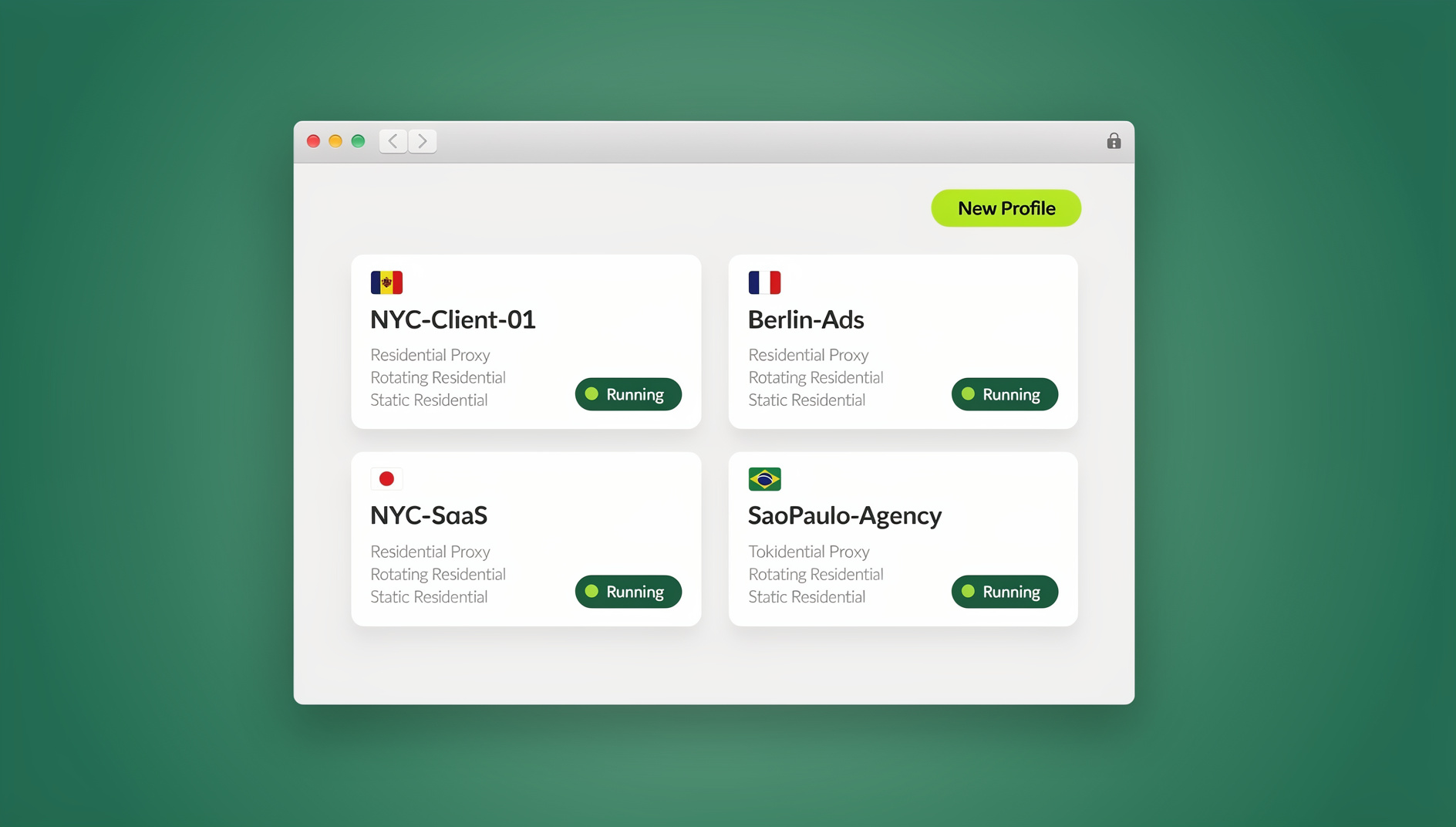
Send.win applies this model in two ways: you can run unlimited virtual browser profiles inside the native Sendwin Browser app on your own machine, or spin up fully cloud-hosted browsing sessions that need no local install at all. Either way, each profile keeps its own cookies, proxy, and fingerprint, so managing five ad accounts or ten marketplace stores never risks cross-contamination.
The BiTB Attack: When Browser-in-Browser Becomes a Phishing Weapon
What Is a BiTB Attack?
A Browser-in-the-Browser (BiTB) attack creates a fake browser popup window using nothing but HTML, CSS, and JavaScript. It’s built to look identical to a real browser window — right down to a convincing address bar showing a legitimate domain like accounts.google.com — even though no real browser window ever opens.
How BiTB Attacks Work
- The victim visits a malicious or compromised website.
- A “Sign in with Google” (or Microsoft, or Facebook) button appears and looks entirely legitimate.
- Clicking it opens what looks like a real login popup.
- The popup is actually a positioned div, styled with shadows and rounded corners to mimic a native browser window.
- The URL bar shows the real domain name — but it’s just styled text, not an actual browser address bar reading a real URL.
- The victim types their credentials into what they believe is the genuine login page.
- Those credentials are sent straight to the attacker.
Why BiTB Is So Effective
| Traditional Phishing | BiTB Attack |
|---|---|
| Suspicious URL visible in the address bar | Shows a legitimate-looking URL in a fake address bar |
| Missing HTTPS padlock or wrong certificate | Displays a fake HTTPS padlock icon |
| Page styling may look slightly off | Pixel-perfect recreation of the real login page |
| Easy to catch by checking the URL bar | The URL bar looks correct because it isn’t a real one |
| Browser may flag a known phishing domain | No browser warning at all — it’s just HTML on the original page |
Technical Anatomy (for Awareness Only)
<!-- The fake popup is just a positioned div -->
<div class="fake-window" style="position: fixed; width: 400px;
    box-shadow: 0 0 40px rgba(0,0,0,0.5); border-radius: 8px;">

    <!-- Fake browser chrome with a fake URL bar -->
    <div class="title-bar">
        <span class="url">🔒 https://accounts.google.com/signin</span>
    </div>

    <!-- Fake login form loaded in an iframe -->
    <iframe src="attacker-clone.html"></iframe>
</div>How to Detect and Stop a BiTB Attack
Visual Tests
- Try to drag the popup outside the browser window. A real popup moves freely across your screen. A fake one stays trapped inside the parent page.
- Try to resize it. Genuine browser windows resize normally along their edges. Fake ones usually don’t respond at all.
- Minimize and restore the parent window. A real popup keeps its own entry in your taskbar or dock. A fake one simply vanishes when the parent page is minimized.
- Right-click the address bar. On a genuine popup you get the browser’s native context menu. On a fake one, right-clicking shows the parent page’s context menu instead.
Technical Tests
- Inspect the element: Open DevTools (F12) and check whether the “window” is a real browser window object or a div in the DOM.
- Security extensions: Some browser security add-ons can flag known BiTB patterns automatically.
- Script-blocking tools: Extensions like NoScript or uBlock Origin can prevent the fake popup script from ever running on untrusted sites.
Behavioral Best Practices
- Use a password manager. It autofills based on the real underlying URL, not on what’s visually displayed, so it simply won’t fill a fake popup.
- Navigate directly. Instead of clicking “Sign in with Google” on a third-party site, open a new tab and go to accounts.google.com yourself.
- Turn on two-factor authentication. Even if a password leaks, 2FA blocks most unauthorized logins.
- Use hardware security keys. FIDO2/WebAuthn keys cryptographically verify the real domain, so they simply refuse to authenticate against a fake one.
Protecting Yourself and Your Organization
For Individuals
- Always use a password manager (Bitwarden, 1Password) — it won’t autofill on fake popups.
- Enable two-factor authentication on every account that supports it.
- Be suspicious of any login popup and navigate to the real service directly when in doubt.
- Try dragging a login popup outside the browser window to confirm it’s real before entering anything.
- Use browser session isolation so that even if one account is compromised, it can’t touch your other logins.
For Organizations
- Deploy browser isolation so risky content renders in a sandboxed environment before it ever reaches an employee’s device.
- Train staff specifically to recognize BiTB popups, not just generic phishing emails.
- Mandate hardware security keys for SSO logins wherever possible.
- Isolate links clicked from email so a compromised link can’t render a convincing fake popup on a corporate device.
- Use web filtering to block known malicious domains before the page even loads.
Legitimate vs. Malicious Browser-in-Browser at a Glance
| Aspect | Cloud Browser / Virtual Profile (Legitimate) | BiTB Attack (Malicious) |
|---|---|---|
| Purpose | Isolated browsing, multi-account management | Credential theft |
| Real browser window? | Yes — a genuine remote or local browser instance | No — an HTML/CSS simulation |
| URL in address bar | Real and verifiable | Fake, just styled text |
| Can it be dragged outside the parent page? | Yes | No |
| Effect on security | Improves it | Compromises it |
| User consent | Explicit and intentional | Deceptive |
How Send.win Delivers Legitimate Browser-in-Browser Isolation
Send.win gives you two ways to get real, isolated browsing environments instead of a single shared browser profile. The first is the Sendwin Browser, a native desktop app for Windows, macOS, and Linux that’s local-first — your profiles run on your own machine — with encrypted cloud sync so your sessions, cookies, and settings follow you to another device. The second is fully cloud-hosted browser sessions that run entirely on Send.win’s servers with zero local install, metered by cloud browsing time, which is ideal for quick isolated tasks, testing suspicious links, or working from a machine you don’t want to configure.
Both modes give every profile its own cookies, storage, and fingerprint, which is exactly the isolation model that keeps agencies from mixing up client ad accounts and keeps online sellers from getting multiple stores flagged for running multiple accounts on the same platform. When a teammate needs access, you can also share a session with your team without ever handing over the underlying password — narrowing exactly the kind of credential exposure that BiTB attacks are designed to exploit in the first place.
Send.win is a browser profile manager for professionals and teams, with isolated browser profiles that each keep their own cookies, storage, sessions, fingerprint settings and proxy. There is no free trial; paid plans are Pro at $19/month or $83.88/year and Team at $49/month or $251.88/year, and the first card purchase is covered by a 7-day money-back guarantee. The only free option is the cloud demo at https://send.win/demo-browser/, a 3-minute preview without signup or 10 minutes a day with a free account. Send.win has no automation interface: no API, SDK, headless mode or Selenium/Puppeteer/Playwright support on any plan.
🏆 Send.win Verdict
“Browser in browser” is only dangerous when it’s fake. A genuine cloud browser or virtual profile — the kind Send.win runs through its native desktop app or fully cloud-hosted sessions — gives you real isolation with a verifiable URL, not a div dressed up to steal your password. If your goal is safely running multiple accounts, testing risky links, or giving a teammate access without handing over credentials, that’s exactly the legitimate side of browser-in-browser technology Send.win is built for.
Try the Send.win cloud demo — a 3-minute preview without signup, 10 minutes a day with a free account.
Frequently Asked Questions
Can my browser detect a BiTB attack automatically?
Most browsers don’t natively detect BiTB attacks yet, since the fake popup is just standard HTML and CSS rendered on a page the browser already trusts. Some security extensions catch common BiTB patterns, and browser vendors are working on better popup origin verification. For now, a password manager that autofills only on real domains is your best automatic defense.
Are cloud browsers safe to use?
Yes. Legitimate cloud browser services run real browser instances on secure servers and stream the interaction to you over an encrypted connection. The isolation actually improves your security, since threats encountered in the cloud session never reach your local device.
Can a BiTB attack steal my two-factor authentication code?
If you type a one-time code into a fake popup, an attacker can use it immediately in a real-time phishing session. Hardware security keys like YubiKey or Google Titan are immune to this, because they cryptographically verify the real domain and simply won’t authenticate against a fake one.
How common are BiTB attacks today?
BiTB attacks became widely known after security researcher mr.d0x published the technique in 2022. Since then they’ve become a favorite of sophisticated phishing campaigns, especially ones targeting corporate SSO logins and cryptocurrency wallet accounts.
Is there a legitimate way to build a browser-in-browser experience?
Yes. Remote desktop tools like Apache Guacamole and Chrome Remote Desktop, cloud browser services like Send.win, and cloud development platforms like GitHub Codespaces all provide legitimate browser-in-browser functionality for productivity, security, or collaboration purposes.
What do I need to install to use Send.win?
It depends on the mode you pick. The Sendwin Browser is a native desktop app you install on Windows, macOS, or Linux, running your profiles locally with encrypted cloud sync. If you’d rather skip any install, you can instead spin up a fully cloud-hosted browser session that runs entirely on Send.win’s servers.
What’s the difference between a cloud browser profile and just opening a new tab?
A new tab in your normal browser still shares your cookies, IP address, and fingerprint with every other tab. A cloud browser profile is fully isolated — its own cookies, its own proxy IP if you assign one, and its own fingerprint — so websites see it as a completely separate browser and device.
Can I use browser-in-browser technology for QA or link testing?
Yes. Running a suspicious link inside an isolated cloud session is a common, safe way to check where it leads without exposing your main device, since anything malicious stays contained in the remote session rather than executing locally.