A chrome multi account setup lets you run separate logins for work, clients, or several accounts on the same platform without constantly signing in and out. Chrome’s built-in Profiles feature handles basic separation of cookies, bookmarks, and passwords, but it does not hide your device fingerprint or IP address — which means linked accounts can still be detected and flagged. This guide covers what Chrome’s native tools actually do, where they fall short, and when you need a dedicated multi-account browser.
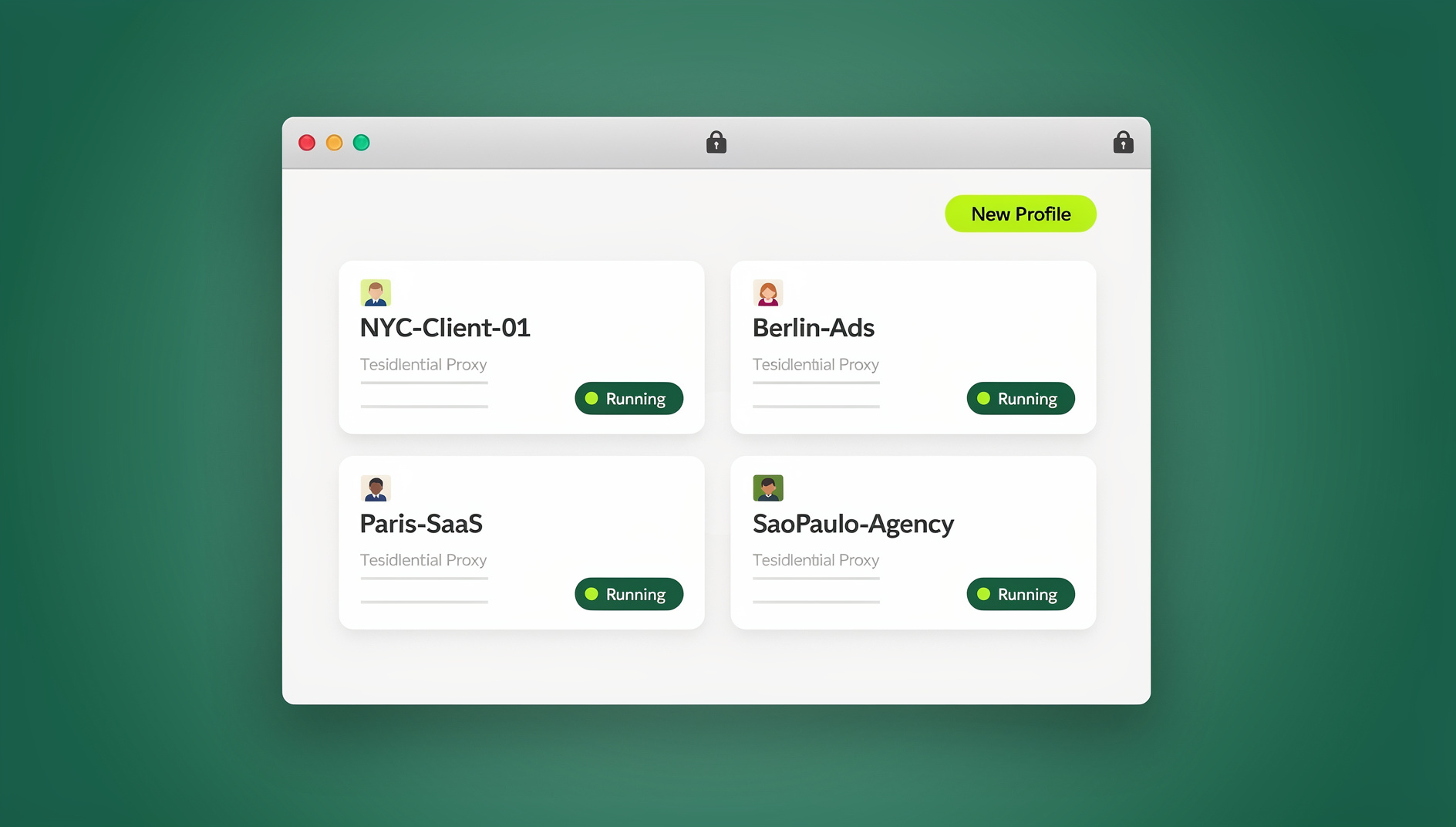

What “Chrome Multi Account” Actually Means
People search for chrome multi account management for a few different reasons: switching between a personal Gmail and a work Google Workspace account, running several client accounts for an agency, managing seller or ads accounts on the same e-commerce or advertising platform, or simply keeping browsing histories separate for privacy. Each of these has a very different risk profile. Signing into two Google accounts is fully supported by Google. Running ten Instagram or Amazon seller accounts from the same computer, on the other hand, is exactly the pattern platforms build fraud-detection systems to catch. The right multi-account approach depends entirely on which of these you’re doing.
Chrome’s Built-In Multi-Account Tools
Chrome Profiles
Chrome’s primary multi-account feature is Profiles. Each profile maintains its own:
- Bookmarks — separate bookmark collections
- History — independent browsing history
- Passwords — isolated password storage
- Extensions — its own set of installed extensions
- Cookies — separate login sessions
- Settings — individual preferences and themes
- Autofill data — different saved form data
How to Create a New Chrome Profile
- Click your profile avatar in the top-right corner of Chrome
- Click “Add” at the bottom of the profile menu
- Choose a name, color, and avatar for the profile
- Optionally sign in with a Google account to enable sync
- A new Chrome window opens with the fresh, empty profile
Switching Between Profiles
- Click the avatar in the top-right corner, then select the profile you want
- Taskbar: each open profile shows up as its own Chrome window
- No native keyboard shortcut exists for switching profiles
- Profile badge: the active profile’s name or initial appears in the window title
Guest Mode vs. Profiles
Chrome also offers Guest browsing, which is different from a profile: it creates a temporary session with no saved history, bookmarks, or extensions, and everything is wiped the moment the window closes. Guest mode is useful for a one-off login on a shared computer, but it’s not a multi-account tool — you can’t return to the same session later, and you can’t install extensions inside it.
The Real Limitation: One Fingerprint, One IP, Every Profile
Same Browser Fingerprint Across All Profiles
This is the part most people miss. Every Chrome profile on the same computer shares the exact same:
- User-Agent string
- Canvas fingerprint
- WebGL rendering signature
- Audio fingerprint
- List of installed fonts
- Screen resolution and hardware details
- Timezone and language settings
Platforms that rely on fingerprinting — and most large ones do — can match these signals across profiles even though the cookies are different. If you’re running multiple accounts on a platform that prohibits it, the fingerprint match is often the first thing that gets accounts linked and suspended together.
Same IP Address
Every profile also shares your real IP address. For platforms that monitor IP alongside fingerprint, this means multiple accounts from the same IP raise an automatic flag, all profiles count toward the same rate limits, and the geographic location is identical for every account — which looks suspicious the moment one account is supposed to be in a different region.
Heavy Resource Usage
Each Chrome profile runs as its own set of processes. Ten open profiles effectively means ten Chrome instances competing for RAM, and extensions installed in each profile multiply that load further. On a modest laptop, having more than five or six profiles open at once tends to bring the whole system to a crawl.
No Team Collaboration
Chrome profiles live on one computer. There’s no way to hand a colleague access to a logged-in session without literally sharing the machine or the account password. Chrome Sync only carries bookmarks, history, and settings between your own devices — it does not sync active login sessions to a teammate.
Browser Extensions Built for Chrome Multi-Account Workflows
A category of Chrome extensions exists specifically to make switching accounts inside a single window less painful.
Cookie-Isolating Session Managers
Tools like SessionBox let you open several tabs, each with a color-coded, independent cookie jar, inside the same Chrome window. You can save and restore sessions, and there’s usually a free tier. The catch: the fingerprint and IP are still identical across every tab, so this solves the convenience problem, not the detection problem.
Multi-Session Extensions
Similar extensions let you juggle several logged-in sessions per tab with quick switching. These are handy for personal productivity — checking three email accounts back to back — but they were never designed to defeat platform-level fingerprint detection, and they don’t claim to.
Firefox Multi-Account Containers (Not Chrome, But Worth Knowing)
Firefox’s free, Mozilla-built Multi-Account Containers extension offers color-coded container tabs with per-container cookie isolation. It’s a genuinely elegant approach to basic multi-account browsing, but it’s Firefox-only, and it has the exact same fingerprint-sharing limitation as Chrome profiles.
Advanced Methods for Serious Multi-Account Management
Method 1: Chrome Profiles + VPN
Pairing each Chrome profile with a different VPN connection gives every account a different IP address. It’s easy to set up, but the shared fingerprint still links the accounts, VPN browser extensions can leak your real IP through WebRTC, and running several VPN subscriptions gets expensive fast.
Method 2: Chrome Profiles + Proxy Extensions
Assigning a unique proxy to each profile is lighter than a full VPN and gives you more IP options at a lower cost. The fingerprint problem remains untouched, proxy quality varies widely between providers, and you’re manually configuring every single profile.
Method 3: User-Agent Switching
Installing a User-Agent switcher per profile changes one visible fingerprint signal for free. Unfortunately, the User-Agent is just one of roughly 40 signals that make up a browser fingerprint — canvas rendering, WebGL, and audio fingerprints stay identical, and any platform doing real fingerprint analysis will notice the mismatch between a spoofed User-Agent and an unchanged canvas signature.
Method 4: A Purpose-Built Multi-Account Browser
This is where Send.win fits in. Instead of layering workarounds on top of Chrome, Send.win gives every profile its own isolated fingerprint (canvas, WebGL, audio, fonts, and hardware details all differ per profile), its own IP through built-in proxy support, and the ability to share a logged-in profile with a teammate without ever handing over a password.
Send.win runs in two modes depending on how you work. Sendwin Browser is a native app you download and install on Windows, macOS, or Linux — it’s local-first, meaning your profiles live on your machine, with encrypted cloud sync so the same profiles are available if you switch devices. For lighter or temporary needs, cloud browser sessions run entirely on Send.win’s servers with zero local install; you access them from any device with a browser, and usage is metered by cloud browsing time rather than a flat monthly seat. If you’re deciding between the two, this comparison of Sendwin versus Chrome profiles walks through when each approach makes sense.
For teams and developers who need to script repetitive account tasks — checking listings, refreshing sessions, running QA across profiles — Send.win’s Automation API lets you drive the desktop app locally with standard tools like Selenium, Puppeteer, or Playwright, starting on the Pro plan.
Comparison: Chrome Multi-Account Methods Side by Side
| Feature | Chrome Profiles | Session-Manager Extensions | VPN + Profiles | Send.win |
|---|---|---|---|---|
| Cookie separation | Yes | Yes | Yes | Yes |
| Unique fingerprint per account | No | No | No | Yes |
| Unique IP per account | No | No | Yes | Yes |
| Team session sharing | No | No | No | Yes |
| Local RAM usage | High | Medium | High | Low (native app) / None (cloud sessions) |
| Automation support | Manual only | Manual only | Manual only | Selenium/Puppeteer/Playwright (Pro+) |
| Platform-safety for restricted multi-account use | Low | Low | Medium | High |
| Cost | Free | Freemium | Free + VPN fee | Free 30-day trial, then from $19/mo |
Platform-Specific Multi-Account Tips
Gmail and Google Workspace
Chrome profiles plus native Google account switching work well here. Google explicitly supports multiple account sign-in and doesn’t penalize legitimate multi-account use, so a dedicated profile per Google account — one for work, one personal — is usually all you need. If you’re juggling several inboxes day to day, this walkthrough on how to manage multiple Gmail accounts covers the setup in more detail.
Social Media (Instagram, Facebook, TikTok)
These platforms actively look for multi-account behavior, and the shared fingerprint and IP that come with plain Chrome profiles are exactly what their detection systems flag. If you need more than one account on the same social platform, unique fingerprints per profile matter far more here than anywhere else — see this guide on logging into multiple Facebook accounts in Chrome for a safer approach.
E-Commerce and Marketplaces (Amazon, eBay, Shopify)
Marketplace platforms run sophisticated systems to catch linked seller accounts, and Chrome profiles alone will typically get related accounts suspended together. You need a unique fingerprint, a unique IP, and ideally a unique payment method per account — the comparison of the best browser for multiple accounts breaks down which tools hold up under this level of scrutiny.
Email Marketing Platforms (Mailchimp, SendGrid)
These are generally less strict than social platforms, and Chrome profiles are usually sufficient for keeping different client accounts separate — the main goal is avoiding an embarrassing send from the wrong account, not evading detection.
Best Practices for Chrome Multi-Account Management
Organization
- Name profiles clearly: “Work – Marketing”, “Personal”, “Client – Acme Corp”
- Use distinct colors and avatars so you never act on the wrong account by mistake
- Pin frequently used profiles for quick access
Security
- Unique passwords for every account, managed through a password manager
- Two-factor authentication enabled everywhere it’s supported
- Periodic audits of which accounts live in which profile
Performance
- Close profiles you’re not actively using rather than leaving ten windows open
- Keep extensions minimal per profile — only what’s essential
- Offload to the cloud when local resources become the bottleneck; a cloud browser session keeps the compute off your machine entirely
Send.win Pricing for Multi-Account Use
Send.win starts with a 30-day free trial and no credit card required, so you can test fingerprint isolation and proxy assignment before committing. The Pro plan runs $19/month ($6.99/month billed annually — 63% savings) and includes 150 profiles, 5GB of proxy bandwidth, and the Automation API. The Team plan, at $49/month ($20.99/month billed annually — 57% savings), scales that to 500 profiles, 20GB of bandwidth, 16 seats, and the same Automation API for teams that need to script account workflows across multiple people.
🏆 Send.win Verdict
Chrome profiles are fine for splitting a personal Gmail from a work account, but they share one fingerprint and one IP across every profile — which is exactly what gets multi-account setups flagged on social platforms and marketplaces. If you’re managing more than a couple of accounts on any platform that restricts multiple logins, or you need to hand a session to a teammate without sharing a password, Send.win’s per-profile fingerprint isolation and built-in proxy support close the gap Chrome profiles leave open.
Try Send.win free today — 30-day trial, no credit card required.
Frequently Asked Questions
Can platforms detect that I’m using multiple Chrome profiles?
Yes. While each profile has its own cookies, all profiles on the same computer share an identical browser fingerprint and IP address, which platforms can match even when the login sessions are technically separate.
How many Chrome profiles can I create?
There’s no hard limit, but performance drops noticeably once you have more than five to ten profiles open at the same time, since each one runs as a separate set of Chrome processes.
Do Chrome profiles share the same cache or cookies?
No. Each profile has its own cache, cookies, and local storage. What they do share is the same Chrome installation, IP address, and device fingerprint.
Can I move bookmarks between Chrome profiles?
Yes. Export bookmarks from one profile through Chrome’s menu (Bookmarks → Bookmark Manager → Export), then import the file into another profile the same way.
Is it safe to run multiple accounts on the same platform using only Chrome profiles?
It depends on the platform. Google-owned services generally tolerate it. Social media and marketplace platforms actively look for the shared fingerprint and IP that Chrome profiles leave behind, so relying on profiles alone carries real suspension risk there.
What’s the difference between Sendwin Browser and Send.win’s cloud sessions?
Sendwin Browser is a downloadable native app for Windows, macOS, and Linux that stores your profiles locally with encrypted cloud sync. Cloud browser sessions run entirely on Send.win’s servers with no local install, billed by cloud browsing time — useful when you need quick, disposable access from any device.
Does Send.win support automating my Chrome multi-account workflow?
Yes. Starting on the Pro plan, Send.win’s Automation API lets you drive the desktop app with standard tools like Selenium, Puppeteer, or Playwright, so repetitive tasks across many profiles can be scripted rather than done by hand.
Do I need a VPN if I’m already using Send.win?
No. Send.win includes built-in proxy support to assign each profile its own IP address, so there’s no need to layer a separate VPN subscription on top.