Why Do Chrome Profiles Look Gone After a Restart?
Most chrome profiles gone panics end the same way: nothing was deleted. Chrome opened a different profile, dropped the shortcut from its avatar menu, or failed to read one damaged file inside the profile folder. Your bookmarks and passwords are still on disk in almost every case. Work through the symptom first, repair second — and treat profile deletion as the last resort, because a removed profile takes its bookmarks, passwords and history with it permanently.

📌 TL;DR Executive Summary
- Core Takeaway: A missing profile is usually a display or shortcut problem. The folder in the user data directory still holds the cookies, history and passwords.
- Key Risk/Challenge: Corrupted Web Data or Preferences files, Chrome 102+ managed-account sign-ins and paused sync produce the three most convincing false alarms. A real deletion is permanent.
- Recommended Solution: Copy the user data folder, fix the shortcut list or the damaged file, then separate work accounts into isolated profiles so sessions stop overwriting each other.
Symptom Check: Five Kinds of “Gone”
Most chrome profiles gone reports describe one of five different failures, and each needs a different fix. Identify yours before you touch a file.
- The profile name is missing from the avatar menu. The folder still exists; the shortcut that lists it does not.
- Chrome opens a profile you did not choose. The last-used profile changed, often after a Google sign-in or an OS update.
- Chrome opens a profile picker instead of a window. Restart behaviour was set to ask, so no profile launches automatically.
- “Your profile could not be opened correctly.” Files inside the folder are corrupted, and Chrome cannot load the profile until one is replaced.
- Bookmarks and passwords are missing inside the right profile. Usually a paused sync or a second profile created by a managed sign-in, not a lost folder.
| What you see | What is actually happening | First thing to try |
|---|---|---|
| Profile missing from the avatar menu | Folder intact, shortcut list lost | Open the profile menu and check “Other profiles” |
| Chrome opens the wrong profile | Last-used profile changed | Enable “Show on startup” for the profile you want |
| Profile picker on every launch | Restart behaviour set to “ask” | Pick a profile, then tick “Show on startup” |
| “Profile could not be opened” | Corrupted Web Data or Preferences | Rename Web Data with Chrome fully closed |
| Bookmarks gone after signing in | Chrome 102+ created a separate profile for the managed account | Look for a second entry in the avatar menu |
| Old data missing from a synced profile | Sync paused or signed out | Check chrome://settings/syncSetup |
How Chrome Stores Profiles, and Why the Menu Disagrees With the Disk
Chrome keeps every profile in its own folder inside one user data directory. On Windows that is %LOCALAPPDATA%\Google\Chrome\User Data; on macOS it is ~/Library/Application Support/Google/Chrome. Each folder holds that profile’s Cookies, History, Bookmarks, Login Data, Preferences and Web Data files.
The avatar menu at the top right is a separate list of shortcuts, not the folder list. Move the user data directory, restore an old system backup or rename a folder by hand, and those shortcuts point at nothing. That mismatch is behind a large share of chrome profiles gone complaints: the menu shows fewer profiles while every folder still sits on disk.
Managed sign-ins quietly create a second profile
Since Chrome 102, signing into a Google Account that an organisation manages creates a separate profile by default, with no opt-out for the user. Your bookmarks and saved logins look like they vanished because you are now in a fresh profile. Open the avatar menu and look for a second entry — the old data is behind it.
It helps to know what a profile actually is: one cookie jar, one storage area, one set of settings. That is a different model from Firefox containers, which split cookie stores inside a single profile. If you keep work and client accounts apart, the trade-offs matter — see Chrome profiles vs Firefox containers.
Sync is storage elsewhere, not a backup
When sync is paused or you are signed out, Chrome shows only what is on that computer. Open chrome://settings/syncSetup to see the current state and which data types are included. Sync also propagates deletions: remove a bookmark on one device and it disappears from the others.
Crash damage and workplace policies
A forced shutdown or a disk that fills up mid-write can leave Web Data or Preferences truncated, and Chrome refuses to open the profile until the file is replaced. On a work or school computer, an administrator can also force settings, block extensions and clear profile data at sign-out. Check chrome://policy, then ask your administrator — never work around policy.
Quick Fixes: Get the Profile Back in Under Five Minutes
Start with the cheapest checks. Most chrome profiles gone cases resolve at step one or two.
- Click the profile icon at the top right. It shows the active profile’s name, photo and colour. If more than one profile is listed, switch and confirm your bookmarks are back.
- Open the “Other profiles” list. A profile visible there but not in the switcher is a display problem, not a data problem.
- Enable “Show on startup”. In the profile menu, under “Other profiles”, turn on “Show on startup” for each profile you use so Chrome lists it in the picker at launch.
- Check sync status at
chrome://settings/syncSetup. A paused account explains missing bookmarks far more often than corruption does. - Check that the folder exists. Open the user data directory and look for
Default,Profile 1,Profile 2. If the folder is there, the data is there. - On a managed machine, read the policy page first. A policy that blocks profile creation or wipes data at sign-out undoes every fix below.
Deeper Fix: “Your Profile Could Not Be Opened Correctly”
This error means Chrome cannot parse a file it needs at launch. The usual culprit is Web Data, the SQLite file that holds autofill and form data; a crash, a forced restart or a full disk can truncate it.
- Quit Chrome fully, then confirm no background process is still running.
- Open the profile folder (for example
User Data\Default) and copy Web Data somewhere safe. - Rename Web Data to Web Data.old. Chrome builds a clean file on the next launch, and history and bookmarks live in separate files, so they stay untouched.
- If the error persists, rename Preferences and Secure Preferences the same way. You lose some settings, not your data.
- When Chrome freezes rather than fails, end the single tab or extension process in More tools > Task Manager instead of killing the whole browser — that avoids creating the corruption next time.
When the Data Really Is Missing
Before you accept a loss, prove it. Every profile folder contains a file literally named Bookmarks. Open it in a text editor: a few hundred kilobytes of JSON means your bookmarks are on disk and you can re-import them through the bookmark manager. Login Data holds saved passwords, though a corrupted database there is harder to salvage than plain bookmarks.
If the files are gone, recovery depends on what exists outside Chrome. A Time Machine, File History or full system image backup containing the User Data folder is the only reliable route. Copy one profile folder back beside the others and Chrome picks it up again. Guest mode is not a recovery tool: it opens a temporary window that saves no history or settings and never reads your saved profiles.
When “Gone” Means “Wrong Account”: Sessions That Overwrite Each Other
Some profile problems are not deletions at all. A profile is a single cookie jar, so signing into two client dashboards in the same profile makes the second login overwrite the first session cookie. The visible result looks like a vanished profile: a portal asks you to sign in again, an account switcher shows the wrong name, or autofill offers the wrong client’s email.
Chrome’s built-in profiles keep cookies and storage apart, but they do not give each profile its own network route, and every profile on the machine shares the same hardware and browser build. A per-profile proxy closes part of that gap, although Chrome’s Manifest V3 enforcement has degraded or blocked many legacy extension tools, proxy changers included. The setup that survives is covered in set a Chrome per-profile proxy that sticks.
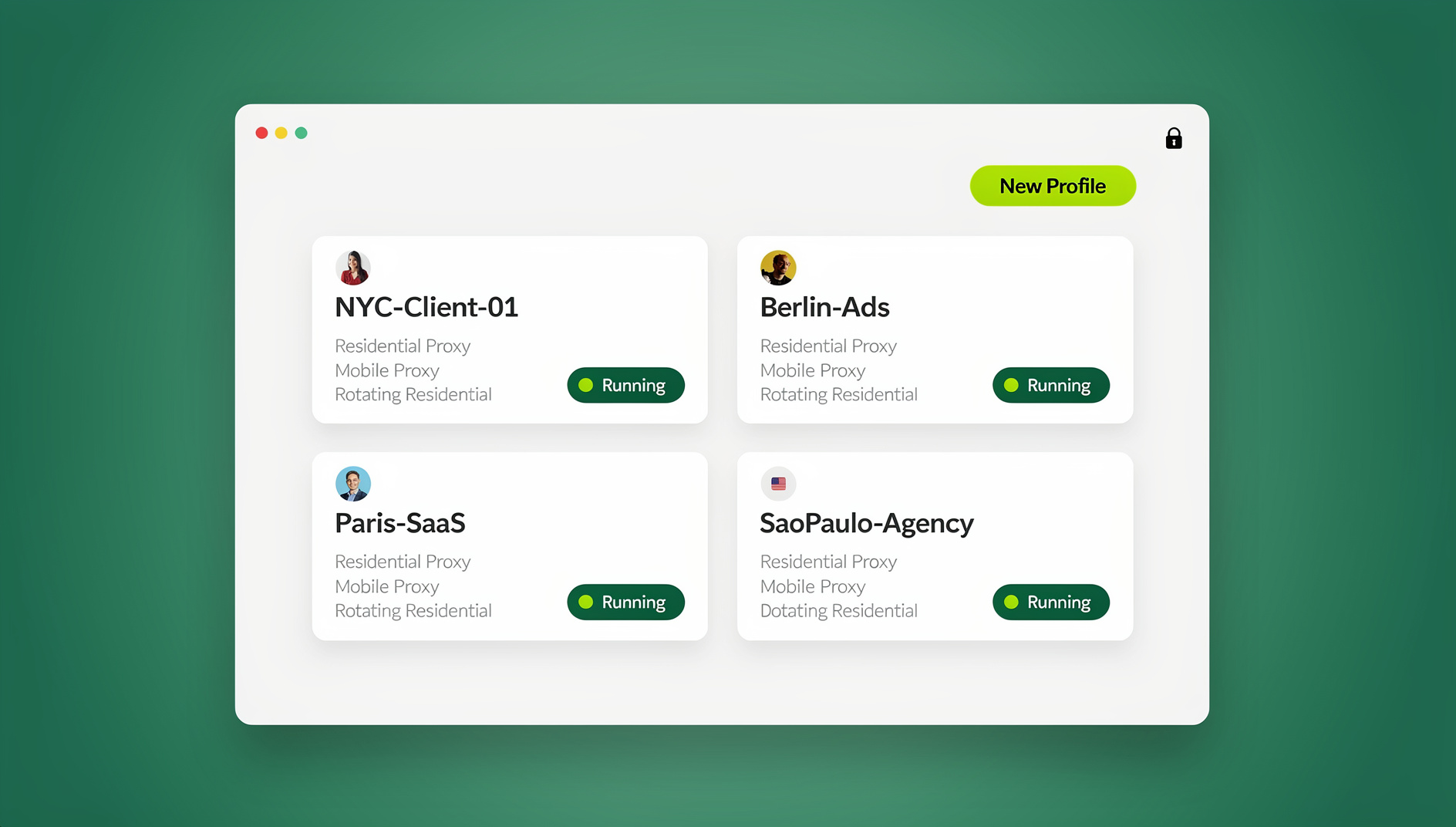
For teams running many client or brand accounts, a dedicated profile manager is the cleaner fix. Send.win gives each isolated browser profile its own cookies, storage, sessions, fingerprint settings and proxy, so a login in one profile cannot overwrite a session in another. It runs as a desktop app on Windows, macOS and Linux, or as a cloud browser on Send.win’s Helsinki server from any device. Fingerprint protection there means privacy protection per profile — the same idea as Firefox or Brave, applied profile by profile. Teams can share a profile with a paid teammate and it opens already signed in, with no password changing hands. Use it only for accounts you own or are authorised to manage.
How to Stop Chrome Profiles From Disappearing Again
- Back up the user data folder on a schedule — weekly, and always before a Chrome version jump or an OS upgrade.
- Keep managed work accounts out of personal profiles — a managed sign-in spins up a new profile and takes your bookmarks with it.
- Never delete a profile to “clean up” — removal from “Manage People” is permanent, and the confirmation dialog is one click away from real data loss.
- Use Guest mode for one-off sessions — a login you will never need again does not belong in any profile.
- Give every person or client their own profile rather than sharing one login across a team; the steps are in create multiple profiles in Chrome.
How Send.win Helps With Chrome Profiles Gone
Send.win is a browser profile manager for professionals and teams: every account gets its own isolated browser profile.
- Isolated profiles – separate cookies, storage and sessions per profile
- Fingerprint protection – each profile keeps its own consistent browser fingerprint, so profiles never share one browser identity
- Desktop app + cloud browser – native app for Windows, macOS and Linux, or run profiles in the cloud with no install
- Residential proxies included – on Pro and Team, with timezone and locale matched to the proxy
- Team sharing – share a signed-in profile with a teammate without sharing the password
Try the free cloud demo — no install — or download the desktop app. Paid plans start at $19/month, and your first card purchase is covered by a 7-day money-back guarantee (see pricing).
Hard separation with separate data directories
When two profiles must share nothing, launch Chrome with its own data directory and one shortcut per profile. The Chromium project documents this: --user-data-dir points Chrome at a completely separate folder, so that instance carries its own cookies, history and settings. The catch is the path — point it at a folder that already holds data and you fork the history from an existing profile instead of sharing it, so start each shortcut with a fresh, correctly named folder. Details are in Chromium’s profile documentation.
Choose the Right Isolation Model for Your Work
Three options cover most setups. Pick by how many accounts you handle and whether they must never touch each other.
| Approach | What stays separate | Best for | Watch out for |
|---|---|---|---|
| Built-in Chrome profiles | Cookies, bookmarks, history, extensions per folder | Personal vs work, a handful of accounts | Shortcuts get lost; managed sign-ins add profiles silently |
| Separate data directories | Everything — each shortcut launches its own folder | Long-lived accounts that must never share a session | Wrong path forks history; more disk; slower switching |
| Send.win browser profiles | Cookies, storage, sessions, fingerprint settings and proxy per profile | Agencies and teams running many client accounts | Separate paid product on Pro or Team; free cloud demo only |
The trade-offs of the paid option against plain Chrome are covered in Send.win vs Chrome profiles.
🏆 Send.win Verdict
Chrome’s profile system is fine for keeping your own browsing tidy, but it was never built for a team juggling client dashboards. Send.win is worth considering when the real problem is mixed-up sessions rather than a missing folder: each isolated profile carries its own cookies, storage, sessions, fingerprint settings and proxy, so one client login cannot overwrite another, and a shared profile opens already signed in for a paid teammate. It will not recover a deleted Chrome profile — no tool can — but it removes the root cause of most chrome profiles gone alarms in agency work.
See Send.win plans — Pro from $19/mo for 150 profiles, 5 GB of proxy bandwidth and 6 seats, or try the free cloud demo (10 minutes a day with a free account) before paying.
Frequently Asked Questions
Why did my Chrome profile disappear?
In most cases it did not. Chrome is showing a different profile, its avatar menu lost the shortcut to a folder that still exists, or a managed Google sign-in created a second profile behind the first. Most chrome profiles gone scares resolve by checking the avatar menu and the “Other profiles” list before you assume data loss.
Can I restore a deleted Chrome profile?
Not from Chrome itself. Removing a profile from “Manage People” erases its bookmarks, history, passwords and settings from the computer, and Google support cannot restore them. Your only routes are a system backup containing the User Data folder or a separate export of the data.
Where are Chrome profiles stored on my computer?
On Windows, in %LOCALAPPDATA%\Google\Chrome\User Data; on macOS, in ~/Library/Application Support/Google/Chrome. The default profile sits in a folder called Default, and extra profiles appear as Profile 1, Profile 2 and so on, each with its own cookies, history and bookmarks files.
Why are my Chrome bookmarks gone after signing in?
Since Chrome 102, signing into a Google-managed account creates a separate profile by default, with no opt-out. Your bookmarks are still in the original profile — open the avatar menu and switch back. If you are in the right profile and they are still missing, check chrome://settings/syncSetup for a paused or signed-out state.
Why is Chrome not showing profiles on startup?
“Show on startup” is disabled for those profiles, or restart behaviour was set to ask. Open the profile menu, go to “Other profiles” and enable “Show on startup” for each profile you want in the picker.
What does the –user-data-dir flag do in Chrome?
It points Chrome at a completely separate folder for its profile data, so that instance shares nothing with your everyday browser — no cookies, history or settings. The Chromium project documents it as the way to create fully separate profiles, one shortcut per data directory. Use a fresh, correctly named path each time, or you fork history from an existing profile.
Does Guest mode affect my saved profiles?
No. Guest mode opens a temporary window that saves no history, bookmarks or settings, and it neither reads nor writes your saved profiles. It is useful for a one-off login you never want stored, but it cannot recover or inspect a missing profile.
How do I stop Chrome profiles from disappearing again?
Back up the whole User Data folder on a schedule, keep managed work accounts out of personal profiles, and never delete a profile unless you are certain it is expendable. If several people or clients share the machine, move client accounts into isolated profiles with their own proxy so sessions cannot overwrite each other.