How a Containerized Browser Isolates Every Session
A containerized browser runs your browsing inside a sealed environment — a Docker container, virtual machine, or cloud sandbox — that never shares cookies, cache, or fingerprint data with your host machine or any other session. Each session gets its own filesystem, network stack, and identity, so a ban, leak, or malware infection in one container never touches another.
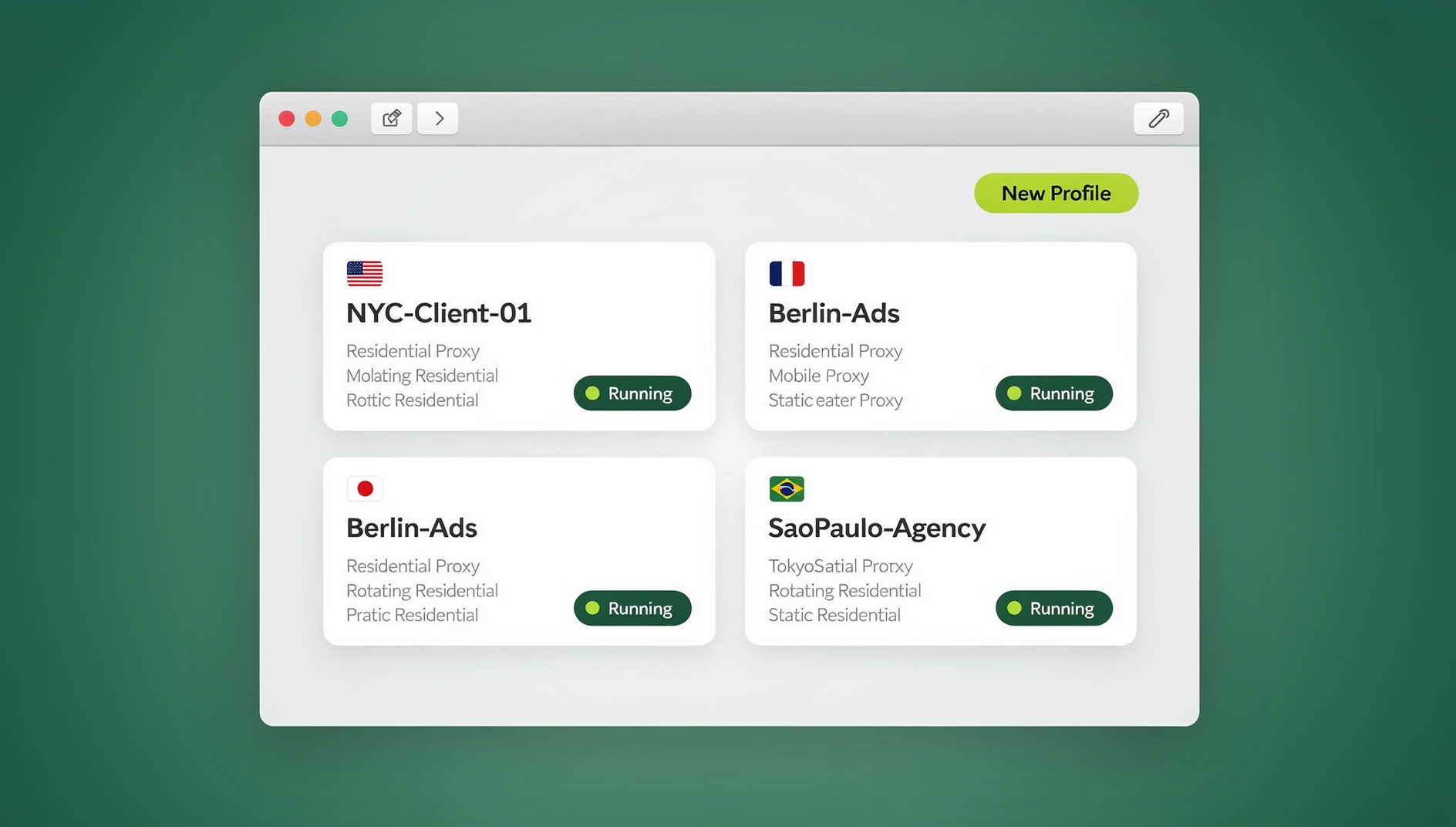

Picture a traditional browser as an apartment building where every unit shares one master key: whoever gets it can walk into any room. A containerized browser gives each unit its own lock, its own door, and its own alarm system. If one unit is broken into, the rest stay untouched. In 2026, that isolation model has moved from a DevOps trick into a mainstream tool for marketers running multiple ad accounts, security teams vetting suspicious links, and remote teams sharing access to shared SaaS logins.
How Containerized Browsers Work Under the Hood
Three underlying technologies power containerized browsing, and the one a platform picks determines how strong the isolation actually is.
Docker-Based Browser Containers
Docker packages a browser and its dependencies into a lightweight, reproducible unit. Tools built on Selenium Grid or Browserless spin up headless Chrome or Firefox inside containers, each with its own process tree and network namespace. When the container stops, everything inside — cookies, history, downloaded files — disappears with it. This is the backbone of most CI/CD testing pipelines, and it’s increasingly repurposed for privacy-first browsing because a Docker browser setup can launch in seconds and leave zero trace on the host once it’s torn down.
Virtual Machine Isolation
Some containerized browser setups skip lightweight containers entirely and run a full virtual machine per session. A VM emulates an entire operating system, so malware or tracking scripts have a much harder time escaping the sandbox and reaching real hardware. The cost is resource usage — each VM needs its own RAM allocation, CPU cores, and disk footprint, so this approach doesn’t scale well past a handful of concurrent sessions.
Cloud-Based Browser Sessions
Cloud containerized browsing takes isolation a step further by running the browser entirely on a remote server. You watch and interact with it through a video stream, but the actual page rendering happens on infrastructure you never touch — so even a zero-day exploit targeting the browser can’t reach your laptop, because the browser was never running on your laptop. This is the model behind remote browser isolation, the enterprise-grade version used by banks and security-conscious organizations. Send.win offers this exact mode as cloud browser sessions — no local install required, billed as part of your plan’s monthly cloud browsing time — alongside its native Sendwin Browser desktop app for users who prefer to run isolated profiles locally.
Why Containerized Browsers Matter Right Now
1. Complete Session Isolation
Each container runs independently. Cookies, local storage, IndexedDB, and service workers from one session never leak into another. That matters most for anyone juggling multiple accounts on platforms like Facebook, Amazon, or Google Ads, where cross-session contamination is exactly what triggers linked-account bans.
2. Fingerprint Protection
Containerized browsers can present a distinct fingerprint per session — different screen resolution, WebGL renderer, canvas hash, and timezone. Platforms increasingly flag accounts that share identical fingerprints across logins, so this per-session variation isn’t a nice-to-have, it’s what keeps accounts from being silently linked.
3. Ephemeral By Design
Regular browsers accumulate data forever: saved passwords, autofill entries, history, cached images. Containerized browsers can be configured to wipe all state the moment a session ends, which makes them more private than even incognito mode — incognito still leaks DNS queries and some metadata to your ISP and network.
4. Malware Containment
If you land on a malicious page by accident, the damage stays inside the container. Your host system, personal files, and every other open session remain unaffected. That’s exactly why security teams reach for containerized browsers when analyzing phishing kits or exploit payloads.
5. Team Collaboration Without Password Sharing
Containerized platforms let teams share an authenticated session without ever exchanging a password. A manager can log into a client’s ad account once, then share that live session with a teammate who opens it through their own secure link — the password never leaves the original container.
Containerized Browser vs. Traditional Browser
| Feature | Traditional Browser | Containerized Browser |
|---|---|---|
| Session isolation | Cookies/storage shared across tabs | Fully isolated per container |
| Fingerprint uniqueness | Same fingerprint every session | Unique fingerprint per container |
| Data persistence | Persists until manually cleared | Ephemeral by default |
| Malware exposure | Direct path to host OS | Sandboxed, no host access |
| Multi-account safety | High ban risk from linked sessions | Each account looks independent |
| Team sharing | Requires handing over passwords | Share the session, not the credentials |
| Resource usage | Low — single process | Medium to high, per container |
| Setup effort | None | Ranges from DIY Docker to one-click cloud |
Top Containerized Browser Options in 2026
1. Send.win — Cloud Sessions and a Native Desktop App
Send.win runs isolated browser profiles two ways: through cloud browser sessions that need no local install, and through the native Sendwin Browser desktop app for Windows, macOS, and Linux. Either way, every profile gets its own fingerprint, its own cookie jar, and zero cross-contamination with any other profile. Teams can share a live session without ever exposing the underlying password, which is why agencies and marketers managing multiple client accounts lean on it. A 30-day free trial (no credit card) gets you into Pro at $6.99/month billed annually, with the Automation API — Selenium, Puppeteer, and Playwright support — included on Pro, not gated behind the Team tier.
2. Docker + Selenium Grid — DIY Container Setup
For technically inclined users, running Chrome or Firefox inside Docker via Selenium Grid gives maximum control over the container image, network rules, and lifecycle policy. The tradeoff is that you’re on the hook for DevOps knowledge, and there’s no built-in fingerprint spoofing or session-sharing layer — you’d have to build that yourself.
3. Kasm Workspaces — Enterprise Container Streaming
Kasm Workspaces streams containerized desktop environments, browsers included, to your screen. It’s built for enterprise deployment — session recording, DLP policies, Active Directory integration — but it requires self-hosting and real infrastructure investment to run well.
4. Browserless — Headless Container Browsers
Browserless runs headless Chrome instances inside containers, mainly for automation and scraping. It isn’t built for interactive browsing, but it’s excellent for programmatic use cases needing hundreds of isolated browser instances running in parallel.
Use Cases for Containerized Browsers
Digital Marketing and Ads Management
Running several ad accounts on Facebook, Google, or TikTok requires each one to look like a genuinely separate user. A containerized browser gives each account its own proxy IP, cookies, fingerprint, and browsing history, which stops platforms from linking accounts and triggering cascading bans.
E-Commerce Multi-Store Operations
Sellers running multiple storefronts on Amazon, eBay, or Etsy need session isolation to avoid suspensions. A containerized browser keeps each store’s session fully independent, with no shared identifiers marketplaces could use to connect the dots.
Security Research and Threat Analysis
Security teams use containerized browsers to safely open malicious sites, dissect phishing kits, and test exploit payloads. The container is a disposable sandbox — anything that executes inside it is destroyed the moment the container is torn down.
QA Testing Across Environments
QA teams spin up containerized browsers to test web apps across browser versions, screen sizes, and operating systems at once, without maintaining a physical device lab.
Remote Team Collaboration
When teammates need access to shared SaaS accounts — CRMs, analytics dashboards, social tools — containerized browsers let them collaborate without ever exchanging a password. The session is shared; the credentials stay put.
How to Set Up a Containerized Browser
Option A: Send.win (No Infrastructure Needed)
- Sign up for the 30-day free trial at send.win — no credit card required
- Create a new profile from the dashboard
- Choose to run it as a cloud browser session (no install) or open it in the Sendwin Browser desktop app
- Attach a proxy if you need a location-specific IP
- Share the session with teammates via a secure link, never the password
This route needs no Docker, no server maintenance, and no manual fingerprint configuration.
Option B: Self-Hosted Docker Containers
- Install Docker on your server or local machine
- Pull a browser image:
docker pull selenium/standalone-chrome - Run the container:
docker run -d -p 4444:4444 selenium/standalone-chrome - Access the browser through the container’s VNC port or the Selenium API
- Configure network isolation and firewall rules before using this in production
This gives maximum control, but it’s ongoing work — security patches, manual fingerprint tuning, and infrastructure upkeep all fall on you.
Containerized Browser Security Best Practices
Network Segmentation
Every container should sit in its own network namespace. Don’t let containers talk to each other or to your host network unless it’s explicitly required, and restrict outbound traffic to only the ports and domains the browser actually needs.
Regular Image Updates
Rebuild container images often to pull in the latest browser security patches. An outdated Chromium build inside a container is still vulnerable to known exploits — the container only limits how far the damage spreads, it doesn’t prevent the exploit.
Credential Management
Never hardcode passwords or API keys into container configs. Use environment variables, a secrets manager, or a session-sharing platform like Send.win that authenticates without ever exposing the underlying credential.
Resource Limits
Cap CPU and memory per container so a runaway process can’t consume every system resource — this also blunts cryptojacking attempts, where a malicious script tries to mine cryptocurrency inside your browser.
Where Containerized Browsing Is Headed
- AI-generated fingerprints — containers that automatically build realistic, diverse fingerprints tuned to whatever platform they’re browsing
- Faster container startup — new runtimes are cutting launch times from seconds to milliseconds
- Built-in proxy rotation — containers that rotate IPs and user agents automatically on a per-request basis
- Cross-device session continuity — start a session on your laptop, continue it on your phone, hand it to a teammate — all without losing state
- Stronger privacy guarantees — platforms designed so even the provider can’t see what happens inside a user’s container
🏆 Send.win Verdict
If you need containerized browsing without standing up your own Docker infrastructure, Send.win gets you there fastest — cloud browser sessions with zero install, or the native Sendwin Browser desktop app if you’d rather run profiles locally, each with its own fingerprint and proxy. Pro starts at $6.99/month billed annually and already includes the Automation API for Selenium, Puppeteer, and Playwright workflows.
Try Send.win free today — start your 30-day trial, no credit card required.
Frequently Asked Questions
Is a containerized browser the same as incognito mode?
No. Incognito mode only stops your browser from writing local history. It doesn’t isolate cookies between tabs, spoof your fingerprint, or contain malware. A containerized browser isolates at the process or infrastructure level, which is a fundamentally stronger guarantee.
Do containerized browsers slow down my computer?
It depends on the model. Cloud-based containerized browsers offload all rendering to remote servers, so your local machine barely notices. Self-hosted Docker containers do use local resources — typically 200-500MB RAM per container — but modern machines can run dozens at once without trouble.
Can I use a containerized browser for everyday browsing?
Yes. Cloud containerized sessions are fast enough for daily use now, with latency under 50ms on most providers. The main tradeoff is that bookmarks and saved passwords don’t persist between sessions unless you explicitly configure that persistence.
Are containerized browsers legal?
Yes. Using them for privacy, security testing, or legitimate multi-account management is entirely legal. Using them to commit fraud or evade bans earned through genuine policy violations is not — the tool itself isn’t the problem, the intent is.
How do containerized browsers compare to antidetect browsers?
Antidetect browsers focus narrowly on fingerprint spoofing and detection evasion. Containerized browsers provide broader isolation — separate filesystems, network stacks, and process trees — on top of fingerprint management. Many modern platforms, Send.win included, combine both approaches in one product.
Can websites detect that I’m using a containerized browser?
Basic setups can be detected through consistent fingerprints, low-entropy randomness, or known Docker/VM signatures. More advanced platforms generate realistic, varied profiles that are close to indistinguishable from an ordinary browsing session.
Do I need Docker experience to use a containerized browser?
Not if you go the managed-platform route. Self-hosting Docker containers via Selenium Grid does require DevOps familiarity, but cloud platforms like Send.win handle the container orchestration for you — you just open a session and start browsing.
What happens to my data when a containerized session ends?
For ephemeral containers, everything — cookies, cache, history, downloaded files — is destroyed the instant the container stops. If you need persistence between sessions (for a login you use daily, for example), the platform needs to be configured to save that specific profile’s state rather than wipe it.