The fastest way to manage multiple Instagram accounts is to match the method to your scale: Instagram’s built-in switcher covers up to five profiles for free, separate Chrome profiles stretch that to around fifteen, social media schedulers handle publishing for dozens, and a multi-login browser gives agencies and sellers full session isolation for a hundred or more — each with its own cookies, fingerprint, and optional proxy. Below, we break down all five methods so you can pick the one that fits your workflow.

Why People Need More Than One Instagram Account
Before comparing methods, it helps to understand who actually needs this and why. Different users have very different reasons for running several profiles at once:
- Freelancers and agencies — manage client accounts alongside a personal one without mixing credentials.
- E-commerce sellers — run separate storefronts for different product niches or geographic markets.
- Content creators — keep a public persona separate from a private, friends-only account.
- Affiliate marketers — test ad creatives and landing pages across different audience segments.
- Brand managers — oversee sub-brands, regional pages, or campaign-specific profiles.
Whatever the reason, the underlying challenge is the same: switching between accounts quickly, posting on schedule, and keeping each session isolated so one mistake — or one flag from Instagram — doesn’t ripple across every profile you run.
Method 1: Instagram’s Built-In Account Switcher
The simplest option is Instagram’s native multi-account feature, built directly into the app.
- Open the Instagram app and go to your profile.
- Tap the menu icon → Settings and privacy.
- Scroll down to Add account.
- Log in with the credentials for your second account.
- Switch accounts by long-pressing your profile picture at the bottom-right.
Pros
- Free — it ships with the app.
- Push notifications for every linked account.
- Fast switching via a long-press gesture.
Cons
- Hard cap of five accounts per device.
- All accounts share the same IP address and device fingerprint — risky if one account gets flagged.
- Accidental cross-posting to the wrong profile is common.
- No team-collaboration features at all.
For casual users juggling two or three personal profiles, the native switcher is genuinely fine. Once you go past that, you need something sturdier.
Method 2: Separate Devices or Browser Profiles
A step up from the built-in switcher is dedicating separate browser profiles — or separate devices — to different accounts. You can log into the Instagram web app at instagram.com from distinct Chrome profiles, each keeping its own cookies and local storage.
Setting Up Chrome Profiles
- Open Chrome and click your avatar in the top-right corner.
- Select Add to create a new profile.
- Name it after the account you’ll use in it (e.g., “Client — Fashion Brand”).
- Open Instagram inside the new profile and log in.
- Repeat for every additional account.
This extends your practical capacity past five accounts, but it comes with its own friction. Each Chrome profile eats noticeable RAM, there’s no single dashboard showing every account at once, and every profile on the same machine still shares one IP address. If Instagram runs a device-level check, several profiles on one machine can look connected regardless of separate cookies.
Method 3: Social Media Management Platforms
Tools like Hootsuite, Buffer, Sprout Social, and Later exist specifically for social media management tools use cases. They connect dozens of Instagram accounts to a single dashboard and let you schedule posts, stories, and reels ahead of time.
What These Tools Handle Well
| Feature | Hootsuite | Buffer | Sprout Social | Later |
|---|---|---|---|---|
| Max Instagram accounts | 35 | Unlimited (paid) | 25 | 30 |
| Post scheduling | Yes | Yes | Yes | Yes |
| Story scheduling | Yes | Yes | Yes | Yes |
| Analytics | Yes | Basic | Advanced | Yes |
| DM management | Yes | No | Yes | No |
| Starting price/month | $99 | $6 | $249 | $25 |
Where These Tools Fall Short
These platforms are excellent for publishing, but none of them replicate a fully interactive Instagram session. You can’t browse the Explore page, hold a real-time DM conversation, or run ad campaigns directly through them. If your workflow needs hands-on, browser-level interaction with each individual account, you need the next method.
Method 4: Multi-Login Browsers
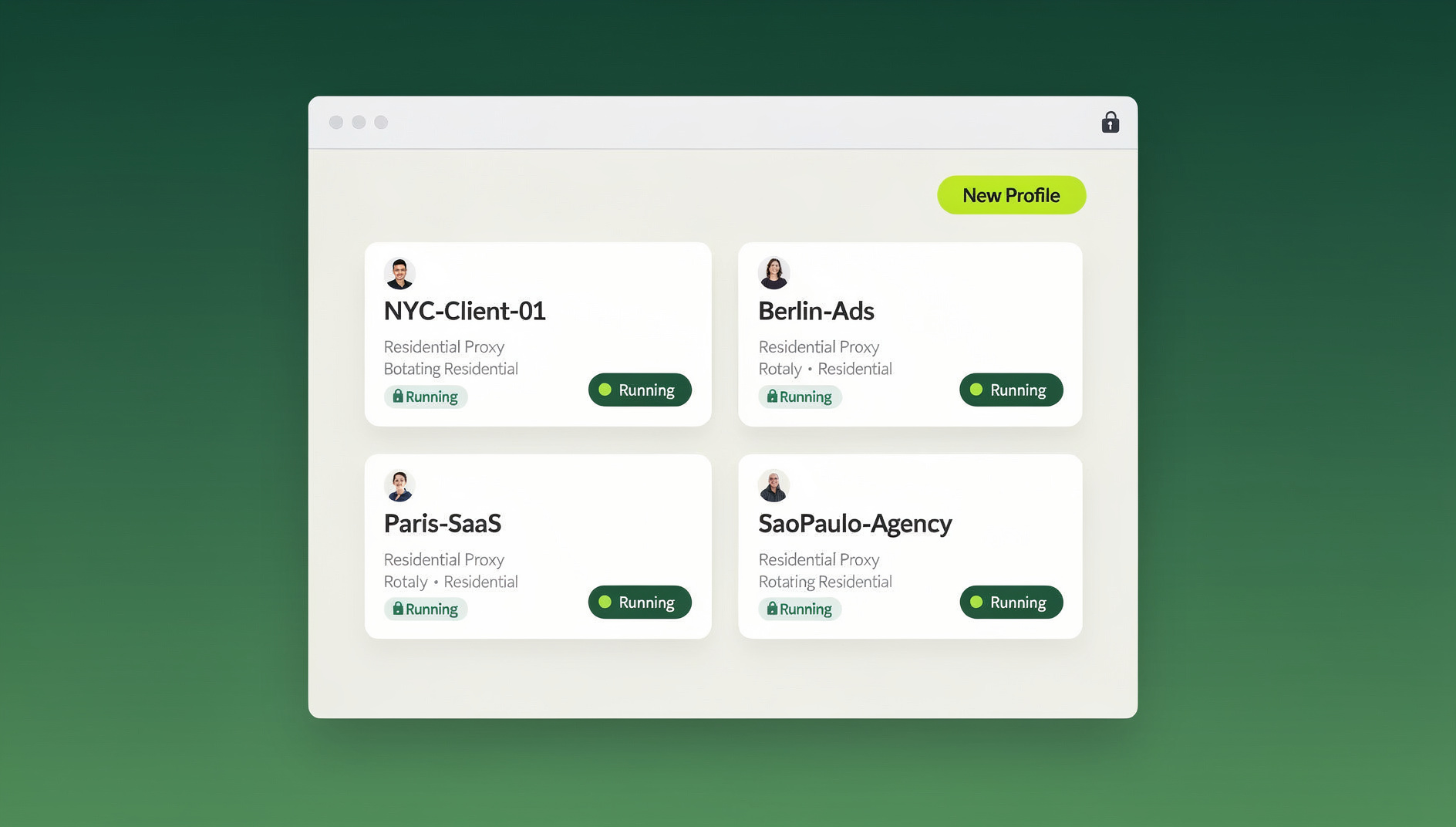
This is where serious multi-account operators land. A multi-login browser creates fully isolated browser sessions — each with its own fingerprint, cookies, local storage, and optionally its own proxy IP. To Instagram’s servers, every session looks like a different device logging in from a different place.
Send.win is built for exactly this. Instead of juggling Chrome profiles or paying for a heavyweight antidetect suite, Send.win opens isolated sessions in one click, each sandboxed so that a restriction on one account can’t cascade into the rest.
Why Session Isolation Matters
Instagram uses heuristics to detect linked accounts. If several profiles share the same browser fingerprint, cookie jar, or IP address, the platform can connect them and apply restrictions across the whole cluster. Session isolation breaks these linkage signals at every layer:
- Cookie isolation — each session keeps its own cookie store, so login tokens never leak between accounts.
- Fingerprint variation — canvas, WebGL, and navigator properties differ session to session.
- IP separation — assign a distinct proxy per session for geographic diversity.
- Storage partitioning — localStorage, IndexedDB, and cache stay sandboxed per session.
Managing Instagram Accounts with Send.win, Step by Step
- Sign up for Send.win’s 30-day free trial (no credit card) and either download the Sendwin Browser desktop app, or open a cloud browser session that needs zero local install.
- Create a new session for each Instagram account you manage.
- Log into Instagram inside each isolated session.
- Optionally assign a unique proxy to each session for IP-level separation.
- Switch between sessions instantly — no logging in and out.
The result: you can keep 20, 50, or well over 100 Instagram accounts open at once, each in its own sandboxed environment, and hop between them in a single click. If you’re weighing this against dedicated antidetect software, our rundown of the multi-login browsers leading the category in 2026 is worth a read before you commit.
Method 5: Virtual Machines and Remote Desktops
Some power users spin up a separate virtual machine or cloud desktop for every Instagram account. Each VM runs a fully independent OS with its own browser, its own IP (via VPN), and its own hardware fingerprint.
When VMs Make Sense
- You need to run desktop automation scripts (Selenium, Puppeteer) against each account.
- You require persistent sessions that survive reboots.
- You want maximum isolation enforced at the operating-system level.
When VMs Are Overkill
For most people managing 5–20 Instagram accounts, VMs are expensive and clunky to maintain. A cloud browser delivers the same isolation benefit at a fraction of the cost and none of the sysadmin overhead — no install required, since the session runs entirely in the cloud rather than on a local machine.
How Many Instagram Accounts Can You Actually Run?
There’s no single answer — it depends entirely on which method you’re using:
| Method | Practical Limit | Session Isolation | Typical Cost |
|---|---|---|---|
| Instagram app | 5 | None | Free |
| Chrome profiles | 10–15 | Partial | Free |
| Social media tools | 25–50 | None (API-level only) | $6–$249/mo |
| Multi-login browser (Send.win) | 100+ | Full | From $6.99/mo (Pro, billed annually) |
| Virtual machines | Unlimited | Full | $10–$50 per VM/mo |
For most multi-account managers, a multi-login browser hits the best balance of isolation, cost, and day-to-day convenience.
Best Practices for Safe Multi-Account Management
Whichever method you choose, these habits keep your accounts healthy and your workflow efficient.
1. Use Unique Credentials for Every Account
Never reuse passwords. A password manager like Bitwarden or 1Password can generate and store a unique, complex password for every Instagram profile.
2. Stagger Your Activity
Instagram’s anti-spam systems flag rapid-fire actions across accounts. Space out likes, comments, and follows, and leave at least 5–10 minutes between switching accounts and running bulk actions.
3. Warm Up New Accounts
Brand-new accounts get extra scrutiny. For the first two weeks, keep activity modest:
- 5–10 posts
- 20–30 follows per day
- 10–15 comments per day
- No automation or bots
4. Enable Two-Factor Authentication
Protect every account with 2FA, ideally through an authenticator app (Google Authenticator, Authy) rather than SMS, which is vulnerable to SIM-swap attacks.
5. Keep a Content Calendar
When you’re running several profiles, it’s easy to lose track of what was posted where. Even a simple shared spreadsheet prevents duplicate posts and keeps branding consistent across accounts.
6. Monitor Account Health
Watch for early warning signs — sudden engagement drops, action-blocked messages, or login challenges. These often precede a temporary restriction, so scale back activity on that account the moment you spot them.
Common Mistakes to Avoid
| Mistake | Why It’s Risky | What to Do Instead |
|---|---|---|
| Using the same IP for every account | Instagram can link and batch-restrict all of them | Assign a unique proxy per session in a multi-login browser |
| Mass-following or mass-liking | Triggers spam detection almost instantly | Stay within sane daily action limits |
| Sharing the same phone number | Instagram uses phone numbers to cluster accounts | Use unique numbers, or skip phone verification where possible |
| Ignoring Instagram’s Terms of Service | Can result in a permanent ban with no appeal | Operate within the guidelines and automate responsibly |
| Not backing up content | A banned account can mean losing all its media | Archive posts locally or to cloud storage regularly |
Automation Tips for Multi-Account Instagram Management
Once your sessions are set up, layering in light automation saves real hours every week.
Pair Schedulers with Isolated Sessions
Use Later or Buffer to queue up scheduled content, then open each account inside its own isolated session to handle DMs, story replies, and genuine engagement by hand. This hybrid approach gives you automated publishing alongside authentic interaction — the part schedulers can’t fake.
Template Your Captions
Build caption templates for recurring post types — product launches, testimonials, behind-the-scenes content — and swap in account-specific details instead of rewriting from scratch every time.
🏆 Send.win Verdict
If you’re managing more than five Instagram accounts, the native switcher and Chrome profiles simply run out of runway. Send.win gives every account its own isolated session — separate cookies, fingerprint, and optional proxy — through either the Sendwin Browser desktop app or a no-install cloud browser session, so one flagged account never puts the rest at risk.
Try Send.win free for 30 days — no credit card required, and Pro plans start at $6.99/month billed annually.
Frequently Asked Questions
Can Instagram detect multiple accounts on the same device?
Yes. Instagram can link accounts through shared device IDs, IP addresses, browser fingerprints, and phone numbers. A multi-login browser with true session isolation breaks these linkage signals.
Will I get banned for managing multiple Instagram accounts?
Not automatically. Instagram’s own terms allow up to five accounts per person. The risk rises when your accounts behave in ways that look automated or connected — proper session isolation and natural activity patterns cut that risk substantially.
What’s the safest way to manage 10+ Instagram accounts?
Use a multi-login browser that gives each account its own cookies, fingerprint, and IP address, and combine that with staggered activity and unique credentials per account.
Do I need a proxy for every Instagram account?
If you’re managing more than three to five accounts, yes. A unique IP per account removes one of the strongest signals Instagram uses to link profiles. Residential proxies are generally preferred over datacenter ones.
Can I manage Instagram accounts for clients safely?
Yes — give each client’s account its own isolated session so it’s never linked to another client’s account or to your personal profile. This is a standard agency workflow with a multi-login browser.
Is there a free way to manage multiple Instagram accounts?
Instagram’s built-in switcher (up to five accounts) and separate Chrome profiles are both free. Neither gives you true session isolation, though, so the risk of accounts being linked is higher than with a dedicated tool.
How is a multi-login browser different from just using multiple browser tabs?
Regular tabs in the same browser typically share cookies and the same fingerprint. A multi-login browser gives each tab or session its own isolated cookie jar, fingerprint, and optionally its own proxy — so accounts don’t look connected to Instagram’s detection systems.
Conclusion
How you manage multiple Instagram accounts should come down to scale. Casual users can stick with the native app switcher. Growing businesses can lean on a social media management platform for scheduling. And agencies, e-commerce sellers, and affiliate marketers running real volume need the full session isolation that only a multi-login browser provides. Send.win makes that isolation effortless — each profile gets its own fingerprint-unique session, so there’s no accidental cross-posting, no linked accounts, and no unnecessary bans.