How to Connect Selenium to an Antidetect Browser in Python
To use a Selenium antidetect browser with Python, you connect Selenium WebDriver to an antidetect browser profile through a remote debugging port. This lets you automate browsing sessions with spoofed fingerprints, isolated cookies, and unique proxy configurations — so each session looks like a real, distinct user instead of a detectable bot. Below is a complete walkthrough with working code you can run today.
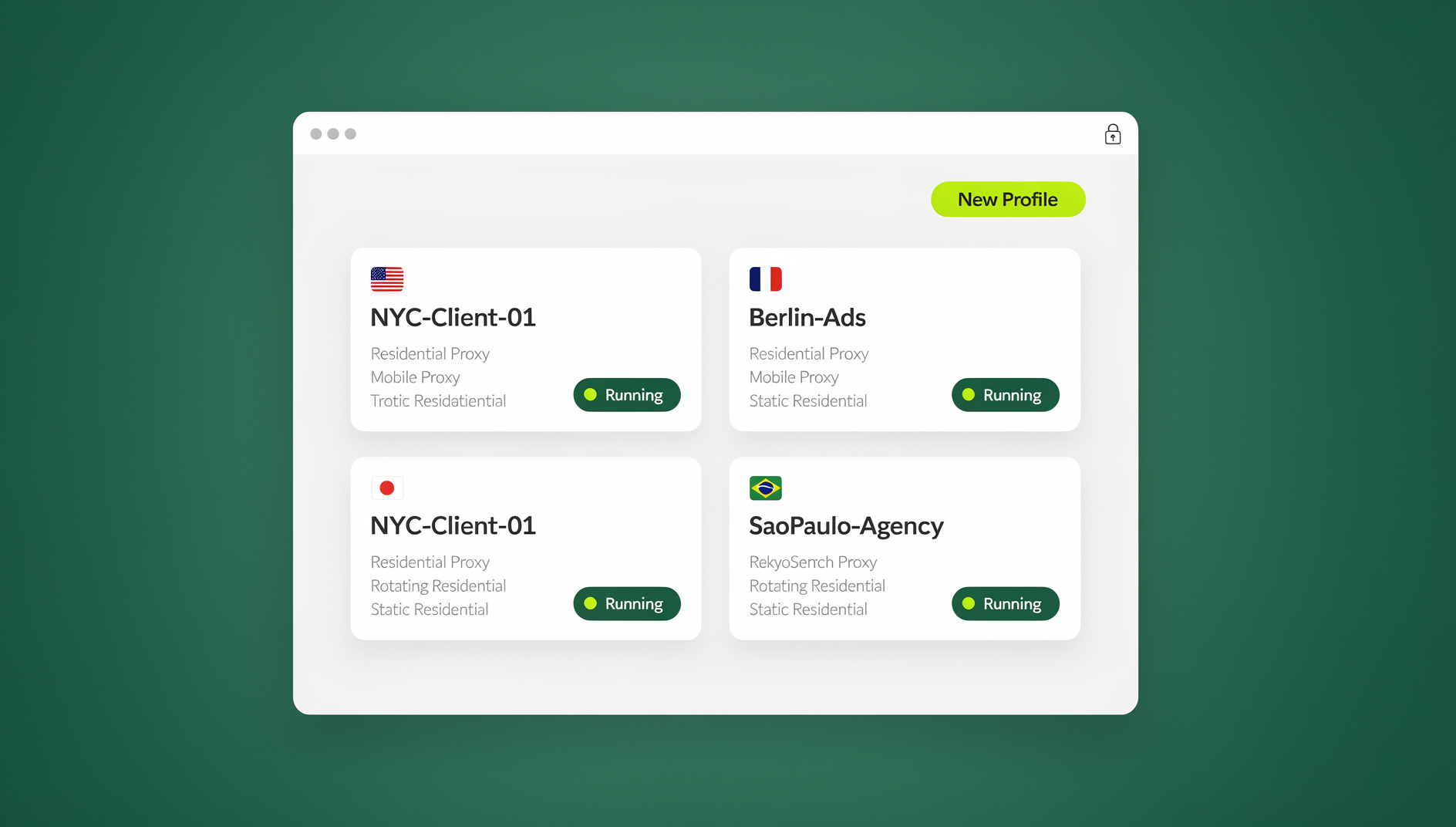

Why Combine Selenium with an Antidetect Browser?
Standard Selenium automation is trivially detectable. Websites check for the navigator.webdriver flag, analyze canvas and WebGL hashes, inspect HTTP header order, and fingerprint dozens of other browser properties. When every session shares the same fingerprint, you get blocked fast.
An antidetect browser solves this by generating a unique, consistent fingerprint for each browser profile. Pairing it with Selenium gives you the best of both worlds:
- Automation power — Selenium’s mature Python API, element selectors, waits, and ecosystem.
- Fingerprint diversity — Each profile has its own canvas hash, WebGL renderer, timezone, language, screen resolution, and more.
- Session isolation — Cookies, localStorage, and cache are sandboxed per profile, preventing cross-contamination between accounts. Learn more about session isolation and why it matters.
- Proxy binding — Assign a different proxy to each profile so IP addresses match the spoofed geolocation.
Prerequisites
Before you write a single line of code, make sure you have the following ready:
Software Requirements
| Requirement | Version | Notes |
|---|---|---|
| Python | 3.9+ | 3.11 or 3.12 recommended |
| selenium | 4.20+ | Install via pip |
| Antidetect browser | Latest | Must support Automation API / remote debugging |
| ChromeDriver | Match browser kernel | Often bundled by the antidetect browser |
Install the Selenium Package
Open a terminal and install Selenium:
pip install seleniumOptionally, install requests if your antidetect browser exposes a local REST API for profile management:
pip install requestsVerify Your Antidetect Browser Supports Automation
Not every antidetect browser includes an Automation API. You need one that can:
- Create and configure profiles programmatically (via a local API or CLI).
- Launch a profile with a remote debugging port exposed.
- Return connection details (host, port, or WebSocket URL) so Selenium can attach.
Send.win, for example, offers an Automation API on both the Pro and Team plans that exposes exactly these capabilities. Other browsers have similar features — check your tool’s documentation.
Architecture Overview
Here is the high-level flow when you run a Selenium antidetect browser Python script:
- Your script sends an API request to the antidetect browser’s local server asking it to create (or start) a profile.
- The antidetect browser launches a Chromium instance with all fingerprint overrides applied and opens a debugging port.
- Your script builds a Selenium
ChromeOptionsobject pointing to that debugging port. - Selenium WebDriver connects to the running Chromium instance via the Chrome DevTools Protocol.
- You automate as usual —
driver.get(),find_element(),click(), etc. - When finished, your script stops the profile and the browser instance closes cleanly.
Step 1 — Create a Browser Profile via API
Most antidetect browsers run a local HTTP server that accepts JSON requests for profile management. The exact API endpoints and port differ by tool — consult your antidetect browser’s documentation for the specifics. The pattern, however, is consistent across all of them.
import requests
import json

# Replace with your antidetect browser's local API address and port.
# Check your tool's documentation for the exact URL.
API_BASE = "http://127.0.0.1:"

def create_profile(profile_name: str, proxy: dict = None) -> str:
    """Create a new antidetect browser profile and return its ID.

    The payload fields below are representative — your antidetect browser's
    API may use different parameter names or accept additional options.
    Consult its documentation for the exact schema.
    """
    payload = {
        "name": profile_name,
        "os": "windows",           # fingerprint OS: windows, macos, linux
        "browser": "chromium",
        "screen_resolution": "1920x1080",
        "language": "en-US",
        "timezone": "America/New_York",
        "webgl": "noise",          # randomize WebGL hash
        "canvas": "noise",         # randomize canvas hash
        "webrtc": "disabled",      # prevent IP leak
    }

    if proxy:
        payload["proxy"] = {
            "type": proxy.get("type", "http"),
            "host": proxy["host"],
            "port": proxy["port"],
            "username": proxy.get("username", ""),
            "password": proxy.get("password", ""),
        }

    # POST to your browser's profile-creation endpoint.
    response = requests.post(
        f"{API_BASE}/",
        json=payload,
        headers={"Content-Type": "application/json"},
    )
    response.raise_for_status()
    data = response.json()
    profile_id = data["profile_id"]  # key name varies by tool
    print(f"[+] Profile created: {profile_id}")
    return profile_id
The function returns a profile_id string you will use in every subsequent step. Each profile stores its own fingerprint configuration, proxy settings, and cookie jar independently.
Step 2 — Launch the Profile with a Debugging Port
Next, tell the antidetect browser to start the profile and expose a remote debugging port so Selenium can connect. The exact endpoint path varies by tool.
def start_profile(profile_id: str) -> dict:
    """Start a browser profile and return connection details.

    The endpoint path and response keys below are illustrative.
    Replace with your antidetect browser's actual start-profile endpoint.
    """
    response = requests.post(
        f"{API_BASE}//{profile_id}",
        json={"headless": False},  # set True for server environments
    )
    response.raise_for_status()
    data = response.json()

    # Typical response includes a debugging port or WebSocket URL.
    # Key names vary by tool — check your documentation.
    connection_info = {
        "port": data.get("debug_port"),           # e.g. 9222
        "ws_url": data.get("websocket_url"),       # e.g. ws://127.0.0.1:9222/devtools/browser/...
        "driver_path": data.get("driver_path"),    # path to matching ChromeDriver
    }
    print(f"[+] Profile started on port {connection_info['port']}")
    return connection_info
The antidetect browser handles fingerprint injection, proxy routing, and cookie loading transparently. By the time the debugging port is open, the Chromium instance already has all modifications applied.
Step 3 — Connect Selenium WebDriver
Now connect Selenium to the running profile. You have two common approaches:
Option A — Connect via debuggerAddress (Recommended)
This is the most reliable method. You tell Selenium to attach to an existing browser instance using the Chrome DevTools Protocol debugging address.
from selenium import webdriver
from selenium.webdriver.chrome.options import Options
from selenium.webdriver.chrome.service import Service

def connect_selenium(connection_info: dict) -> webdriver.Chrome:
    """Attach Selenium to the running antidetect browser profile."""
    chrome_options = Options()
    chrome_options.debugger_address = f"127.0.0.1:{connection_info['port']}"

    # If the antidetect browser provides a matching ChromeDriver path, use it.
    # Otherwise, use your system-installed ChromeDriver.
    if connection_info.get("driver_path"):
        service = Service(executable_path=connection_info["driver_path"])
    else:
        service = Service()  # auto-detect from PATH

    driver = webdriver.Chrome(service=service, options=chrome_options)
    print(f"[+] Selenium connected — current URL: {driver.current_url}")
    return driver
Option B — Connect via WebSocket URL
Some antidetect browsers return a WebSocket endpoint instead of (or in addition to) a port number. Selenium 4.x supports this natively:
def connect_selenium_ws(connection_info: dict) -> webdriver.Chrome:
    """Attach Selenium via a WebSocket URL."""
    chrome_options = Options()
    chrome_options.debugger_address = connection_info["ws_url"]

    driver = webdriver.Chrome(options=chrome_options)
    print(f"[+] Selenium connected via WebSocket")
    return driver
Both options produce a standard Selenium WebDriver instance — all your existing selectors, waits, and test logic work unchanged.
Step 4 — Automate and Verify Your Fingerprint
With the driver connected, run your automation logic. It is good practice to verify the fingerprint is actually unique. Visit a fingerprint-checking site and extract key values:
import time

def verify_fingerprint(driver: webdriver.Chrome):
    """Navigate to a fingerprint checker and log key values."""
    driver.get("https://browserleaks.com/canvas")
    time.sleep(5)  # let the page fully render

    # Extract canvas hash via JavaScript
    canvas_hash = driver.execute_script(
        "return document.querySelector('.canvas-hash')?.textContent || 'N/A'"
    )
    print(f"[*] Canvas hash: {canvas_hash}")

    # Check navigator.webdriver flag
    webdriver_flag = driver.execute_script("return navigator.webdriver")
    print(f"[*] navigator.webdriver: {webdriver_flag}")

    # Check WebGL renderer
    webgl_renderer = driver.execute_script("""
        var canvas = document.createElement('canvas');
        var gl = canvas.getContext('webgl');
        if (!gl) return 'N/A';
        var debugInfo = gl.getExtension('WEBGL_debug_renderer_info');
        return debugInfo ? gl.getParameter(debugInfo.UNMASKED_RENDERER_WEBGL) : 'N/A';
    """)
    print(f"[*] WebGL renderer: {webgl_renderer}")

    # Check user agent
    user_agent = driver.execute_script("return navigator.userAgent")
    print(f"[*] User-Agent: {user_agent}")

    # Check timezone
    timezone = driver.execute_script(
        "return Intl.DateTimeFormat().resolvedOptions().timeZone"
    )
    print(f"[*] Timezone: {timezone}")
Each profile should produce different canvas hashes, WebGL strings, and user agents. If you see the same values across profiles, double-check your antidetect browser configuration — the fingerprint randomization might not be applied correctly. For a deep dive into how WebGL fingerprinting works, read our technical guide.
Step 5 — Perform Your Task
Here is a practical example: logging into a web application and scraping dashboard data.
from selenium.webdriver.common.by import By
from selenium.webdriver.support.ui import WebDriverWait
from selenium.webdriver.support import expected_conditions as EC

def run_task(driver: webdriver.Chrome):
    """Example automation: log in and scrape dashboard info."""
    driver.get("https://example.com/login")

    # Wait for login form
    WebDriverWait(driver, 15).until(
        EC.presence_of_element_located((By.ID, "email"))
    )

    driver.find_element(By.ID, "email").send_keys("user@example.com")
    driver.find_element(By.ID, "password").send_keys("secureP@ssword123")
    driver.find_element(By.CSS_SELECTOR, "button[type='submit']").click()

    # Wait for dashboard
    WebDriverWait(driver, 15).until(
        EC.presence_of_element_located((By.CLASS_NAME, "dashboard-stats"))
    )

    stats = driver.find_element(By.CLASS_NAME, "dashboard-stats").text
    print(f"[+] Dashboard stats:\n{stats}")
    return stats
Because your antidetect browser profile has a unique fingerprint and its own cookies, this session is completely isolated from any other profile. The target website sees a regular user, not a bot, and not the same person on a different account.
Step 6 — Stop the Profile Cleanly
Always close the profile when you are done. This saves the cookie state and frees resources.
def stop_profile(profile_id: str):
    """Stop the browser profile and save its state.

    Replace the endpoint path with your antidetect browser's
    actual stop-profile endpoint.
    """
    response = requests.post(
        f"{API_BASE}//{profile_id}"
    )
    response.raise_for_status()
    print(f"[+] Profile {profile_id} stopped and saved")
Do not call driver.quit() before stopping the profile — the antidetect browser’s stop endpoint handles the graceful shutdown internally, ensuring cookies and session data are persisted properly.
Full Working Script
Here is the entire workflow assembled into one Python file. Replace the placeholder endpoint paths and port with your antidetect browser’s actual API details:
"""
selenium_antidetect_browser.py
Connect Selenium to an antidetect browser profile and verify the fingerprint.

Requirements:
    pip install selenium requests
"""

import time
import requests
from selenium import webdriver
from selenium.webdriver.chrome.options import Options
from selenium.webdriver.chrome.service import Service
from selenium.webdriver.common.by import By
from selenium.webdriver.support.ui import WebDriverWait
from selenium.webdriver.support import expected_conditions as EC


API_BASE = "http://127.0.0.1:"  # Replace with your browser's local API address


def create_profile(name: str, proxy: dict = None) -> str:
    payload = {
        "name": name,
        "os": "windows",
        "browser": "chromium",
        "screen_resolution": "1920x1080",
        "language": "en-US",
        "timezone": "America/New_York",
        "webgl": "noise",
        "canvas": "noise",
        "webrtc": "disabled",
    }
    if proxy:
        payload["proxy"] = proxy

    resp = requests.post(f"{API_BASE}/", json=payload)
    resp.raise_for_status()
    pid = resp.json()["profile_id"]
    print(f"[+] Created profile: {pid}")
    return pid


def start_profile(profile_id: str) -> dict:
    resp = requests.post(f"{API_BASE}//{profile_id}")
    resp.raise_for_status()
    data = resp.json()
    info = {
        "port": data.get("debug_port"),
        "ws_url": data.get("websocket_url"),
        "driver_path": data.get("driver_path"),
    }
    print(f"[+] Profile running on port {info['port']}")
    return info


def connect_driver(conn: dict) -> webdriver.Chrome:
    opts = Options()
    opts.debugger_address = f"127.0.0.1:{conn['port']}"
    svc = Service(executable_path=conn["driver_path"]) if conn.get("driver_path") else Service()
    driver = webdriver.Chrome(service=svc, options=opts)
    print(f"[+] Selenium attached — {driver.current_url}")
    return driver


def check_fingerprint(driver: webdriver.Chrome):
    driver.get("https://browserleaks.com/canvas")
    time.sleep(5)

    checks = {
        "webdriver": driver.execute_script("return navigator.webdriver"),
        "userAgent": driver.execute_script("return navigator.userAgent"),
        "timezone": driver.execute_script(
            "return Intl.DateTimeFormat().resolvedOptions().timeZone"
        ),
        "platform": driver.execute_script("return navigator.platform"),
        "languages": driver.execute_script("return navigator.languages"),
        "canvas": driver.execute_script(
            "return document.querySelector('.canvas-hash')?.textContent || 'N/A'"
        ),
    }
    for key, val in checks.items():
        print(f"  {key}: {val}")
    return checks


def stop_profile(profile_id: str):
    requests.post(f"{API_BASE}//{profile_id}").raise_for_status()
    print(f"[+] Profile {profile_id} stopped")


def main():
    profile_id = create_profile("selenium-test-001")

    try:
        conn = start_profile(profile_id)
        driver = connect_driver(conn)

        # Verify fingerprint
        print("\n--- Fingerprint Check ---")
        check_fingerprint(driver)

        # Navigate to a target site
        driver.get("https://httpbin.org/headers")
        time.sleep(3)
        print(f"\n--- HTTP Headers ---")
        print(driver.find_element(By.TAG_NAME, "pre").text)

    finally:
        stop_profile(profile_id)


if __name__ == "__main__":
    main()
Running Multiple Profiles in Parallel
Real-world scenarios often require running many profiles at once. Use Python’s concurrent.futures to parallelize:
from concurrent.futures import ThreadPoolExecutor, as_completed

def run_profile_task(profile_name: str, target_url: str):
    """Run a complete profile lifecycle for one session."""
    pid = create_profile(profile_name)
    try:
        conn = start_profile(pid)
        driver = connect_driver(conn)
        driver.get(target_url)
        time.sleep(3)
        title = driver.title
        return {"profile": profile_name, "title": title}
    finally:
        stop_profile(pid)

# Launch 5 profiles in parallel
profiles = [f"worker-{i}" for i in range(5)]
with ThreadPoolExecutor(max_workers=5) as executor:
    futures = {
        executor.submit(run_profile_task, name, "https://example.com"): name
        for name in profiles
    }
    for future in as_completed(futures):
        result = future.result()
        print(f"[+] {result['profile']} — page title: {result['title']}")
Each thread gets its own profile with a distinct fingerprint, proxy, and cookie jar. The target website sees five independent visitors from different locations — not five requests from the same machine.
Common Errors and Troubleshooting
Even with a solid setup, you will hit roadblocks. Here are the most frequent issues and their fixes:
Error: “Could not connect to debugging port”
This means Selenium cannot reach the Chromium instance on the specified port.
- Cause 1: The profile has not finished launching yet. Add a 2-3 second delay after calling the start endpoint.
- Cause 2: A firewall is blocking localhost connections on high ports. Whitelist the port range used by your antidetect browser.
- Cause 3: Another process is already using that port. Check with
netstat -ano | findstr :9222on Windows orlsof -i :9222on Linux/macOS.
Error: “session not created: ChromeDriver version mismatch”
The ChromeDriver version does not match the Chromium kernel version in your antidetect browser.
- Use the ChromeDriver binary provided by the antidetect browser (returned in the API response as
driver_path). - If you must use your own, check the browser kernel version at
chrome://versionand download the matching driver from the Selenium browser fingerprint compatibility matrix.
Error: “navigator.webdriver is true”
This is a critical detection vector. If the antidetect browser is not patching navigator.webdriver to false, your automation will be flagged immediately.
- Update your antidetect browser to the latest version — most patch this by default.
- As a fallback, inject JavaScript on page load:
driver.execute_cdp_cmd("Page.addScriptToEvaluateOnNewDocument", {"source": "Object.defineProperty(navigator, 'webdriver', {get: () => false})"}) - Long-term, rely on the antidetect browser’s built-in patches rather than manual overrides.
Error: “Timeout waiting for element”
Not specific to antidetect browsers, but common when sites load differently based on fingerprint or geolocation.
- Increase your
WebDriverWaittimeout. - Check if the proxy is slow — try a faster exit node in the same region.
- Verify the page is not showing a CAPTCHA or block page instead of the expected content.
Error: “Profile is already running”
You tried to start a profile that is already active.
- Stop the profile first, then restart it.
- Alternatively, query the profile status endpoint before launching.
Best Practices for Selenium Antidetect Automation
Following these practices will dramatically reduce detection rates and improve reliability:
Automate Selenium Antidetect Browser Python With Send.win
Send.win pairs isolated, fingerprint-managed browser profiles with a full Automation API, so your scripts run in profiles that look and behave like real, separate users:
- Selenium, Puppeteer & Playwright support – drive any profile programmatically (Team plan)
- Isolated profiles – each with its own fingerprint, cookies, and storage
- Built-in residential proxies – with automatic timezone, locale, and WebRTC matching
- Desktop app for Windows, macOS & Linux – plus cloud sessions when you don’t want a local install
Try the instant cloud browser demo — no install, straight from your browser. Then compare plans: a 30-day free trial with no credit card, and paid plans from $6.99/month billed annually.
1. Rotate Fingerprints Thoughtfully
Do not create a new fingerprint for every session. Real users keep the same browser for weeks or months. Create a profile once, reuse it for the same account, and only refresh the fingerprint when you have a specific reason (e.g., after a ban).
2. Match Proxy Geolocation to Fingerprint
If your fingerprint says timezone America/New_York and language en-US, but your proxy exits in Tokyo, the mismatch is a red flag. Always align proxy location, timezone, and language settings.
3. Add Human-Like Delays
Bots click instantly. Humans do not. Add randomized delays between actions:
import random

def human_delay(min_sec=0.5, max_sec=2.5):
    time.sleep(random.uniform(min_sec, max_sec))
4. Handle CAPTCHAs Gracefully
Even perfect fingerprints trigger CAPTCHAs occasionally. Integrate a CAPTCHA-solving service or build retry logic that waits and re-checks after a short delay.
5. Monitor for Detection
Regularly visit fingerprint-checking sites (BrowserLeaks, CreepJS, Pixelscan) to verify your profiles are not leaking identifying information. Automated monitoring saves hours of debugging later.
6. Avoid Common Anti-Bot Triggers
Beyond fingerprinting, websites use behavioral analysis. Read our guide on how to bypass anti-bot detection for a comprehensive breakdown of techniques like mouse movement emulation, scroll patterns, and request timing.
Antidetect Browser Features That Matter for Selenium
When evaluating an antidetect browser for Python Selenium automation, prioritize these features:
| Feature | Why It Matters |
|---|---|
| Automation API | Required to create, start, and stop profiles programmatically |
| Remote debugging port | How Selenium attaches to the browser instance |
| Canvas / WebGL noise | Prevents fingerprint-based tracking across sessions |
| WebRTC leak protection | Stops your real IP from leaking through STUN requests |
| Profile persistence | Saves cookies and session state between runs |
| Chromium kernel updates | Outdated kernels are flagged by anti-bot systems |
| Proxy management | Per-profile proxy assignment with authentication support |
| Headless mode | Run profiles without a GUI on servers |
| Team / multi-seat | Share profiles across team members and CI/CD pipelines |
Send.win’s Automation API (available on both the Pro and Team plans) checks all of these boxes. It exposes a local automation endpoint for profile management, returns debugging port details on launch, and supports headless mode for server deployments — making it a natural fit for Python Selenium workflows.
🏆 Send.win Verdict
Connecting Selenium to an antidetect browser in Python is the most effective way to automate multi-account workflows without getting detected. The pattern is straightforward: create a profile via API, launch it with a debugging port, attach Selenium, and automate as usual. The antidetect browser handles fingerprint spoofing, session isolation, and proxy routing transparently — your Selenium code stays clean and simple.
Send.win’s Automation API supports Selenium, Puppeteer, and Playwright on both Pro ($19/mo, or $6.99/mo annual — 150 profiles, 5 GB) and Team ($49/mo, or $20.99/mo annual — 500 profiles, 20 GB, 16 team seats).
Try Send.win free today — 30-day trial, no credit card required. Connect Selenium to your first antidetect profile in under five minutes.
Frequently Asked Questions
Can I use Selenium with any antidetect browser?
Not all antidetect browsers support automation. You need one that provides an Automation API or at least exposes a Chromium remote debugging port. Without that, Selenium has no way to attach to the running browser instance. Check your antidetect browser’s documentation for API or automation support before committing to a workflow.
Is Playwright or Puppeteer better than Selenium for antidetect automation?
All three work well. Selenium has the largest community and the most mature Python bindings. Playwright offers built-in async support and auto-wait features. Puppeteer is JavaScript-only but has the tightest Chrome DevTools Protocol integration. Choose based on your language preference and existing codebase — the antidetect browser does the heavy lifting regardless of which automation framework you use.
Do I need a separate ChromeDriver for each profile?
No. All profiles typically share the same Chromium kernel version, so one matching ChromeDriver binary works for every profile. Most antidetect browsers bundle a compatible ChromeDriver and return its path in the API response, which is the easiest approach.
How many profiles can I run simultaneously?
It depends on your system resources and your antidetect browser’s plan limits. Each profile consumes roughly 200-500 MB of RAM. A machine with 16 GB of RAM can comfortably run 10-20 profiles in parallel. Cloud browser sessions can offload this to remote servers, eliminating local hardware constraints entirely.
Will this bypass every anti-bot system?
No single tool bypasses everything. An antidetect browser with Selenium significantly reduces your detection surface by eliminating fingerprint-based and session-based flags. However, behavioral analysis (mouse movements, typing speed, navigation patterns) and IP reputation still matter. Combine fingerprint spoofing with human-like automation patterns for the best results.
Can I run Selenium antidetect sessions in headless mode on a server?
Yes, most modern antidetect browsers support headless mode. Pass "headless": True when starting the profile via API. This is ideal for VPS and CI/CD environments where there is no display. Headless mode uses less RAM and CPU than headed mode, so you can run more profiles in parallel.
How do I handle proxies with Selenium and an antidetect browser?
Assign the proxy at the profile level, not in Selenium. When creating or editing a profile via the API, include the proxy host, port, username, and password. The antidetect browser routes all traffic through that proxy automatically — Selenium does not need to know about it. This ensures the proxy is applied to all requests, including those Selenium does not control directly (like prefetches and background fetches).
Is it legal to use Selenium with an antidetect browser?
Selenium and antidetect browsers are legal tools. Legality depends on what you do with them. Automating your own accounts, testing your own applications, and conducting authorized research are perfectly fine. Violating a website’s terms of service, scraping personal data without consent, or conducting fraud are not. Always review the terms of service for any site you automate against and consult legal counsel if you are unsure.