How to Manage Social Media Accounts for Multiple Clients
To manage social media accounts for multiple clients, an agency needs three things working together: a scheduling platform for content and analytics, a password-free way to access each client’s native account securely, and documented workflows so any team member can step in without breaking brand consistency. The riskiest part is account access — sharing passwords in spreadsheets or Slack is how agencies lose clients after a breach. Isolated, per-client browser sessions solve the access problem while your scheduling tool handles publishing and reporting.

Why Multi-Client Management Breaks Down at Scale
Managing one client’s Instagram, Facebook, and LinkedIn accounts is straightforward. Managing that same workload for 15 or 20 clients is a completely different operational problem, and most agencies discover the cracks the hard way — usually right after a mistake goes public.
The Math Gets Ugly Fast
Each client typically runs 3-5 active social accounts. An agency with 20 clients is realistically juggling 80-100 individual logins across five or more platforms. Multiply that by daily posting, engagement, DM replies, and monitoring, and a small team is suddenly responsible for hundreds of discrete tasks every single day. Without a system, something gets missed — a scheduled post that never went out, a comment that sat unanswered for three days, a client asking why their competitor’s account looks more active.
Shared Passwords Are a Ticking Time Bomb
The default (and dangerous) habit in small agencies is storing client passwords in a shared spreadsheet or pasting them into a Slack channel. Every team member with access to that document is a potential leak point, and every password reset or 2FA code request becomes a fire drill. One compromised login — through a phishing email, a departing employee, or a reused password from another breach — can end a client relationship overnight.
Brand Voice Drift Between Team Members
Clients expect their brand voice, visual style, and posting cadence to stay consistent no matter which team member is logged in on a given day. Without documented guidelines and a controlled handoff process, tone drifts, formatting gets inconsistent, and clients start noticing the difference between “good weeks” and “bad weeks” for their account.
The Toolstack: Scheduling Platform Plus Secure Account Access
Most agencies solve half the problem and stop. They pick a scheduling tool for calendars and reporting, then treat account access as an afterthought. Both pieces matter equally.
Comparing Social Media Management Platforms
| Platform | Best For | Connected Profiles | Team Seats | Starting Price |
|---|---|---|---|---|
| Hootsuite | Enterprise agencies | 50+ | Unlimited | $99-739/mo |
| Sprout Social | Analytics-heavy agencies | 5-10 per user | Unlimited | $249-499/mo |
| Buffer | Small agencies | Unlimited (paid) | Unlimited | $5/channel/mo |
| Agorapulse | Mid-size agencies | 10-25 | Plan-based | $49-149/mo |
| Sendible | White-label reporting | 12-48 | Plan-based | $29-240/mo |
These platforms are excellent for scheduling and analytics, but nearly all of them connect to client accounts through each network’s official API. That’s fine for queuing a post, but it can’t replicate everything a human does inside the real platform — reviewing DMs in full context, moderating comment threads with nuance, running native promotions, or troubleshooting a flagged post. For that, someone on your team still needs to log into the actual account.
Why Account Access Is the Harder Problem
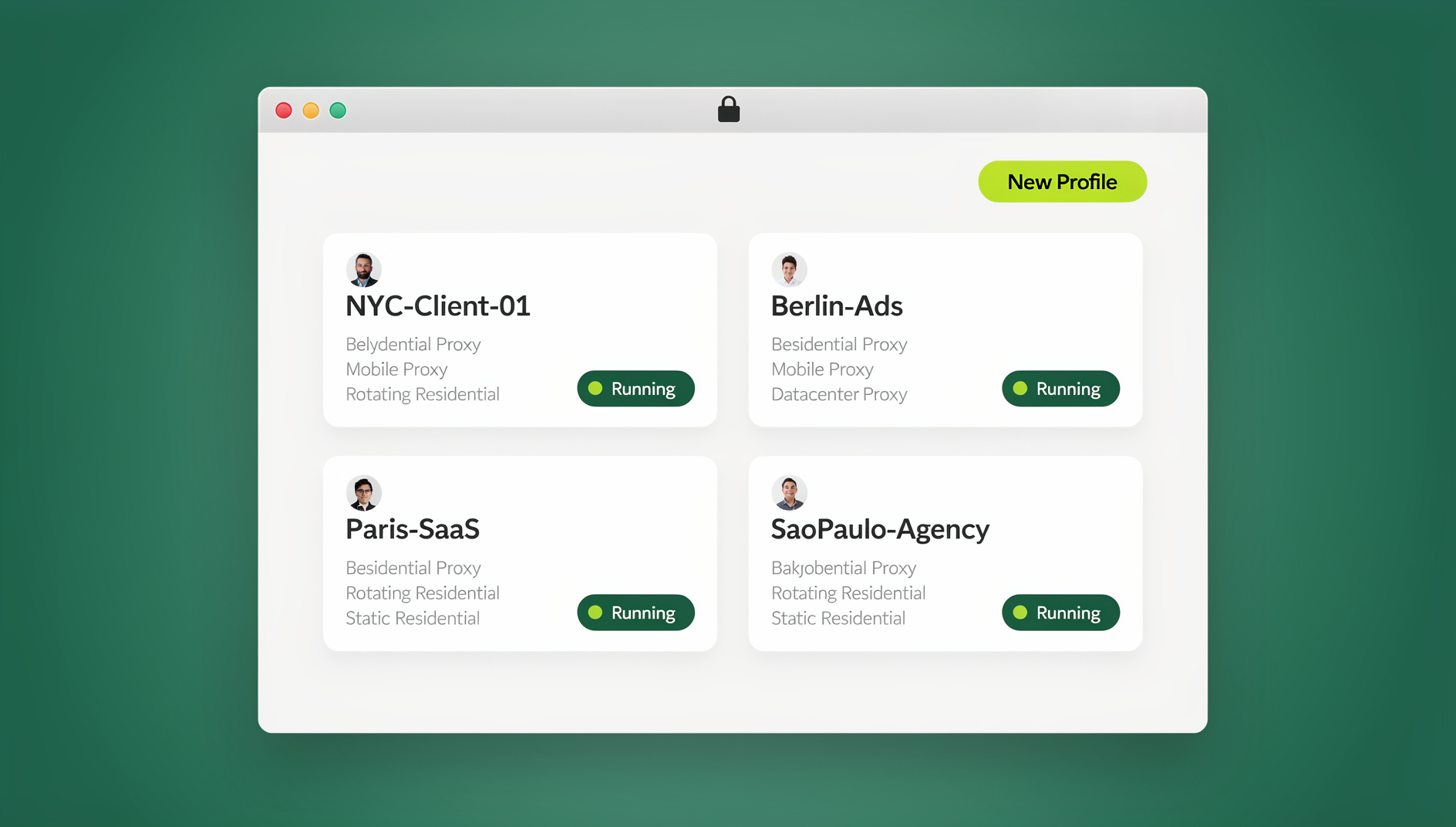
This is where most agencies still improvise. The two common (bad) options are sharing the client’s real password across the team, or granting broad OAuth access through a management tool that only covers a fraction of what the platform can do. A better approach is running each client’s login inside its own isolated cloud browser for agencies: a separate session per client, in the cloud, with no local install needed and no password ever leaving the vault. Team members open the session they’ve been granted access to, work inside the client’s real account with full native functionality, and never see the underlying credentials. If someone leaves the agency, you revoke their session access — you don’t have to rotate every client’s password.
Setting Up Your Client Onboarding Workflow
A standardized onboarding process is what keeps a growing agency from dropping balls. Build it once, and every new client follows the same six steps:
- Discovery questionnaire: brand voice, target audience, goals, competitors, content preferences, and posting cadence expectations.
- Secure account access setup: collect credentials once, store them in a password manager or session vault — never over email or chat — and set up an isolated session per account rather than handing out the raw login.
- Brand asset collection: logos, color palettes, fonts, photography guidelines, and approved hashtags in a shared folder.
- Content calendar setup: posting frequency, content pillars, and the approval workflow the client expects.
- Session and permission assignment: decide which team members get access to which client sessions, and at what permission level.
- Reporting template: configure analytics tracking and the reporting format and cadence the client was promised in the contract.
The Content Production Pipeline
Structure content creation as a pipeline with clear owners and deadlines, not an ad hoc scramble every week:
| Stage | Timeline | Owner | Deliverable |
|---|---|---|---|
| Strategy & planning | Week -2 | Account manager | Monthly content themes and calendar |
| Content creation | Week -1 | Content creator | Copy, graphics, and video per calendar |
| Client approval | 3 days before publish | Account manager | Approved content batch |
| Scheduling | 2 days before publish | Social media coordinator | All posts queued in the scheduling tool |
| Engagement | Daily | Community manager | Comments, DMs, and mentions handled |
| Reporting | Monthly | Analyst | Performance report per client |
Daily Operations Blueprint for Agencies
Structure the workday around client priorities instead of reacting to whatever is loudest:
- Morning review (30 min): check every client account for overnight activity, urgent messages, or issues that need same-day attention.
- Engagement blocks (2 hours): dedicated windows for engaging on each client’s account, ideally logged in through that client’s own isolated session.
- Content creation (3 hours): batch-produce content for upcoming posts across all active clients.
- Scheduling and QA (1 hour): queue approved content and double-check every post waiting in the pipeline.
- End-of-day check (30 min): clear remaining comments and DMs, and flag anything urgent for the morning.
Security Practices That Protect Client Relationships
Security isn’t a nice-to-have in agency work — it’s the thing clients actually pay you to get right, even if they never say it out loud.
Password Management
- Use a team password manager (1Password Teams, Bitwarden, or similar) instead of spreadsheets or chat messages.
- Never send credentials over email, Slack, or text.
- Rotate credentials whenever a team member leaves the agency.
- Enable two-factor authentication on every client account you manage.
Access Control
- Grant the minimum access each team member actually needs, nothing broader.
- Use role-based permissions wherever your tools support them.
- Keep a running access log documenting who has access to what, and when it was granted.
- Revoke access immediately the moment a team member departs — not at the end of the week.
Session Isolation Between Clients
Never access multiple client accounts from the same browser profile. Cookies, cached logins, and browser fingerprints can bleed between tabs in ways that cause accidental cross-posting or, worse, get one client’s account flagged because it shares fingerprint signals with another. Session isolation keeps every client’s browsing environment — cookies, cache, and fingerprint — completely separate from every other client’s, which is the single biggest lever for preventing cross-contamination at scale.
Preventing Cross-Posting Disasters and Other Common Mistakes
The nightmare scenario in agency work is posting Client A’s announcement on Client B’s account. It happens more often than agencies admit, and it’s almost always preventable:
- Color-code clients inside your project management tool so nothing gets mixed up visually.
- Use naming conventions that include the client’s name on every content file, not just the folder.
- Require a two-person approval step before anything goes live, especially for time-sensitive posts.
- Keep separate browser windows or isolated sessions per client — never multiple client accounts open as tabs in one window.
Scaling Without Losing Quality
As client count grows, quality holds up through documentation, not heroics:
- Written SOPs for every recurring process, so a new hire can follow them without shadowing someone for a month.
- Client-specific brand guidelines accessible to the whole team, not locked in one person’s inbox.
- Template libraries for recurring content formats, per client.
- Regular team training whenever tools or platform features change.
Client Reporting at Scale
Automate reporting as much as your tools allow:
- Use your scheduling platform’s built-in reporting, with white-label options if the client is agency-facing.
- Build dashboards that pull from platform APIs automatically instead of manual copy-paste.
- Create report templates that auto-populate with current data each month.
- Schedule automated report emails so reporting never depends on someone remembering.
Pricing Your Multi-Client Management Services
| Tier | Profiles Managed | Services Included | Typical Monthly Price |
|---|---|---|---|
| Basic | 1-3 profiles | Scheduling, basic engagement | $500-1,500 |
| Standard | 3-5 profiles | Content creation, scheduling, engagement, monthly report | $1,500-3,500 |
| Premium | 5-8 profiles | Full management, strategy, paid ads, weekly reports | $3,500-7,000 |
| Enterprise | 8+ profiles | Dedicated team, custom strategy, real-time reporting | $7,000+ |
Whatever tier you sell, the operational cost of managing accounts safely doesn’t scale linearly with client count if your access layer is built right from the start. Agencies that treat account security as an afterthought end up paying for it later — in incident response time, client trust, or both. Freelancers and small teams juggling several clients at once run into the exact same problem at a smaller scale; the fix is the same discipline, just applied earlier. If you’re solo or a two-person shop, it’s worth reading how other freelancers juggle multiple clients without burning out before you scale up.
🏆 Send.win Verdict
Your scheduling platform handles content and analytics — Send.win handles the part agencies keep getting wrong: secure, password-free access to every client’s real account. Set up an isolated cloud browser session per client, hand team members access without ever sharing the login, and revoke it instantly when someone leaves. It’s the missing piece between “we have a great content calendar” and “we’ve never had a client account breach.”
Try Send.win free for 30 days — no credit card required, and Pro starts at $6.99/month billed annually.
Frequently Asked Questions
What’s the maximum number of clients one person can manage?
A skilled social media manager can realistically handle 5-8 clients with 2-3 platforms each, roughly 10-24 accounts total. Beyond that, quality drops noticeably without additional team members. Scale by adding specialists — content creators, community managers, analysts — rather than stretching one person further.
Should I use my personal accounts to manage client social media?
No. Never mix personal and client account access. Use dedicated, isolated browser sessions and agency-owned tools for all client work, so a personal account issue can never touch a client’s account, and vice versa.
How do I handle a client who wants to post without approval?
Set clear expectations in the contract up front. Offer a fast-track approval option for genuinely time-sensitive content, but hold the line that all standard content goes through your QA process — unapproved posts create real liability for your agency.
What happens if a client’s social account gets compromised while I’m managing it?
Have an incident response plan written into your client agreement before you ever need it. It should cover immediate password changes, two-factor authentication activation, reporting the incident to the platform, and a clear communication protocol with the client.
Do I need a separate management tool subscription for every client?
No. Most scheduling platforms let you connect multiple client accounts under a single agency subscription. Pick plans based on the total number of social profiles you manage, not the number of clients on your roster.
Does Send.win replace my scheduling tool like Buffer or Hootsuite?
No — it complements it. Your scheduling tool still handles content calendars, queuing, and analytics. Send.win solves the account access side: isolated, password-free sessions per client so your team can log into the real platform (not just the API) without ever seeing or sharing a client’s actual credentials.
Can I access client accounts from my desktop app instead of the cloud?
Yes. Send.win offers two modes: cloud browser sessions that need no local install (ideal for team members working from different devices or locations), and the Sendwin Browser, a native desktop app for agencies who prefer running client profiles locally. Both keep each client’s session fully isolated.
How do I train new hires on client-specific brand voice quickly?
Keep a living brand guide per client — voice, tone examples, approved hashtags, visual standards — stored somewhere every team member can reach. Pair it with a short shadowing period on that client’s isolated session before they publish solo, so mistakes surface during training instead of on the client’s live account.
Conclusion
Learning how to manage social media accounts for multiple clients well is really about building systems that scale without adding risk. Invest in a solid scheduling platform for content and analytics, isolated per-client sessions for secure account access, and documented workflows so quality doesn’t depend on any one person. Agencies that treat operations as a product — standardized, measurable, and continuously improved — are the ones that add client #21 without adding a security incident.