If you have ever tried to sign in to multiple Gmail accounts at once, you already know the headache: Chrome logs you out of one account the moment you log into another, “Add account” switching means you’re still only looking at one inbox at a time, and juggling incognito windows just to check a second inbox gets old fast. Whether you’re separating personal and work email, running several client inboxes as a freelancer, or managing a small team’s Google Workspace accounts, you need a way to have every Gmail account open, logged in, and active simultaneously — without constant sign-outs, cookie conflicts, or Google flagging your activity as suspicious.
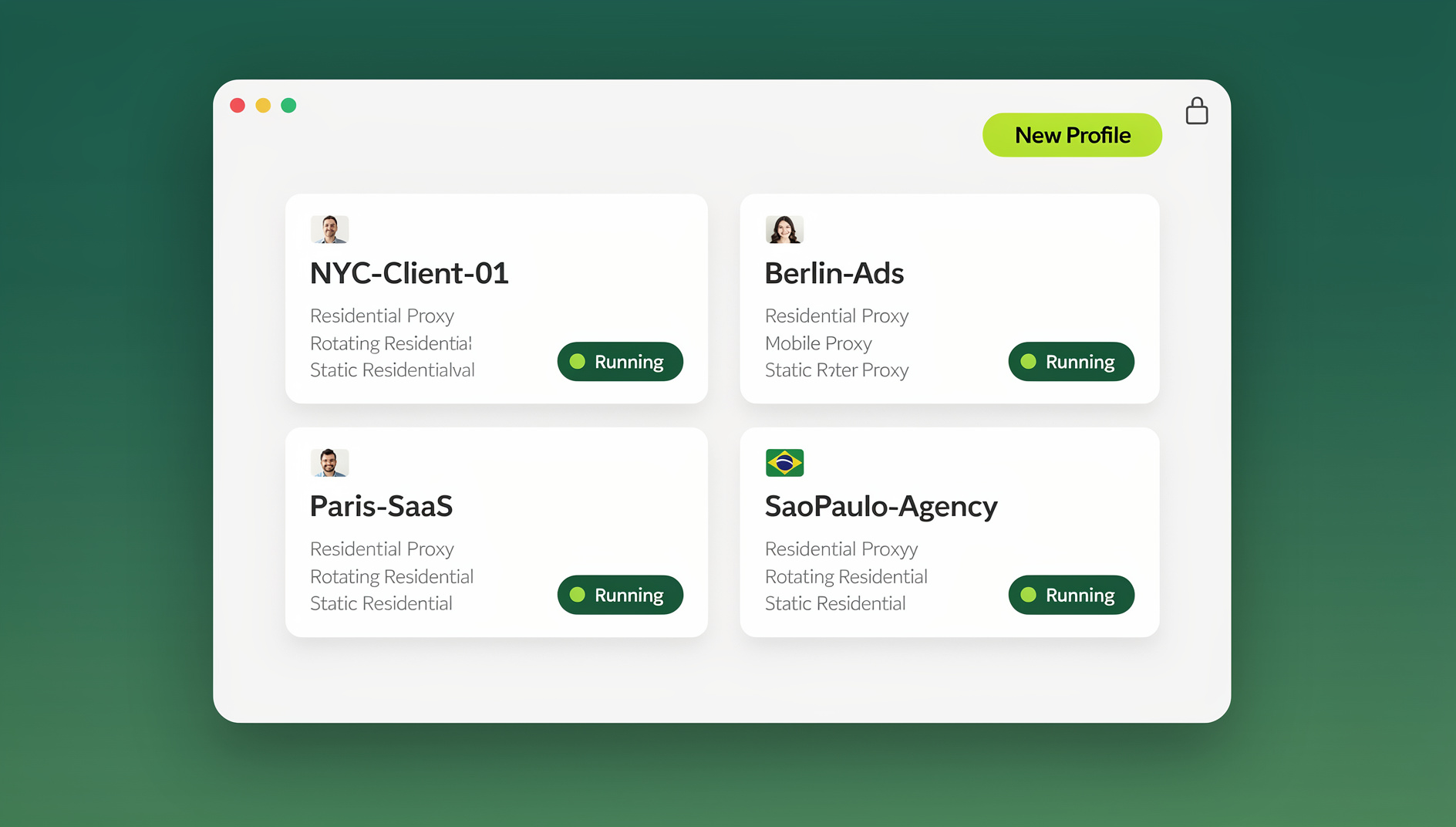

This guide walks through exactly how to sign in to multiple Gmail accounts at once using Send.win, a browser profile manager built for exactly this problem. We’ll cover the step-by-step setup, the native Desktop app, pricing, and the safety practices that keep your accounts in good standing with Google.
Why Signing In to Multiple Gmail Accounts at Once Matters
Gmail was originally built around the idea of one person, one inbox. But the way people actually use email in 2026 looks nothing like that:
- Freelancers and consultants juggle a personal inbox, a business inbox, and sometimes a dedicated inbox per client.
- Agencies manage dozens of client Gmail and Google Workspace accounts for ads, analytics, and Search Console access.
- E-commerce sellers need separate Gmail accounts tied to separate marketplace or supplier logins to avoid cross-account contamination.
- Recruiters and sales teams run multiple outreach inboxes to manage deliverability and avoid one account’s reputation dragging down another.
- Remote teams need to hand off access to shared inboxes without emailing passwords back and forth.
In every one of these cases, the person needs several Gmail accounts fully logged in and usable at the same time — not one at a time, and not through a workaround that risks Google flagging the accounts as suspicious.
The Problem With Chrome’s Native Multi-Account Options
Google gives you a few built-in ways to handle multiple Gmail accounts, and each one has a real limitation:
Account Switching (the “Add Account” menu)
This lets you switch between accounts from the same avatar menu, but you’re still working in one tab context at a time, and background sync/notifications for other accounts can behave inconsistently. It’s fine for occasionally checking a second inbox — it’s not a real solution for actively working across three or four accounts all day.
Chrome Profiles
Creating a separate Chrome profile per Gmail account technically works, but every profile shares the same underlying device fingerprint — the same GPU, fonts, timezone, and hardware signals. Google’s fraud detection systems increasingly correlate accounts by fingerprint, not just by IP or cookie, so heavy Chrome-profile use across many accounts can still trigger “unusual activity” warnings, especially at scale.
Incognito / Private Windows
Incognito windows let you log into a second account temporarily, but sessions vanish when you close the window, cookies don’t persist, and you’re stuck re-authenticating (often with 2FA) every single time. It’s not built for daily, repeatable multi-account work.
Browser Extensions for Session Switching
A step up from incognito, but most session-switcher extensions store session cookies locally in the browser without isolating the broader fingerprint (canvas, WebGL, fonts, screen resolution). That’s enough for casual use, but it’s the weak link that gets accounts correlated when you’re managing many inboxes.
| Method | Stays Logged In? | Fingerprint Isolated? | Good For Scale? |
|---|---|---|---|
| Add Account switching | Yes | No | No |
| Chrome Profiles | Yes | No | Limited |
| Incognito windows | No | Partial | No |
| Session-switcher extensions | Yes | No | Limited |
| Send.win profiles | Yes | Yes | Yes |
What Is Send.win?
Send.win is a browser profile manager designed to run many separate, isolated browser profiles — called profiles or sessions — side by side. Each Send.win profile keeps its own cookies, local storage, fingerprint settings, timezone, screen resolution, and (optionally) its own dedicated proxy/IP. That isolation is exactly what lets you keep several Gmail accounts signed in permanently, in parallel, with separate cookies, storage and fingerprint per profile.
Unlike a bare browser extension, Send.win ships as a full native Desktop application for Windows, macOS, and Linux — you download and install it like any other app, then launch each Gmail profile as its own isolated browser window from the Send.win dashboard.
How to Sign In to Multiple Gmail Accounts at Once Using Send.win
Here is the full step-by-step process:
- Create your Send.win account. Sign up and choose a paid plan — Pro is $19/mo or $83.88/yr, Team is $49/mo or $251.88/yr — with the first card purchase covered by a 7-day money-back guarantee. You can also preview the cloud demo at https://send.win/demo-browser/.
- Download and install the Desktop app. Send.win’s Desktop client is available for Windows, macOS, and Linux. Installing it gives you the full local browsing engine and the fastest, most stable way to run multiple profiles side by side (the web dashboard alone is fine for managing profiles, but the desktop app is what actually launches your isolated Gmail sessions).
- Create a new profile for your first Gmail account. From the dashboard, click “New Profile,” give it a name (e.g., “Gmail — Personal”), and optionally assign a proxy so this profile’s IP and location stay consistent across sessions.
- Launch the profile and sign in to Gmail as usual. A dedicated browser window opens for that profile. Go to gmail.com and log in normally — including 2FA if you have it enabled, which we strongly recommend.
- Create a second profile for your next Gmail account (e.g., “Gmail — Client A” or “Gmail — Work”). Repeat the same process: launch it, go to gmail.com, and sign in.
- Run both windows side by side. Because each profile is fully isolated, both Gmail accounts stay signed in simultaneously — no logout conflicts, no shared cookies, no fingerprint overlap. Arrange the windows on your screen (or across monitors) just like any other app windows.
- Repeat for every additional Gmail account. There’s no practical limit built into the workflow itself — agencies and teams routinely run dozens of Gmail/Workspace profiles this way, limited only by their plan’s profile allowance.
- Save each profile for one-click access next time. You won’t need to re-authenticate every session — Send.win keeps each profile’s cookies and login state intact between launches, so reopening “Gmail — Client A” tomorrow drops you straight back into that inbox.
If you’re coordinating Gmail access across a team, the profiles you create can also be shared securely — teammates get working access to a given Gmail session without you ever handing over the actual password, which is a much safer pattern than the old “share the password in Slack” approach covered in our guide on session isolation.
Managing Gmail Workflows With Send.win
Manually clicking through a dozen Gmail profiles every morning doesn’t scale. Send.win helps you organise each Gmail account in its own isolated profile, so you can switch between them without logout conflicts.
- Checking inbox health across every managed Gmail account on a schedule.
- Automatically sorting, labeling, or archiving incoming mail per account.
- Running QA scripts that verify forwarding rules or filters haven’t broken after a change.
- Bulk-exporting data from multiple Google Workspace accounts for reporting.
Because each profile keeps its own cookies, storage and fingerprint, each Gmail session stays separate and organised. If you’re already comparing fingerprint setups, our deep dive on Selenium browser fingerprint detection is worth reading alongside this.
Desktop App vs. Browser Extension: Why It Matters for Gmail
Older multi-login tools often run everything inside the browser-extension sandbox of your existing Chrome install. That’s convenient, but it also means every profile still ultimately runs on top of the same Chrome binary and OS-level signals. Send.win’s native Desktop app instead runs each profile through its own isolated browser engine instance, which gives you:
| Feature | Browser Extension Only | Send.win Desktop App |
|---|---|---|
| Fingerprint isolation depth | Partial (shared OS/GPU signals) | Full (per-profile engine instance) |
| Stability with many profiles open | Degrades with tab count | Each profile is its own window/process |
| Works offline for setup/management | No | Yes, locally installed |
| Automation API access | Not applicable | No |
| Available on | Chrome-based browsers | Windows, macOS, Linux |
For anyone signing into more than two or three Gmail accounts regularly, the Desktop app is the recommended path — it’s built specifically to keep dozens of isolated profiles running smoothly without the performance and fingerprint drawbacks of stacking browser tabs or extensions.
Best Practices for Managing Multiple Gmail Accounts Safely
Signing into several Gmail accounts at once is completely within Google’s rules — plenty of legitimate businesses and freelancers do it every day. The risk isn’t having multiple accounts; it’s how they’re accessed. Follow these practices to keep every account in good standing:
- Give each Gmail account its own dedicated profile — never log into two different Gmail accounts inside the same browser tab or session.
- Match proxy location to account origin. If an account was created or is normally used from a specific city or country, keep that profile’s proxy consistent with that location.
- Enable 2FA on every account you manage, and store recovery codes securely — isolation protects the session, but 2FA protects the account itself if credentials ever leak.
- Avoid rapid-fire switching between many accounts in a short window; behave the way a real, separate user would.
- Use consistent naming for your profiles (e.g., “Gmail — [purpose]”) so team members always know which profile maps to which inbox.
- Rotate and audit access periodically, especially for shared team profiles — remove access the moment someone no longer needs a given inbox.
For a broader look at keeping several inboxes organized once they’re all logged in, our guide on mastering multiple emails covers labeling, filtering, and notification strategies that pair well with this setup. And if Gmail is just one piece of a bigger multi-account puzzle — social, ad platforms, marketplaces — see our complete multi-login browser overview.
Send.win Pricing
Send.win offers a straightforward, transparent pricing structure: Pro is $19/mo or $83.88/yr, Team is $49/mo or $251.88/yr, and the first card purchase is covered by a 7-day money-back guarantee. There is no free trial; the only free option is the cloud demo at https://send.win/demo-browser/.
| Plan | Monthly Price | Annual Price | Profiles | Proxy Bandwidth | Cloud Browser |
|---|---|---|---|---|---|
| Pro | $19/mo | $6.99/mo | 150 | 5GB | No |
| Team | $49/mo | $20.99/mo | 500 | 20GB | Yes (16 seats) |
Both plans support unlimited Gmail profiles up to your plan’s total profile allowance, and additional bandwidth or profiles can be added as needed ($6/GB, $0.05/extra profile).
For a full walkthrough on getting your first sessions running, our manage multiple Gmail accounts step-by-step guide is a helpful companion to this article.
🏆 Send.win Verdict
If you need to sign in to multiple Gmail accounts at once — reliably, without logout conflicts — Send.win is purpose-built for exactly this. Each Gmail account gets its own isolated profile with separate cookies, storage and fingerprint settings, and an optional dedicated proxy, all managed from a native Desktop app for Windows, macOS, and Linux.
Try Send.win today — choose a paid plan (Pro $19/mo or $83.88/yr, Team $49/mo or $251.88/yr), with the first card purchase covered by a 7-day money-back guarantee, and have every Gmail account you manage logged in and ready at once.
Frequently Asked Questions
Can I sign in to multiple Gmail accounts at once without an extra tool?
Yes, using Chrome’s built-in “Add Account” switcher or separate Chrome profiles, but neither keeps every account fully isolated at the fingerprint level, and switching quickly between many accounts this way can look suspicious to Google at scale. A dedicated multi-login browser like Send.win solves this by giving each account its own isolated environment.
Is it against Gmail’s terms of service to use multiple accounts?
No. Google explicitly allows multiple Gmail accounts per person, and many businesses legitimately run several. What can trigger account reviews is suspicious access patterns — like many accounts suddenly sharing the exact same device fingerprint or IP in ways that look automated or fraudulent, which is precisely what proper session isolation prevents.
How many Gmail accounts can I run at once with Send.win?
As many as your plan’s profile allowance supports — up to 150 on the Pro plan and 500 on the Team plan, with the option to add more profiles as needed. Each profile can be dedicated to a single Gmail or Google Workspace account.
Do I need to install anything, or does this work entirely in the browser?
Send.win’s fullest, most stable experience comes through its native Desktop app for Windows, macOS, and Linux, which you install like any other application. This is what actually launches and runs your isolated Gmail profiles — it is not a “no install” browser-only tool.
Will I need to log in to each Gmail account every time I open Send.win?
No. Each profile retains its session cookies and login state between launches, so once you’ve signed in to a Gmail account inside a given profile, reopening that profile later drops you straight back into the inbox without re-authenticating (unless the session naturally expires or you log out manually).
Can I automate tasks across my Gmail accounts, like sorting or exporting mail?
No. Send.win has no automation interface — no API, SDK, headless mode or Selenium/Puppeteer/Playwright support on any plan. Each Gmail account is managed in its own isolated profile with separate cookies, storage and fingerprint settings.
Can I share a Gmail profile with a teammate without giving them the password?
Yes. Send.win supports securely sharing a profile with team members, giving them working access to that Gmail session without ever exposing the underlying credentials — useful for shared support or marketing inboxes.
What happens if I use a proxy with a Gmail profile?
Assigning a proxy to a profile keeps that Gmail account’s apparent IP/location consistent across sessions, which reduces the odds of Google flagging a login as suspicious due to location changes. Send.win includes built-in proxy support so you don’t need a separate proxy provider.