Every time you log out of one Gmail account to log into another, or open an incognito window just to check a second Twitter profile, you lose a few minutes and a little bit of sanity. Multiply that by five, ten, or fifty accounts a day — which is normal for social media managers, agency owners, e-commerce sellers, and freelancers juggling multiple clients — and it becomes a real productivity drain. The good news is that chrome extensions for managing multiple login sessions have gotten a lot better since this problem first became common, and in 2026 there are more (and smarter) options than ever.
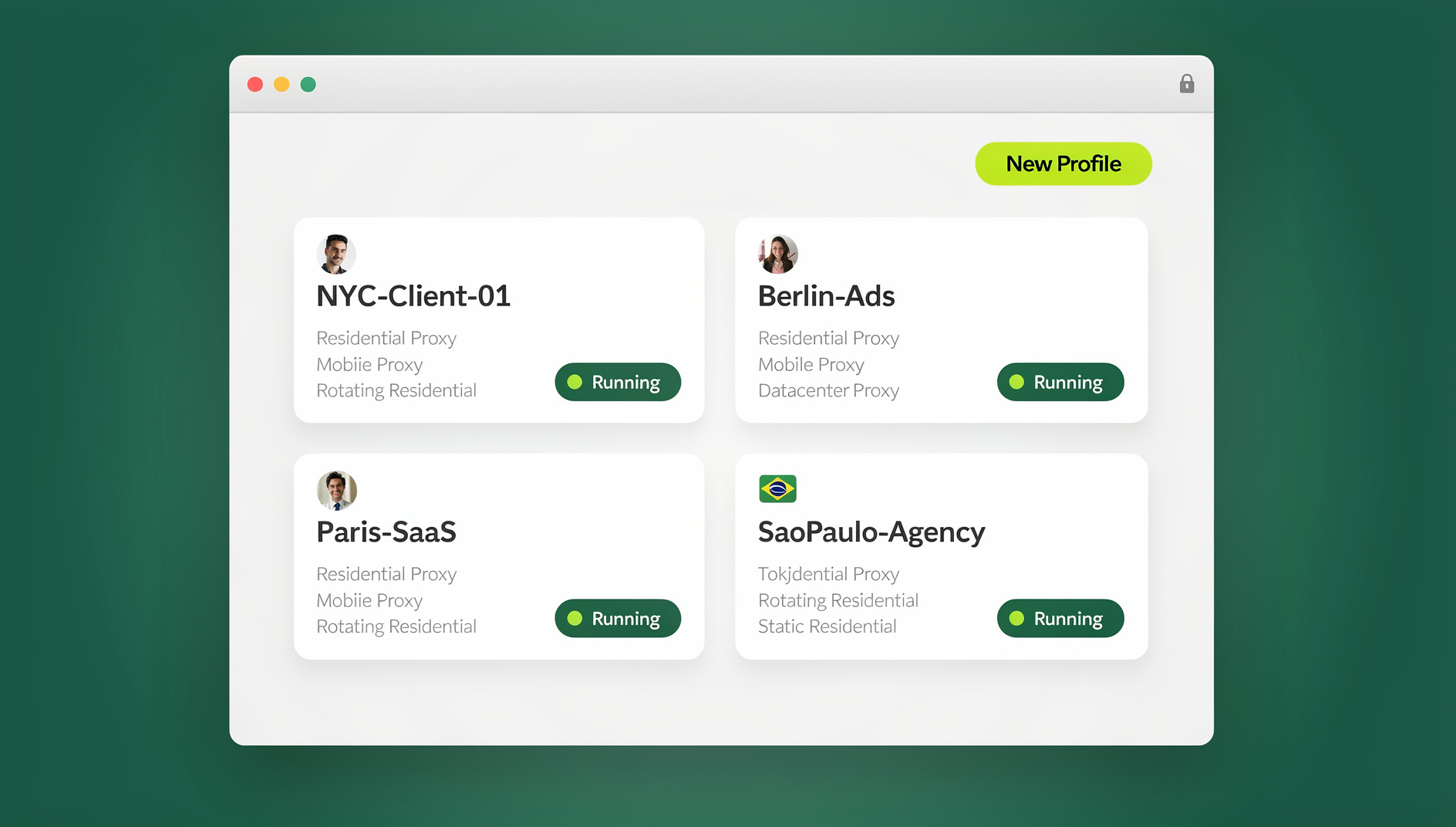

This guide covers the seven best Chrome extensions for handling multiple accounts and login sessions, explains exactly where extensions start to break down for serious multi-account work, and shows what to use instead when logins, cookies, or fingerprints need to stay genuinely separate — not just visually organized.
Why Managing Multiple Login Sessions in Chrome Is Still a Problem in 2026
Chrome was never really built with heavy multi-account use in mind. A single Chrome profile shares one cookie jar, one cache, one set of saved passwords, and one browser fingerprint across every tab. That’s fine if you have one email and one social account. It falls apart fast if you’re running three Instagram accounts, five client Google Ads accounts, or a dozen marketplace storefronts from the same machine.
Extensions were the first fix the ecosystem produced — password managers to store multiple logins, tab organizers to stop 40 open tabs from turning into chaos, and session tools that let you save and reload groups of logged-in tabs. They genuinely help. But as you’ll see below, they solve the organizational side of the problem while leaving the identity side — the part platforms actually use to detect and flag suspicious multi-accounting — mostly untouched.
7 Best Chrome Extensions for Managing Multiple Login Sessions
Here are the seven extensions worth installing in 2026, based on reliability, active maintenance, and how well they actually solve the multi-login problem.
1. Chrome’s Built-In Profiles
Before installing anything, know that Chrome itself has a native multi-profile system (Settings → You and Google → Add). Each profile gets its own cookies, extensions, and bookmarks, and you can pin different profile icons to your taskbar for one-click switching. It’s free, requires no extension, and is the right starting point for basic separation between, say, a personal and a work Google account. Its limit: every profile still runs on the same physical device, IP address, and hardware fingerprint, so platforms that fingerprint at the device level can still connect the dots.
2. Google Password Manager
Built directly into Chrome, Google Password Manager auto-saves and auto-fills credentials for every account you log into, syncs them across devices, and now flags reused or breached passwords automatically. It’s free and requires zero setup, which makes it the easiest way to stop re-typing passwords when switching between sessions. It doesn’t do anything for cookie or fingerprint isolation — it only speeds up the login step itself.
3. LastPass
LastPass remains one of the most widely used password managers for Chrome. It stores unlimited logins, generates strong unique passwords, and lets you organize credentials into folders by client, project, or platform — useful if you’re managing logins for multiple businesses. The free tier is fairly generous; Premium adds secure password sharing and dark web monitoring. Like Google Password Manager, it manages credentials, not sessions — you still need something else to keep the accounts themselves from colliding.
4. Session Buddy
Session Buddy turns your open tabs into saved, organized “sessions” you can name, group, and restore later. If you regularly work across a fixed set of logged-in accounts — say, five specific dashboards every morning — you can save that exact tab layout and reopen it in one click instead of manually navigating back to each site and logging in again. It’s free and lightweight, though it still runs everything inside the same underlying browser fingerprint.
5. OneTab
When you’ve got 30+ tabs open across different logged-in accounts, OneTab collapses them all into a single list with one click, freeing up memory and visual clutter. You can restore all tabs at once or one at a time. It’s less about account isolation and more about keeping a multi-account workflow from becoming visually unmanageable — but for anyone who tabs-hoards while switching between accounts, it’s a genuine quality-of-life upgrade.
6. Toby
Toby replaces your new-tab page with a visual workspace where you can group saved tabs — including logged-in dashboards — into collections by project or client. It’s popular with agencies managing several client accounts because collections can be shared with teammates, turning “here’s the login” into “here’s the workspace.” If SessionBox was your old go-to for this kind of grouped session management, it’s worth knowing that service shut down in 2023 — this list of SessionBox alternatives covers what to migrate to.
7. Workona
Workona is built specifically for people who work across many accounts and tools at once. It organizes tabs into shareable “workspaces,” each of which can hold a different set of logged-in sessions, and syncs across devices so a workspace built on your desktop is available on your laptop too. Teams use it to hand off client work without re-explaining which accounts belong where. The free plan covers most individual use; paid tiers add team-wide workspace sharing.
| Extension | Best For | Price | What It Doesn’t Solve |
|---|---|---|---|
| Chrome Profiles | Basic personal/work split | Free (native) | Shared device fingerprint and IP |
| Google Password Manager | Fast auto-fill across accounts | Free | No session or cookie isolation |
| LastPass | Storing many client credentials | Free / Premium | Doesn’t separate sessions or fingerprints |
| Session Buddy | Saving/restoring tab groups | Free | Single shared cookie jar |
| OneTab | Tab decluttering | Free | No account separation at all |
| Toby | Client/project tab collections | Free / Paid teams | Shared browser identity across collections |
| Workona | Team workspace sharing | Free / Paid | Same device fingerprint for every workspace |
What Chrome Extensions Can’t Do: The Fingerprinting Problem
Here’s the part most guides to this topic skip. Even if two accounts have separate cookies — through a second Chrome profile, an incognito window, or a session-management extension — they can still share the exact same browser fingerprint: the same canvas rendering signature, the same GPU and WebGL output, the same installed fonts, the same screen resolution, timezone, and — critically — the same IP address.
Platforms like Google, Meta, Amazon, and most banks and ad networks don’t just check cookies anymore. They fingerprint the browser and device itself using techniques like WebGL fingerprinting, canvas hashing, and audio-context analysis, then cluster “separate” accounts that share too many of those signals. This is exactly how platforms detect multi-accounting even when every login is technically isolated at the cookie level — and it’s why an extension-only setup is fine for personal convenience but risky for anything with real stakes: multiple ad accounts, multiple marketplace stores, or client work where an accidental ban could cost real money.
None of the seven extensions above touch this layer. They’re built to organize sessions, not to make each one look like it’s coming from a genuinely different browser and device.
When You Need a Multi-Login Browser Instead of an Extension
If you’re managing more than a couple of accounts on the same platform — running paid ad accounts for multiple clients, operating several marketplace stores, or coordinating a team that needs to share access without sharing passwords — extensions stop being enough. This is the gap a multi-login browser like Send.win is built to close.
Instead of one Chrome install with several visually-separated tab groups, Send.win gives every login session its own isolated browser profile with a unique, consistent fingerprint — separate canvas and WebGL signatures, its own cookie and cache storage, and its own IP address through a built-in proxy. To the platform on the other end, each profile looks like a genuinely different browser on a genuinely different device, not the same Chrome install wearing different hats.
How Send.win Profiles Differ From Chrome Extensions
| Capability | Chrome Extensions | Send.win |
|---|---|---|
| Separate cookies/cache per account | Yes (with profiles/extensions) | Yes |
| Unique browser fingerprint per profile | No — shared fingerprint | Yes — isolated per profile |
| Built-in residential/datacenter proxies | No — needs a separate proxy tool | Yes — assign a proxy per profile |
| Share a session without sharing the password | Not natively | Yes — team sharing controls |
| Native desktop app (Windows/macOS/Linux) | N/A — runs inside Chrome | Yes |
| Automation for scripted logins/testing | No | No |
Setting Up Your First Isolated Profile in Send.win
Getting started takes a few minutes:
- Sign up for a paid plan at send.win — the first card purchase is covered by a 7-day money-back guarantee, or try the free cloud demo first.
- Download the Desktop app for Windows, macOS, or Linux. Send.win runs as a native application rather than purely inside your existing browser, which is what keeps each profile’s fingerprint genuinely isolated.
- Create a new profile for the account you want to isolate, and give it a name so it’s easy to identify later (e.g., “Client A – Ads,” “Store 2 – Etsy”).
- Attach a proxy to the profile — residential, datacenter, or mobile — so the IP address matches the account’s expected location.
- Log in as normal inside that profile. From this point on, the session, cookies, cache, and fingerprint for that account stay fully separate from every other profile you run.
- Repeat for each additional account, and use folders or tags to keep large numbers of profiles organized — the same way you’d group tabs in Toby or Workona, but with real isolation underneath.
Managing Login Sessions at Scale With Isolated Profiles
For agencies and teams running the same login-and-check workflow across dozens or hundreds of accounts, doing it by hand doesn’t scale — this is where extensions have no answer at all. Send.win’s Team plan gives each login its own isolated browser profile, with its own cookies, storage, sessions, fingerprint settings and proxy, so you can keep dozens or hundreds of accounts organised and separate without sharing one browser identity. There is no automation interface — no API, SDK, headless mode or Selenium/Puppeteer/Playwright support — so the work stays manual, but each profile stays consistent and separate from the others.
Chrome Extensions vs. Send.win: Which Should You Actually Use?
| Your Situation | Best Fit |
|---|---|
| One or two personal accounts, casual switching | Chrome Profiles + Google Password Manager |
| Storing lots of credentials across projects | LastPass |
| Keeping tab clutter under control | Session Buddy or OneTab |
| Sharing grouped tabs/logins with a small team | Toby or Workona |
| Multiple ad accounts, marketplace stores, or social profiles where a ban is costly | Send.win |
| Agency/team needing to share access without sharing passwords | Send.win (team sharing) |
| Scripted logins, QA, or bulk automation across accounts | Not supported by Send.win (browser profile manager, Team plan) |
In practice, most people use both layers together: extensions like LastPass or OneTab for everyday convenience, and a dedicated isolated-profile browser for the accounts where getting flagged or linked would actually hurt.
Best Practices for Managing Multiple Login Sessions Safely
- Don’t reuse the same IP across accounts that should look unrelated. Shared IPs are one of the fastest ways platforms link “separate” accounts.
- Keep credentials in a password manager, not a spreadsheet. LastPass or Google Password Manager both work fine for this even if you also use Send.win for the sessions themselves.
- Match timezone and locale settings to the proxy’s location. A mismatched timezone is a common, avoidable red flag.
- Log out cleanly instead of just closing the tab when you’re done with a sensitive session, especially on shared or public machines.
- Separate business-critical accounts from casual browsing. Don’t run a client’s ad account in the same profile you use to browse unrelated sites all day.
- Audit your active sessions periodically. Both Chrome and Send.win let you see which sessions/devices are currently logged in — check this monthly.
🏆 Send.win Verdict
Chrome extensions are genuinely useful for organizing tabs and storing passwords, but they don’t give each login its own isolated cookies, storage and fingerprint settings. If you’re managing more than a handful of accounts — or any account where keeping your sessions separate matters — Send.win gives each login its own isolated browser profile, a built-in proxy, and a native Desktop app for Windows, macOS, and Linux. There is no automation interface on any plan, so profiles are managed manually.
Try Send.win today — paid plans start at $19/mo, and your first card purchase is covered by a 7-day money-back guarantee.
Frequently Asked Questions
What is the best Chrome extension for managing multiple login sessions?
For basic use, Chrome’s built-in profiles combined with Google Password Manager cover most personal needs for free. For managing tab groups by client or project, Toby and Workona are the strongest options in 2026. None of these fully isolate the browser fingerprint, so for higher-stakes accounts, a dedicated multi-login browser like Send.win is a better fit.
Can I use multiple Chrome extensions together for multi-account management?
Yes. Most people combine a password manager (LastPass or Google Password Manager) with a tab organizer (Session Buddy, OneTab, Toby, or Workona). They solve different parts of the problem — credential storage versus tab organization — and don’t conflict with each other.
Is it safe to manage multiple social media or ad accounts using only Chrome profiles?
It’s safer than one shared profile, but not fully safe. Chrome profiles separate cookies but not the underlying device fingerprint or IP address, so platforms can still connect accounts that share the same browser and network. For accounts where a ban has real financial consequences, use isolated profiles with separate proxies instead.
What happened to SessionBox?
SessionBox, a popular session-isolation extension, shut down in 2023. Anyone still looking for a replacement should check a dedicated SessionBox alternatives comparison rather than relying on an extension that’s no longer maintained.
Do I need a proxy to manage multiple login sessions safely?
If the accounts need to appear unrelated — separate ad accounts, separate marketplace stores, separate social profiles — yes. Sharing one IP address across all of them is one of the most common ways platforms link accounts, regardless of how well the cookies and passwords are separated.
Does Send.win require the desktop app, or does it work purely in the browser?
Send.win runs through a native Desktop app for Windows, macOS, and Linux. This is what allows each profile to run as a genuinely separate, isolated browser environment with its own fingerprint, rather than being layered on top of a single existing Chrome install the way an extension is.
Can a team share login sessions without sharing passwords?
Yes — this is one of the main gaps extensions don’t cover. Send.win lets you share a specific profile (and its logged-in session) with teammates directly, so they can work inside the account without ever seeing the actual password, and you can revoke access at any time.
Is there a way to automate logins across many accounts instead of doing it manually?
No. Send.win has no automation interface: there is no API, SDK, headless mode or Selenium/Puppeteer/Playwright support on any plan. Each profile keeps its own isolated cookies, storage, sessions and fingerprint settings, but logins and checks are run manually.
What’s the difference between a Chrome extension and a multi-login browser?
A Chrome extension adds a feature on top of your one existing browser identity — password storage, tab grouping, or session saving. A multi-login browser like Send.win creates multiple, fully separate browser identities (fingerprint, cookies, IP) so that each account genuinely looks like it’s coming from a different device, not just a different tab group inside the same one.