What Virtual Browser Offer Testing Really Means in Practice
Virtual browser offer testing means opening your landing pages, redirect chains and checkouts inside isolated browser sessions that reproduce a specific region, locale and device — before you spend on traffic. You load the offer the way a real visitor would: fresh cookies, matching language and currency, and a proxy exit IP in the target market. Done properly, it surfaces currency, payment-method, CDN and login-flow bugs that never appear on your own laptop.
📌 TL;DR Executive Summary
- Core Takeaway: A virtual browser gives you a clean, region-accurate session per test, so a broken checkout in one market never requires touching your real accounts or your everyday browser.
- Key Risk/Challenge: Stale cookies, mismatched locale and shared logins produce false passes — a page that looks fine for you can still fail for a first-time visitor in another country.
- Recommended Solution: One isolated profile per offer and market, a proxy whose exit IP matches the locale, a cold-start run before every test, and shared access instead of passwords.
A Day in the Life: How an Offer Test Actually Runs
Virtual browser offer testing rarely happens in one sitting. On a media buying team or an agency running offers for clients, it is a day-shaped workflow: a matrix in the morning, the expensive checks around midday, and a handoff in the afternoon. Here is what that looks like with isolated profiles in place.
Morning: build the matrix, run the cold path
The day starts with a spreadsheet, not a browser. One offer usually has three or four axes: target market, device class, traffic source and entry point (direct link, ad click, email click). An offer live in the UK, Germany and the US with two entry points is already six cold-start runs before you check anything logged in.
You open the first profile cold — no cookies, no local storage, nothing cached from yesterday — and follow the click path end to end: ad URL → tracker redirect → pre-lander → offer page → checkout. What you are looking for is boring and specific. Does the redirect land on the right domain? Does the currency match the market? Does the consent banner appear in the right language? Does any third-party script load in one region and fail in another?
Midday: checkout, currency and payment methods
The expensive bugs live past the add-to-cart button. Payment-method availability changes per country, tax display changes per country, and a gateway that works on your home connection can behave differently behind a residential IP in the target market. A regional test that only loads the homepage proves almost nothing.
This is where clearing state matters more than people expect. BrowserStack’s guide to testing a site from different countries recommends clearing cache, cookies, local storage and sessions before each regional run, because cached data hides redirect and geo problems. A fresh isolated profile does that by construction: you are not clearing anything, you are starting in a session that has never seen the site. If you want the longer version of that workflow, this walkthrough on how to test a website from another country covers the checklist order.
Afternoon: hand off evidence, not passwords
Someone always needs to see it. The client’s account manager wants proof that the German checkout is missing a payment method; the designer wants to see the layout break at a 390px viewport. Screenshots work for the first. A shared session works for the second — a paid teammate on the client side opens the same profile, sees the same logged-in state, and watches the failure happen rather than reading about it.
Then you close the loop: write the result into the per-market log while the details are fresh, and keep the profile so next week’s regression starts from a known state rather than a fresh guess.
The Risks That Actually Bite in Offer Testing
Three categories of risk do real damage in virtual browser offer testing: policy exposure, cross-client contamination and credential sprawl. Each has a cheap fix if you decide it before the test, and an expensive one if you don’t.
Compliance: what a reviewer sees has to be what a visitor sees
Ad networks require the landing page to match the ad and to work the way it claims to. If your regional setup accidentally serves one country a different page than another — a redirect rule, an IP-based price change nobody documented, a consent wall that blocks a whole region — you have a policy problem, not a testing problem. Test to confirm consistency across markets, never to find a version that satisfies a review.
Two habits keep you clean. Test only offers and accounts you own or are authorised to manage, and get written sign-off from the client for any intentional regional difference before it ships. Then keep a short record of those differences — currency, language, legal footer, payment methods — so anything unexpected shows up as a bug rather than as a surprise mid-review.
Account separation: client A must never see client B
An agency testing five clients’ offers in one browser is one cookie away from a serious incident. Analytics dashboards, ad accounts, staging logins and internal admin panels all sit in the same cookie jar unless you separate them. The rule that fixes it is unglamorous: one client, one market, one profile, and unique fingerprint settings and proxy per profile. Isolated storage is what stops cookies from leaking between tests in the first place.
Shared logins: the password problem nobody budgets for
Freelancers log into client ad accounts with credentials pasted into chat. Nobody revokes them when the contract ends. Sharing a profile with a paid teammate solves the practical half of that: the profile opens already signed in, so no password changes hands and there is nothing to paste. The other half is discipline — decide who gets access before the test starts, and remove it when the engagement finishes.
| Risk | What it looks like in practice | How to contain it |
|---|---|---|
| Reviewer/visitor mismatch | A geo rule or consent wall shows a different page than the ad promises | Serve one offer consistently; document every intentional regional difference |
| Cookie bleed between clients | A test login from one client appears in another client’s session | One profile per client per market; never reuse a profile across clients |
| Password handoffs | Credentials travel through chat and stay valid after the contract | Share the profile with a paid teammate instead |
| Stale-state false pass | A cached redirect or old consent cookie makes a broken page look fine | Cold start in a fresh profile before every regional run |
| Locale and IP mismatch | An en-US locale and USD pricing behind a UK exit IP | Let timezone, locale and geolocation follow the proxy exit IP; verify after launch |
Virtual Browser vs Proxy vs Emulator: What Each One Actually Tests
A virtual browser is a browser session running remotely and streamed to your device over the web, with its own storage and its own identity. That definition matters because the alternatives people reach for first test much less than they assume. Emulators and DevTools device mode approximate behaviour; if the bug touches rendering, JavaScript APIs, authentication, cookies, WebRTC or media, you need a real remote browser rather than a simulation, as this overview of virtual browsers points out.
A proxy or a VPN is genuinely useful for fast geo checks — redirects, regional content, blocked pages, price display. It is not a substitute for full coverage, because your cookies, cache, locale and fingerprint stay exactly as they were. That combination is how you end up “proving” a currency switch works while the checkout is still broken for a first-time visitor.
| Method | What it reproduces | What it misses | Use it for |
|---|---|---|---|
| Proxy or VPN in your everyday browser | Exit IP and a rough region | Your cookies, cache, locale and fingerprint; one engine only | Quick redirect, blocked-page and price checks |
| Device mode in DevTools or an emulator | Viewport size and a user-agent string | Real rendering, JS APIs, auth, cookies, WebRTC, media | Layout sanity checks only |
| Isolated profile in a virtual or cloud browser | A complete session with its own storage, locale, timezone and fingerprint | Engine variety if the vendor is Chromium-only | Geo, login, checkout and consent-banner behaviour |
| Device cloud (BrowserStack Live, Sauce Labs, BitBar, HeadSpin) | Real Safari, Firefox, Edge and physical devices | Long-lived account context; sessions are usually short | Cross-engine and cross-device coverage |
The testing clouds solve a different half of the problem, and it is worth knowing which half you need. BrowserStack advertises 3,500+ real browsers and devices with no VMs to manage. Pcloudy lists 3,000+ browser-OS combinations, connections in under 3 seconds, four parallel sessions and sandboxes that come back clean. Browserling runs real Safari, Chrome, Edge, Firefox and Opera in isolated sandboxes. TestMu AI tunnels cloud sessions through your own machine when you need a specific exit, and dedicated geolocation services route each run through a local IP across 170+ countries. What none of them do is keep a client account signed in for three weeks, which is where a profile-based virtual browser picks up. The cloud browser guide for testing websites goes deeper on where that line sits.
Step-by-Step: Setting Up Send.win for Offer Testing
Send.win is a browser profile manager. Each profile keeps its own cookies, storage, sessions, fingerprint settings and proxy, which is the exact unit of work virtual browser offer testing needs. There are two ways to run a profile, and the choice matters for a test plan.
Run Virtual Browser Offer Testing in the Cloud With Send.win
Send.win’s cloud browser runs isolated browser profiles on a server in the EU — open a clean session from any device without installing anything:
- Instant cloud sessions – launch an isolated browser in seconds, no local install
- Isolated profiles – separate cookies, storage and fingerprint settings per session
- Cloud sync & profile sharing – pick up the same profiles on the desktop app (Windows, macOS, Linux) or share them with your team
- Residential proxies included – on Pro and Team, with timezone and locale matched to the proxy
You can try it right now: the Send.win demo browser opens an isolated cloud session directly in this browser tab. Paid plans start at $19/month, with a 7-day money-back guarantee on your first card purchase — see pricing.
- Pick the mode that matches the run. Sendwin Browser is the desktop app: Windows 10/11 (64-bit), macOS 12+ and Linux (AppImage/.deb), Chromium-based, installed locally, with profiles stored on your machine. The cloud browser runs profiles on Send.win’s server in Helsinki, Finland, works from any device and needs nothing installed. There is a three-minute preview at send.win/demo-browser with no signup, and a free account gets 10 minutes a day.
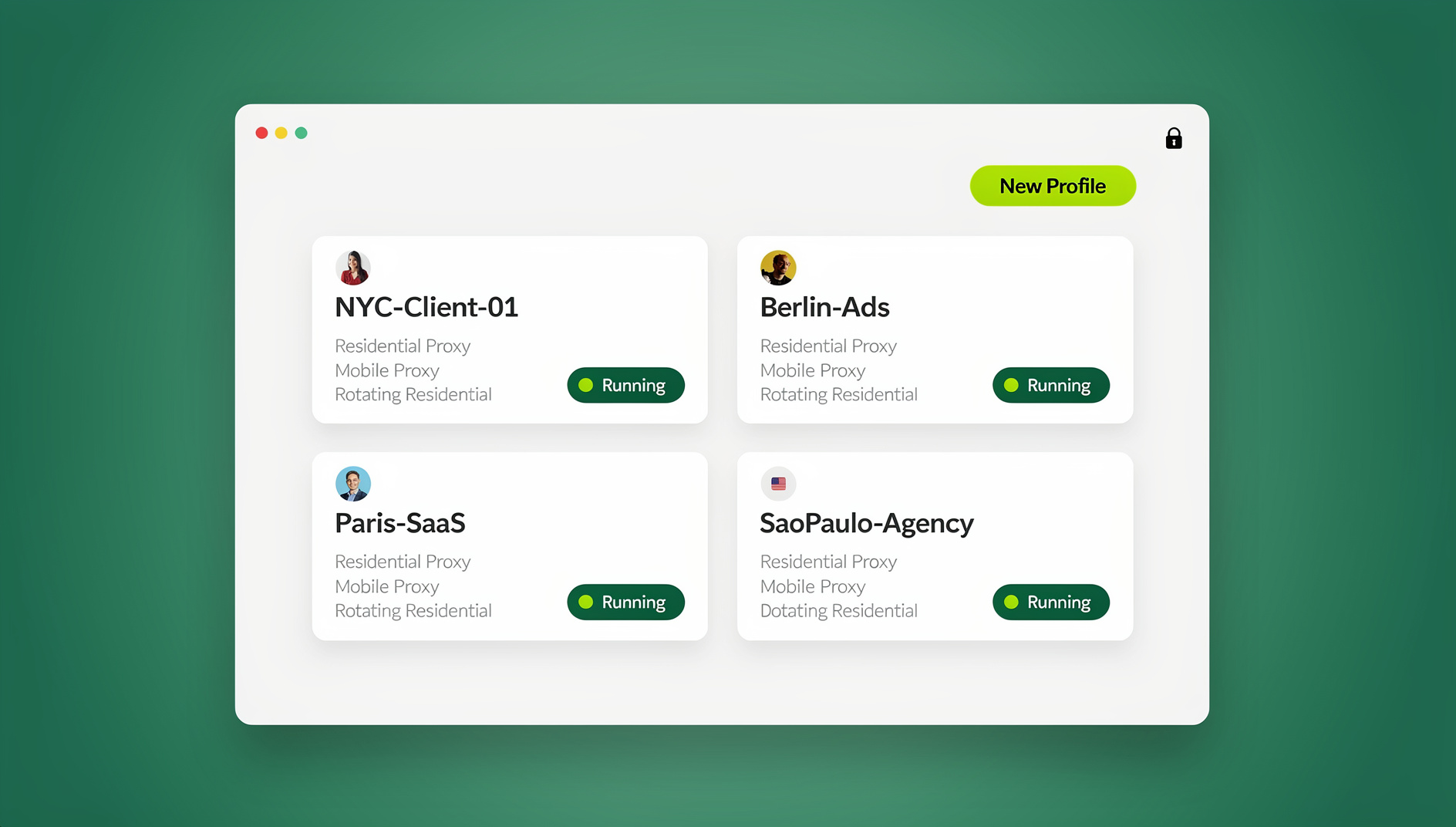
- Build the profile map. One profile per offer × market × persona, named so a stranger can read the list: client-offer-country-device. A single offer across three markets and two entry points is already six profiles before you add logged-in variants. Pro covers 150 saved profiles, Team 500, with extras at $0.05 each.
- Attach the network before anything else. Both plans include 20 residential proxies: 5 GB/month of bandwidth on Pro, 20 GB/month on Team, with extra bandwidth at $6/GB. Bring-your-own HTTP/SOCKS5 works on both. Timezone, locale, WebRTC and geolocation follow the proxy’s exit IP automatically, so pair them deliberately: an en-GB locale behind a UK exit for a UK storefront, not a US locale behind a German IP.
- Warm the profile once. Launch it, let it settle, then open a fingerprint check page and confirm the profile presents one consistent identity — user agent, timezone, WebRTC, canvas and WebGL behaviour, audio, fonts and hardware, all in line with the exit country. If something reads wrong, fix the proxy and locale pairing rather than stacking another tool on top.
- Cold-start the offer. New or cleared profile → ad URL → redirect chain → landing page → checkout. Record the final URL, currency, language, consent behaviour and any third-party request that changes by region.
- Run the logged-in pass. Use a test account you are authorised to use, or the client’s staging login. Never a personal account, never a real customer’s.
- Share the evidence. Share the profile with a paid teammate and it opens already signed in, with no password changing hands. Cloud sync carries the login to your other devices, and live cloud session sharing lets a paid teammate watch the failure as it happens.
- Retire and archive deliberately. When a test concludes, record the result and the bandwidth it drew, then decide whether the profile stays. Keep the ones you will regression-test next month and archive the ones tied to a market you have left. A library that only grows becomes a liability the first time a teammate opens the wrong profile.
On Team, shared sessions can also block or redirect pages, which keeps a client demo out of a live admin panel while someone else drives the browser. If your offer testing overlaps with QA of disposable environments, the workflow for a cloud browser for QA testing maps almost one to one.
Scaling the Workflow Without Breaking Platform Rules
Scaling here means more offers and more markets, not more accounts than a platform permits. Keep those two things separate and the rest is arithmetic.
Scale the profile library, not the account count
Up to 50 profiles can be open at once on both plans, so the ceilings that matter early are saved profiles and seats. Pro gives 150 saved profiles and 6 seats, Team 500 and 16, and profiles can be shared paid-to-paid. If a new market needs a new test rig, add a profile — not another seller or advertiser account. Where a platform limits how many accounts one person may hold, follow its own route: Amazon requires approval for an additional seller account, and agencies working on Meta properties use Business Manager roles rather than parallel logins. Bought or bulk-registered accounts are not a testing shortcut; they are the thing that ends the engagement.
Budget bandwidth like a line item
The residential proxies on both plans are metered: 5 GB/month on Pro, 20 GB/month on Team, with extra bandwidth at $6/GB. Text, checkout and consent-banner checks barely dent that; video previews, large asset downloads and sessions left open in the background eat it quickly. Track it per test in the same log, so a heavy month shows up in your spreadsheet before it shows up on the invoice.
Cloud storage is a separate allowance: 1 GB on Pro with 20 saved cloud sessions and 3 running at once, 15 GB on Team with 100 saved and 9 at once.
Keep hands-on checks off the scripted path
Send.win is a manual testing surface: you open a profile and drive the browser yourself, and there is nothing here to wire a test framework into. If your regression suite is code-driven, keep it on a device cloud — BrowserStack, Sauce Labs, Pcloudy with its four parallel sessions, or Browserling’s browser-on-demand service — and use Send.win for the manual, account-context work those grids do not do: a signed-in client account, a market-specific payment page, a consent flow that only exists in one country. If a page starts serving challenges mid-test, treat that as a finding, not an obstacle: compare the fingerprint with the IP region, confirm the locale matches the market, and check whether your own run is tripping a rate limit. The bot detection test guide walks through that diagnostic order.
🏆 Send.win Verdict
For offer testing, the useful unit is a browser profile you can name, keep and hand over — not a one-off session you rebuild every morning. Send.win gives each profile its own cookies, storage, fingerprint settings and proxy, so a UK checkout test and a German payment-method test never see each other’s state. Locale and timezone follow the proxy exit IP automatically, sharing a profile with a paid teammate skips the password handoff entirely, and the cloud browser means a paid reviewer on a borrowed laptop can open the same session. It is hands-on by design: every check runs in a profile you open and drive yourself, so code-driven regression belongs on a device cloud, while the account-context checks — the ones that decide whether an offer is actually ready — stay in your hands.
See Send.win plans — Pro from $19/mo or $83.88/yr ($6.99/mo) with 150 profiles, 5 GB of proxy bandwidth and 6 seats; Team from $49/mo or $251.88/yr ($20.99/mo) with 500 profiles, 20 GB and 16 seats. The free cloud demo gives you 10 minutes a day with nothing to install.
Frequently Asked Questions
What is a virtual browser and how does it work?
A virtual browser is a browser session that runs remotely in the cloud and is streamed to your device over the web, so the pages you open, the cookies they set and the fingerprint they present belong to that session rather than your laptop. Profile-based tools extend the same idea to persistent, named profiles you can return to and share with teammates. In both cases the point is an isolated environment with its own storage and identity.
Can I use a virtual browser to test offers and landing pages?
Yes — virtual browser offer testing is one of the better uses for one. You get a clean session per market, so currency, language, consent banners, payment-method lists and redirect chains can be checked the way a first-time visitor experiences them. Test only offers and accounts you own or are authorised to manage, and confirm that each region sees the same offer the ad promises.
How do I test an offer in another country without travelling?
Route a fresh browser session through a proxy with an exit IP in that country, and make sure locale, timezone, geolocation and WebRTC agree with it. Then clear or avoid all prior state before the run — a cached redirect or an old consent cookie will hide the bug you are looking for. A three-step check covers most of it: cold load, redirect chain, checkout with a local payment method.
What’s the difference between a virtual browser and a VPN?
A VPN changes your exit IP; it does not change your cookies, your cache, your locale or your browser fingerprint, and it is still one browser engine. That makes a VPN fine for a fast redirect or price check and insufficient for anything involving login state, payment pages or regional rendering. A virtual browser session carries its own storage and identity, which is what regional testing actually needs.
Do virtual browsers protect my privacy?
They isolate it. Each profile keeps its own cookies, storage and fingerprint settings, so activity in one profile does not follow you into another, and a test login does not end up in your personal browsing session. That is privacy protection in the ordinary sense — separation and consistency — rather than a guarantee about how any third party will treat the session.
Which virtual browser is best for QA testing?
It depends on whether your tests are manual or scripted. For scripted regression across engines and devices, a device cloud is the right tool: BrowserStack lists 3,500+ browsers and devices, Pcloudy 3,000+ browser-OS combinations with parallel sessions and sandboxed runs, and Browserling launches browsers on demand. For manual, account-context work — a signed-in client account, a market-specific checkout, a shared review — a profile manager such as Send.win fits better.
Can I automate tests with a virtual browser?
Send.win is a hands-on tool: you open a profile and run the checks yourself, and nothing here is designed to be driven by a test suite. Run your offer checks by hand and capture screenshots as evidence, and keep automated suites on a dedicated testing grid such as BrowserStack, Sauce Labs or Pcloudy.
How much do virtual browser services cost?
It ranges widely. Testing clouds commonly start with a free account or trial, and Browserling backs its plans with a 30-day money-back guarantee. Profile managers sit lower: DICloak offers 5 profiles free and a base tier around $48/year for 20 profiles, RoxyBrowser starts free with 2 profiles and around $4.8/month for 12, and Browser.lol is around $9/month. Send.win is Pro at $19/mo (or $83.88/yr, $6.99/mo) and Team at $49/mo (or $251.88/yr, $20.99/mo), with a 7-day money-back guarantee on the first card purchase and a free cloud demo for anyone who wants to look first.