Run multiple LinkedIn accounts safely and you unlock a real advantage — agencies serve more clients, recruiters cover more territories, and growth teams test more campaigns in parallel. Do it the wrong way, and you unlock something else entirely: a restricted profile, a locked-out Recruiter seat, or a client relationship damaged by a preventable ban. This 2026 guide updates the old playbook with what’s actually changed — LinkedIn’s enforcement is sharper, passkeys are now mainstream, and the browser tooling agencies rely on has matured well beyond “just use an anti-detect browser and hope.”
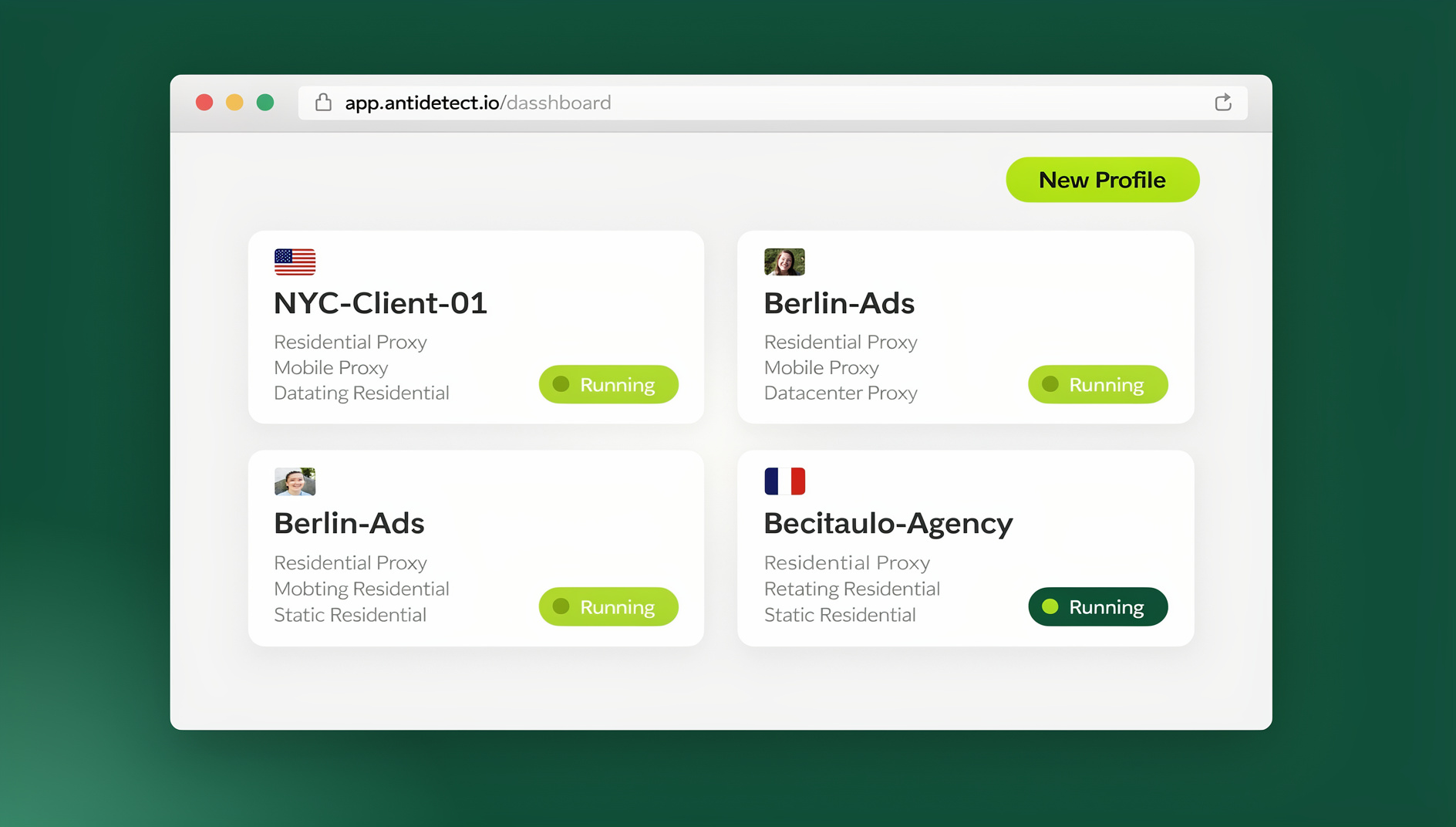
We’ll walk through LinkedIn’s actual rules, the approved ways to manage brand and client assets at scale, and where a dedicated multi-session browser like Send.win fits — including exactly when to use its Desktop app, when to reach for Cloud browser sessions instead, and where the Automation API belongs (and doesn’t).
LinkedIn’s Rules on Multiple Accounts, in Plain English
Before any tool or workflow, get the compliance picture straight. LinkedIn’s community policies exist to keep the network built on real identities, and the platform actively enforces against violations — including legal action against large-scale scraping operations.
One person, one personal profile
LinkedIn doesn’t publish a single page that says “exactly one account” in bold letters, but its authenticity policies, fake-account enforcement, and years of precedent all point the same direction: you should have only one personal LinkedIn profile. Creating a second personal account to “have more reach” or bypass a restriction is the fastest way to get both accounts flagged.
Business assets are a completely different category
Here’s the nuance most people miss: “managing multiple LinkedIn accounts” almost always really means managing multiple assets — Company Pages, ad accounts, Recruiter seats, Sales Navigator seats — not multiple personal identities. LinkedIn has official, sanctioned ways to do exactly that, and they don’t involve creating fake profiles.
Automation and scraping remain heavily restricted
LinkedIn’s terms explicitly prohibit scraping and unauthorized automation, and enforcement has only gotten more aggressive since 2024. Any workflow that touches LinkedIn directly should stay human-driven and personalization-first. This matters later when we talk about where an Automation API does and doesn’t belong.
The Approved Paths to Scale LinkedIn Access
If your team needs broader LinkedIn access, these are the sanctioned routes — in order of preference.
- LinkedIn Business Manager — centralizes Company Pages, ad accounts, and partner access under one governance layer. Agencies can onboard a client, assign admin roles, and revoke access instantly without ever touching a password.
- Licensed seats for Recruiter and Sales Navigator — every user gets their own seat under the subscription agreement. Seat-sharing violates the license terms even if it “technically works.”
- Page admin roles instead of shared logins — add a teammate as a Page admin rather than handing over the owner’s personal credentials.
What none of these solve on their own: the operational mess of actually running a dozen-plus logins, each with its own cookies, browser fingerprint, and proxy requirements, without them bleeding into each other. That’s a tooling problem, not a policy problem — and it’s where the rest of this guide focuses.
Desktop App vs. Cloud Browser vs. Automation API: Picking the Right Mode
Send.win isn’t one single feature — it’s three distinct ways to run isolated browser profiles, and picking the wrong one for your situation is a common (and avoidable) mistake. Here’s how they map to LinkedIn multi-account work specifically.
| Mode | What it is | Best for |
|---|---|---|
| Desktop app | Native application for Windows, macOS, and Linux. Profiles run locally on your machine with a unique fingerprint, cookies, and proxy each. | Your daily-driver setup — the agency owner or in-house team member running 5–20 client Pages and ad accounts every day from their own laptop. |
| Cloud browser sessions | Profiles run entirely in the cloud — no local install. Metered by monthly cloud browsing time, included on paid plans alongside cloud sync, profile sharing, and team seats. | Remote contractors, VAs, or teammates who need access to a specific LinkedIn asset from a machine you don’t control — or anyone who needs to jump in from a Chromebook, a shared office computer, or a device without admin rights to install software. |
| Automation API (Team plan) | Programmatic control via Selenium, Puppeteer, or Playwright. | Internal QA — e.g., scheduled screenshots of Company Pages for client reporting, or automated health checks on session/proxy status. Not for automating LinkedIn outreach, connection requests, or messaging — that crosses straight into the scraping/automation restrictions above. |
Desktop app: the daily driver for hands-on account management
For most agencies and recruiters, the Desktop app is where 90% of the actual work happens. Each LinkedIn asset — a client’s Company Page, their Campaign Manager account, a Recruiter seat — gets its own isolated profile with a unique browser fingerprint, its own cookie jar, and (if you need it) its own proxy. Nothing bleeds between profiles, so logging into “ACME Corp – Page Admin” never risks contaminating “ACME Corp – Ads” or any other client’s session.
Cloud browser sessions: access from anywhere, nothing to install
This is the mode people conflate with the Desktop app most often, and it’s worth being precise: Cloud browser sessions run the profile entirely on Send.win’s infrastructure. There’s genuinely no local install required — you open a browser tab, launch the session, and you’re working inside an isolated cloud environment. This is billed separately, metered by monthly cloud browsing time, and comes bundled with paid plans alongside cloud sync, profile sharing, and team seats. It’s the right call whenever a teammate needs LinkedIn access but you don’t want to (or can’t) install anything on their machine — a common scenario for agencies working with overseas contractors or recruiters handing off a candidate search to a temp sourcer.
Automation API: useful, but stay inside the lines
The Team plan’s Automation API supports Selenium, Puppeteer, and Playwright for scripted profile control. For LinkedIn work specifically, keep this scoped to internal tooling — automated screenshotting for client reports, scheduled uptime/session-health checks, or QA scripts that verify a profile is still logged in correctly. Using it to automate connection requests, messages, or profile views on LinkedIn itself is a ToS violation regardless of what browser sits underneath it, so this is one capability where “can” and “should” genuinely diverge.
Step-by-Step: A Safe Multi-LinkedIn Setup
- Set up governance first. Create a Business Manager instance per client, assign admin roles, and document who has access to what (and for how long).
- Choose your Send.win mode. Desktop app for your own daily use; Cloud browser sessions for anyone who needs access without a local install.
- Create one profile per asset. “Client A – Page Admin,” “Client A – Ads,” “Client B – Recruiter” — never reuse a single profile across unrelated assets.
- Attach a proxy where regional consistency matters. Send.win’s built-in proxies keep IP and geo signals steady for distributed teams managing region-specific ad accounts.
- Share sessions, not passwords. When a teammate needs temporary access, share the running session with a time limit rather than handing over credentials.
- Turn on 2FA or passkeys everywhere. Both on LinkedIn and on your Send.win account itself.
- Log and review access quarterly. Revoke anything a former contractor or ex-employee no longer needs.
Keeping Signals Consistent: Fingerprints, Proxies, and Geo-Matching
LinkedIn’s fraud and abuse systems weigh device, browser, and location signals heavily. A profile that logs in from five countries in one week — even legitimately, say a distributed agency team — looks statistically identical to account takeover or bot activity. Two things fix this:
- Unique fingerprints per profile. Each browser profile presents its own canvas, WebGL, font, and hardware signature so LinkedIn doesn’t see “the same browser logging into 15 different accounts” — a pattern that itself raises flags, ironically, in the opposite direction (looking like one operator running sockpuppets).
- Built-in proxies matched to the asset’s actual region. If a client’s ad account targets the EU but your team works from the US, attach an EU-region proxy to that specific profile so the login location matches the business context, rather than jumping between wildly different geographies session to session.
For a deeper walkthrough of why isolating cookies, storage, and fingerprints per login matters — not just for LinkedIn but for any platform where duplicate-account rules apply — our session isolation guide breaks down the mechanics in detail.
Security Hardening and Team Access
Account security isn’t optional overhead in 2026 — it’s the highest-ROI thing an agency or recruiting team can do to avoid a support ticket turning into a lost client relationship.
- Enable 2FA or passkeys on every account you touch — personal and business. Passkeys are now broadly supported across major platforms and offer meaningfully stronger phishing resistance than SMS codes.
- Never share raw passwords with contractors or new hires. If you need to onboard someone quickly, share a live session with an expiry timer instead — they get working access, you keep the credential.
- Blur or restrict sensitive views before sharing a session — hide billing pages or admin settings a temp worker doesn’t need to see.
If you’re handing off any part of your LinkedIn stack to a new team member, our guide on how to share accounts without passwords covers the exact workflow for doing this without ever exposing a credential.
Risk Radar: How LinkedIn Restrictions Actually Happen
| Trigger | Why it flags | Fix |
|---|---|---|
| Duplicate personal profiles | Directly violates the one-account policy | Use Pages/Business Manager for every brand instead |
| Aggressive automation or scraping | Bot-like request patterns trip detection systems | Keep outreach human-paced; reserve automation for internal QA only |
| Rapid IP/geo jumps | Looks like account takeover or credential stuffing | Attach a stable, region-matched proxy per profile |
| Password sharing across a team | Multiple simultaneous logins from different devices/locations on one account | Use session sharing or Business Manager roles instead |
| Brand-new profile suddenly acting at scale | Volume spikes on unestablished accounts read as spam | Ramp up activity gradually; verify identity where offered |
Use Cases and Team Playbooks
Agencies
Centralize every client in Business Manager, then run each client’s Page and ad account in its own isolated profile. For agencies with contractors working from personal devices abroad, a cloud browser for agencies setup means you never have to walk someone through installing software just to hand off a single account review.
Recruiters
Issue a Recruiter seat per sourcer — never share one login across a team. Keep each region or client search in its own profile so candidate messaging stays consistent and device/IP signals don’t jump around between sourcers working the same requisition.
Growth and marketing teams
Map each motion — organic, paid, partner — to its own profile so copy tests, landing page variants, and geo-targeted campaigns never cross-contaminate. If your broader stack involves juggling several logins in a single browser window day to day, our guide on how to manage LinkedIn accounts in one browser covers the tab-level workflow that pairs well with the profile-level isolation described here.
Send.win Pricing for LinkedIn Multi-Account Teams (2026)
Send.win offers a 30-day free trial with no credit card required, so you can test the full workflow — Desktop app, Cloud browser sessions, and proxies — before committing.
| Plan | Price | Best for |
|---|---|---|
| Pro | $19/mo | Solo recruiters or freelance social media managers running a handful of client profiles |
| Team | $49/mo | Agencies and recruiting teams — includes the Automation API for internal QA tooling, plus expanded seats and cloud browsing time |
🏆 Send.win Verdict
Running multiple LinkedIn accounts safely isn’t really about accounts at all — it’s about isolating the business assets (Pages, ad accounts, Recruiter seats) you’re already entitled to access, without cookies, fingerprints, or credentials bleeding between them. Send.win handles that isolation on the Desktop app for daily use, hands remote contractors a no-install Cloud browser session when they need it, and keeps a Team-plan Automation API on standby for internal reporting — not risky outreach automation.
Try Send.win free today — start your 30-day trial, no credit card needed, and set up your first isolated LinkedIn profile in minutes.
Frequently Asked Questions
Can I legally run multiple LinkedIn accounts?
You should keep exactly one personal LinkedIn profile. To manage multiple brands, clients, or regions at scale, use Company Pages, ad accounts under Business Manager, and licensed seats for Recruiter or Sales Navigator — not additional personal profiles.
What’s the difference between the Send.win Desktop app and Cloud browser sessions?
The Desktop app installs natively on Windows, macOS, or Linux and runs profiles locally on your machine — ideal for your own day-to-day account management. Cloud browser sessions run entirely on Send.win’s infrastructure with no local install at all, metered by monthly cloud browsing time, and are the better fit for remote contractors or anyone accessing an account from a device you don’t control.
Is it safe to use proxies for LinkedIn multi-account work?
Yes, when used to stabilize legitimate regional workflows — for example, matching a login’s location to the region an ad account actually targets. Proxies become a risk only when used to misrepresent identity or evade a legitimate restriction, which is a different use case entirely.
How do I share LinkedIn access with a teammate without giving them the password?
Add them as a Page admin through Business Manager for brand assets, or issue them a proper Recruiter/Sales Navigator seat. For day-to-day operational access, Send.win lets you share a live session directly, with time limits and the option to blur sensitive views, so the credential itself is never exposed.
Does the Automation API work for LinkedIn outreach automation?
Technically it can drive a browser via Selenium, Puppeteer, or Playwright, but using it to automate connection requests, messages, or profile views on LinkedIn violates the platform’s terms regardless of the tooling underneath. Reserve it for internal QA — scheduled screenshots, session health checks, and reporting — not outreach.
What security steps are non-negotiable in 2026?
Two-factor authentication or passkeys on every account you touch, full session isolation between clients or assets, and a documented access log so you can revoke a departing contractor’s access immediately rather than discovering the gap later.
Will using a multi-login browser get my LinkedIn account flagged?
No — the browser itself isn’t the risk factor. What gets accounts flagged is the underlying behavior: duplicate personal profiles, scraping, aggressive automation, or wildly inconsistent login locations. A properly configured multi-session browser with matched proxies and stable fingerprints actually reduces these risk signals compared to juggling everything through one browser’s profile switcher.
How much does Send.win cost for a small agency team?
Pro starts at $19/mo for individual use, while Team runs $49/mo and adds the Automation API, more seats, and expanded cloud browsing time — a reasonable range for most small agencies once you factor in the client-account risk it’s mitigating. Every plan starts with a 30-day free trial and no credit card is required to begin.