Where the Google Ads Verification Form Actually Lives
The google ads verification form is not a public page you can bookmark. Google creates it as a task inside your account: sign in as an admin, open Admin, expand Policy, select Account, and click Start task next to the open request. You cannot start verification yourself, only an account admin can submit it, and every field must match your payments profile letter for letter.

📌 TL;DR Executive Summary
- Core Takeaway: Verification is a task inside Google Ads (Admin > Policy > Account > Start task), triggered by Google, submitted by an account admin, and every answer must match the payments profile.
- Key Risk/Challenge: Originals only. Expired IDs, screenshots, cropped scans or a legal name that differs from the billing record get rejected, and a resubmission costs another review cycle.
- Recommended Solution: Prepare the payments profile, an unexpired photo ID and the registration document before the notice arrives, submit once in color, and track each task separately.
Why Google Sends a Verification Task
Advertiser verification confirms who is behind the ads. The verified name appears in the “Ads funded by” disclosure, in My Ad Center and in the Ads Transparency Center. The task is identity only — it says nothing about whether your campaigns follow policy or whether you are eligible for a regulated category.
Google initiates the request; you cannot ask for one. The triggers documented through November 2026 include:
- Changes to the payments profile, billing address, business information or legal name.
- A merger, or a new legal entity taking over billing.
- Sensitive verticals such as financial services.
- Brand-related queries, and ads Google labels as potentially suspicious.
Since September 2026, verification is no longer one generic form with a single fixed deadline. Google assigns tasks per advertiser and per account setup, so two accounts under the same business can receive different requests on different dates. The rollout has reached long-established accounts, not only new ones — a request is not evidence that you broke a rule.
Before You Click Start: The Pre-Submission Checklist
Most rejections are decided before the upload. Fix these four things first, because editing a payments profile mid-task creates a mismatch between what you type and what Google already holds.
- Payments profile name and address. Open your payments profile in Billing and read the legal name, not the brand. Every field in the form must match it.
- Unexpired photo ID. Check the expiry date today. A document that lapses during review is a rejection.
- Registration document. The organization name on it must match the billing record character for character, including “Inc.”, “Ltd.” and punctuation.
- Website. Your landing page should state the business name, a real address and a contact route. A one-page site with no company details makes the reviewer’s job harder than it needs to be.
| What must match | Where Google compares it | Typical mismatch |
|---|---|---|
| Legal name | Payments profile, registration document, form answer | “Acme Studio LLC” on the profile, “Acme Studio” on the certificate |
| Registered address | Payments profile vs proof of address | An old office address left in billing after a move |
| Country | Payments profile vs the document list Google applies | A UK certificate uploaded against a US profile |
| Website identity | Landing page vs the business description you type | The site sells software, the description says “consulting” |
| Representative | Photo ID vs the person named as authorized | An ID for someone with no stated authority over the account |
If you handle several clients, open the correct browser profile before you start. Signing into the wrong Google account mid-form is the fastest way to attach one client’s documents to another client’s billing record. Our guide to choosing a browser for ads management covers the setup that keeps those logins apart.
The Google Ads Verification Form, Step by Step
Work through the task in one sitting. The organization questions take about five minutes to answer once the documents are open on your desk.
- Confirm you are an admin. Open Admin and check that Policy is visible. Standard users cannot submit verification; the one exception Google names is the EU political ads question, which any user can answer. Check afterwards: if Policy is missing, ask the account owner for admin access before going further.
- Open the task. Click Admin > Policy > Account. Every open request is listed with its own deadline and status. Check: note the date on each task — they can differ.
- Read the request before answering. The task states which entity type and which document list applies. Check: the deadline shown in the notification, because that is the date that governs your account.
- Choose the entity type. Individual, organization or agency — each opens a different document set. Check: your choice matches how the payments profile is registered, not how you describe the business in meetings.
- Answer who pays for the ads. This answer decides whose name appears after “Ads funded by”. Check: the payer you select is the entity whose documents you are about to upload.
- Describe the business. Enter what the company sells and where. Check: the description matches the website and does not drift into unrelated categories.
- Upload the documents. Color, in focus, all four corners visible, front and back as separate files when the form asks for both. Check: open every file before uploading and zoom into the corners.
- Complete the affiliation check if it appears. Google may ask for Dun & Bradstreet details and then send a 6-digit code by SMS or email. Check: the code goes to a number or inbox the organization controls, not a personal one you might lose access to.
- Submit once, inside Google Ads. There is no email address to send documents to. Check: the task now shows as submitted, and you have the date and the deadline written down.
What to Check After You Submit
Review takes up to five business days per task, and Google says rare cases run to 30 days. Watch three things: the task status in Admin > Policy > Account, the email address on the account, and whether ads pick up restrictions in the meantime. If Google asks for a corrected document, upload one clean replacement rather than three near-identical versions — a partial submission costs you another full review cycle instead of shortening it.
Documents That Pass: Individuals vs Organizations
The list is country-specific and tied to the country in your payments profile. Google’s help page for that country is authoritative; the table below shows the shape of the request.
| What Google asks for | Individual advertiser | Organization advertiser |
|---|---|---|
| Core identity document | Government-issued photo ID | Government-issued photo ID of an authorized representative |
| Business existence | Not required | Registration document showing the exact organization name, from the country-specific list |
| Second proof of address, when requested | US list: utility, phone or internet bill or bank statement dated within 60 days; lease or mortgage agreement; or a second government photo ID showing the address | The task states whether one is needed; otherwise the document set is the registration document plus the representative’s photo ID |
| Affiliation check | Not usually required | Dun & Bradstreet details plus a 6-digit code by SMS or email |
| Format | Color, in focus, corners visible | Color, in focus, corners visible, front and back uploaded separately when asked |
For a US organization, accepted registration documents include an IRS-issued or stamped document, a state certificate of incorporation, a recent SEC filing such as a 10-K, 10-Q or 8-K, or a business credit report from Experian, Equifax or TransUnion.
Individuals sometimes need that second proof of address. On the US list it has to be recent: a bill or statement dated within the last 60 days, a lease or mortgage, or a second government photo ID carrying the address. An old utility bill is not a fix for a name that does not match the payments profile.
Agencies, Clients, and Who Verifies What
Google runs the agency that manages the ads and the client it manages them for as two separate tracks. Each track verifies its own legal name against its own payments profile. When a client’s task appears in your manager account, you cannot submit it under your agency identity — the client’s name and documents must match the client’s billing record.
The “who pays” answer is the pivot. If the client pays Google directly, the client’s name appears after “Ads funded by”. If the agency pays and rebills, the agency’s name does. Settle that question before the task arrives, because changing it mid-review means starting over. Agencies running several clients through one login should read manage multiple Google Ads accounts safely for the account-structure side of the problem.
Why Documents Get Rejected — and How to Fix Each Case
Google publishes a document troubleshooting table that maps each rejection message to a cause. The messages are specific enough to act on; the mistake is re-uploading the same file and hoping the reviewer sees something different.
| Rejection message | What the reviewer saw | Fix |
|---|---|---|
| Image is unclear | Blur, glare, shadow or low resolution | Rescan in color at high resolution, flat on the glass, no flash |
| Part of the document is missing | A cropped corner, or the back page never uploaded | Rescan with a small margin on all sides; upload front and back separately |
| Document type not supported | A document that is not on the list for that country | Check the country in the payments profile, then pick from its list |
| Information does not match | Name, address or registration number differs from the billing record | Correct the payments profile first, let it save, then resubmit |
Beyond the file itself, these are the pitfalls that cost the most time:
- Photocopies, screenshots, self-printed copies and digital IDs. Google wants valid originals. A proper scan is fine; a phone photo of a screen is not.
- Legal name vs trading brand. If you trade under a different name, verify the legal entity and explain the brand in the business description. Never edit the registration document to force the names together.
- Country mismatch. The document list follows the country in the payments profile. A UK certificate uploaded against a US profile counts as an unsupported document.
- Documents sent by email. Submissions outside the Google Ads interface do not count, however fast the reply feels.
- A replacement account. Opening a fresh account during a pause adds policy risk, and the new account inherits the same verification requirement.
A paused account is not an appeal case. Google unpauses it when verification passes; appeals exist for pauses that were mistakes, such as an account that already finished every task. That is a different track from a Google Ads suspension appeal, which deals with policy enforcement rather than identity.
Deadlines, Review Times, and What Happens to Your Ads
The account-pausing page gives 30 days from the notice to submit before the account is paused; the notification inside your account carries the date that actually applies to you. Google’s guidance says the deadline cannot be extended. Some ads can already be restricted while a task is pending, so traffic loss can start before the pause lands.
Plan the calendar backwards: five business days for review, plus however long it takes to obtain a document you do not have on file. A certificate of incorporation ordered today may not arrive inside a 30-day window, and a resubmission after a rejection adds another review cycle on top.
Verification Is Not an Industry Certification
Advertiser verification confirms identity. It does not license you to advertise in a regulated category. Financial services advertisers need a separate financial services verification, obtained before the identity check, and unlicensed resellers, brokers and affiliates of a licensed entity are not eligible for it. Gambling requires its own certification, and pharmacies need LegitScript approval. Finishing identity verification will not lift a restriction that belongs to one of those programmes.
Handling Verification Across Several Client Accounts
If you manage a dozen client accounts, verification arrives in waves rather than all at once. The practical problem is knowing which login each task belongs to and getting the right person in front of it — the account admin, who may sit in another office or another country.
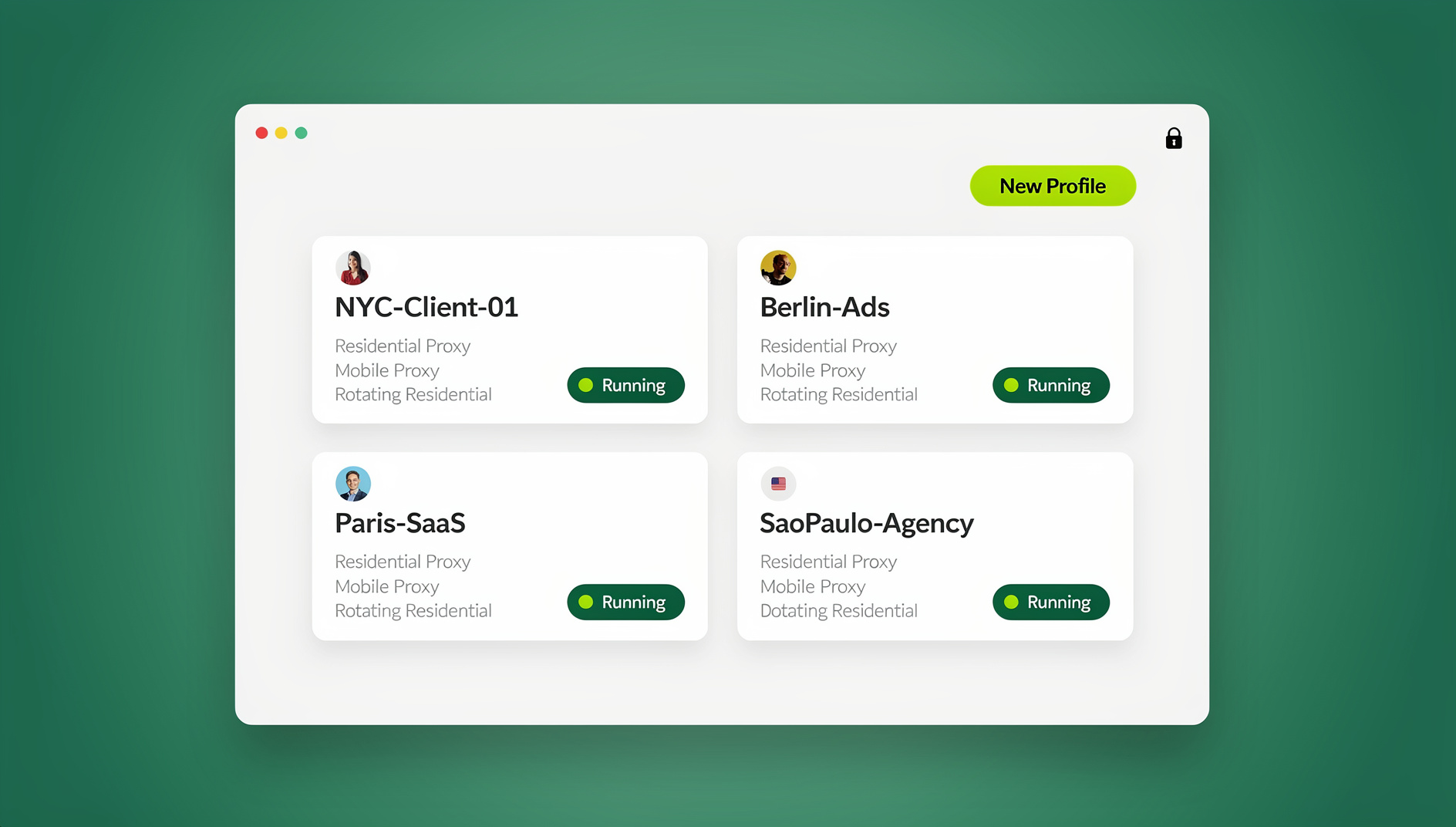
A browser profile manager such as Send.win gives each client its own isolated profile with separate cookies, storage and sessions, so that client’s Google Ads login, payments profile and email stay in one place. When a task appears, you open the profile instead of guessing between signed-in accounts. Cloud sync on a paid plan keeps those logins following you between your own machines, so the profile you prepared at the office opens the same way on your laptop.
When the admin is someone else, sharing a profile with a paid teammate opens it already signed in, with no password change — useful when the only admin on a client account sits with the client. Send.win’s cloud browser runs profiles on its server in Helsinki in the EU, so a teammate can open a shared session from any device with nothing installed. For the wider account structure behind that, see Google Ads MCC alternatives.
🏆 Send.win Verdict
Verification is a paperwork problem with a hard deadline, and the failure mode is nearly always the same: the wrong login, the wrong legal name, or a document photographed instead of scanned. Send.win keeps each client’s Google Ads account inside its own isolated browser profile with its own sessions and proxy, so the admin who has to submit the task opens the right account in one step — in the desktop app or in the cloud browser from any device. It does not submit anything for you, and it cannot: the form is completed by an admin inside Google Ads.
See Send.win plans — Pro from $19/mo ($83.88/yr) with 150 profiles, residential proxies and cloud sync, or start with the free cloud demo before you buy.
Frequently Asked Questions
Where is the advertiser verification form in Google Ads?
Sign in as an account admin, open Admin, expand Policy and select Account. Any open request is listed there with a Start task button. The form only appears once Google has assigned you a task, so an account with no notice will show nothing.
How Send.win Helps With Google Ads Verification Form
Send.win is a browser profile manager for professionals and teams: every account gets its own isolated browser profile.
- Isolated profiles – separate cookies, storage and sessions per profile
- Fingerprint protection – each profile keeps its own consistent browser fingerprint, so profiles never share one browser identity
- Desktop app + cloud browser – native app for Windows, macOS and Linux, or run profiles in the cloud with no install
- Residential proxies included – on Pro and Team, with timezone and locale matched to the proxy
- Team sharing – share a signed-in profile with a teammate without sharing the password
Try the free cloud demo — no install — or download the desktop app. Paid plans start at $19/month, and your first card purchase is covered by a 7-day money-back guarantee (see pricing).
Can I start verification before Google asks me to?
No. Google initiates the process and there is no request form you can submit. You can prepare in advance by cleaning up the payments profile, checking that your photo ID is unexpired and making sure the website names the business and its address.
How long does Google Ads verification take?
Google says review takes up to five business days per task, and in rare cases up to 30 days. Each task is reviewed separately, so a second request can finish on a different date from the first.
What documents do I need to verify as an organization?
A registration document showing the exact organization name, plus a government-issued photo ID of an authorized representative. The accepted registration documents depend on the country in your payments profile — in the US that includes IRS-issued or stamped documents, a state certificate of incorporation, a recent SEC filing or a business credit report from Experian, Equifax or TransUnion.
Why was my verification document rejected?
Common causes are an unclear or cropped image, a document type that is not on the list for your country, or information that does not match the payments profile. Google’s document troubleshooting table maps each message to a cause, so check that first and fix the specific issue rather than resubmitting the same file.
Do agencies verify their own business or the client’s?
Both, on separate tracks. The agency verifies its own legal name against its own payments profile, and each client verifies theirs. The answer to “who pays for the ads” decides whose name appears after “Ads funded by”, so settle that before the task arrives.
What happens if I miss the verification deadline?
The account is paused once the deadline in your notification passes, and Google says the deadline cannot be extended. Passing verification unpauses it. An appeal is appropriate only when the pause was a mistake, such as an account that had already completed every task.
Is a D-U-N-S number required for verification?
Not always, but Google may request Dun & Bradstreet details plus a 6-digit code sent by SMS or email to confirm you are affiliated with the organization. Have the number and access to the organization’s phone or inbox ready before you start the task.