What Does Browser Isolation Mode Actually Switch On?
Browser isolation mode is not one switch. On Chrome and Edge you enable site or process isolation inside the browser engine, so each site runs in its own sandboxed renderer process. For a harder boundary you run a remote browser isolation session, where the page renders in a cloud container and only pixels reach your device. This guide covers how to enable browser isolation mode at each layer, how to confirm it is live, and what breaks when you do.
📌 TL;DR Executive Summary
- Core Takeaway: Chrome has isolated sites per process by default since version 67, Edge adds origin and process policies, and remote browser isolation keeps page code off your machine entirely.
- Key Risk/Challenge: One flag or one registry value can break screen readers, antivirus hooks and line-of-business apps, and flags are lab settings rather than managed policy.
- Recommended Solution: Verify what you already have in chrome://process-internals, push Edge changes through GPO or Intune, and separate managed logins with isolated browser profiles instead of piling on more flags.
The Three Layers People Mean by Browser Isolation
Most instructions blur three different mechanisms under one name. They solve different problems, they are enabled in different places, and confusing them is why people switch on one and assume they have all three. Any answer to how to enable browser isolation mode has to start by naming the layer you actually need.
| Layer | What it separates | Where you turn it on | What it stops |
|---|---|---|---|
| Renderer site isolation | Each site into its own OS-sandboxed renderer process, including out-of-process iframes for embedded third-party content | On by default in Chrome since version 67 on Windows, Mac, Linux and Chrome OS | A compromised renderer reading memory that belongs to a different site |
| Origin-keyed and process isolation | Origins that sit on the same registrable domain | Edge policies OriginKeyedProcessesEnabled and ProcessIsolationEnabled | A script on one origin reading another origin on the same site |
| Remote browser isolation | The whole browser from your device | Microsoft Defender Application Guard, a cloud RBI service, or self-hosted containers | Web content executing any code on your endpoint at all |
Site isolation also relies on Cross-Origin Read Blocking, which keeps sensitive HTML, XML, JSON and PDF responses out of renderer processes that should not have them. A process boundary only helps if the data behind it stays where it belongs. The mechanism is documented in the Chromium site isolation notes.
The pressure behind it is measurable. Chrome’s security team counted 10 potentially exploitable renderer bugs in M69, 5 in M70, 13 in M71, 13 in M72 and 15 in M73 — each one a full-browser problem unless sites already sit in separate processes.
Site versus origin, in Chrome’s own terms
Chrome defines a site as the scheme plus the registrable domain, including the public suffix. Subdomains, port and path are ignored, so https://foo.example.com:8080 shares a site with https://example.com. An origin adds scheme, host and port back in, which makes https://foo.example.com and https://bar.example.com two origins on one site.
This is where rollouts go wrong. Assume every subdomain is separated and you overestimate what default site isolation gives you. Origin-keyed isolation closes that gap, and it is a separate switch on each browser.
How to Enable Site Isolation in Chrome, Step by Step
Desktop Chrome already runs the configuration most people are trying to switch on, so the honest answer to how to enable browser isolation mode here starts with a check rather than a flag. Work through these steps in order; the first two tell you whether you need the rest.
- Check the current mode. Type
chrome://process-internalsinto the address bar and press Enter. Look for Site Isolation Mode. On desktop it normally reads Site Per Process, meaning every site gets its own renderer. The same page lists any isolated origins you have configured. - Watch processes split in Chrome’s Task Manager. Press Shift+Esc. Open two tabs on unrelated sites and compare the Process ID column: each tab sits under a different renderer PID. If everything shares one PID, isolation is not running and the remaining steps matter.
- Force strict isolation. Open
chrome://flags, search for Site Isolation, and set Strict site isolation to Enabled. Click Relaunch. The flag applies to the browser installation, so every profile on that build inherits it. - Narrow it to named origins instead. In the same flags page, set Isolate origins to a comma-separated list of exact origins, for example
https://vault.example.com,https://admin.example.com. Write the scheme and full hostname; a bare domain will not match. This is the practical choice on low-memory or mobile devices where strict isolation everywhere is heavy. - Re-verify after the relaunch. Go back to
chrome://process-internalsand confirm the mode and the isolated origin list match what you set. Then open one of those origins and check in Shift+Esc that it holds a renderer no other tab shares. - Roll back cleanly if something breaks. Set the flag back to Default and relaunch. Do not leave a half-configured flag in place while you investigate.
Phones are a different story. On Android with 2 GB of RAM or more, Chrome isolates the sites you log into, a behaviour that arrived in Chrome 77 and was extended in Chrome 92 to OAuth and COOP sites. “It is already on” is true on desktops and only partly true on mobile.
How to Confirm Isolation Is Actually Running
Three checks cover almost every case and take about a minute.
- chrome://process-internals reports the Site Isolation Mode and the isolated origins list. This is the authoritative answer for Chrome.
- Shift+Esc Task Manager shows one renderer PID per site and the memory each one holds. It is also how you spot the cost of isolation, because every extra process carries its own overhead.
- Your management console for Edge: confirm the registry value or the Intune/GPO report shows ProcessIsolationEnabled and OriginKeyedProcessesEnabled as applied, not merely configured.
If the mode reads something other than Site Per Process on a desktop machine, look for a command-line switch or an enterprise policy that turned it off before you touch flags. A flag fight with a policy always loses.
How to Turn On Process and Origin Isolation in Edge
Edge sits on the same Chromium engine and adds two policies that go further than Chrome’s defaults. Both are Windows-first and both need a full restart, not a tab reload. If you are working out how to enable browser isolation mode across a managed Windows fleet, these are the settings to push through policy rather than by hand.
- Enable origin-keyed processes. Under
HKEY_LOCAL_MACHINE\SOFTWARE\Policies\Microsoft\Edge\Recommended, create a REG_DWORD named OriginKeyedProcessesEnabled and set it to 1. It isolates most origins from other origins on the same site. Supported on Windows and macOS 141 and later, not on Android or iOS, and off by default. - Turn on full process isolation. Under
HKEY_LOCAL_MACHINE\SOFTWARE\Policies\Microsoft\Edge, create a REG_DWORD named ProcessIsolationEnabled and set it to 1 (0 disables it). Supported on Windows 151 and later only — not macOS, Android or iOS. It exists so admins can switch isolation on ahead of the gradual default rollout. - Deploy through policy, not by hand. Load the Edge ADMX templates and set the same options under Administrative Templates → Microsoft Edge, or push them with Intune. Manual registry edits do not survive reimaging, and they drift the moment someone rebuilds a laptop.
- Restart and confirm. Close every Edge window, reopen, and check that the policy shows as applied in your management report. Then repeat the Shift+Esc process check on a couple of internal sites.
One caveat deserves its own line: because OriginKeyedProcessesEnabled sits under the Recommended key, users can override it through edge://flags or command-line flags. Treat it as a default you set, not a lock you enforce. The full Microsoft policy reference spells out the supported platforms and the restart requirement.
How to Enable Remote Browser Isolation
Local isolation limits what a compromised renderer can reach. It does not stop a malicious page from running JavaScript on your machine. Remote browser isolation does: the page executes in a cloud container and the service streams only safe pixels back, so JavaScript and plugins never run locally. Here is how to enable browser isolation mode at that layer, either on Windows or through a cloud service.
Microsoft Defender Application Guard on Windows
- Check your edition first. Standalone mode needs Windows 10 Pro 1803 or later, or Windows 11 Pro, Enterprise or Education. The Enterprise-managed mode needs Enterprise or Education. Home editions are out.
- Install the feature. Open Turn Windows features on or off and tick Microsoft Defender Application Guard, or run
Enable-WindowsOptionalFeaturein an elevated PowerShell session, or deploy an Intune app and browser isolation profile. - Restart the machine. The feature is off by default and nothing is protected until the install completes and the device reboots.
- Send untrusted sites to an isolated session and confirm the window is visibly marked as isolated. Test printing, file download and clipboard behaviour at the same time — those are the flows users notice first.
Cloud and self-hosted isolation services
Cloud services run the browser inside the provider’s network; self-hosted containers run it on your own infrastructure. Either way you need three things before rollout: identity integration so sessions map to real users, a policy listing which categories of site get isolated, and a documented fallback for the sites that misbehave.
| Option | Where isolation runs | Typical fit |
|---|---|---|
| Microsoft Defender Application Guard | Local hardware-isolated container on the Windows device | Windows estates that already license Pro, Enterprise or Education |
| Cloudflare Browser Isolation | Cloud, provider network | Enterprise deployments |
| Menlo Security | Cloud, provider network | Large enterprises |
| Zscaler ZIA | Cloud, provider network | Enterprise networks already standardised on the stack |
| Self-hosted Docker | Your own containers | Custom requirements and on-premise control |
Remote isolation adds a hop, so streaming quality and input latency shape whether people tolerate it. Budget for a pilot group that uses the isolated browser for real work, not a five-minute demo. If your team needs to watch a session and take over rather than just consume pixels, a cloud browser with UI mode covers that gap without pretending to be a security perimeter.
Separating Logins, Not Just Sites
Everything above separates sites. None of it separates two logins to the same site. If you sign into three client ad accounts or two storefront dashboards in one Chrome profile, they share one cookie jar, one storage area and one active session. Strict site isolation does not change that, because it sees one site.
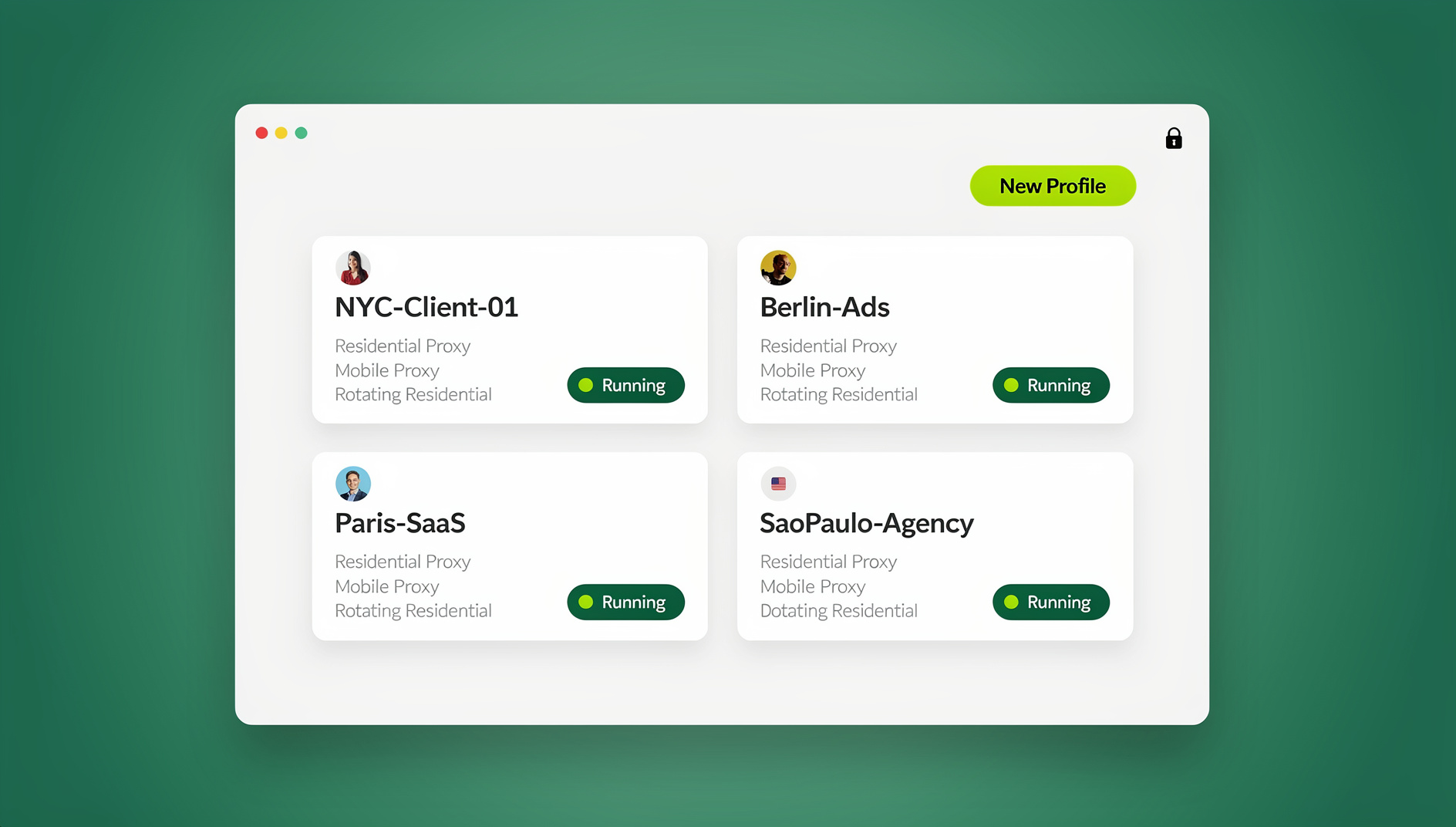
That is the gap a browser profile manager fills. Send.win gives each profile its own cookies, storage, sessions, fingerprint settings and proxy, so the accounts you manage never sit in the same browser state. The desktop app, Sendwin Browser, runs on Windows 10/11 64-bit, macOS 12+ and Linux and is built on Chromium; the cloud browser runs the same profiles on Send.win’s server in Helsinki, Finland, from any device with nothing to install. Residential proxies are included on Pro and Team, and timezone, locale, WebRTC and geolocation follow the proxy’s exit IP automatically.
Sharing works at the profile level too: share a profile with a paid teammate and it opens already signed in, with no password changing hands, and cloud sync keeps logins consistent across devices. Teams standardising on this usually pair it with a review of browser fingerprinting solutions for teams before they commit to one setup.
Two rules keep this on the right side of the line. Use Send.win only with accounts you own or are authorised to manage, and follow each platform’s terms; if you route profiles through proxies, check the rules on residential proxy legality first. Where a platform limits multiple accounts, use its official route — Amazon’s approval process for an additional seller account, or Business Manager roles on Meta for agency access. A suspended account is fixed through that platform’s appeal or verification process, never through a second browser profile.
Pitfalls and Side Effects Worth Planning For
Isolation changes how the browser behaves under load, and most support tickets come from a handful of predictable places.
- Disabling isolation to fix one app. Turning process isolation off removes the boundary for every site in that browser, not just the broken one. Scope the exception to the affected machines, set a review date, or fix the injected application instead.
- Memory and CPU. Each isolated renderer is a separate process with its own overhead. On older laptops the browser will feel heavier with many tabs open, which is a capacity conversation, not a bug report.
- Subdomain assumptions. A login at portal.example.com and an admin panel at admin.example.com are the same site by Chrome’s definition. Without origin-keyed isolation they can share a renderer.
- Conflicting registry advice. Guides disagree on the Edge value name. Trust Microsoft’s own policy pages and the Chromium documentation, and check the policy report after deployment rather than a forum post.
- Version myths. Chrome 152, stable since 25 August 2026, ships networking changes such as Connection Allowlists that restrict Fetch API destinations to a server-supplied list. Its release notes say nothing about isolation defaults, so do not infer them from a version number.
- Mistaking isolation for privacy. Site isolation does not stop cross-site cookies or fingerprinting inside one profile. If that is your concern, check your browser fingerprint and treat isolation and privacy as two separate projects.
Decide in advance which sites get an exception. Banks, internal admin panels and some SaaS tools break inside strict isolation or an RBI session, and a written exception path saves you from ad-hoc flag changes on production machines.
🏆 Send.win Verdict
Site isolation and remote browser isolation protect you from malicious code. Neither one separates the accounts you legitimately manage, because two logins to the same platform are still one site in one profile. Send.win handles that layer: each profile keeps its own cookies, storage, sessions, fingerprint settings and proxy, in the Windows, macOS and Linux desktop app or in the cloud browser running in Helsinki. It is not a security perimeter and it is not automation — it is the clean way to keep client work apart when your job is managing many accounts.
See Send.win plans — Pro from $19/mo with 150 profiles and 5 GB of proxy bandwidth, Team from $49/mo with 500 profiles and 20 GB, or try the free cloud demo at 10 minutes a day and install nothing.
Frequently Asked Questions
How do I enable site isolation in Chrome?
On desktop it is already on: Chrome has isolated sites per process by default since version 67. To force the stricter setting, open chrome://flags, search for Site Isolation, set Strict site isolation to Enabled and click Relaunch. Confirm the result in chrome://process-internals.
Is Strict Site Isolation on by default?
No. The desktop default is Site Per Process, which is what chrome://process-internals normally reports, and it is not the same as the strict flag. Strict mode is something you opt into, and it is worth trying on a small number of devices first because it increases process count.
How do I check whether site isolation is actually working?
Two checks. chrome://process-internals shows the Site Isolation Mode and any isolated origins. Shift+Esc opens Chrome’s Task Manager, where each tab should sit under a different renderer process ID. If many unrelated sites share one PID, isolation is not active.
How do I turn on process isolation in Edge?
Create a REG_DWORD named ProcessIsolationEnabled under HKEY_LOCAL_MACHINE\SOFTWARE\Policies\Microsoft\Edge and set it to 1. The policy is supported on Windows 151 and later, not on macOS, Android or iOS, and applies only after a full browser restart. Origin-keyed isolation uses OriginKeyedProcessesEnabled under the Recommended key on Windows and macOS 141 and later.
What is the difference between site isolation and remote browser isolation?
Site isolation splits sites into separate sandboxed processes on your own machine, so a compromised renderer cannot read another site’s data. Remote browser isolation runs the entire browser in a cloud container and streams only safe pixels, so page code never executes on your device. The first limits blast radius locally; the second removes local execution altogether.
Should I disable process isolation to fix a broken app?
Fix the app or scope the exception first. If you do disable the policy, do it on the affected machines only, document why, and set a date to re-test. Turning it off removes the boundary for every site in that browser, not just the one that misbehaves.
How do I enable Application Guard on Windows 11?
Open Turn Windows features on or off and tick Microsoft Defender Application Guard, or run Enable-WindowsOptionalFeature from an elevated PowerShell prompt, or deploy it through an Intune app and browser isolation profile. It needs Windows 11 Pro, Enterprise or Education, is off by default, and requires a reboot before it protects anything.
Can I isolate specific websites only?
Yes. Chrome’s Isolate origins flag takes a comma-separated list of exact origins such as https://vault.example.com, and Edge’s origin-keyed policy works at origin level too. This suits low-memory or mobile devices, but it does not replace full site isolation for everything else in the browser.
Run How To Enable Browser Isolation Mode in the Cloud With Send.win
Send.win’s cloud browser runs isolated browser profiles on a server in the EU — open a clean session from any device without installing anything:
- Instant cloud sessions – launch an isolated browser in seconds, no local install
- Isolated profiles – separate cookies, storage and fingerprint settings per session
- Cloud sync & profile sharing – pick up the same profiles on the desktop app (Windows, macOS, Linux) or share them with your team
- Residential proxies included – on Pro and Team, with timezone and locale matched to the proxy
You can try it right now: the Send.win demo browser opens an isolated cloud session directly in this browser tab. Paid plans start at $19/month, with a 7-day money-back guarantee on your first card purchase — see pricing.