
In 2025, you can easily manage multiple YouTube channels in one browser using Google’s account-switching features, separate browser profiles, and specialized multi-login tools like Send.win.
Why Manage Multiple YouTube Accounts?
Many creators and businesses juggle more than one YouTube channel. For example, a travel vlogger may also run a separate coding tutorials channel. Keeping content distinct helps audiences find relevant videos, and YouTube’s algorithms favor niche-specific channels. Large organizations often separate personal and corporate videos to maintain brand clarity.
You can even target different languages or markets by having multiple channels. Importantly, Google allows a single Google login to hold up to 100 YouTube channels, making it feasible to manage several channels under one account. Having multiple channels means single sign-in and quick switching between them: as one guide notes, “all channels are accessible from one Google account, so there’s no need to remember multiple credentials. You can quickly switch between channels without logging out”.
Managing multiple accounts also has business benefits: for example, only one live stream can run per YouTube account at a time, so separate accounts allow simultaneous events. In short, multiple accounts or channels let you separate topics, maintain branding, and reach broader audiences without confusing your viewers.
Google’s Built-in Account Switching
YouTube accounts are tied to Google logins, and Google provides some native ways to switch. If all your channels are under one Google account (such as separate Brand Channels), you can switch between them directly in the YouTube interface. On desktop, click your profile avatar in the top-right corner and select the channel you want under “Your channels”. This lets you jump between channels without re-entering passwords. Likewise on mobile, the YouTube app lets you tap your avatar and choose “Switch account” or “Your channels”. Official tools like YouTube Studio make this seamless; as one source explains, YouTube Studio “lets you switch between channels without re-authentication”. This built-in method keeps one login and avoids logging out.
However, if you are using completely separate Google accounts (each with its own email and password), switching is more cumbersome. You must click your avatar, sign out, then sign in again under the other account. As a Shift software guide notes, Google “doesn’t make it easy to switch” between different account logins – you literally have to log out and back in, which can be time-consuming when done repeatedly.
Key point: Whenever possible, use one Google login with multiple Brand Channels to avoid manual logins. Google allows up to 100 channels per account and even lets you assign managers to brand accounts for team access. But for truly separate accounts, you’ll need external help to switch efficiently (see below).
Using Browser Profiles to Separate Accounts
Modern browsers like Chrome and Firefox offer multiple profiles or containers, which provide separate environments for different logins. Each profile has its own history, cookies, extensions, and bookmarks. This means you can create one profile for Work and another for Personal, each with a different YouTube/Google account logged in. Chrome’s profile system is easy to use: click the user icon (usually your Google avatar) in the top-right corner and choose Add to create a new profile. Sign in with a different Google account for each profile. Each profile opens in its own window, keeping accounts isolated.
The benefits are clear: you don’t have to constantly log in and out. One guide explains that with multiple profiles you achieve “Streamlined Account Management: use different Google or social media accounts without constantly logging in and out.” Profiles also let you install different extensions per profile (for example, work-related tools in one profile and personal apps in another). You can even sync each profile’s data separately across devices. To switch between profiles on desktop, click the profile icon and select the desired profile window. On mobile devices, Chrome doesn’t support full profiles, but you can add multiple Google accounts under Settings to have somewhat separate sessions.
Overall, browser profiles are a simple way to manage multiple accounts side by side. They isolate cookies and sessions so that, for example, you can be logged into AccountA’s YouTube in one window and AccountB’s YouTube in another, without interference. Each profile acts like a mini-browser dedicated to one account.
Specialized Tools and Extensions for Multi-Account Management
Beyond built-in features, there are dedicated tools designed for multi-login. These come in two main forms: browser extensions and full multi-session browsers.
- Multi-session Browsers (Anti-Detect Browsers): Tools like Octo Browser, Multilogin, and Ghost Browser create multiple isolated browser profiles in one app. Each profile has its own “fingerprint” (user agent, fonts, cookies, etc.), so websites see them as different machines. For example, Octo Browser describes each profile as having “its own digital fingerprint, allowing you to safely work with dozens of accounts in one browser interface”. Ghost Browser (built on Chromium) lets you define separate identities in its workspaces. As one testimonial notes, “Ghost Browser allows you to log into any web site with multiple accounts from one window. This is very handy when you manage multiple social media profiles”. Ghost also imports all your Chrome extensions, so you keep familiar tools. In short, these browsers function like running multiple separate browsers simultaneously.
- Multi-Session Extensions: Browser plugins like SessionBox or Send.win allow isolated sessions in individual tabs. For instance, SessionBox creates separate “tabs” each with its own session and even proxy. According to a SessionBox review, “SessionBox lets you utilize multiple browser profiles … in a single window” and “you manage all the multiple accounts from one browser window by simply switching the client.” It uses fingerprint management and session isolation so websites cannot detect the multi-login. SessionBox even advertises unlimited sessions, meaning you can log into as many accounts as needed in one browser.
Send.win Multi-Session Platform: Send.win works similarly to SessionBox. It is a multi-login extension and cloud-based platform for managing accounts. As one user review of Sendwin highlights: “Log in to multiple accounts on the same site simultaneously. No more need for secondary browsers, private sessions – let Sendwin handle these for you”. In practice, Send.win lets you open many isolated “sessions” (tabs) in one browser. Each session is a separate environment – like having multiple browser windows rolled into one. Send.win also offers features like session bookmarks, session sharing, and the ability to assign proxies to each session for extra privacy. In short, tools like Send.win and SessionBox mirror the functionality of multi-profiles and anti-detect browsers, but as extensions you can use within Chrome or other browsers.
Each of these solutions avoids the headache of manual logouts. They create isolated environments so that each YouTube login lives in its own silo. For instance, a user can open one tab for Account1 and another for Account2 concurrently. Ghost Browser testimonials explicitly note that it’s superior to extension hacks because it’s stable and works with Chrome extensions. Similarly, Wavebox uses the concept of “cookie containers” – each Google account lives in its own sandbox – meaning there’s no risk of overlapping sessions.
Specialized multi-login browsers like Multilogin/Octo and extensions like SessionBox or Send.win isolate each account in its own session (fingerprint, cookies, etc.), letting you log into multiple accounts at once with no conflicts.
How to Use Send.win to Manage Multiple YouTube Accounts
One concrete way to simplify multi-account management is to use Send.win’s multi-session tool. Here’s a step-by-step approach:
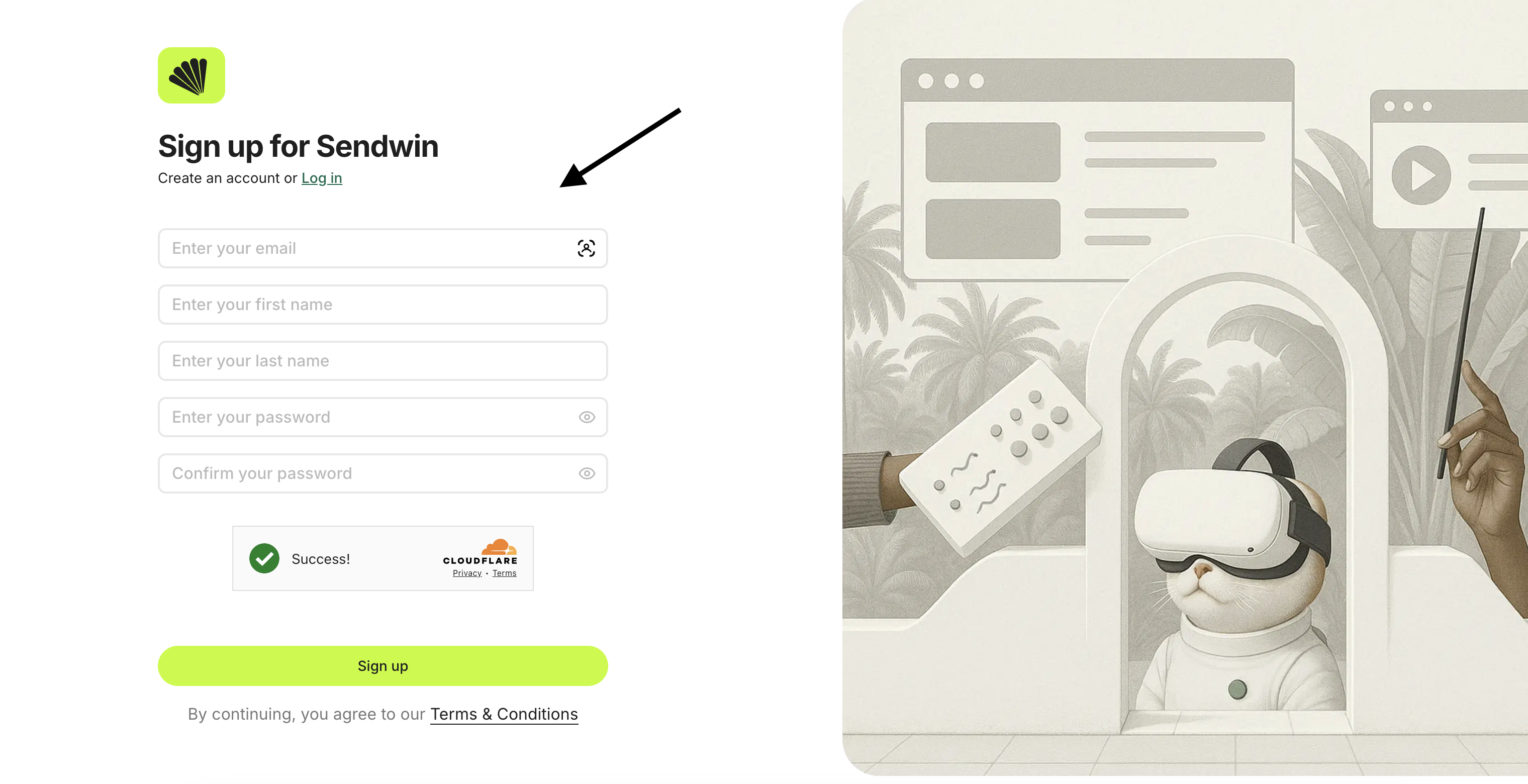
Sign Up and Choose a Plan: Go to portal.send.win/signup and create a Send.win account. The platform offers different plans (e.g., a Pro plan around $9.99/mo or a Team plan) which unlock unlimited sessions and advanced features. You can start with a free trial to test it out.
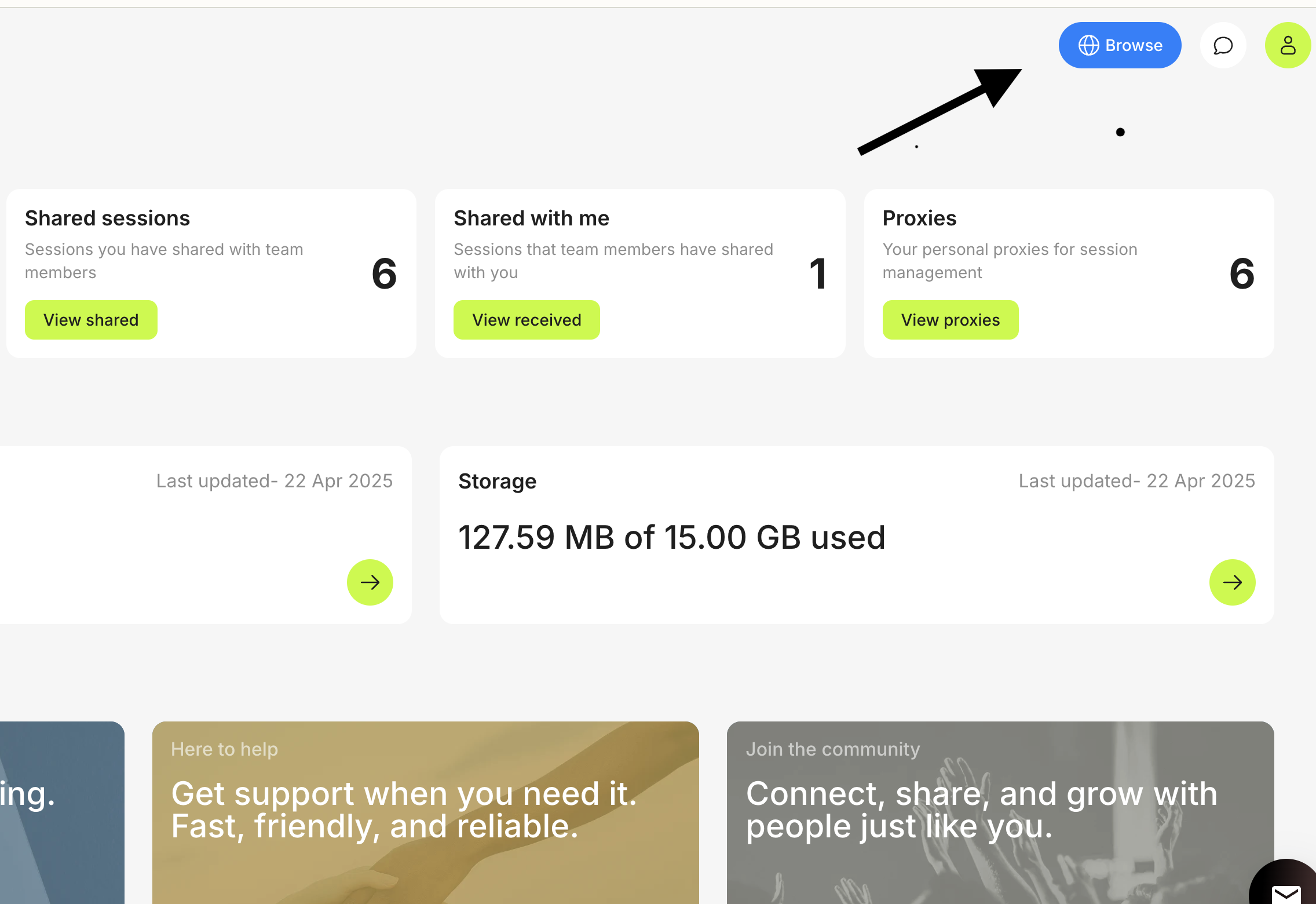
Open the Send.win Dashboard: After logging in, click “Browse” to access the session manager interface. This is where you create and launch session tabs.
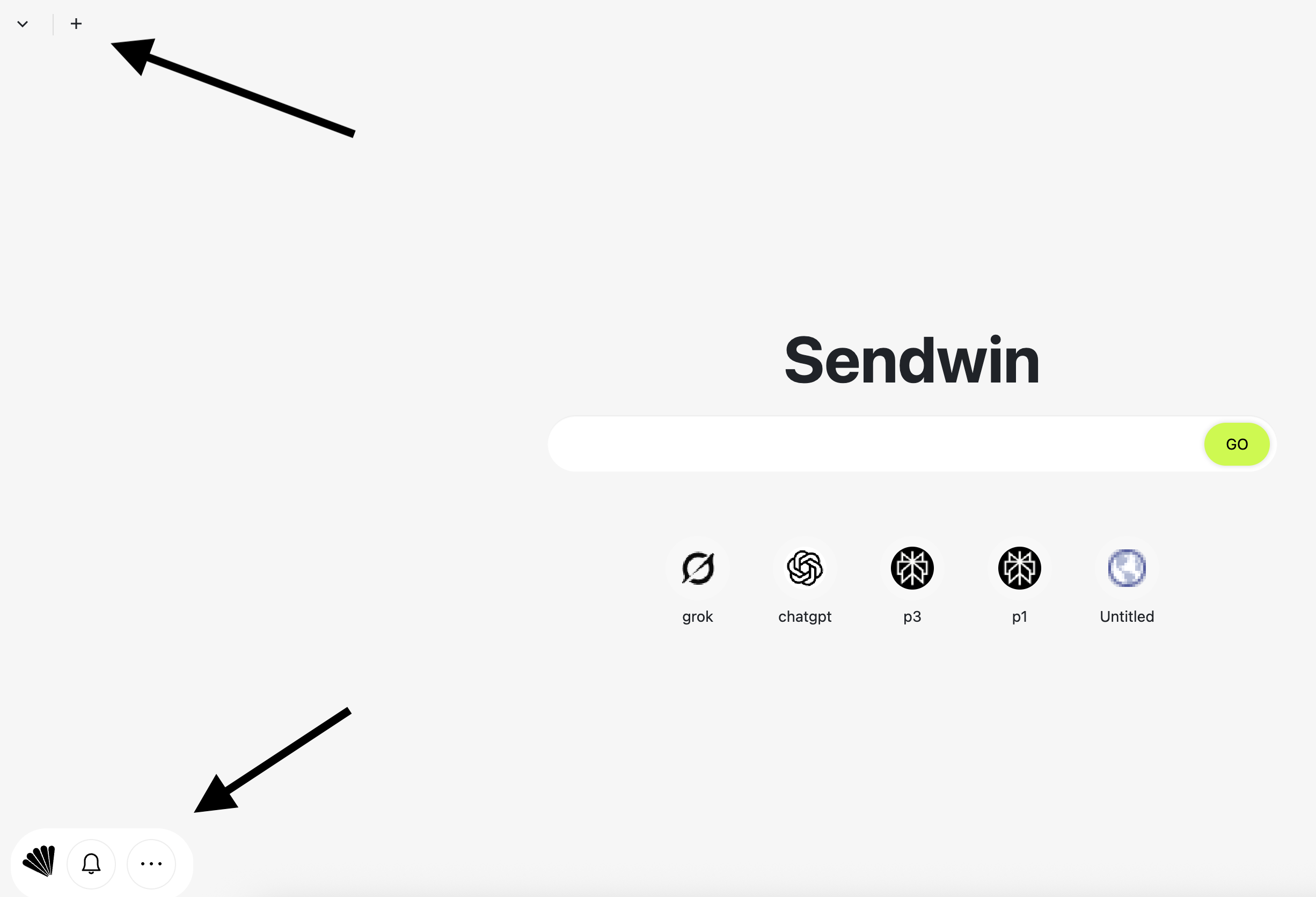
Create a New Session: Click the plus (+) icon or menu option to “Add Session.” Give the session a name (e.g. YouTube Account 1) and enter the start URL (such as https://www.youtube.com ). You can also assign a server location (e.g. US, EU) or your own proxy for that session if desired.
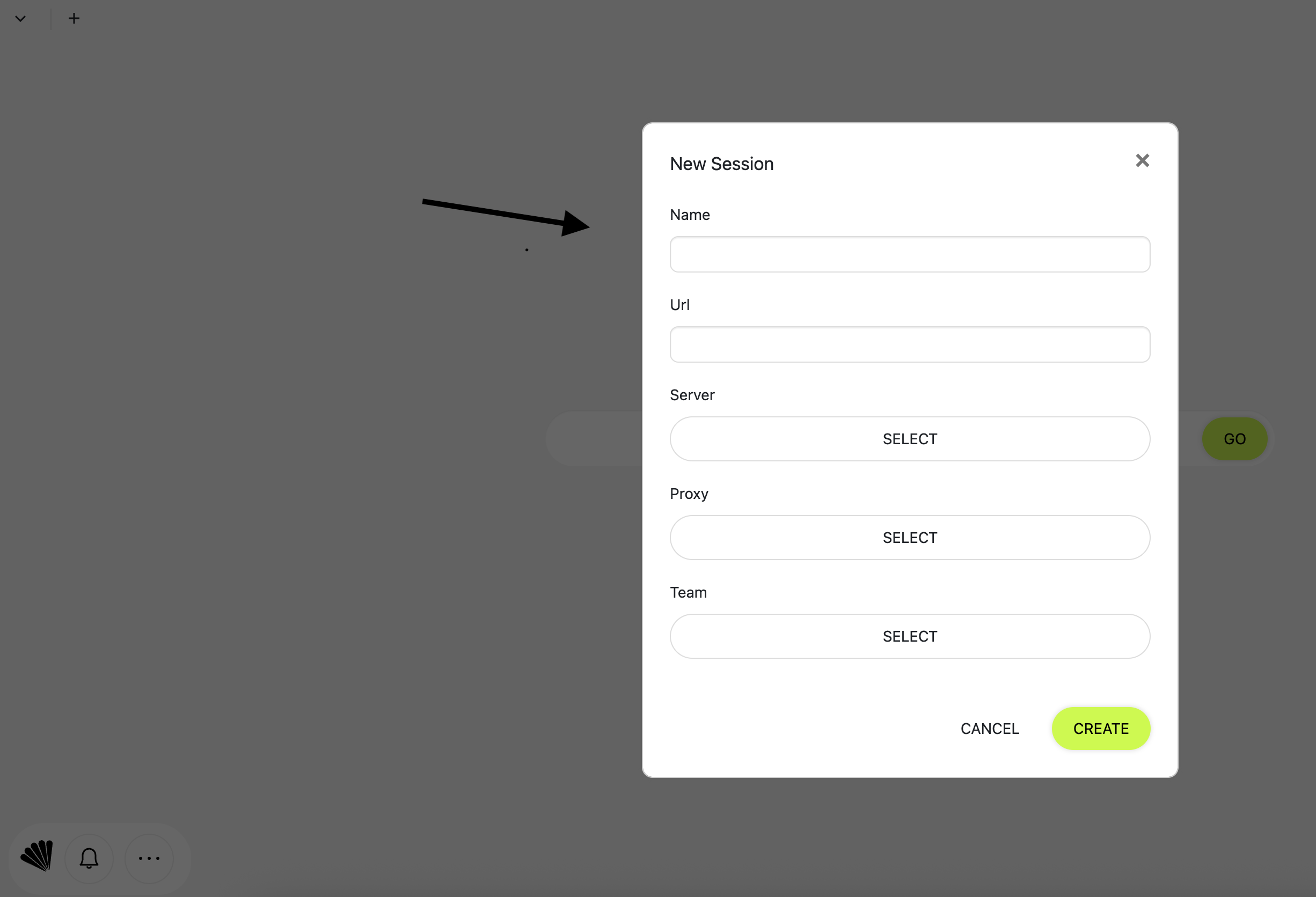
Repeat for Each Account: For each YouTube account you want, create a separate session following the same process. Name them clearly (e.g. YouTube Account 2, YouTube Account 3, etc.). Each session tab is now an isolated browser environment.
Use Sessions to Access YouTube: Launch each session tab. They’ll open like individual browser windows. In each, go ahead and log in to a different YouTube/Google account. Because sessions are isolated, the login in one tab won’t affect another. Now you can have multiple YouTube accounts logged in at the same time in different tabs, all within your main browser window.
Once set up, switching is as simple as clicking the session tab you want. You can even bookmark these sessions inside Send.win for quick access. The result is streamlined workflow: no more “log out” hurdles. Send.win also lets you share sessions (for teamwork) and apply proxies so each account can appear from a different IP address (useful for marketing teams or privacy reasons).
Using Send.win (or a similar multi-login tool) essentially gives you the power of multiple browsers in one window. It’s a modern solution mirroring the multi-profile approach, but with more convenience and features tailored for social media managers. As user reviews note, Send.win can “speed up your productivity pipeline by 80%” by avoiding constant logins.
Best Practices for Managing Multiple YouTube Accounts
To keep things organized and safe:
- Use Strong, Unique Passwords: Even if tools handle sessions, each Google account should have its own strong password and two-factor authentication.
- Keep Track of Content Calendars: When managing multiple channels, maintain a content calendar for each to ensure regular posting. Some users find it helpful to use social media management tools like TubeBuddy or SocialPilot for scheduling across channels.
- Be Aware of YouTube’s Policies: YouTube allows multiple accounts, but all activities must comply with its Terms of Service. Avoid any actions (like spam comments) that could affect all your channels.
- Use Proxies or VPNs If Needed: If accounts serve different regions or need different IP addresses, use the proxy features of tools like Send.win. Anti-detect browsers typically recommend unique IPs per account to prevent cross-account bans.
- Train Team Members: If working with a team, set up Brand Accounts so you can grant channel access without sharing passwords. You can add managers in YouTube Studio to each channel for collaboration.
By combining good practices with the right tools, you can effortlessly handle multiple YouTube accounts. Whether through Google’s own switching, separate browser profiles, or platforms like Send.win, you’ll save time and reduce errors.
FAQ
Q: Can I log into multiple YouTube accounts at the same time?
A: Yes. If your channels are under the same Google login, YouTube Studio lets you switch between them via your profile menu. If they are separate Google accounts, normal switching requires logout/login. To avoid that, use separate browser profiles or multi-session tools. For example, multi-session extensions like Send.win or SessionBox let you open each YouTube account in its own isolated tab, so you can stay logged into all of them concurrently.
Q: How do I switch YouTube accounts on desktop?
A: Click your profile picture in the top-right of YouTube. Under “Your channels,” you can select another channel tied to the same Google account. For separate accounts, you’d normally click Sign Out and then sign in with another account. Alternatively, use a multi-login tool to make this seamless (just click the corresponding session tab instead of logging out).
Q: How many channels can I have on one Google account?
A: Up to 100. Google’s documentation states that a single Google login can manage up to 100 YouTube channels. This means you often don’t need multiple Google logins at all – simply create multiple channels under one account and switch between them.
Q: What tools or extensions help manage multiple accounts?
A: Besides the built-in methods, popular tools include browser apps like Ghost Browser (multi-profile browser), Octo Browser and Multilogin (anti-detect browsers), and extensions like SessionBox or Send.win. These tools isolate each session so you can log into different accounts simultaneously. Social media plugins like TubeBuddy also help manage content across channels, though they don’t handle login switching.
Q: Will using multi-login tools get my accounts banned?
A: Generally, no. These tools simply automate what you could do manually: keeping multiple accounts open. As long as you follow YouTube’s rules (no spam, no false engagement), using a separate session is fine. In fact, isolated sessions can reduce risk by ensuring cookies and data don’t mix between accounts. However, always use reputable tools and stay within YouTube’s guidelines to be safe.
Q: Can I use mobile apps to switch accounts too?
A: On mobile, YouTube allows multiple accounts under the same Google login. Tap your profile and choose “Switch account” or “Your channels”. But like desktop, switching separate Google logins means signing out. Mobile browsers or apps don’t support full multi-profiles. For advanced multi-account needs, it’s best to use a desktop solution.
Conclusion
Managing multiple YouTube accounts in one browser is straightforward with the right approach. You can rely on Google’s own channel-switcher for accounts under the same login, or use separate browser profiles for truly distinct logins. For maximum convenience, dedicated multi-login tools like Send.win let you open as many accounts as needed in one window – no more logging out and in. As one review emphasizes, tools like Sendwin remove the “need for secondary browsers” and make multi-account work effortless.
Ultimately, whether you’re a content creator running several channels or a social media manager juggling client accounts, these methods save time and reduce hassle. Try setting up Send.win or a similar multi-session platform: you’ll be able to instantly switch YouTube accounts with a click. Ready to simplify your workflow? Sign up for a Sendwin trial today and start managing all your YouTube accounts from one browser, hassle-free.