Why Does Pixelscan Keep Flagging Your IP?
A pixelscan ip check reports the address the site sees, its country and city, the network operator behind it, and whether that address looks like a proxy or a VPN. It then compares those details against your timezone, your language and the IP your WebRTC stack exposes. A warning row almost always means those signals contradict each other or the address carries weak reputation — not that your browser fingerprint is unusual.

📌 TL;DR Executive Summary
- Core Takeaway: The Pixelscan IP row is a consistency test. It compares the visible address, its ASN, the DNS path and the WebRTC output against your timezone and language, then flags contradictions.
- Key Risk/Challenge: Debugging after you have already signed in. Cookies and account history carry more weight than a clean scan, and you cannot clear them by tuning settings.
- Recommended Solution: Test an empty profile first, fix in the order IP reputation, then DNS, then geo and timezone, then fingerprint, and give each profile its own proxy session.
What Pixelscan Is and What the IP Row Actually Shows
Pixelscan (pixelscan.net) is a free, browser-based checker that needs no account. You open the page, it runs its tests inside the tab, and it prints colour-coded rows you can read in one pass. It is a diagnostic tool, not a gatekeeper: nothing is sent to the platforms you work on, and the result is a snapshot rather than a verdict on the account.
The eight checks behind one page
The page runs eight separate tests: the main fingerprint scan, an IP check, a proxy check, a VPN check, a DNS leak test, an IP blacklist lookup, a bot check and a location check. Each runs independently, which is why a green fingerprint row can sit next to a yellow IP row. The main scan compares dozens of signals — canvas, WebGL, audio context, fonts, user agent, screen size, timezone, language and IP — and returns a single status: consistent, suspicious or inconsistent.
What the IP row reports
The row shows the visible address, its country and city, the ISP or hosting company that owns it, and whether a proxy or VPN is detectable from that address. The ASN matters as much as the address itself. A residential ISP range looks ordinary because millions of households browse from one, while a hosting provider’s block stands out because ordinary visitors rarely connect from a datacenter.
Consistency, not rarity
This is where most people misread the result. Pixelscan does not penalise a browser for being unusual; a rare mix of fonts and screen size is perfectly normal. It penalises contradiction: an address in Frankfurt next to a timezone set to Los Angeles, or a UK address next to a US-English locale. When something inside the profile disagrees with the network it runs on, the scan turns yellow or red.
How Pixelscan Works Out What Your IP Really Is
Four mechanisms do most of the work here: the connection’s ASN and reputation, the DNS resolver that answered, the WebRTC stack, and the geo signals the page can read straight from the browser.
ASN and reputation come first
The network layer — IP reputation and ASN — is the most common cause of a failed scan, ahead of user-agent or canvas tweaks. A datacenter or hosting IP is flagged because real visitors generally browse from consumer ISP connections, and an address that appears on a public blocklist loses trust immediately. The usual causes of a proxy detected warning are a transparent or misconfigured proxy, or a free pool that hundreds of other people are using at that moment.
DNS: which resolver actually answered
The DNS leak test verifies whether your queries resolve through the proxy or through your local ISP. If your home ISP answers while your traffic claims to come from another country, the resolver country will not match the IP country, and that mismatch is one of the most frequent warnings on the page. Under SOCKS5 you can also route port 53 through the relay, which closes the gap; where a client offers a remote DNS or proxy DNS setting, switch it on.
WebRTC: the second IP nobody plans for
WebRTC uses STUN and TURN servers to work out how to reach a peer, and that negotiation can expose the address your machine actually sits on even when normal page traffic goes through a proxy. The fix depends entirely on UDP. Under SOCKS5 the client sends a UDP ASSOCIATE request and the proxy returns a relay address; HTTP proxies can never relay UDP, and some SOCKS5 providers skip it as a feature. Chromium ships an admin policy called WebRtcIPHandling, supported from Chrome 91, with four values: default, default_public_and_private_interfaces, default_public_interface_only, and disable_non_proxied_udp, which forces WebRTC onto UDP SOCKS proxying or falls back to TCP proxying. See the Chromium policy definition for the exact values before you change a flag.
| Signal | What it exposes | Usual cause of a warning |
|---|---|---|
| Visible IP and ASN | Country, city, ISP or hosting network | Datacenter range or a shared proxy pool |
| Proxy or VPN flag | Whether the address is tied to proxy infrastructure | Transparent or misconfigured proxy, free proxy |
| DNS | Which resolver answered and from where | Queries resolving through the local ISP |
| WebRTC | The public IP the media stack reaches | HTTP proxy, or SOCKS5 without UDP support |
| Timezone and locale | Clock offset and language versus IP country | Timezone set manually to another region |
| Blacklist | Whether the address appears on public blocklists | Reused, burned or resold addresses |
| Bot check | Automation traces such as navigator.webdriver | Headless or scripted browser builds |
Who Ends Up Debugging a Pixelscan IP Result
Anyone who keeps more than one browser profile for work will eventually land on this page. The shape of the problem is identical across roles: a profile behaves fine on its own, then fails the moment it is compared against the network it runs on.
- Agencies. A client’s ad account or storefront is opened from a profile set up months ago; the proxy has changed owner since, or the timezone was never aligned in the first place.
- Sellers with several storefronts. Each storefront needs its own session, and reusing one address across them creates a linkage pattern that a single scan will not display but a platform’s own systems can observe.
- QA and support teams. Testing as a customer in another region only works if geolocation, language and DNS agree. Otherwise you are not reproducing the customer’s conditions at all.
- Social media managers. Scheduler tabs open a profile unattended. If the WebRTC stack reports a local address, the result is inconsistent before anyone posts anything.
That makes it an operations problem rather than a browser problem. The fix is a rule per profile: one proxy session, one timezone, one locale, plus a test before the profile is used for anything that matters. An address with bad IP reputation will keep failing scans no matter how tidy the rest of the setup looks. Everything below assumes the accounts are yours or ones you are authorised to manage, and that you follow each platform’s terms.
A Pre-Login Checklist for a Clean Pixelscan IP Result
Run the whole sequence on a fresh profile, before you sign into anything. Debugging after a session already holds cookies is harder, because the platform has stored a history the checker cannot see and your settings cannot clear.
- Assign one proxy per profile. Do not let three profiles share an address; if two of them touch the same platform, the shared IP links them.
- Load the proxy, then open a plain IP lookup and confirm the country and ASN before you touch Pixelscan.
- Align timezone, locale and geolocation to the proxy’s exit IP, including daylight saving.
- Check the DNS leak row. If the resolver country differs from the IP country, enable remote or proxy DNS.
- Check the WebRTC row on a dedicated test page, separately from the main scan.
- Run the full scan and read every row, not just the headline verdict.
- Log the outcome — address, ASN, date, verdict — so the next person who opens the profile knows its baseline.
Fix in the right order
Work down the stack rather than sideways: IP reputation first, then DNS, then timezone and geolocation, then the fingerprint last. Changing a user agent while the address sits on a blocklist wastes an afternoon. Fix one layer, rescan, and compare against your screenshot; if two rows moved, you probably changed two things. The consistent-or-not logic behind each row is covered in more depth in how Pixelscan detects mismatches.
Common Mistakes That Keep the IP Row Yellow or Red
- Sharing one address across several profiles. Running the same IP for multiple profiles at once creates a linkage pattern; a separate session per profile is the usual practice.
- Setting the timezone by hand and forgetting the seasonal shift. A daylight saving change you did not account for is enough to contradict the IP.
- Assuming SOCKS5 means UDP is handled. UDP support is a provider choice layered on top of the protocol.
- Testing on a profile that is already signed in. You get a verdict on a session the platform has already fingerprinted.
- Chasing the fingerprint while the ASN is a hosting range. No canvas adjustment repairs a datacenter address.
- Reading only the headline verdict. “Inconsistent” tells you something failed; only the individual rows tell you what.
- Treating a green scan as a guarantee. Detection systems also weigh mouse movement, typing speed, scrolling, account history and cookies, and anti-fraud stacks commonly extract well over a hundred parameters in under a second — far more than any single checker samples.
For the network half of that list, WebRTC leak protection walks through the browser-side settings that decide whether media traffic follows the proxy or ignores it.
Pixelscan vs BrowserScan vs CreepJS
All three are free and run in a tab, but they answer different questions. Pixelscan gives the widest single pass, covering network, DNS, WebRTC and bot checks in one place, which makes it the usual starting point. BrowserScan is good for routine validation, though it is less beginner-friendly than Pixelscan and less detailed than CreepJS. CreepJS has the highest technical depth on fingerprint values and the weakest IP leak coverage, and its output is dense if you are new to this.
| Tool | Strongest at | Weak spot | Use it when |
|---|---|---|---|
| Pixelscan | Network layer: IP, proxy, DNS, WebRTC, blacklist | Fingerprint detail is summarised, not itemised | You want one pass over the whole setup |
| BrowserScan | Routine validation of a known-good profile | Moderate depth, less beginner-friendly | You check many profiles each week |
| CreepJS | Deep fingerprint internals | Limited IP leak detection, dense output | Two checkers disagree and you need detail |
People who do this regularly run more than one test and treat the disagreement between them as the interesting signal. A row-by-row explanation of what the network checks measure is in Pixelscan proxy checker.
How to Keep a Profile Consistent Between Scans
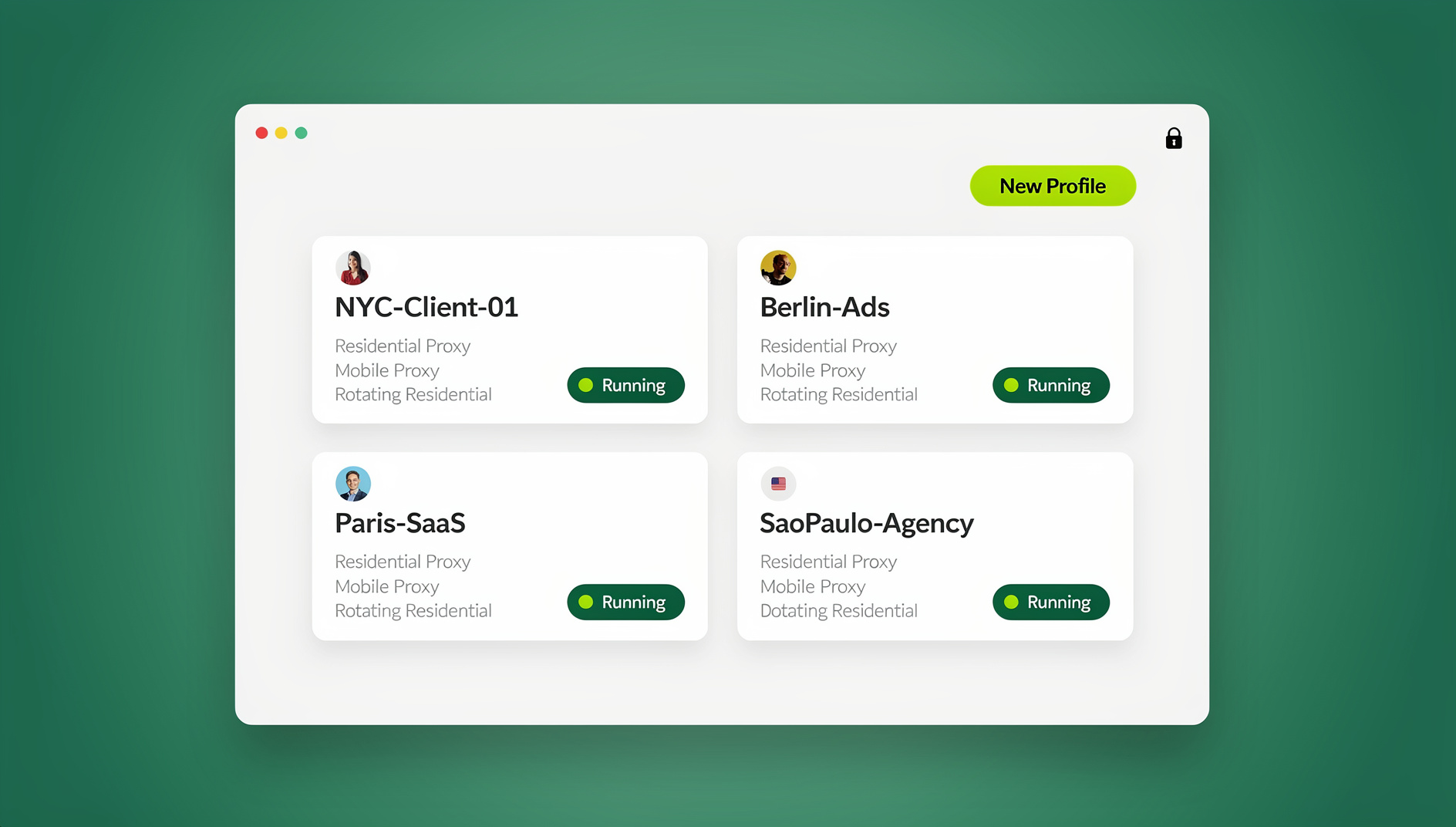
A scan is only valid for as long as the settings behind it hold. Most of the warnings above come back because something drifted: the timezone was typed in once, the proxy was swapped for a cheaper one, or an update reset a flag. The durable fix is to stop hand-editing and let the profile carry its own network and locale configuration. Send.win gives every profile its own cookies, storage, sessions, fingerprint settings and proxy, so the profile you tested is the profile that opens next week, and timezone, locale, WebRTC and geolocation follow the proxy’s exit IP instead of being set by hand.
Proxy choice matters here. Pro and Team include residential proxies with metered bandwidth, and both let you bring your own HTTP or SOCKS5 endpoint if you already have a provider you trust — worth doing when that provider supports UDP and you have verified it on a test page. Sharing keeps the same baseline: send a profile to a paid teammate and it opens already signed in, with no password changing hands, so whoever re-runs the scan sees the configuration you tested rather than a rebuilt one. The cloud browser runs profiles on Send.win’s server in Helsinki, which is handy for checking how a setup behaves from an EU address with nothing installed locally.
The scan itself stays a manual step: you open Pixelscan inside the profile and read the rows yourself, then repeat it whenever the proxy or the settings change. That suits a pre-flight check — you want a person reading the rows and comparing them with the previous screenshot, not a one-off pass that nobody looks at again.
🏆 Send.win Verdict
Pixelscan’s IP row asks one question: does this profile agree with its network? Send.win answers it at the source, because each profile carries its own fingerprint settings, proxy and session, and timezone, locale, WebRTC and geolocation follow the proxy’s exit IP without hand-editing. That turns a debugging session into a short pre-flight pass you run before a profile touches client work — and when a row does turn yellow, you know it is a network or provider problem rather than a setting that quietly drifted.
See Send.win plans — Pro from $19/mo with residential proxies included and a 7-day money-back guarantee on your first card purchase, or start with the free cloud demo and 10 minutes a day in the cloud browser.
Frequently Asked Questions
Why does Pixelscan say my IP is a proxy?
Three causes cover most cases: the address belongs to a datacenter or hosting range rather than a consumer ISP, the proxy is transparent or misconfigured so its presence is visible, or the address comes from a free pool shared by many users at once. Check the ASN first, because it tells you which of the three you are dealing with.
What does the Pixelscan IP check actually show?
It shows the visible address, its country and city, the ISP or hosting company that owns the range, and whether a proxy or VPN is detectable from that address. Read it alongside the DNS and WebRTC rows, since those reveal which path your traffic and your resolver actually took.
How do I fix an inconsistent result on Pixelscan?
Work in order: confirm IP reputation and ASN, then check the DNS leak row, then align timezone and geolocation to the exit IP, and only then look at the fingerprint. Rescan after each single change and compare against your earlier screenshot so you know which fix moved which row.
Does a clean Pixelscan scan guarantee anything?
No. It proves internal consistency at the moment you ran it. Platforms also weigh behaviour such as mouse movement, typing speed and scrolling, plus account history and existing cookies. Use the scan to catch configuration mistakes before you log in, not as a promise about how a platform will treat the account.
Why does Pixelscan flag my timezone as mismatched?
Because the clock offset in the browser does not match the country the exit IP sits in. A proxy in London with the system timezone left on another region is one of the most frequent reasons a scan returns inconsistent. Set the timezone from the exit IP and remember the daylight saving shift.
What is the difference between a WebRTC leak and a DNS leak?
A WebRTC leak exposes the public IP your media stack reaches, which can be your own address even when page traffic runs through a proxy. A DNS leak exposes which resolver answered your lookups and from where. They are separate paths, and fixing one does nothing for the other.
Does my SOCKS5 proxy actually carry UDP and WebRTC traffic?
Only if the provider supports it. Under SOCKS5 the client sends a UDP ASSOCIATE request and the proxy returns a relay address, but UDP support is an add-on choice and some providers skip it, while HTTP proxies can never relay UDP. Verify on a WebRTC test page rather than trusting the scheme name.
Can two browser profiles share the same IP address?
Technically yes, and for unrelated tasks it may never matter. The moment both profiles touch the same platform, the shared address becomes a pattern that ties them together, so a separate proxy session per profile is the safer default.
How Send.win Helps With Pixelscan Ip
Send.win is a browser profile manager for professionals and teams: every account gets its own isolated browser profile.
- Isolated profiles – separate cookies, storage and sessions per profile
- Fingerprint protection – each profile keeps its own consistent browser fingerprint, so profiles never share one browser identity
- Desktop app + cloud browser – native app for Windows, macOS and Linux, or run profiles in the cloud with no install
- Residential proxies included – on Pro and Team, with timezone and locale matched to the proxy
- Team sharing – share a signed-in profile with a teammate without sharing the password
Try the free cloud demo — no install — or download the desktop app. Paid plans start at $19/month, and your first card purchase is covered by a 7-day money-back guarantee (see pricing).