A remote access browser is a browser that runs on remote infrastructure instead of your laptop, so you see and control it through your screen while the actual page-rendering, session data, and network traffic stay on a server. It lets you reach the same logged-in browsing environment from any device, keeps sensitive data off local hardware, and is the fastest way to give someone browser access without handing over a password.
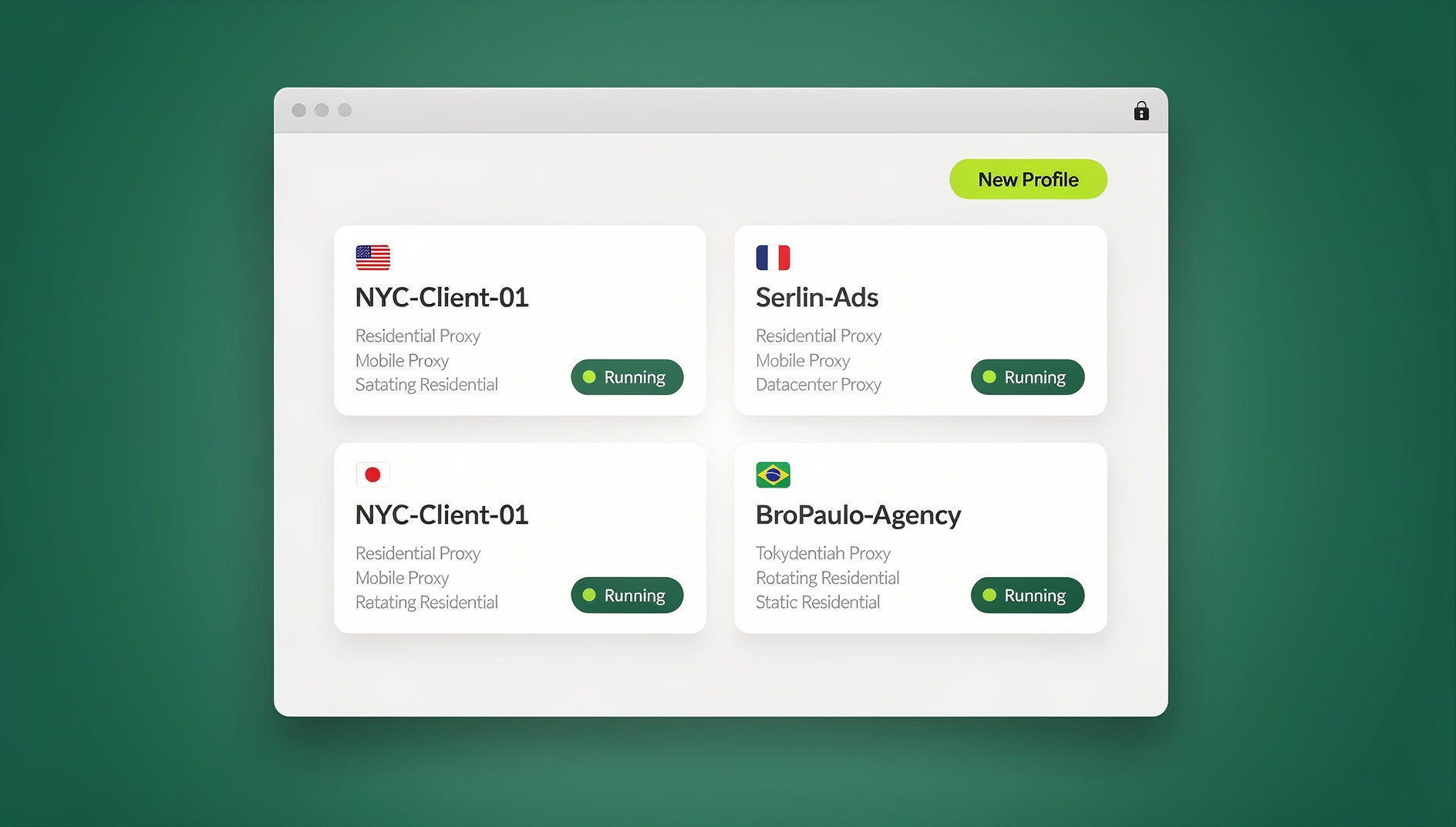

How a Remote Access Browser Works
Instead of installing a browser and letting it store cookies, history, and cache on your hard drive, a remote access browser separates the “browser” from the “screen.” The browser itself lives on a server (or in a container, or inside a locked-down desktop app that syncs to the cloud); your device just sends inputs and receives a rendered view.
The Basic Architecture
- A browser instance runs remotely: a full, real browser executes on cloud infrastructure or inside a dedicated app, not directly on your local OS.
- You connect through a client: a web dashboard, a thin client, or a native app authenticates you and opens a channel to that instance.
- Input is forwarded: clicks, keystrokes, and scrolling travel from your device to the remote session.
- Output is streamed or rendered locally: depending on the architecture, you either see a video stream of the remote page or the page renders using local resources while state stays synced to the cloud.
- Session state persists: logins, open tabs, cookies, and history live on the server or in encrypted cloud storage, not on the device you happen to be using.
Types of Remote Browser Access
| Type | How It Works | Best For | Typical Latency |
|---|---|---|---|
| Cloud browser session | Entire browser runs in the cloud; you view a live stream in your own browser tab | Zero-install access from any device | Low |
| Native app with cloud sync | A real, locally installed browser app that encrypts and syncs profiles/sessions to the cloud | Daily power users who want full local speed plus portability | None (local) / Low (sync) |
| VDI (Virtual Desktop) | Full remote desktop with a browser inside it | Enterprise IT with existing VDI investment | Medium |
| Remote Desktop (RDP/VNC) | Connect to another computer’s entire desktop | IT administration of a specific machine | Variable |
Why Switch to a Remote Access Browser
Work From Any Device
- Device independence: reach your browsing environment from a laptop, a shared office computer, or a tablet
- Consistent state: the same logged-in accounts and open tabs wherever you connect
- No setup on borrowed hardware: nothing to configure on a device you don’t own
- Travel-friendly: usable from a hotel business center or a client’s office without installing anything sensitive
Stronger Security by Default
Because the browsing session doesn’t live on your device, a remote access browser gives you a form of built-in session isolation that a normal local browser can’t match:
- No browsing data on the device: cookies, cache, and history stay off the endpoint you’re physically touching
- Lost or stolen device protection: a missing laptop doesn’t mean a compromised session, because nothing sensitive was stored on it
- Contained malware blast radius: if a remote session gets compromised, it doesn’t automatically touch your operating system
- Cleaner audit trail: logins and activity route through one environment instead of scattering across every machine an employee has ever used
Built-In Team Collaboration
- Shared sessions: more than one teammate can work from the same logged-in profile
- Handoffs without passwords: pass a working session to a colleague instead of typing out credentials
- Agency-style client management: keep every client’s accounts in a separate, clearly labeled session
- Live training: walk a new hire through a real workflow inside a session they can watch or later inherit
This is also where secure session sharing matters most for distributed teams — the goal is transferring access, not credentials.
Top Remote Access Browser Tools for 2026
Send.win
Type: Cloud browser sessions + native desktop app | Best for: remote work, multi-account management, and teams that need to hand off access without sharing logins
Send.win actually gives you two ways to get remote-style access, and it’s worth knowing the difference:
- Cloud browser sessions run entirely on Send.win’s servers with zero local install. You open a session from any device with a web browser, work inside it, and close the tab when you’re done. Usage is metered by cloud browsing time, which makes it ideal for occasional remote access, testing on an unmanaged device, or giving a contractor time-boxed access without installing anything on their machine.
- Sendwin Browser is a native, downloadable desktop app for Windows, macOS, and Linux. It’s local-first — pages render on your own machine at full local speed — but every profile is protected with encrypted cloud sync, so your sessions, proxies, and saved logins follow you to your other devices without ever touching a public terminal in plain form.
Both modes give each profile a distinct fingerprint, which is what makes Send.win a strong fit for multi-account management as well as pure remote access — you’re not just moving a browser off your device, you’re keeping every account cleanly separated while you do it. Sessions can be shared with teammates without exposing the underlying password, and proxies can be assigned per profile for IP-level separation.
Amazon WorkSpaces Web
Type: Enterprise VDI | Best for: AWS-native organizations
- Fully managed, browser-based remote desktop service built on AWS infrastructure
- Lets internal apps be reached securely from unmanaged devices
- Pay-per-use pricing tied to AWS billing
- Integrates with AWS IAM and existing SSO
Limitations: built for enterprise AWS shops; overkill and comparatively expensive for an individual or small team.
Citrix Secure Browser
Type: Enterprise remote browser isolation | Best for: existing Citrix Workspace customers
- Hosted browser sessions run inside Citrix’s cloud
- DLP-style controls aimed at regulated industries
- Integrates with the broader Citrix Workspace suite
- Policy-based access rules set centrally by IT
Limitations: really only makes sense if you’re already committed to Citrix infrastructure and pricing.
Kasm Workspaces
Type: Self-hosted containerized browsers | Best for: technical teams who want to run their own infrastructure
- Docker-based browser containers you deploy and manage yourself
- Open-source community edition available
- Multiple browser choices per container (Chrome, Firefox, Brave, Tor)
- Full isolation per session, with admin-level user management
Limitations: you own the server setup, patching, and uptime; there’s no built-in fingerprint customization for multi-account work.
Chrome Remote Desktop
Type: Remote desktop, not a true remote browser | Best for: occasionally reaching your own computer
- Free remote access to a computer you already own, through the Chrome browser
- No extra client software beyond Chrome itself
- Ties into your Google account for authentication
- Works across Windows, Mac, Linux, and ChromeOS
Limitations: the source computer has to stay powered on and connected — it’s remote-controlling your own machine, not spinning up an independent cloud browser.
Remote Access Browser vs. the Alternatives
| Feature | Remote Access Browser | VPN + Local Browser | Remote Desktop (RDP) | Portable Browser (USB) |
|---|---|---|---|---|
| Access from any device | Yes | Needs a VPN client | Needs an RDP client | Needs the USB drive |
| Session persistence | Cloud-saved | Device-bound | Lives on the remote PC | Lives on the USB drive |
| Browsing data on local device | None | Full local browser data | None | None (stays on USB) |
| Fingerprint isolation | Yes, per profile | No, still your fingerprint | Fingerprint of the remote PC | No, still your fingerprint |
| Team sharing | Built-in on most platforms | Not designed for it | Possible but clunky to set up | Not designed for it |
| Setup effort | Minimal | VPN configuration | Server/host setup | Plug in and go |
Where Remote Access Browsers Shine
Remote Work
- BYOD policies: employees use personal devices while company data never lands on them
- Contractor access: hand a freelancer time-limited browser access instead of a full VPN connection
- Distributed teams: the same environment whether someone is in the home office or a co-working space abroad
- Disaster recovery: reach business-critical tools from any spare device if your usual laptop is unavailable
Multi-Account Management
Remote and cloud browsers are especially good at multi login browser scenarios where mixing up accounts is expensive:
- Social media managers running several client accounts from one dashboard
- E-commerce sellers operating multiple marketplace storefronts without cross-contamination
- Agencies that need separate, clean sessions for every client’s ad accounts and analytics logins
- Affiliate marketers running parallel campaigns across isolated profiles and proxies
Secure and High-Risk Browsing
- Public or shared computers: browse without leaving cookies, cache, or saved passwords behind
- Untrusted networks: route traffic through the session’s network path instead of open airport or hotel WiFi
- Suspicious link investigation: open an unknown URL in a disposable, isolated session instead of your daily driver
- Sensitive transactions: keep banking or financial logins inside a clean, separated environment
IT Administration and Automation
- Admin panel access: reach web-based server and dashboard tools from wherever you happen to be
- Cross-location testing: check how a site behaves from different regions or IPs
- User-environment troubleshooting: reproduce a customer’s browser conditions to debug an issue
- Scripted workflows: Selenium, Puppeteer, and Playwright scripts can drive a real browser the same way a person would, which matters once you need repeatable QA or monitoring rather than manual clicking
On Send.win specifically, this last point runs through the Automation API, available starting on the Pro plan: your automation framework points at the local Sendwin Browser like it would any Chromium-based target, while Send.win handles the underlying profile, proxy, and fingerprint consistency behind the scenes.
Getting Started With Remote Browser Access
Send.win Cloud Session (Fastest, Zero Install)
- Start a Send.win trial — no credit card required
- Launch a cloud browser session from your dashboard
- Work inside the session from any device with a web browser
- Close the tab when finished; billed time is tracked as cloud browsing time
Sendwin Browser (Local Speed, Cloud Sync)
- Download the native app for Windows, macOS, or Linux
- Create a profile and, if needed, assign a proxy to it
- Log into the accounts you need inside that profile
- Encrypted sync keeps that profile available the next time you open the app on another of your own devices
Self-Hosted (Kasm Workspaces)
- Provision a server with at least 4GB of RAM
- Install Docker and the Kasm Workspaces stack
- Configure user accounts and container images
- Access sessions through any web browser once it’s running
Chrome Remote Desktop (Free, Same-Machine Only)
- Install Chrome Remote Desktop on the machine you want to reach
- Set up remote access with a PIN
- Connect from any other device at remotedesktop.google.com
- Remember: the source computer has to stay on and connected
Send.win Plans for Remote Browsing
Send.win offers a 30-day free trial with no credit card required, so you can test both cloud sessions and the desktop app before committing to a plan.
| Plan | Price | Profiles | Proxy Bandwidth | Automation API | Seats |
|---|---|---|---|---|---|
| Pro | $19/mo ($6.99/mo billed annually — 63% off) | 150 | 5GB | Included | Individual |
| Team | $49/mo ($20.99/mo billed annually — 57% off) | 500 | 20GB | Included | 16 seats |
Security Checklist Before You Pick a Provider
- Encryption in transit: traffic between your device and the remote session should be encrypted end to end
- Clear data handling policy: know where session data is stored and how long it’s retained
- Strong authentication: require at least two-factor authentication for account access
- Compliance fit: check the provider against whatever regulatory framework applies to you (GDPR, HIPAA, SOC 2, etc.)
- Session timeouts: idle sessions should close automatically rather than sit open indefinitely
- Sharing controls: when handing a session to a teammate, use proper secure session sharing features rather than emailing credentials around
🏆 Send.win Verdict
If you just need occasional, zero-install remote access, Send.win’s cloud browser sessions get you there from any device in seconds, billed only for the time you actually use. If you’re browsing daily and want full local speed with the same profiles following you everywhere, the native Sendwin Browser with encrypted cloud sync is the better fit — and either way, per-profile fingerprints and password-free session sharing make it a strong pick for teams managing more than one account.
Try Send.win free today — start your 30-day trial, no credit card required.
Frequently Asked Questions
Is a remote access browser slower than a local browser?
A cloud browser session adds some latency because every click has to travel to a server and back — usually in the tens of milliseconds, which is imperceptible for normal browsing but can be noticeable for fast-paced, highly interactive pages. A local-first option like the Sendwin Browser avoids this entirely for everyday use, since pages render on your own machine while only the profile data syncs to the cloud.
Is my data safe in a remote access browser?
Your data is only as safe as the provider’s encryption and storage practices. Look for encryption in transit and at rest, and remember that the core advantage of this model is that browsing data never has to sit unprotected on a device that could be lost or stolen.
Can I use a remote access browser on my phone or tablet?
Yes — cloud browser sessions work from any device with a modern web browser, including phones and tablets, since the actual browsing happens on the server rather than the device in your hand.
How is a remote access browser different from a VPN?
A VPN routes your local browser’s traffic through a remote server, but the browser itself, and everything it stores, still lives on your device. A remote access browser runs the entire browser session remotely, so your local device is only ever displaying output — no page content or session data has to reach it directly.
Do I need to install anything to use Send.win?
No, not for cloud browser sessions — they run entirely in the cloud and open in a regular browser tab. If you want the local-speed option instead, you download the native Sendwin Browser app for Windows, macOS, or Linux and install it like any other desktop application.
Can I automate a remote access browser for testing or scraping?
With Send.win, yes — the Automation API (available from the Pro plan up) lets Selenium, Puppeteer, or Playwright scripts drive the local Sendwin Browser just like any other Chromium-based target, while your profile, proxy, and fingerprint settings stay consistent between manual and automated sessions.
What happens if my internet drops mid-session?
With a cloud session, a dropped connection pauses your view but the remote session generally keeps running until it times out, so reconnecting usually drops you back into the same tabs. With a local-first app like Sendwin Browser, your work simply continues locally and syncs again once the connection returns.
How much does a remote access browser cost?
Pricing varies widely by category: enterprise VDI options like Amazon WorkSpaces Web or Citrix Secure Browser are usually billed per user per month at enterprise rates, self-hosted options like Kasm cost only your server bill, and Send.win sits in between at $19/mo (or $6.99/mo billed annually — 63% off) for the Pro plan, with a 30-day free trial to test it first.
The Bottom Line
A remote access browser solves the specific problem of being tied to one physical device for your browsing life. Whether that means reaching your accounts from a borrowed laptop, keeping a dozen client logins cleanly separated, or handing a teammate working access without ever telling them a password, moving the browser off your local hardware is the more secure and more flexible default in 2026. Send.win covers both ends of that spectrum — cloud sessions for zero-install, pay-as-you-go access, and the native Sendwin Browser for daily use with encrypted cloud sync — so you can pick whichever mode matches how you actually work, and switch as your needs change.