Secure browsing means accessing the web through connections and tools that actively protect your data, identity, and accounts from interception — not just steering clear of shady websites. It combines HTTPS encryption, strong authentication, sandboxed isolation, and privacy controls like tracker blocking, and for anyone juggling multiple accounts or handling sensitive work, an isolated environment such as Send.win closes gaps that browser settings alone can’t.

Most people conflate “secure” with “safe.” Safe browsing is a behavior — avoiding suspicious links, not entering passwords on lookalike sites. Secure browsing is the infrastructure underneath that behavior: the encryption protocols, the authentication mechanisms, and the isolation boundaries that determine what happens even when you make a mistake. You can practice perfect safe-browsing habits and still be compromised if the underlying connection isn’t secure. This guide walks through both the free, built-in tools every browser already has and the layered defenses — VPNs, encrypted DNS, and isolated browser environments — that close the remaining gaps.
The Four Pillars of Secure Browsing
1. Encryption (HTTPS)
Encryption is the foundation everything else builds on. Transport Layer Security (TLS) scrambles the data moving between your browser and a website so that anyone intercepting it — on public Wi-Fi, on a compromised router, or at your ISP — sees only ciphertext. Certificate authorities vouch for a site’s identity before a browser will show the padlock, and public key cryptography ensures only the intended server can decrypt what you send.
HTTPS protects login credentials from interception, financial transactions from eavesdropping, private messages from surveillance, and form submissions from tampering in transit. It does not, however, protect you from a malicious site that legitimately owns a valid certificate, or from malware already running on your device — which is why encryption is only pillar one of four.
2. Authentication
Authentication verifies that you are who you say you are, and that the site you’re logging into is who it says it is.
- Multi-factor authentication (MFA): requires a second proof of identity beyond a password, blocking most credential-stuffing attacks outright.
- Certificate verification: confirms a site’s legitimacy before you exchange any data with it.
- Password managers: generate and store unique credentials per site, and refuse to autofill on spoofed domains.
- Hardware security keys: the strongest option for high-value accounts, since they can’t be phished remotely.
3. Isolation
Isolation limits the blast radius when something does go wrong.
- Browser sandboxing: keeps web content from touching your operating system directly.
- Site isolation: separates each website’s process from every other open tab.
- Container/profile separation: keeps separate accounts and sessions from leaking cookies or storage into one another.
- Remote or cloud isolation: runs the actual browsing session on a server, not your endpoint, so nothing malicious ever touches your device.
4. Privacy
Privacy controls limit what gets collected about you in the first place, which matters just as much as blocking active attacks.
- Tracker blocking: stops cross-site advertising networks from stitching your activity into a profile.
- Cookie management: limits how long sites can recognize you after you leave.
- Fingerprint resistance: reduces how uniquely identifiable your device configuration is, even with cookies cleared.
- Encrypted DNS: stops your network provider from logging every domain you visit.
Hardening the Browser You Already Have
Before reaching for extra tools, configure the browser sitting on your machine right now. Every major browser ships with meaningful security controls that most people never touch.
Google Chrome
Go to Settings → Privacy and Security. Turn on “Enhanced protection” under Safe Browsing for real-time threat checks, enable “Always use secure connections” to force HTTPS-only, block third-party cookies, and deny location, camera, and notification permissions by default. Power users can also enable Strict Site Isolation at chrome://flags and should review installed extension permissions periodically — a rogue extension can undo every other setting on this list.
Mozilla Firefox
Under Settings → Privacy & Security, set Enhanced Tracking Protection to “Strict,” enable HTTPS-Only Mode in all windows, and configure cookies to clear when Firefox closes if you handle sensitive accounts. Advanced users can harden about:config further:
privacy.resistFingerprinting = true
network.http.sendRefererHeader = 0
browser.send_pings = false
media.peerconnection.enabled = false (disables WebRTC)
That last flag matters more than it looks — WebRTC can leak your real IP address even behind a VPN, which is why WebRTC leak protection deserves its own checklist item for anyone running proxies or VPNs.
Microsoft Edge
Set Tracking Prevention to “Strict” under Privacy, search, and services. Enable SmartScreen for phishing and malware protection, and turn on Enhanced Security Mode, which applies extra hardening (like disabling JIT compilation) on sites you haven’t visited before.
Safari
Enable “Prevent cross-site tracking” and “Hide IP address from trackers” under Privacy settings, keep the fraudulent website warning on, and enable Privacy-Preserving Ad Measurement so advertisers can’t build a cross-site profile of you.
| Browser | Key setting | What it stops |
|---|---|---|
| Chrome | Enhanced Safe Browsing + HTTPS-only | Known phishing/malware sites, downgrade attacks |
| Firefox | Strict Tracking Protection + resistFingerprinting | Cross-site trackers, device fingerprinting |
| Edge | Enhanced Security Mode | Memory-corruption exploits on unfamiliar sites |
| Safari | Hide IP from trackers | IP-based cross-site tracking |
Layering on Extra Protection
Browser settings raise the floor, but they don’t eliminate network-level surveillance or device fingerprinting. Three additional technologies close most of the remaining gap.
VPNs
A VPN encrypts all outbound traffic and routes it through a server that masks your real IP address. This protects against ISP logging, secures traffic on public Wi-Fi, and hides your location from websites. The tradeoff: your VPN provider can, in principle, see your unencrypted traffic once it exits their tunnel, and a VPN alone does nothing against browser fingerprinting — a site can still recognize your device by its screen resolution, fonts, and installed plugins even with your IP hidden. No-log providers like Mullvad, ProtonVPN, and IVPN are the common recommendations here.
Tor
Tor routes traffic through at least three volunteer relays, encrypting it in layers so no single relay knows both where the traffic originated and where it’s going. It’s the strongest anonymity option for whistleblowing, journalism, or accessing censored content, but the tradeoffs are real: speeds are slow, some sites block Tor exit nodes outright, and the exit relay can see unencrypted traffic if you’re not also using HTTPS.
Encrypted DNS (DoH/DoT)
Every site you visit starts with a DNS lookup, and by default your ISP can log every one of them — even over HTTPS. DNS-over-HTTPS encrypts that lookup so only you and the DNS resolver (Cloudflare’s 1.1.1.1, Quad9, or NextDNS are common choices) can see it. Chrome and Firefox both let you enable this under their respective Privacy/Security settings in a couple of clicks.
Where Local Security Hits a Ceiling
Every technique above still runs on your physical device. If malware is already on your machine, or if you need to run five accounts on the same platform without them recognizing each other, browser settings and VPNs can’t fully solve it — a VPN changes your IP, but the browser underneath still exposes the same canvas, WebGL, and font fingerprint on every account, which is exactly how platforms link “separate” logins back to one person. Getting real separation requires either browser fingerprinting protection baked into isolated profiles, or moving the browsing session off your device entirely.
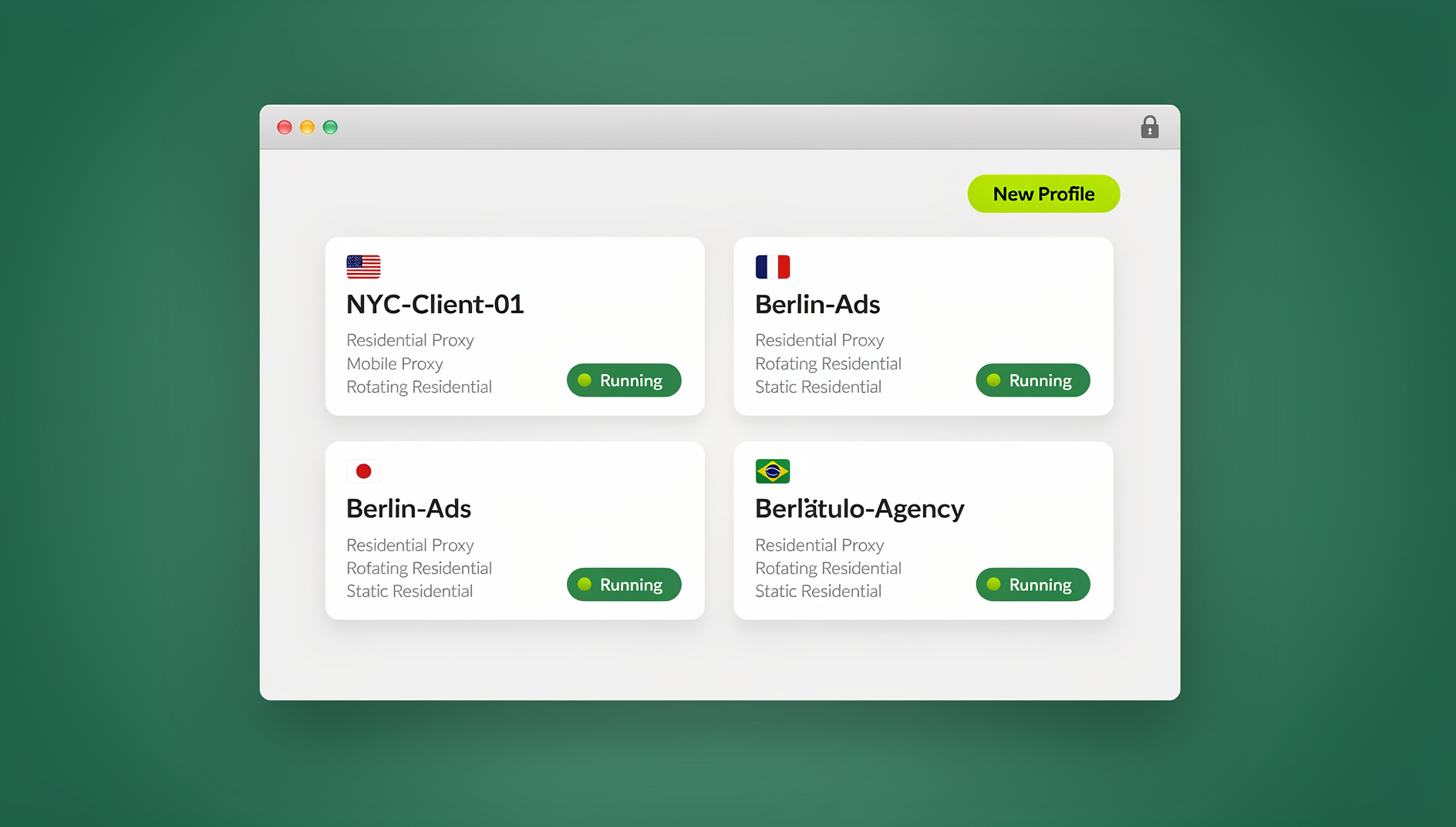
This is where Send.win fits in. It works in one of two ways. The Sendwin Browser is a native, downloadable desktop application for Windows, macOS, and Linux — local-first, so your profiles and sessions live on your machine, with encrypted cloud sync keeping them backed up and available across devices. Alternatively, cloud browser sessions run the entire browsing environment on Send.win’s servers with zero local install; nothing renders or executes on your endpoint, and usage is metered by cloud browsing time rather than a flat subscription tier. Each profile — whether local or cloud — gets its own isolated fingerprint, cookie jar, and storage, with proxy integration so different profiles can also present different IP addresses.
Secure Browsing for Multi-Account Work
Managing more than one account on the same platform is where standard browsers quietly fail at security. Even in a fresh private browsing window, your device still presents the same hardware and software fingerprint, cookies can bleed between tabs through shared storage APIs, and your IP address ties every session back to the same origin. Platforms like Amazon, Meta, and Google actively look for exactly these signals to detect linked accounts.
Genuine separation needs four things working together: complete storage isolation with no shared cookies between profiles, a unique fingerprint per profile so each looks like a different device, independent proxy assignment so each profile can exit through a different IP, and WebRTC leak protection so a VPN or proxy setting can’t be silently bypassed. Send.win’s desktop app and cloud sessions both build these in by default — you’re not stacking three separate extensions to approximate it, and you’re not hoping a single misconfigured setting doesn’t blow your cover.
Secure Browsing for Business and Compliance
Organizations layer additional requirements on top of individual security practices:
- Managed browser policies: IT-controlled settings and approved extension lists.
- Secure web gateways: traffic filtering and monitoring at the network edge.
- Data loss prevention (DLP): blocks sensitive data from leaving through the browser.
- CASB integration: governs which cloud apps employees can reach and how.
- Endpoint protection: antivirus and behavioral threat detection on the device itself.
Regulated industries add their own baseline: healthcare (HIPAA) requires encrypted connections and audit logging; finance (PCI-DSS) requires strong authentication and regular security testing; government contractors (FedRAMP) require authorized software and continuous monitoring; and GDPR-covered businesses need privacy-by-design and data minimization built into every tool that touches customer data — including whatever browser environment agencies and remote teams use to manage client accounts.
Comparing Your Options
| Approach | Protects against | Doesn’t protect against | Best for |
|---|---|---|---|
| Hardened local browser | Phishing, malware sites, basic tracking | Fingerprinting, device compromise | Everyday browsing |
| VPN | ISP logging, public Wi-Fi snooping | Fingerprinting, malware, cross-account linkage | Network-level privacy |
| Tor | Traffic origin tracing | Speed, site compatibility | High-stakes anonymity |
| Send.win (desktop app or cloud sessions) | Fingerprint linkage, cross-account leakage, local malware exposure (cloud mode) | Isn’t a substitute for MFA or a password manager | Multi-account work, agencies, sensitive sessions |
Common Threats to Secure Browsing
Man-in-the-middle attacks
Attackers intercept traffic between you and a website, often on unsecured public Wi-Fi. Prevention: enforce HTTPS-only mode, never click through certificate warnings, and use a VPN on untrusted networks.
Session hijacking
Stolen session cookies let an attacker impersonate you without ever knowing your password. Prevention: log out of sensitive accounts when finished, clear cookies regularly, and use “log out of all sessions” immediately after any password change.
Social engineering
Manipulating a person is usually easier than breaking encryption. Prevention: verify unusual requests through a second channel, never share passwords or MFA codes over chat or phone, and let a password manager’s refusal to autofill be your early warning that a site is spoofed.
A Practical Secure Browsing Checklist
- Update your browser and operating system — most exploited vulnerabilities are already patched.
- Turn on HTTPS-only mode and enhanced Safe Browsing/tracking protection.
- Set up a password manager and enable MFA on every account that supports it.
- Enable encrypted DNS (DoH) through your browser settings.
- Add a reputable VPN for public networks and general IP privacy.
- Isolate any account you manage in bulk — client work, ads, marketplaces — in its own profile with a distinct fingerprint and proxy.
- Review browser extensions quarterly and remove anything you don’t actively use.
🏆 Send.win Verdict
HTTPS, MFA, and a hardened browser cover the basics of secure browsing, and a VPN or encrypted DNS closes most network-level gaps. But none of that touches device fingerprinting or cross-account linkage — the specific failure mode that gets multi-account users and agencies flagged or banned. For that, you need actual isolation: either the Sendwin Browser’s native desktop profiles with encrypted cloud sync, or fully cloud-hosted browser sessions that never touch your device at all. Both give each profile its own fingerprint and proxy, built directly into the browsing environment itself.
Try Send.win free today — start a 30-day free trial, no credit card required.
Frequently Asked Questions
What’s the difference between secure browsing and safe browsing?
Secure browsing refers to the technical protections — encryption, authentication, isolation — that make a connection resistant to interception and compromise. Safe browsing refers to user behavior, like avoiding suspicious links and verifying sites before entering credentials. You need both: secure infrastructure to support safe habits.
Is a VPN enough for secure browsing on its own?
No. A VPN encrypts your traffic and hides your IP from the sites you visit, but it doesn’t stop device fingerprinting, malware already on your machine, or phishing pages with valid certificates. Treat a VPN as one layer among several, not a complete solution.
How can I tell if a connection is actually secure?
Look for the padlock icon and https:// prefix, confirm there are no browser certificate warnings, and click the padlock to inspect the certificate details if the site handles anything sensitive. Third-party tools like SSL Labs can audit a site’s TLS configuration in more depth.
Can HTTPS itself be compromised?
Rarely, but yes — through a compromised certificate authority, a stolen private key, an implementation bug, or a user manually accepting an invalid certificate warning. Never click past a certificate warning on a site where you’re entering credentials or payment details.
What’s the most secure browser to use?
Configuration matters more than brand. A properly hardened Chrome, Firefox, or Edge installation is secure for everyday use. For multi-account work specifically, no local browser configuration replicates the isolation of running each account as its own profile with a distinct fingerprint — which is what Send.win’s desktop app and cloud sessions are built for.
Does Send.win replace my VPN or password manager?
No — they solve different problems. A password manager secures your credentials, a VPN masks your network-level identity, and Send.win isolates and separates your browsing profiles so accounts don’t cross-contaminate or share a fingerprint. Most secure setups run all three together.
Is Send.win’s automation API relevant to secure browsing?
If you’re automating logins or workflows with Selenium, Puppeteer, or Playwright, running that automation against isolated profiles matters for security — it keeps automated sessions from sharing cookies or fingerprints with your manual browsing. Send.win’s Automation API for local automation against the desktop app is available starting on the Pro plan.
What does Send.win cost?
Send.win offers a 30-day free trial with no credit card required. After that, Pro is $19/month ($6.99/month billed annually — 63% savings) with 150 profiles, 5GB of proxy bandwidth, and Automation API access. Team is $49/month ($20.99/month billed annually — 57% savings) with 500 profiles, 20GB of bandwidth, Automation API, and 16 seats.
Conclusion
Secure browsing isn’t a single toggle — it’s encryption plus authentication plus isolation plus privacy, stacked in layers, with each layer covering what the others miss. Start with your browser’s built-in settings, add a VPN and encrypted DNS for network-level privacy, and if your work involves managing more than one account on the same platform, add real isolation on top rather than hoping a private window is enough. That’s the gap Send.win’s native desktop app and cloud browser sessions are built to close, with unique fingerprints and proxy support included rather than bolted on.