Handing over a password so a teammate, client, or virtual assistant can log into a shared account is still one of the most common — and most avoidable — security habits in remote work. A client wants access to a WooCommerce dashboard. A virtual assistant needs to post to a company Instagram account. A support agent needs into a shared helpdesk login. The default move for most people is still “just send me the password” over Slack, email, or a sticky note. In 2026, that default is no longer necessary. Tools built for multi-login browser management — Send.win chief among them — let you share a logged-in session directly, so the other person gets working access to the account without ever seeing, typing, storing, or resetting the actual password.
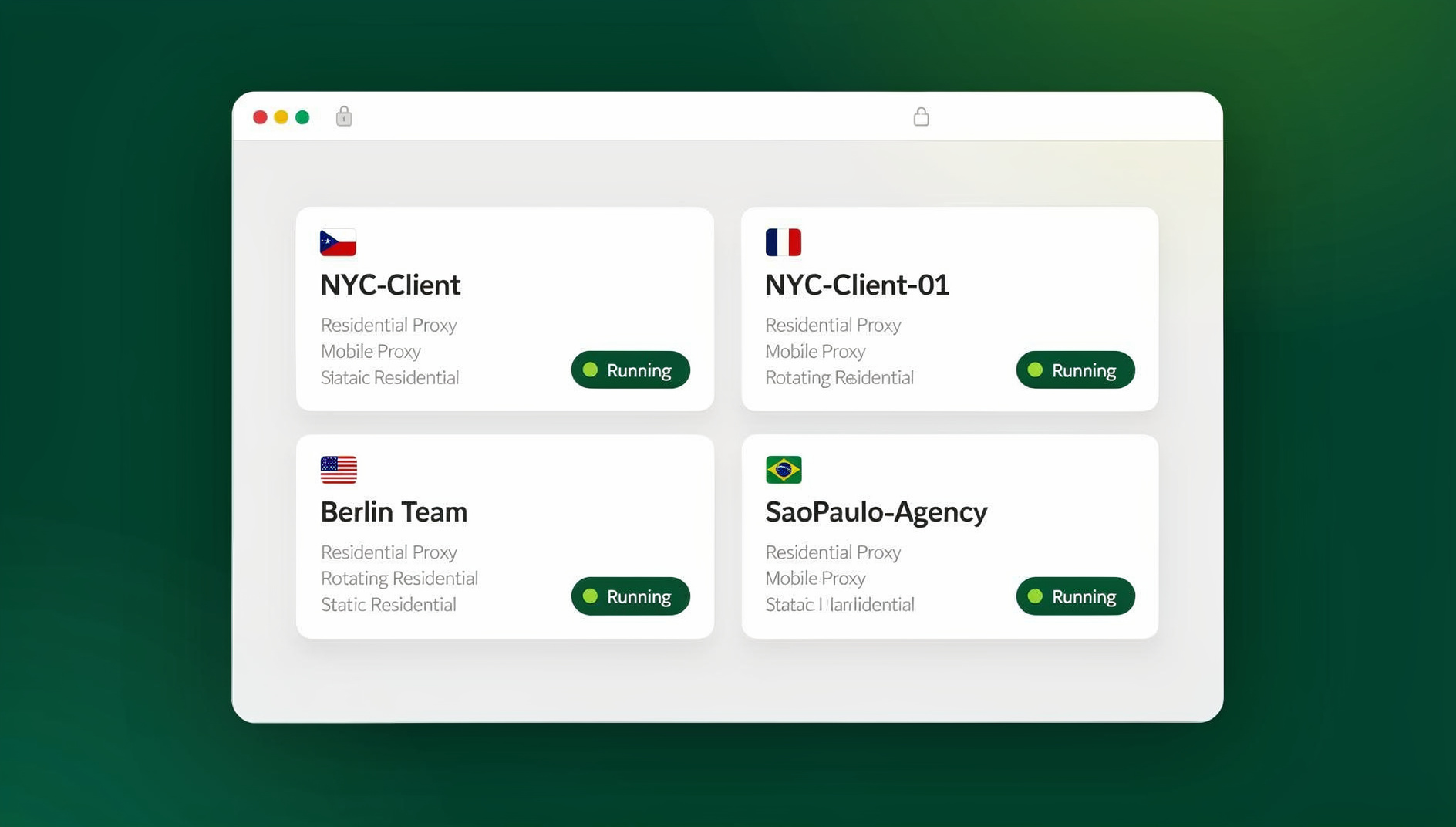

This guide walks through exactly how to share a session without sharing passwords, why it matters more than ever, and how to do it step by step using Send.win’s native Desktop app, cloud browser sessions with zero local install, and — for teams that need automated, repeatable access — the Automation API.
What Does “Share a Session Without Sharing a Password” Actually Mean?
A “session” is the authenticated state a browser holds after you log in — cookies, tokens, local storage, and sometimes a device fingerprint that a site associates with a trusted, already-verified login. When you share a session instead of a password, you’re granting someone access to that already-logged-in state, not the credentials that created it. Practically, this means:
- The recipient can open the account and use it immediately — no password entry, no OTP relay, no “what’s the login again?” messages.
- The recipient never sees, copies, or stores the actual username/password combination.
- You (the owner) can revoke access instantly, at any time, without having to change the password and re-distribute a new one to everyone else who still needs it.
- Depending on the tool, access can be time-limited, role-limited (view vs. full control), and logged for an audit trail.
This is the same underlying idea behind enterprise single sign-on and “share access, not credentials” policies — just made available to small teams, agencies, and freelancers through a browser-level tool instead of an enterprise identity platform.
Why Sharing Passwords Directly Is Still a Major Risk in 2026
Password sharing feels harmless because it’s fast and familiar, but it quietly creates several compounding problems that most teams never audit until something goes wrong.
| Risk | Why It Happens | Real-World Impact |
|---|---|---|
| Credential sprawl | The same password gets copied into chat threads, spreadsheets, and password managers across multiple people | No single point of control; a leak anywhere compromises the account everywhere |
| No revocation path | Removing one person’s access requires resetting the password for everyone | Offboarding a freelancer or ex-employee becomes a full password rotation project |
| Fingerprint / device flags | Multiple people logging in from different devices, IPs, and browsers trips platform risk models | Accounts get flagged for “suspicious login,” forced re-verification, or suspended outright |
| No accountability | Everyone logs in as “the account” — there’s no per-user trail of who did what | Impossible to audit who made a change, posted content, or triggered a violation |
| Password fatigue | Teams reuse or write down passwords to make sharing easier | Increases exposure to credential-stuffing attacks and phishing |
Every one of these problems disappears the moment you stop distributing the password itself and start distributing controlled, revocable access to the logged-in session instead.
How Send.win Lets You Share Logged-In Sessions Instead of Credentials
Profiles and Sessions: What You’re Actually Sharing
Send.win runs each account inside its own isolated browser profile — a self-contained environment with its own cookies, local storage, and a consistent browser fingerprint (screen size, timezone, WebGL/canvas signature, and more) so the platform you’re logging into sees the same “device” every time, rather than a new, suspicious one. When you set up an account this way — the process is covered in detail in our guide to creating sessions in Send.win — that profile becomes the unit you share, not the raw login.
What Your Teammate Sees — and What They Never See
When you share a profile with a teammate through Send.win, they see an already-authenticated browser tab for that account. They can browse, post, respond to messages, or run whatever task they need to do. What they don’t get is the underlying email address, password, or two-factor secret used to create the login in the first place. If you revoke their access later, the session simply disappears from their side — no password reset required, and everyone else who still has legitimate access keeps working uninterrupted.
Step-by-Step: How to Share a Session in Send.win
The workflow is intentionally short — Send.win is built so that sharing access takes less time than typing out a password in a chat message.
- Get started with Send.win. Download the native Sendwin Browser desktop app for Windows, macOS, or Linux, or launch a cloud browser session straight from your account with zero local install if you’d rather not download anything.
- Create or open the profile for the account you want to share (for example, a client’s Facebook Business Manager or a shared Gmail inbox). Log in once inside that profile so the session is authenticated.
- Open the Send.win panel and locate the profile in your saved sessions list.
- Click the options (three-dot) menu next to that session and select Share.
- Enter the recipient’s email address — the address associated with their own Send.win account. (They’ll need a free Send.win account of their own to receive shared access.)
- Set permission and time limits. Choose whether the recipient gets full control or restricted access, and optionally set an expiration window so access revokes itself automatically after a project, shift, or contract ends.
- Confirm the share. The recipient receives the session in their own Send.win panel and can open it immediately — fully logged in, with zero password exchange.
- Revoke anytime. When the collaboration ends, remove their access from the same options menu. The account stays untouched; only their entry point disappears.
For teams sharing several accounts across multiple people — not just a single one-off share — it’s worth setting this up properly at the team level rather than one profile at a time; our walkthrough on sharing sessions with your team in Send.win covers group-based sharing, shared workspaces, and bulk permissions.
Sharing Sessions from the Send.win Desktop App
While cloud browser sessions cover quick, individual shares with zero local install, Send.win also ships a native Desktop app for Windows, macOS, and Linux called Sendwin Browser. The Desktop app matters for session sharing specifically because it keeps profiles running persistently in the background, applies proxy and fingerprint settings at the system level rather than just inside a single browser tab, and gives teams a central place to manage dozens (or hundreds) of shared sessions without juggling browser windows. If your team shares access to client ad accounts, e-commerce storefronts, or social profiles across several people every week, the Desktop app is the more reliable way to keep those sessions stable, since it isn’t tied to a single browser instance that can be closed, updated, or reset.
Automating Shared Sessions with the Send.win Automation API (Team Plan)
For agencies and product teams that need to do more than manually click “share” — think automated QA across a shared staging login, scheduled scraping runs against a shared vendor portal, or scripted posting across a shared social account — Send.win’s Team plan includes an Automation API with native support for Selenium, Puppeteer, and Playwright. Instead of a human opening the shared session by hand, a script can attach directly to the same isolated profile, inherit its fingerprint and proxy configuration, and run automated tasks against the exact same authenticated session the rest of the team is using — without ever touching the underlying password. This is the same infrastructure used for large-scale multi-account operations, and it pairs naturally with a multi-login browser setup where dozens of profiles need to stay isolated, fingerprint-consistent, and accessible to both humans and scripts.
Send.win vs. Other Ways to Share Account Access
| Method | Password Ever Exposed? | Revocation | Per-User Audit Trail | Works for Automation? |
|---|---|---|---|---|
| Sharing the raw password | Yes, always | Requires a full password reset | No | No |
| Shared password manager vault | Yes, visible in the vault entry | Remove from vault, but password itself is unchanged unless rotated | Partial (vault access log only) | No |
| Screen share / remote desktop | No, but slow and requires both parties online simultaneously | Immediate (end the call) | No | No |
| Send.win session sharing | No — recipient never sees credentials | Instant, one click, no password reset needed | Yes | Yes, via the Automation API on the Team plan |
The comparison makes the case plainly: session sharing is the only approach that is simultaneously fast, secure, revocable, and automatable.
Best Practices for Secure Session Sharing
- Set an expiration by default. Don’t leave shared access open-ended unless the relationship is ongoing — a 7 or 30-day window forces a deliberate renewal decision.
- Match permission level to the task. A social media manager posting content doesn’t need the same access level as someone managing billing settings.
- Revoke immediately on offboarding. The moment a freelancer, contractor, or employee’s engagement ends, remove their shared session the same day.
- Review the audit log periodically. Check who has active shared access to which accounts at least once a month, especially for high-value accounts like ad platforms or payment dashboards.
- Rotate the underlying password occasionally anyway. Session sharing removes the day-to-day need to expose it, but rotating it a few times a year is still good hygiene in case of an unrelated breach.
- Don’t share one session with an unlimited number of people. Even with no password exposure, too many simultaneous logins to one account can still trip a platform’s own risk detection — keep shares scoped to who actually needs access.
Who Actually Uses Session Sharing Like This?
The need to hand someone working access without handing over a password shows up constantly across very different kinds of teams:
- Agencies managing ad accounts, analytics dashboards, and CMS logins for multiple clients at once, where every client relationship needs its own isolated, revocable access.
- E-commerce sellers who bring on a virtual assistant to handle order fulfillment or customer messages without giving them the store owner’s actual login.
- Marketing teams running paid campaigns across shared Meta, Google, or TikTok ad accounts, where a team browser approach keeps every media buyer’s activity separated and attributable.
- Customer support teams rotating shifts through a shared helpdesk or CRM login without resetting the password every time someone joins or leaves the rotation.
- Freelancers and consultants who need temporary access to a client’s dashboard for a single project, then have that access cleanly revoked the day the project wraps.
In every one of these cases, the underlying problem is identical: someone needs functional access to an account, but giving them the password creates a permanent, hard-to-undo liability. Session sharing solves the actual problem — access — without creating the side effect.
What Does It Cost?
Send.win offers a 30-day free trial with no credit card required, which is enough time to test session sharing across a real team workflow before committing. Beyond the trial, the Pro plan is $19/month and covers individual and small-team use with up to 150 profiles and 5GB of proxy bandwidth included. The Team plan is $49/month, includes 500 profiles, 20GB of bandwidth, up to 16 seats, and — notably for anything beyond manual sharing — the Automation API for Selenium, Puppeteer, and Playwright. Additional bandwidth and extra profiles are available as add-ons for teams that outgrow the base allowance.
🏆 Send.win Verdict
If your team is still passing account passwords around in Slack messages or shared spreadsheets, Send.win removes that risk entirely. Instead of distributing credentials, you distribute controlled, revocable access to an already-authenticated, fingerprint-isolated session — with a Desktop app for stable day-to-day sharing and an Automation API on the Team plan for anyone who needs to script access rather than click through it manually. It’s the difference between “hoping nobody misuses the password” and knowing exactly who has access, for how long, and being able to shut it off in one click.
Try Send.win free today — start your 30-day trial, no credit card required, and share your first session in minutes.
Frequently Asked Questions
Can I share a session without the recipient having their own Send.win account?
No — the recipient needs their own free Send.win account so the shared session can appear in their panel. This is actually a security feature: it ties access to a specific, identifiable account rather than an anonymous link anyone could forward.
Does sharing a session let the recipient see or change the account password?
No. The recipient gets an authenticated browser session for the account, not the credentials behind it. They can use the account within whatever permission level you grant, but they never see the actual login details.
What happens if I revoke access — do I need to change the password afterward?
No. Revoking a shared session in Send.win removes that person’s entry point instantly. Since they never had the password itself, there’s nothing to rotate or reset — everyone else with legitimate access continues working without interruption.
Can I set an expiration date so access revokes itself automatically?
Yes. When sharing a session, you can set a time limit so the access window closes on its own — useful for contractors, seasonal help, or short-term client engagements where you don’t want to remember to manually revoke later.
Is session sharing different from using a shared password manager?
Yes. A shared password manager vault still exposes the actual password to every person with vault access — it just centralizes storage. Session sharing in Send.win never exposes the password at all; it shares the already-authenticated state instead.
Can automated scripts use a shared session, or is this only for manual browsing?
Both. For manual use, a teammate simply opens the shared profile in a cloud browser session or the Desktop app. For automated workflows — scheduled tasks, QA scripts, or scraping — the Team plan’s Automation API lets Selenium, Puppeteer, or Playwright scripts attach to the same isolated profile and its fingerprint/proxy configuration.
Do I need the Desktop app, or can a cloud browser session cover session sharing on its own?
A cloud browser session is enough for individual shares and quick one-off access, since it runs entirely in the cloud with no install required. The Desktop app (Sendwin Browser) becomes valuable once you’re managing many shared sessions across a team, since it keeps profiles running persistently on your machine and applies proxy/fingerprint settings system-wide rather than per session.
Will sharing a session flag the account for suspicious login activity?
Generally no, because the recipient is accessing the same consistent, isolated browser fingerprint you already established for that account rather than logging in fresh from an unrecognized device — which is exactly the kind of mismatch that trips platform risk detection in the first place.