What “Browser Without Installation” Actually Covers
An online browser without installation is a browser that runs somewhere other than your own machine — on a vendor’s server, or inside the tab you already have open — and reaches you through the browser you already use. Nothing is downloaded. Two architectures share the name: remote browsers that stream a full session from a virtual machine, and client-side tools that run entirely inside the page. They solve different problems, and confusing them causes most of the disappointment people hit on day one.
📌 TL;DR Executive Summary
- Core Takeaway: Services such as Browserling and Browser.lol stream a real browser running on their infrastructure; tools such as RAWGraphs and Datasette Lite run code in your existing tab with no server involved.
- Key Risk/Challenge: Remote sessions are disposable by default — cookies vanish when the container is destroyed — so any workflow that depends on staying signed in needs saved profiles, and those are capped on most plans.
- Recommended Solution: Match the tool to the job: a disposable session for a one-off link or render check, a saved cloud profile for repeatable logged-in work, and a locally installed browser for all-day daily use.
The split matters because the two models share almost nothing beyond the phrase. One is a remote computer you borrow by the minute. The other is your own computer doing more work than you expected. Knowing which one you need makes the pricing pages readable.
How a Remote Browser Actually Runs
A remote browser is a real browser binary running inside a virtual machine or container on a provider’s infrastructure. Browserling runs Chrome, Safari, Firefox, Edge, Opera and Internet Explorer on real Windows, macOS, Linux, Android and iOS images, and you drive them live rather than looking at screenshots. Browser.lol takes a narrower route: it opens a site in a separate cloud browser launched from the one you already have — an online browser without installation in the most literal sense.
From your click to the pixels on screen
When you start a session, an orchestrator allocates a machine, boots the browser image and begins encoding rendered frames. Those frames travel to your tab over a low-latency stream while your clicks and keystrokes travel back as input events. Everything you see has already happened on the far side of a network round trip, which is why scrolling can trail your hand on a long-distance connection.
Network routing is configured on that remote machine, not on yours. Browserling can launch browsers through datacenter, residential, mobile or Tor exits, a custom proxy, or your own IP address, and it supports SSH tunnels so a remote browser can reach a local dev server or a staging site. That is the feature that makes cloud browsers genuinely useful for checking how a page behaves from another country.
Where cookies and logins go when the session ends
Every session starts from a clean image. Cookies, localStorage and session tokens live in the container’s memory and storage, and they disappear when the container is destroyed. That is exactly what you want when you open a link you do not trust, and exactly what you do not want when a support agent needs to be signed in to a client’s helpdesk every morning.
Providers solve this with saved profiles or saved cloud sessions, and those are capped. Browser.lol gives you three saved profiles on Plus and six on Premium, alongside 6 GB of residential proxy data a month and two concurrent sessions; saved profiles and its MCP access for AI agents are both still in beta. Browser.lol has run since 2022, sold one-time lifetime plans in early 2026, then stopped selling them later that year and returned new purchases to auto-renewing subscriptions. Existing lifetime entitlements stay active, but they never included saved profiles or a residential data allowance, cannot be shared, and can be disabled after more than a year of inactivity. If your workflow depends on persistence, read the entitlement text rather than the headline. For a closer look at how a cloud session survives across devices, see cloud browser sessions on iPhone.
Uploads, downloads and the clipboard
A remote browser writes files to a remote disk. Uploading an invoice means sending it to the vendor’s machine; downloading a report means it lands there first and you then move it out. The transfer, not the browsing, is often what the plan meters — Browserling’s Developer tier includes geo-browsing from 20 countries and 500 uploads a month, and Developer Pro extends coverage to 50+ countries with unlimited transfers.
The clipboard is bridged separately, usually through an explicit paste action. Expect to copy text in, not to drag files from your desktop into the window.
| Service | Model | Free option | Persistence | Notable limits |
|---|---|---|---|---|
| Browserling | Real browsers in VMs, streamed to your tab | Limited free live sessions | Disposable sandboxes | Uploads per month on lower tiers; annual billing on paid tiers |
| Browser.lol | Cloud browser launched from your existing browser | Ad-supported free tier, isolated sessions | 3 saved profiles (Plus), 6 (Premium), both in beta | 2 concurrent sessions on Premium; 6 GB/mo residential data; lifetime plans no longer sold |
| Send.win cloud browser | Profiles run on an EU server, opened from any device | 3-minute preview without signup; 10 minutes a day on a free account | 20 saved cloud sessions (Pro), 100 (Team), with profile sync | 3 sessions at once on Pro, 9 on Team; proxy bandwidth metered at 5 GB/mo (Pro) and 20 GB/mo (Team) |
Client-Side Tools: The Other Half of No-Install
Not every online browser without installation is a browser. Many are ordinary pages that use your browser as a runtime and process everything locally. WebAssembly changed how much work that can carry: languages such as Python, Rust and C now run at near-native speed inside a tab, so heavier tools no longer need a server behind them. Datasette Lite runs the full Datasette application in a tab, opening SQLite files and querying them with SQL, with no backend and no upload.
The rest of the category follows the same pattern. RAWGraphs takes pasted CSV or TSV and renders more than 30 chart types client-side, exporting SVG or PNG without sending your data anywhere. Markmap turns a Markdown outline into a collapsible mind map as you type. Wormhole moves files up to 10 GB through the browser with end-to-end encryption, and its links die after 24 hours or the first download. PairDrop uses WebRTC for unlimited-size transfers over the local network with no internet needed once both devices share Wi-Fi, and ShareDrop adds room-based pairing for peers on different networks. Even the AI tools joined in: DuckDuckGo AI Chat offers GPT-4o mini, Claude 3 Haiku, Llama 3.3 70B and Mistral without an account.
The reason the category keeps growing is practical: email attachments cap out at 25 MB, and most conversion or transfer chores do not deserve an install.
| Client-side tool | Remote cloud browser | |
|---|---|---|
| Where the code runs | Your tab, via JavaScript and WebAssembly | A virtual machine at the provider |
| Where your data lives | On your device; nothing is transmitted | On the provider’s machine during the session |
| Works offline | Often, once the page has loaded | Never |
| Typical ceiling | Your RAM and CPU | Session, bandwidth and concurrency limits |
| Good for | Convert, chart, query, transfer | Render checks, region checks, isolated logins |
Where a Cloud Session Earns Its Keep
The people who benefit most are not chasing novelty. Their own laptop cannot do the job — wrong operating system, wrong country, or a policy that blocks installs.
QA and support teams
If you must confirm that a checkout renders correctly in Safari while sitting at a Windows desk, a Mac image is the honest answer; an emulator is not the same rendering engine. The same applies to regional checks: attach an exit in the target country, confirm the page, detach. Support teams use the same move to reproduce what a customer sees before replying to a ticket.
Agencies and sellers running several storefronts
Disposable sessions are the wrong shape for agency work. A social media manager handling six client accounts needs six repeatable environments, each with its own cookies, storage and network exit, opening the same way every morning. That is a profile-management problem rather than a remote-desktop problem, which is why one-off sessions and profile-based cloud browsers get bought together. The design question is how much of the session you want to see and drive by hand, covered in cloud browser with UI mode.
Platform rules still apply, and no tool changes them. Amazon requires approval for an additional seller account, and agencies working on client Pages use Business Manager roles instead of shared passwords. Run the accounts you own or are authorised to manage, in the number each platform allows.
Locked-down laptops and travel
A managed laptop that blocks installs, a Chromebook, a hotel business centre, a borrowed machine: in each case an online browser without installation is the only browser you have, and a streamed session works anyway. Nothing to configure, and nothing left on the device when you close the tab.
When a local install wins
If the browser is your whole working day, install one. Local execution avoids the round trip, uses your own bandwidth rather than a metered allowance, keeps files on your disk, supports extensions and password managers, and has no concurrency ceiling. Cloud sessions win on portability and isolation, not on raw speed.
Fresh Session, Saved Profile, Installed Browser: What Persists
Most confusion about “staying logged in” comes from treating three different things as one. A disposable session is a clean machine every time. A saved cloud profile keeps state between sessions. An installed browser keeps state on your own hardware. They differ in what survives and who can reach it.
| What survives | Disposable session | Saved cloud profile | Installed desktop profile |
|---|---|---|---|
| Cookies and logins | Until the container is destroyed | Until you delete the profile | Until you delete the profile |
| Fingerprint settings | Tied to the browser image | Kept per profile | Kept per profile |
| Downloaded files | Discarded with the session | On the provider’s disk | On your own disk |
| Reachable from a second device | No — you start again | Yes, if sync is included | Only if sync is included |
| Metered by | Session minutes | Saved-profile slots and bandwidth | Licence and seats |
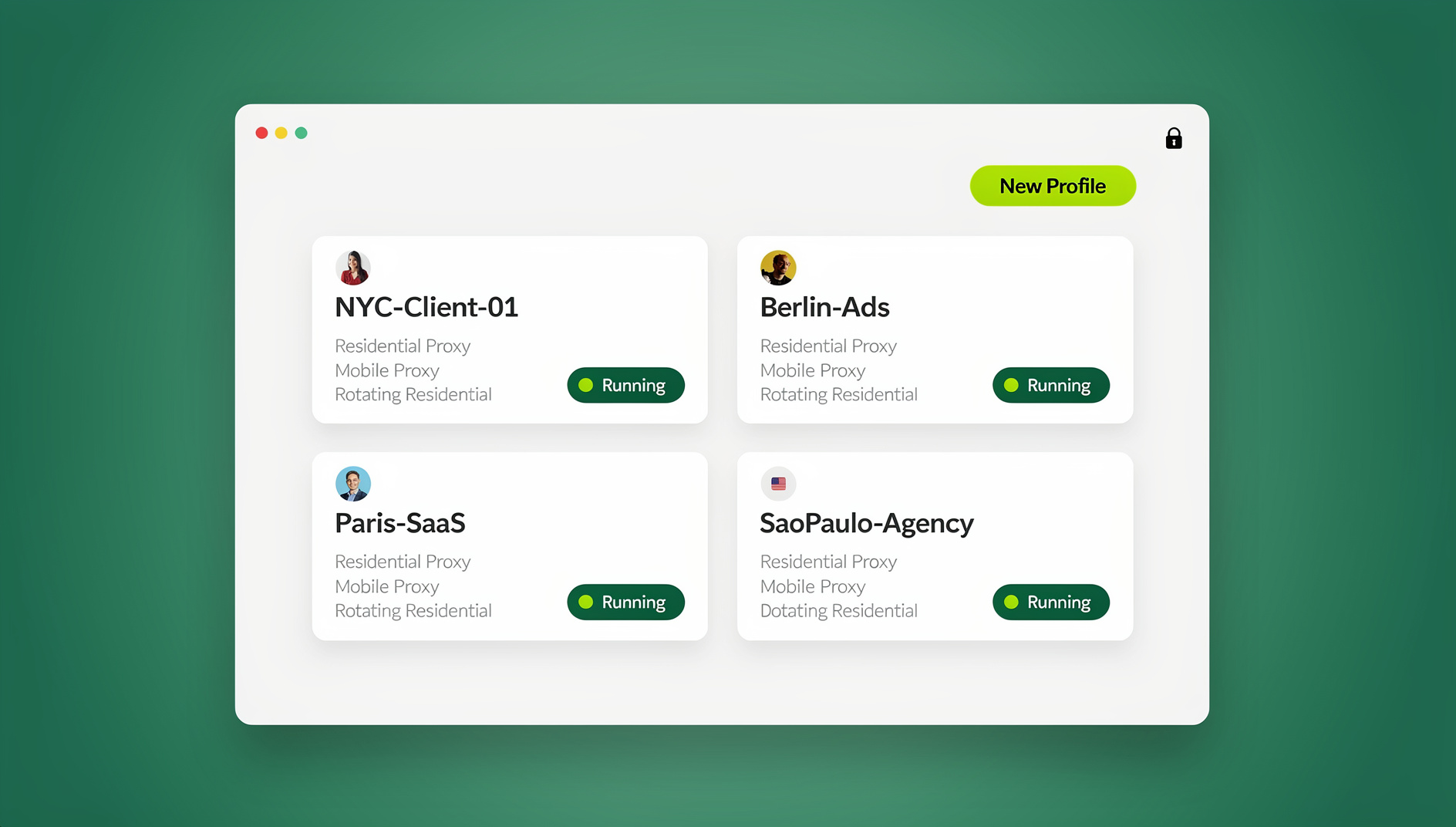
A saved cloud profile is the middle option — the feature that turns an online browser without installation into a daily driver — and it is the one most teams under-buy. It gives you a repeatable environment you can open from any device, which is what a support agent or an account manager actually needs. The cost is that the state lives on a provider’s server, so data residency and access controls belong in your vendor review rather than in a footnote.
Send.win’s cloud browser is built around that middle option: profiles run on Send.win’s server in Helsinki, Finland, and open from any device with nothing installed, while each profile keeps its own cookies, storage, sessions, fingerprint settings and proxy. The installed Sendwin Browser app covers the third column on Windows 10/11, macOS 12+ and Linux, and it needs a paid plan — there is no trial of the desktop app.
Seven Checks Before You Commit a Workflow
Most bad experiences with remote browsers come from skipping one of these before the first session, not from the tool itself.
- Name the job in one sentence. “Open this link once and screenshot it” and “stay signed in to a client dashboard every morning” lead to different products. Write it down before you compare plans.
- Confirm persistence and its cap. Check how many saved profiles or saved sessions you get, whether they are still in beta, and whether sync follows you to a second device. Browser.lol caps at three and six; Send.win keeps 20 saved cloud sessions on Pro and 100 on Team.
- Check exit coverage and IP alignment. Country count is the marketing number; the useful question is whether timezone, locale and geolocation follow the exit IP automatically. If they do not, you patch them by hand on every session — and get it wrong under pressure. Background on what sites look at is in how sites flag a proxy IP.
- Read the bandwidth meter. Residential data is metered nearly everywhere. Know the monthly allowance, the per-GB overage price and whether uploads count against it.
- Check concurrency. Two simultaneous sessions on a premium cloud plan sounds fine until two team members need the same client’s dashboard at once.
- Ask where the server is and who can reach the session. Data residency and access controls matter more than latency for client work; a named region is easier to put in a vendor questionnaire than “the cloud”.
- Run one real task end to end. Login, upload, export, close. Do that on a throwaway account before migrating a workflow onto the service.
Common Mistakes That Waste a Session
- Using a disposable session for persistent work. If the container is destroyed at the end, so are your logins. Save the profile or accept the re-login.
- Expecting your own browser’s furniture. Bookmarks, extensions, saved passwords and your download folder do not travel. The remote machine has its own, and it is bare.
- Leaving the exit IP and the timezone out of sync. A browser reporting a different timezone than its IP geolocation is a mismatch sites can see without any exotic technique.
- Treating a fresh session as a fresh identity. Clearing cookies does not change the fingerprint of the browser image you are drawing from. If you need each profile to carry its own consistent fingerprint settings, that is a separate feature — worth understanding before you assume isolation covers it, as covered in check if your fingerprint is unique.
- Assuming a cloud browser changes everything a site sees. The traffic leaves from the provider’s server instead of your home connection, and the provider still knows which account opened the session. Isolation is not anonymity.
- Misreading lifetime deals. A one-time purchase can exclude the features you actually need — Browser.lol’s lifetime entitlements never included saved profiles or residential data, and new lifetime plans stopped being sold in 2026.
- Running more accounts than a platform allows. Tools make environments repeatable; they do not make a policy violation acceptable. Check the platform’s own multiple-account rules first.
🏆 Send.win Verdict
For a one-off link check or a render test, a disposable remote session is the right tool and Send.win is not competing for that job. Send.win earns its place when your online browser without installation has to survive a Monday morning: repeatable cloud profiles on an EU server in Helsinki, each with its own cookies, storage, proxy and fingerprint settings, opened from a laptop with nothing installed on it. The trade-offs are stated up front — profiles are opened and driven by hand, nothing runs unattended on any plan, and the included proxy bandwidth is metered, so plan for the allowance your work actually consumes.
See Send.win plans — Pro from $19/mo (or $6.99/mo billed annually) with residential proxies included, or start with the free cloud demo: 10 minutes a day, nothing to install.
Frequently Asked Questions
Can I use a browser online without downloading anything?
Yes. A remote browser service streams a session running on its own machines into the tab you already have, and client-side tools simply run code inside that tab. Neither requires a download or an administrator password. What you give up is local speed, your own extensions and, on free tiers, session length.
Are online browsers free?
Free tiers exist but are deliberately narrow. Browserling offers limited free live sessions, Browser.lol runs an ad-supported free tier with isolated sessions, and Send.win’s cloud demo gives a 3-minute preview without signup plus 10 minutes a day on a free account. Sustained work sits behind a paid plan nearly everywhere, usually metered by bandwidth or concurrency.
Is an online browser without installation safe for a suspicious link?
It is safer than opening it on your own machine, because the page renders on the provider’s infrastructure instead of your desktop, and closing the session discards it. That is not a licence to log in or download anything: the provider’s machine still handles the traffic, and a credential typed into a phishing page is compromised regardless of where the browser ran.
Can a cloud browser keep me logged in across sessions?
Only if the service saves a profile or a session for you. Fresh containers start clean by design, which wipes cookies and tokens at the end. Browser.lol keeps three saved profiles on Plus and six on Premium, both in beta. Send.win’s cloud browser keeps 20 saved cloud sessions on Pro and 100 on Team, and syncs 20 profiles across devices on Pro (100 on Team).
Does an online browser change the IP address a site sees?
The site sees the connection coming from the provider’s server or from the proxy exit you selected, not from your home broadband. That is a network path, not anonymity — the provider still knows which account opened the session. If you need the exit to look consistent, match country, timezone and locale together rather than only the IP.
Can I test Safari on Windows using a cloud browser?
Yes. Services like Browserling run real Safari on macOS and iOS images, so you get the actual rendering engine rather than an approximation. Its Developer Pro tier extends geo-browsing to 50+ countries with residential, mobile and Tor exit options, which helps when a page behaves differently by region.
Do browser-based tools upload my files?
It depends on the architecture, and the page usually says so. RAWGraphs, Markmap and Datasette Lite process everything client-side, so nothing is transmitted. Wormhole encrypts end to end and destroys links after 24 hours or the first download, and PairDrop sends files peer to peer over your local network. A remote cloud browser is the opposite case: your upload lands on the provider’s disk by definition.
What is the difference between the Send.win cloud browser and the desktop app?
The cloud browser runs profiles on Send.win’s server in Helsinki, Finland, and needs nothing installed — you open it from any device. The desktop app, Sendwin Browser, is a Chromium-based application installed locally on Windows 10/11, macOS 12+ or Linux; it needs a Pro or Team plan, and there is no trial of it. Both keep per-profile cookies, storage, fingerprint settings and proxy configuration.
Run Online Browser Without Installation in the Cloud With Send.win
Send.win’s cloud browser runs isolated browser profiles on a server in the EU — open a clean session from any device without installing anything:
- Instant cloud sessions – launch an isolated browser in seconds, no local install
- Isolated profiles – separate cookies, storage and fingerprint settings per session
- Cloud sync & profile sharing – pick up the same profiles on the desktop app (Windows, macOS, Linux) or share them with your team
- Residential proxies included – on Pro and Team, with timezone and locale matched to the proxy
You can try it right now: the Send.win demo browser opens an isolated cloud session directly in this browser tab. Paid plans start at $19/month, with a 7-day money-back guarantee on your first card purchase — see pricing.