Do Opera Browsers Support Multiple Profiles?
Creating opera browser multiple profiles means running more than one self-contained Opera setup on one machine, each with its own cookies, logins, history, extensions and settings. Opera GX has a built-in Profiles panel on Windows. Standard Opera does not: you build separate profiles with the Chromium --user-data-dir switch and one shortcut per data folder. Both routes separate your data. Neither changes your IP address.
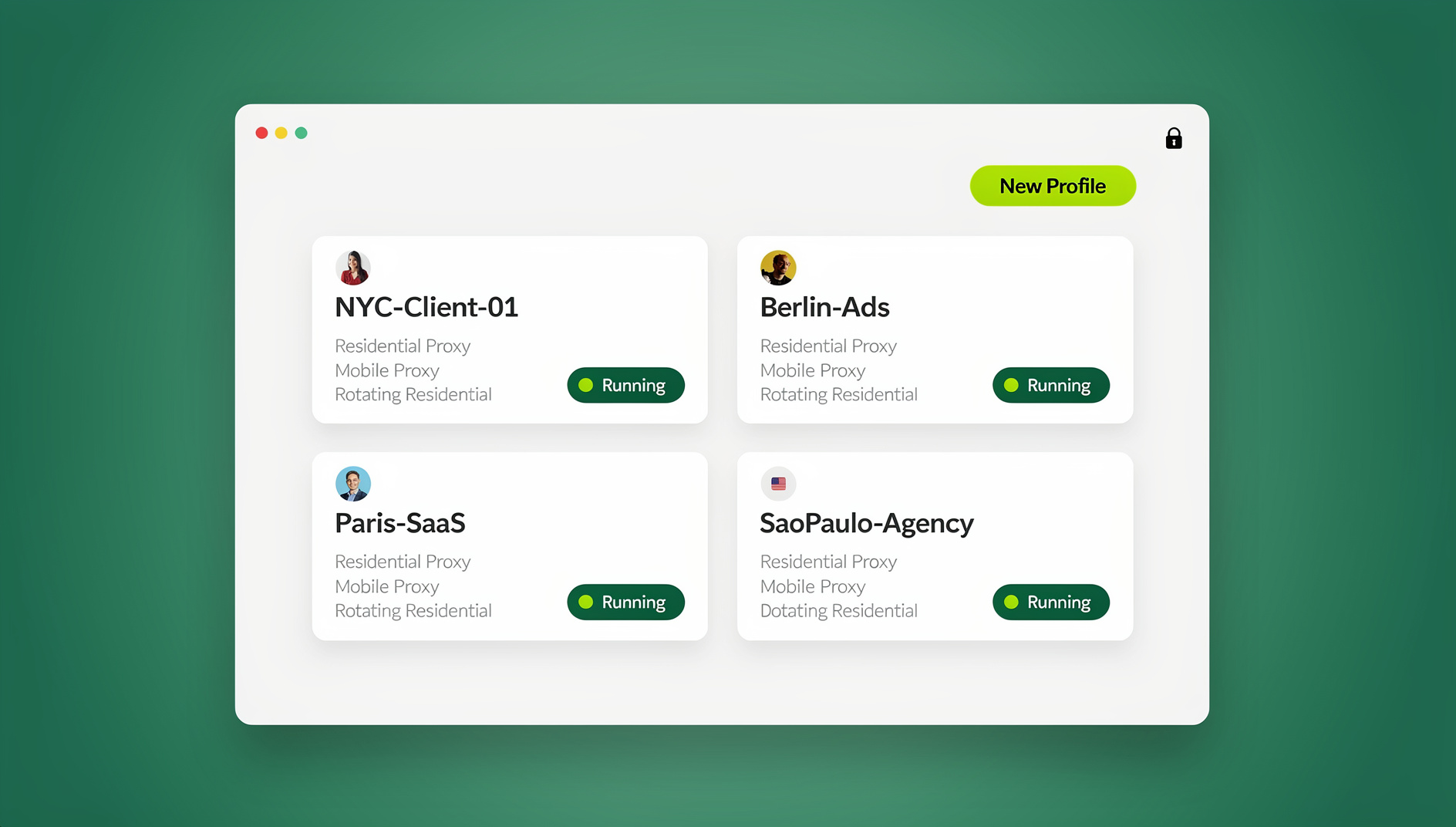
📌 TL;DR Executive Summary
- Core Takeaway: Opera GX on Windows has real profiles (Settings → GX Basics → Profiles → Add). Standard Opera doesn’t, so you copy the shortcut and append
--user-data-dir="C:\OperaProfiles\name"to the Target field. - Key Risk/Challenge: A profile is a data container, not a network identity. Every profile on the machine still shares one IP address, one GPU and one timezone, and Workspaces are not profiles at all.
- Recommended Solution: Name each profile after the account it holds, back up its folder, and move to a dedicated browser profile manager once each account needs its own proxy and region.
What Each Opera Profile Separates — and What It Doesn’t
An Opera profile is a folder. Everything the browser writes for that profile lands inside it: cookies, localStorage, IndexedDB, the HTTP cache, history, autofill, saved passwords, extensions and the live session state. Point two shortcuts at two folders and you have two browsers that happen to share an icon.
The effect is simple. A login in one profile never reaches the other; close Profile A, open Profile B, and each site hands out a fresh session with its own cookie jar. That behaviour comes from Chromium’s per-directory data model, not from anything Opera added on top. That per-directory model is the entire mechanism behind opera browser multiple profiles — no cloud service, no account switch, just two folders on disk.
What stays identical across every Opera profile on the same machine
- Your exit IP. Every profile leaves through the same router or system-level proxy unless you configure something per profile.
- Hardware and OS signals. Screen resolution, GPU, installed fonts, platform string and timezone come from the machine, not the folder.
- Your Opera sync account, if you sign in. One account signed into two profiles pulls bookmarks, passwords and history into both.
- Disk space. Each profile rebuilds its own cache and extension copies, so five profiles means five caches.
That list doesn’t make profiles useless — it defines the job. They separate accounts and data, not networks. A support agent reproducing a customer’s view and a seller checking two storefronts both get what they need from the folder split. A team that needs one region per account needs something else on top.
How to Create Multiple Profiles in Opera GX (Windows)
GX is the only Opera build with a real profile interface. It shipped in March 2022 and it is still Windows-only, so a missing panel on a Mac is expected rather than broken. Opera’s own GX profiles page documents the presets. If you want opera browser multiple profiles without editing shortcut targets by hand, this is the panel to use.
- Update the browser first. Open the O menu and check for updates, or load
opera://about. Profile controls are missing from older builds. - Open Settings. Press
Alt+Pon Windows, or use the O menu and choose Settings. - Go to GX Basics > Profiles. This is the only place profiles are created and removed.
- Pick a preset or start a custom profile. Streaming, Roguelike and Standard are the three ready-made options; anything else is yours to configure.
- Click Add. The new profile is created immediately with an empty cookie store.
- Name it after the account, not the colour. “Client A – Etsy” survives a year; “Blue” does not.
- Create a launch shortcut. GX can give each profile its own shortcut, so you skip the switcher entirely.
The Opera GX preset profiles compared
| Profile | What it does | Best for |
|---|---|---|
| Streaming | Mutes tabs by default, can disable hardware acceleration for smoother playback, hooks into Streamlabs | Watching long streams while working in other tabs |
| Roguelike (Rogue) | Clears all browsing data when the window closes | Shared computers and one-off logins |
| Standard | Fully customisable, behaves like a normal browser | Day-to-day work accounts |
| Custom | Your own mix of settings, colour and limits | Client accounts with specific requirements |
What to check after you create a GX profile
- Each profile appears as a differently coloured icon in the taskbar — if all the icons match, you are still in the default profile.
- Sign into the account that profile is for, then open another profile and confirm you are signed out there.
- Check the extensions list. A fresh profile starts empty and anything you install stays inside it.
- For Roguelike, close the window, reopen it and confirm history and cookies are gone.
How to Set Up Multiple Profiles in Standard Opera (Windows)
Opera’s main browser has no profile switcher. Setting up opera browser multiple profiles on standard Opera means building the feature yourself, one shortcut and one folder at a time. The workaround is a Chromium command-line switch, --user-data-dir, with one shortcut and one folder per profile. Opera doesn’t document it as a supported feature, so treat it as an advanced workaround — but it is stable and the Opera community has used it for years.
- Find the launcher path. Right-click your Opera shortcut, open Properties, go to the Shortcut tab and read the Target field. It usually points at
launcher.exeinside%LOCALAPPDATA%\Programs\OperaorProgram Files\Opera. - Create one folder per profile. Something like
C:\OperaProfiles\client-a. Keep them outside the default Opera data directory so a reinstall or update doesn’t touch them. - Copy the shortcut. Right-click the original, choose Copy, paste it on the desktop and rename it to the account name.
- Append the switch. In the Target field, add a space after the exe path, then
--user-data-dir="C:\OperaProfiles\client-a". Keep the quotes — a path with spaces breaks without them. - Repeat per profile. There is no cap: one shortcut, one folder, one independent Opera instance.
- Differentiate the icons. Shortcut Properties → Change Icon, then pick a distinct one per shortcut so you can tell windows apart on the taskbar.
- Pin the profile shortcuts. Right-click each one and pin it to the taskbar or Start menu.
What to check afterwards
- Open each shortcut, type
opera:aboutin the address bar and compare the Profile path. Two shortcuts pointing at one folder is the most common failure. - Sign into the account in one window, close it, open the other and confirm a clean session.
- Install only the extensions that account needs — they are per profile and a common source of cross-contamination.
If shortcut surgery isn’t your idea of a good time, browsers with a built-in switcher are an option. Our walkthrough on how to create Edge browser multiple profiles covers one that ships the feature natively.
How to Create a Second Opera Profile on macOS
GX Profiles never shipped for macOS — users were still reporting the option missing long after launch — and standard Opera on Mac has the same gap. So opera browser multiple profiles on a Mac depend on Terminal rather than a settings panel. The fix is the same switch, passed through the open command.
- Quit Opera completely with Cmd+Q. A running instance ignores the switch.
- Open Terminal from Applications → Utilities.
- Launch a new profile with its own data folder. For Opera GX, the command circulating in the Opera forums is:
open "/Applications/Opera GX.app" --args "--user-data-dir=/Users/yourusername/Library/Application Support/com.operasoftware.OperaGX/Work Profile"
Swap in your own username and use a different folder name per profile. For standard Opera, substitute the Opera.app bundle path. - Verify it worked. Type
opera://aboutin the new window and check the Profile path matches the folder you passed. - Make it repeatable. Open Automator, choose New Document → Application, add a Run Shell Script action holding your command, save it, and drag the result to the Dock. One click per profile from then on.
Opera Workspaces vs Profiles: Why Workspaces Don’t Isolate Accounts
Workspaces group tabs inside a single browser window. They’re a tab-management tool: a sidebar of named spaces plus the ability to move tabs between them. What they don’t do is create a second cookie jar.
Because every workspace lives inside one profile, they share cookies, logins, bookmarks and Speed Dials — Opera users report that a Speed Dial added in a workspace turns up in the main one. Sign into two accounts across two workspaces and the second sign-in overwrites the first session. This is the most common reason people conclude opera browser multiple profiles don’t work: the tabs look separated, the cookies are not.
| Opera profile | Opera workspace | |
|---|---|---|
| Cookies and logins | Separate per profile | Shared |
| Bookmarks and Speed Dial | Separate set per profile | Shared |
| Extensions | Installed per profile | Shared |
| History and autofill | Separate | Shared |
| Disk footprint | One data folder each | None |
| Typical use | Separate accounts or clients | Grouping tabs for one person |
Other browsers draw the line differently. If you want to see what a built-in implementation looks like, our guide to set up Firefox multiple browser profiles walks through one from start to finish.
Opera Profile Pitfalls and How to Fix Them
The second shortcut opens the same session as the first
Usually a missing quote, a switch placed before the exe path, or edits made to the wrong shortcut — the Start menu copy rather than the desktop one. Open opera:about in both windows and compare the Profile path. If they match, the switch isn’t being applied.
Bookmarks and passwords reappear in every profile
Opera sync is doing it. The same Opera account signed into two profiles merges bookmarks, passwords and history across them. Sign into sync in one profile only, use separate Opera accounts, or leave sync disabled on work profiles.
The GX Profiles panel is missing
Three causes: you’re on macOS, your GX build predates the feature, or you’re actually running standard Opera. Update GX on Windows first, then fall back to the command-line method.
Every profile shows the same IP and the same device signals
That’s the design limit of browser-level profiles. A site can compare the exit IP, the canvas and WebGL output, the font list and the timezone across two sessions and see one machine. If an account needs its own region, give that profile its own proxy and confirm the exit IP before you log in — our guide to using browser profiles with proxies covers the setup order.
The wrong account opens after a restart
The default Opera shortcut is still the pinned one, so it launches the original data folder. Pin the per-account shortcuts, unpin the default, and launch work sessions from the named icons.
One limit isn’t technical at all. Separate profiles don’t create permission to hold extra accounts on a platform. Where a service allows multiple accounts, it publishes an official route — Amazon requires approval for an additional seller account, and agencies on Meta work through Business Manager roles rather than a second personal login. If an account is restricted or suspended, the fix is the platform’s own appeal or verification process, not another profile.
Where Opera Stores Profile Data (and How to Back It Up)
Type opera:about in the address bar and read the Profile and Data paths. That’s the authoritative answer for your build and OS, and Opera’s help pages recommend the same check before any upgrade or clean install.
- Quit Opera. Copying a live profile folder gives you locked files and a half-written database.
- Copy the whole profile folder if you want everything, including sessions.
- Or copy selectively: bookmarks, cookies, history, Local State, Preferences, and the Local Storage, Sync Data and Extensions folders.
- Zip it with the profile name and date and store it outside the Opera directory.
- Restore the same way — Opera closed, files copied back into the same paths, browser reopened.
When Opera Profiles Aren’t Enough: Proxies, Fingerprints and Teams
Opera profiles solve the data half of multi-account work. They leave the network half and the hardware half untouched, and there’s no built-in concept of a per-profile proxy, per-profile fingerprint settings, or handing a profile to a colleague on another machine.
That’s the gap Send.win fills. Sendwin Browser is a Chromium-based desktop app for Windows 10/11, macOS 12+ and Linux where each isolated profile keeps its own cookies, storage, sessions, fingerprint settings and proxy. Fingerprint protection runs inside the engine and stays consistent per profile, as privacy protection rather than one shared browser identity. Timezone, locale, WebRTC and geolocation follow the proxy’s exit IP automatically, and you can use the included residential proxies or bring your own HTTP/SOCKS5.
The cloud browser runs profiles on Send.win’s server in Helsinki from any device with nothing to install, and sharing a profile with a paid teammate opens it already signed in — no password changes hands. Up to 50 profiles can be open at once on either plan. There is no API, SDK, headless mode or automation interface, so plan on working the accounts by hand.
Weighing alternatives? Our browser profile manager comparison covers how these tools differ on isolation, proxies and team access. Whichever route you take, use it only with accounts you own or are authorised to manage.
🏆 Send.win Verdict
Opera GX profiles are a good fit if you’re one person on Windows who just needs separate logins — the presets are useful and Roguelike is a sensible answer to shared machines. Standard Opera is where it gets manual: copied shortcuts, command-line switches and a Mac workaround Opera has never formalised. Once each profile needs its own proxy, its own fingerprint settings and a teammate who can open it without swapping passwords, a dedicated profile manager is the shorter path.
See Send.win plans — Pro from $19/mo (or $83.88/yr) with 150 profiles and 5 GB of proxy bandwidth, backed by a 7-day money-back guarantee on your first card purchase. Prefer to look first? The free cloud demo gives you 10 minutes a day, no card.
Frequently Asked Questions
Does Opera have browser profiles like Chrome?
Only Opera GX on Windows has a built-in Profiles panel. Standard Opera on desktop has no equivalent switcher, and the macOS build of GX doesn’t include it either. On those versions you create profiles with separate shortcuts and the --user-data-dir switch.
How Send.win Helps With Opera Browser Multiple Profiles
Send.win is a browser profile manager for professionals and teams: every account gets its own isolated browser profile.
- Isolated profiles – separate cookies, storage and sessions per profile
- Fingerprint protection – each profile keeps its own consistent browser fingerprint, so profiles never share one browser identity
- Desktop app + cloud browser – native app for Windows, macOS and Linux, or run profiles in the cloud with no install
- Residential proxies included – on Pro and Team, with timezone and locale matched to the proxy
- Team sharing – share a signed-in profile with a teammate without sharing the password
Try the free cloud demo — no install — or download the desktop app. Paid plans start at $19/month, and your first card purchase is covered by a 7-day money-back guarantee (see pricing).
How do I create a second profile in Opera GX?
Press Alt+P, open GX Basics then Profiles, pick a preset or build a custom one, and click Add. Name it and give it a colour, then create a shortcut so you can launch it directly. The new profile opens with its own cookies, logins and settings.
Can I run two Opera browsers at the same time?
Yes. Two shortcuts pointing at two data folders run as independent windows with separate sessions, and you can keep both open side by side. The practical ceiling is your RAM, since each window keeps its own cache and renderer processes.
What is the difference between Opera Workspaces and profiles?
Workspaces group tabs inside a single profile, so they share cookies, logins, bookmarks and Speed Dials. Profiles use separate data folders, so nothing crosses over. Use workspaces to organise your own tabs and profiles to separate accounts.
Why is the GX Profiles option missing on my Mac?
GX Profiles launched as a Windows feature and still hasn’t reached macOS, years after release. The workaround is launching Opera GX from Terminal with --user-data-dir, then saving that command as an Automator app you can click from the Dock.
Can I have different bookmarks in each Opera profile?
Yes, provided you don’t sign the same Opera sync account into every profile. Each profile keeps its own bookmark file, but sync merges them once one account is active in more than one. Use separate sync accounts or leave sync off in work profiles.
Where does Opera store profile data?
Type opera:about in the address bar and read the Profile and Data paths — they differ by OS and install type. To back up, copy bookmarks, cookies, history, Local State, Preferences, and the Local Storage, Sync Data and Extensions folders with Opera closed.
Are Opera profiles enough for managing multiple client accounts?
For data separation, yes. For network separation, no: every profile still leaves through one IP address and one set of hardware signals. If each account needs its own region or proxy, pair profiles with a dedicated profile manager and confirm the exit IP before logging in.