The best OneTab alternatives fall into three groups: continuous memory-saving features built into your browser, dedicated tab-organization tools like Toby or Workona, and session-isolation tools like Send.win that solve tab clutter at the root by separating logins instead of just collapsing them. Which one you need depends on whether your tab chaos comes from too many open pages, too little organization, or too many accounts fighting for the same browser window.
Why look for a OneTab alternative in the first place?
OneTab’s “turn 60 tabs into one tidy list” trick is genuinely useful when your browser looks like confetti. But a lot of people search for OneTab alternatives because their actual problem isn’t just too many tabs — it’s one of these:
- Always-on memory relief, not just a one-time collapse you have to remember to trigger
- Faster, safer restores after a crash or an accidental window close
- Better organization with boards, workspaces, or visual groups instead of a flat list
- Multiple logins running at once without cookies from one account bleeding into another
- Cross-device continuity so a session started on a laptop is still there on a desktop
This guide walks through the strongest OneTab alternatives for each of those needs, explains where OneTab still earns its place, and shows exactly which tool (or combination of tools) fits your specific situation.
What OneTab gets right — and where it runs out of road
What OneTab still does well
- Instant declutter: one click and fifty-plus tabs become a clean, scannable list.
- Immediate memory relief: collapsing a tab stops its background scripts from running right away.
- Simple restore: bring back one tab, a selection, or the whole batch in a click.
Where it starts to feel limiting
- All-or-nothing behavior: great for a clean sweep, less useful for ongoing, granular tab management.
- Lost visual context: a text list strips away favicons, page previews, and the “where was I?” cues many people rely on.
- No real-time performance management: OneTab doesn’t actively manage CPU or RAM while you’re working. Modern browsers now do this natively — Chrome’s Memory Saver, for instance, automatically puts inactive tabs to sleep.
- Zero account isolation: OneTab organizes tabs, but it does nothing about the much bigger problem of running five client logins for the same platform in one browser without cookies colliding.
If your reaction to that last point is “wait, that’s actually my real problem,” you’re the reader this guide is really written for — tab clutter is often a symptom of account clutter, not the other way around.
How to choose the right OneTab alternative
- Start with the actual goal. Are you chasing speed, organization, or multi-account isolation? These are three different problems with three different fixes.
- Prefer lightweight tools when performance is the priority. A single-purpose tab suspender beats a heavy all-in-one app if RAM is your only complaint.
- Test restore reliability before you trust it. A good tab or session manager should recover your work even after a crash, not just after a clean shutdown.
- Weigh privacy and security if you handle client or work accounts. Look for genuine session isolation and encrypted storage, not just “incognito-style” separation.
- Consider cross-device sync if you regularly switch between a laptop and a desktop.
- Match price to the cost of losing a session. Free tools are great right up until a lost research session or a banned account costs you more than a subscription would have.
The best OneTab alternatives, ranked by what they actually solve
1. Send.win — for multiple logins and account isolation
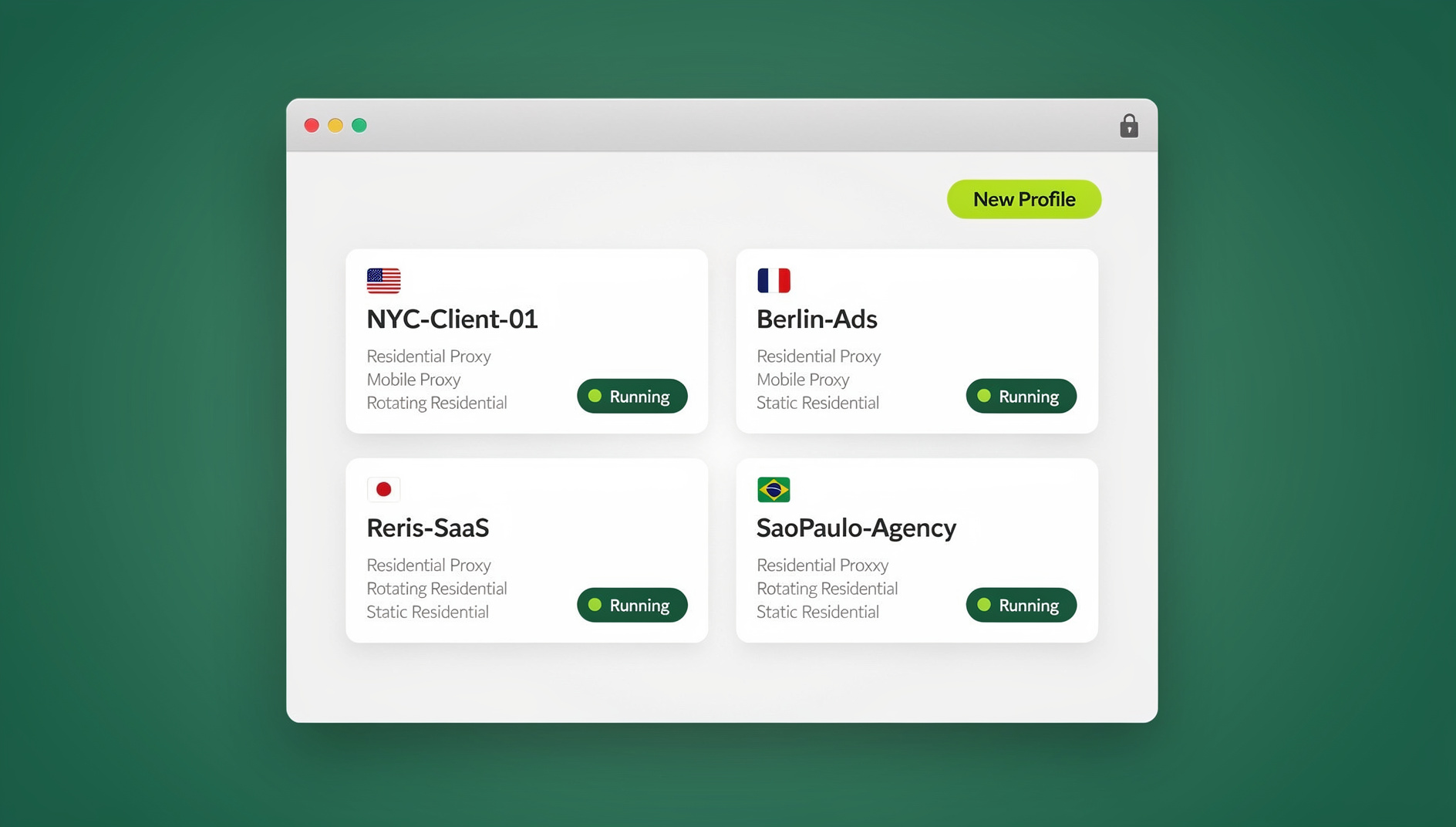
If your browser clutter really comes from juggling logins — client accounts, brand accounts, test accounts, personal versus work profiles — Send.win solves a different problem than OneTab does. Instead of collapsing tabs into a list, it gives each session its own isolated environment so cookies, cache, and local storage never cross between accounts. You can run Send.win two ways: as the Sendwin Browser, a native desktop app for Windows, macOS, and Linux that keeps everything local-first with encrypted cloud sync, or as a fully cloud-hosted browsing session that needs no local install at all and is simply metered by cloud browsing time. Either way, there’s nothing to collapse and restore because each session already lives in its own clean lane.
This matters for the exact scenario that makes OneTab necessary in the first place: people who open dozens of tabs because they’re constantly re-authenticating, opening private windows, or duplicating browser profiles just to keep one account from contaminating another. If you eliminate that root cause, you generate far fewer tabs to begin with. For teams managing this at scale, the same idea extends naturally into managing multiple Chrome accounts without constant sign-outs.
Why it earns a spot on this list:
- True session isolation: run several accounts for the same site side by side with no cookie collisions.
- Cloud sync and secure sharing: give a teammate temporary access to a session without ever handing over a password.
- Local-first with encrypted sync: the desktop app keeps data on your machine while still syncing securely across devices.
- Automation-friendly: Pro-plan users can drive sessions with Selenium, Puppeteer, or Playwright through Send.win’s local Automation API — useful if some of your “clutter” is actually repetitive manual work that could be scripted.
Best for: social media managers, agencies, QA testers, marketplace sellers, and growth teams — anyone who needs several live logins at once without cookie chaos or a graveyard of dead tabs from repeated re-logins.
2. Chrome Memory Saver — zero-setup, always-on relief
Chrome’s built-in Performance settings include Memory Saver, which puts inactive tabs to sleep automatically and wakes them instantly when you click back in. There’s nothing to install and nothing to remember to trigger — it just runs continuously in the background, which is exactly what OneTab can’t do since it requires a manual collapse.
Best for: anyone who wants lower RAM usage with zero change to how they already browse.
3. Auto Tab Discard and similar suspenders — manual control for power users
If you want more control than Chrome’s default Memory Saver gives you, a lightweight suspender extension lets you set custom sleep timers, discard tabs on demand, and whitelist sites you never want to lose (a call, a dashboard, a music player). Think of it as Memory Saver with a manual override switch.
Best for: people who want to fine-tune sleep rules or mass-suspend everything during a deep-focus block.
4. Workona — workspaces for recurring projects
Workona groups tabs into cloud-synced workspaces rather than a flat list, which makes it a strong fit for people juggling several ongoing projects or clients where the same set of docs, dashboards, and links needs to reopen together every day. If Workona feels heavier than you need, it’s worth comparing it against other Workona alternatives for tab workspace management before committing.
Best for: consultants, PMs, and researchers who want a repeatable “board” per client or initiative.
5. Toby — visual boards instead of a text list
Toby turns saved tabs into card-based collections with page previews, which makes it feel like a visual version of OneTab. It’s a good match when seeing your content at a glance matters more than pure memory savings. If Toby’s specific feature set doesn’t quite fit, there are several solid Toby alternatives for organizing tab collections worth comparing first.
Best for: visual thinkers who prefer boards over lists.
6. Session Buddy — reliable backup and recovery
Session Buddy remains a solid choice for taking dependable snapshots of an entire browsing session. You can search across saved tabs, label sets by project, and restore everything after a crash or an accidental window close with real confidence.
Best for: researchers, analysts, and anyone who never wants to lose an in-progress research session.
7. Tab Manager Plus — fast switching with light grouping
Tab Manager Plus compresses your entire session into one compact view and makes bulk actions easy: finding duplicates, closing drift tabs, and jumping straight to what you need. It’s minimal structure without asking you to change how you browse.
Best for: people who want speed and just enough organization, nothing heavier.
8. Tree Style Tab (Firefox) — vertical, hierarchical tab trees
On Firefox, Tree Style Tab nests related tabs into vertical trees, where each branch represents a research thread or an idea path. It’s a natural fit for people who think in outlines rather than flat lists.
Best for: Firefox users who want vertical tabs with logical hierarchy.
9. Simple Tab Groups (Firefox) — container-based isolation
Firefox users can create separate groups or containers to isolate cookies between contexts, which is conceptually similar to Send.win’s session isolation but built directly into the Firefox ecosystem rather than as a cross-browser, cross-device tool.
Best for: privacy-minded Firefox users who want basic isolation inside a single window.
10. Edge Sleeping Tabs — the most aggressive automatic saver
Edge’s Sleeping Tabs feature is notably aggressive about putting tabs to sleep, and it can cut memory and CPU usage dramatically compared to leaving everything active. If you’re already on Windows and comfortable in Edge, the hands-off savings are hard to beat.
Best for: Windows users who want effortless, automatic performance gains.
11. Arc, Vivaldi, and Opera workspaces — built-in, opinionated organization
Modern browsers like Arc, Vivaldi, and Opera now bundle their own spaces, stacks, or workspaces directly into the browser shell. If you like an all-in-one, opinionated design, it’s worth test-driving one of these before adding another extension on top of Chrome or Firefox.
Best for: people who want native organization features and don’t mind switching browsers entirely.
OneTab alternatives compared at a glance
| Tool | Primary job | Best for | Setup effort |
|---|---|---|---|
| Send.win | Session/account isolation | Multiple logins, agencies, teams | Low (desktop app or cloud session) |
| Chrome Memory Saver | Automatic RAM relief | Anyone, zero workflow change | None — built in |
| Auto Tab Discard | Manual suspend control | Power users who want tuning | Low |
| Workona | Project workspaces | Consultants, PMs, researchers | Medium |
| Toby | Visual tab boards | Visual organizers | Low |
| Session Buddy | Backup and recovery | Researchers, tab hoarders | Low |
| Tab Manager Plus | Fast bulk cleanup | Speed-focused users | Low |
| Tree Style Tab | Vertical tab trees | Firefox outline thinkers | Medium |
| Simple Tab Groups | Container isolation | Firefox privacy users | Medium |
| Edge Sleeping Tabs | Aggressive auto-sleep | Windows/Edge users | None — built in |
| Arc / Vivaldi / Opera | Native workspaces | Browser switchers | High (new browser) |
Real-world picks: choose based on your situation
“I have 100+ tabs right now and need relief fast.”
- Turn on Chrome Memory Saver for automatic, ongoing RAM relief.
- Take a one-time snapshot with Session Buddy or OneTab and restore only what you actually need.
- Keep Tab Manager Plus handy to bulk-close junk tabs during the week.
“I manage multiple accounts on the same site.”
- Use Send.win to open isolated sessions for each login and skip cookie collisions entirely. Share a temporary session with a teammate for approvals without ever handing over a password.
“I want maximum memory savings all day without thinking about it.”
- Use Chrome Memory Saver, or Edge Sleeping Tabs if you’re on Windows, and let the browser handle the boring parts automatically.
“I’m a researcher and restore reliability is everything.”
- Pair Session Buddy for snapshots with your organizer of choice — add Toby if you think visually.
“I’m a visual organizer.”
- Use Toby for collections and keep a lightweight suspender running quietly underneath.
Why fewer live tabs make a genuinely faster, calmer browser
Even though browsers have gotten much smarter about memory management, dozens of simultaneously active tabs still add up. Reducing the number of live tabs helps in two distinct ways:
- Performance: sleeping or suspending tabs means fewer background scripts running, which leaves more CPU and RAM for whatever you’re actually doing — a call, an editor, a dashboard.
- Attention: every visible “temptation tab” adds a small amount of cognitive load. Reducing visual noise reduces task-switching, and fewer live tabs generally means fewer mental speed bumps throughout the day.
OneTab’s big memory win comes from collapsing an entire session into a static list, which stops background execution immediately — that’s exactly why the sweep feels so satisfying. The catch is that it’s episodic: you have to remember to do it. For steady, all-day relief, pair an episodic tool like OneTab with something continuous, like Memory Saver, Sleeping Tabs, or a lightweight suspender.
Three mini case studies
The 120-tab researcher
Baseline: 120 open tabs on a 16GB laptop; scrolling feels sticky.
Fix: snapshot everything with Session Buddy, close the low-value tabs, enable Chrome Memory Saver for ongoing relief, and use Tab Manager Plus midweek to purge drift tabs.
Result: smoother scrolling, faster switching, and a reliable backup if anything crashes.
The agency social media manager with eight client logins
Baseline: private windows everywhere, constant re-authentication, and the occasional post to the wrong account.
Fix: switch to Send.win and open one isolated session per client account, then share a temporary session with a teammate for approvals instead of exchanging passwords.
Result: clean separation between accounts, fewer mistakes, and far less mental overhead from tracking which login is active where.
The Windows PM running hot across two monitors
Baseline: 40 tabs spread across two monitors; fans spin up during every standup call.
Fix: switch to Edge and enable Sleeping Tabs for aggressive, automatic savings.
Result: a quieter machine, smoother calls, and far fewer “why is this lagging?” moments.
The 15-minute declutter routine
- Turn on native performance tools first. In Chrome, go to Settings, then Performance, and enable Memory Saver. Set how aggressively tabs go inactive.
- Snapshot the current chaos. Install Session Buddy, or use OneTab if that’s already your habit, and save everything before you touch anything.
- Group by intent. Build quick “Today,” “This Week,” and “Reference” clusters. If you think visually, use Toby or Workona boards instead of a flat list.
- Automate ongoing savings. Add a lightweight suspender like Auto Tab Discard if you want more granular control than Memory Saver offers by default.
- Isolate accounts. This is the step most guides skip, and it’s the one that actually prevents new clutter from forming. Use Send.win for per-client or per-brand sessions that never mix cookies, and rely on proper session isolation rather than juggling private windows.
- Do a five-minute weekly cleanup. Open Tab Manager Plus, sort by domain, and close drift tabs in bulk. Done.
The focus psychology behind tab overload
“Too many tabs” is partly a cognitive-load problem wearing a technical disguise. Every task switch carries a small mental cost, even when the switch was planned. Reducing the number of visible choices reduces that friction directly. When you fence off contexts — one isolated session per account, rather than fifteen tabs from five different logins tangled together — your brain has fewer reasons to wander, and fewer chances to post, reply, or click from the wrong account by mistake.
The simplest, most durable stack for calmer work combines both layers: Send.win for clean context separation between accounts, plus Memory Saver or Sleeping Tabs for automatic resource control underneath.
🏆 Send.win Verdict
If your clutter is really about too many pages, a native browser feature like Chrome Memory Saver or a dedicated organizer like Toby or Workona will solve it. But if your clutter is really about too many accounts — client logins, brand accounts, ad accounts — collapsing tabs only treats the symptom. Send.win removes the cause by giving every account its own isolated session, available either as a native desktop app for Windows, macOS, and Linux with encrypted cloud sync, or as a fully cloud-hosted session with zero local install. A 30-day free trial with no credit card required makes it easy to see which category your clutter actually falls into.
Try Send.win free today — isolate your accounts, cut the tab clutter at the source, and stop losing time to cookie collisions.
FAQ
What’s the best OneTab alternative for reducing memory usage quickly?
Turn on Chrome Memory Saver first since it requires no setup and runs continuously. If you want finer control over which tabs sleep and when, add a lightweight suspender like Auto Tab Discard on top.
What’s the best OneTab alternative for multiple logins on the same site?
Send.win, because each session is fully isolated — cookies, cache, and storage never cross between accounts, whether you run it as the native desktop app or as a cloud browsing session.
Does suspending or sleeping tabs actually save meaningful resources?
Yes. Sleeping or suspending a tab stops its background scripts and network activity, which frees up CPU and RAM for whatever tab you’re actively using.
Will I lose my tabs if an extension crashes?
Not if you back up first. Use a dedicated session backup tool like Session Buddy, and export your collections if you’re using Toby or Workona, as an extra safety net beyond the browser’s native crash recovery.
Is OneTab still useful if I also use Memory Saver?
Yes. Use OneTab for occasional, deliberate cleanups, and rely on Memory Saver for continuous, day-to-day performance control. They solve different parts of the problem.
What’s the most lightweight way to fix tab overload?
Start with native browser features — Chrome Memory Saver or Edge Sleeping Tabs — before adding anything else. If you still need more, add a single-purpose suspender rather than a heavyweight all-in-one app.
How do I keep client or work accounts separate in one browser without private windows?
Use Send.win to open a dedicated isolated session per account instead of juggling private windows or separate browser profiles. You can also share a time-boxed session securely without ever revealing the underlying password.
Do tab managers slow the browser down?
Good ones don’t. Lightweight suspenders and native browser features typically speed things up by reducing background work. Heavier organizers add a small amount of overhead, so use them only when the structure they provide is worth it to you.