The fastest way to manage multiple Twitter (X) accounts in one browser is to run each account in its own isolated session with separate cookies, rather than logging in and out or juggling separate browsers. X’s native switcher covers up to five logged-in accounts, but a session-isolation tool like Sendwin lets you keep dozens of accounts open side by side, each in its own tab, with one click to switch between them.
Why People Run Multiple X Accounts
Running more than one Twitter/X account is normal, not shady. A company might keep separate profiles for different product lines or regions. An influencer might split casual updates from professional content. A social media manager could be responsible for a dozen client accounts at once, and an agency running paid campaigns often needs a distinct handle per client or per market. Traders and crypto-native users sometimes keep a “signal” account separate from a personal one. In every case, the goal is the same: segment audiences and content without accidentally cross-posting or leaking one identity into another.
The hard part isn’t wanting multiple accounts — X allows that. The hard part is the browsing workflow: constant logins, mixed-up cookies, and the risk of posting the wrong thing from the wrong handle.
How Many X Accounts Can You Actually Have?
X’s help center allows up to 10 accounts per person (each needing a unique email or phone number), with a maximum of five logged in and active at the same time on the app or web. X also asks that each account serve a distinct purpose and audience, and discourages accounts from liking or retweeting each other’s content, since that pattern tends to trigger spam-adjacent flags.
Native X Account Switching (Desktop and Mobile)
X’s built-in switcher works fine for a handful of accounts:
- On the web: click your profile icon, choose “Add an existing account,” and sign in. To switch, click your profile icon again and tap the smaller avatar of the account you want.
- On iOS/Android: tap your profile picture or the down-arrow in the app menu, then “Add an existing account.” Once added, switching is a tap on the smaller profile icons in that same menu.
It’s free, it’s built in, and it’s fine for two or three accounts. But it caps out at five simultaneous logins, each switch still takes a few taps, and — critically — it only isolates sessions inside the X app itself. If you also need to keep separate logins for email, ad platforms, or client dashboards tied to each account, the native switcher does nothing for you there.
Why the Old Workarounds Fall Apart
Before dedicated tools existed, people cobbled together their own isolation: a different browser (Chrome for one account, Firefox for another, Edge for a third), separate browser profiles, or a rotation of private/incognito windows paired with different proxies or VPNs so each account’s IP stayed consistent.
These tricks technically work, but they don’t scale. You end up remembering which browser or window belongs to which handle, incognito windows slow down once you have more than a few open, and pairing each one with the right VPN connection adds a manual step every single time you switch. None of it is seamless, and all of it is easy to mess up under deadline pressure — which is exactly when a slip (like tweeting client content from your personal account) tends to happen.
Browser Tools Built for Multi-Account Management
Dedicated multi-login tools solve this by giving every account its own sandboxed session — separate cookies, separate local storage, sometimes a separate IP — inside a single window. Here’s how the main options stack up for X specifically.
| Tool | How it runs | Isolation model | Best for |
|---|---|---|---|
| Sendwin | Native desktop app (Windows/macOS/Linux) or zero-install cloud browser sessions | Per-tab sandboxed sessions, encrypted, own cookies/storage per session | Anyone who wants one-click switching without installing multiple browsers |
| Ghost Browser | Standalone Chromium-based desktop app | Workspace/Identity groups of tabs sharing one cookie jar | Agencies already committed to a dedicated multi-account browser |
| SessionBox | Chrome/Edge extension | Per-tab session profiles inside your existing browser | Users who don’t want to leave their current browser |
| Chrome/Firefox profiles | Built into the browser | Separate windows per profile | Two or three accounts, no budget for a tool |
Sendwin is built specifically around this problem. It has two modes: the Sendwin Browser, a native desktop app for Windows, macOS, and Linux that keeps everything local-first with encrypted cloud sync, and cloud browser sessions, which run entirely on Sendwin’s infrastructure with zero local install and are billed by cloud browsing time. Either way, each session gets its own cookie jar, its own local storage, and — if you need it — its own proxy, so logging into ten different X accounts never means logging out of any of them.
How to Manage Multiple X Accounts with Sendwin
Setting up isolated X sessions in Sendwin takes a few minutes and then never needs repeating for those accounts.
- Start your trial. Sendwin offers a 30-day free trial with no credit card required. Sign up, then choose the Sendwin Browser (desktop app) or a cloud session depending on whether you want everything local or want to skip installation entirely.
- Open your dashboard. Log into the Sendwin portal and you’ll see a session list — empty at first, ready to fill with one entry per X account.
- Create a session per account. Click “Create Session,” give it a name like “X – Brand” or “X – Personal,” point it at twitter.com/x.com, and optionally attach a proxy for that specific session. Full walkthroughs of this step are in Sendwin’s own guide to creating multiple sessions in the Sendwin cloud browser.
- Log in inside that session. Each session opens as its own clean tab with no shared cookies. Log in to the first X account there, then repeat step 3 for the next account and log in again — this time in its own sandbox.
- Switch with one click. From then on, moving between accounts is just clicking the tab for that session. Nothing logs out, nothing needs re-authentication, and no cookie from one account leaks into another.
If some of your X accounts need to look like they’re browsing from a specific country or need consistent IPs to avoid repeated re-authentication prompts, Sendwin lets you bring your own proxy or use one of its built-in options per session — see the steps for assigning a proxy to any session. Every session’s data stays encrypted and sandboxed, so cookies from your “Brand” account and your “Personal” account never touch, even though both are open in the same window.
A Practical Example
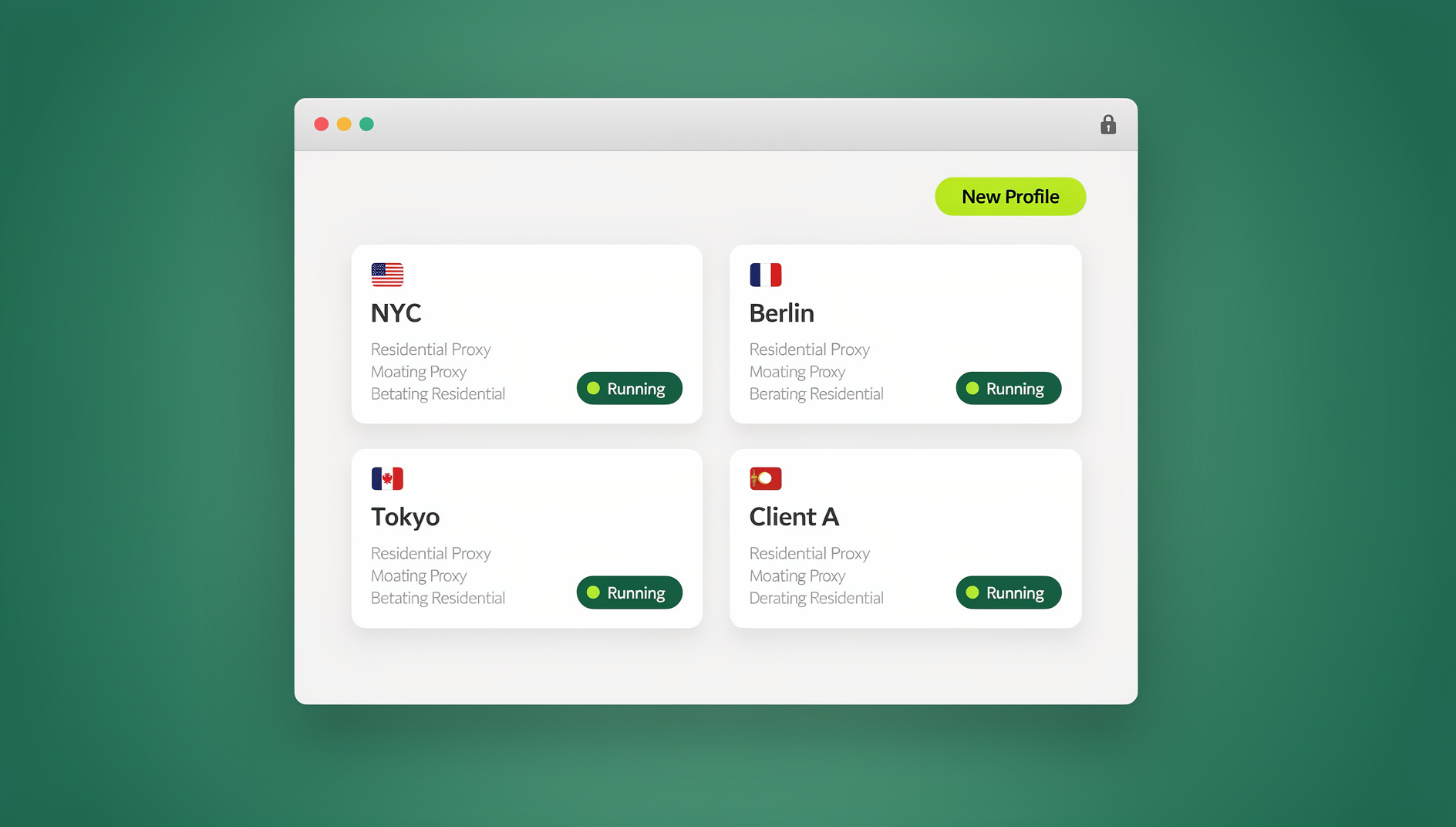
Say you run one X account for your brand (@BrandCo) and a personal one (@YourName). In Sendwin, you’d create a session named “BrandCo” pointed at x.com and log in as the brand, then create a second session named “YourName” and log in there. From that point on, your dashboard shows both sessions side by side — click “BrandCo” to see and post from that feed, click “YourName” to switch instantly to the personal one. If a teammate needs temporary access to the brand account, you can share that specific session link without ever handing over the password.
This same pattern scales well past two accounts. Agencies managing X for multiple clients, or marketers running dozens of X accounts from one browser, use the same session-per-account structure — it just doesn’t get more complicated as the count grows, because each session is independent of the rest.
Automating Repetitive Work Safely
Some teams eventually want to script parts of their workflow — pulling analytics, queuing posts, or checking mentions across many accounts on a schedule. Sendwin’s Automation API supports local automation with standard tools like Selenium, Puppeteer, or Playwright, driving the desktop app the same way you’d drive a normal browser instance, and it’s available starting on the Pro plan rather than being locked to the top tier. In practice this means a script can open a named session, wait for elements to load, and interact with the page using ordinary Selenium/Playwright/Puppeteer calls — Sendwin’s job is just to keep each session’s cookies and storage isolated while your script runs against it. Whatever you automate should still comply with X’s rules: post genuinely different content per account and don’t use automation to fake independent activity between accounts you control.
Best Practices for Running Multiple X Accounts
- Give every account a distinct purpose. Don’t mirror the same tweets across accounts — X treats that as a spam signal.
- Match proxies to context. If an account represents a specific country or region, keep its session on a consistent IP from that region to avoid repeated security checks.
- Name sessions clearly. “X – ClientA – Q3 campaign” beats “Session 4” once you’re past five accounts.
- Keep 2FA on every account. Session isolation protects cookies, not passwords — enable two-factor authentication regardless.
- Share sessions, not passwords. If a teammate needs access, share the session link rather than the login credentials.
- Never engage across your own accounts. Liking or retweeting between accounts you control is one of the fastest ways to get flagged.
🏆 Send.win Verdict
X’s native switcher is fine for two or three accounts, but it stops scaling fast. If you’re managing more than a handful of X profiles — for clients, brands, or regions — Sendwin’s isolated sessions give you one-click switching, encrypted per-session cookies, and either a native desktop app or a zero-install cloud browser, without ever mixing one account’s data into another’s.
Try Send.win free today — start your 30-day trial, no credit card required, and set up your first X session in minutes.
Frequently Asked Questions
How many X (Twitter) accounts can I have and be logged into at once?
X allows up to 10 accounts per person, each needing a unique email or phone number, with a maximum of 5 logged in simultaneously through the native app or website. If you regularly need more than five active at once, a session-isolation tool like Sendwin lets you keep all of them open in parallel without the five-account ceiling.
What’s the difference between the Sendwin desktop app and a cloud session?
The Sendwin Browser is a native desktop app for Windows, macOS, and Linux — it’s local-first, with your session data encrypted and synced to the cloud. Cloud browser sessions run entirely on Sendwin’s servers instead, so there’s nothing to install and you can open a session from any device; usage is metered by cloud browsing time rather than a flat subscription alone. Both modes give each X account its own isolated session.
Will using a multi-login tool get my X accounts banned?
Session-isolation tools themselves don’t violate X’s policies — they just manage cookies and, optionally, proxies per account. The risk comes from behavior, not the tool: posting identical content across accounts, engaging between your own accounts, or running automation that mimics coordinated inauthentic activity. Keep each account’s content genuinely distinct and you’re on solid ground.
Do I need a paid plan, or is X’s built-in switcher enough?
If you only manage two or three accounts and rarely switch, X’s native switcher is enough. Once you’re regularly juggling five or more, need consistent proxies per account, or want to share access with teammates without sharing passwords, a dedicated tool starts paying for itself in saved time.
Can I automate posting or monitoring across my X accounts?
Yes, with the right setup. Sendwin’s Automation API supports local automation via Selenium, Puppeteer, or Playwright against the desktop app, starting on the Pro plan. Your scripts control the browser using standard automation APIs; Sendwin keeps each account’s session isolated underneath.
What does Sendwin cost?
Sendwin starts with a 30-day free trial and no credit card required. The Pro plan is $19/month ($6.99/month billed annually — 63% savings) with 150 profiles, 5GB of proxy bandwidth, and Automation API access. The Team plan is $49/month ($20.99/month billed annually — 57% savings) with 500 profiles, 20GB of bandwidth, Automation API access, and 16 seats for agencies and larger teams.
Can I assign a different proxy to each X account?
Yes. Each Sendwin session can carry its own proxy, so an account representing a specific country or region can keep a consistent IP. This is covered step by step in Sendwin’s guide to assigning a proxy to any session, and it’s one of the details that separates Sendwin from other multi-login browsers worth comparing before you commit to one.
What happens to my sessions if I share one with a teammate?
You share the session itself, not the password. The teammate gets access to that specific X account’s session without ever seeing the login credentials, and you can revoke access at any time.