The fastest way to manage multiple YouTube accounts in one browser is to combine Google’s built-in channel switching for channels that share a single login with a dedicated multi-session tool like Send.win for accounts that use entirely separate Google logins — so every channel stays signed in at once, with no logging out and back in between uploads, comments, or live streams.
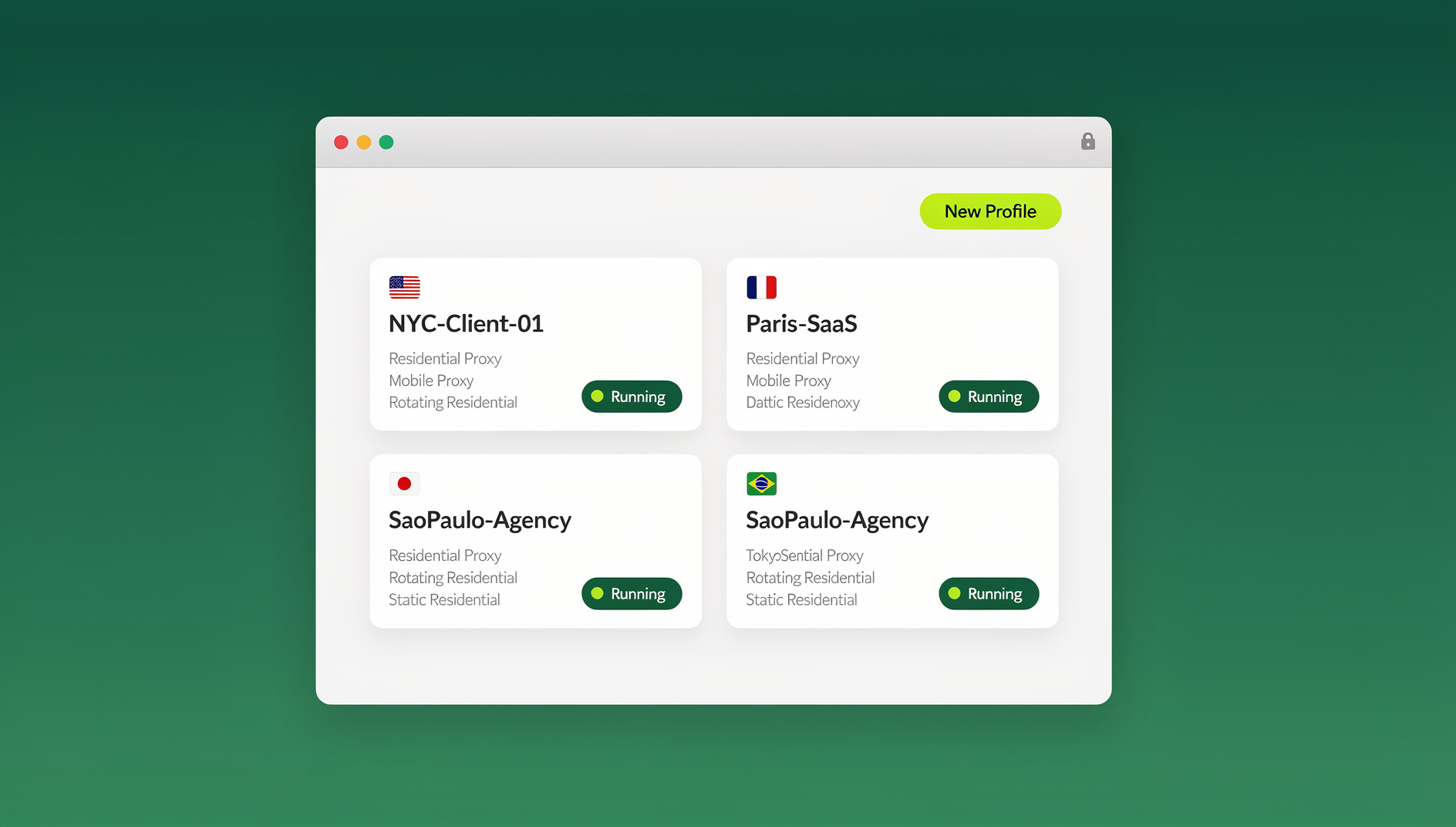
Why Creators and Teams Run More Than One YouTube Channel
It’s rarely just one channel anymore. A single creator might run a main vlogging channel alongside a niche tutorial channel, because YouTube’s recommendation system rewards topical consistency and mixing unrelated content confuses both the algorithm and the audience. Agencies and social media managers routinely handle a roster of client channels side by side — the same pattern shows up across platforms, whether it’s running multiple Instagram accounts for different brands or juggling several client dashboards at once.
Other common reasons people end up managing several YouTube logins:
- Brand and personal separation. Companies keep corporate channels distinct from founders’ or employees’ personal accounts to protect brand voice and legal liability.
- Multi-market or multi-language content. A creator targeting both English and Spanish-speaking audiences often runs two channels rather than mixing languages in one feed.
- Simultaneous live streaming. YouTube only allows one live stream per account at a time, so teams running concurrent events, product launches, or gaming streams need separate accounts to broadcast in parallel.
- Backup and test channels. Many creators keep a secondary channel to trial new formats or thumbnails before rolling changes out to their main audience.
- Client and agency work. Social media managers and freelancers are frequently handed direct access to several unrelated client channels, each of which needs to stay completely separate from the others.
Whatever the reason, the challenge is the same: Google’s login system was designed around one person, one identity — not a dozen unrelated logins competing for the same browser session.
Google’s Built-in Account Switching (and Where It Falls Short)
Google does provide native tools for handling multiple channels, but how well they work depends entirely on whether those channels sit under one Google account or several.
If all your channels are Brand Accounts tied to a single Google login, switching is genuinely painless. Click your profile avatar in the top-right corner of YouTube, and under “Your channels” you’ll see every channel linked to that login — clicking one switches instantly, with no re-authentication required. YouTube Studio mirrors this behavior, letting you jump between a Brand Account’s channels from the same session. Google also allows a single account to manage up to 100 YouTube channels, and you can add managers to a Brand Account so teammates get channel access without ever seeing the account password.
The mobile experience works similarly: tap your profile picture in the YouTube app and choose “Switch account” or “Your channels” to move between channels tied to the same login.
The friction appears the moment your channels live under separate Google accounts — separate emails, separate passwords, no shared Brand Account structure. In that scenario, “switching” really means signing out of one account entirely and signing back in with the next one’s credentials. Do that ten times a day across several client or personal channels, and it adds up to a genuinely annoying amount of lost time, on top of the risk of fat-fingering a password or triggering a suspicious-login flag from Google’s own security systems.
Using Separate Browser Profiles
Before reaching for a dedicated tool, many people first try browser profiles — a feature built into Chrome, Firefox, and Edge that creates isolated environments each with their own cookies, cache, extensions, and bookmarks.
To set one up in Chrome, click the profile icon in the top-right corner, choose “Add,” and sign in with a different Google account inside that new profile. Each profile opens as its own window, so you can have Account A’s YouTube open in one profile and Account B’s in another without one session bleeding into the other.
Browser profiles solve the basic annoyance of constant logouts, and they’re free and already built into the browser you’re using. But they come with real limits for anyone managing YouTube at scale:
- Every profile still shares the same underlying device and, typically, the same IP address — which matters if you need channels to look genuinely independent for regional testing, ad review, or ban-avoidance reasons.
- Switching between profiles usually means opening a new window rather than a single tab, which gets unwieldy past four or five accounts.
- There’s no built-in way to share a profile with a teammate or subcontractor without handing over full device or password access.
- Mobile Chrome doesn’t support full profile separation, so the workaround breaks down as soon as you need to manage accounts from a phone.
For two or three channels under casual use, profiles are often enough. Past that, most creators and teams move to a purpose-built multi-session platform.
Comparing Multi-Account Tools for YouTube
Beyond Google’s own switching and stock browser profiles, a category of dedicated multi-login tools exists specifically to keep many accounts open and isolated at once. They differ quite a bit in how they’re built and what they cost. If you’re weighing your options in more depth, our breakdown of the best browser for multiple accounts compares several of them head-to-head.
| Tool | How It Works | Isolation Level | Proxy Support | Team Sharing |
|---|---|---|---|---|
| Google Brand Accounts | Native switcher inside one Google login | None (shared login) | No | Manager roles only |
| Chrome/Firefox Profiles | Separate browser windows per identity | Cookies/cache only | Manual setup required | Not supported |
| Anti-detect browsers (Multilogin, Octo) | Isolated fingerprinted profiles | Full fingerprint + cookies | Yes, per profile | Plan-dependent |
| Send.win | Native desktop app or zero-install cloud sessions | Full session isolation per account | Yes, per session | Yes, password-free sharing |
What sets Send.win apart from most of this list is that it isn’t tied to one delivery model. You can run it as Sendwin Browser, a native desktop application for Windows, macOS, and Linux that keeps your sessions local-first with encrypted cloud sync, or you can spin up a cloud browser session that runs entirely on Send.win’s infrastructure with zero local installation — useful for managing channels from a shared or locked-down machine, metered by cloud browsing time rather than a device install. Each YouTube login gets its own isolated session either way, with separate cookies and an optional dedicated proxy, so nothing from one channel’s login state ever touches another’s.
How to Set Up Send.win for Multiple YouTube Accounts
Here’s a practical setup you can follow in under fifteen minutes:
- Start with a paid plan. Send.win has no free trial, but the first card purchase is covered by a 7-day money-back guarantee, so you can test it against your real channels before committing. You can also preview it for free in the cloud demo at https://send.win/demo-browser/.
- Choose desktop or cloud. Download the Sendwin Browser desktop app if you want local performance with encrypted cloud sync, or launch a cloud browser session directly from your account if you’d rather skip installing anything.
- Create a session for each channel. Name each session clearly — “YouTube – Main Channel,” “YouTube – Client B,” and so on — and set the starting URL to youtube.com.
- Attach a proxy where it matters. If a channel targets a specific region or you want its traffic to look consistently independent from your other sessions, assign it a dedicated proxy from inside the session settings.
- Log in once per session. Sign into the relevant Google account inside each isolated session. Because sessions don’t share cookies or storage, logging into Account B never logs you out of Account A.
- Switch with a click. Once set up, moving between channels is just a matter of clicking the session you need — no sign-out, no re-authentication, no waiting for two-factor codes to land.
- Share access, not passwords. On the Team plan, you can hand a specific session to an editor or virtual assistant without ever revealing the underlying Google password, and revoke that access the moment the engagement ends.
The same session-based approach that works for YouTube channels applies just as cleanly to other platforms — the process for managing multiple LinkedIn accounts in one browser follows nearly identical steps, which is handy if you’re already running a multi-platform content operation.
Automating Repetitive Channel Tasks
Once you’re past a handful of channels, some tasks are worth scripting rather than clicking through manually — bulk metadata updates, scheduled checks on comment moderation queues, or QA passes across every channel before a coordinated upload. Send.win has no automation interface: no API, SDK, headless mode or Selenium/Puppeteer/Playwright support on any plan. What it does provide is isolated browser profiles, each with its own cookies, storage, sessions, fingerprint settings and proxy, so an action on one channel can’t accidentally touch another’s cookies or login state.
This matters most for agencies and larger creator operations managing accounts at real scale — our guide on how to safely manage 100+ accounts from one browser goes deeper into scripting patterns and safe rate limits for exactly this kind of bulk operation.
Best Practices for Managing Multiple YouTube Accounts
- Use unique, strong passwords and 2FA on every account. Session isolation protects your browser, not a weak or reused password — enable two-factor authentication on every channel regardless of how you switch between them.
- Keep a content calendar per channel. Multiple channels multiply your posting schedule; a shared calendar (paired with tools like TubeBuddy for scheduling) keeps each channel’s cadence on track.
- Stay inside YouTube’s Terms of Service. Running multiple accounts is explicitly permitted, but activity that looks like spam, fake engagement, or ban evasion across accounts can put every channel you operate at risk, not just the offending one.
- Match proxies to context, not habit. Only assign a dedicated proxy where there’s an actual reason to — a client channel tied to a specific region, or an account you want to keep visibly separate from your others. Overusing proxies where they’re not needed adds cost without adding benefit.
- Use Brand Account managers for internal team access. For channels your own team owns outright, YouTube Studio’s manager roles are often simpler than session sharing. Save session sharing for external contractors, freelancers, or agencies who shouldn’t have direct Google account access.
- Audit who has access regularly. When a contractor’s engagement ends or a team member changes roles, revoke their session access immediately rather than letting old permissions linger.
🏆 Send.win Verdict
Google’s own channel switcher is genuinely the right tool when every channel sits under one Brand Account, and browser profiles are a fine free stopgap for two or three separate logins. But once you’re managing several independent YouTube accounts — your own, a client’s, or a team’s — Send.win’s isolated sessions, available as either a native Sendwin Browser desktop app or a zero-install cloud session, remove the logout/login cycle entirely, add proxy control per channel, and let you hand off access without ever sharing a password.
Try Send.win today — plans start at $19/month, the first card purchase is covered by a 7-day money-back guarantee, and you can keep every YouTube channel signed in at once.
Frequently Asked Questions
Can I be logged into multiple YouTube accounts at the same time?
Yes. If your channels sit under one Google login, YouTube Studio’s built-in switcher lets you move between them instantly with no re-authentication. If they’re separate Google accounts, the standard browser will only keep one signed in at a time — you’d need separate browser profiles or a multi-session tool like Send.win to stay logged into all of them concurrently.
How do I switch YouTube accounts on desktop?
Click your profile picture in the top-right corner of YouTube. Under “Your channels,” select another channel tied to the same Google login. For a completely separate Google account, you’d normally need to sign out and sign back in — or open that account inside its own browser profile or Send.win session instead.
How many YouTube channels can one Google account have?
Up to 100. A single Google login can manage up to 100 YouTube channels through Brand Accounts, which is why most people managing several related channels never actually need multiple Google logins — just multiple channels under one account.
What’s the difference between browser profiles and a tool like Send.win?
Browser profiles separate cookies and cache but still share the same device fingerprint and, usually, the same IP address. Send.win isolates each session more completely and lets you attach a distinct proxy per session, plus it offers both a native desktop app and cloud-hosted sessions you can use without installing anything — something built-in browser profiles don’t offer.
Will using a multi-session tool get my YouTube accounts banned?
No, not on its own. Isolating sessions is simply a more organized way of doing what you could already do manually — keep multiple accounts logged in. What gets accounts banned is violating YouTube’s Terms of Service, such as spam, fake engagement, or coordinated ban evasion — none of which a session-isolation tool causes or encourages.
Can I manage YouTube accounts from my phone the same way?
The YouTube mobile app supports switching between channels tied to the same Google login, the same way desktop does. Full multi-session isolation for entirely separate accounts is more of a desktop workflow — Send.win’s desktop app and cloud sessions are built primarily for that heavier use case.
Do I need an automation interface to manage multiple YouTube channels?
No — most creators and small teams manage channels perfectly well by clicking between sessions manually. Send.win has no automation interface on any plan, so scripting repetitive tasks such as bulk metadata checks isn’t an option; instead, each profile keeps its own cookies, storage and fingerprint settings so sessions stay separate.
How much does Send.win cost?
Send.win has no free trial; the first card purchase is covered by a 7-day money-back guarantee, and the only free option is the cloud demo at https://send.win/demo-browser/. The Pro plan is $19/month or $83.88/year. The Team plan is $49/month or $251.88/year, including password-free session sharing with editors or contractors that you can revoke instantly whenever an engagement ends.