To manage multiple LinkedIn accounts in one browser safely, give each profile its own isolated environment so cookies, cache, and device fingerprints never overlap and one account’s activity can’t get another flagged. The most reliable way to do this in 2026 is a dedicated multi-profile tool, such as the Sendwin Browser desktop app or a Sendwin cloud browser session, instead of juggling Chrome profiles, incognito windows, or logging in and out all day.
- One personal LinkedIn account is the rule, but agencies, recruiters, and sales teams legitimately need to operate several profiles at once for clients, employee advocacy, or testing.
- Isolation, not just convenience, is the goal. Shared cookies and a single device fingerprint are what get accounts linked together and restricted.
- Send.win runs in two modes: a native desktop app (Sendwin Browser) for local-first, encrypted-sync profiles, and cloud browser sessions that need zero installation and are billed by browsing time.
- Automation is available from the Pro plan, letting teams point standard tools like Selenium, Puppeteer, or Playwright at a specific isolated profile instead of a shared local browser.
Why Managing Multiple LinkedIn Accounts Matters in 2026
LinkedIn has grown into the default professional network for hiring, B2B lead generation, and personal branding, and that growth is exactly why so many people end up needing more than one profile. A recruiter might run a personal account alongside a company page. A sales rep might manage outreach for several client organizations. An agency might be responsible for dozens of executive or brand profiles at once. None of these are edge cases anymore — they’re the normal shape of professional work on the platform.
The catch is that LinkedIn’s terms of service limit each person to a single personal account, and the platform actively watches for signals that multiple accounts are connected: shared IP addresses, matching browser fingerprints, identical device characteristics, or synchronized login patterns. None of that means multi-account management is against the rules for legitimate business use — company pages, client management, and team seats are explicitly supported — but it does mean the accounts need to be technically separated, not just logged into from separate tabs.
Who Actually Needs More Than One LinkedIn Profile
- Recruiters and staffing agencies managing candidate outreach across multiple client brands.
- Marketing and social media agencies running employee advocacy or ghost-management for executives.
- Sales teams segmenting outreach by territory, product line, or account tier.
- Freelancers and consultants keeping a personal profile separate from client-facing work.
- Job seekers who want to search discreetly without alerting their current employer’s network.
The Real Cost of Constant Switching
The hidden cost of multi-account work isn’t the accounts themselves — it’s the friction of managing them. Logging out and back in, clearing cookies, or keeping a mental map of which browser window belongs to which client wastes real time every single day, and it compounds across a team. Agencies that never solve this properly tend to under-report how much time they lose to it, because it happens in small five-minute increments rather than one obvious block of wasted hours.
The Risks of Doing It Wrong
Poorly separated accounts create two kinds of problems: security risk and platform risk. Security risk comes from sharing raw passwords over chat or email, or storing them in spreadsheets that anyone on the team can copy. Platform risk comes from LinkedIn’s automated systems noticing that several “different” accounts share the same IP address, the same canvas and WebGL fingerprint, and the same login rhythm — a strong signal that they’re operated by the same person or team, which can trigger verification challenges or restrictions.
| Challenge | Impact | Mitigation |
|---|---|---|
| Shared browser fingerprint | Accounts get linked and flagged together | Give each account its own isolated profile |
| Shared IP address | Looks like coordinated activity from one operator | Assign a dedicated or rotating proxy per profile |
| Constant login/logout | Wasted time, higher error rate, missed follow-ups | Keep each account permanently logged in to its own session |
| Shared passwords in chat/email | Credential leaks, account takeover risk | Share session access instead of raw passwords |
| No activity limits | Connection requests or messages trigger restrictions | Pace outreach and stay well under LinkedIn’s informal limits |
Traditional Methods (and Why They Fall Short)
Before reaching for a dedicated tool, most people try the free options built into their browser. They work, up to a point.
Browser Profiles
Chrome, Edge, and Firefox all let you create separate profiles, each with its own cookie jar and saved logins. This is genuinely useful for two or three accounts, and it costs nothing. The problem shows up at scale: profiles still share the same underlying device and, unless you configure something separately, the same IP address and the same browser fingerprint. Managing ten or more profiles this way also becomes a navigation headache — there’s no central dashboard, no built-in proxy assignment, and no easy way to hand a profile to a teammate without sharing the whole device.
Incognito Mode
Incognito windows are the least reliable option for this job. They don’t persist sessions, so every visit means logging in again, and cookies from an incognito window aren’t as isolated from your regular profile’s fingerprint as people assume. It’s fine for a one-off check of what a public profile looks like; it’s a poor daily driver for account management.
Third-Party Session Tools
A number of session-management tools exist that create separate cookie “containers” inside a single browser window. These can help with basic isolation, but many stop at the cookie layer and don’t touch the deeper fingerprint signals — canvas rendering, WebGL, fonts, timezone — that more sophisticated detection systems check. They also tend to be local-only, which is a problem the moment a team needs to hand a session to someone else or work from more than one machine.
A Better Approach: Sendwin Browser and Cloud Sessions
Send.win is built specifically around the isolation problem rather than treating it as an afterthought. It runs in two modes that cover different needs, and understanding the difference matters when you’re picking one for LinkedIn account management. For a broader look at how these compare against the built-in alternatives, this rundown of the best browser for multiple accounts is a useful starting point.
Sendwin Browser: The Native Desktop App
Sendwin Browser is a native, downloadable application for Windows, macOS, and Linux. It’s local-first, meaning your profiles run on your own machine for speed and responsiveness, while an encrypted cloud sync keeps your profile configuration and sessions backed up and available if you switch devices. Each LinkedIn profile you create gets its own cookie storage, cache, and fingerprint characteristics, so from LinkedIn’s perspective, “Client A” and “Client B” simply look like two different people on two different devices — not one person switching tabs.
Cloud Browser Sessions: Zero Local Install
The second mode runs entirely in the cloud. Nothing installs on your computer — you open a session in your existing browser and the actual browsing happens on Send.win’s infrastructure, streamed back to you. This is billed by cloud browsing time rather than a flat seat fee, which makes it a good fit for occasional access, shared team logins, or situations where you need to hand a LinkedIn profile to a contractor without installing anything on their machine or handing over a password. Because both modes share the same underlying account, you can mix native desktop profiles for your daily-driver accounts with cloud sessions for occasional or shared access.
Automating Routine LinkedIn Work
For agencies running the same outreach sequence across many profiles, manual clicking doesn’t scale. Send.win has no automation interface — no API, SDK, headless mode or Selenium/Puppeteer/Playwright support on any plan. What it does offer is isolated browser profiles: each profile keeps its own cookies, storage, sessions and fingerprint settings, so the same manual workflow you’d run for a single account works across dozens of profiles, each separated from the others.
Step-by-Step: Setting Up LinkedIn Profiles in Send.win
- Try the free cloud demo. Send.win has no free trial, but you can preview it in the cloud demo at https://send.win/demo-browser/ — a 3-minute preview without signup, or 10 minutes a day with a free account.
- Choose a plan. Pro runs $19/month or $83.88/year with 150 profiles and 5GB of proxy bandwidth. Team runs $49/month or $251.88/year with 500 profiles, 20GB of bandwidth, and 16 seats for collaborators. The first card purchase is covered by a 7-day money-back guarantee.
- Pick your mode. Download Sendwin Browser for a native desktop experience, or launch a cloud session directly if you’d rather not install anything.
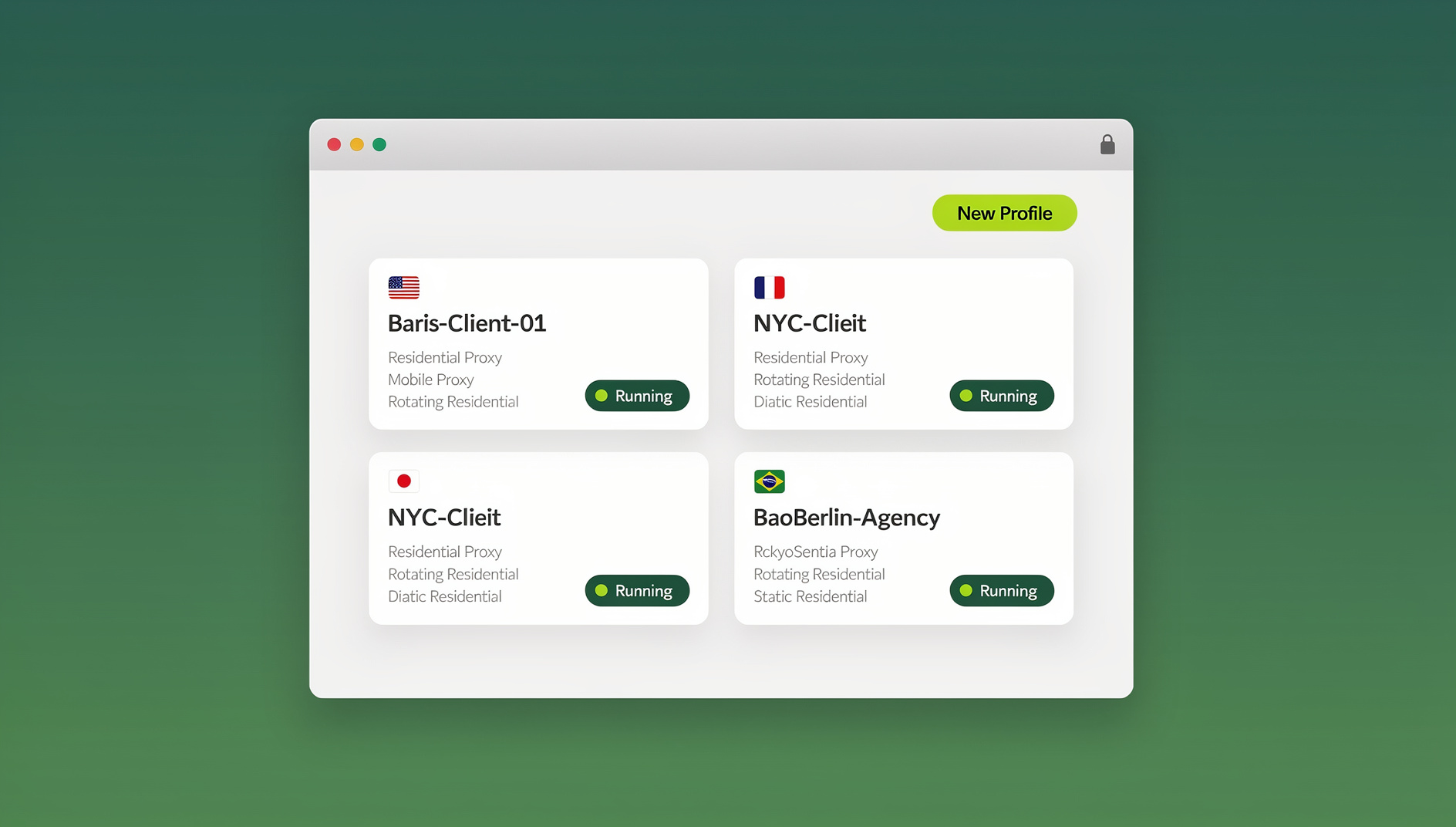
- Create a profile per LinkedIn account. Name it clearly (for example, “Client A – Recruiting”) so your team never confuses profiles.
- Attach a proxy where it matters. If a client wants their profile to appear to browse from a specific city or country, assign a proxy to that profile alone.
- Log in once per profile. Because each profile keeps its own session, you stay logged in across restarts — no repeated logins.
- Hand off access without sharing passwords. Share the session with a teammate directly through Send.win rather than emailing credentials around.
Send.win vs Chrome Profiles vs Session Tools
| Feature | Send.win | Chrome Profiles | Session Tools |
|---|---|---|---|
| Cookie isolation | Yes, per profile | Yes, per profile | Yes, per container |
| Fingerprint isolation | Yes | No | Rarely |
| Proxy per profile | Yes, built in | No, manual setup only | Limited |
| Cloud access, no install | Yes, cloud sessions | No | No |
| Automation support | No | No | Varies |
| Share access without password | Yes | No | Varies |
| Starting cost | $19/month (7-day money-back guarantee) | Free | Free to low-cost |
Best Practices for Safe Multi-Account Management
Even with the right tooling, how you use it still matters. A few habits go a long way toward keeping every profile in good standing.
- Keep proxies consistent per profile. Switching a profile’s apparent location every session is itself a red flag — assign a proxy and leave it.
- Pace your activity. Sending hundreds of connection requests from a brand-new profile in the first week looks automated even when a human is doing it manually.
- Never log the same account into two isolated profiles. That defeats the entire purpose — isolation only works if it’s one account per profile, consistently.
- Name and document your profiles. When a team grows past a handful of accounts, naming conventions prevent someone from accidentally messaging a client’s contacts from the wrong profile.
- Review LinkedIn’s current commercial use policies periodically. Platform rules shift, and what’s acceptable for automation or outreach volume today may be tightened later.
Good habits paired with proper session isolation address most of the risk that comes from running several accounts side by side. For readers who want the compliance angle spelled out in more depth, this guide on how to safely run multiple LinkedIn accounts covers LinkedIn’s specific policy boundaries in detail.
Looking Ahead: Multi-Account Management for the Rest of 2026
As LinkedIn continues refining its detection systems, the gap between “logging into a few tabs” and “running properly isolated profiles” is only going to widen. Teams that standardize on a dedicated tool now spend less time firefighting restricted accounts later. If your current setup is a patchwork of Chrome profiles and shared spreadsheets of passwords, it’s worth comparing that against a purpose-built option — this breakdown of Sendwin vs Chrome profiles walks through exactly when each approach makes sense.
🏆 Send.win Verdict
If you’re managing more than two or three LinkedIn accounts, Chrome profiles and incognito windows won’t hold up for long — they don’t separate device fingerprints or IP addresses, so accounts can end up sharing one browser identity. Send.win solves this with true per-profile isolation, whether you run the native Sendwin Browser desktop app or a zero-install cloud session, plus built-in proxy support and separate cookies, storage and fingerprint settings for every profile.
Try Send.win today — plans start at $19/month, and your first card purchase is covered by a 7-day money-back guarantee.
Frequently Asked Questions
Can I legally run more than one LinkedIn account?
LinkedIn’s terms limit each individual to one personal account, but company pages and properly separated client or brand profiles are standard and accepted for legitimate business use. The key is keeping each profile technically isolated rather than logging multiple identities in and out of the same browser session.
What’s the safest way to manage multiple LinkedIn accounts in one browser?
Give each account its own isolated profile with a separate cookie store, browser fingerprint, and, ideally, its own proxy. A dedicated tool like Send.win handles this automatically, which is far more reliable than manually clearing cookies or using incognito windows between logins.
How many LinkedIn accounts can I manage with Send.win?
The Pro plan supports up to 150 profiles with 5GB of proxy bandwidth, and the Team plan supports up to 500 profiles with 20GB of bandwidth and 16 seats for collaborators — comfortable headroom for most agencies and sales teams.
Do proxies actually prevent LinkedIn bans?
Proxies reduce one specific risk factor — multiple accounts sharing the same IP address — but they aren’t a complete solution on their own. Pairing a dedicated proxy with a fully isolated browser profile and sensible activity pacing is what actually keeps accounts safe long-term.
What’s the difference between Sendwin Browser and a Sendwin cloud session?
Sendwin Browser is a native app you download for Windows, macOS, or Linux, running your profiles locally with encrypted cloud sync. Cloud sessions run entirely on Send.win’s servers with nothing to install, billed by cloud browsing time, which suits occasional use or handing access to someone without installing software on their device.
Can I automate LinkedIn tasks across multiple accounts?
No. Send.win has no automation interface — no API, SDK, headless mode or Selenium/Puppeteer/Playwright support on any plan. What it does provide is isolated browser profiles, each with its own cookies, storage, sessions and fingerprint settings, so you can run the same manual workflow across many separated accounts instead of one shared browser.
How much does Send.win cost?
Pro is $19/month or $83.88/year, with 150 profiles. Team is $49/month or $251.88/year, with 500 profiles, 20GB of bandwidth, and 16 seats. There is no free trial; the first card purchase is covered by a 7-day money-back guarantee, and the only free option is the cloud demo at https://send.win/demo-browser/.
Will using multiple isolated profiles slow down my LinkedIn activity?
No — each profile stays logged in permanently once you’ve signed in, so switching between client accounts is a matter of clicking a different profile rather than logging out and back in every time. That’s typically where most of the daily time savings comes from.
Managing multiple LinkedIn accounts in one browser doesn’t have to mean juggling passwords, clearing cookies, or hoping LinkedIn doesn’t notice the pattern. With properly isolated profiles — whether through the Sendwin Browser desktop app or a cloud session — you can keep every account separated, secure, and logged in, and spend your time on outreach instead of login screens. Try the free cloud demo to see how it fits your workflow before committing to a plan.