Why Firefox Containers Don’t Stop Fingerprinting
Firefox containers — officially Multi-Account Containers — separate your browsing into color-coded tabs, each with its own cookies, local storage, and login sessions. What they don’t separate is your browser fingerprint or your IP address, and that’s the gap that matters: any platform that fingerprints (which includes most major social, ad, and e-commerce platforms in 2026) can still tell that two “different” container tabs are coming from the exact same browser and connection.
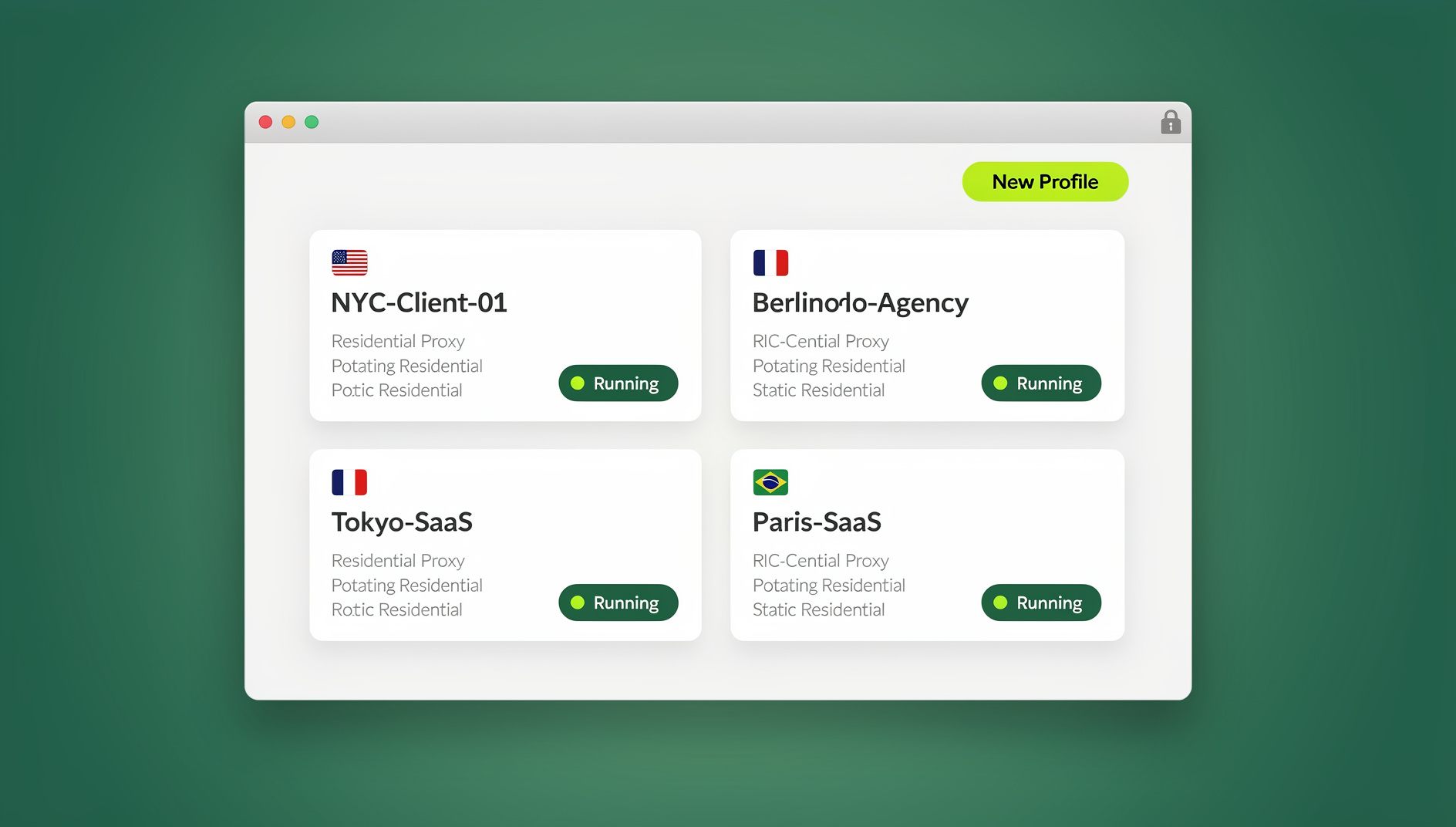
That doesn’t make containers useless — far from it. For separating a work Gmail from a personal one, or keeping shopping cookies from following you into unrelated tabs, they’re genuinely good, genuinely free, and built directly into Firefox. The problem only shows up when people reach for containers to manage multiple accounts on a platform that actively looks for duplicate signups.
How Firefox Containers Actually Work
Technical Architecture
- Cookie isolation: each container keeps its own cookie jar
- Storage separation: localStorage and indexedDB are independent per container
- Session independence: login states don’t cross container boundaries
- Cache sharing: page cache is shared across containers as a performance optimization
- Same rendering engine: every container runs on the same underlying Firefox engine
What’s Isolated vs. What’s Shared
| Isolated (Separate) | Shared (Identical Across Containers) |
|---|---|
| Cookies | Browser fingerprint |
| localStorage | IP address |
| indexedDB | Installed extensions |
| Login sessions | Browser settings |
| Site data | Canvas fingerprint |
| Service workers | WebGL fingerprint |
| User agent | |
| Screen resolution |
That right-hand column is the whole story: containers only ever isolate cookies and storage. They do not touch canvas fingerprinting, WebGL signatures, or your IP address.
Setting Up Firefox Containers
Step 1: Install the Extension
- Open Firefox and go to
about:addons - Search for “Firefox Multi-Account Containers”
- Click “Add to Firefox” and confirm the permissions
- A container icon appears in the toolbar
The underlying container feature is built into Firefox itself; the extension just gives you a UI for managing it.
Step 2: Create Your Containers
- Click the Containers icon in the toolbar
- Select “Manage Containers”
- Click “+ New Container”
- Pick a name, color, and icon
- Click “OK” to save it
Step 3: Organize a Sensible Setup
- 🔴 Personal: personal email, social media, shopping
- 🔵 Work: work email, company tools, professional platforms
- 🟢 Banking: online banking and financial services only
- 🟠 Shopping: e-commerce sites, to reduce price-tracking cookies
- 🟣 Social: social media platforms
- 🟡 Research: general browsing and research
Step 4: Assign Sites Automatically
- Open a site inside a container tab
- Click the Containers icon
- Toggle “Always Open in [Container Name]”
- The site opens in that container automatically from then on
Where Firefox Containers Genuinely Shine
Separating Work and Personal Browsing
The single most common use case: work email and tools in one container, personal email and social in another, with no accidental login crossover and a clear color-coded visual boundary between the two.
Basic Multi-Login
Two Gmail accounts open side by side, dev and staging environments viewed at once, or different user roles tested on the same site — all fine, as long as the platform in question doesn’t fingerprint for duplicate-account detection.
Reducing Cross-Site Tracking
Facebook’s cookies stay in the Social container. Google’s tracking cookies stay wherever you put them. Shopping sites lose the ability to follow you into unrelated tabs via cookies — though not via fingerprinting.
A Cleaner Banking Tab
A dedicated Banking container keeps financial sessions away from tracking cookies picked up elsewhere, which meaningfully reduces (not eliminates) session-hijacking risk.
The Facebook Container Extension
Mozilla also ships a separate, purpose-built “Facebook Container” extension that automatically isolates Facebook, Instagram, Messenger, and WhatsApp into their own container, stops Facebook’s tracking pixels on other sites from linking back to your profile, and opens external links from Facebook outside that container. It works alongside Multi-Account Containers rather than replacing it.
The Real Limitations of Firefox Containers
No Fingerprint Isolation — the Biggest Gap
- Identical fingerprint: every container shares the same canvas, WebGL, and audio fingerprint
- Identical user agent: platform detection is the same across every container
- Identical screen properties: resolution and color depth are shared
- Identical font list: installed fonts are identical across containers
The consequence: any platform that fingerprints — Facebook, Amazon, eBay, Google among them — can link accounts across your “separate” containers. That makes Firefox containers unsuitable for managing multiple accounts on platforms that fingerprint, which by 2026 is most platforms worth managing multiple accounts on.
Same IP Address, Every Time
- All containers share your one real IP address
- There’s no per-container proxy support built in
- Platforms see every account arriving from the same connection
- Geographic location is identical across every container
Shared Extensions
- Every container uses the same installed extensions
- Some extensions leak data across container boundaries anyway
- Not every extension respects container isolation as designed
Limited Customization
- No per-container timezone
- No per-container language setting
- No per-container user agent
- No per-container WebRTC control
Firefox Containers vs. a Real Antidetect Browser
| Feature | Firefox Containers | Send.win (Antidetect) |
|---|---|---|
| Cookie Isolation | ✅ Yes | ✅ Yes |
| Fingerprint Isolation | ❌ No (shared) | ✅ Yes (unique per profile) |
| IP Isolation | ❌ No (shared) | ✅ Yes (proxy per profile) |
| Multi-Account Safe | ⚠️ Low-risk sites only | ✅ Fingerprinting platforms too |
| Price | ✅ Free | 30-day free trial, then paid |
| Ease of Use | ✅ Very easy | ✅ Easy |
| Team Sharing | ❌ No | ✅ Yes |
| Cross-Device Access | ❌ Desktop only | ✅ Desktop app or cloud session |
Use Firefox containers when:
- You’re separating work and personal browsing
- You need basic multi-login on low-risk sites
- Cross-site cookie tracking is the actual concern, not fingerprinting
- A free solution is genuinely sufficient for the job
Reach for something like a best antidetect browser when:
- You’re managing accounts on platforms known to fingerprint
- Each account needs its own IP, not just its own cookie jar
- A team needs to share account access without sharing passwords
- Accounts need to look consistent across different devices
Send.win covers this with two distinct modes worth being precise about: the native Sendwin Browser desktop app, and separately billed cloud browser sessions that need no local install at all. For deeper background on the underlying tech, our Firefox Multi-Account Containers guide and our roundup of Firefox container alternatives both go further into the comparison.
Container Sync and Multi-Device Considerations
A detail that trips people up: Firefox containers are inherently single-device. If you set up six carefully organized containers on your desktop, none of that configuration follows you to a laptop or a second workstation — you’d rebuild the whole setup by hand, and cookies/sessions stored inside each container don’t travel either. For a solo user separating work from personal browsing on one machine, that’s a non-issue. For a team trying to share access to the same set of accounts across multiple people and devices, it’s a hard wall — containers were never built for that use case, and no extension changes the underlying architecture.
This is where the gap between “separating my own tabs” and “managing accounts as a team” becomes obvious. Containers solve the first problem well. They don’t attempt to solve the second, and treating them as a substitute for a real shared-access, cross-device tool tends to end in someone manually re-entering credentials on a new machine rather than the access being handed off cleanly.
When Containers Are the Wrong Tool Entirely
A few situations make the mismatch obvious fast:
- Running 5+ seller accounts on the same marketplace: the shared fingerprint links every one of them the moment the platform’s detection systems look
- Managing ad accounts across a team: no cross-device sync, no shared access, no audit trail of who touched what
- Any platform with known duplicate-account enforcement: containers don’t hide what those systems are actually checking for
- Needing a different IP per identity: containers share one connection, full stop
None of this is a knock on Firefox containers as a feature — they do what they were designed to do very well. The mismatch only happens when the job requires fingerprint- and IP-level separation and containers get used as a stand-in anyway.
Advanced Container Tips
Temporary Containers Extension
- Auto-creates a fresh container for every new tab
- The container is deleted the moment the tab closes
- No persistent tracking survives between tabs
- Effectively a permanent incognito mode with container-level structure
Third-Party Container Proxy Extensions
- Some extensions add per-container proxy routing on top of Firefox’s own containers
- This adds a layer of IP isolation the built-in feature lacks
- It still does nothing about the shared fingerprint problem
Keyboard Shortcuts
- Configure shortcuts for fast container switching
- Set a default container for new tabs
- Use “Always open in” rules for the sites you visit most
Privacy Comparison Across Browsing Modes
| Privacy Feature | Regular Tabs | Incognito | Containers | Antidetect |
|---|---|---|---|---|
| Cookie Isolation | ❌ | ✅ (temporary) | ✅ (persistent) | ✅ |
| Fingerprint Isolation | ❌ | ❌ | ❌ | ✅ |
| IP Isolation | ❌ | ❌ | ❌ | ✅ |
| Session Persistence | ✅ | ❌ | ✅ | ✅ |
| Multi-Login Support | ❌ | ⚠️ (one extra) | ✅ | ✅ |
🏆 Send.win Verdict
Firefox containers are a genuinely good, free tool for separating everyday browsing contexts — but they were never built to defeat fingerprinting, and they don’t. If cookie separation is all you need, keep using them. If you’re managing multiple accounts on platforms that actively fingerprint, containers alone leave you exposed. Send.win generates a unique fingerprint and IP per profile, whether you run it through the native Sendwin Browser desktop app or a no-install cloud browser session — and both start with a 30-day free trial, no credit card required.
Try Send.win free today — get a real fingerprint-isolated profile running in minutes.
Frequently Asked Questions
Are Firefox containers built into Firefox itself?
Yes. The underlying container technology ships with Firefox; the Multi-Account Containers extension just provides the interface for creating and managing them. Power users can also configure containers through about:config without installing the extension at all.
Can websites detect that I’m using containers?
Not directly — but they don’t need to. A fingerprinting platform can see that multiple “separate” accounts share an identical canvas, WebGL, and audio fingerprint from the same IP, which is just as identifying as not using containers in the first place.
Do Firefox containers sync across my devices?
No, not by default. Container configurations and site assignments are not included in standard Firefox Sync — your containers and their settings stay local to the device you created them on.
Can I export my container setup?
The extension lets you export container configurations (names, colors, assignments) as JSON. Cookies and session data stored inside each container, however, cannot be easily exported or moved.
How many containers can I realistically create?
There’s no hard technical limit, but organization breaks down fast. Past 10-15 containers, most people lose track of what’s assigned where without a strict naming system.
Do containers stop a platform from banning multiple accounts?
Not on their own. Since the fingerprint and IP are identical across every container, a platform that checks for duplicate signups by fingerprint will still catch them — containers only hide the cookie trail, not the browser identity itself.
Is there a free way to add fingerprint isolation to Firefox containers?
Not a reliable one. Third-party extensions can add per-container proxy routing for IP isolation, but none genuinely randomize the canvas/WebGL/audio fingerprint per container — that requires a browser built around fingerprint generation, which is a fundamentally different piece of software.
Conclusion
Firefox containers do exactly one job well: separating cookies and storage between browsing contexts, for free, with zero setup friction. That’s a real, useful feature for everyday privacy and basic organization. What they were never designed to do — and still don’t do — is isolate the browser fingerprint or IP address, which is precisely what platforms use to catch multi-account activity.
The practical takeaway is to match the tool to the actual risk. If the worst-case outcome of getting linked is mild annoyance — someone notices your work and personal tabs share a browser — containers are more than enough, and free. If the worst-case outcome is a suspended seller account, a banned ad account, or a client losing access to a platform they depend on, that’s a fingerprinting risk, not a cookie risk, and no amount of container organization changes that math.
Use containers for daily convenience. For any account you can’t afford to lose to a fingerprint-linked ban, pair them with — or replace them entirely with — a tool built specifically to generate a distinct fingerprint and IP per profile.