What Citrix Browser Profile Sharing Can and Cannot Do
A login dies in Citrix when the session, the cookie folders and the rendering layer disagree about who is signed in. Citrix browser profile sharing covers the two mechanisms Citrix offers against that: Profile Management syncing browser cookie folders between sessions, and Browser Profile Sharing in Browser Content Redirection, which passes cookies and authentication from the VDA browser to a client-rendered session. Both keep a person signed in. Neither builds a separate browser identity per client account.

📌 TL;DR Executive Summary
- Core Takeaway: Citrix Profile Management roams a Windows persona and can mirror browser cookie folders; BCR Browser Profile Sharing passes VDA cookies and authentication into a client-rendered session. Neither separates one client’s accounts from another’s.
- Key Risk/Challenge: A roaming profile is a single cookie jar. Mixing clients, passing passwords through chat and syncing bloated browser folders create privacy exposure and slow logons, not just lost sessions.
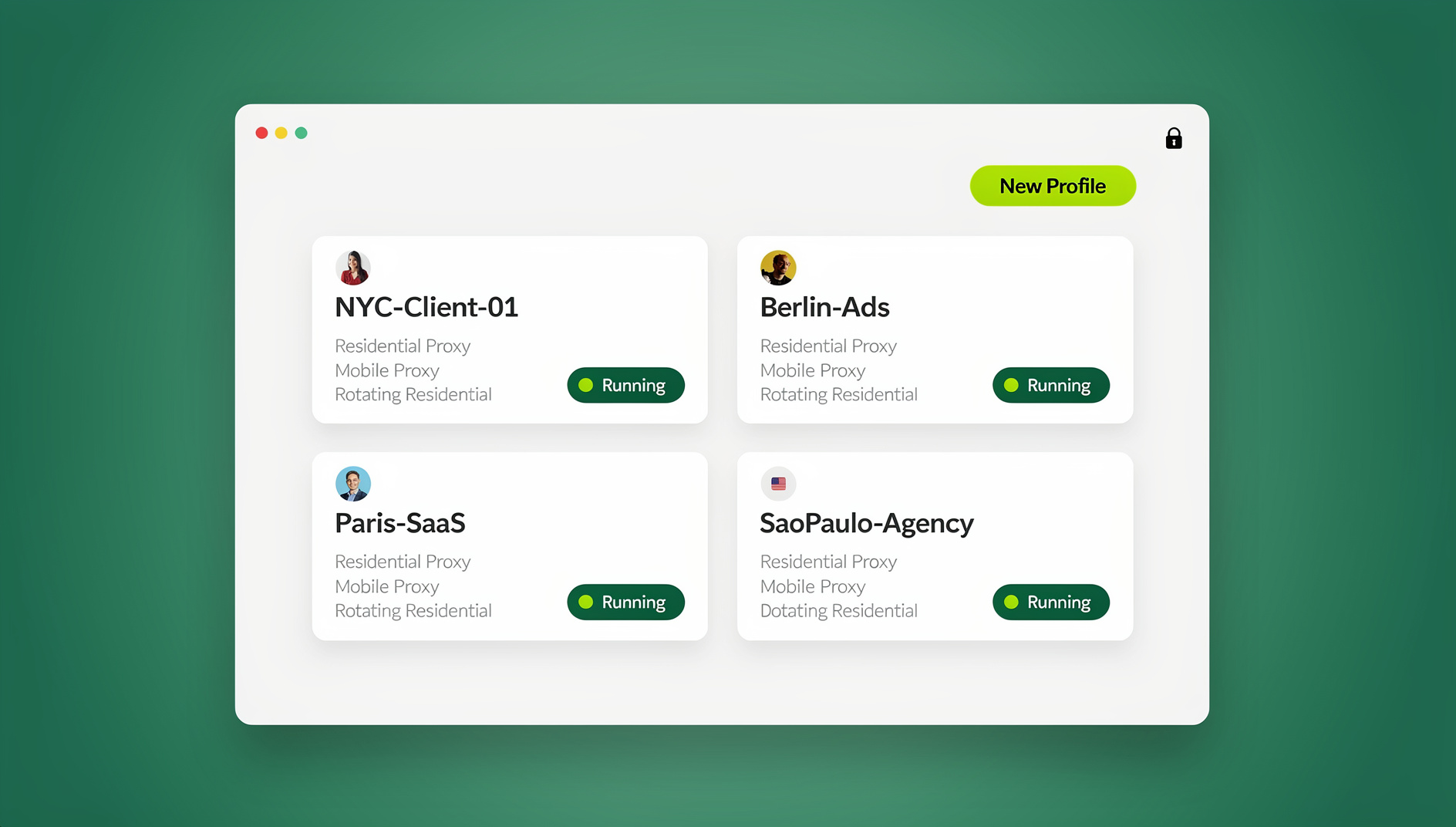
- Recommended Solution: Keep Citrix for the desktop and give each client-platform pair its own browser profile with separate cookies, storage, proxy and fingerprint settings, shared with paid teammates instead of passwords.
A Day in the Workflow: Citrix, Clients and the 9 A.M. Handoff
Your team starts in Citrix because the client work lives there: the finance app, the ticketing system, the shared drive, the approved browser. The browser is where the day gets messy.
8:45 a.m.: the VDA launch
You sign into Citrix Workspace, land on a Windows virtual desktop and open the browser. Profile Management loads the desktop, mapped drives and registry settings. If cookie folders are mirrored, the client’s social inbox may still be signed in. If “Process Internet cookie files on logoff” is enabled, it will not be, because that policy deletes stale Internet Explorer cookies at logoff. Either way you are working inside one Windows persona that several people may touch during the week.
For a single employer that model holds. For an agency it does not. One roaming profile cannot cleanly separate the cookies for one client’s ad account from another client’s storefront, especially when both use the same platform. You can add browser profiles inside the VDA, and then you maintain two profile systems: Citrix’s and the browser’s. The session sharing complete guide covers the collaboration side of that split before you add another layer.
10:30 a.m.: the client asks for a change
A client asks you to fix a campaign, check an order or answer a review. You switch accounts. In a plain browser that means signing out, signing in, waiting for a code and hoping a teammate’s session does not collide with yours. With Browser Content Redirection the page renders on your local device while authentication stays on the VDA, which cuts server load. If the login state is not carried across, closing the BCR window signs the client out again and the savings disappear into a support ticket.
4:00 p.m.: the handoff
You hand the account to a teammate in another time zone. The teammate needs the client context, not your Windows desktop. If the only sharing mechanism is a password in a chat message, you have created a compliance problem and a session problem at once: the platform records a second location, and by morning someone is verifying again.
The useful question is not how to make Citrix keep cookies forever. It is which layer owns which identity. Citrix owns the Windows persona. A browser profile manager owns the client browser identity. Mix the two and every handoff becomes a ticket.
How Profile Management and Browser Content Redirection Compare
Citrix gives you two mechanisms that solve different problems. Profile Management captures Windows user profile folders, files, registry entries and settings that define a user’s environment; version 2411 is the Current Release bundled with VDA 2411. Browser Content Redirection moves page rendering to the local client to reduce server load, and Browser Profile Sharing sits inside it as a Tech Preview that hands cookies and authentication from the VDA-side browser to the BCR session.
Citrix’s own guidance is to configure Profile Management from one location only — AD GPO, Citrix Studio Policies or Workspace Environment Management — and to mirror the INetCookies, WebCache and Cookies folders when an app depends on cookie persistence. Read the Citrix Profile Management best practices before you change folder mirroring, because the logoff cookie policy and the mirroring policy pull in opposite directions.
For Edge, Citrix advises syncing only specific subdirectories such as Default, First Run and GrShaderCache, and excluding caches, IndexedDB, Local Storage and Service Worker folders so logons and logoffs stay fast. Chrome extensions live under AppData\Local\Google\Chrome\User Data\Default\Extensions and install per user profile, so a roaming Windows profile can carry stale extension state. Extension vendors add their own warnings: PixieBrix, for example, asks customers to exclude its IndexedDB directories from profile sync to avoid database corruption.
| Layer | What it carries | Scope | Best for | Watch-outs |
|---|---|---|---|---|
| Citrix Profile Management | Windows profile folders, registry, selected browser cookie folders | Windows user profile on Citrix | Keeping the desktop persona and app settings across VDA sessions | Profile bloat, slow logons, cookie policy conflicts, one configuration location only |
| BCR Browser Profile Sharing | Cookies and authentication from the VDA-side browser to the BCR session | Tech Preview in the 2503 release line; BCR sessions | Avoiding a repeated login after a BCR window closes | Preview status, authentication URLs must move to the BCR block list, registry value required |
| Send.win browser profiles | Cookies, storage, sessions, fingerprint settings and proxy, per profile | Sendwin Browser desktop app or cloud browser | Separating client identities and sharing a signed-in profile with a paid teammate | Not a Citrix policy but a separate identity layer; profiles are set up and maintained by hand in the app |
Configuring BCR Browser Profile Sharing in Four Steps
If BCR is already in your environment and the repeated login is the complaint, this is the narrow fix. It is a Tech Preview in the 2503 release line, so pilot it on one delivery group before you standardise.
- Move authentication URLs out of the old policy. Addresses previously listed under “authentication sites” must be listed in the “Browser content redirection block list” instead. Leaving them in the old location gives you a half-configured state that is harder to diagnose than either extreme.
- Set the registry value on the VDA. Create a DWORD
BrowserProfileSharingset to1underHKLM\SOFTWARE\Citrix\HDXMediaStream. - Test the close-and-reopen loop. Sign into the app inside the BCR session, close the window, reopen it and confirm you are not asked to authenticate again. Repeat per published browser, not once for the whole farm.
- Confirm the trade-off with your security owner. The feature exists so the local client inherits the VDA browser’s authentication. That is the point, and it is also the exposure: anyone who reaches that client window inherits the signed-in state.
The Browser Content Redirection documentation lists the current policy names. Check them against your VDA version each time you upgrade, because preview behaviour moves between releases.
The Three Risks Citrix Profile Sharing Does Not Remove
Citrix profile sharing is infrastructure. It preserves a session and reduces re-logins. It cannot decide whether the account is yours to manage, whether two clients should share a cookie jar, or whether a teammate should hold the password.
Compliance: the account owner is the starting point
Every client account needs a documented owner and an authorisation trail. If you manage a storefront, an ad account or a social inbox, the client should grant access through the platform’s own access model rather than by handing over a personal password. Keep the authorisation record outside the browser profile. The profile can hold the session; it should not be the only evidence that you were allowed to use it.
Client separation: one profile cannot be two clients
A shared Windows profile with mirrored cookie folders is one cookie jar. Two clients on the same platform can overwrite each other’s cookies, and a teammate can open the wrong inbox without noticing. That is an operational error with privacy consequences before it is anything else. Separate browser profiles solve it at the boundary: each client gets its own cookies, storage, sessions, proxy and fingerprint settings. The browser profile sharing rules cover the permission side of that boundary.
Shared logins: convenience is not control
A password in chat cannot be revoked per person, lives in history indefinitely and often triggers a verification challenge when a new device appears. A shared browser profile works differently: a paid teammate opens it already signed in, and no password changes hands. That is still access. Remove the teammate when the engagement ends, and leave account recovery with the client.
Fingerprint consistency matters here too. A profile that carries one client’s cookies while inheriting another profile’s canvas, WebGL, audio, font and hardware signals presents an inconsistent identity across sessions. Send.win handles fingerprint protection inside the browser engine, per profile, so profiles do not share one browser identity. That is privacy protection, not a claim about how any platform will treat your account.
Step-by-Step: Separate Client Browser Profiles with Send.win
Send.win is a browser profile manager, not a Citrix policy. It gives each client account its own browser profile with separate cookies, storage, sessions, fingerprint settings and proxy. Run it as the Sendwin Browser desktop app on Windows 10/11, macOS 12+ or Linux, or use the cloud browser, which runs profiles on Send.win’s cloud server in Helsinki, Finland. If your team works only through Citrix desktops, the cloud browser keeps the client identity out of the roaming Windows profile altogether.
- Map identities first. Build one row per account: client, platform, login owner, proxy region and the teammate who needs access. Two rows describing the same client and platform usually mean one profile, not two.
- Choose the runtime. Desktop app on a managed company laptop when the work stays on that machine; cloud browser when teammates on different devices need the same context. The free cloud demo gives a 3-minute preview without signup, and a free account gets 10 minutes a day. There is no trial of the desktop app, so do not plan a rollout around one.
- Create one profile per client-platform pair. Name it with client code, platform, region and owner — “CL01-Meta-UK-JS”, not “Facebook 2”. This is the same discipline as one profile per account, applied to agency work.
- Attach the right network. Pro and Team include residential proxies with metered bandwidth, and you can bring your own HTTP/SOCKS5 proxy instead. Match the region to the client’s market: timezone, locale, WebRTC and geolocation follow the proxy exit IP automatically, so you set one control instead of four and hope they agree.
- Sign in and let the profile hold the session. Complete the platform’s normal login, including any verification it asks for. Do not copy cookies between profiles and do not ask a client to weaken verification. The profile keeps its own cookies and storage, which is what makes the next launch look like the same browser.
- Share with a paid teammate, not a password. On Pro and Team a shared profile opens already signed in. Seats are 6 on Pro and 16 on Team. Sharing of profiles and live cloud sessions runs to 20 on Pro and 50 on Team, and Team adds page blocking or redirection inside shared sessions, which helps when a junior teammate works a profile.
- Document the recovery route. Record who owns the account, which platform role grants access and how the client recovers it. If an account is restricted or suspended, the fix is the platform’s appeal or verification process, not a fresh profile.
One thing to plan for: there is no bulk shortcut. Profiles are created, named, networked and reviewed by a person inside the app, one at a time, so budget setup time whenever a new client onboards. Treat provisioning and access review as an operational process with a named owner, and it stays predictable as the client list grows.
Scaling Without Breaking the Client Boundary
Scaling is not more profiles. It is more client work without breaking the boundary between clients or the platform’s access rules. The constraints that matter are seats, saved profiles, open sessions and proxy bandwidth.
Use the platform’s own access model
When a platform limits multiple accounts, say so in your process and take the official route. Meta Business Manager roles exist so an agency can be granted access without a personal password, and Amazon requires approval for an additional seller account. If a client asks you to run more accounts than the platform allows, the answer is a new authorisation or a different structure, not another browser profile.
Align the profile boundary to the client boundary
One client should never inherit another’s cookies, storage or proxy. Three storefronts in three regions mean three profiles with three matching proxies, not one profile with a proxy switcher. The browser profile manager comparison shows how isolation models differ once you move from a handful of profiles to a portfolio. The goal is an audit trail where every profile maps to one client, one platform and one region.
Budget what you actually open
| Limit | Pro | Team |
|---|---|---|
| Saved browser profiles | 150 | 500 |
| Profiles open at once | Up to 50 | Up to 50 |
| Residential proxy bandwidth | 5 GB/month | 20 GB/month |
| Team seats | 6 | 16 |
| Cloud browser sessions at once | 3 | 9 |
| Extra bandwidth / extra profile | $6 per GB / $0.05 | $6 per GB / $0.05 |
Archive profiles that belong to dormant clients. Thirty open profiles cost the same attention whether or not ten of them relate to active work, and bandwidth is metered on both plans.
Keep provisioning a human process
Every profile gets opened by a person with a reason, and that constraint helps account hygiene. Build a weekly review instead — who holds which shared profile, which client authorised it, which proxy region it uses — and remove one stale share and one duplicate profile each week.
🏆 Send.win Verdict
Citrix Profile Management and BCR Browser Profile Sharing are the right tools for the Windows persona and the redirected session. They are not a client-identity system. Send.win adds that layer: one browser profile per client-platform pair, with its own cookies, storage, fingerprint settings and proxy, plus profile sharing with paid teammates so nobody trades passwords. If your team lives in Citrix but manages several clients, keep Citrix for the desktop and give the browser identities their own boundary.
See Send.win plans — Pro at $19/mo or $6.99/mo billed annually, with residential proxies included, or start with the free cloud demo: 10 minutes a day, nothing to install.
Frequently Asked Questions
What is Citrix browser profile sharing?
It is the practice of carrying browser cookies and authentication across Citrix sessions, either through Profile Management folder mirroring or through Browser Profile Sharing inside Browser Content Redirection. It keeps a user signed in. It does not give each client a separate browser identity.
Does Citrix Profile Management keep browser cookies?
It can, if you mirror the right cookie folders. Citrix recommends mirroring INetCookies, WebCache and Cookies for cookie persistence. Check the “Process Internet cookie files on logoff” policy first, because it removes stale Internet Explorer cookies at logoff and can break persistence for apps that rely on them.
What is Browser Profile Sharing in Citrix BCR?
It is a Tech Preview in Browser Content Redirection that shares cookies and authentication from the VDA-side browser to the BCR session, so users are not asked to log in again after closing the window. It requires the BrowserProfileSharing registry value and moves former authentication sites into the BCR block list.
Why do users lose login sessions in Citrix?
Common causes are cookie folders that are not mirrored, a logoff policy that deletes cookies, browser caches and IndexedDB folders synced incorrectly, and BCR sessions that do not carry the VDA authentication state. Slow logons usually point to profile bloat rather than a login problem.
Can Citrix share Chrome profiles across sessions?
Profile Management can roam selected Chrome user data folders, but that is Windows profile sync, not a per-client Chrome profile boundary. Chrome extensions live per user profile under AppData\Local\Google\Chrome\User Data\Default\Extensions, and syncing caches or IndexedDB can slow logons or corrupt extension databases.
Which folders should I exclude in Citrix Profile Management for Edge?
Citrix advises excluding Edge caches, IndexedDB, Local Storage and Service Worker folders, and synchronizing only specific subdirectories such as Default, First Run and GrShaderCache. That keeps the profile smaller and avoids slow logons and logoffs. Test the exclusions with the extensions your team actually runs.
Can I use Send.win inside a Citrix virtual desktop?
Send.win is a separate desktop app or cloud browser, not a Citrix policy or plug-in. On a managed Windows VDA you would validate packaging and profile storage with your Citrix team first. For teams that want nothing installed inside Citrix, the cloud browser runs profiles in Helsinki and opens from any device. Either way, every profile is set up and opened by a person in the app.
How do I share a client browser profile with a teammate?
On a paid Send.win plan, share the profile with a paid teammate and it opens already signed in, so no password changes hands. Remove access when the engagement ends, and keep the same authorisation record you would keep for any other account permission.
How Send.win Helps With Citrix Browser Profile Sharing
Send.win is a browser profile manager for professionals and teams: every account gets its own isolated browser profile.
- Isolated profiles – separate cookies, storage and sessions per profile
- Fingerprint protection – each profile keeps its own consistent browser fingerprint, so profiles never share one browser identity
- Desktop app + cloud browser – native app for Windows, macOS and Linux, or run profiles in the cloud with no install
- Residential proxies included – on Pro and Team, with timezone and locale matched to the proxy
- Team sharing – share a signed-in profile with a teammate without sharing the password
Try the free cloud demo — no install — or download the desktop app. Paid plans start at $19/month, and your first card purchase is covered by a 7-day money-back guarantee (see pricing).