
Managing multiple Instagram accounts from a single browser is straightforward in 2025 with the right tools and techniques. You can switch between accounts seamlessly without constantly logging in and out by using specialized browser methods. This guide covers Instagram’s built-in account switching, browser profiles and extensions, and modern tools like Sendwin that isolate each account’s session. By applying these strategies, you’ll eliminate login hassles and can even boost your productivity by up to 80%.
Instagram’s mobile app lets you switch accounts easily, but browser sessions don’t isolate profiles natively. Each web session shares cookies and storage, so logging out of one account can break another. Instagram’s official web interface supports up to five accounts per device. You add an account by clicking your profile icon and selecting “Add account”. However, this native method has limitations. All accounts share the same cookies and data, so if one session expires or you log out, the others can get disconnected. Rapid switching on the same browser can also trigger Instagram’s security checks (CAPTCHAs or blocks). For power users juggling brands, agencies, or influencer profiles, these constraints make Instagram’s built-in switcher impractical beyond a couple of accounts.
Instagram’s Native Multi-Account Feature
Instagram does let you add multiple accounts in its app and on the web. The process is simple: log into your main account, click your profile avatar, choose Add Account, and enter the new credentials. Once set up, you can switch by tapping your avatar and selecting the other profile. This approach requires no extra software and works across desktop browsers. In theory it handles up to five accounts per device.
However, native switching has drawbacks: all accounts share the same browser cookies and local storage. For example, if you log out of one account, it can inadvertently log out of the others. Notifications for every account pile into the same interface, making it hard to track activity per profile. Browser password managers or auto-fill can also misapply credentials between profiles, causing login errors. Moreover, rapidly toggling accounts may look suspicious and trigger Instagram’s bot detection, leading to temporary blocks or extra verification steps. In summary, the native multi-login is fine for casual use (a couple accounts), but it’s unreliable for professionals managing many profiles.
Browser Profiles, Containers and Private Windows
When Instagram’s built-in switcher isn’t enough, many people turn to browser features:
- Separate Browser Profiles: Modern browsers (Chrome, Edge, etc.) let you create distinct user profiles, each in its own window. Each profile has its own cookies, cache, and extensions. This isolates one account per window, so cookies don’t bleed between profiles. The downside is that all these windows share the same device fingerprint (same hardware, fonts, plugins), so Instagram may still detect one computer behind all logins. Running multiple profiles also consumes more memory and CPU.
- Firefox Multi-Account Containers: Firefox offers a Containers feature where each browser tab can belong to a separate “container”. You can open Instagram in two different containers (e.g. “Work” vs “Personal”). Each container keeps its storage separate, so you get isolated cookies per tab. This is lighter than full profiles, but again the device fingerprint (browser version, hardware info) remains the same. Some sites may also break under container isolation.
- Incognito/Private Windows: Opening an incognito (Chrome) or private (Firefox) window gives a fresh cookie jar. You can open multiple incognito windows side by side – each is isolated from others until you close it. The pros: no data persists after you close it. The cons: you must keep the window open (close it and you lose the session), and all windows still share the same IP and device fingerprint. It’s not a practical long-term solution for 24/7 access.
- Multi-Account Extensions or Apps: Tools like SessionBox (browser extension) or Rambox/Franz (desktop “app aggregator”) let you run Instagram in separate tabs or panes. These create logical isolation for cookies within each tab. They make it easy to organize and label your sessions, but again they run on your local machine. Your device IP and most fingerprint attributes remain shared, so you haven’t solved the core issue of device detection.
In short, common workarounds (profiles, containers, incognito) can separate cookies, but they do not fully hide the fact that all sessions come from the same browser instance. For a professional managing many accounts, these methods either become unwieldy or still risk security flags.
Dedicated Multi-Login Tools (Antidetect Browsers)
For larger scale or security-focused operations, there are specialized browsers designed for multi-account logins:
- GoLogin, Multilogin, etc.: These anti-detect browsers allow you to create dozens (or hundreds) of unique “profiles”, each with its own randomized browser fingerprint (different canvas, WebGL, fonts, etc.). You can also attach different proxies to each profile so each account appears from a different IP/network. These tools often include automation APIs for spinning up hundreds of profiles. However, they are complex and resource-intensive: each profile runs a full browser engine (taking lots of RAM), and setup/configuration can be challenging. Importantly, they are expensive – entry plans typically start at around $50–$100 per seat per month.
- Desktop Aggregators (Rambox, Wavebox): Apps like Rambox consolidate multiple web apps (Instagram, Slack, Gmail, etc.) into one interface. Each pane maintains its own storage. They’re user-friendly and show many services at once, but all panes still use your single machine’s IP. They are great for organization, but not for evading Instagram’s multi-login limitations.
These advanced solutions offer maximum separation and control, but for a typical user they are overkill. In 2025, a more user-friendly approach is to use a cloud-based multi-login browser.
Introducing Sendwin: Cloud-Based Multi-Login Browser
Sendwin is a cloud-native multi-login platform built for exactly this purpose. Think of it as a remote browser in the cloud: when you open a Sendwin session, it streams an isolated browser tab from a remote machine to your screen. Key benefits:
- Per-Tab Session Isolation: Each Sendwin session is a clean, sandboxed browser environment. Cookies, cache and local storage never overlap between tabs. In practice, you open Instagram in Tab 1 (Account A) and Instagram in Tab 2 (Account B) – they behave as if on separate devices.
- No Local Data: Because the browser runs on Sendwin’s servers, nothing from those sessions is stored on your computer. There’s no risk of leaving cookies or passwords behind locally.
- Proxy Integration: Sendwin lets you attach a proxy to each session. You can use different residential or mobile proxies per tab for distinct IP addresses and geolocations. This greatly reduces Instagram’s suspicion of multiple logins.
- One-Click Account Switching: Switching accounts is literally a tab click away. There’s no “Add account” juggling – each login is already live in its own tab. Simply click over to the desired tab and continue working instantly, with no cookies shared across profiles.
- Security & Encryption: All session data is encrypted (AES-256) on Sendwin’s end, and tabs are sandboxed so that even other sites (or Sendwin staff) cannot read your cookies. You get robust security without complexity.
Sendwin essentially combines the convenience of an extension (browser-based) with the security of a fully isolated cloud browser. It is ideal for social media teams, agencies, or anyone who needs many Instagram sessions side by side. For example, Sendwin reports a 9.5/10 satisfaction rating from over 1,000 active users, highlighting how effective it is at simplifying multi-account management.
Step-by-Step: Using Sendwin to Manage Instagram Accounts
Getting started with Sendwin is quick. Follow these steps to set up multiple Instagram sessions in one browser:
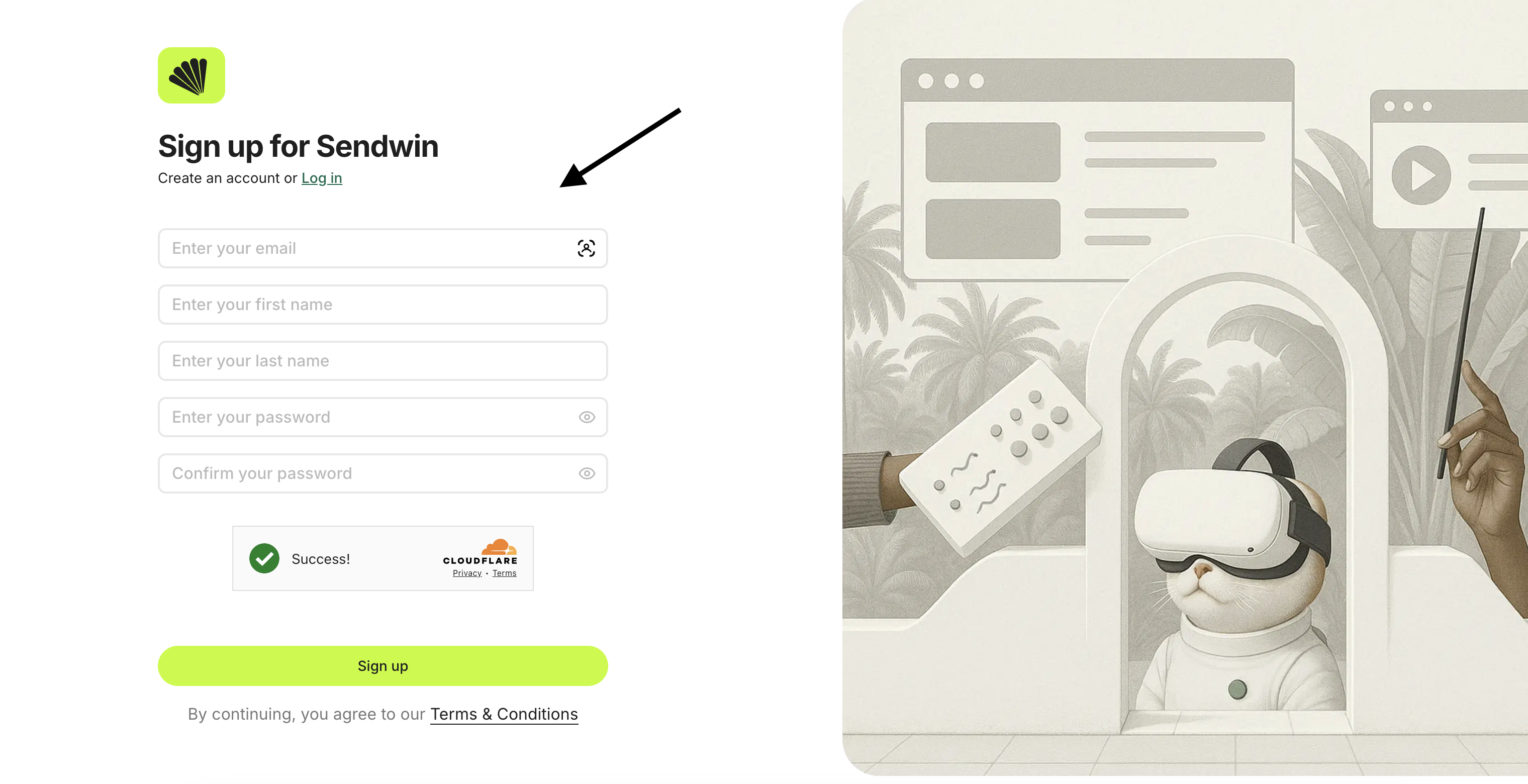
Sign Up and Choose a Plan: Go to portal.send.win/signup and create an account. Sendwin offers a free 7-day trial, then paid plans. The Pro plan is about $9.99 per month and includes 5 user seats; the Team plan is $29.99/month with 15 seats. (These plans give you more parallel sessions and collaboration features as you grow.) Pick the plan that fits your needs, and enter payment to activate it.
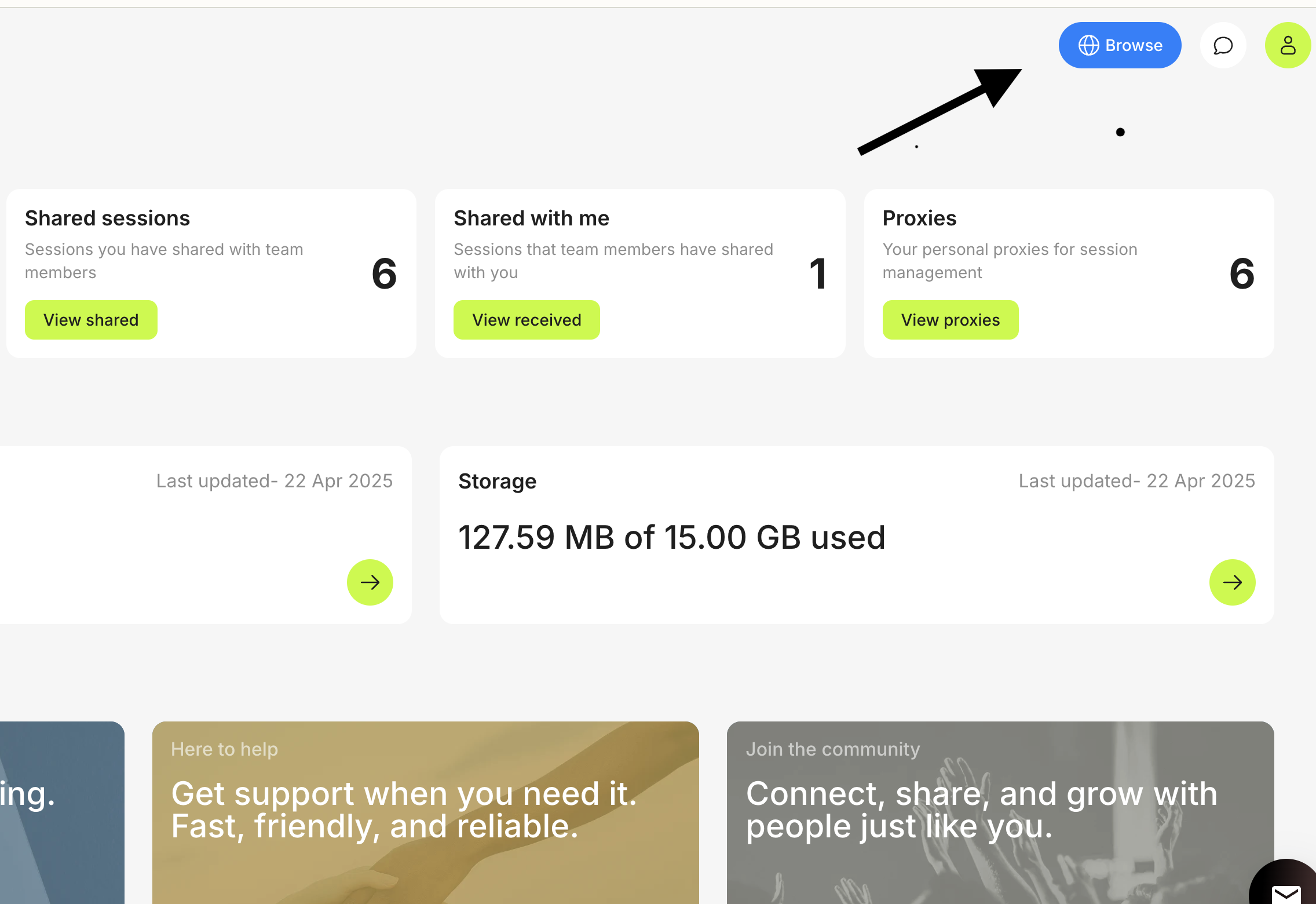
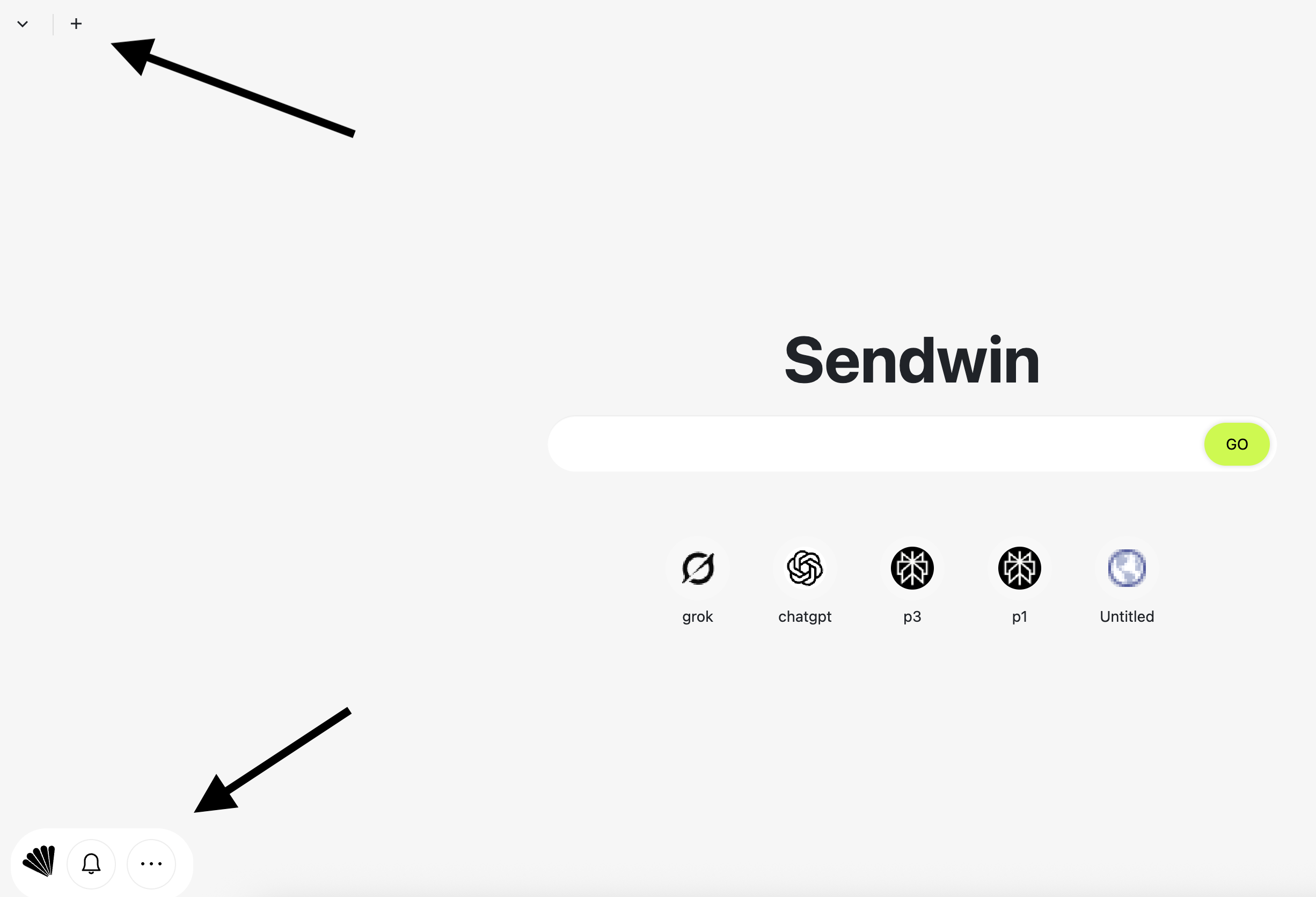
Launch a New Live Session: After logging in, use the Sendwin dashboard to create an isolated tab. For example, click New Live Session (the + or “New Session” button). This will open a new browser tab powered by Sendwin’s cloud. It may look blank at first; it’s essentially a remote Chrome/Edge instance.
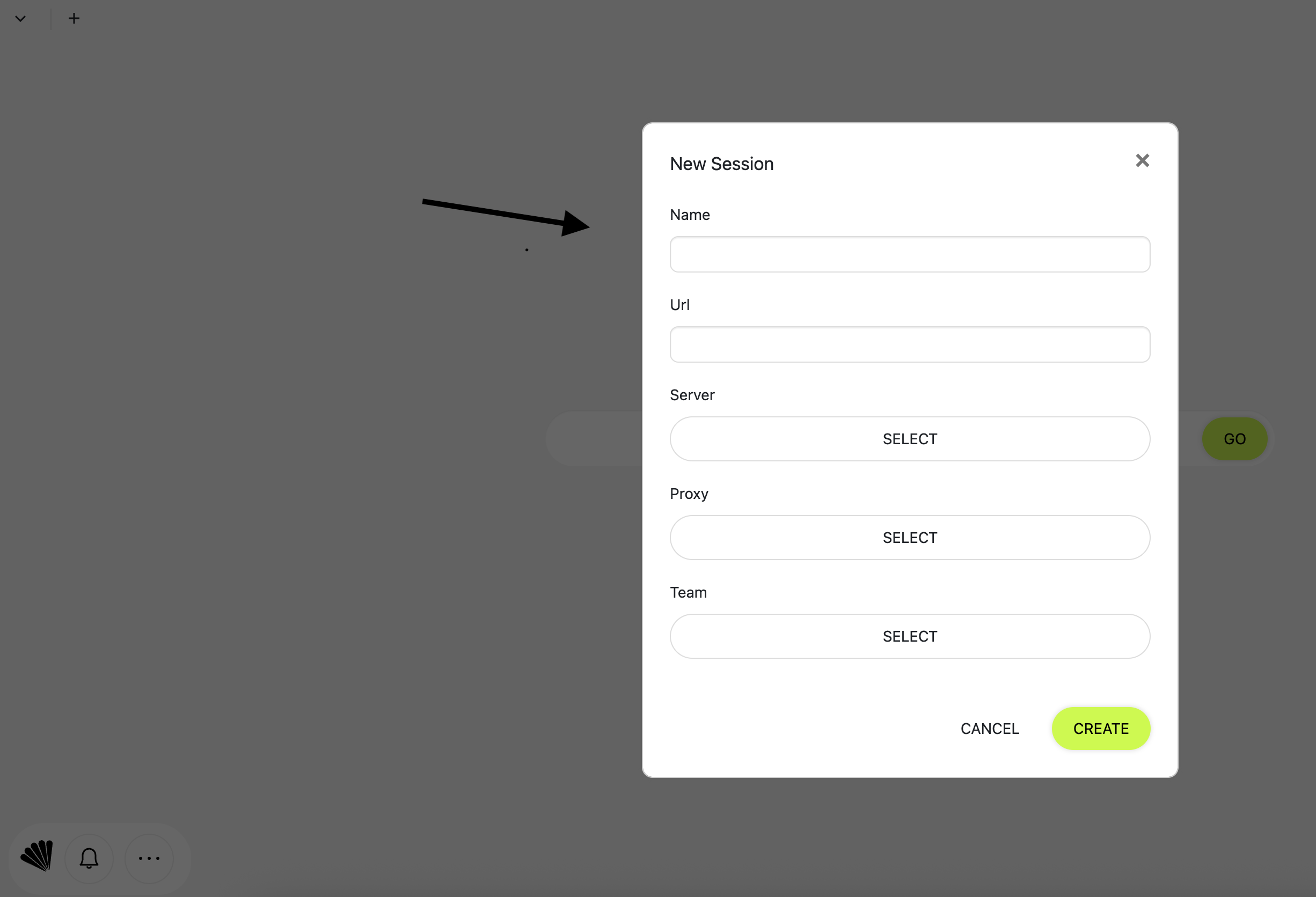
Name and Configure the Session: (Optional) You can name the session (e.g. “Instagram – Brand A”) and set a start URL. For Instagram, just leave it or set it to https://www.instagram.com so it opens there automatically.
Attach a Proxy (Recommended): In the session controls, find the Premium Proxy option. Enter the credentials of a residential proxy (Sendwin supports various types). Binding a proxy per session ensures each account appears on Instagram from a separate IP. This dramatically lowers blocks or verifications.
Log In to Instagram: In the isolated tab, navigate to Instagram and log in with your first account’s username and password. All cookies and data for this account will stay inside this tab.
Repeat for Additional Accounts: Click New Live Session again to create another tab (or copy the first session). Repeat steps 3–5 for each Instagram profile you manage. Each tab runs its own browser environment, so you can stay logged in to multiple accounts at the same time.
Each Sendwin tab is a separate browser session. In this example, a user has two Instagram profiles open in isolated tabs, allowing instant switching. Notice the laptop in the background, reminding us that all activity is cloud-based with no local install.
Switch Between Accounts: Now you’re set. Simply click between the Sendwin tabs to change accounts instantly. There is no need to log out or “Add account” – each session is independent. Your workflow remains uninterrupted, with each Instagram session fully preserved.
Configure Session Timers: (Optional) For security, you can set a timer on each session (e.g. 30 minutes to 1 hour). After that time, Sendwin will auto-dispose the session, clearing all data. This ensures you don’t leave stale sessions open and reduces fingerprint drift.
By following these steps, you’ll have multiple Instagram accounts running in parallel, side-by-side in one browser window. Each account behaves like it’s on a separate device, so there’s no “cookie bleed” or cross-account interference. You can post, comment, or browse in each tab as if it were a fresh login.
Best Practices & Security Tips
To maintain security and avoid Instagram flags while using multiple accounts, follow these additional tips:
- Use Residential Proxies: Always assign a real home/IP proxy to each session. Instagram trusts residential IPs more than data-center ones. Using unique proxies means each account appears to come from a different location, which prevents Instagram from linking them.
- Stagger Your Logins: Don’t open all account sessions at exactly the same time. Instead, wait a minute or two between each session start. This small delay mimics human behavior and reduces the chance of security triggers.
- Vary Activity Patterns: When you use the accounts, add randomness: don’t post, like, or comment at fixed intervals. Mix the actions across accounts unpredictably. This avoids looking like a botnet to Instagram’s algorithms.
- Align Timezone/Locale: In Sendwin you can set each session’s timezone and locale (if needed). Match these to the account’s usual operating region. Consistent geography for each profile will lower security warnings.
- Enable Strong Authentication: Use strong, unique passwords for every Instagram account, and employ a password manager. Crucially, enable Two-Factor Authentication (2FA) on each profile. Use different phone numbers or authenticator apps for each if possible. That way, even if one account is compromised, others stay protected.
- Blur Sensitive Info: If sharing sessions with teammates, use Sendwin’s “blur” feature to obscure private data (like DMs or billing pages) before sharing. This lets collaborators view or interact with an account without ever seeing login details.
By combining Sendwin’s isolation with these best practices, you can safely manage many accounts in parallel. Instagram’s biggest risks come from using one IP for all actions or giving it signals of bot-like behavior. Proper proxies, 2FA, and varied usage patterns keep each account authentic and separate.
Frequently Asked Questions
- How many Instagram accounts can I manage in one browser? Instagram natively allows up to five accounts per device. With Sendwin (or similar tools), you effectively remove that limit because each session is independent. In practice, you can have dozens of accounts open in parallel, limited only by your Sendwin plan (e.g. session slots) and practical usability.
- Why not just use Instagram’s mobile app for multiple accounts? The app does allow switching up to five accounts, but only on mobile. The question here is about managing accounts from a browser (desktop). For teams or heavy usage, using the browser with isolation tools gives more control (like proxies, timers) that the mobile app lacks.
- Is it safe to use a tool like Sendwin for my Instagram logins? Yes. Sendwin encrypts all session data (AES-256/RSA-2048) before it reaches its servers. Each tab is sandboxed, so other sites and even Sendwin staff cannot read your cookies or passwords. Because nothing is stored on your local machine, there is zero local footprint. Just treat Sendwin like a highly secure remote browser. Also, keep your passwords/2FA secure as you normally would.
- Do I need proxies or special settings in Sendwin? For most users managing just a few accounts, proxies are optional. However, if you have many accounts or want extra security, adding a unique residential proxy to each session is strongly recommended. This ensures each login comes from a normal-looking IP address. In Sendwin, this is easy – just enable the Premium Proxy add-on and enter your proxy details.
- Which browsers support Sendwin? Sendwin’s cloud sessions stream to any modern Chromium-based browser. This includes Chrome, Edge, Brave, and most others released in recent years. You do not need a special plugin; just log into the Sendwin web app in your browser.
- What if Instagram logs me out unexpectedly? Occasionally Instagram might challenge a session (especially the first time). With Sendwin, you can simply reopen or refresh that specific tab. Setting session timers (Step 8) means you’re not leaving very long-lived sessions open anyway. If a session does expire, just create a new one and log back in. Since each account is isolated, only that single session is affected.
- Are there free alternatives? There is a free Sendwin extension that allows one session and limited sharing. For more robust multi-account use, the cloud plans (trial or paid) offer the needed isolation. Other free tools (like Firefox Containers) can help a bit, but for seamless, unlimited switching, cloud multi-login browsers like Sendwin are unmatched.
Conclusion
Managing multiple Instagram accounts no longer means endless logouts and confusion. With modern browser solutions, especially cloud-based platforms like Sendwin, you can keep each account fully separate yet instantly accessible. We’ve shown you how to use Sendwin and other browser methods to switch accounts with a single click, improve security, and save hours of hassle.
Try Sendwin for free to transform your Instagram workflow: start your free Sendwin trial today and experience truly seamless Instagram account management. Empower your team or your marketing stack with one browser and as many accounts as you need.