How to Manage Multiple Facebook Ad Accounts Without a Cascading Ban
If you manage multiple Facebook ad accounts, safety comes down to one rule: contain every client inside their own Business Manager, their own payment method, and their own isolated browser profile, so a policy violation on one account can never cascade into the rest. Meta’s ad platform links accounts through Business Manager associations, shared browsers, shared cards, and shared IPs — any one of those is enough to tie a dozen ad accounts together and take them all down at once. For agencies running six or seven figures a month across client accounts, that architecture isn’t optional.
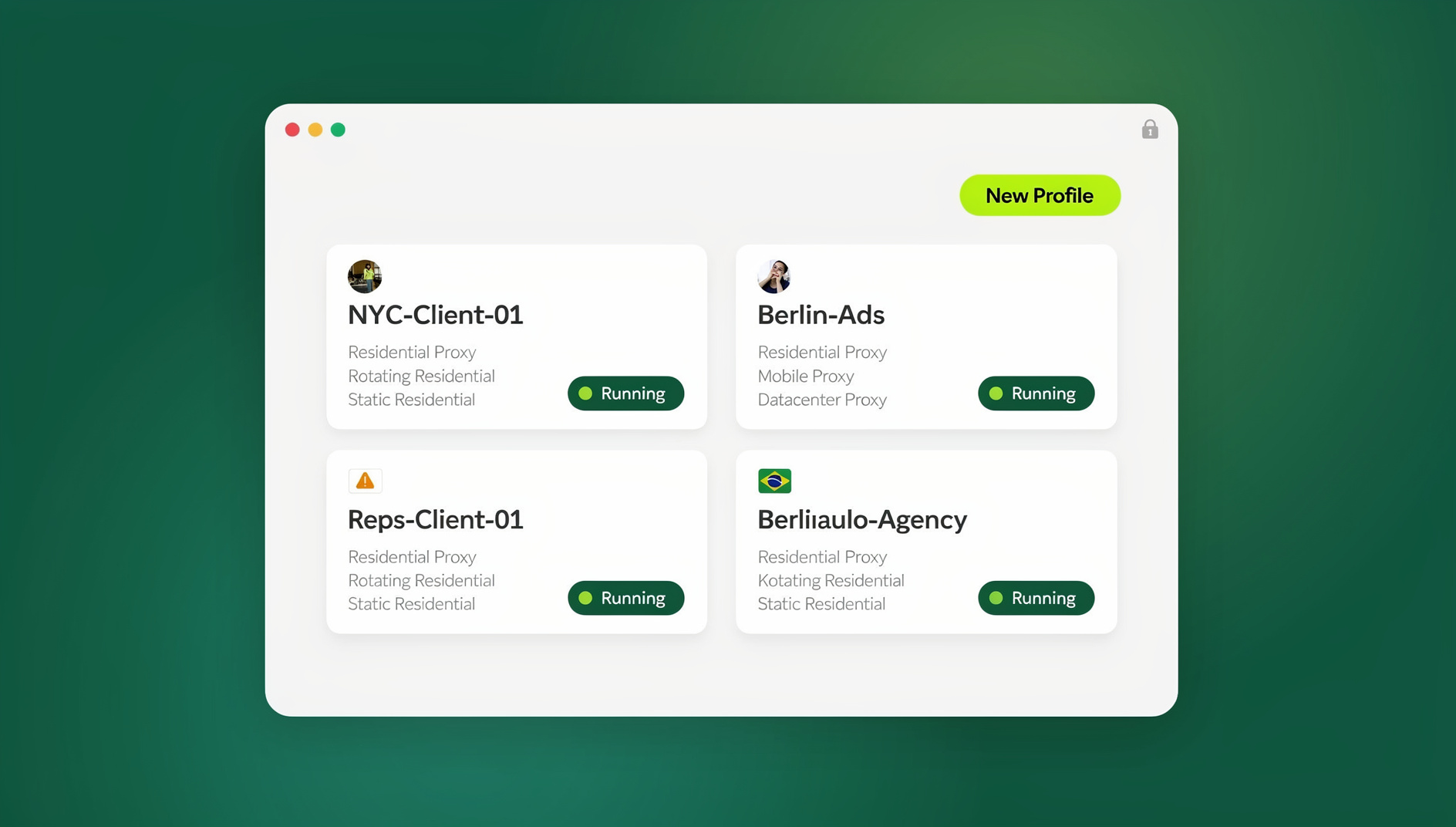

Meta Ads remains the largest social advertising platform, and one Business Manager restriction can freeze every connected ad account, Page, and pixel at once — a cascade that, for an agency managing 15+ client accounts, can mean six-figure daily losses that take weeks to resolve through Meta’s notoriously slow appeals process.
Who Actually Needs This Level of Isolation
Media buying agencies running client campaigns across multiple Business Managers are the obvious case, but they’re not the only one. In-house marketing teams juggling several brands under one parent company face the same architecture problem — each brand’s ad account needs to survive a policy hit on a sibling brand’s account. E-commerce operators running multiple stores, each with its own storefront and ad account, hit it too, especially in categories like health, supplements, or finance where Meta’s automated review is aggressive and false positives are common. Even solo media buyers managing two or three personal client relationships benefit from the same isolation discipline, since the cost of a mistake scales with ad spend, not headcount.
How Meta Links Ad Accounts Together
Meta’s advertising platform tracks connections between accounts through several vectors at once:
- Business Manager associations — every ad account inside one Business Manager is permanently linked; a violation on one can restrict the whole BM.
- Personal profile connections — the personal profile administering a Business Manager creates a link; flag that profile and every BM it administers is at risk.
- Browser fingerprints — Meta reads browser fingerprints to identify the device behind each ad account; one fingerprint touching 20 different Business Managers reads as agency-controlled coordinated activity.
- Payment methods — a credit card or PayPal account shared across ad accounts creates a permanent link in Meta’s database.
- IP addresses — multiple ad accounts accessed from one IP get clustered and monitored together.
- Pixel placement — the same Meta Pixel installed across unrelated sites tied to different ad accounts reads as coordinated activity.
Business Manager Architecture: One Client, One BM
The safest structure is a dedicated Business Manager per major client — it contains any policy violation inside that single BM instead of letting it cascade across your whole client portfolio.
| Business Manager | Contains |
|---|---|
| BM #1 | Client A’s ad accounts, Pages, pixels, catalogs |
| BM #2 | Client B’s ad accounts, Pages, pixels, catalogs |
| Agency BM | Your agency’s own internal ad account and admin functions only |
Partner Access Beats Direct Admin
When a client grants you access, ask them to add your Business Manager as a Partner rather than adding you as a direct admin inside their own BM. Partner access creates a looser connection that’s far easier to sever cleanly if a relationship ends or an account gets flagged.
Why the Browser Itself Is a Linking Vector
Even a perfect Business Manager structure doesn’t help if every client account gets opened in the same browser. Agencies that manage multiple ad accounts safely follow a workflow like this:
- Create one profile per client BM — “Client A: Meta Ads” gets its own fingerprint and residential proxy.
- Log into the specific Facebook account that administers Client A’s BM inside that isolated profile.
- Run campaigns natively — create ads, adjust budgets, review performance, all inside the isolated environment.
- Close the profile; the session persists, so tomorrow’s login is instant.
Open “Client B: Meta Ads” next and it presents a completely different fingerprint, cookie jar, and proxy IP — Meta sees two unrelated advertisers on two different machines in two different locations, not one agency running both. Platforms built for this, like Send.win, handle the isolation through cloud browser sessions with no local install required, or through Sendwin Browser, the native desktop app, if you’d rather run everything locally.
Payment Method Separation
Shared payment methods are the most overlooked cascade-ban vector. A few rules fix that:
- Never reuse a card across Business Managers — if BM-A and BM-B share the same card ending in 4532, Meta links them permanently.
- Use virtual cards — services like Privacy.com, Stripe Issuing, or Revolut generate unlimited unique virtual numbers, one per ad account.
- Client-owned billing is safest — whenever possible, have the client add their own payment method to their own Business Manager, so a billing issue stays contained inside their BM.
Campaign Management Workflow at Scale
Morning Performance Review, Per Client
- Open the client’s isolated profile.
- Check ROAS, CPA, CTR, frequency, and budget pacing in Ads Manager.
- Look for policy disapprovals or account warnings.
- Adjust bids and budgets based on the data.
- Close the profile — the session stays signed in.
Midday Creative Operations
- Upload new creative and copy variations.
- Launch A/B tests across headlines, images, and audience segments.
- Review Advantage+ campaign settings.
Weekly Optimization
- Refresh lookalike audiences.
- Check creative fatigue — frequency above 3 usually signals it.
- Reallocate budget from underperforming to outperforming campaigns.
- Research competitor ad libraries (public, so any profile can do this safely).
Delegating Ad Account Access to Your Team
Handing junior media buyers direct Business Manager access is risky — a wrong click can delete a campaign or touch billing. The safer pattern: log the client’s ad account into an isolated profile using admin credentials, then share access without sharing credentials with the media buyer. They manage campaigns natively without ever seeing the password, and access can be revoked instantly when the engagement ends.
Handling Ad Account Restrictions
Step 1: Identify the Restriction Type
| Restriction | What It Means | Fix |
|---|---|---|
| Ad disapproval | One ad violates policy | Edit the creative and resubmit |
| Spending limit | Daily budget capped | Reduce spend or request a review |
| Ad account disabled | Whole account restricted | Appeal through Account Quality |
| Business Manager restricted | All connected accounts, Pages, pixels frozen | Most severe — appeal and activate backups |
Knowing exactly what to do the moment your Facebook ad account is disabled saves hours of guesswork during an outage that’s already costing money.
Step 2: File Appeals From the Original Profile
Always file the appeal from the same isolated browser profile that originally accessed the account. Appealing from a new fingerprint or IP reads as ban evasion to Meta’s systems, which can escalate a temporary restriction into a permanent one.
Step 3: Keep Backup Infrastructure Warm
Agencies that can’t afford downtime keep pre-warmed backup ad accounts in separate isolated profiles with separate payment methods, so a failed appeal doesn’t stall campaign delivery while the primary account works through review.
Common Mistakes That Trigger Cascading Bans
1. Running Client Ads From a Personal Ad Account
Never use your personal Facebook profile’s ad account for client work — if it gets restricted, the damage can cascade to every Business Manager that profile administers.
2. Ignoring Policy Updates
Meta updates ad policy every quarter. Health, finance, real estate, and political categories carry special requirements that shift often enough that last quarter’s compliant ad can get flagged today.
3. Scaling New Accounts Too Fast
New ad accounts need a warm-up period — start at $20-50 a day on simple traffic or engagement campaigns, then scale over 2-3 weeks before running aggressive conversion campaigns.
Matching Isolation Level to Your Team’s Size
Not every setup needs the same amount of infrastructure. A solo freelancer managing two or three client accounts can often get by with separate browser profiles and disciplined payment-method hygiene, accepting a small residual risk. A growing agency managing 5-15 client Business Managers needs dedicated isolated profiles with unique proxies per client, since the number of fingerprint collisions — and the potential blast radius of a mistake — rises with every account added. Larger agencies running 20+ Business Managers across a team of media buyers need that same isolation applied consistently enough to run Facebook, Instagram, and Google ads in parallel for different clients without any of those campaigns ever touching the same fingerprint or IP. The infrastructure should scale with the number of accounts and people touching them, not stay fixed at whatever setup worked when the agency had two clients.
The Real Cost of a Cascading Ban
The math here is brutal for agencies specifically because ad spend and cascading risk grow together. A Business Manager restriction doesn’t just pause the one campaign that triggered it — it freezes every ad account, Page, and pixel inside that BM simultaneously, which for a client running $10,000 a day in spend means real revenue lost every hour the appeal sits in Meta’s queue. Multiply that across several affected clients sharing infrastructure and a single browser-fingerprint mistake can cost an agency a client relationship it took months to win. Isolated infrastructure isn’t a nice-to-have at that point — it’s the difference between one client’s bad week and a portfolio-wide crisis.
🏆 Send.win Verdict
Separate Business Managers, unique payment methods, and disciplined appeal habits solve most of the cascade-ban risk. What they can’t solve alone is the browser itself linking every client account you touch — that’s where Send.win’s cloud browser sessions come in, giving each client’s ad account its own fingerprint, proxy, and cookie jar, with sessions your media buyers can use without ever seeing a password. Prefer running things locally? Sendwin Browser applies the same isolation on your own desktop.
Try Send.win free for 30 days — no credit card required.
Frequently Asked Questions
How many Facebook ad accounts can I have?
Each Business Manager can hold up to 10 ad accounts by default, with the option to request more. There’s no stated limit on how many Business Managers one person can create, but creating several in rapid succession from one browser session will trigger identity verification.
Can I use one Business Manager for all my clients?
You can, but it’s risky — a single policy violation can cascade across every ad account inside that BM. The professional standard is one Business Manager per major client.
What should I do if my client’s Business Manager gets restricted?
File an appeal immediately through Account Quality with any requested documentation, such as a business license or ID verification. While it’s under review, activate backup infrastructure in a separate, isolated environment to keep campaigns running.
Does using a VPN protect my ad accounts from linking?
Not reliably. Datacenter VPN IPs are heavily scrutinized by Meta and don’t address the browser fingerprint side of the problem at all. Residential proxies paired with genuine per-account browser isolation are far more durable.
Can Meta detect isolated browser profiles as suspicious on their own?
No — a well-configured isolated profile looks like an ordinary, unique device to Meta’s systems. What draws scrutiny is the opposite: many ad accounts converging on one identical fingerprint, IP, or payment method.
Is Partner access safer than being a direct Business Manager admin?
Yes. Partner access lets a client share their Business Manager with yours without merging identities as tightly, and it’s far simpler to revoke cleanly than removing a direct admin from someone else’s BM.
How do virtual cards help avoid cascading bans?
Assigning one unique virtual card number per ad account removes payment methods from the list of ways Meta can link accounts together, since no two ad accounts ever share billing details.
Should every ad account have its own residential proxy?
For agencies managing several client Business Managers, yes — pairing a unique proxy with a unique browser fingerprint per profile removes both the IP and device vectors Meta uses to cluster accounts together. Timelines for a Business Manager appeal vary widely, anywhere from a few days to several weeks depending on the violation type and how quickly documentation is provided, which is exactly why pre-warmed backup infrastructure matters more than trying to predict a resolution date.