A browser fingerprint is the unique combination of technical signals — screen resolution, installed fonts, GPU renderer strings, audio processing quirks, and dozens of other data points — that a website silently collects to identify your device without using a single cookie. Because these signals come from your actual hardware and software configuration, they stay consistent across sessions, letting advertisers, fraud systems, and platforms recognize you with over 99% accuracy even when you clear cookies or open a private window.
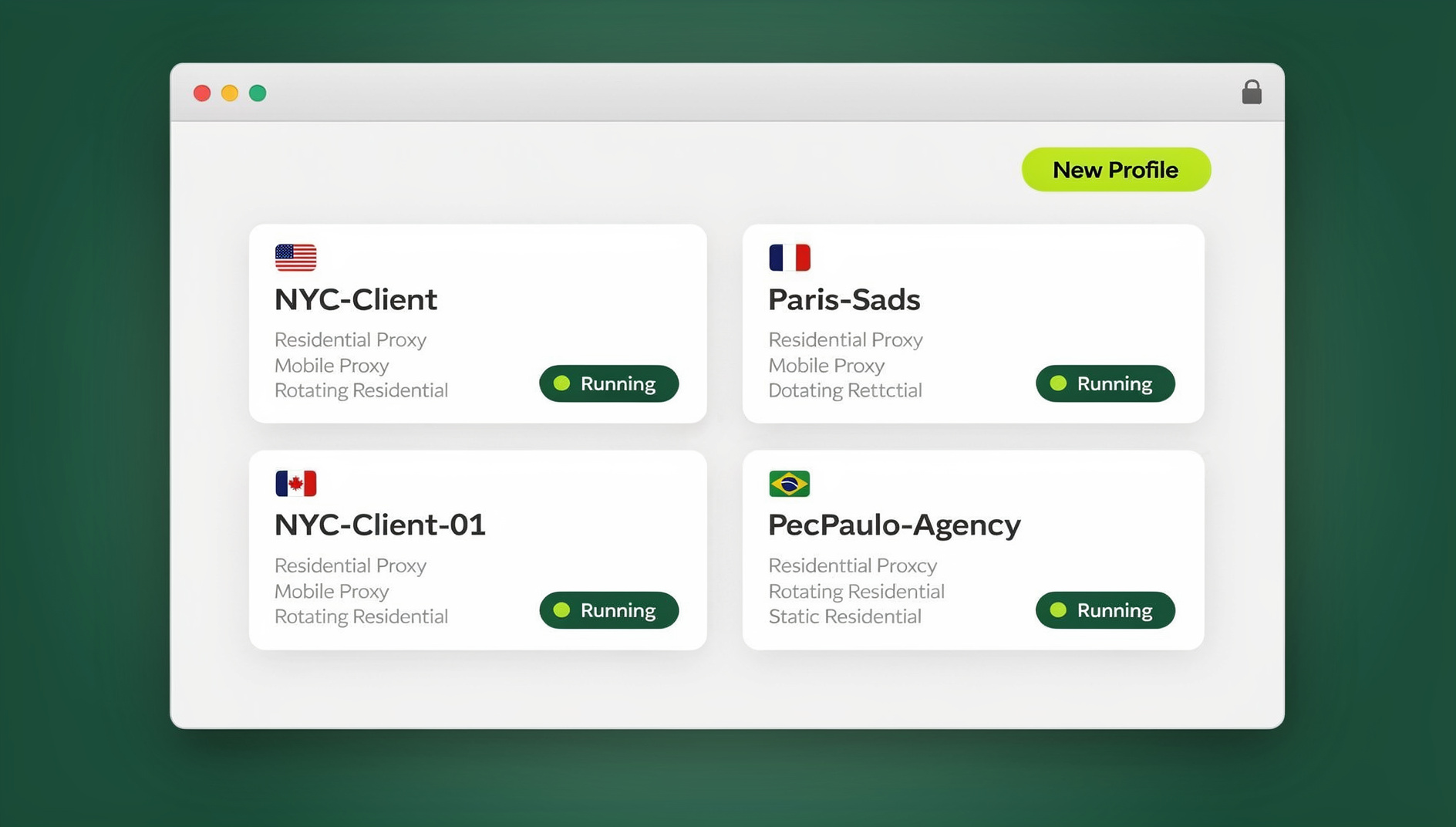
Most people think deleting cookies or switching to incognito mode makes them anonymous online. It doesn’t. Your browser fingerprint follows you regardless, and understanding how it works — and how to actually control it — matters whether you’re protecting your personal privacy, running multiple business accounts, or testing how your own site handles bot traffic.
How Browser Fingerprinting Works
Websites collect fingerprinting data through ordinary JavaScript APIs that every modern browser exposes by default. No special permissions are required — a page can silently query dozens of these signals the moment it loads, combine them, and hash the result into a single identifier. Here’s how the main techniques work.
Canvas Fingerprinting
Canvas fingerprinting exploits the HTML5 Canvas element. When a script instructs your browser to render specific graphics or text off-screen:
- Different GPUs and graphics drivers produce slightly different pixel outputs
- Font rendering varies subtly between operating systems and versions
- Anti-aliasing and sub-pixel rendering create unique, repeatable patterns
- The resulting image is hashed into a short, stable identifier
Your Canvas fingerprint remains identical across browsing sessions and is effectively impossible to change without modifying your actual hardware or intercepting the rendering pipeline itself.
WebGL Fingerprinting
WebGL fingerprinting goes a level deeper by querying your graphics hardware directly:
- Renderer String — your exact GPU vendor and model (e.g., “NVIDIA GeForce RTX 4070”)
- Vendor String — the graphics driver manufacturer
- Shader Precision — hardware-specific floating-point capabilities
- Maximum Capabilities — supported texture sizes and viewport dimensions
- Rendering Tests — outputs from specific 3D rendering operations
Because GPU/driver combinations vary enormously across the installed base, WebGL signals are among the most identifying vectors available to a website.
Audio Fingerprinting
Audio fingerprinting analyzes how your device’s sound stack processes signals:
- The AudioContext API generates a specific oscillator signal
- Different sound cards, drivers, and OS audio stacks process it uniquely
- The resulting waveform is measured and hashed
- It is highly stable session to session and difficult to spoof convincingly
Font Fingerprinting
Font fingerprinting identifies the exact set of fonts installed on your system:
- JavaScript measures rendered text dimensions across a long list of font names
- Which fonts are present or absent reveals your OS, region, and installed software
- Design and creative software often installs distinctive, uncommon fonts
- This vector is especially identifying on Windows machines, which tend to accumulate large font libraries over time
Additional Fingerprinting Vectors
Beyond the four major techniques above, websites routinely collect a long tail of smaller signals that add precision:
- Screen Resolution — display dimensions, color depth, and pixel ratio
- Timezone — your local UTC offset
- Language — browser and OS language/locale settings
- Installed Plugins — legacy plugin and MIME-type lists
- Do Not Track — whether DNT is enabled (ironically, this makes you rarer and therefore more identifiable)
- Cookie Settings — whether cookies are accepted or blocked
- User Agent — browser type, version, and operating system string
- Hardware Concurrency — number of logical CPU cores
- Device Memory — approximate available RAM
- Touch Support — whether the device reports a touchscreen
Who Collects and Uses Your Browser Fingerprint?
Advertising Networks
Ad networks fingerprint visitors to track them across websites without relying on cookies, rebuild advertising profiles after a cookie deletion, identify users browsing in private or incognito mode, and stitch together activity across multiple devices for cross-device retargeting.
Fraud Detection Services
Financial platforms and e-commerce sites use fingerprinting defensively — to detect account takeover attempts, flag fraudulent transactions, spot bot traffic and automated scripts, and prevent the same person from opening dozens of accounts to abuse promotions.
Website Security Systems
Legitimate security tooling leans on the same signals for good reasons: recognizing a trusted device during two-factor authentication, flagging suspicious logins from an unfamiliar fingerprint, mitigating bot traffic, and managing session validity.
Platforms Preventing Multi-Account Use
Large platforms — Facebook, Amazon, eBay, Google, and most social networks — use fingerprinting specifically to detect users running multiple accounts, link accounts created to evade a previous ban, identify coordinated inauthentic behavior, and enforce one-account-per-person policies even after a password change or a new IP address.
How Unique Is Your Browser Fingerprint?
Independent research has repeatedly shown that browser fingerprints are far more identifying than most people assume:
- The EFF’s landmark Panopticlick study found that 83.6% of browsers tested had a completely unique fingerprint among roughly 470,000 samples
- Adding legacy plugin data pushed uniqueness above 94%
- Mobile devices are somewhat less unique thanks to hardware standardization, but remain highly identifiable when fingerprinting vectors are combined
The biggest contributors to uniqueness are the ones you’d least expect: your installed font list (especially on Windows, where creative and business software leaves a distinctive trail), your specific GPU/driver combination, any browser extensions that inject detectable page elements, and an unusual screen resolution that narrows you down to a small pool of matching devices.
How to Test Your Own Browser Fingerprint
Before trying to protect your fingerprint, it helps to see exactly what it currently reveals. A handful of free tools will show you.
Recommended Testing Sites
- AmIUnique.org — a comprehensive fingerprint analysis with a global uniqueness comparison
- BrowserLeaks.com — a detailed, vector-by-vector technical breakdown
- EFF Cover Your Tracks — a privacy-focused test built by the same team behind Panopticlick
- CreepJS — an advanced tool that also flags spoofing attempts, useful for stress-testing anti-detect setups
What to Look For
When you run a test, pay attention to your overall uniqueness percentage, which specific attributes are contributing the most entropy, whether your fingerprint stays consistent across repeated visits, and — if you’re already using some form of spoofing — whether the tool flags it as inconsistent or suspicious rather than genuinely private.
How to Protect Against Browser Fingerprinting
1. Browser-Based Protection (Limited)
Firefox Enhanced Tracking Protection blocks scripts from known fingerprinting domains and is on by default in Strict mode, but it only catches trackers already on its list. Tor Browser standardizes fingerprints so every user looks alike and blocks many fingerprinting APIs outright, at the cost of being noticeably slow and getting blocked by a large number of mainstream sites. Brave randomizes Canvas and WebGL output and ships built-in fingerprint protection, though aggressive randomization occasionally breaks legitimate site functionality.
2. Browser Extensions (Partially Effective)
Extensions like Canvas Blocker randomize or block Canvas output but can break sites that use Canvas legitimately — and the extension itself becomes a new, detectable fingerprint signal. Content blockers such as uBlock Origin are lightweight and stop known fingerprinting scripts, but like the browser-level protections above, they’re limited to trackers already on a blocklist and do nothing against novel fingerprinting code.
3. Antidetect Browsers (Most Effective)
A dedicated antidetect browser takes a fundamentally different approach: instead of blocking or randomly scrambling individual signals, it generates a complete, internally consistent fingerprint for each profile and keeps every vector — Canvas, WebGL, audio, fonts, hardware, screen, timezone — aligned with a single plausible device identity. That consistency is exactly what advanced anti-fraud systems check for, which is why partial blocking or random noise so often gets flagged as “obviously spoofed” while a properly generated fingerprint does not.
Browser Fingerprinting and Automated Browsing
Fingerprinting isn’t only a privacy concern for manual browsing — it’s also the primary way sites detect automation. A script driving Selenium, Puppeteer, or Playwright against a stock browser leaves telltale marks: a navigator.webdriver flag, mismatched WebGL renderer strings for a headless environment, missing plugin lists, and unnaturally uniform timing. Anti-bot systems fingerprint the automated browser the same way they fingerprint a human one, then flag the mismatch. If you’re building QA suites, scrapers, or account-management scripts, it’s worth reading up on exactly how Selenium’s fingerprint gives automation away before assuming a headless flag or a proxy alone will keep a script undetected.
This is where a browser that already generates a stable, realistic fingerprint per profile pays off for automation too: pointing Selenium, Puppeteer, or Playwright at that same profile means the automated session inherits the same consistent signals as a real user, rather than the mismatched defaults of a bare headless browser.
How Send.win Protects Your Browser Fingerprint
For anyone who needs reliable fingerprint control — multi-account management, agency work, QA testing, or basic privacy — Send.win handles it through two distinct product modes rather than a single one-size-fits-all approach.
The first is Sendwin Browser, a native, downloadable desktop application for Windows, macOS, and Linux. It’s local-first, meaning your profiles and their fingerprints live on your own machine, with encrypted cloud sync so the same profiles are available if you switch devices. Each profile gets its own generated, internally consistent fingerprint that persists across sessions, so a platform sees the same “device” every time you log in rather than a fingerprint that changes suspiciously between visits.
The second mode is cloud browser sessions, which run entirely on Send.win’s infrastructure with zero local installation — your device only receives a rendered stream, and your own hardware fingerprint never touches the destination site at all. This mode is metered by cloud browsing time rather than a flat monthly fee for the desktop app, which makes it a good fit for occasional or short-lived sessions where installing anything locally isn’t practical.
A few things carry across both modes:
- Full Vector Coverage — Canvas, WebGL, audio, fonts, hardware reporting, screen, and timezone are all addressed together rather than piecemeal
- Profile Consistency — each profile keeps the same fingerprint across sessions, which is what lets it survive scrutiny from platforms actively hunting for spoofing
- No Manual Configuration — fingerprints are generated automatically per profile; there’s no spreadsheet of settings to maintain by hand
For teams that need to keep repetitive workflows organised, Send.win’s desktop app gives each profile its own cookies, storage, sessions and fingerprint settings, so QA tests, monitoring scripts, and account-management tooling can each run in a separate, consistent profile.
On pricing: Send.win has no free trial. The Pro plan is $19/month or $83.88/year and includes isolated browser profiles with their own cookies, storage, sessions and fingerprint settings. The Team plan is $49/month or $251.88/year and is built for agencies and larger teams. The first card purchase is covered by a 7-day money-back guarantee, and the only free option is the cloud demo at https://send.win/demo-browser/.
Send.win vs. Other Fingerprint Protection Methods
| Feature | Browser Extensions | Tor Browser | Send.win |
|---|---|---|---|
| Fingerprint Coverage | Partial (some vectors only) | Standardized (identical for every user) | Complete, unique per profile |
| Detection Risk | Often flagged as inconsistent | Obviously a Tor user | Consistent, plausible fingerprint per profile |
| Website Compatibility | Can break sites relying on Canvas/WebGL | Many sites block Tor exit nodes | Full compatibility, real rendering |
| Multi-Account Support | Not built for this | Not built for this | Purpose-built, profile-based |
| Automation Support | None | None | None |
| Deployment | Browser add-on | Standalone browser | Native desktop app or cloud session |
Browser Fingerprinting and Privacy Laws
Browser fingerprinting still sits in a legal gray area in most jurisdictions, though regulators are paying closer attention as cookie-based tracking declines.
GDPR (Europe)
- Fingerprinting generally requires informed user consent under current regulatory guidance
- Enforcement against fingerprinting specifically has been limited compared to cookie enforcement
- Most cookie consent banners still don’t mention fingerprinting at all, which is itself a compliance gap
CCPA (California)
- Fingerprinting data is treated as personal information
- Users have a right to know what’s collected and to opt out of its sale
- Enforcement to date has been limited relative to the scale of collection
ePrivacy Directive (Europe)
- Explicitly covers device fingerprinting, not just cookies
- Requires informed consent before fingerprinting for tracking purposes
- Implementation and enforcement vary significantly by member state
🏆 Send.win Verdict
Browser fingerprinting works even when cookies are blocked, and browser-level settings or extensions only ever cover part of the picture. If you need a fingerprint that stays consistent across dozens of profiles — for privacy, multi-account management, or testing — Send.win’s native desktop app and cloud browser sessions cover both the everyday and the zero-install use case, with each profile keeping its own cookies, storage, sessions and fingerprint settings.
Try the Send.win cloud demo — a 3-minute preview without signup, 10 minutes a day with a free account.
Frequently Asked Questions
Can I change my browser fingerprint?
A standard browser fingerprint is tied to your actual hardware and software configuration, so you can’t meaningfully change it through settings alone. Doing it properly requires either a different physical device or dedicated software that generates and maintains a separate, consistent fingerprint per profile.
Does incognito or private mode hide my fingerprint?
No. Private browsing only stops your browser from saving local history and cookies on your own device. Every fingerprinting signal — Canvas, WebGL, fonts, screen size, and the rest — is identical to what a site sees in a normal browsing window.
Is browser fingerprinting legal?
Generally yes, though privacy regulations like GDPR and the ePrivacy Directive increasingly require consent for it. In practice, most websites fingerprint visitors without clearly disclosing that they’re doing so.
Can fingerprinting track me across different devices?
Not directly — each device produces its own distinct fingerprint. However, once fingerprinting is combined with login data, shared IP addresses, or cross-device advertising networks, companies can link separate devices back to the same person.
How accurate is fingerprint-based identification?
Research puts combined fingerprinting accuracy above 99% when multiple vectors are used together with IP address and behavioral signals, which is why cookie deletion alone does very little to protect anonymity.
What’s the difference between Sendwin Browser and Send.win’s cloud sessions?
Sendwin Browser is a native desktop app you install on Windows, macOS, or Linux; it’s local-first with encrypted cloud sync, so your profiles and fingerprints live on your device but stay backed up and portable. Cloud browser sessions instead run entirely on Send.win’s servers with no local install at all — your device just displays a remote stream, and you’re billed by cloud browsing time rather than a flat monthly rate.
Does Send.win support running Selenium, Puppeteer, or Playwright?
No. Send.win has no automation interface: there is no API, SDK, headless mode or Selenium/Puppeteer/Playwright support on any plan. Each profile keeps its own consistent browser fingerprint, so profiles do not share one browser identity.
Do I need a paid plan to try Send.win?
No. Send.win has no free trial. The first card purchase is covered by a 7-day money-back guarantee, and the only free option is the cloud demo at https://send.win/demo-browser/, which is enough time to see how profiles keep their own cookies, storage, sessions and fingerprint settings before deciding between the Pro and Team plans.