Best Chrome extensions for 2026 aren’t just about shaving seconds off busy-work anymore — the right add-ons can protect your privacy, keep you focused, and let you juggle a dozen client or store logins without wrestling with Incognito tabs. Chrome’s Web Store now lists well over 200,000 extensions, and picking the wrong ones can slow your browser to a crawl, leak your data to third parties, or get an account flagged for suspicious logins.
We tested and researched dozens of tools to find the extensions that genuinely earn a permanent spot in your toolbar this year. Below are the 14 best Chrome extensions for 2026, covering productivity, privacy, writing, and security, plus — because so many of you asked for it in last year’s comments — a bonus pick for anyone managing multi-account logins and running several profiles on the same site. If you only care about speed and organization rather than privacy, our earlier roundup of the best Chrome extensions for productivity is a good companion read alongside this list.
Why Your Choice of Chrome Extensions Matters More in 2026
Extensions run inside your browser with real permissions — some can read every page you visit, others can inject scripts, and a surprising number quietly sell anonymized browsing data to ad networks. Manifest V3, Chrome’s newer extension platform, tightened some of these permissions, but it didn’t eliminate the underlying risk: you’re still trusting a third-party developer with a front-row seat to your online life.
At the same time, more of us are running multiple accounts per platform than ever — a personal and a business Gmail, three Amazon seller accounts, five client social profiles. Chrome’s native multi-profile system helps a little, but it wasn’t built for scale, and constant profile-switching or Incognito juggling is exactly the kind of repetitive friction a good extension should remove. That’s why this list leans a bit more toward privacy and account management than a typical “productivity extensions” roundup — those are the categories where a bad choice costs you the most.
Quick Comparison: 14 Best Chrome Extensions for 2026 (Plus a Bonus Pick)
| Tool | Best For | Category | Free Plan? |
|---|---|---|---|
| Send.win (Bonus Pick) | Multi-account logins & browser isolation | Browser profile manager | No (free cloud demo) |
| Grammarly | Grammar & writing | Writing assistant | Yes |
| Bitwarden | Password management | Security | Yes |
| Dark Reader | Site-wide dark mode | Accessibility | Yes |
| uBlock Origin Lite | Ad & tracker blocking | Privacy | Yes |
| Honey (PayPal Honey) | Automatic coupon codes | Shopping | Yes |
| Checker Plus for Google Calendar | Meeting reminders | Scheduling | Yes |
| StayFocusd | Blocking distracting sites | Focus | Yes |
| Loom | One-click screen recording | Communication | Yes (limited) |
| RescueTime | Time tracking & reports | Analytics | Trial only |
| Buffer | Social media scheduling | Marketing | Yes (limited) |
| Todoist | Task capture from the browser | Task management | Yes |
| Momentum | Focused new-tab dashboard | Productivity | Yes |
| Raindrop.io | Visual bookmark management | Organization | Yes |
| Google Translate | In-page translation | Utility | Yes |
The 14 Best Chrome Extensions for 2026 (Plus a Bonus Pick)
Here’s the full breakdown, in the order we’d recommend adding them to your setup if you’re starting from a clean browser.
Bonus Pick: Send.win (Native Desktop App) — Best for Multi-Account Logins & Browser Isolation
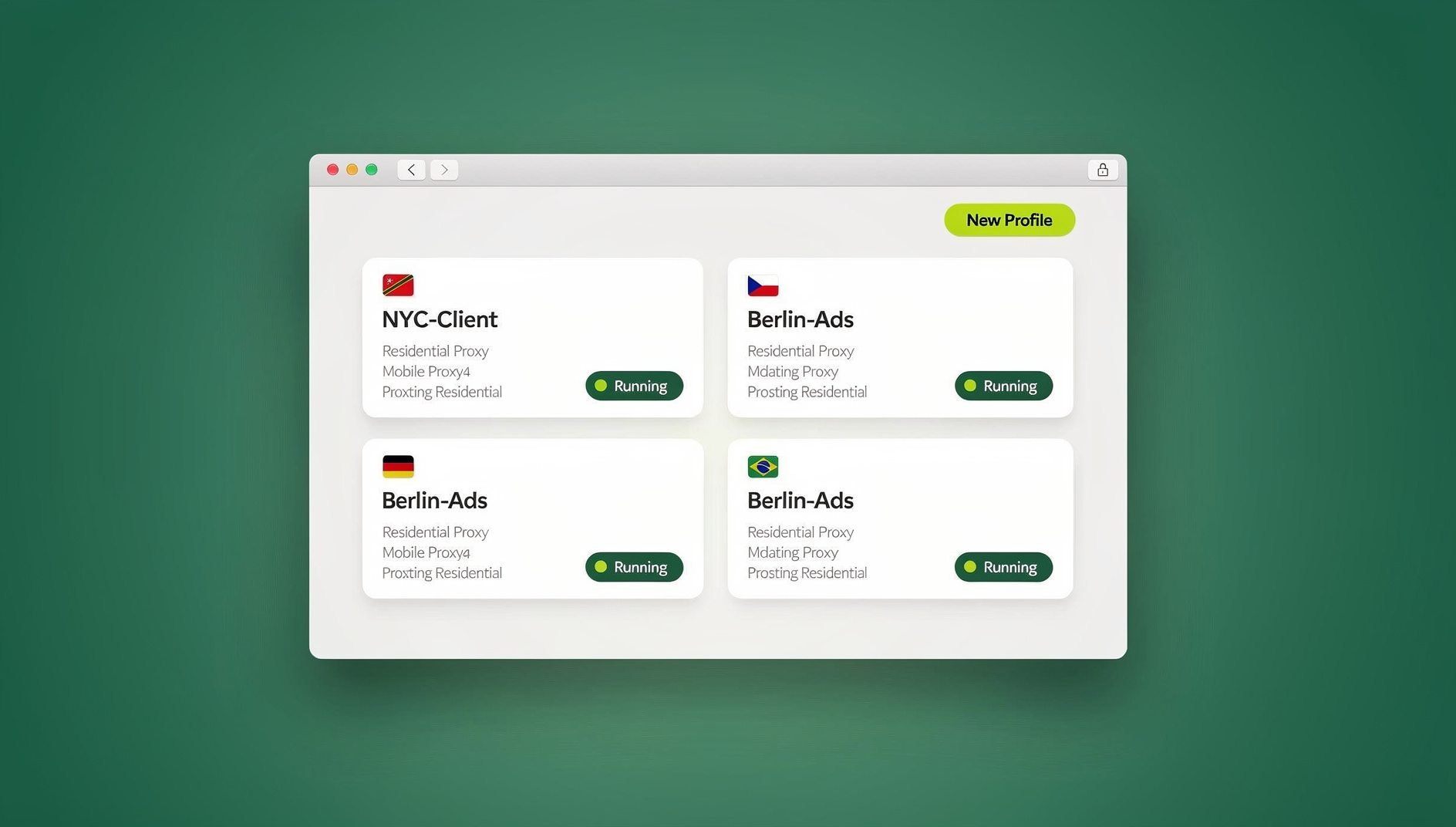
Send.win solves a problem none of the other tools on this list touch: safely running multiple accounts on the same website without constant Incognito windows, secondary browsers, or logout-login cycles. Instead of one shared browser fingerprint, Send.win gives each profile its own isolated identity — separate cookies, canvas/WebGL fingerprint, timezone, and (optionally) its own residential or datacenter proxy — so platforms see what looks like genuinely separate devices rather than one person hopping between logins.
Send.win is the Sendwin Browser, a native desktop app for Windows, macOS, and Linux where all of the profile creation, proxy assignment, and team-sharing happens, plus fully cloud-hosted browser sessions you can spin up with zero local install for quick access to profiles you’ve already set up. Each profile keeps its own cookies, storage, sessions, fingerprint settings and proxy, so profiles stay separate from one another. If you manage several multi-login browser profiles for e-commerce, agency, or affiliate work, this is the one entry on this list that can genuinely replace three other workarounds at once.
Pricing starts with the Pro plan at $19/mo or $83.88/yr, and Team at $49/mo or $251.88/yr. There is no free trial, but your first card purchase is covered by a 7-day money-back guarantee, and you can preview the cloud browser for free at the Send.win demo.
1. Grammarly — Best for Writing & Grammar
Grammarly remains the most widely used writing assistant in the Chrome Web Store, and for good reason — it checks spelling, grammar, tone, and clarity in real time across Gmail, Google Docs, WordPress, Slack, and virtually anywhere else you type. It won’t catch every stylistic nuance, but it consistently cuts editing time and flags the kind of small errors that slip past a tired eye. The free tier covers the basics; Grammarly Premium adds tone rewrites, fluency suggestions, and plagiarism detection.
2. Bitwarden — Best Password Manager
With the average professional juggling well over 100 logins, a password manager isn’t optional anymore. Bitwarden has become the go-to recommendation over older tools partly because it’s open-source and independently audited, and partly because its free tier is genuinely generous — unlimited passwords and devices, with premium features like encrypted file storage and emergency access available for a few dollars a month. One master password unlocks everything else, and autofill removes the temptation to reuse the same weak password across ten different sites.
3. Dark Reader — Best for Eye Comfort
Dark Reader generates a dark theme for any website that doesn’t already have one, with granular control over brightness, contrast, sepia filters, and font rendering. It’s a small quality-of-life extension, but for anyone spending eight-plus hours a day staring at a screen, it genuinely reduces eye strain — and it’s one of the most consistently five-star-rated extensions in the entire store.
4. uBlock Origin Lite — Best Ad Blocker
Ad and tracker blocking is one of the categories most affected by Chrome’s Manifest V3 changes, and uBlock Origin Lite is the community’s answer — a lighter, Manifest V3-compliant version of the classic uBlock Origin that still blocks the vast majority of ads, pop-ups, and third-party trackers with minimal performance overhead. It’s not just about a cleaner browsing experience: fewer tracking scripts running on every page also means fewer data points being fed into cross-site fingerprinting systems.
5. Honey (PayPal Honey) — Best for Coupons
Honey automatically searches for and applies coupon codes at checkout on thousands of retail sites, and its price-history feature flags whether now is actually a good time to buy. It’s one of the lowest-effort ways to save money online — install it once and forget about it until checkout, when it quietly tests codes for you.
6. Checker Plus for Google Calendar — Best for Scheduling
Checker Plus surfaces your next meetings and today’s agenda directly from the toolbar icon, with desktop notifications and the ability to create events without ever opening Google Calendar. For anyone who lives in back-to-back meetings, shaving even a few clicks off checking your schedule adds up fast.
7. StayFocusd — Best for Focus
StayFocusd lets you set hard time limits on specific sites — say, 20 minutes on social media and five on news sites — and enforces them with a “Require Challenge” that makes it deliberately annoying to extend your own limits mid-scroll. It’s blunt by design, which is exactly what makes it effective for people who’ve tried gentler focus apps and kept ignoring them.
8. Loom — Best Screen Recorder
Loom’s Chrome extension turns screen recording into a one-click action: capture your tab, window, or entire desktop, optionally overlay a webcam bubble, and get an instantly shareable link the moment you stop recording. It has become the default way many remote teams replace long status meetings and written bug reports with a two-minute video walkthrough.
9. RescueTime — Best for Time Tracking
RescueTime runs quietly in the background, logging which sites and apps you actually spend time on, then delivers a weekly report breaking down productive versus unproductive hours. It’s less about willpower in the moment and more about giving you the data to notice patterns — like the fact that “quick email checks” are eating 90 minutes of your day.
10. Buffer — Best for Social Media Scheduling
Buffer’s extension lets you queue up a post to Facebook, X, LinkedIn, or Instagram directly from any page you’re reading, without leaving your browser to open the Buffer dashboard. For solo marketers and small teams managing several brand accounts, it turns “I should share this later” into a two-second action instead of a tab you never get back to.
11. Todoist — Best Task Manager
Todoist’s extension adds a task-capture button to your toolbar, so anything you’re reading — an email, an article, a Slack message — can become a scheduled to-do without breaking your flow to switch apps. Natural-language due dates (“next Tuesday at 3pm”) and project labels keep the resulting list organized rather than just a pile of unsorted notes.
12. Momentum — Best New Tab Dashboard
Momentum replaces Chrome’s default new-tab page with a calm dashboard showing the time, a daily focus question, your to-do list, and a photo backdrop instead of a grid of most-visited sites. It sounds cosmetic, but for people who open dozens of tabs a day, removing that low-level visual noise measurably reduces the “just one more click” spiral into distraction.
13. Raindrop.io — Best Bookmark Manager
Raindrop.io turns Chrome’s flat bookmarks bar into a visual, searchable, taggable library complete with thumbnails, full-text search inside saved pages, and shared collections for team research. If your bookmarks folder has become an unsearchable graveyard, this is the extension that fixes it without forcing you to migrate everything by hand.
14. Google Translate — Best for Translation
Google’s own Translate extension still does the simple job better than most third-party alternatives: highlight text or right-click any page and get an instant translation, with automatic full-page translation for sites in a language you don’t read. It’s an easy install for anyone doing international research, cross-border e-commerce, or customer support across markets.
How to Safely Install and Manage Chrome Extensions
Before you install anything from this list — or anything else — it’s worth taking 60 seconds to check what you’re actually installing. Here’s a simple, repeatable process:
- Check the publisher and review count. Extensions with tens of thousands of reviews and a verified publisher badge are far less likely to be abandoned or malicious than a lookalike with 40 reviews.
- Read the permissions before installing, not after. An extension that only needs to run on one site shouldn’t be requesting “Read and change all your data on all websites.”
- Install directly from the Chrome Web Store. Never sideload an extension from a random download link, even if it’s linked from a blog post or YouTube video.
- Audit your installed extensions quarterly. Go to
chrome://extensions, remove anything you no longer use, and check for updates to the ones you keep. - Separate high-risk activity into isolated profiles. If you’re logging into multiple accounts on the same platform, don’t do it in one shared browser profile — use Chrome’s built-in profiles or a dedicated tool like Send.win so a mistake in one session can’t bleed into another.
Chrome Extension Security Risks You Should Know About in 2026
Extensions are one of the most under-scrutinized attack surfaces in the average browser. A handful of risks worth understanding before you install your next one:
- Overly broad permissions. Many extensions request access to every website you visit, even when their actual function only touches one or two domains.
- Ownership changes. A popular, trustworthy extension can be sold to a new owner who quietly adds tracking or ad-injection code in a routine update — users rarely notice because updates install silently.
- Fingerprinting amplification. The specific combination of extensions you have installed is itself a fingerprinting signal; researchers have shown that unique extension sets can help identify and track individual users across sessions.
- Credential exposure through shared profiles. If you’re running multiple accounts in one browser profile to save time, a single leaked cookie or session token can expose every account sharing that profile.
This last point is exactly where browser fingerprinting protection and account isolation stop being a “nice to have” for privacy enthusiasts and start being basic operational hygiene for anyone managing more than one account per platform — freelancers, agencies, e-commerce sellers, and social media managers alike.
Best Browser Tools by Use Case
Not everyone needs every pick above. Here’s how we’d prioritize depending on your situation:
| You are a… | Install first | Why |
|---|---|---|
| Freelancer juggling clients | Send.win (native app), plus the Todoist and Bitwarden extensions | Isolated client logins, task capture, and secure password storage in one stack |
| Agency or marketing team | Send.win (native app), plus the Buffer and Grammarly extensions | Separate ad accounts per client plus faster content publishing |
| E-commerce seller with multiple stores | Send.win (native app), plus the Honey and Raindrop.io extensions | Store-per-profile isolation, competitive price research, organized supplier bookmarks |
| Remote employee or student | StayFocusd, Momentum, Dark Reader | Focus enforcement and reduced visual noise for long screen sessions |
| Writer or content creator | Grammarly, Loom, Checker Plus | Cleaner writing, quick video explainers, tighter scheduling |
Teams that need to go beyond manual browsing entirely — QA engineers testing logins at scale, growth teams running scripted signups, or agencies handling repetitive account tasks — can also use Send.win’s isolated browser profiles, each with its own cookies, storage, sessions and fingerprint settings, instead of relying on the Chrome extensions for managing multiple login sessions covered elsewhere on this blog.
🏆 Send.win Verdict
Most picks on this list make browsing faster or cleaner — Send.win is the one that makes multi-account browsing more organised. If you’re managing more than one login per platform for work, client accounts, or online selling, pairing a couple of the productivity picks above with Send.win’s isolated profiles, built-in proxies, and native Desktop app closes the biggest gap a standard extension list leaves open.
Try the Send.win cloud demo free — a 3-minute preview without signup, or 10 minutes a day with a free account, and see how much friction disappears from your multi-account workflow.
Frequently Asked Questions
What are the best Chrome extensions for 2026?
The strongest all-round Chrome extensions for 2026 are Grammarly for writing, Bitwarden for password management, Dark Reader for eye comfort, and uBlock Origin Lite for ad and tracker blocking. If you also manage multiple accounts on the same site, Send.win is worth adding as a native desktop companion alongside them. Beyond that, your ideal list depends heavily on your use case — a freelancer’s stack looks different from an e-commerce seller’s or a student’s.
Are Chrome extensions safe to use in 2026?
Most extensions from the official Chrome Web Store with a large, established user base and a verified publisher are safe. Risk rises with obscure extensions requesting broad permissions, extensions that have recently changed ownership, and anything installed from outside the Web Store. Reviewing permissions before install and auditing your list quarterly meaningfully lowers your exposure.
Does installing more extensions slow down Chrome?
Yes, to a degree. Each active extension consumes some memory and CPU, and extensions that inject scripts into every page (like some ad blockers or grammar checkers) have a bigger footprint than simple utility extensions. Removing unused extensions and keeping the rest updated is the easiest way to keep performance snappy.
What is Send.win and how is it different from a password manager?
Send.win isn’t a password manager — it’s a browser profile manager. Instead of just storing and autofilling credentials, it gives each account its own isolated browser profile with separate cookies, storage, sessions, fingerprint settings and (optionally) proxy, so you can be logged into multiple accounts on the same website simultaneously without one session interfering with — or exposing — another.
Does Send.win have a desktop app, or does it only run as a cloud session?
Send.win is the native Sendwin Browser desktop app for Windows, macOS, and Linux — where profile creation, proxy configuration, and team-sharing happen — plus fully cloud-hosted browser sessions you can run with zero local install, metered by cloud browsing time.
Can I automate Chrome extensions or profiles with Selenium or Playwright?
Standard Chrome extensions generally aren’t built for automation, and Send.win doesn’t offer an automation interface either — there’s no API, SDK, headless mode or Selenium/Puppeteer/Playwright support on any plan. What Send.win does provide is a browser profile manager with isolated browser profiles, each with its own cookies, storage, sessions, fingerprint settings and proxy, so you can organise work across multiple profiles instead of clicking through each one manually.
How much does Send.win cost?
Send.win has no free trial. The Pro plan is $19/mo or $83.88/yr, and the Team plan is $49/mo or $251.88/yr. The first card purchase is covered by a 7-day money-back guarantee, and the only free option is the cloud demo at send.win/demo-browser.
What’s the safest way to manage multiple accounts on the same website?
Avoid logging in and out of the same shared browser profile — cookies, cache, and fingerprint data can bleed between sessions and get accounts flagged or linked together. Instead, use Chrome’s separate user profiles for light use, or a dedicated multi-login tool like Send.win for anything involving more than two or three accounts, since it isolates each profile’s fingerprint and can assign a unique proxy per account.
Final Thoughts
The best Chrome extensions for 2026 aren’t necessarily the flashiest — they’re the ones that quietly remove a recurring piece of friction from your day, whether that’s a typo Grammarly catches before you hit send, a password Bitwarden generates instead of you reusing an old one, or an entire second (or tenth) account Send.win lets you run safely alongside the rest. Start with two or three from this list that match your actual workflow, give them a week, and add more only once you’ve confirmed you’ll actually use them — a cluttered extensions bar is its own kind of productivity tax.