A virtual internet browser runs the browser itself on a remote server instead of your device, streaming only the visual output to your screen while your clicks and keystrokes travel back to the cloud. This separates browsing from your local hardware, giving you stronger isolation, a clean IP and fingerprint per session, and the ability to run many accounts in parallel without taxing your computer. Send.win delivers this through cloud browser sessions billed by usage, plus a native desktop app for users who want local-first control.
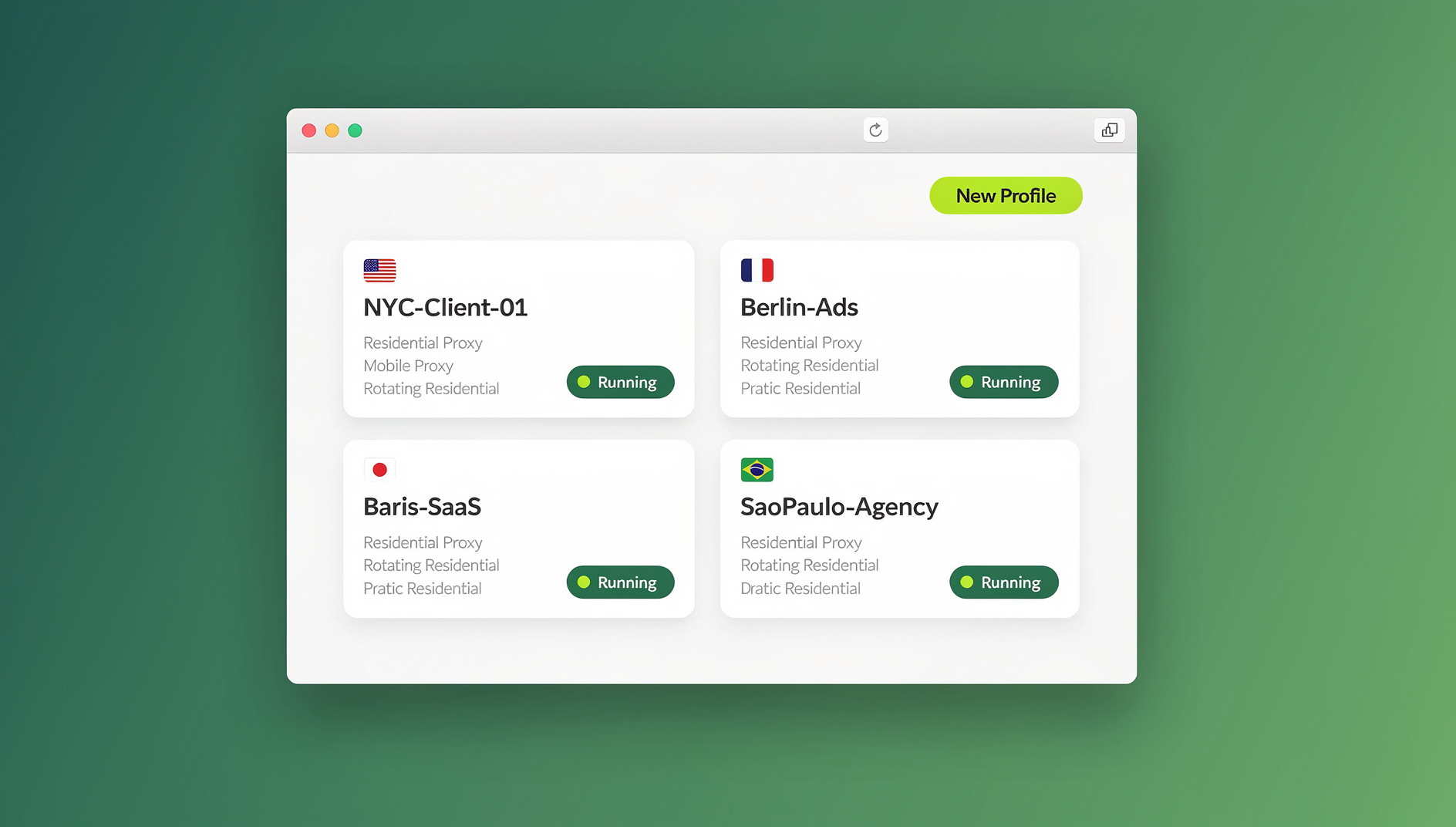
What Is a Virtual Internet Browser?
A virtual internet browser is any browsing environment where the rendering engine — the part of the software that actually loads pages, runs JavaScript, and draws pixels — lives somewhere other than the device in front of you. Instead of Chrome or Firefox executing on your laptop’s CPU, the browser runs on a remote machine (typically a data center server), and you interact with it through a lightweight client, a streamed video feed, or a synced desktop app.
The term covers a few related but distinct approaches: remote-desktop browsing over RDP or VNC, enterprise remote browser isolation (RBI) built for corporate security teams, and purpose-built antidetect cloud browsers designed for people who manage many accounts at once. Each solves a slightly different problem, but they share the same core idea — decoupling “where the browser runs” from “where you are sitting.”
How Virtual Internet Browsers Work
Traditional Browser Architecture
Standard browsers like Chrome or Firefox behave the way most people expect a browser to behave:
- Install and run entirely on your local device
- Execute every script and render every page on your own CPU and GPU
- Store cookies, cache, and history on your hard drive
- Expose your real IP address and device fingerprint to every site you visit
- Consume local RAM and battery for every open tab
Virtual Browser Architecture
A virtual, cloud-hosted browser flips that model:
- Cloud execution — the browser process runs on a remote server, not your machine
- Rendering — pages load and JavaScript executes entirely in that remote environment
- Encoding — the rendered output is compressed into a video or frame stream
- Transmission — the stream travels to your screen over a standard internet connection
- Input relay — your clicks, scrolls, and keystrokes are sent back to the cloud session in real time
Key Difference
With a true virtual internet browser, your device is essentially a window into a browser that lives elsewhere. Processing, storage, and the session’s IP address never touch your local hardware — which is exactly why this model is popular for privacy, multi-account work, and running browsing sessions on devices too weak to handle heavy rendering themselves.
Benefits of a Virtual Internet Browser
1. Device Independence
Because the heavy lifting happens remotely, you can pick a session back up from almost anywhere:
- The same session state is reachable from a different laptop, desktop, or device
- Switching machines mid-task doesn’t cost you your open tabs or login state
- No need to reinstall or reconfigure anything on a new device
- Older or lower-powered hardware can still run a smooth session, since the cloud does the rendering
2. Enhanced Security
Isolating the browsing environment from your endpoint has real security benefits:
- A malicious page can’t reach your local file system, because it never touches your device
- Downloads land in the cloud first, where they can be scanned before you pull them locally
- Exploits and drive-by scripts stay contained inside the remote environment
- It’s a safer way to open unfamiliar links, attachments-as-links, or research sketchy sites
3. Complete Privacy
A virtual browser separates the session from your real identity:
- The site you visit sees the remote session’s IP, never your home or office IP
- Your actual device’s hardware fingerprint stays hidden behind the cloud instance’s own fingerprint
- No browsing history accumulates on your personal machine
- Session data can be wiped instantly and completely when you’re done
4. Resource Efficiency
Offloading rendering to the cloud is easy on your hardware:
- Local RAM usage is minimal — you’re just decoding a video stream
- Your CPU isn’t spending cycles on JavaScript execution or page layout
- Laptop battery life improves noticeably during long browsing sessions
- You can run many sessions in parallel without your own machine slowing down
5. Multi-Account Management
Anyone juggling several accounts on the same platform benefits from:
- Dozens of isolated sessions, each with its own storage and cookies
- A distinct, consistent fingerprint per session
- Per-session proxy assignment, so each account gets its own IP
- No cross-contamination or accidental linking between accounts
Types of Virtual Internet Browsers
1. Remote Desktop Browsers (VPS + RDP/VNC)
The oldest approach: rent a Windows or Linux VPS, install a browser on it, and connect over Remote Desktop or VNC.
Pros: full desktop control, you can install anything you want.
Cons: expensive per instance ($10–50/month each), manual setup and patching, noticeable input lag, and a clunky experience compared to a browser designed for streaming.
2. Enterprise Browser Isolation Services
Security-focused remote browser isolation platforms such as Menlo Security or Authentic8 Silo, built for corporate IT departments.
Pros: strong security posture, policy enforcement, audit logging.
Cons: priced for enterprises ($50–100+ per seat/month), heavyweight deployment, and no real multi-account or fingerprint-management features — they solve a different problem than account management.
3. Antidetect Cloud Browsers
Purpose-built for people managing multiple accounts and profiles, like Send.win or GoLogin Cloud.
Pros: designed around fast, responsive browsing, built-in fingerprint management, one-click proxy integration, and pricing aimed at individuals and small teams rather than enterprise IT budgets.
Cons: still a recurring subscription, and cloud session usage is typically metered.
| Feature | VPS + RDP | Enterprise Isolation | Send.win |
|---|---|---|---|
| Setup time | 2–4 hours | IT department rollout | Minutes, no install for cloud sessions |
| Starting cost | $20–50/month per instance | $50–100+ per user/month | 30-day free trial, then from $19/month |
| Performance | Often laggy | Generally good | Optimized low-latency streaming |
| Multi-account support | Manual setup per instance | Not designed for this | Built-in, up to 150–500 profiles by plan |
| Fingerprint control | None | None | Per-profile fingerprint management |
| Proxy integration | Manual configuration | Limited | One-click, per-session assignment |
| Automation support | Depends on setup | Rare | Selenium/Puppeteer/Playwright from Pro plan up |
Send.win: Two Ways to Run a Virtual Internet Browser
Send.win takes a slightly different approach than a single all-in-one virtual browser. It gives you two modes depending on what you need: Sendwin Browser, a native desktop application for Windows, macOS, and Linux that is local-first with encrypted cloud sync of your profiles, and cloud browser sessions, which run entirely on Send.win’s servers with zero local install and are metered by cloud browsing time. You can compare that split against the virtual browser vs local browser tradeoffs to decide which mode fits a given task.
Sendwin Browser (native desktop app) — Because it’s installed locally, it feels instant: no streaming latency, no video encoding overhead. Your profiles and settings sync to the cloud in encrypted form, so switching machines is still seamless, but day-to-day browsing runs on your own hardware.
Cloud browser sessions — These run entirely in Send.win’s infrastructure. Nothing installs locally, which makes them useful for quick access from a machine you don’t fully trust, from a device that can’t run the desktop app, or when you specifically want the session’s IP and fingerprint fully detached from your own hardware. Usage is billed against your plan’s cloud browsing time allowance rather than a flat per-profile fee.
Profile and fingerprint management — Whichever mode you use, each profile gets its own consistent canvas, WebGL, audio, and font fingerprint, plus its own screen and hardware characteristics, so a given account always looks like the same device to the sites it logs into.
One-click proxy integration — Attach a residential or datacenter proxy to any profile in a click, giving each account its own IP without juggling separate proxy software.
Automation API — Starting on the Pro plan, Send.win exposes local automation against the desktop app, so you can drive profiles with the same frameworks you already use for testing and scraping:
from selenium import webdriver

options = webdriver.ChromeOptions()
options.debugger_address = "127.0.0.1:9222"  # local Sendwin Browser profile
driver = webdriver.Chrome(options=options)
driver.get("https://example.com")
The same idea works with Puppeteer’s puppeteer.connect({ browserURL }) or Playwright’s connectOverCDP — Send.win’s job is simply to keep each automated profile isolated with its own fingerprint and proxy, while your existing Selenium, Puppeteer, or Playwright scripts do the driving.
Pricing — Send.win offers a 30-day free trial with no credit card required. The Pro plan is $19/month ($6.99/month billed annually — 63% savings) with 150 profiles, 5GB of proxy bandwidth, and the Automation API included. The Team plan is $49/month ($20.99/month billed annually — 57% savings) with 500 profiles, 20GB of proxy bandwidth, the Automation API, and 16 seats for sharing work across a team.
Use Cases for a Virtual Internet Browser
1. Multi-Account Management
Running several accounts on the same platform without them getting linked or flagged:
- Social media: Facebook, Instagram, X, TikTok
- E-commerce: Amazon, eBay, Etsy seller accounts
- Advertising: Google Ads and Meta Ads manager accounts
- Freelancing: multiple Upwork or Fiverr profiles
2. Privacy Protection
Browsing without exposing your real IP or device for:
- Sensitive research or journalism
- Competitive analysis without tipping off competitors
- General personal privacy preferences
If protecting your identity from every site you touch is the main goal, it’s worth reading how remote browser isolation keeps risky or untrusted pages fully contained away from your device.
3. Web Scraping and Automation
Virtual browsers pair naturally with automated data collection:
- Headless or scripted browsing that runs in the cloud rather than tying up a local machine
- Parallel scraping jobs across many isolated profiles at once
- Residential IP rotation per profile
- Account-based data gathering that needs a persistent, logged-in session
4. Remote Work and Secure Access
Teams and contractors use a virtual internet browser to:
- Reach the same work session from any approved device
- Keep client projects isolated from one another
- Avoid storing sensitive data locally, which helps with compliance requirements
5. Testing and Development
Developers and QA teams rely on virtual browsers to:
- Test a site under different configurations without touching their main machine
- Reproduce browser-specific bugs in a clean environment
- Simulate different geographic locations via proxy assignment
- Run QA passes in a disposable profile with no leftover cookies or cache
Anyone comparing dedicated antidetect options for this kind of work should also look at how the best antidetect browser picks for 2026 stack up on fingerprint quality and pricing, not just feature lists.
Choosing and Managing Your Virtual Browser Setup
1. Organize Profiles by Purpose
Keep things findable as the number of profiles grows:
- Name profiles clearly (e.g., “Facebook — Business Account”)
- Group related accounts together
- Use tags or color-coding where your tool supports it
- Note which proxy is assigned to which profile
2. Match Proxies to Each Use Case
Not every session needs the same proxy type:
- Residential proxies for social media and marketplace accounts
- Geographic matching — a US account should use a US proxy
- Sticky sessions where consistency matters
- Datacenter proxies for price-sensitive scraping where detection risk is lower
3. Separate Personal and Business Contexts
Don’t let contexts bleed into each other:
- Keep a dedicated profile for personal browsing
- Use a separate profile per client or business line
- Never share credentials across use cases just for convenience
4. Maintain Profiles Regularly
A little upkeep keeps things running smoothly:
- Delete profiles you no longer use
- Clear stale cookies periodically
- Review and update proxy assignments as needed
- Audit which profiles still have active saved credentials
🏆 Send.win Verdict
A virtual internet browser earns its keep the moment you need more than one clean, isolated identity online — whether that’s for privacy, multi-account management, or safely automating repetitive browser work. Send.win covers both ends of that spectrum: the native Sendwin Browser desktop app for fast, local-first work with encrypted cloud sync, and fully cloud-hosted sessions for zero-install access billed by usage. With per-profile fingerprinting, one-click proxy assignment, and an Automation API available from the Pro plan, it’s built for people who need more than a single browser tab can give them.
Try Send.win free today — start your 30-day free trial, no credit card required.
Frequently Asked Questions
Is a virtual internet browser slower than a local browser?
Cloud sessions add a small amount of streaming latency, but on a decent connection it’s rarely noticeable. Send.win’s native desktop app avoids that entirely, since it runs locally and only syncs profile data to the cloud.
Can websites detect that I’m using a virtual browser?
Not with a well-built one. A properly configured session presents a genuine, consistent fingerprint and behaves like any other real browser — sites see a normal visitor, not a flagged automation tool.
What happens if my internet connection drops?
A cloud session keeps running on the server even if your local connection drops. When you reconnect, you pick up exactly where you left off. The native desktop app behaves like any other locally installed browser in this respect.
How secure is my data in a cloud browser session?
Reputable providers encrypt data in transit and at rest. Send.win encrypts profile sync data end to end, but you should still use strong, unique passwords and two-factor authentication on the accounts you access through any browser, virtual or not.
Can I download files through a virtual browser?
Yes. In a cloud session, files download to the remote environment first, which you can then transfer locally — a useful extra checkpoint for scanning files before they ever reach your device.
Do I need the Automation API for basic multi-account use?
No. The Automation API is aimed at people scripting Selenium, Puppeteer, or Playwright against their profiles. If you’re just managing accounts by hand, the Pro or Team plan’s profiles, proxy bandwidth, and fingerprinting cover that on their own.
What’s the difference between Sendwin Browser and a cloud browser session?
Sendwin Browser is a downloadable desktop app that runs locally with encrypted cloud sync, so it’s fast and works offline once loaded. Cloud browser sessions run entirely on Send.win’s servers with no install at all, metered by cloud browsing time — better when you need a fully detached environment or can’t install anything locally.
Is there a free trial?
Yes. Send.win offers a 30-day free trial with no credit card required, long enough to test both the desktop app and cloud sessions against your actual workflow before choosing between the Pro and Team plans.
A virtual internet browser isn’t a single product category so much as a spectrum — from bare-bones VPS-and-RDP setups, through enterprise isolation platforms, to purpose-built tools like Send.win that combine a native desktop app with on-demand cloud sessions. For most people managing more than one account, protecting their privacy, or automating repetitive browsing tasks, that combination covers far more ground than a single traditional browser ever could.