Firefox Multi-Account Containers is a free Mozilla extension that splits your browsing into color-coded, cookie-isolated tabs so you can stay logged into several accounts on the same site at once. It’s genuinely useful for separating work, personal, and shopping logins in everyday browsing. But because every container still shares the same browser fingerprint and IP address, it won’t stop platforms like Amazon, Instagram, or eBay from linking accounts you’re actively trying to keep separate — which is where a dedicated multi-account browser like Send.win takes over.
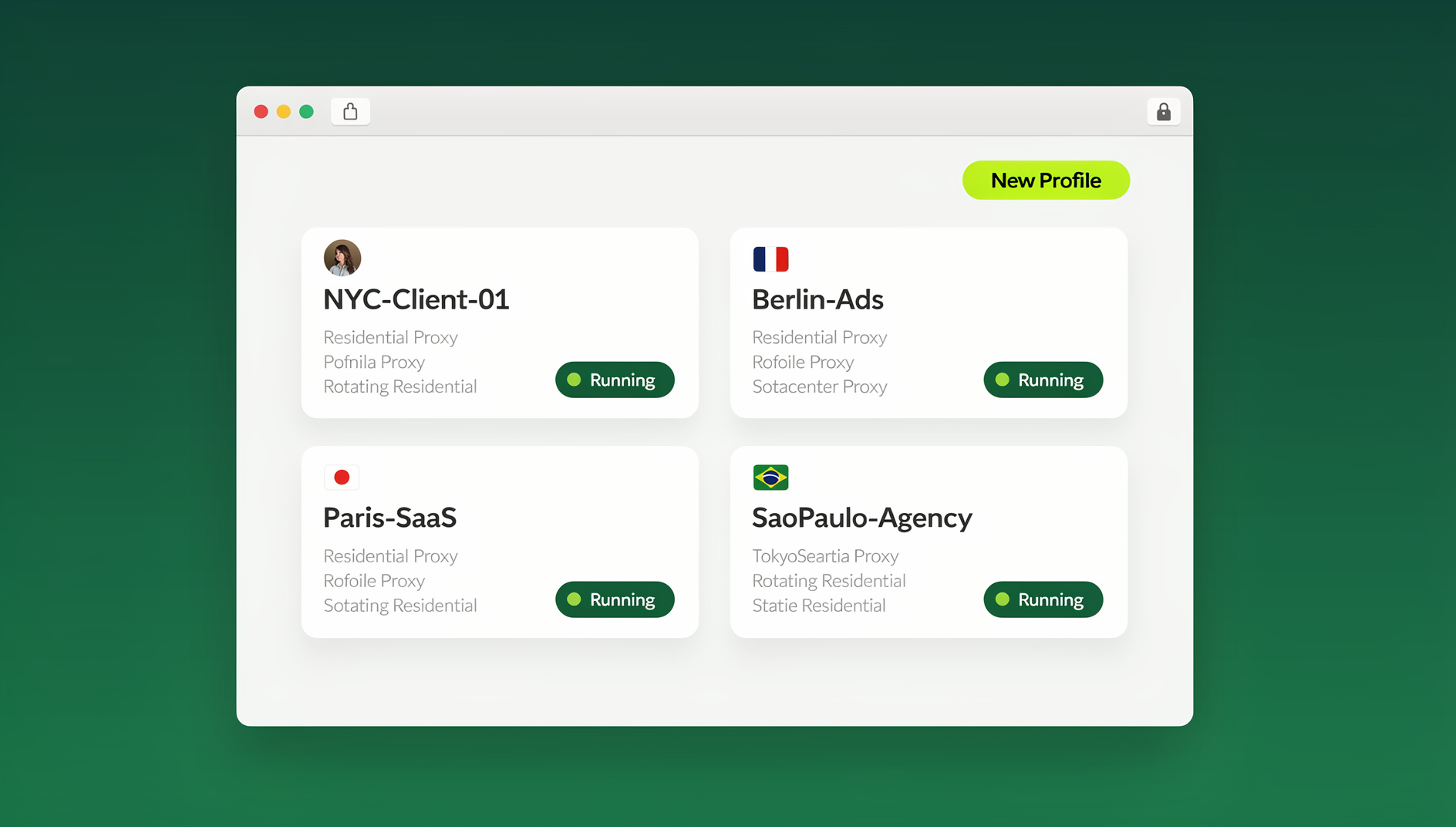
This guide covers what Firefox Multi-Account Containers actually does, how to set it up and use it well, and — just as importantly — exactly where it stops working. If you’re managing more than a couple of casual logins, understanding that boundary before you hit it will save you an account suspension.
What Is Firefox Multi-Account Containers?
Multi-Account Containers is a browser extension developed and maintained by Mozilla that lets you divide your browsing into independent, color-coded environments. Each container gets its own cookies, local storage, and login state — effectively giving you several browsers layered inside one Firefox window, without the memory overhead of actually running several browsers.
It solves a problem almost everyone has: multiple online identities living in one head. Work accounts, personal accounts, shopping profiles, and social media logins all deserve to be kept apart, and containers do that cleanly, without forcing you to log in and out all day or open a stack of separate browser windows.
Why Use Firefox Containers for Multi-Account Management?
Account Separation Without the Hassle
Before containers existed, keeping accounts apart meant running different browsers for different logins, constantly signing in and out, relying on private windows (which don’t save passwords or stay open), or just risking the occasional accidental post from the wrong account. Containers replace all of that with one click: each container maintains its own independent login state, permanently, until you close it.
Privacy Benefits
Containers also cut down on cross-site tracking:
- Cookie isolation — a tracker embedded on a site in one container can’t see what you do in another container.
- Login separation — your Google account doesn’t get visibility into activity happening in non-Google containers.
- Reduced profile-building — ad networks have a harder time stitching your activity into one unified profile across containers.
Organizational Benefits
- Color-coded tabs make it obvious at a glance which “mode” you’re in.
- Sites can be set to automatically open in the right container every time.
- Work stays out of personal browsing, and vice versa.
- Shopping activity stays separate from social media browsing.
How to Set Up Firefox Multi-Account Containers (Step by Step)
Step 1: Install the Extension
- Open Firefox.
- Go to addons.mozilla.org.
- Search for “Firefox Multi-Account Containers.”
- Click Add to Firefox.
- Accept the permissions and confirm installation.
Alternative route: Menu → Add-ons and themes → search “containers.”
Step 2: Learn the Default Containers
The extension ships with four pre-configured containers out of the box:
- Personal (blue) — personal email, social media, banking.
- Work (orange) — work email, professional tools, company apps.
- Banking (green) — financial accounts and trading platforms.
- Shopping (pink) — e-commerce, price comparisons, purchases.
Step 3: Create Custom Containers
- Click the container icon in the Firefox toolbar.
- Select Manage Containers.
- Click Add new container.
- Pick a name, color, and icon.
- Click OK.
Worthwhile custom containers to add: a Social Media container to keep Facebook, X, and LinkedIn contained; a Google container to isolate its tracking to one place; a Research container for browsing you don’t want tied to your main identity; and a dedicated container per major client if you do freelance or agency work.
Step 4: Open Tabs in a Specific Container
There are three ways to send a tab into a particular container:
- Right-click a link → Open Link in New Container Tab → choose the container.
- Long-press the “+” new-tab button and select a container from the dropdown.
- Click the container icon in the toolbar and pick a container to open a fresh tab in it.
Step 5: Set Automatic Site-to-Container Assignments
To stop manually choosing a container every time you visit the same site:
- Click the container icon while on the website.
- Select Always open in [container name].
- That site will now open in the assigned container automatically, every time.
Common assignments worth setting up: facebook.com to a Social container, gmail.com to Work or Personal depending on which account, amazon.com to Shopping, your bank’s site to Banking, and internal company tools to Work.
Advanced Container Techniques
Running Multiple Logins on the Same Site
This is the feature people reach for containers to get in the first place: open your Personal container and log into your personal Gmail, then open your Work container and log into your work Gmail. Both stay signed in simultaneously, and the color-coded tab tells you at a glance which account you’re in. The same trick works for Twitter/X, LinkedIn, Amazon, or almost any site with a login.
Facebook Container (a Separate, Dedicated Add-on)
Mozilla also ships a standalone Facebook Container add-on that automatically isolates Facebook into its own container, blocks Facebook’s tracking on other sites you visit, and stops “Like” buttons embedded elsewhere from following you around. It runs fine alongside Multi-Account Containers and is worth installing from addons.mozilla.org if Facebook tracking specifically concerns you.
Temporary Containers for Maximum Privacy
For an extra layer of disposability, the Temporary Containers add-on opens every new tab in a fresh, throwaway container that’s destroyed — along with all its cookies and data — the moment you close it. It’s well suited to research or any browsing you don’t want leaving a trace.
Syncing Containers Across Devices
Container names, colors, and site assignments sync automatically across your devices through Firefox Sync, as long as you’re signed into the same Firefox account on each one.
The Real Limitations of Firefox Containers
Containers are excellent for everyday organization and privacy, but they were never built to defeat platform-level account detection. Four limitations matter in particular.
1. Every Container Shares One Browser Fingerprint
Canvas rendering, WebGL output, installed fonts, screen resolution, and dozens of other signals make up your browser’s fingerprint — and every container in the same Firefox installation produces an identical one. Sophisticated tracking and anti-fraud systems can use fingerprinting to link containers back to the same underlying device, regardless of how carefully the cookies are separated. Containers isolate storage, not identity.
2. Every Container Shares One IP Address
All your containers browse out through the same network connection. Any platform watching for multiple accounts from a single IP will see them exactly that way, no matter how the sessions were organized on your end.
3. It’s a Firefox-Only Solution
Multi-Account Containers only works in Firefox. If your team, agency, or workflow depends on Chrome, Edge, or Safari, you need a different approach entirely.
4. It Wasn’t Designed to Beat Platform Detection
Mozilla built containers for everyday privacy and organization, not to defeat the account-linking systems that marketplaces and social platforms run. Using containers to operate multiple seller or client accounts on platforms like Amazon, eBay, or Facebook can still get those accounts linked and suspended.
When Containers Aren’t Enough: Real-World Scenarios
E-commerce Sellers Running Multiple Storefronts
Picture managing five Amazon seller accounts with containers: each account opens in its own container, which is a fine start. But every one of those containers shares the same browser fingerprint and the same IP address, and Amazon’s detection systems are specifically built to catch exactly that pattern. The usual result is linked accounts and suspensions — the opposite of what the seller was trying to achieve. Anyone running multiple Amazon seller accounts safely needs isolation that goes deeper than cookie separation.
Agencies and Social Media Managers
The same failure shows up for anyone handling ten client Instagram accounts. Containers give each one its own cookies, but Instagram sees identical browser fingerprints behind all ten, flags the pattern, and starts issuing verification requests or bans. For teams juggling client logins at scale, the best browser for multiple accounts is one designed around unique fingerprints per profile, not one retrofitted from a privacy add-on.
Firefox Containers vs. Send.win: Side by Side
| Feature | Firefox Multi-Account Containers | Send.win |
|---|---|---|
| Cookie / storage isolation | Yes | Yes |
| Unique fingerprint per profile | No — shared across all containers | Yes — distinct per profile |
| Dedicated IP per profile | No — one IP for everything | Yes, with proxy integration per profile |
| Works outside Firefox | No — Firefox only | Yes — native desktop app (Windows/macOS/Linux) or fully cloud-based sessions |
| Local install required | Yes (browser extension) | Optional — desktop app is local-first, or run entirely in the cloud with zero install |
| Automation support (Selenium/Puppeteer/Playwright) | No | Yes — Automation API against the desktop app, from the Pro plan |
| Price | Free | 30-day free trial, then paid plans from $19/mo |
| Best suited for | Personal privacy, casual multi-login use | Professional multi-account management |
How Send.win Extends What Containers Can’t Do
Send.win works in one of two modes, and it’s worth being precise about what each one means. The Sendwin Browser is a native, downloadable desktop application for Windows, macOS, and Linux: it’s local-first, meaning your profiles and sessions live on your machine, with encrypted cloud sync keeping everything backed up and available if you switch devices. Alternatively, cloud browser sessions run the entire browsing environment on Send.win’s servers with zero local install — nothing renders on your device at all, and usage is metered by cloud browsing time rather than a flat monthly allowance.
Either way, each profile gets its own isolated fingerprint (canvas, WebGL, fonts, and the rest), its own cookie jar and storage, and its own proxy assignment so different profiles can exit through different IP addresses — the two things Firefox containers structurally cannot provide. For teams that also need to script logins or repetitive workflows, Send.win’s Automation API lets you drive the desktop app with standard Selenium, Puppeteer, or Playwright code, with each automated session running inside its own isolated, fingerprinted profile rather than sharing state with your manual browsing.
Send.win offers a 30-day free trial with no credit card required, so you can test whether cloud-based multi-account browsing actually solves the problem containers left unsolved before committing to a plan.
Best Practices for Container and Multi-Profile Management
Organizing Your Containers
- Keep it simple — four to six containers is usually plenty.
- Use meaningful colors — blue for personal, orange for work, and so on.
- Set auto-assignments — cut down on manually choosing a container for sites you visit constantly.
- Review periodically — remove containers you’ve stopped using.
A Security-Focused Container Strategy
- Banking container — reserved strictly for financial sites, never mixed with anything else.
- Shopping container — contains the extensive tracking that e-commerce sites run.
- Social container — isolates social media’s tracking from the rest of your browsing.
- Research container — for sensitive searches you don’t want tied to your main identity.
Work-Life Separation
Keep work email and internal tools inside the Work container, and personal email and social apps inside Personal. Give each active client their own container if you’re freelancing. And if you ever open a work link inside your personal container by accident, just close and reopen it correctly rather than letting the two blend — that one habit prevents most of the awkward cross-account mistakes containers are supposed to solve. If you eventually outgrow Firefox-only workflows, it’s worth comparing cross-browser alternatives to Firefox Multi-Account Containers that carry the same separation into Chrome, Edge, or a cloud environment.
🏆 Send.win Verdict
Firefox Multi-Account Containers is a genuinely good free tool for everyday privacy and casual multi-login browsing — install it, use the auto-assignments, and it’ll quietly do its job. But the moment you’re running accounts on platforms that actively hunt for linked profiles — Amazon, eBay, Instagram, ad accounts — the shared fingerprint and shared IP behind every container become the exact signal those platforms look for. That’s the gap Send.win is built to close, whether through the native Sendwin Browser desktop app or fully cloud-hosted sessions, with a unique fingerprint and proxy per profile instead of one shared across everything.
Try Send.win free today — start your 30-day free trial, no credit card required.
Frequently Asked Questions
Can I use Firefox Multi-Account Containers to run multiple accounts on the same platform?
For basic separation — different logins with their own cookies — yes. But on platforms that actively detect multiple accounts, like Amazon, Facebook, or eBay, containers alone aren’t enough, because every container shares the same browser fingerprint and IP address. For that use case, a dedicated multi-account browser like Send.win with per-profile fingerprints and proxies is the safer route.
Do containers slow down Firefox?
Barely. Each container uses a small amount of memory for its isolated storage, but the impact is negligible for normal use. Having many container tabs open at once uses somewhat more memory than regular tabs, but not dramatically so.
Can websites detect that I’m using Firefox containers?
Not directly — there’s no API that reveals “this tab is in a container.” However, fingerprinting can still identify that the same underlying browser is behind multiple containers, which can indirectly link the activity happening in each of them.
Are containers the same thing as Firefox profiles?
No. Firefox profiles are entirely separate browser instances, each with its own extensions, settings, and bookmarks. Containers are much lighter — they share one browser installation but isolate cookies and site data within it. Profiles offer stronger separation but are far more cumbersome to manage day to day.
Do my Firefox extensions behave differently inside each container?
No — extensions run the same across every container and aren’t isolated between them. That’s convenient in that you don’t have to reinstall anything per container, but it also means extension data isn’t separated the way cookies are.
Does Send.win work outside Firefox, on Chrome-based or cross-platform workflows?
Yes. Send.win isn’t tied to any one browser — the Sendwin Browser is a native desktop app for Windows, macOS, and Linux, and cloud browser sessions run entirely on Send.win’s servers with no local install at all, accessible from whatever device you’re on.
How much does Send.win cost, and is there a free trial?
Send.win offers a 30-day free trial with no credit card required. After the trial, Pro is $19/month ($6.99/month billed annually — 63% savings) with 150 profiles, 5GB of proxy bandwidth, and Automation API access. Team is $49/month ($20.99/month billed annually — 57% savings) with 500 profiles, 20GB of bandwidth, Automation API, and 16 seats.
Conclusion
Firefox Multi-Account Containers remains one of the best free tools available for organizing everyday browsing and cutting down on cross-site tracking. For separating work from personal life, containing social media, and juggling a handful of accounts on the same sites, it does the job well and costs nothing.
But for professional multi-account work, its limitations are structural, not fixable with settings: a shared fingerprint and shared IP across every container mean platforms built to detect linked accounts can still do so. Start with containers for daily privacy. When the stakes are higher — e-commerce, agency work, ad account management — move to a browser built for real separation. Send.win’s native desktop app and cloud browser sessions give every profile its own fingerprint and its own IP, so accounts stay independent instead of quietly linked. Start the 30-day free trial to see the difference for yourself.