A privacy browser is a web browser built to block trackers, resist fingerprinting, and keep your browsing history out of advertisers’ hands by default rather than as an afterthought. In 2026 the strongest options range from Tor Browser’s maximum anonymity to Send.win’s isolated profiles for anyone who needs to stay private across several accounts at once, not just browse anonymously.
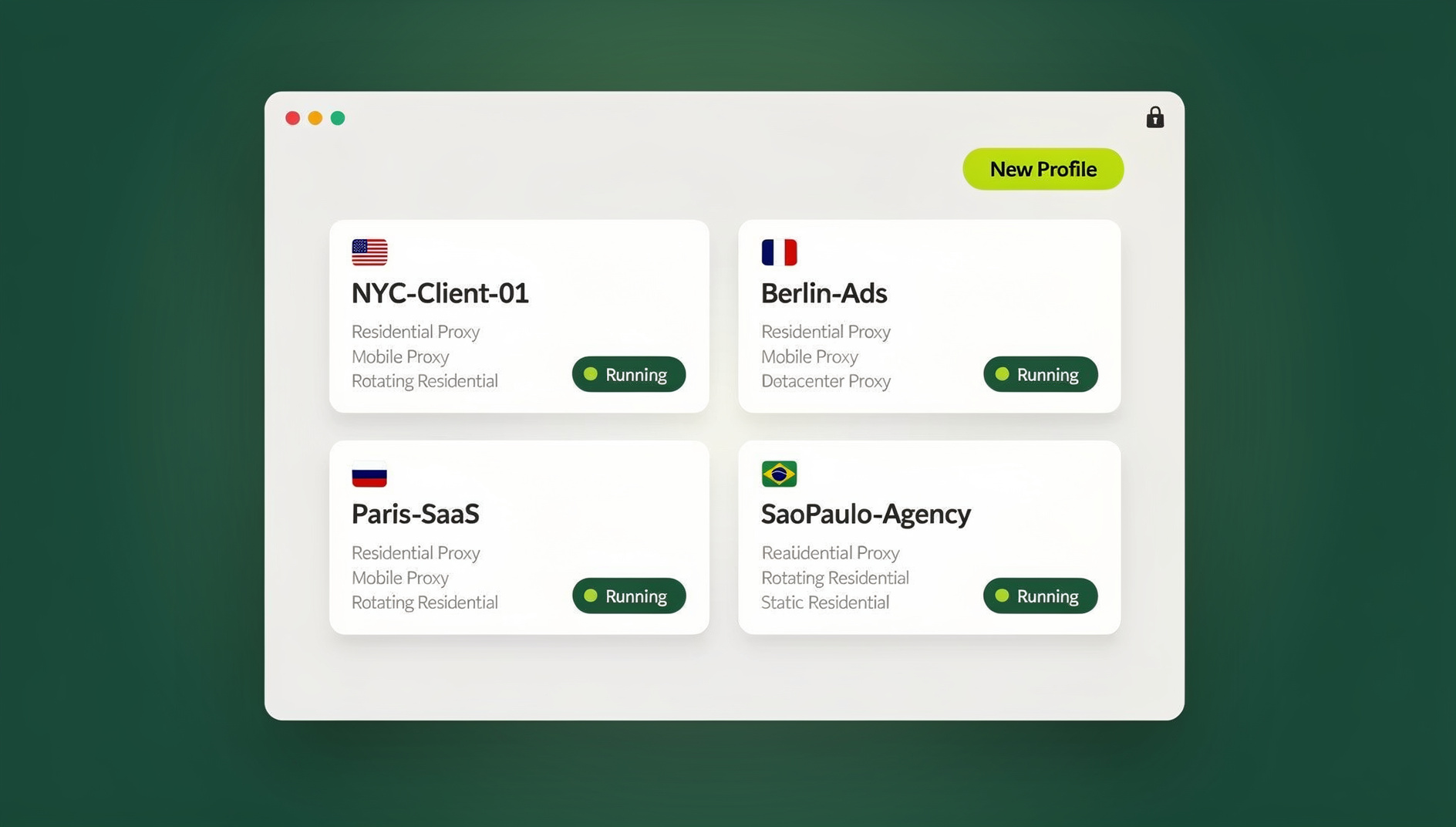
What Makes a Browser “Private”?
Standard browsers like Chrome, Safari, and Edge are built for convenience first — syncing your data to the cloud, remembering logins everywhere, and sharing telemetry with their makers by default. A privacy browser flips that priority order: tracking protection, fingerprint resistance, and data isolation are on by default, and convenience features become opt-in rather than opt-out. That difference in default philosophy is why privacy-focused browsers behave so differently even when they share the same rendering engine underneath.
As digital surveillance has expanded — from advertising networks to workplace monitoring to platform bans triggered by linked accounts — privacy browsers have gone from a niche hobbyist interest to something ordinary professionals rely on daily.
Why Standard Browsers Fail at Privacy
The Tracking Problem
Mainstream browsers make privacy an uphill battle:
- Cookies track you across websites for advertising
- Browser fingerprinting identifies you even with cookies disabled
- Telemetry sends usage data back to the browser maker
- Default settings favor convenience over protection
- Extension ecosystems often introduce their own tracking
Who Actually Needs a Privacy Browser
- Privacy-conscious individuals: anyone who wants to browse without being profiled
- Journalists: protecting sources and research from surveillance
- Business professionals: keeping competitive research confidential
- Activists: organizing without fear of monitoring
- Security researchers: investigating threats without exposing their identity
- Multi-account managers: keeping identities separate and unlinked
The 6 Best Privacy Browsers in 2026
1. Tor Browser — Best for Maximum Anonymity
Tor Browser routes your traffic through the Tor network’s onion routing, providing the strongest anonymity available today.
Features: traffic routed through at least three encrypted relays; your IP address is hidden from every website you visit; a standardized fingerprint so you blend in with other Tor users; NoScript enabled by default; automatic cookie and history clearing on exit.
Limitations: browsing speed suffers from relay routing; some websites block Tor exit nodes outright; it isn’t practical for logging into personal accounts you use daily; advanced fingerprinting techniques can still partially work.
Best use: anonymous research, reaching censored content, and situations where anonymity matters more than speed.
2. Brave Browser — Best for Daily Privacy-Focused Browsing
Brave pairs strong privacy defaults with mainstream usability.
Features: built-in ad and tracker blocking; fingerprint randomization; HTTPS upgrading by default; script-blocking controls; Tor integration inside private windows; account-free sync via QR code.
Considerations: its early affiliate-link controversy was addressed back in 2020; BAT cryptocurrency features are optional but promoted throughout the interface; it’s Chromium-based, so it inherits some of Google’s engine-level decisions.
Best use: daily browsing with strong privacy defaults and no learning curve.
3. Firefox, Hardened — Best for Customizable Privacy
Firefox configured for privacy delivers excellent protection with full user control.
Features: Enhanced Tracking Protection with Standard, Strict, and Custom modes; Total Cookie Protection that isolates cookies per site; HTTPS-Only Mode; DNS over HTTPS; Multi-Account Containers; deep about:config customization.
Recommended hardening: switch on Strict tracking protection, enable HTTPS-Only Mode, install Multi-Account Containers, and apply a hardened user.js profile such as arkenfox if you want advanced control.
Best use: power users who want granular control over every privacy setting.
4. LibreWolf — Best Pre-Hardened Firefox Alternative
LibreWolf is Firefox with aggressive privacy defaults already applied, so there’s little left to configure.
Features: telemetry and Mozilla experiments stripped out; uBlock Origin pre-installed; fingerprinting protection enabled out of the box; WebGL and WebRTC restricted; a privacy-respecting default search engine; no accounts or sync, by design.
Considerations: some sites break under its strict defaults; there’s no cloud sync at all; the development team is far smaller than Mozilla’s.
Best use: people who want hardened Firefox without manually configuring dozens of settings.
5. Mullvad Browser — Best for Tor-Like Privacy Without Tor Speeds
Built by the Tor Project in partnership with Mullvad VPN, this browser delivers Tor Browser’s anti-fingerprinting without routing through the Tor network.
Features: the same anti-fingerprinting techniques as Tor Browser; designed to be paired with a VPN; a standardized fingerprint shared across all users; regular security updates; a clean interface without bloat.
Best use: VPN users who want maximum fingerprint resistance without Tor’s speed penalty.
6. Send.win — Best for Multi-Account Privacy and Isolation
Send.win solves a different problem than the other five. Instead of making every user look identical — the anonymity model Tor and Mullvad rely on — it gives each browsing profile its own consistent, isolated fingerprint, cookie jar, and optional proxy, so your accounts stay separated from each other and from your everyday browsing.
Send.win ships in two forms: Sendwin Browser, a native desktop app for Windows, macOS, and Linux that stores profiles locally with encrypted cloud sync, and cloud browser sessions that run entirely on Send.win’s servers with zero local install, metered by cloud browsing time. There is no free trial; paid plans start at $19/month, and the first card purchase is covered by a 7-day money-back guarantee. The only free option is the cloud demo at send.win/demo-browser.
Features: an isolated, consistent fingerprint per profile rather than one that changes every session; cookie and local storage isolation between profiles; built-in proxy assignment per profile; one-click session sharing with teammates who never see the underlying password; a choice between installing locally or running entirely in the cloud.
Best use: professional multi-account management, agencies running client accounts in parallel, and anyone who needs a stable, isolated identity per account rather than anonymity alone.
Privacy Browser Features Explained
Tracker Blocking
Trackers follow you across websites to build advertising profiles:
- Cookies: small files that store your browsing history
- Pixels: invisible images that log page loads
- Scripts: code that monitors on-page behavior
- Social buttons: Facebook and Twitter widgets that track you even without a click
Privacy browsers block these by default or make blocking a one-click toggle.
Fingerprint Resistance
Browser fingerprinting identifies you through unique device characteristics even when cookies are disabled:
- Canvas fingerprint: how your browser renders graphics
- WebGL fingerprint: your graphics hardware’s signature
- Audio fingerprint: how your system processes audio
- Font list: installed fonts create a near-unique signature
- Screen resolution and timezone
Understanding canvas fingerprinting and how browser fingerprinting protection actually works makes it much easier to judge whether a given browser’s privacy claims hold up. Privacy browsers fight fingerprinting by randomizing components, blocking the underlying APIs outright, standardizing values across all users, or spoofing realistic but fake values.
Data Isolation
Preventing cross-site data sharing matters as much as blocking trackers:
- First-party isolation: cookies only accessible by the site that set them
- Container tabs: separate storage per container
- Session isolation: a fresh context for every private window
- State partitioning: separate storage for each domain pair
Connection Privacy
Protecting your network identity is the final piece:
- VPN integration: hide your IP address from websites
- Tor routing: maximum anonymity through relays
- Encrypted DNS: hide domain lookups from your ISP
- WebRTC leak protection: stop your real IP from leaking through real-time communication features
That last one catches people off guard more than any other setting, since WebRTC leak protection can be the difference between a VPN or proxy actually hiding your IP and quietly failing to.
Comparing Privacy Browsers
| Browser | Tracker Blocking | Fingerprint Resistance | Anonymity Level | Speed |
|---|---|---|---|---|
| Tor Browser | Excellent | Excellent | Maximum | Slow |
| Brave | Excellent | Good | Moderate | Fast |
| Firefox (Hardened) | Excellent | Good | Moderate | Fast |
| LibreWolf | Excellent | Good | Moderate | Fast |
| Mullvad Browser | Excellent | Excellent | High (with VPN) | Fast |
| Send.win | Moderate | Excellent (per profile) | High (per account) | Fast |
Essential Privacy Browser Settings to Configure
Essential Settings (Any Browser)
- Enable HTTPS-Only mode
- Block third-party cookies
- Enable Do Not Track (limited effectiveness, but no downside)
- Disable location, camera, and microphone access by default
- Clear browsing data on exit
- Use private or incognito mode for sensitive browsing
Advanced Settings
- Disable JavaScript on untrusted sites (this breaks some features)
- Block WebRTC to prevent IP leaks
- Use encrypted DNS (DoH or DoT)
- Disable WebGL for fingerprint resistance
- Spoof user agent and timezone where the browser supports it
Privacy Browsers vs. Multi-Account Privacy: Two Different Problems
Standard privacy browsers and multi-account tools solve opposite problems, and mixing them up is how accounts get banned.
Where Standard Privacy Tools Break Down
- Fingerprint protection standardizes sessions so every user looks alike — great for anonymity, bad for accounts that need to look like distinct, real people
- Platforms detect near-identical fingerprints across “different” accounts and quietly link them together
- Once linked, connected accounts tend to get suspended as a group
- Clean separation requires a tool built specifically for that job, not general anti-tracking software
How an Antidetect Browser Solves It
A browser profile manager like Send.win takes the opposite approach from Tor or Mullvad: instead of one standardized fingerprint for everyone, each profile gets its own stable, believable fingerprint plus isolated cookies and storage. Send.win has no automation interface: no API, SDK, headless mode or Selenium/Puppeteer/Playwright support on any plan.
There is no free trial. Pro is $19/month or $83.88/year with 150 profiles and 5GB of proxy bandwidth. Team is $49/month or $251.88/year with 500 profiles, 20GB of bandwidth, and 16 seats. The first card purchase is covered by a 7-day money-back guarantee, and the only free option is the cloud demo at send.win/demo-browser.
Recommended Privacy Browser Extensions
Extensions Worth Installing
uBlock Origin: best-in-class ad and tracker blocking, with support for custom filter lists for deeper coverage.
Privacy Badger: the EFF’s intelligent tracker blocker — it learns which domains track you and blocks them automatically.
ClearURLs: strips tracking parameters out of URLs before you share or visit them.
LocalCDN: serves common libraries locally instead of pulling them from a CDN, closing off a tracking vector hidden in otherwise harmless embedded resources.
Extensions to Avoid
- Free VPN extensions — these often sell the very data they claim to protect
- Piling on too many extensions — each one adds its own fingerprinting surface
- “Privacy” extensions from unknown or unverifiable developers
- Extensions that request far broader permissions than their stated function requires
Which Privacy Browser Should You Choose?
- Maximum anonymity: Tor Browser, or Mullvad Browser paired with a VPN
- Daily privacy with no learning curve: Brave or hardened Firefox
- Full control over every setting: Firefox with manual hardening, or LibreWolf if you’d rather skip the configuration work
- Multi-account management without cross-linking: Send.win, either as the native desktop app or a cloud session
🏆 Send.win Verdict
Most privacy browsers are built to make every visitor look the same — excellent for anonymity, useless for anyone juggling multiple accounts that need to stay believably separate. Send.win solves the second problem: a consistent, isolated identity per profile, available as a native desktop app with encrypted cloud sync or as a fully cloud-hosted session with no install at all.
Try the Send.win cloud demo — a 3-minute preview without signup, or 10 minutes a day with a free account.
Frequently Asked Questions
What is the most private browser?
For pure anonymity, Tor Browser provides the strongest protection available. For daily use with solid privacy, Brave or hardened Firefox are excellent choices. For keeping multiple accounts private from each other, Send.win’s isolated profiles solve a problem the anonymity-focused browsers don’t even attempt.
Is Chrome’s incognito mode a privacy browser?
No. Incognito mode only stops your device from storing local history. Websites, your ISP, and your network can still track you — it protects you from other people using your device, not from the internet at large.
Do privacy browsers slow down browsing?
Tor Browser is noticeably slower because of relay routing. Other privacy browsers — Brave, Firefox, LibreWolf, Mullvad Browser — are typically as fast as or faster than Chrome, since blocking ads and trackers actually speeds up page loads.
Can I use privacy browsers for streaming?
Yes, for most of them. Tor Browser struggles with streaming due to its speed and is blocked by some services outright. Brave and Firefox work fine for mainstream streaming platforms.
Are privacy browsers legal?
Privacy browsers are completely legal in most countries. Some authoritarian regimes restrict encryption or Tor specifically, so it’s worth checking local laws before traveling with one installed.
Does Send.win replace my everyday privacy browser?
Not exactly — it solves a different problem. Send.win isn’t trying to anonymize a single identity; it keeps multiple identities cleanly separated. Many people run Send.win alongside a privacy browser: the browser profile manager for account management, the privacy browser for general anonymous browsing.
Do I need to install anything to use Send.win?
Not necessarily. Send.win offers cloud browser sessions that run entirely on its servers with no local install, billed by cloud browsing time, plus Sendwin Browser, a downloadable native app for Windows, macOS, and Linux for anyone who wants profiles stored locally with encrypted cloud sync.
How much does Send.win cost?
There is no free trial. Pro is $19/month or $83.88/year with 150 profiles and 5GB of proxy bandwidth, and Team is $49/month or $251.88/year with 500 profiles, 20GB of bandwidth, and 16 seats. The first card purchase is covered by a 7-day money-back guarantee, and the only free option is the cloud demo at send.win/demo-browser.