WebRTC leak protection stops your browser from exposing your real IP address through peer-to-peer connection requests that quietly bypass your VPN, proxy, or antidetect setup. Even with a VPN switched on, WebRTC’s STUN requests can hand your actual public and local IP addresses to any website running a few lines of JavaScript. Fixing it means either disabling WebRTC outright, patching it with an extension or VPN feature, or moving to a browser that handles IP masking at the network layer by design, like Send.win.
What Is a WebRTC Leak?
A WebRTC leak happens when your real IP address is exposed through WebRTC (Web Real-Time Communication), a browser technology built for video calls, voice chat, and direct file sharing between browsers. To make those peer-to-peer connections work, WebRTC has to discover a browser’s actual network address, and that discovery process can run completely outside whatever privacy tool you think is protecting you.
The vulnerability affects every major Chromium and Firefox-based browser, including Chrome, Edge, Opera, and Firefox itself. Anyone relying on a VPN, proxy, or antidetect browser for privacy or multi-account work needs WebRTC leak protection, because without it, one JavaScript snippet on a page can undo everything else you’ve set up.
How WebRTC Reveals Your Real IP Address
The ICE/STUN Mechanism
WebRTC uses a protocol called ICE (Interactive Connectivity Establishment) to find the most direct route for a peer-to-peer connection. During that process:
- WebRTC sends requests to STUN (Session Traversal Utilities for NAT) servers
- The STUN server replies with every IP address it can see for your device
- That reply typically includes both your local network IP and your public internet IP
- Any JavaScript running on the page can read those “ICE candidates” directly
Why a VPN Doesn’t Automatically Stop It
VPNs encrypt and reroute your traffic, but they don’t necessarily touch WebRTC’s connection requests. Depending on the VPN and browser combination, WebRTC can:
- Open direct connections that never pass through the VPN tunnel
- Reveal your VPN’s exit IP and your real ISP-assigned IP in the same response
- Expose a local network IP that fingerprints your specific router or office network
- Keep working in the background even if you never open a video call or chat feature
What Exactly Gets Leaked
A single WebRTC leak can expose:
- Public IP address — your real internet-facing IP, which maps to your ISP and approximate location
- Local IP address — an internal network address such as 192.168.1.x
- IPv6 address — often more uniquely identifying than IPv4, and frequently missed by IPv4-only protections
- VPN or proxy IP — your masked IP, which can be cross-referenced back to your account if it leaks alongside your real one

Who Needs to Worry About WebRTC Leaks
VPN Users
People who rely on a VPN for privacy can unknowingly broadcast their real location and identity through WebRTC, which quietly defeats the entire point of running a VPN in the first place.
Proxy Users
Anyone routing traffic through an HTTP or SOCKS proxy is even more exposed, since most proxy setups don’t intercept WebRTC traffic at all — it simply travels around the proxy.
Multi-Account Managers
Running several accounts on platforms like Facebook, Amazon, or eBay depends on keeping each profile’s network fingerprint separate. A solid approach to multi-account browser management can fall apart in seconds if WebRTC leaks the same real IP across every “isolated” profile, instantly linking accounts a platform was never meant to connect.
Privacy-Conscious Professionals
Journalists, researchers, and anyone with a legitimate reason to stay anonymous online can have months of careful operational security undone by a single unpatched WebRTC leak.
How to Test Whether Your Browser Leaks WebRTC
Testing Tools
A handful of free sites are built specifically to catch this:
- BrowserLeaks.com/webrtc — a thorough, general-purpose WebRTC test
- IPLeak.net — checks WebRTC alongside DNS and other leak vectors at once
- ExpressVPN’s WebRTC leak test — a quick pass/fail check
- Perfect Privacy’s WebRTC test — more detailed technical output for troubleshooting
Reading the Results
When you run a test, compare every IP address it lists against what you expect to see:
- Only your VPN or proxy IP appears — you’re protected
- Your real public IP appears — WebRTC is actively leaking
- A local IP (192.168.x.x or 10.x.x.x) appears — you have a partial leak that can still identify your network
4 Ways to Stop a WebRTC Leak (and Their Trade-Offs)
1. Disable WebRTC in Browser Settings
In Firefox, you can open about:config, search for media.peerconnection.enabled, and set it to false. Chrome offers no equivalent native toggle, so this route is Firefox-only. The downside: it doesn’t mask WebRTC, it kills it, so video calls, voice chat, and any WebRTC-based file transfer stop working entirely.
2. Install a Leak-Blocking Extension
Extensions like “WebRTC Leak Prevent” or the WebRTC option inside uBlock Origin can restrict ICE candidates to your default public interface. They’re better than nothing, but they add another piece of software that can itself be fingerprinted, they don’t cover every leak path, and determined sites can sometimes work around the restriction.
3. Use a VPN With Built-In WebRTC Protection
Some VPN clients — ExpressVPN, NordVPN’s CyberSec, and Surfshark among them — include their own WebRTC leak blocking. This only helps while the VPN app is actually running, offers nothing to proxy-only users, and can still have brief gaps during reconnects.
4. Switch to a Browser Built for IP Isolation
Antidetect and isolation-focused browsers handle WebRTC at the browser engine itself, applying per-profile IP handling rules so every profile’s ICE candidates match its assigned proxy, without disabling the feature or depending on an add-on.
| Protection Method | Effectiveness | Functionality Kept | Setup Effort |
|---|---|---|---|
| Disable WebRTC (Firefox) | 100% | WebRTC features broken | Manual config |
| Leak-blocking extension | 80–95% | May affect calls | Install + configure |
| VPN with built-in protection | 90–95% | Usually fine | VPN app required |
| Send.win (cloud session or desktop app) | ~100% | Full functionality | Automatic per profile |
How Send.win Handles WebRTC Leak Protection
Send.win gives you two ways to browse, and each one closes the WebRTC gap differently, using full browsing environments built around profile isolation rather than a setting bolted onto your existing browser.
Cloud browser sessions run entirely on Send.win’s infrastructure. The browser itself executes in the cloud, so your local device, your home or office network, and your real IP are never part of the connection at all. When a page’s JavaScript fires off a WebRTC/STUN request, the only address it can possibly discover is the cloud session’s own IP — there’s nothing local to leak, because nothing local is involved.
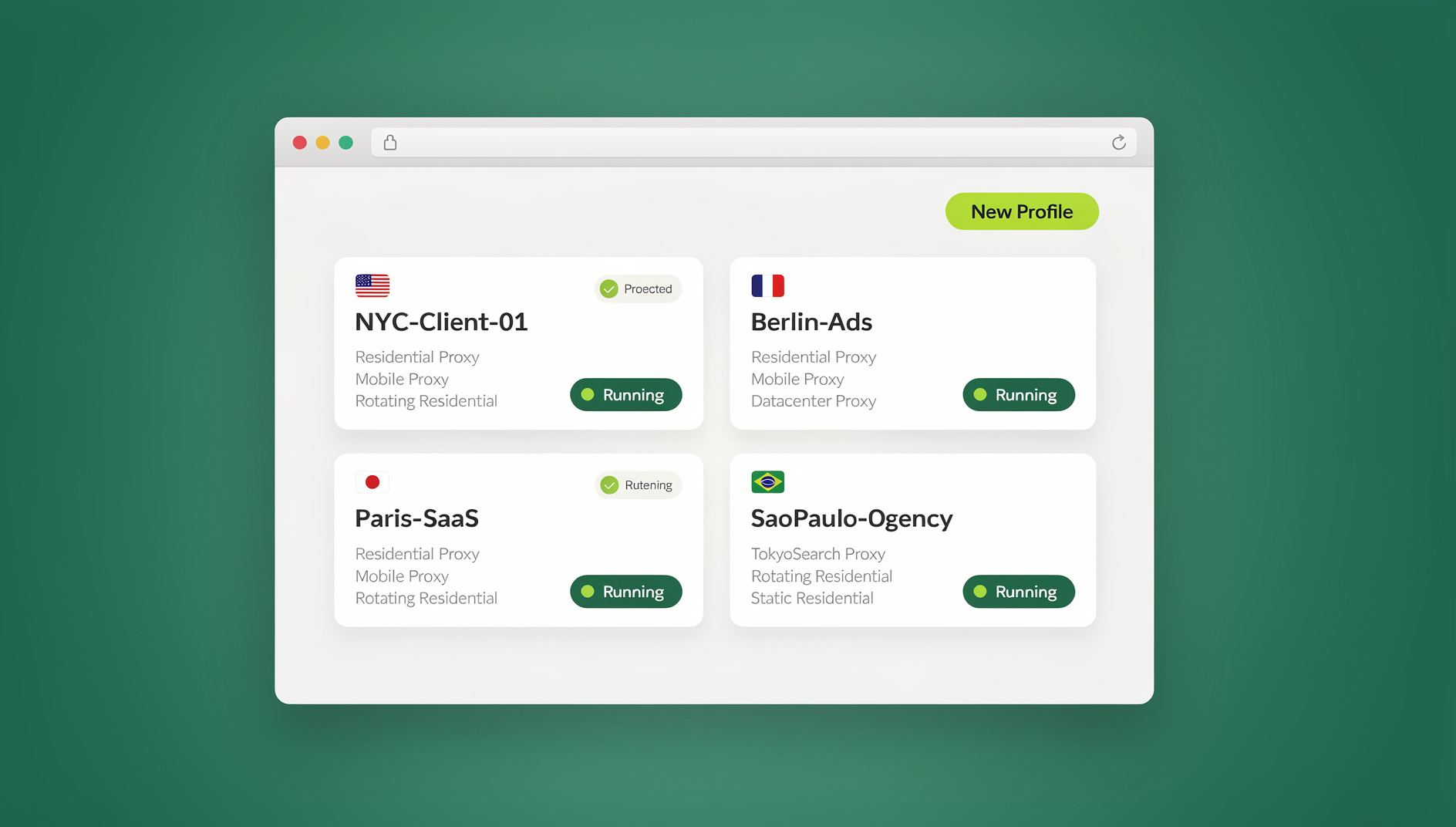
Sendwin Browser, the native desktop app for Windows, macOS, and Linux, takes a different but equally deliberate approach. Each profile is assigned its own proxy, and the app’s per-profile network handling keeps WebRTC’s ICE candidates aligned with that proxy’s IP rather than your machine’s real one — so a profile browsing through a US proxy reports a US IP through WebRTC too, not your home connection.
Either way, WebRTC keeps working normally. Video calls, voice chat, and file sharing don’t get switched off — they just report the IP address that profile is supposed to have, which also means the fixes above that disable WebRTC entirely, or that only patch part of the leak, aren’t needed. Anyone comparing options should also look at what else the browser does for browser fingerprinting protection beyond just the IP layer, since canvas, WebGL, and font fingerprints can re-identify a profile even after the IP problem is solved.
WebRTC Leaks and Multi-Account Management
For anyone juggling several accounts on the same platform — Meta Business Manager, Amazon Seller Central, eBay, or Google Ads — a WebRTC leak is one of the fastest ways to get everything linked and flagged at once. Even with separate profiles and separate proxies assigned to each one, a single leak reveals the same real IP behind all of them.
Standard proxy configurations only route HTTP/HTTPS traffic by default. WebRTC’s STUN/TURN requests, and the UDP traffic that carries them, frequently bypass a plain proxy setting entirely, which is exactly why “I already use a proxy per profile” isn’t the same as “I’m protected from WebRTC leaks.” Send.win closes that gap by keeping every profile’s traffic — proxy-routed or WebRTC — consistent with the identity that profile is supposed to present, whether that profile runs as a cloud session or inside the desktop app.
WebRTC Leaks in Automated Browsing and Testing
WebRTC leaks aren’t only a manual-browsing problem. Teams running automated workflows against Selenium, Puppeteer, or Playwright face the same exposure — an automated script controlling a browser instance can trigger the exact same ICE/STUN requests a human clicking around would. Send.win does not offer an automation interface: there is no API, SDK, headless mode or Selenium/Puppeteer/Playwright support on any plan, so scripted sessions need to be handled with other tooling while keeping the same per-profile proxy and network handling in place.
Advanced WebRTC Leak Scenarios
IPv6 Leaks
Plenty of VPNs and proxies only manage IPv4 traffic, leaving IPv6 wide open. WebRTC can surface your IPv6 address even when your IPv4 address is fully protected, which is one of several reasons it’s worth understanding the practical differences covered in this comparison of IPv6 vs IPv4 proxies before assuming a proxy has you fully covered.
Local Network Discovery
Even a “partial” leak that only exposes a local IP (192.168.x.x) can still identify a specific network, which matters more than people assume on shared office networks or distinctive home setups.
VPN Kill Switch Gaps
During a VPN reconnect, there can be a brief window where WebRTC exposes your real IP before the tunnel re-establishes. A cloud session that never routes through your local network in the first place has no equivalent gap to worry about.
Mobile Browser Leaks
Mobile browsers offer far less extension support than desktop, which makes the extension-based fix from earlier in this guide mostly unavailable on phones. This is one of the reasons cloud-based sessions and dedicated apps are worth researching if you compare them against the best antidetect browsers available for mobile-heavy workflows.
🏆 Send.win Verdict
WebRTC leaks undo VPNs, proxies, and “isolated” profiles more often than most people realize, and browser settings or extensions only ever patch part of the problem. Send.win closes the gap properly in either mode you choose: cloud browser sessions keep your real network out of the picture entirely, while the native Sendwin Browser desktop app aligns each profile’s WebRTC behavior with its assigned proxy — without disabling WebRTC or breaking video calls. Paid plans start at $19/mo (Pro) or $49/mo (Team), and your first card purchase is covered by a 7-day money-back guarantee, so you can run your own leak test before committing. You can also try the free cloud demo at https://send.win/demo-browser/ without signing up.
Try Send.win free today — set up a profile, run a WebRTC leak test, and confirm your real IP never shows.
Frequently Asked Questions
Can a website detect that I’m blocking WebRTC?
If WebRTC is fully disabled, yes — the absence of any ICE candidates is itself detectable and can look suspicious to some fingerprinting scripts. Masking the IP that WebRTC reports, rather than disabling WebRTC outright, avoids that tell.
Do all VPNs protect against WebRTC leaks?
No. Many VPNs leak WebRTC by default unless you specifically enable a leak-protection setting, and even VPNs that advertise protection can have gaps during reconnects. Always run a WebRTC leak test with your VPN active before trusting it.
Can a WebRTC leak reveal my physical location?
Yes. A leaked public IP address can typically be geolocated to city level or closer, which reveals your actual location regardless of which country your VPN’s exit server is in.
Does Tor Browser have WebRTC leaks?
No — Tor Browser disables WebRTC entirely by default, which is why video calling and similar features don’t work in it out of the box.
Will disabling WebRTC break Google Meet, Zoom, or other video calls?
Yes, in most cases. Many video calling and voice chat tools depend directly on WebRTC, so fully disabling it in browser settings breaks those features rather than just protecting your IP.
Is a browser extension enough to fix WebRTC leaks on its own?
It helps, but it’s a partial fix. Extensions can be fingerprinted themselves, don’t always cover every leak path (particularly IPv6), and their settings can be bypassed by more sophisticated scripts, which is why they’re best treated as a stopgap rather than a complete solution.
How do I permanently fix WebRTC leaks without losing functionality?
The most reliable path is a browsing environment where WebRTC’s IP handling is managed at the network layer for every profile automatically — either through cloud sessions that never touch your local network, or a desktop app that keeps WebRTC consistent with each profile’s assigned proxy, the way Send.win handles both.
Does WebRTC leak protection matter if I only use one browser profile?
Yes, if privacy or location-masking matters to you at all. Even a single-profile setup relying on a VPN or proxy can be fully undone by one WebRTC leak, since the leak exposes your real IP regardless of how many profiles you’re running.