How to Set Up Discord Multi Login
Discord multi login means running more than one Discord account at the same time on the same device, using separate browser profiles, containers, or isolated sessions instead of Discord’s own log-out-then-log-in flow. Community managers running several servers, gamers with separate identities for different titles, and marketers engaging multiple brand communities all hit the same wall: Discord’s apps only let you use one account at a time natively. This guide walks through every method, free to paid, from quickest to most secure.
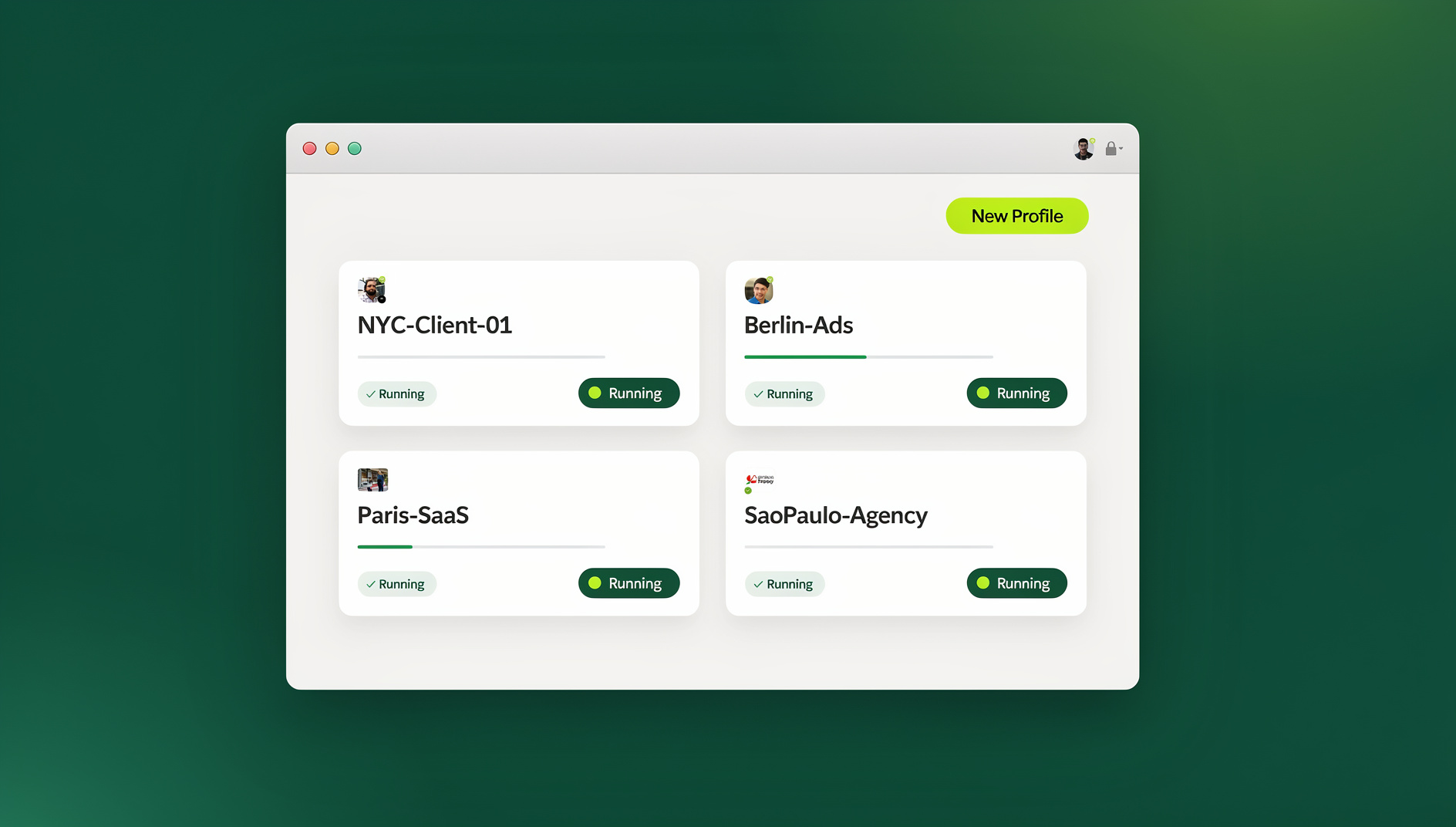
Discord’s desktop and mobile apps don’t support account switching the way Instagram or Twitter do — you log out, log back in, and repeat every time you switch. That gets tedious by the third account and unworkable by the tenth. In 2026 there are several reliable ways around this, ranging from simple browser tricks to enterprise-grade session isolation.
Method 1: Multiple Browser Profiles
Chrome Profile Method
The simplest free approach to Discord multi login uses Chrome’s built-in profile switcher:
- Click your profile avatar in Chrome’s top-right corner
- Click “Add” to create a new profile
- Open discord.com in the new profile and log into your second account
- Repeat for additional accounts
Each profile keeps its own cookies and login state, and you can run several profiles simultaneously in separate windows, each signed into a different Discord account.
Limitations: every Chrome profile shares the same browser fingerprint and IP address, so Discord could in theory link the accounts — it rarely enforces this for casual users, but the risk is real for anything more than personal convenience. It’s also resource-heavy, since each profile runs a full Chrome instance.
Firefox Container Method
Firefox Multi-Account Containers take a more elegant approach: each container tab keeps its own cookie jar, so you can open Discord in several container tabs within one Firefox window.
- Install the Multi-Account Containers extension in Firefox
- Create a container per account — “Discord-Personal,” “Discord-Work,” “Discord-Gaming”
- Open Discord in each container tab and log into the matching account
Limitations: same shared fingerprint and IP as Chrome profiles, though it’s more space-efficient since containers live inside a single browser window rather than several separate ones.
Method 2: Discord Web Plus Desktop App
A quick option for exactly two accounts:
- Log into your primary account in the Discord desktop app
- Log into your secondary account at discord.com in your browser
That’s two simultaneous sessions with zero setup. For a third, open an incognito window and log in there.
Limitations: scales to two or three accounts at most. The incognito session forgets its login every time you restart the browser, and there’s no fingerprint isolation at all.
Method 3: Cloud Browser Sessions
For anyone who needs real isolation — community managers, marketers, or accounts that genuinely shouldn’t be linkable — a cloud browser is the most secure route to Discord multi login.
How It Works
- Start a session for each Discord account
- Each session runs in its own isolated environment, with its own IP, cookies, and fingerprint
- Log into Discord inside each session
- Switch accounts by switching sessions, not by logging in and out
- Sessions stay signed in between uses — no repeated logins
The advantage is that each account appears to come from a genuinely different device and location, so there’s no realistic way for cookies, fingerprints, or IP addresses to tie them together. Sessions can also be shared with team members without ever handing over a password. For anyone who’d rather run this locally instead of in the cloud, Sendwin Browser — Send.win’s native desktop app — applies the same per-profile isolation without needing a browser tab open in the cloud at all.
Method 4: Virtual Machines
Running Discord inside a VM gives strong isolation at a heavy resource cost:
- Spin up a VM per account using VirtualBox or VMware
- Install a desktop environment and Discord in each one
- Each VM runs entirely independently, with its own OS, browser, and network stack
Pros: maximum isolation — each VM behaves like a genuinely separate computer.
Cons: heavy on resources. Each VM needs 2-4GB of RAM plus real disk space, which is overkill for Discord alone unless you already run VMs for other reasons.
Method Comparison
| Method | Max Accounts | Fingerprint Isolation | IP Isolation | Resource Use | Cost |
|---|---|---|---|---|---|
| Chrome Profiles | 10-15 | No | No | High | Free |
| Firefox Containers | 15-20 | No | No | Medium | Free |
| Web + Desktop App | 2-3 | No | No | Low | Free |
| Cloud Browser Sessions | Effectively unlimited | Yes | Yes, unique per session | Low locally (runs in the cloud) | Paid |
| Virtual Machines | 3-5 | Yes | Needs its own VPN/proxy | Very high | Free plus hardware |
Discord’s Rules on Multiple Accounts
Discord’s Terms of Service don’t ban having multiple accounts outright. They do prohibit:
- Ban evasion — creating a new account to get around a server or platform ban
- Self-botting — running automated scripts on a regular user account
- Spam and abuse — coordinated spam, brigading, or harassment across accounts
- Underage account creation — accounts for users below the age requirement
Using multiple accounts for legitimate reasons — separate personal and work identities, moderating different community servers, testing a bot in development — is generally fine, as long as each account represents genuine, non-abusive use.
Who Actually Needs Discord Multi Login
Community Managers
Managers moderating several Discord servers for different clients need separate accounts per community to keep professional boundaries intact and avoid an accidental cross-post landing in the wrong server.
Bot Developers
Bot developers need test accounts to check functionality from a user’s perspective — permissions, reactions, and interactions — without depending on someone else’s account to run the tests.
Content Creators and Streamers
Streamers often keep a public-facing account for a branded fan server separate from a personal account for friends, which takes a proper multi-login browser setup to run cleanly.
Gaming Communities
Players active in different gaming scenes may want separate identities per game — a competitive Valorant account and a casual Minecraft community account serve very different social circles.
Marketing and Brand Management
Brands engaging Discord communities as part of a marketing push need dedicated brand accounts kept apart from personal ones, which is exactly what session isolation is built for.
Best Practices for Discord Multi Login
Keep Accounts Separate
Don’t join the same servers with multiple accounts unless you have a real reason to. Discord’s spam detection flags accounts that keep showing up in the same servers interacting with the same content.
Use Distinct Usernames and Avatars
Give each account its own identity. Similar usernames or a shared avatar photo make it trivial for both Discord’s systems and other users to connect your accounts.
Don’t Automate User Accounts
Discord’s API terms strictly prohibit automating regular user accounts. If you need automation, use the official Bot API with a real bot account — automating a user account will get it terminated.
Verify Each Account Independently
Use separate phone numbers and email addresses per account. Sharing verification methods across accounts creates a hard link that’s very difficult to undo later.
Mind Your IP Address
Discord doesn’t aggressively enforce IP-based linking for casual users, but running many accounts — especially new ones — from the same IP can still trigger rate limits or verification challenges. A dedicated IP per session removes that concern entirely.
Troubleshooting Common Issues
Phone Verification Loops
Discord may request phone verification when it notices account switching or unusual login patterns. Use a unique number per account; VoIP numbers sometimes work but are increasingly rejected by Discord’s verification system.
Rate Limiting
Switching accounts rapidly or performing too many actions across accounts at once can trigger rate limits. Space activity out and avoid mass-joining servers or firing off rapid messages across every account at once.
Session Conflicts
Using the same browser without real session isolation causes accounts to conflict — logging into one automatically logs you out of another in the same cookie space. Profiles, containers, or cloud sessions solve this completely.
Notifications Getting Mixed Up
Running multiple accounts in one desktop app, even briefly, tends to scramble which notifications belong to which account. Keeping each account inside its own dedicated browser profile, container, or session — rather than logging in and out of one app window — avoids this entirely, since each environment only ever knows about its own account.
Choosing the Right Method for Your Needs
The right setup depends less on how many Discord accounts you run and more on how much it would cost you if two of them got linked. Match the method to the stakes:
- Two accounts, low stakes — the desktop app plus discord.com combo (Method 2) is genuinely fine. No isolation, but also nothing to lose if Discord notices.
- Several accounts, casual separation — Chrome profiles or Firefox Containers (Method 1) cover most personal use cases where you just want things organized, not hidden.
- Client work, brand accounts, or anything that shouldn’t be linkable — cloud browser sessions (Method 3) are the only option here that actually isolates fingerprint and IP, not just cookies.
- Already running VMs for other reasons — Method 4 adds Discord isolation for free, but it’s rarely worth setting up a virtual machine for Discord alone.
Community managers and agencies tend to land on cloud browser sessions once they’re handling more than two or three client-owned accounts, simply because the cost of one account getting flagged — lost server access, a client relationship strained by a preventable mistake — outweighs a monthly subscription fairly quickly.
🏆 Send.win Verdict
Chrome profiles and Firefox Containers are free and fine for two or three low-stakes Discord accounts. Past that, or the moment fingerprint linking actually matters, Send.win’s cloud browser sessions give each account its own IP, fingerprint, and cookie jar — with sessions you can hand to a teammate without ever sharing a password. Prefer everything local? Sendwin Browser applies the same isolation on your own desktop.
Try the free Send.win cloud demo — no signup required.
Frequently Asked Questions
Will Discord ban me for having multiple accounts?
Not for the multiple accounts alone. Bans happen when accounts are used for ban evasion, spam, or other policy violations. Legitimate multi-account use for separate personal and professional identities is generally safe.
What’s the easiest free method for Discord multi login?
The desktop app for one account and discord.com in a browser tab for a second. It’s instant, free, and needs zero setup. For a third account, open an incognito window.
Can I use the same email for multiple Discord accounts?
No, each account needs its own unique email address. Gmail’s “+” aliases ([email protected]) sometimes work at registration, but can be detected as linked by savvier verification systems.
How many Discord accounts can I realistically manage?
With cloud browser sessions, there’s no meaningful limit — each session keeps its own logged-in state independent of the others. With free methods like Chrome profiles or Firefox Containers, 5-10 accounts is a reasonable ceiling before resource usage gets unwieldy.
Is Discord multi login the same as using a Discord token?
No, and this distinction matters. Token-based login programmatically authenticates using account tokens, which violates Discord’s ToS and can get an account permanently terminated. Multi login just means logging into multiple accounts through normal browser sessions — nothing about that resembles token abuse.
Do I need a proxy for Discord multi login?
Not for casual use across two or three accounts. Once you’re running enough accounts that IP-based linking becomes a real risk, each session should have its own residential proxy so accounts don’t all originate from the same address.
Can I run Discord multi login on mobile?
The Discord mobile app doesn’t support switching accounts the way desktop browser methods do. Cloud browser sessions work around this since the session runs remotely — you can reach it from a phone’s browser without installing anything locally.
What happens if Discord links two of my accounts?
Depending on why the accounts exist, Discord may take no action, flag both for review, or in ban-evasion cases suspend the newer account. Genuine, non-abusive multi-account use rarely triggers enforcement even when Discord notices the link.