A cloud browser is a web browser that runs entirely on a remote server instead of your own device, streaming the rendered page back to you like a video call while your clicks and keystrokes travel the other way. Because the browsing engine, IP address, and device fingerprint all belong to the cloud server, your local machine is never directly exposed to the sites you visit. Send.win offers cloud browser sessions as one of its two ways to browse – the other being a native desktop app – so you can pick isolation-on-demand or local-first control depending on the task.
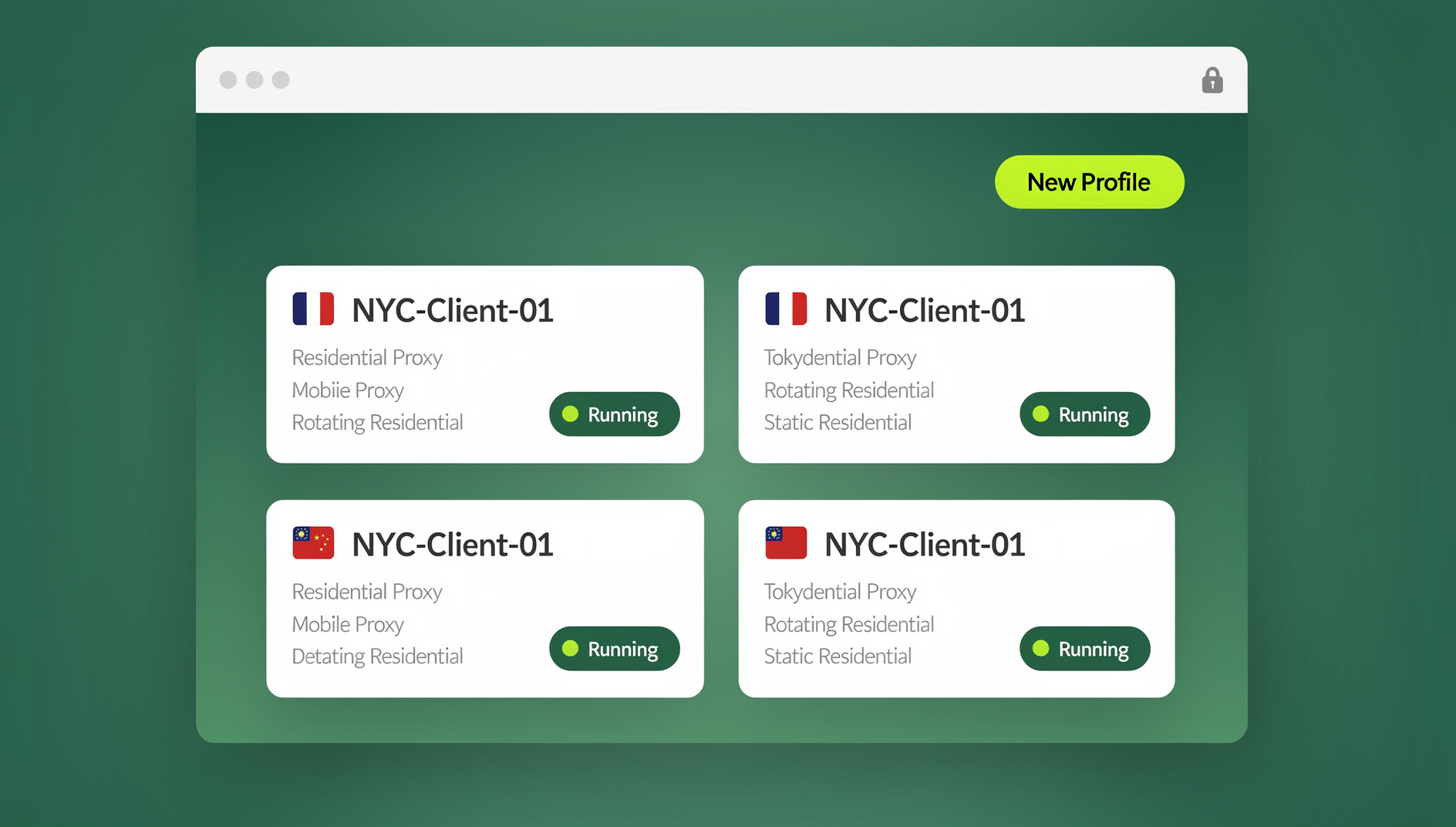
What Is a Cloud Browser, Exactly?
A cloud browser separates the two things a normal browser does in one place – rendering web pages and displaying them to you – and splits them across a network connection. The rendering, JavaScript execution, cookie storage, and network requests all happen on a remote server. Your device just receives a video stream of the result and sends back your mouse movements, clicks, and keystrokes. To every website you visit, the browser looks like it belongs to a data center, not your laptop.
This matters because most of what makes a browser identifiable – screen resolution, installed fonts, GPU rendering quirks, IP address, timezone – comes from the machine actually running the browser. When that machine is a cloud server rather than your laptop, none of your personal hardware details leak into the session. That is the foundation of what people now call remote browser isolation, and it is the reason cloud browsers have become popular with anyone managing multiple accounts, handling sensitive research, or simply wanting a browser that does not carry their real identity everywhere.
How Does a Cloud Browser Work?
The mechanics are simpler than they sound. Three things happen every time you open a cloud browser session:
1. A Fresh Browser Instance Launches in the Cloud
When you start a session, a container spins up on a remote server with its own isolated browser instance. You can set a fingerprint profile, attach a proxy, and configure the session before you ever load a page. Nothing installs on your device.
2. Your Inputs Stream to the Server, the Page Streams Back
Every click and keystroke travels to the cloud instance. The remote browser processes the input, renders the page, and streams the result back as compressed video. Modern implementations keep this round trip in the 30-100ms range, which most people cannot perceive during normal browsing.
3. The Session Persists Independently of Your Device
Cookies, login state, and browsing history live on the server, not your laptop. Close the tab, lose your Wi-Fi, or switch to a different computer, and the session is still there when you reconnect – because it never depended on your device in the first place.
Cloud Browser vs. Traditional Browser
| Feature | Traditional Browser (Chrome, Firefox) | Cloud Browser |
|---|---|---|
| Where it runs | Locally on your device | Remote server, streamed to you |
| Fingerprint exposure | Your real hardware and OS details | The server’s fingerprint, isolated from you |
| Device requirement | Needs local CPU/RAM to render pages | Any device with a screen and network connection |
| Malware exposure | A malicious download can reach your OS | Malicious content stays inside the remote container |
| Multi-account safety | Profiles can still share underlying fingerprint signals | Each session is isolated with its own fingerprint and cookies |
| Setup time | Install, configure, update manually | Open a session and start browsing immediately |
Key Benefits of Using a Cloud Browser
Privacy: Your Real Device Never Touches the Site
With a traditional browser, every website you visit can see clues about your actual machine – screen size, installed fonts, GPU signature, and your real IP address unless you are running a VPN. A cloud browser replaces all of that with the remote server’s identity. WebRTC leaks, which normally expose your real IP even behind a VPN, are a non-issue too, because your device never makes the WebRTC connection in the first place – the cloud instance does.
Access From Any Device, Anywhere
Because the browser lives on a server, you can open the same session from a laptop, a tablet, or a low-powered Chromebook and get an identical experience. Start a task at your desk, pick it up from your phone on the train, and finish it from a different laptop that evening – the session itself never moved.
Stronger Isolation From Malware and Phishing
Malicious scripts, drive-by downloads, and booby-trapped links execute inside the remote container, not on your hard drive. If a site tries to run something harmful, it has nothing to attack – your operating system, files, and saved credentials are on a completely different machine.
No Local Resources Burned
Rendering-heavy pages, dozens of open tabs, and JavaScript-bloated sites are the remote server’s problem, not your device’s. Old laptops and tablets run cloud browser sessions just as smoothly as a high-end desktop, since the actual computation never touches local hardware.
Clean Separation Between Multiple Accounts
Every session can carry its own fingerprint, cookie jar, and proxy, so logging into five different marketplace or social accounts does not risk linking them together through a shared browser fingerprint. This is the single biggest reason agencies and multi-account operators adopt cloud browsing over a regular browser with multiple profiles.
Types of Cloud Browser Solutions
Not every cloud browser is built for the same job. Broadly, the market splits into four categories:
1. Enterprise Remote Browser Isolation (RBI)
Purpose: Corporate security policy enforcement. Focus: Blocking malware and data exfiltration at the network edge. Typical buyer: Large enterprises and government agencies with dedicated security teams and six-figure budgets.
2. Cross-Browser Testing Clouds
Purpose: Running a site against dozens of browser/OS combinations. Focus: QA and compatibility testing, not privacy. Typical buyer: Web development and QA teams.
3. Privacy and Multi-Account Cloud Browsers
Purpose: Fingerprint isolation and safe multi-account management. Focus: Keeping separate identities separate. Typical buyer: Marketers, e-commerce sellers, agencies, and privacy-conscious individuals. This is the category Send.win competes in.
4. Disposable, One-Time-Use Browsers
Purpose: A throwaway session for a single risky link or a public computer. Focus: No history, no persistence, session destroyed on close. Typical buyer: Casual users who need a one-off sandbox.
If you are comparing dedicated tools in this space, it is worth reading a broader best cloud browser comparison before committing to one, since pricing, profile limits, and proxy support vary a lot between vendors.
How Send.win Approaches Cloud Browsing
Send.win does not force you into a single way of working. It gives you two distinct modes, and which one you reach for depends on what you are doing that day.
The Sendwin Browser: A Native Desktop App
The first mode is Sendwin Browser, a downloadable native application for Windows, macOS, and Linux. It is local-first – your profiles and sessions live on your own machine – with encrypted cloud sync so the same profiles are available if you install the app on a second computer. This is the option most people use for day-to-day account management, since it behaves like a normal installed browser but with isolated, fingerprint-separated profiles built in.
Cloud Browser Sessions: Zero Local Install
The second mode is what this article is really about: cloud browser sessions that run entirely on Send.win’s infrastructure, with nothing installed on your machine at all. You open a session in your existing browser tab, and the browsing itself happens remotely, streamed back to you. This is metered by cloud browsing time rather than by device count, which makes it a natural fit for occasional use, quick account checks from a device you do not control, or situations where a colleague needs temporary access without installing anything.
Choosing between the two is less about which is “better” and more about the job at hand. For teams debating whether to standardize on cloud sessions or stick with a locally installed setup across the team, this comparison of cloud browser vs extensions for multi-login management walks through the trade-offs in more depth.
Cloud browser sessions
Send.win does not offer an automation interface: there is no API, SDK, headless mode or Selenium, Puppeteer or Playwright support on any plan. Instead, Send.win is a browser profile manager for professionals and teams, giving each profile its own cookies, storage, sessions, fingerprint settings and proxy.
Common Use Cases for Cloud Browsers
Social Media and Agency Account Management
Agencies managing accounts for multiple clients need each client’s social profiles kept completely separate – different fingerprints, different proxies where relevant, and no risk of one account’s activity bleeding into another. Cloud sessions and isolated profiles both solve this without needing a separate physical device per client. Larger teams handling dozens of client accounts at once often lean on a multi-session cloud browser for agencies to keep growth manageable as the account count climbs.
E-Commerce and Marketplace Operations
Sellers running multiple storefronts on Amazon, eBay, or Etsy rely on fingerprint isolation to avoid the account-linking detection that triggers suspensions. Each store gets its own session, its own proxy if needed, and no shared browser fingerprint to tie them together.
Affiliate and Ad Campaign Management
Running parallel ad campaigns or affiliate offers across accounts benefits from the same isolation principle – testing creative or landing pages under different fingerprints without one flagged account affecting the rest.
Privacy-Conscious Browsing
Some people simply do not want their daily browsing tied to a persistent, trackable fingerprint. A cloud session gives them a fresh, isolated identity whenever they want one.
Remote and Distributed Work
Because the session lives on the server, a distributed team can start work on one machine and continue on another without carrying login state around on a USB drive or re-authenticating everywhere.
QA and Cross-Device Testing
Developers and QA testers use disposable cloud sessions to check how a site behaves for a brand-new visitor, without cookies or cached state from previous test runs contaminating results.
Cloud Browser Security Considerations
Data Privacy
Before trusting any cloud browser vendor, check for end-to-end encryption in transit, a clear no-logging policy on browsing content, and compliance certifications relevant to your industry. Ask specifically what the vendor stores and for how long.
Authentication
Look for two-factor authentication on the account that controls your sessions, since a compromised login to your cloud browser provider is effectively a compromised login to every session it protects.
Network Security
The connection between your device and the cloud session should run over modern TLS, with the provider handling rate limiting and abuse protection on their end so a single bad actor cannot degrade service for everyone else.
Send.win Pricing for Cloud Browsing
Send.win does not offer a free trial. Paid plans start at Pro for $19/mo or $83.88/yr, and the first card purchase is covered by a 7-day money-back guarantee. If you want to try it first, there is a free cloud demo at https://send.win/demo-browser/.
| Plan | Price | Profiles | Proxy Bandwidth | Automation API | Seats |
|---|---|---|---|---|---|
| Pro | $19/mo ($6.99/mo billed annually — 63% off) | 150 | 5GB | Included | 1 |
| Team | $49/mo ($20.99/mo billed annually — 57% off) | 500 | 20GB | Included | 16 |
Note that Send.win has no automation interface on any plan – there is no API, SDK, headless mode or Selenium, Puppeteer or Playwright support. The difference between the two tiers is mainly profile count, bandwidth, and how many seats your team gets.
Getting Started With Send.win
- Try the free cloud demo at send.win – a 3-minute preview without signup, or 10 minutes a day with a free account.
- Choose your mode: install the Sendwin Browser desktop app for day-to-day local-first use, or launch a cloud session directly for zero-install, on-the-go access.
- Create a profile with its own fingerprint and, if needed, an attached proxy.
- Add teammates if you are on the Team plan, assigning seats as needed.
- Browse – use the session manually in an isolated profile with its own cookies, storage, sessions, fingerprint settings and proxy.
🏆 Send.win Verdict
Cloud browsers solve a real problem: isolating your identity, your device, and your accounts from the sites you visit. Send.win covers both ends of that spectrum – a native Sendwin Browser desktop app for local-first daily use with encrypted cloud sync, and on-demand cloud sessions billed by browsing time when you need zero-install access from anywhere. With isolated profiles that each keep their own cookies, storage, sessions, fingerprint settings and proxy, it is a practical fit for anyone managing multiple accounts, testing at scale, or simply wanting their real device kept out of the browsing loop.
Try Send.win today – paid plans start at $19/mo, with the first card purchase covered by a 7-day money-back guarantee.
Frequently Asked Questions
What is a cloud browser and how is it different from a regular browser?
A cloud browser runs the actual browsing engine on a remote server and streams the result to your device, rather than rendering pages locally. This means the site you visit sees the server’s fingerprint and IP, not yours, and your device just displays a video-like stream of the session.
Is a cloud browser safe to use for sensitive accounts?
Yes, provided the vendor uses end-to-end encryption and does not log your browsing content. The isolation itself is a security benefit, since malware or phishing attempts execute in the remote container rather than on your actual device.
Do I need to install anything to use a cloud browser?
No. Cloud browser sessions run entirely on the provider’s servers and open in your existing browser tab. Send.win also offers a separate native desktop app, Sendwin Browser, for people who prefer a locally installed option with encrypted cloud sync, but installing it is optional, not required for cloud sessions.
Can I download files while using a cloud browser?
Yes. Files download to the remote session first, and you then transfer them to your device, which gives you a chance to scan anything suspicious before it ever reaches your local machine.
How is cloud browsing time measured and billed?
Send.win meters cloud sessions by cloud browsing time rather than by the number of devices or installs, so usage scales with how much you actually browse in the cloud rather than how many machines you use.
Can I automate tasks with Send.win?
No. Send.win has no automation interface: there is no API, SDK, headless mode or Selenium, Puppeteer or Playwright support on any plan.
Should I use the Sendwin Browser desktop app or a cloud session?
Use the desktop app for regular day-to-day account management on your own machine, since it is local-first with encrypted cloud sync for backup and multi-device access. Reach for a cloud session when you need zero-install access from a device you do not control, or when a teammate needs temporary access without setting anything up.
How much does Send.win cost?
Send.win does not offer a free trial. Pro is $19/month or $83.88/year, and Team is $49/month or $251.88/year. The first card purchase is covered by a 7-day money-back guarantee, and the only free option is the cloud demo at https://send.win/demo-browser/. Send.win has no automation interface on any plan.