Best cloud browser 2026 is the search every remote worker, marketer, and multi-account operator runs the moment they get tired of juggling VPN toggles, incognito windows, and a local browser that quietly links every tab back to the same fingerprint. A true cloud browser moves the entire browsing session off your device and onto remote infrastructure — you get a live, interactive stream of a real browser, isolated from your hardware, your network, and every other session you run. No desktop install, no local residue, and no single fingerprint tying your accounts together.
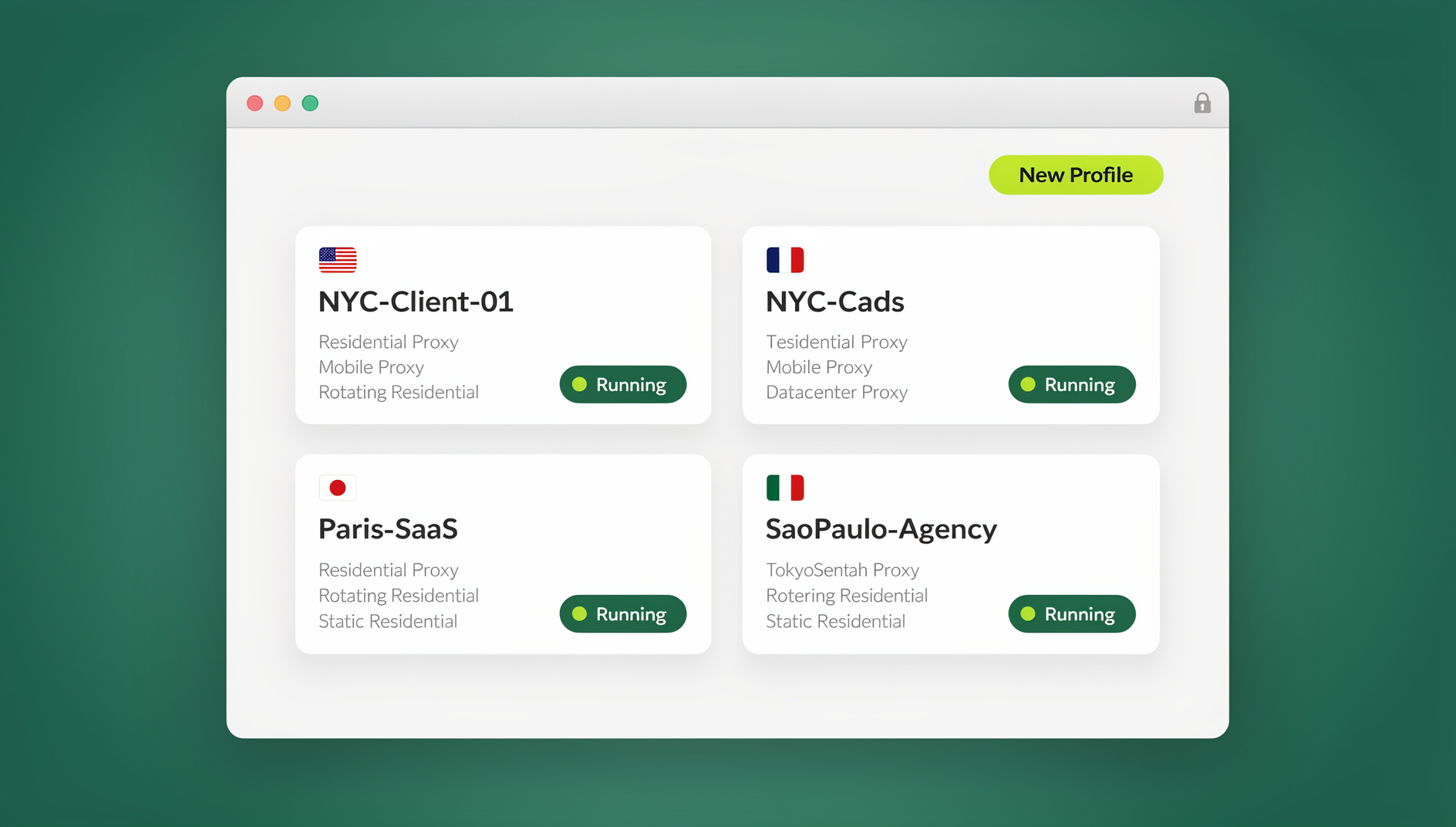
This guide breaks down what a cloud browser actually is, how it differs from a VPN, a local browser, and a native browser profile manager desktop app, the criteria that separate a genuinely useful cloud browser from a marketing buzzword, and why Send.win is the pick to beat in 2026 for anyone who wants to browse the web privately and productively — from any device, with nothing to install.
What Is a Cloud Browser, and Why Does It Matter in 2026?
A cloud browser is a browsing session that runs entirely on remote servers instead of your laptop or phone. Pages render, scripts execute, and cookies get stored in a sandboxed environment in the cloud; your device only receives a video-like stream of the interface and sends back your clicks and keystrokes. Nothing from the session — malware, tracking scripts, cache files, or fingerprint data — ever touches your local machine.
This matters more in 2026 than it did even two years ago, for a few concrete reasons:
- Fingerprinting has gotten sharper. Canvas, WebGL, audio, and font-enumeration techniques can re-identify a “private” session in seconds, so clearing cookies alone no longer breaks the link between accounts.
- Remote and hybrid work normalized “browsing from anywhere.” Teams need a way to open the same secure session from a work laptop, a home desktop, or a tablet at the airport, without re-installing anything or re-configuring a profile each time.
- VPNs stopped being enough on their own. A VPN reroutes your IP, but it does nothing about the dozens of other signals a site uses to fingerprint a browser — and it doesn’t stop malicious scripts from running directly on your device.
- Platforms are stricter about linked accounts. Marketers, sellers, and agencies running multiple client or store accounts get flagged the moment two “different” accounts share a fingerprint, cookie store, or IP.
A cloud browser answers all four at once: execution happens off-device, each session gets its own isolated identity, and because the whole thing is delivered as a stream, there’s genuinely nothing to install to get started — that’s the specific capability worth understanding before you pick a tool.
Cloud Browser vs. VPN vs. Local Browser vs. Desktop Anti-Detect App
These four approaches get conflated constantly, but they solve different problems. Here’s how they actually compare:
| Approach | Where execution happens | Stops fingerprinting? | Install required? | Best for |
|---|---|---|---|---|
| Local browser (Chrome/Firefox/Edge) | Your device | No | Yes, already installed | Everyday casual browsing, no multi-account needs |
| VPN | Your device (traffic tunneled) | No — IP only | Yes, a client app | Masking location, not identity separation |
| Desktop browser profile manager (e.g., Send.win Desktop) | Your device, inside an isolated profile | Yes, per profile | Yes — native Windows/macOS/Linux install | Power users who run profiles locally and want full control over hardware resources |
| Cloud browser session (e.g., Send.win Cloud) | Remote server, streamed to any device | Yes, per profile | No — runs in a browser tab | Access from anywhere, shared/team devices, no-install requirements |
Notice that the last two rows both deliver fingerprint isolation — they’re just two different delivery modes of the same underlying idea. A native Desktop app installs locally and runs profiles on your own machine’s resources; a cloud browser session runs the same isolated profile entirely on remote infrastructure and streams it to you, with zero local footprint. Send.win offers both, and which one you reach for depends on whether you want the profile living on your hardware or entirely off it.
10 Criteria for Choosing the Best Cloud Browser in 2026
Not every product calling itself a “cloud browser” delivers the same level of isolation or usability. Evaluate against these criteria before committing:
1. True Session Isolation
Each profile needs its own cookies, local storage, cache, and canvas/WebGL fingerprint — with zero bleed-through between sessions.
2. Unique Fingerprints Per Profile
The browser should generate a distinct, internally consistent fingerprint (user agent, screen size, fonts, WebGL renderer, timezone) for every profile, not just rotate a single value.
3. Built-In Proxy Support
Look for native residential, mobile, or datacenter proxy integration per profile, rather than requiring a separate VPN client running alongside the browser.
4. Genuine Zero-Install Access
If “cloud” browsing still requires downloading a client, it’s not solving the access-from-anywhere problem — it should run in any modern browser tab.
5. Team Sharing Without Credential Exposure
Sharing a session or profile with a teammate should never require handing over the underlying password.
6. Disposable, On-Demand Sessions
The ability to spin up a fresh, temporary session for a one-off task and destroy it afterward limits exposure for higher-risk browsing.
7. Real Browser Fidelity
The engine should be a genuine Chromium (or equivalent) browser, not an emulated or headless approximation that renders differently from what a real visitor would see.
8. Transparent, Metered Usage
Cloud browsing time is a real infrastructure cost — a trustworthy provider states clearly how much monthly cloud browsing time, storage, and bandwidth each plan includes, instead of hiding behind “unlimited.”
9. Automation-Friendly for Technical Teams
10. Reasonable, Predictable Pricing
A free trial with no credit card required lets you validate fingerprint quality and session stability before you commit a card number.
Why Send.win Is the Best Cloud Browser Choice in 2026
Send.win was built around a simple premise: browsing identity should be as easy to compartmentalize as a folder on your desktop. It combines browser isolation, unique per-profile fingerprints, built-in proxies, and team sharing into one product — available either as a native Desktop app or as a fully cloud-hosted session, with no local install at all.
Cloud Browser Sessions — Zero Install, Metered by the Month
This is the feature that answers the “best cloud browser” search directly. Instead of downloading anything, you open a profile in Send.win’s cloud and get a live, interactive browser streamed straight into your tab — from a work laptop, a shared office machine, or a tablet on the road. Cloud browsing time is metered monthly, the same way proxy bandwidth is, and it’s bundled into paid plans alongside cloud sync, profile sharing, and team seats. It’s a genuinely separate, billed mode from the Desktop app — not a marketing label slapped on the same local install — and it’s the correct answer whenever the requirement is “no local footprint” or “access this profile from any device.”
Unique Fingerprints Per Profile
Every profile in Send.win gets its own internally consistent fingerprint — canvas, WebGL, fonts, screen resolution, timezone, and user agent are generated together so they hold up under modern detection scripts, rather than being randomized independently in a way that looks synthetic.
Browser Isolation on Every Session
Because each session runs sandboxed — whether locally via the Desktop app or remotely via a cloud session — scripts, cookies, and cache from one profile can never leak into another. That’s the core of running any site securely with no local footprint, even when the site in question is untrusted or unfamiliar.
Built-In Proxies, No Separate VPN Needed
Attach a residential, mobile, or datacenter proxy directly to a profile instead of running a VPN client alongside your browser. This keeps IP, timezone, and language consistent per session rather than layering a mismatched VPN exit node on top of an otherwise unrelated fingerprint.
Team Sharing Without Password Sharing
Send.win lets you hand a teammate access to a specific session or profile without ever revealing the underlying login credentials — useful for agencies managing client accounts or distributed teams that need to hand off work without a spreadsheet of shared passwords.
Team Collaboration and Profile Sharing
How to Start Your First Cloud Browser Session in Send.win
Getting from signup to a live, isolated session in the cloud takes only a few minutes:
- Create your account. Sign up for a paid plan — Pro at $19/mo or $83.88/yr, or Team at $49/mo or $251.88/yr — at send.win. Your first card purchase is covered by a 7-day money-back guarantee.
- Create a new profile. Follow the same steps covered in this walkthrough on creating sessions in Send.win’s cloud browser — name the profile, and let Send.win generate a unique fingerprint automatically.
- Attach a proxy (optional but recommended). If you need a specific geographic origin or IP consistency, follow the steps for attaching a proxy to any session before you launch it.
- Choose “Run in Cloud.” Instead of launching the profile locally through the Desktop app, select the cloud run option — this streams the session to your current browser tab with nothing to install.
- Work the session as normal. Log in, browse, and complete your task exactly as you would locally; the isolation and fingerprint consistency happen automatically behind the stream.
- Share with a teammate if needed. Use the steps for sharing sessions with your team to hand off access without exposing the password.
- Close or archive when done. End the session to stop consuming cloud browsing time, or leave it saved for next time — your cookies, cache, and fingerprint persist exactly as you left them.
Who Actually Uses Send.win’s Cloud Browser?
Marketers and Advertisers
Running multiple ad accounts from a single, consistent fingerprint per account keeps campaigns from getting cross-linked or flagged, and cloud sessions mean a media buyer can check in from any device without re-configuring a profile.
E-commerce Sellers
Multi-store operators managing several marketplace accounts get identity separation per store, reducing the ban risk that comes from shared browser fingerprints across “unrelated” storefronts.
SEO Professionals
Auditing rankings from different regions, or checking how a page renders to a searcher elsewhere, is straightforward when a proxy and a fresh fingerprint are attached per session rather than juggling separate VPN connections.
Developers and QA Teams
Remote and Distributed Teams
A cloud session opened from any device means nobody needs local software rights or a specific machine to pick up shared client work — sessions travel with the team, not with a laptop.
Everyday Privacy-Conscious Users
Journalists, researchers, and anyone who wants to keep personal and professional browsing cleanly separated get a lightweight way to compartmentalize identity without learning a security tool built for enterprises.
Send.win Pricing in 2026
Send.win’s pricing scales from the Pro plan through to team-level collaboration:
| Plan | Price | Includes |
|---|---|---|
| Free Trial | 30 days, no credit card | Full access to test profiles, fingerprinting, and cloud sessions before you commit |
| Pro | $19/mo ($6.99/mo billed annually — 63% off) | 150 profiles, 5GB proxy bandwidth, cloud sync, cloud browsing time |
| Team | $49/mo ($251.88/yr) | 500 profiles, 20GB proxy bandwidth, 16 seats, profile sharing |
Add-ons are available for teams that outgrow their tier: extra proxy bandwidth runs $6/GB, and additional profiles beyond the plan limit are $0.05 each.
Best Practices for Secure Cloud Browsing
- Match your proxy to your use case. Use residential IPs for anything account-sensitive, and reserve datacenter proxies for lower-risk, high-volume tasks.
- Give each identity its own profile. Don’t reuse one profile across two “different” accounts — that defeats the purpose of fingerprint isolation.
- Rotate disposable sessions for one-off tasks. Spin up a fresh session for anything you don’t need to keep, rather than letting risk accumulate on a long-lived profile.
- Share sessions, not passwords. When handing off work to a teammate or client, share the profile access directly instead of typing credentials into a shared document.
- Track your cloud browsing time. Since it’s metered like bandwidth, close sessions you’re not actively using so a heavy month doesn’t push you into add-on charges unexpectedly.
The Broader Landscape: Where Send.win Fits Among Cloud Browser Options
The cloud browser category in 2026 spans a range of tools — heavyweight enterprise remote-browser-isolation platforms built purely for threat containment, lightweight consumer “private browser” tabs with little real isolation, and multi-account tools that focus on identity separation without much collaboration tooling. Send.win sits in the middle of that spectrum: per-profile fingerprint isolation and built-in proxies, paired with team sharing and a genuine zero-install cloud mode — all without the deployment overhead of a full RBI platform.
🏆 Send.win Verdict
If “best cloud browser” means genuinely zero-install, per-profile fingerprint isolation you can access from any device, Send.win is built for exactly that brief — and it backs it up with built-in proxies and password-free team sharing.
Try Send.win today — start with the Pro plan at $19/mo or $83.88/yr, covered by a 7-day money-back guarantee on your first card purchase, and launch your first cloud browser session in minutes.
Frequently Asked Questions
What exactly is a cloud browser, and how is it different from a regular browser?
A cloud browser runs entirely on remote servers and streams a live, interactive view to your device, rather than executing pages and scripts on your local machine. A regular browser runs everything locally, which is why fingerprinting and malware can affect your device directly.
Do I need to install anything to use Send.win’s cloud browser?
No. Cloud browser sessions run in your existing browser tab with nothing to download. Send.win also offers a separate native Desktop app for Windows, macOS, and Linux if you’d rather run profiles locally — the two are distinct modes, and you can choose whichever fits a given task.
Is a cloud browser the same as a VPN?
No. A VPN only masks your IP address while your browser still runs locally, leaving it exposed to fingerprinting and browser-based exploits. A cloud browser moves execution off your device entirely and adds fingerprint isolation on top of any proxy or IP masking you configure per session.
How is “cloud browsing time” measured and billed?
Cloud browsing time is metered monthly, similar to how proxy bandwidth is measured — it’s included in Send.win’s Pro and Team plans alongside cloud sync, profile sharing, and team seats, and usage is tracked per account.
Can I automate a cloud browser session instead of clicking through it manually?
No. Send.win has no automation interface — no API, SDK, headless mode or Selenium/Puppeteer/Playwright support on any plan.
Is Send.win’s cloud browser safe for managing multiple accounts on the same platform?
Yes — each profile gets its own isolated fingerprint, cookies, and cache, so accounts don’t appear linked to the platform you’re using them on, provided you also assign a distinct proxy per profile rather than sharing one IP across accounts.
What happens to my saved sessions between logins?
Cookies, cache, and fingerprint configuration persist with the profile, so a saved session picks up exactly where you left off the next time you open it, whether you run it in the cloud or through the Desktop app.
Is there a free way to try Send.win’s cloud browser before paying?
No. Send.win has no free trial. Paid plans are Pro at $19/mo or $83.88/yr and Team at $49/mo or $251.88/yr, and your first card purchase is covered by a 7-day money-back guarantee. The only free option is the cloud demo at https://send.win/demo-browser/ — a 3-minute preview without signup, or 10 minutes a day with a free account.