Browsing the open web in 2026 means constant exposure: cross-site fingerprinting, drive-by malware, credential-stuffing attempts, and platforms that ban accounts the moment two logins look “related.” A virtual browser — a browsing environment that runs in an isolated, disposable container instead of directly on your machine — has become the standard answer for anyone who needs to browse securely, manage more than one identity, or collaborate without handing out passwords. This guide breaks down what a virtual browser actually is, how it differs from a VPN, a cloud browser, or a plain incognito window, and why Send.win is the sharpest tool in the category for 2026 — whether you run it as a local desktop app or a fully cloud-hosted session.
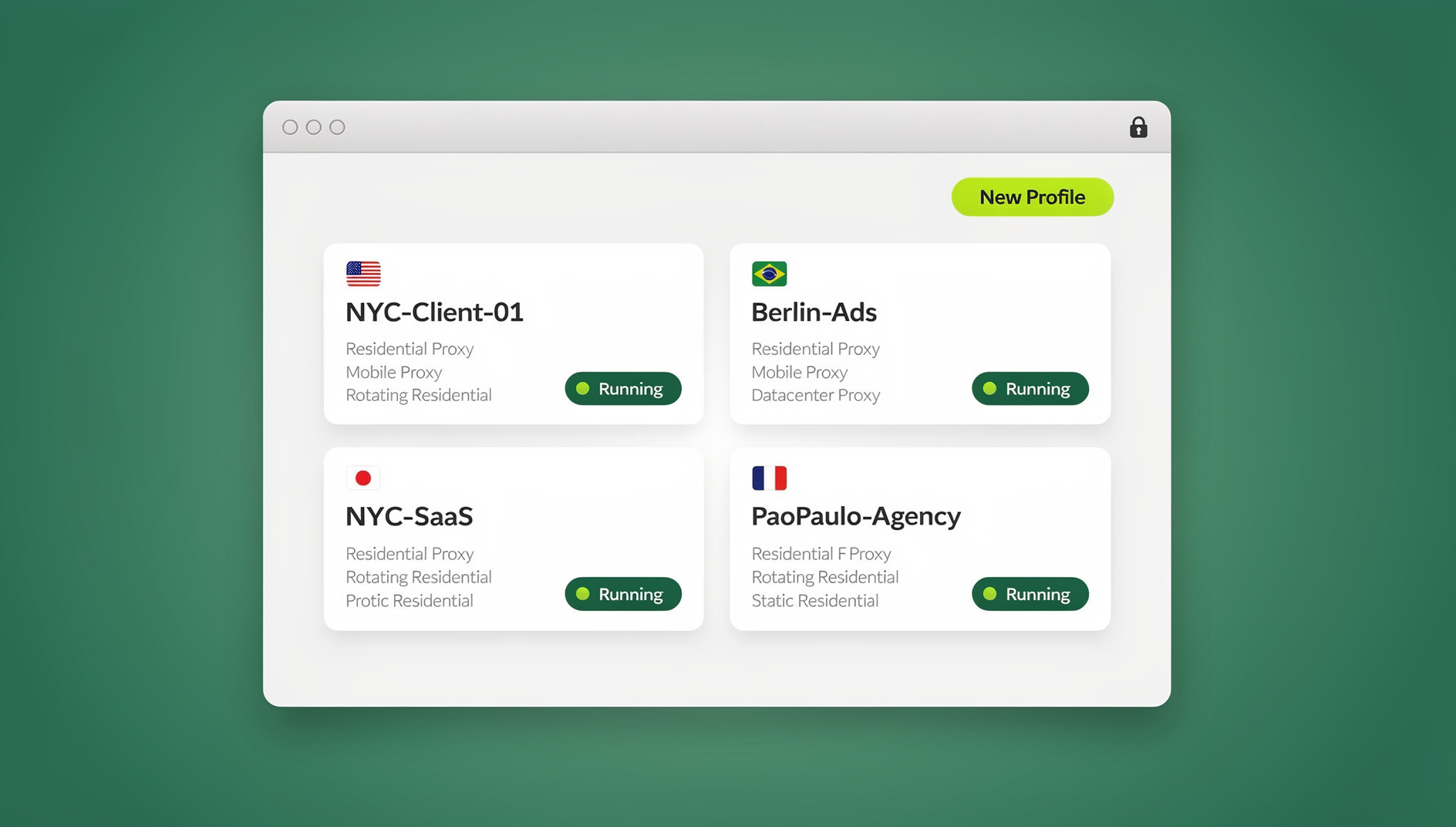
What Is a Virtual Browser and How It Actually Works
A virtual browser separates two things that a normal browser bundles together: the execution of a web page (parsing HTML, running JavaScript, rendering media) and the display of the result to you. In a virtual browser, execution happens inside an isolated environment — a sandboxed profile, a container, or a remote virtual machine — and only a clean, interactive view is delivered back to your screen. Any tracking script, fingerprinting attempt, or malicious payload is confined to that isolated layer instead of touching your actual device or your other logged-in sessions.
This isolation is what makes multi-account work possible without cross-contamination. Each virtual browser profile gets its own cookies, local storage, canvas/WebGL fingerprint, and network identity — so a marketing agency running fifteen ad accounts, or a seller running six storefronts, can operate every account as if it were on its own separate physical laptop, without actually owning fifteen laptops.
Virtual Browser vs. Cloud Browser vs. VPN vs. Remote Desktop: Untangling the Terms
These terms get used interchangeably in marketing copy, but they solve different problems. The table below breaks down where each one actually helps — and where it falls short.
| Approach | What It Actually Does | What It Doesn’t Do |
|---|---|---|
| VPN | Masks your IP address and encrypts traffic between you and an exit node | Doesn’t isolate execution — fingerprinting and local malware still run on your real device |
| Incognito / Private Mode | Skips saving history/cookies locally after the session ends | Doesn’t stop fingerprinting; the same browser, GPU, and OS signature leak on every tab |
| Remote Desktop (RDP) | Streams an entire remote OS desktop to your screen | Heavy, slow, and overkill for browser-only isolation — no purpose-built multi-profile management |
| Virtual Browser (e.g. Send.win) | Runs each identity in its own isolated, fingerprint-distinct browser profile — locally or in the cloud | Not a general-purpose VPN replacement for non-browser traffic (though proxies handle IP masking within it) |
In practice, the strongest tools in this space merge the isolation of a virtual browser with the reach of a cloud virtual browser: real browser engines, running in isolated profiles, accessible either locally or from any device with a login. That’s exactly the model Send.win is built on.
Why Old-School Privacy Habits Fall Short in 2026
Most people stitch together a handful of stopgaps — separate browser profiles, private windows, ad-blocking extensions, and a VPN subscription — and assume that’s “isolation.” It isn’t. Here’s where each one breaks down:
- Local profiles still share the machine’s fingerprint. Same GPU, same fonts, same OS build — sites can still correlate “different” profiles as the same underlying device.
- VPNs only touch the network layer. They hide your IP but do nothing about canvas, WebGL, or font fingerprinting, which is how most platforms actually detect duplicate accounts today.
- Extensions expand your attack surface. Every additional extension is code running with broad permissions in your real browser — one compromised update can leak session cookies across every tab.
- Manual account switching wastes hours. Logging in and out, clearing caches, and juggling windows is slow and error-prone at any scale beyond two or three accounts.
A properly built zero-install virtual browser replaces all four workarounds with one system: genuinely separate fingerprints per profile, no shared local state, and no extension sprawl.
What to Look for in the Best Virtual Browser (2026 Checklist)
Not every tool that calls itself a “virtual browser” delivers real isolation. Use this checklist when comparing options:
- True per-profile fingerprint isolation — canvas, WebGL, fonts, timezone, and user-agent should be distinct and consistent per profile, not randomized on every reload (which itself looks suspicious to detection systems).
- Real browser engines, not emulation. Sites can detect headless or simulated browsers; you want an actual Chromium-based engine running in a real, isolated environment.
- Built-in proxy support. The ability to attach a residential, datacenter, or mobile proxy per profile for IP and geo-matching — without a separate VPN client.
- Flexible access modes. A local desktop client for daily heavy use, plus a cloud option for when you’re on a machine where you can’t or don’t want to install anything.
- Team sharing without password exposure. The ability to hand a colleague access to a session or profile without ever telling them the underlying login credentials.
- Automation support. If you run QA, scraping, or bulk workflows, native Selenium/Puppeteer/Playwright compatibility saves you from building fragile custom tooling.
- Transparent pricing with a real trial. No forced annual lock-in before you’ve verified the fingerprinting actually holds up on the platforms you care about.
Send.win’s Three Ways to Run a Virtual Browser
This is the part most reviews get wrong: they treat “virtual browser” as one single delivery method. Send.win actually gives you three distinct modes, and picking the right one for your situation matters.
1. Desktop App (Windows, macOS, Linux)
The native Send.win desktop app is how most users run their day-to-day profiles. Each profile is a self-contained virtual browser identity with its own fingerprint, cookies, and proxy — but it’s launched and rendered locally on your machine, which means it’s fast, works fully offline once loaded, and doesn’t consume any metered cloud time. This is the right mode if you’re at your own workstation every day and want maximum speed with zero latency.
2. Cloud Browser Sessions (No Install Needed)
This is the mode that actually matches the “virtual browser — browse the web securely from anywhere” promise. Cloud browser sessions run your profiles entirely on Send.win’s servers — nothing to download, nothing to install, and no dependency on the device in front of you. Log in from a shared computer, a Chromebook, a client’s laptop, or a phone browser, and your isolated profile, fingerprint, cookies, and proxy are all right there. Cloud browsing time is metered monthly (similar to how proxy bandwidth is metered) and is included on paid plans alongside cloud sync, profile sharing, and team seats. If your use case is genuinely “I need to access this identity from wherever I am, without carrying an installed app with me,” this — not the desktop app — is the feature you actually want.
3. Cloud Browser Sessions
For teams that need zero-install access from anywhere, the cloud browser runs sessions on Send.win’s server in the EU. Each profile keeps its own cookies, storage, sessions and fingerprint settings, so teammates can reach the same isolated profile from any device without installing the desktop app.
Core Features That Make Send.win the Best Virtual Browser Choice
Beyond the three access modes, a handful of underlying features are what actually make the isolation trustworthy:
- Browser isolation by design — every profile is walled off from every other; nothing in local storage, cookies, or cache bleeds across sessions.
- Unique fingerprints per profile — canvas, WebGL, audio context, and font enumeration are each generated distinctly and held stable, so platforms see consistent “different devices” rather than one machine wearing masks.
- Built-in proxy management — attach residential, datacenter, or mobile proxies directly per profile for accurate IP and timezone matching, no separate VPN app required.
- Team sharing without credential exposure — invite teammates into specific profiles or sessions with scoped permissions, so nobody needs the actual account password.
- Cloud sync across devices — profile configuration follows you between the desktop app and cloud sessions, so you’re never rebuilding a fingerprint from scratch.
Together, these features are also why Send.win holds up well against dedicated remote browser isolation tools built for enterprise security teams — the isolation guarantees are similar, but Send.win adds the multi-login productivity layer that pure RBI products don’t offer.
Step-by-Step: Launching Your First Virtual Browser Session
Getting started takes minutes, regardless of which mode you choose:
- Create your account. Sign up at Send.win and choose a paid plan — the first card purchase is covered by a 7-day money-back guarantee. You can also preview the cloud browser free at https://send.win/demo-browser/.
- Create a profile. Give it a name, assign a proxy if you have one, and let Send.win generate a stable, isolated fingerprint for that identity.
- Choose your access mode. Launch it in the desktop app for speed, or open it as a cloud browser session if you’re on a device you don’t want to install anything onto.
- Browse, log in, and work normally. The isolation and fingerprint are handled automatically — you don’t need to configure anything per site.
- Invite teammates if needed. Share specific profiles with scoped access instead of handing out the account password.
- Scale into the cloud. When you need access from any device, move to the cloud browser, which runs your isolated profiles on Send.win’s server in the EU.
Send.win Pricing in 2026
Pricing is straightforward and scales with how many profiles and how much proxy bandwidth you need. Pro is $19/mo or $83.88/yr, and Team is $49/mo or $251.88/yr; the first card purchase is covered by a 7-day money-back guarantee.
| Plan | Price | What’s Included |
|---|---|---|
| Pro | $19/mo ($6.99/mo billed annually — 63% off) | 150 profiles, 5GB proxy bandwidth, cloud browser sessions, cloud sync |
| Team | $49/mo ($251.88/yr) | 500 profiles, 20GB proxy bandwidth, 16 seats, profile sharing |
Need more room? Add-ons cover extra proxy bandwidth at $6/GB and additional profiles at $0.05 each, so you’re never forced into the next tier just to add a handful of accounts.
Who Should Use a Virtual Browser?
Marketers and Advertisers
Run dozens of ad accounts without cross-account linkage, testing creative variations and geo-targeted campaigns from properly matched proxy locations.
E-commerce Sellers
Operate multiple storefronts under distinct identities, avoiding the fingerprint overlap that gets legitimate multi-store operations flagged and suspended.
SEO Professionals and Researchers
Check rank signals and SERP behavior from different regional proxies without one browser’s cached history contaminating another region’s results.
Agencies and Remote Teams
Share client account access via profiles instead of shared passwords, with the option to revoke access instantly without a password reset ceremony.
Developers and QA Engineers
Run your isolated browser profiles in the cloud, reachable from any device, with each profile keeping its own cookies, storage, sessions and fingerprint settings.
Privacy-Conscious Individuals
Keep personal browsing, professional accounts, and research work in genuinely separate compartments, closing the gap that a plain local browser profile setup can’t.
Best Practices to Maximize Security, Anonymity, and Productivity
- Match proxies to profiles deliberately — don’t reuse the same IP or region across identities you want kept separate.
- Use cloud browser sessions on shared or unfamiliar devices instead of logging into sensitive accounts on machines you don’t control.
- Reserve the desktop app for daily-driver profiles where speed and offline access matter most.
- Share access, not passwords, whenever teammates or clients need into an account.
- Keep automation scoped — dedicate specific profiles to scripted work rather than mixing bot traffic into a profile you also browse manually with.
- Review team seat permissions periodically so former collaborators lose access cleanly.
🏆 Send.win Verdict
If “virtual browser” for you means genuinely isolated, fingerprint-distinct profiles you can reach from any device, Send.win covers every angle: a fast native desktop app for daily use, true cloud browser sessions when you need zero-install access from anywhere, and profile sharing for teams that need to collaborate. That’s a more complete answer than tools that only do one of the three.
Try Send.win today — choose a paid plan covered by a 7-day money-back guarantee on your first card purchase, and launch your first isolated session in minutes.
Frequently Asked Questions
What exactly is a virtual browser?
A virtual browser is a browsing environment where each identity or profile runs in its own isolated container with distinct cookies, storage, and fingerprint — either rendered locally on your device or hosted entirely in the cloud — so activity in one profile can’t be linked to or contaminate another.
Is a virtual browser the same thing as a cloud browser?
They overlap but aren’t identical. A cloud browser specifically means the session runs on remote servers with no local install, while a virtual browser is the broader isolation concept — Send.win supports both: a local desktop app and true cloud browser sessions.
Do I need to install anything to use Send.win’s cloud browser sessions?
No. Cloud browser sessions run entirely on Send.win’s infrastructure and are accessible from any device with a browser — nothing to download. The native desktop app is a separate, optional mode for users who prefer running profiles locally.
How is a virtual browser different from a VPN?
A VPN only changes your visible IP address; it does nothing about canvas, WebGL, or font fingerprinting. A virtual browser isolates the entire execution environment per profile, which addresses the fingerprinting vector a VPN can’t touch.
Can I automate a virtual browser with Selenium or Playwright?
Send.win does not offer an automation interface — there is no API, SDK, headless mode or Selenium/Puppeteer/Playwright support on any plan. Instead, each profile keeps its own consistent fingerprint, so you can work with isolated profiles manually or share them with teammates.
Will using multiple profiles get my accounts banned?
Properly isolated profiles with matched proxies are exactly what prevents bans caused by cross-account fingerprint overlap. The risk comes from sharing IPs or device signatures across accounts that are supposed to look independent — which is the problem virtual browsers are built to solve.
What does Send.win cost?
There is no free trial. Pro is $19/mo or $83.88/yr with 150 profiles and 5GB proxy bandwidth. Team is $49/mo or $251.88/yr with 500 profiles, 20GB bandwidth, and 16 seats. The first card purchase is covered by a 7-day money-back guarantee, and the only free option is the cloud demo at https://send.win/demo-browser/.
Can my team share access to the same virtual browser profile?
Yes. Send.win lets you invite teammates into specific profiles or sessions with scoped permissions, so collaborators get working access without ever seeing the underlying account password.