A virtual browser is a full web browser that runs on a remote server instead of your laptop or phone — you see and control a live video-style stream of the page while all the code, cookies, and risk stay off your device. It gives teams isolated, zero-install access to the web, which is why it has become the go-to setup for anyone juggling multiple logins, testing risky links, or working from a device they don’t fully control.
What Is a Virtual Browser, Exactly?
Also called a cloud browser or remote browser isolation (RBI), a virtual browser executes web pages on a server somewhere else — not on your endpoint. You interact with it through a stream: clicks, scrolls, and keystrokes go up, pixels come back down. Nothing the page does — no script, no download, no tracker — ever touches your local machine directly.
At a high level, three things are true of every virtual browser:
- Pages execute on a remote server inside a managed, disposable environment.
- You see and control an interactive stream of that page in real time.
- Untrusted web content is never stored or executed on your local device.
Think of it as an air gap between the open web and your hardware. The browsing experience feels normal — you click links, fill forms, watch video — but the attack surface that malicious ads, drive-by downloads, and exploit kits rely on simply isn’t there anymore.
Why “Zero-Install” Access Matters
Traditional security controls usually mean rolling out an agent, a client, or a policy profile to every device your team touches. A zero-install virtual browser skips that step entirely. Because the actual browsing happens remotely, a user gets a secure session in seconds from almost any device — no software to push, no compatibility matrix to manage, and nothing left behind on the machine once the session ends.
That matters more than it sounds like. Security stops living on the laptop and starts living on the session — which lines up with how modern Zero Trust architecture actually works: don’t implicitly trust a device or network just because it’s “inside” somewhere, verify and isolate every access instead. A contractor on a personal laptop, a marketer on a hotel Wi-Fi network, and an employee on a locked-down corporate machine can all get the identical, contained browsing experience.
Virtual Browser vs. Local Browser vs. VPN vs. Extensions
It helps to see these side by side, because people often reach for the wrong tool for the job:
| Approach | Where code executes | Isolates risky sites? | Install required? |
|---|---|---|---|
| Local browser | Your device | No — sandboxing helps, but your endpoint is still the attack surface | Already installed |
| Browser extensions | Your device (inside the browser) | No — useful for productivity, not isolation | Yes, per browser |
| VPN | Your device (traffic is just re-routed) | No — encrypts and masks IP, doesn’t stop code execution | Yes, a client |
| Virtual / cloud browser | Remote server | Yes — pages never execute locally | None, or a lightweight native app depending on the mode |
A local browser is fast and familiar, but every script on every page you open runs directly on your hardware. Extensions are great for productivity, but they run inside your local browser and don’t isolate anything. A VPN encrypts your traffic and can mask your IP, but it does nothing to stop a malicious page from executing code on your device — it just changes where the traffic appears to come from. A virtual browser is the only one of the four that actually keeps web content off your endpoint.
Send.win: Two Ways to Get a Virtual Browsing Experience
Send.win offers two distinct modes, and picking the right one depends on how you work:
Sendwin Browser — the native desktop app
This is a real, downloadable application for Windows, macOS, and Linux. It’s local-first, meaning your sessions and profiles live on your machine for speed, with encrypted cloud sync keeping everything backed up and available across devices. If you want the thing it enables most — managing multiple accounts in cleanly separated profiles — this is the mode you install.
Cloud browser sessions — zero local footprint
The second mode runs entirely in the cloud: nothing to download, nothing to install. You launch a session from your dashboard and get a real browser streamed straight to whatever device you’re on. This is what most people mean when they say cloud browser — usage is metered by cloud browsing time rather than by the device it runs on, which makes it ideal for research on unfamiliar links, quick one-off tasks on a shared or public computer, or giving a contractor temporary access without installing anything on their machine.
Both modes give you isolated profiles and session-level control. The desktop app trades a small install for speed, local automation support, and offline-first convenience; cloud sessions trade a metered usage model for true zero-install access from anywhere.
How Send.win’s Virtual Browsing Actually Works
- Real browsers, not emulators. Whether you’re on the desktop app or a cloud session, Send.win runs genuine browser engines rather than a stripped-down emulation layer, so modern SaaS tools, ad platforms, and commerce stacks render and behave the way they’re supposed to.
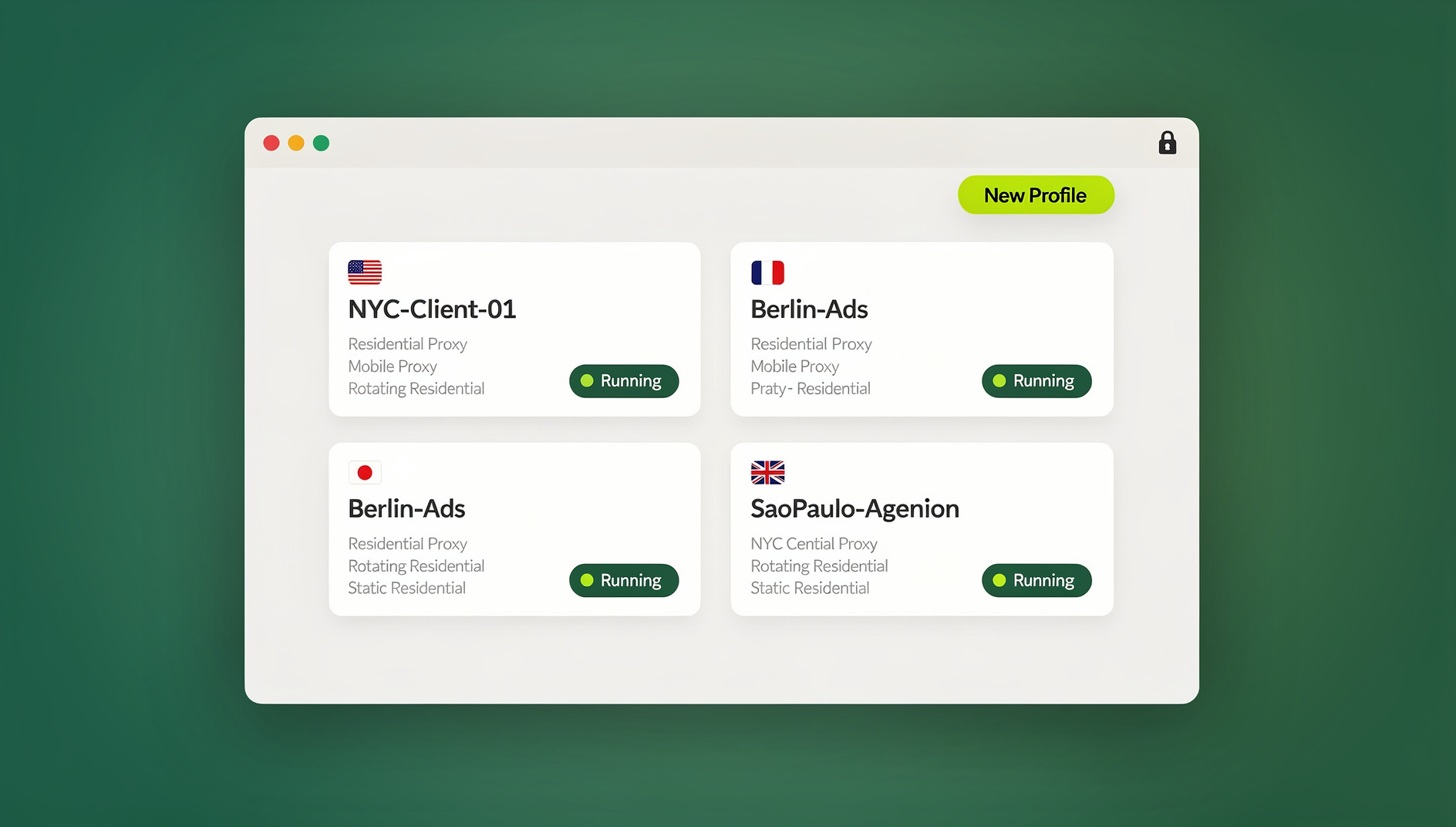
- Isolated profiles per session. Each session gets its own cookie jar, storage, and fingerprint surface. You can run five accounts on the same site at the same time without any of them bleeding into each other — a form of session isolation that’s difficult to replicate with regular browser profiles alone.
- Zero-trust posture by design. Cloud sessions never execute page code on your endpoint, and the desktop app keeps each profile sandboxed from the others, so a compromised or flagged account can’t contaminate the rest of your workspace.
- Bring-your-own proxy, per session. Attach a proxy to an individual session or profile for granular IP and geo control — much finer-grained than routing your whole machine through a single VPN tunnel.
Key Features That Actually Move the Needle
Multi-login without the sign-in dance
Open dozens of accounts in parallel, even on the same site, without constantly signing out and back in. Each profile behaves like its own device, so switching between client accounts, ad accounts, or storefronts is a click, not a chore.
Password-free session sharing
Grant a contractor, agency, or teammate access to a live, logged-in session without ever handing over a password. Add expiring session timers (30 minutes, an hour, a day) so access closes itself automatically, and blur or block sensitive pages — billing screens, account settings — before you hand a session off.
Isolated profiles for developers and QA teams
Send.win gives developers and QA teams isolated browser profiles with their own cookies, storage and fingerprint settings, so you can run repetitive QA passes or open a disposable testing environment without hand-rolling your own profile management layer. Send.win’s role here is generic: it supplies the isolated, authenticated browser context, and you drive it manually from the desktop app or a cloud session.
Strong cryptography, applied per session
Send.win uses AES-256 for symmetric encryption and RSA-2048 for asymmetric operations to protect data in motion and at rest, applied at the session level rather than as a blanket, all-or-nothing setting.
Disposable, short-lived sessions
Spin up a session for a single risky task — clicking an unfamiliar link, testing a flow you don’t trust — and discard it in seconds. Nothing lingers, and nothing needs to be “cleaned up” afterward.
Popular Use Cases
| Who | What they do with it |
|---|---|
| Marketers & advertisers | Run multiple ad accounts on the same platform side by side; share time-boxed access with contractors instead of passwords; check landing pages from different regions. |
| E-commerce sellers | Operate several storefronts without cross-account contamination; test checkout flows from multiple geographies; keep vendor and support logins separated. |
| SEO professionals | Check rankings and SERPs from specific locations; keep research sessions disposable and isolated; run multi-profile competitive research without conflicts. |
| Developers & QA teams | Reproduce bugs in clean profiles without wiping local caches; share a pre-authenticated session for quick verification. |
| Remote workers & agencies | Keep client work cleanly separated; hand off access without ever sharing a password; label and color-code sessions for instant recall. |
Send.win Pricing
Send.win has no free trial: the Pro plan is $19/mo or $83.88/yr and the Team plan is $49/mo or $251.88/yr, with the first card purchase covered by a 7-day money-back guarantee. You can also preview either mode — the desktop app or cloud sessions — with the free cloud demo at send.win/demo-browser/ before committing.
| Plan | Monthly | Billed annually | Profiles | Proxy bandwidth | Automation |
|---|---|---|---|---|---|
| Pro | $19/mo | $6.99/mo | 150 | 5GB | Included |
| Team | $49/mo | $20.99/mo | 500 | 20GB | Included, plus 16 seats |
Both plans include isolated browser profiles, so smaller teams don’t need to jump to a top-tier plan just to get started — the Pro plan is enough to run your profiles with their own cookies, storage and fingerprint settings. Team adds room to scale: more profiles, more bandwidth, and enough seats to bring a full agency or in-house team onto one workspace. For current numbers, always check send.win/pricing directly, since plans and limits can change.
Getting Started in a Few Minutes
- Sign up. Head to send.win and create your account — the first card purchase is covered by a 7-day money-back guarantee, or you can try the free cloud demo first.
- Choose your mode. Download the native Sendwin Browser app if you want local speed, or launch a cloud browser session straight from your dashboard for zero-install access.
- Create your first isolated profile. Log in to an account, label the session, and you’re already working inside a contained, isolated environment — no extra software, no complicated setup.
Practical Tips for High-Velocity Teams
- Label sessions by client or brand so switching between them is instant, not guesswork.
- Use session timers for handoffs so access to shared logins expires automatically instead of relying on someone remembering to revoke it.
- Blur or block sensitive pages — billing, account settings — before sharing a session with a contractor or client.
- Keep a region consistent per brand or account when using proxies, so you don’t trip fraud detection with a location that keeps jumping around.
- Reserve disposable sessions for risky links and keep your long-lived, authenticated profiles reserved for production work.
🏆 Send.win Verdict
If you need genuinely isolated, zero-install browsing for research, contractor access, or one-off risky links, Send.win’s cloud browser sessions deliver that without a single download. If your work leans toward daily multi-account management, the native Sendwin Browser desktop app gives you local speed, with each profile keeping its own cookies, storage and fingerprint settings. Either way, you get isolated profiles, password-free sharing, and per-session proxy control in one platform.
Try the Send.win cloud demo — a 3-minute preview without signup, 10 minutes a day with a free account.
Frequently Asked Questions
Is a virtual browser slower than my regular browser?
It depends on your network and how far the session has to travel. Cloud browser sessions add a small amount of streaming latency, while the native Sendwin Browser desktop app runs locally, so it feels closer to a normal browser in everyday use.
Do I still need a VPN if I’m using a virtual browser?
Usually not for browsing itself. Per-session proxies attached to individual profiles give you finer geo and IP control than a single system-wide VPN tunnel, especially when you’re juggling several identities at once.
Will complex, modern websites actually work inside a virtual browser?
Yes. Send.win runs real, up-to-date browser engines rather than emulators, so SaaS dashboards, ad platforms, and checkout flows behave the same way they would in a normal browser.
Is a virtual browser actually more secure than my local one?
Yes, for the specific risk it targets. Remote browser isolation keeps page code from ever executing on your device, which removes an entire category of drive-by malware and phishing payloads before they get a chance to run.
Can I automate tasks inside Send.win?
No. Send.win has no automation interface — no API, SDK, headless mode or Selenium/Puppeteer/Playwright support on any plan. What it does provide is isolated profiles in the native desktop app, so you can run QA passes or repetitive tasks manually without building your own browser-management layer.
What’s the difference between the Sendwin Browser app and cloud sessions?
The Sendwin Browser is a downloadable desktop app for Windows, macOS, and Linux that stores profiles locally with encrypted cloud sync. Cloud browser sessions run entirely on Send.win’s servers with nothing installed on your device, billed by cloud browsing time.
Do I need a credit card to try it?
No. Send.win has no free trial: the Pro plan is $19/mo or $83.88/yr and the Team plan is $49/mo or $251.88/yr, with the first card purchase covered by a 7-day money-back guarantee. The only free option is the cloud demo at send.win/demo-browser/.
How many accounts can I realistically manage at once?
That depends on your plan’s profile limit — 150 on Pro, 500 on Team — but most users find that number is far more than they need even when managing dozens of client or ad accounts in parallel.