How to Share Browser Sessions With Your Team (No Passwords Involved)
To share sessions with your team in Send.win, invite the teammate to your workspace, open the session’s Share menu, pick their name, set a time-boxed access window, and click Share — they get a working, logged-in session in their own dashboard while your actual password never leaves your account. This works because Send.win sessions run as isolated, fingerprinted browser profiles rather than raw stored logins, so “sharing” means granting temporary access to an authenticated environment, not handing over credentials. Below is the full walkthrough, plus the decision most teams get wrong: whether to share a session running on the desktop app or a cloud browser session that needs no local install at all.
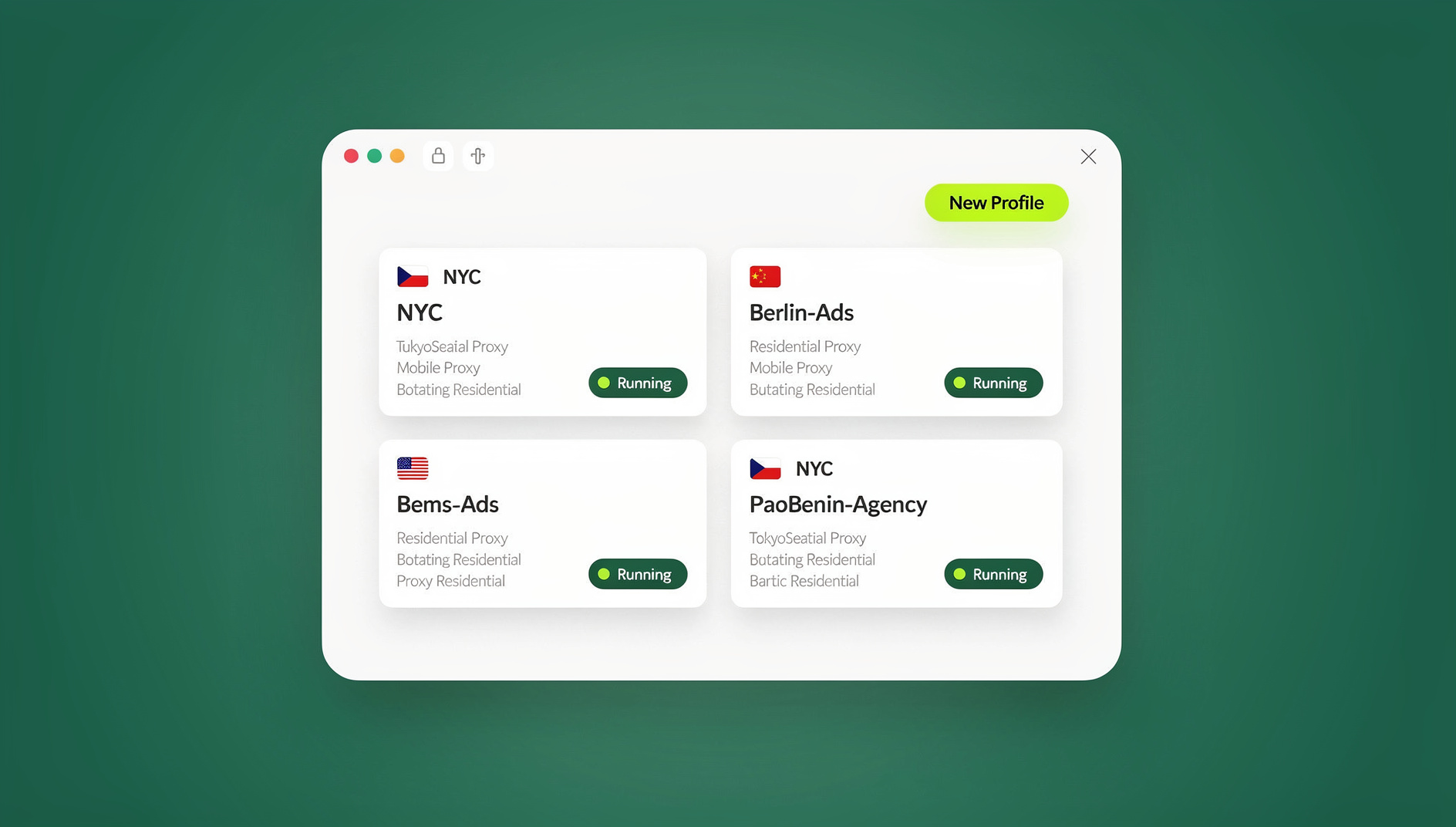
Why Password-Sharing Breaks Down for Teams
Every team that manages more than a couple of shared logins — a support inbox, an ad account, a client’s social profiles, a shared Amazon seller account — eventually hits the same wall. Someone pastes a password into Slack. Someone else saves it in a spreadsheet “just for now.” A former contractor still has it six months after their contract ended. None of this is malicious; it’s just what happens when the only tool for shared access is a password field.
- No audit trail. If three people share one login, you cannot tell who made a change, who sent that message, or who clicked what.
- Revocation is a group project. To cut off one person’s access you have to change the password for everyone and redistribute it.
- Fingerprint collisions raise flags. When multiple teammates log into the same account from different devices with mismatched fingerprints, IPs, and time zones, platforms like Amazon, Meta, and Google read that as suspicious activity — sometimes triggering a lockout or ban.
- Offboarding is manual and easy to forget. Password rotation after someone leaves is a task, and tasks get skipped.
Session sharing solves this at the root. Instead of distributing the credential, you distribute access to an already-authenticated, isolated browser session with its own consistent fingerprint. The teammate works normally; you keep full control of the underlying account and can cut access instantly, no password change required.
What You’ll Need Before You Start
- A Send.win account with an Owner or Manager role (needed to invite members and share sessions)
- The teammate’s email address
- An existing session you want to share — if you haven’t created one yet, see our guide on how to create sessions in Send.win’s cloud browser first
- (Optional but recommended) A second device or a private browser window to test what the invite and shared session actually look like from the teammate’s side
Step-by-Step: Share a Send.win Session With Your Team
Step 1: Log in and choose where the session will run
- Log in to your Send.win account at the Send.win portal.
- Go to Browse and select the session you plan to share. If this session needs a residential or datacenter IP matched to a specific region, confirm it’s already configured — our walkthrough on how to add a proxy to any session covers that setup in under five minutes.
Step 2: Invite your teammate to the workspace
- Open the Team section from your dashboard sidebar.
- Click the arrow next to your organization name and select Add Member.
- Enter the teammate’s email address and click Invite.
- You’ll see a confirmation reading “Invite sent.” The teammate receives an email with a verification link.
Step 3: Have your teammate accept the invite
- The teammate opens the invite email and clicks through to verify and log in.
- If prompted, they confirm their email using the code sent to their inbox.
- They now have their own member login to your workspace — at no point do they receive a password to any of the actual accounts you manage.
Step 4: Share a specific session with time-boxed access
- From your main account, open your Sessions list.
- Find the session you want to hand off and click Share.
- Select the teammate you just invited from the dropdown.
- Set an access duration — 10, 30, or 60 minutes are common starting points, and you can always re-share for a new window later.
- Click Share. You’ll see “Session is shared successfully.”
Step 5: Teammate opens the shared session
- The teammate logs in and refreshes their Sessions page.
- They open Shared with me, where the session now appears.
- Clicking the session and then Browse launches it — if their browser prompts them to allow Send.win to copy the necessary session details into the runtime environment, they approve it.
- The session opens fully authenticated. The teammate can work inside it exactly as you would — click, type, upload — but the underlying password is never displayed, transmitted to them, or stored on their device.
Step 6: Verify, monitor, and revoke access
- From your account, open the session’s Share panel any time to see exactly who currently has access.
- Access expires automatically once the time window you set runs out.
- Need to cut it off early — a contractor’s engagement ended, or you spotted unexpected activity? Click Unshare and access is revoked immediately, with no password rotation needed anywhere else.
Cloud Browser Sessions vs. the Desktop App: Which Should Your Team Share?
Send.win actually gives you two different ways to run the session you’re about to share, and picking the wrong one is the most common mistake teams make when setting this up. It’s worth being precise about the distinction, because they solve different problems.
- Desktop app sessions run through Send.win’s native Windows, macOS, or Linux client installed on a specific machine. The fingerprint, proxy, and browser environment live on that device. This is the default for most solo users and small teams who already have a dedicated machine (or VPS) they use daily.
- Cloud browser sessions run entirely in Send.win’s cloud infrastructure — no desktop install required on either side. You spin the profile up, and anyone with shared access opens it straight from their web dashboard, on any device, without installing anything locally. Cloud browsing time is metered monthly on paid plans, similar to how proxy bandwidth is metered, and it’s bundled with cloud sync, profile sharing, and team seats.
For team session sharing specifically, cloud browser sessions are usually the better fit: your teammate doesn’t need the app installed, doesn’t need admin rights on their laptop, and can accept a shared session from a phone, a work laptop, or a personal machine with equal ease. The desktop app is still the right call when the workflow depends on local resources — say, a specific local file upload flow, a hardware token, or an extension that only works installed locally. The table below breaks down the practical differences your team should weigh before choosing which mode to share.
| Factor | Desktop App Session | Cloud Browser Session |
|---|---|---|
| Install required on teammate’s device | Yes — native app must be installed | No — opens in a web dashboard |
| Works on any device (phone, shared PC, Chromebook) | Limited to devices with the app | Yes |
| Where the fingerprint/session state lives | Locally on the host machine | In Send.win’s cloud infrastructure |
| Metering | Not metered by cloud browsing time | Metered monthly by cloud browsing time (like proxy bandwidth) |
| Best for | Power users tied to one machine, heavier local workflows | Distributed teams, contractors, quick handoffs, remote work |
Both modes support the same session-sharing flow described above — the Share button, time-boxed access, and instant revocation work identically whether the underlying session is desktop-hosted or cloud-hosted. The difference is purely in where the browser environment lives and what the teammate needs installed to reach it.
Where Session Sharing Fits (and Where It Doesn’t)
If your team also runs scripted workflows — automated QA checks, scheduled scraping, or Selenium/Puppeteer/Playwright test suites against a shared account — Send.win does not offer an automation interface, so those scripts need a different tool. That’s a genuinely different use case from the manual session-sharing flow in this guide: session sharing is for a human teammate getting temporary, no-password access to work inside a session themselves. Teams often keep the two separate — a shared cloud session for the person doing manual account management, and a separate automation tool for the recurring script that checks the account’s status every morning.
Best Practices for Secure Team Session Sharing
- Default to short windows. Ten to thirty minutes covers most single tasks; you can always re-share if the work runs long.
- Share the minimum session needed. Don’t hand over your entire account’s worth of sessions when the task only touches one.
- Prune your team list regularly. Remove members from the workspace the day their engagement ends, not “eventually.”
- Use a separate session or profile for testing. Verifying the teammate’s experience on a distinct profile keeps cookies, cache, and extensions from cross-contaminating your production session’s fingerprint.
- Write down the workflow. A one-page internal doc (“here’s how we invite, share, and revoke”) keeps every teammate following the same access pattern instead of improvising.
- Pair session sharing with role-based access. Give Manager-level access only to people who genuinely need to invite others or manage billing; everyone else can stay at member level.
Troubleshooting Common Session-Sharing Issues
| Symptom | Likely Cause | Fix |
|---|---|---|
| Invite email never arrives | Typo in the email address, or it landed in spam | Double-check the address, check spam/junk, then re-send the invite from the Team panel |
| “Shared with me” list is empty | Session was shared to the wrong teammate, or they haven’t refreshed | Confirm the correct teammate was selected in Share, and have them refresh the Sessions page after logging in |
| Session won’t open on the teammate’s side | They haven’t approved the prompt to copy session details into the runtime | Have them click Browse again and accept any permission prompt that appears |
| Access expired sooner than expected | The time-boxed duration was shorter than the task needed | Re-share the session with a longer window, or share again once expired |
| Teammate can’t find the Team section | Their account role doesn’t have Manager/Owner permissions | Only Owner/Manager roles see invite controls — confirm their role or have an Owner send the invite |
Send.win Pricing for Team Session Sharing
Session sharing, cloud sync, and team seats are bundled into Send.win’s paid plans — Pro at $19/mo or $83.88/yr, and Team at $49/mo or $251.88/yr — and your first card purchase is covered by a 7-day money-back guarantee, so you can test the full invite-and-share flow with a real teammate before committing.
| Plan | Price | What You Get for Team Sharing |
|---|---|---|
| Pro | $19/mo | Cloud sync, profile sharing, and multiple profiles for small teams just starting to share sessions |
| Team | $49/mo | Everything in Pro, plus more team seats and higher profile/proxy limits for sharing sessions across your team |
For agencies managing several client accounts through shared sessions, or teams that also want to run multi-login profiles for teams in parallel, the Team plan’s higher seat count usually pays for itself in the first week just from the offboarding headaches it removes. If you’re still comparing this approach against traditional credential vaults, our breakdown of how to share accounts without passwords walks through the security trade-offs in more depth.
🏆 Send.win Verdict
If your team is still passing passwords around in Slack or a shared spreadsheet, session sharing is the single highest-leverage fix you can make this week. Send.win’s time-boxed, revocable session sharing — available on both desktop app and no-install cloud browser sessions — means a teammate gets real, working access without ever touching your credentials, and you can cut them off with one click the moment the task is done. It covers the human side of shared account access, with each profile keeping its own separate cookies, storage and fingerprint.
Try Send.win today — paid plans start at $19/mo, your first card purchase is covered by a 7-day money-back guarantee, and you can invite your first teammate in under ten minutes. You can also preview it free in the cloud demo at https://send.win/demo-browser/.
Frequently Asked Questions
Does my teammate ever see the actual password?
No. They interact with an already-authenticated session, not the underlying credentials. The password never leaves your account or gets transmitted to the teammate at any point in the process.
Can I limit how long a teammate has access?
Yes. When you share a session you set a time-boxed access duration — common windows are 10, 30, or 60 minutes — and access expires automatically once that window closes. You can re-share for a new window any time.
Can I revoke access immediately instead of waiting for it to expire?
Yes. Click Unshare on the session at any point and access is cut off instantly, with no password change required anywhere else.
Do I need the desktop app installed to share sessions with my team?
Not necessarily. If the session is a cloud browser session, your teammate opens it straight from the web dashboard with no local install at all. The desktop app is only required if the session itself is running through the native Windows/macOS/Linux client rather than in the cloud.
Can I test the sharing flow safely before rolling it out to my whole team?
Yes. Use a second device, a private browser window, or a secondary account to simulate exactly what the teammate will see when they accept the invite and open the shared session, before you invite real teammates.
What happens to a teammate’s access if I remove them from the Team panel?
Removing a member from the Team panel revokes all of their shared session access immediately, in addition to unsharing individual sessions — it’s the fastest way to fully offboard someone in one action.
Is session sharing available on the free trial?
There is no free trial. Send.win’s paid plans start at $19/mo, and your first card purchase is covered by a 7-day money-back guarantee, so you can test the core invite-and-share flow with a real teammate before deciding on Pro or Team. The only free option is the cloud demo at https://send.win/demo-browser/.
What’s the difference between session sharing and an automation API?
Session sharing gives a human teammate temporary, no-password access to work inside a session manually. Send.win does not offer an automation interface — there is no API, SDK, headless mode or Selenium/Puppeteer/Playwright support on any plan — so automated workflows need a separate tool rather than a Send.win feature.