To create a session in Sendwin’s cloud browser, log in to your account, open Browse, click the + button, enter the target URL, name the session, pick a server region, and hit Create/Launch — the site opens in an isolated browser tab running entirely in the cloud, with its own cookies, storage, and fingerprint. No download, no install, and no risk of cross-contaminating your other logins. The full walkthrough below covers proxies, team sharing, and the handful of settings worth getting right the first time.
What Is a Cloud Browser Session in Sendwin?
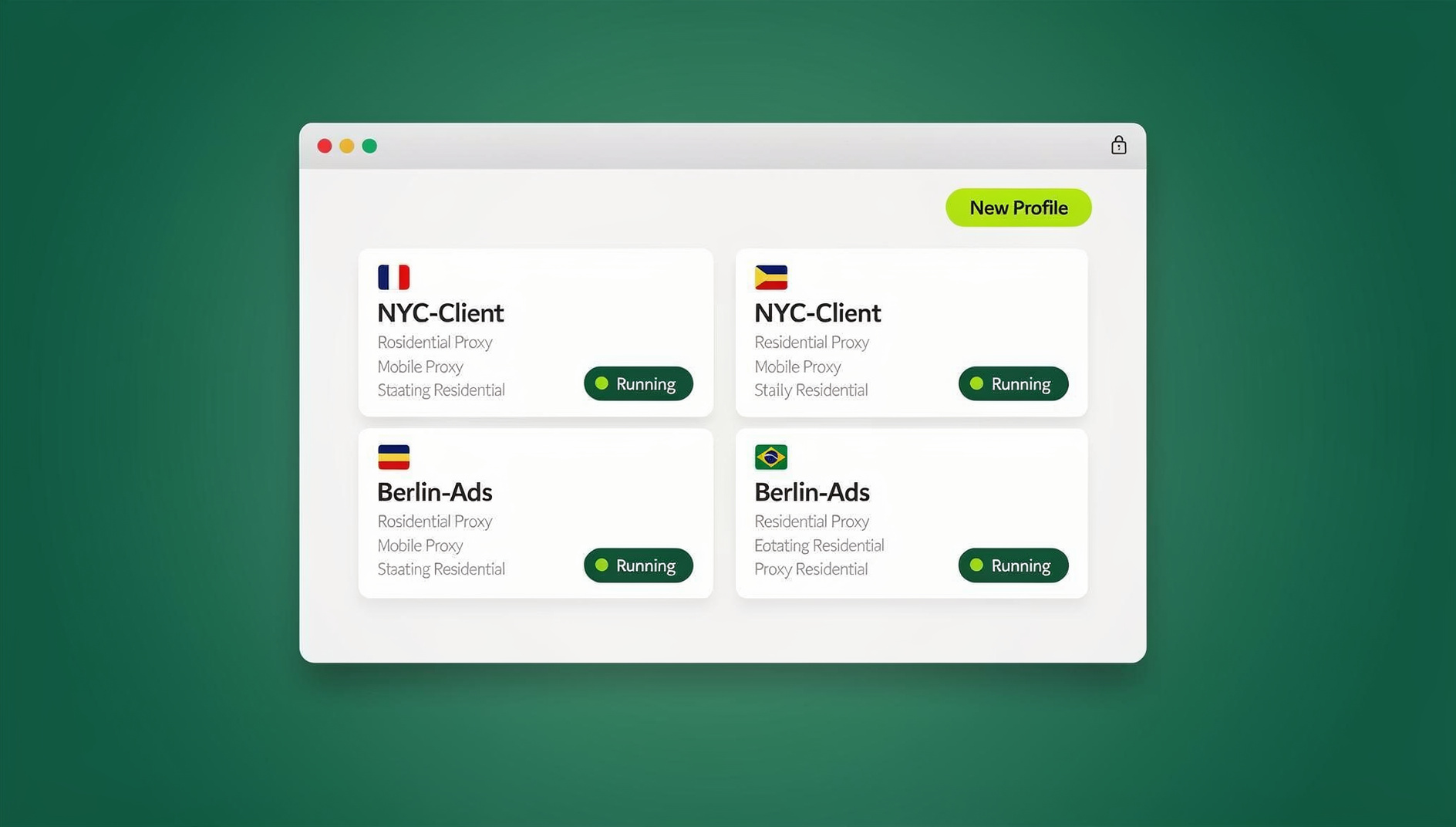
A cloud browser session is a disposable or saved browser environment that runs on Sendwin’s servers instead of your own machine. Each session gets its own cookie jar, local storage, cache, and browser fingerprint, so logging into five different accounts across five sessions looks — to every site you visit — like five completely separate visitors on five separate devices. Nothing about one session leaks into another, and because the browser itself runs in the cloud, you can open, close, and reopen a session from any laptop or desktop with a normal web browser and an internet connection.
This matters for anyone juggling more than one identity online: agencies managing client ad accounts, sellers running multiple marketplace storefronts, QA teams testing a site as a fresh visitor over and over, or researchers who need a clean, geo-specific view of a page without their own cookies or history interfering. Sendwin also ties directly into session isolation as its core security model — each session is sandboxed by design, not just by convention, which is what keeps a mistake in one profile from ever touching another.
It’s worth being clear about what a cloud session is not: it isn’t a proxy you manually configure inside your regular browser’s settings, and it isn’t tied to any single device you own. It’s a full, independent browser instance that happens to render inside a tab on your screen while the actual computing happens elsewhere.
What You Need Before You Start
- A Sendwin account (there is no free trial; paid plans start at $19/mo, the first card purchase is covered by a 7-day money-back guarantee, and you can preview the cloud browser free at https://send.win/demo-browser/).
- A stable internet connection — since the browser itself runs in the cloud, a slow or flaky connection will make the session feel laggy even though the target site loads fine on Sendwin’s end.
- Optionally, a proxy you’re authorized to use, if the session needs to appear as though it’s browsing from a specific city, country, or ISP.
- A clear naming convention in mind, especially if you expect to be running more than a couple of sessions at once.
Step-by-Step: Creating Your First Sendwin Cloud Browser Session
Step 1: Log in
Sign in to your account through the Sendwin portal with your usual credentials. If this is your first time, you can try the free cloud demo at https://send.win/demo-browser/ — a 3-minute preview without signup, or 10 minutes a day with a free account.
Step 2: Open the Browse section
From the dashboard, click into Browse. This is the home for every cloud session you create — new, saved, and currently running.
Step 3: Click the “+” button
Tap the plus icon to open the new-session panel. This is where you’ll configure the handful of settings that define how the session behaves.
Step 4: Enter the target website and click Go
Paste or type the URL you want the session to open — the site you’re testing, signing into, or researching — then press Go. You don’t need the exact login page; any URL on the target domain works, and you can navigate further once the session is live.
Step 5: Name your session
Give it a name you’ll actually recognize a week from now. Something like “ClientX – Instagram – QA” is far more useful at 4pm on a Friday than “Session 14.” If you’re setting up several sessions in one sitting, our guide on creating multiple sessions in Sendwin’s cloud browser covers how to batch this efficiently instead of repeating the same steps one at a time.
Step 6: Choose the server region
Pick the region closest to you, or closest to the audience/geo you need the session to represent. Lower latency to your chosen region means a snappier session, and matching the region to the target site’s expected audience avoids geo-mismatch flags on some platforms.
Step 7: (Optional) Assign a proxy and team access
- Proxy: Attach one to give the session a specific IP and geolocation, or to keep every session’s outbound IP unique. If you haven’t set one up before, the walkthrough on how to add a proxy to any session covers the exact fields and formats Sendwin expects.
- Team access: Toggle this on to let a teammate open the same session without ever handing them your password. For the full invite-and-permission flow, see our tutorial on sharing sessions with your team.
Step 8: Create and launch
Confirm your settings (or save the session for later) and launch it. The target site opens in an isolated cloud browser tab with its own cookies, storage, and fingerprint — completely separate from your local browser and every other session in your account.
Cloud Browser Sessions vs. Sendwin Browser: Which Should You Use?
Sendwin actually gives you two distinct ways to run a browser, and it’s worth knowing the difference before you commit a workflow to one or the other. Sendwin Browser is a native, downloadable desktop app for Windows, macOS, and Linux — it’s local-first, meaning the browser and its profiles live on your machine, with encrypted cloud sync keeping everything backed up and available if you switch devices. Cloud browser sessions, the subject of this guide, run entirely on Sendwin’s infrastructure with zero local install; you open them from a web dashboard on any device, and usage is metered by cloud browsing time rather than tied to a specific machine.
| Factor | Sendwin Browser (Desktop App) | Cloud Browser Session |
|---|---|---|
| Install required | Yes — native app for Windows, macOS, or Linux | No — opens in any modern web browser |
| Where profiles/fingerprints live | Locally on your device, with encrypted cloud sync | Entirely on Sendwin’s servers |
| Works from a new or shared device instantly | Only after installing the app | Yes, immediately |
| Metered by | Not tied to cloud browsing time | Cloud browsing time (usage-based) |
| Local automation (Selenium/Puppeteer/Playwright) | No — Send.win has no automation interface | Not applicable — sessions run remotely |
| Best for | Daily power users, heavier local workflows, managing many separate browser profiles | Quick spin-ups, testing, geo checks, team handoffs, low-spec devices |
For a one-off QA check, a fresh sign-in test, or a session you need to hand to a teammate on a device that doesn’t have Sendwin installed, the cloud browser is the faster and simpler option — which is exactly why it’s the default entry point most new accounts start with. If you’re planning to run recurring scripts against a profile, note that Sendwin has no automation interface: there is no API, SDK, headless mode or Selenium/Puppeteer/Playwright support on any plan.
Managing and Reusing Sessions Later
- Return to Browse at any time to see the full list of sessions tied to your account, saved and disposable alike.
- Open a saved session to pick up exactly where you left off — same cookies, same storage, same fingerprint.
- Use folders, tags, or a consistent naming pattern so teammates (and future you) can find the right session without guessing.
- Delete disposable sessions you no longer need to keep the list manageable — a cluttered session list is the single biggest source of “wait, which one was this again?” mistakes.
Best Practices for Organizing Cloud Sessions
- Name with a pattern. Something like Brand – Purpose – Geo – Date (e.g., “StoreX – QA – EU – 2026-07”) scales far better than ad hoc names once you’re past five or six sessions.
- Match the region to the task. Choosing the region closest to the target audience — not just closest to you — reduces latency and geo-mismatch friction.
- Use proxies responsibly. Only attach proxies you’re authorized to use, and note internally who owns each one and why it’s assigned to that session.
- Keep concerns separate. Don’t mix a client’s account, an internal QA test, and personal browsing in the same session — one session, one purpose.
- Document shared sessions. When you turn on team access, add a short note so collaborators know exactly what the session is for and what not to touch.
Troubleshooting Common Session Issues
| Symptom | Likely Cause | Fix |
|---|---|---|
| Site won’t load in the session | URL typo, region mismatch, or a proxy blocking the request | Double-check the URL, try a different region, or test with the proxy temporarily removed |
| Stuck in a login loop or hit with a CAPTCHA | The target site is treating the session’s IP or fingerprint as unfamiliar | Switch server regions or attach a reputable, well-matched proxy |
| Session feels slow | Region is far from either you or the target site, or too many sessions are open at once | Pick the region closest to the target site and close sessions you’re not actively using |
| Teammate can’t see a shared session | Team access wasn’t toggled on for the right workspace or user | Reopen the session’s sharing settings and confirm the correct teammate and workspace are selected |
| Session doesn’t remember my login on reopen | The session was disposable rather than saved | Save the session explicitly next time, or convert it if the option is available in your plan |
Sendwin Pricing and the Free Cloud Demo
There is no free trial. Paid plans start at $19/mo for Pro ($83.88/yr) or $49/mo for Team ($251.88/yr), and the first card purchase is covered by a 7-day money-back guarantee. If you want to try it first, the only free option is the cloud demo at https://send.win/demo-browser/ — a 3-minute preview without signup, or 10 minutes a day with a free account. Once you’re ready to commit, Sendwin’s two paid plans scale with how many profiles and how much bandwidth you need:
| Plan | Price | What’s Included |
|---|---|---|
| Pro | $19/mo or $83.88/yr | 150 profiles, 5GB proxy bandwidth |
| Team | $49/mo or $251.88/yr | 500 profiles, 20GB proxy bandwidth, 16 seats |
Sendwin has no automation interface: there is no API, SDK, headless mode or Selenium/Puppeteer/Playwright support on any plan.
🏆 Send.win Verdict
Creating a session in Sendwin’s cloud browser takes under a minute once you know the flow: log in, click +, enter the URL, name it, pick a region, and launch. There’s nothing to install and nothing to clean up afterward, which makes it the fastest way to get an isolated, fresh browser environment for testing, multi-account work, or geo-specific checks. If your workflow later grows into daily heavy use, Sendwin Browser’s native desktop app is the natural next step — but for quick, disposable, or team-shared work, the cloud session is hard to beat.
Try the Send.win cloud demo — a 3-minute preview without signup, or 10 minutes a day with a free account, and launch your first cloud session in minutes.
Frequently Asked Questions
What exactly is a “session” in Sendwin?
A session is an isolated browser profile with its own cookies, local storage, cache, and fingerprint. It can run as a disposable one-off or be saved for reuse, and it never shares data with any other session in your account.
Do I need to install anything to create a cloud session?
No. Cloud browser sessions run entirely on Sendwin’s servers and open in a tab of any modern web browser. Nothing is downloaded to your device.
Do I need a proxy to create a session?
Not always. A proxy is only necessary if you need the session to appear as though it’s browsing from a specific IP or region. Without one, the session still gets its own isolated fingerprint and storage — it just uses Sendwin’s default connection.
Can I reuse the same session later?
Yes. Save the session when you create it, and it will preserve its cookies, logins, and settings so you can reopen the exact same environment days or weeks later.
How is a cloud browser session different from Sendwin Browser, the desktop app?
A cloud session runs remotely with no install and is metered by cloud browsing time. Sendwin Browser is a native app you install on Windows, macOS, or Linux, with profiles stored locally and synced to the cloud — it’s the better fit for daily heavy use and managing many separate browser profiles.
Is sharing a session with a teammate secure?
Team access lets a colleague open the same session environment without you ever handing over the underlying password. Access can be toggled off at any time, and it’s worth following your organization’s own access policies on top of that.
Which server region should I pick?
Choose the region closest to you or to the audience the session needs to represent. If you’re in Europe testing a European audience, an EU region typically gives the lowest latency and the most geo-appropriate behavior.
Is there a free trial before I have to pay?
No. Sendwin has no free trial; paid plans start at $19/mo for Pro or $49/mo for Team, and the first card purchase is covered by a 7-day money-back guarantee. The only free option is the cloud demo at https://send.win/demo-browser/ — a 3-minute preview without signup, or 10 minutes a day with a free account.