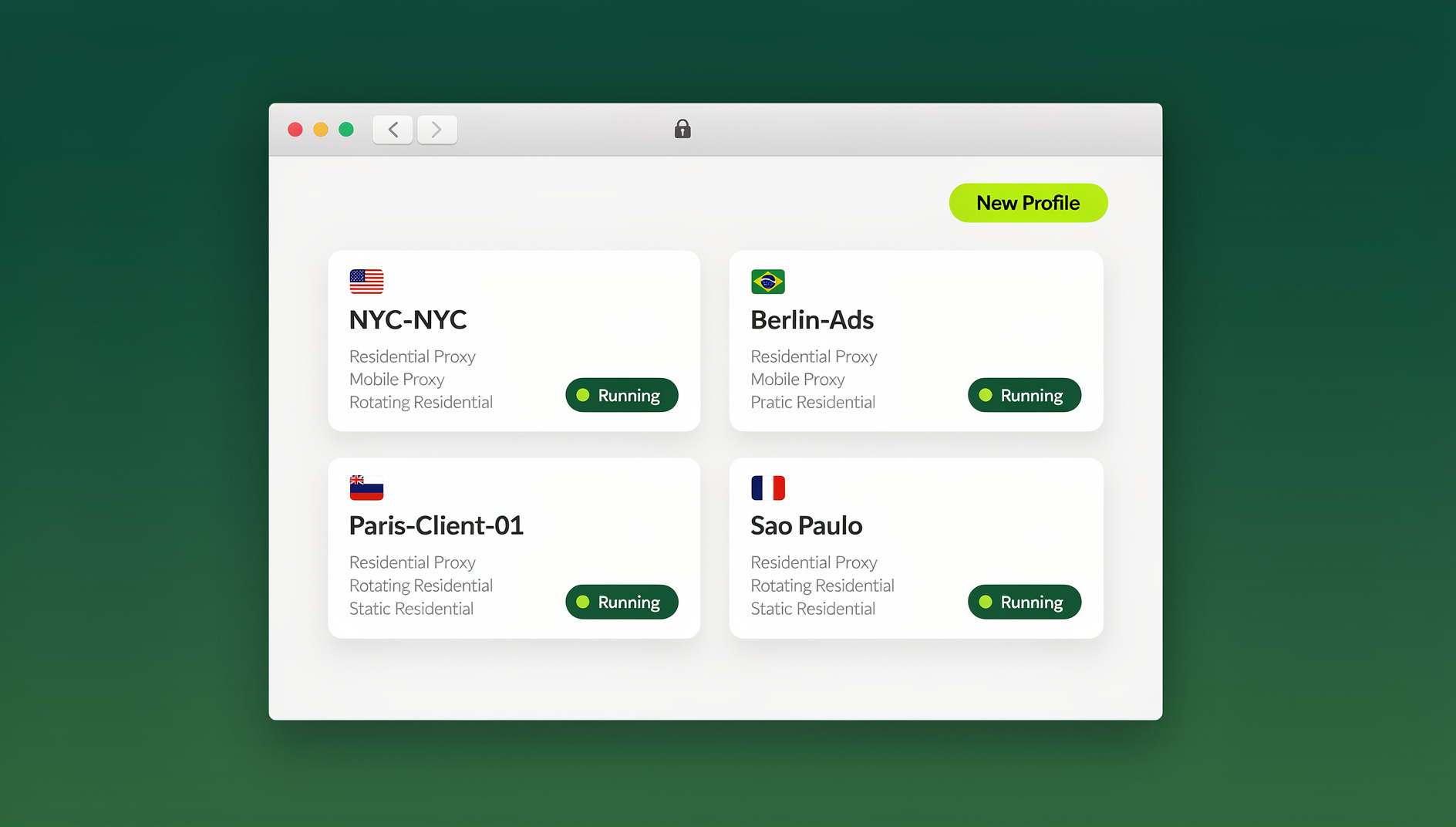
To create multiple sessions in Sendwin’s cloud browser, open a new cloud session for each account you need, give every session a distinct name, and sign in separately inside each one — Sendwin isolates cookies, local storage, and cache per session, so two or more logins to the same site (even the same URL) run side-by-side without interfering with each other. No extra software, no separate devices, and no clearing cookies between logins.
What you’ll need
- A Sendwin account — there is no free trial, but the first card purchase is covered by a 7-day money-back guarantee, so you can test this workflow risk-free.
- Two (or more) email addresses — work and personal, or separate inboxes for testing.
- A target site to practice on. This guide uses Perplexity as the example, but the same steps work on Gmail, Amazon, LinkedIn, or any site that supports multiple accounts.
Why session isolation matters
Ordinary browser tabs share cookies and local storage, so a website “sees” the same logged-in account no matter how many tabs you open. Opening a second tab to log into a different account on the same site just logs you out of the first one. Sendwin’s cloud browser sessions solve this by giving each session its own sandboxed storage — separate cookies, cache, and local storage — so you can be logged into Account A in one session and Account B in another, on the identical website, at the same time.
This is different from a regular incognito window, which clears everything when you close it and still shares a single storage context across all its tabs. It’s also different from just adding more Chrome profiles, which live locally on one machine and don’t travel with you. A Sendwin session is a persistent, isolated environment that stays logged in between visits and is accessible from any device you sign into your Sendwin account on. If you want the deeper technical explanation of how this differs from cookie partitioning or per-tab sandboxing, the session isolation guide covers the underlying mechanics.
| Approach | Isolated per account? | Persists after closing? | Works across devices? |
|---|---|---|---|
| Regular browser tab | No — shares cookies with every tab | Yes, but not isolated | No |
| Incognito/private window | Partially — isolated from normal tabs, not from each other | No — wiped on close | No |
| Local browser profile | Yes | Yes | No — tied to one machine |
| Sendwin cloud session | Yes — fully sandboxed cookies/storage | Yes — session state is preserved | Yes — cloud-synced across devices |
Step-by-step: create your first two sessions
Step 1: Launch Sendwin and start a session
Log into your Sendwin dashboard and choose whether to work in a cloud browsing session (runs entirely in the cloud, no install, billed by cloud browsing time) or through the Sendwin Browser desktop app (a native download for Windows, macOS, and Linux with local-first storage and encrypted cloud sync). Both modes support the same session-isolation model described below — this walkthrough uses a cloud session, since it needs zero setup. If you haven’t created a session before, the walkthrough in how to create your first session in Sendwin’s cloud browser covers the basic flow in more detail.
Step 2: Create Session #1 (P1)
- Click the + button to create a new session.
- Set Name to “P1” (or something recognizable, like “Perplexity — Work”).
- Set URL to https://www.perplexity.ai/.
- Leave the server/region defaults as-is unless you have a specific reason to change them.
- Click Create. A new, fully isolated tab opens — this is your first sandboxed environment.
Step 3: Create Session #2 (P2)
- Click + again to spin up a second session.
- Name it “P2” (or “Perplexity — Personal”).
- Set the URL to the same address, https://www.perplexity.ai/.
- Keep the same server/region as P1 unless you need a different one.
- Click Create. You now have two sandboxed tabs open in the same Sendwin window, each with its own storage.
Step 4: Log into different accounts
- In P1, start the sign-in flow and enter Email A.
- If the site sends a magic link or verification code, open the Email A inbox and complete the login inside P1 — not in a different tab.
- In P2, repeat the process with Email B and finish verification inside P2.
- If prompted to pick a plan, choose whatever fits your testing — most sites let you proceed on a free tier.
Tip: if a magic link opens in the wrong place by accident, copy the URL and paste it manually into the correct Sendwin session tab (P1 or P2) rather than clicking it where it landed.
Step 5: Confirm isolation and persistence
- In P1, open Account/Settings and confirm you’re signed in as Email A.
- In P2, open Account/Settings and confirm you’re signed in as Email B.
- Refresh either tab. Both sessions stay logged in, because each one stores its own cookies and local storage independently.
You now have two sandboxed sessions running the same website under two different accounts, side-by-side, in one Sendwin window.
Scaling past two sessions
Once you’ve confirmed the workflow with P1 and P2, adding P3, P4, and beyond is just a repeat of Step 2 — click Create, name it, set the URL, and log in. How many you can run in parallel depends on your plan: Sendwin’s Pro plan supports up to 150 profiles with 5GB of proxy bandwidth included, while the Team plan scales to 500 profiles, 20GB of bandwidth, and 16 seats for agencies or teams that need to divide sessions among multiple people. Both plans are paid (Pro $19/mo or $83.88/yr, Team $49/mo or $251.88/yr), and the first card purchase is covered by a 7-day money-back guarantee, so you can test how many concurrent sessions your workflow actually needs before committing to a tier.
Adding proxies to individual sessions
Basic session isolation (separate cookies and storage) is enough for most multi-account use cases. But if your workflow requires each session to also appear as a different IP address — for ad accounts, marketplace listings, or research that needs geographic diversity — you can assign a unique proxy to each session individually. The process is straightforward and is covered step-by-step in how to add a proxy to any session in Sendwin. You don’t need to do this for the P1/P2 example above; it only matters when IP-level separation, not just cookie-level separation, is part of your requirement.
Sharing sessions with a team
If you’re managing sessions for a team rather than just yourself — client accounts at an agency, shared brand logins, or QA environments multiple testers need access to — Sendwin lets you share a session without handing over the underlying password. Each teammate gets access to the live session itself, and access can be revoked at any time. The full walkthrough is in how to share sessions with your team in Sendwin, which is worth reading before you start distributing accounts across more than one or two people, since it also covers permission scoping.
Cloud sessions vs. the Sendwin Browser desktop app
It’s worth understanding the two ways Sendwin runs, since the session-creation steps above apply to both:
- Cloud browsing sessions run entirely on Sendwin’s infrastructure. There’s nothing to install, sessions are accessible from any device with a browser, and usage is metered by cloud browsing time. This is the fastest way to get started and what this tutorial walks through.
- Sendwin Browser is a native desktop app for Windows, macOS, and Linux. It’s local-first, meaning your session data lives on your machine, with encrypted cloud sync so profiles stay backed up and portable. This is the better fit for heavier daily use or when you want local performance rather than a cloud-streamed browser.
Real-world use cases for multiple sessions
- Digital marketing and growth teams: keep several client or brand accounts open at once without constantly logging in and out.
- QA and product testing: compare an admin view against a regular user view side-by-side, in real time, on the same build.
- Customer support: reproduce a user-reported bug in a clean session that matches their account state, without touching your own logged-in tabs.
- Research and personal productivity: keep work and personal accounts fully separated without switching browsers or devices.
- Agencies managing many clients: run dozens of isolated sessions in parallel rather than juggling separate laptops or VMs per client.
Pro tips and troubleshooting
- Name sessions clearly. “Perplexity — Work” and “Perplexity — Personal” are much easier to manage than “P1” and “P2” once you have more than a handful running.
- One inbox per session. Always complete a verification code or magic link inside the same session tab that requested it — pasting it into the wrong tab will log the wrong session in.
- Accidentally cross-logged in? Sign out from inside that specific session, then log back in with the account you intended.
- Need IP-level separation, not just cookie isolation? Assign a proxy to that individual session rather than trying to route all sessions through one shared IP.
- Check the platform’s rules. Some sites limit or prohibit multiple accounts per person — review their Terms of Service before running parallel sessions on the same platform.
🏆 Send.win Verdict
Creating multiple isolated sessions in Sendwin takes a few clicks per session and no extra hardware, browsers, or VMs — each one gets its own sandboxed cookies and storage so the same website can host two, ten, or a hundred separate logins at once. Whether you run those sessions in the cloud or through the native Sendwin Browser desktop app, the isolation model is the same, and both are available on paid plans (Pro $19/mo or $83.88/yr, Team $49/mo or $251.88/yr), with the first card purchase covered by a 7-day money-back guarantee.
Try Send.win free today — spin up your first two sessions in under five minutes.
FAQ
Will both sessions stay logged in after I refresh the page?
Yes. Each Sendwin session stores its own cookies and local storage independently, so refreshing one tab has no effect on the other, and neither one logs out just because you reloaded it.
How many sessions can I run at once?
As many as your plan supports. Pro includes up to 150 profiles, and Team scales to 500 profiles across 16 seats — both far beyond the two-session example in this guide, so P3, P4, and onward are simply more of the same steps.
Do I need a proxy for each session?
Not for basic isolation — cookie and storage separation alone is enough to keep two accounts on the same site apart. Add a per-session proxy only when your workflow specifically needs each session to show a different IP address.
Is running multiple accounts on the same site always allowed?
Not automatically. Some platforms restrict or prohibit multiple accounts per individual. Always check the target site’s Terms of Service before setting up parallel sessions there.
What’s the difference between a cloud session and the Sendwin Browser app?
A cloud session runs entirely on Sendwin’s servers with nothing to install, metered by cloud browsing time. Sendwin Browser is a downloadable desktop app for Windows, macOS, and Linux that stores sessions locally with encrypted cloud sync. Both use the same per-session isolation, so the multi-session steps in this guide work identically in either mode.
Can I automate logins across multiple sessions?
Do I need a credit card to try this?
No. Sendwin has no free trial; the only free option is the cloud demo at https://send.win/demo-browser/ (a 3-minute preview without signup, 10 minutes a day with a free account). Paid plans are Pro $19/mo or $83.88/yr and Team $49/mo or $251.88/yr, and the first card purchase is covered by a 7-day money-back guarantee.
What happens if I accidentally log the wrong email into a session?
Sign out from inside that session tab, then sign back in with the correct account. Because each session is isolated, this won’t affect any of your other open sessions.
Wrap-up
Multiple sessions in Sendwin’s cloud browser turn a fiddly multi-account problem — juggling browsers, devices, or constant logouts — into a handful of clicks. Create a session, name it, log in, repeat. From there, scaling to a dozen accounts, adding proxies for IP-level separation, or sharing access with a team all build on the exact same isolated-session foundation covered here. Start with the free cloud demo at https://send.win/demo-browser/, set up P1 and P2 the way this guide walked through, and expand from there once you’ve confirmed the workflow fits how you work.