A browser fingerprint is a unique identifier built from dozens of small signals your browser reveals to every site you visit — screen resolution, fonts, GPU rendering quirks, timezone, installed plugins, and more. Unlike cookies, it isn’t stored on your device and can’t be deleted; it’s recalculated on the fly, which is why sites can still recognize you even after you clear cookies or open a private window.
What Is a Browser Fingerprint, Exactly?
Think of a browser fingerprint as a pattern rather than a single piece of data. No individual attribute — your screen size, your timezone, your list of fonts — is unique on its own. But combine 20-30 of them together and the resulting pattern is often unique enough to single you out among millions of other internet users, even on a network with no cookies, no login, and no account history.
This is what makes fingerprinting fundamentally different from cookie-based tracking. Cookies are a file a site places on your device and can be blocked, deleted, or rotated. A fingerprint is derived from properties your device and browser naturally expose through standard web APIs — properties most people never think to change because doing so isn’t obvious or convenient.
How Browser Fingerprinting Works
The Collection Process
Every time you land on a page, a short sequence runs in the background, usually without any visible indication:
- Script execution: The page runs JavaScript that queries dozens of browser and hardware APIs.
- Attribute collection: Each API call returns one data point — a font list, a canvas render, a screen size.
- Hash generation: All collected attributes are combined and hashed into a single fingerprint value.
- Database matching: That hash is compared against fingerprints the site has seen before.
- Identification: If it matches a prior visit, you’re recognized — no cookie required.
What Information Gets Collected
A typical fingerprinting script pulls from three broad categories of data.
Browser-level information:
- User agent string (browser name, version, operating system)
- Installed plugins and their versions
- Language and locale settings
- Do Not Track and privacy preference flags
- Cookie and JavaScript enabled/disabled status
System-level information:
- Screen resolution and color depth
- Timezone offset
- Installed font list
- Operating system and version
- CPU core count and available memory
Graphics and audio signals:
- Canvas fingerprint (how your GPU and fonts render hidden graphics)
- WebGL fingerprint (your 3D rendering hardware’s signature)
- AudioContext fingerprint (how your system processes sound waves)
The Main Types of Browser Fingerprinting
Canvas Fingerprinting
Canvas fingerprinting is one of the most reliable techniques available to trackers. A page silently instructs your browser to draw text and shapes onto a hidden HTML5 canvas element. The rendering path — your GPU, driver, font rasterizer, and anti-aliasing settings — introduces tiny pixel-level differences between devices. That rendered image is hashed into a fingerprint that’s remarkably stable across sessions on the same machine. We cover the mechanics and defenses in detail in our canvas fingerprinting guide.
WebGL Fingerprinting
WebGL fingerprinting goes a layer deeper into your graphics stack, extracting the GPU vendor and model (NVIDIA, AMD, Intel, Apple Silicon), driver version, supported extensions, and the exact output of specific 3D rendering operations. Because it touches real hardware behavior, WebGL data is harder to spoof convincingly than most other signals — a mismatch between a claimed device and its WebGL output is an easy tell for detection systems. Our WebGL fingerprinting breakdown walks through how sites use this specific vector and what realistic spoofing actually requires.
Audio Fingerprinting
Audio fingerprinting uses the AudioContext API to generate an inaudible tone and measure how your system’s audio stack processes it. Tiny variations in hardware, drivers, and OS-level audio processing produce a consistent, unique signature — and it works without ever playing a sound you’d notice. It’s often overlooked by users trying to protect their privacy, which makes it a favorite among tracking scripts.
Font Fingerprinting
Your installed font list is more identifying than most people assume. Operating systems ship with different default font sets, installed applications (Adobe products, Microsoft Office, design tools) add more, and any custom fonts you’ve installed personally make your list rarer still. Measuring which fonts render at which pixel widths lets a script infer your exact font list even without directly querying it.
TLS/SSL Fingerprinting
TLS fingerprinting works at the network level, before a single line of JavaScript runs. It looks at how your browser negotiates an encrypted connection — the order of cipher suites offered, the TLS version, and which extensions are present. This lets a server identify your browser type and sometimes automation tooling, even with JavaScript disabled entirely.
Why Websites Use Browser Fingerprinting
Advertising and Cross-Site Tracking
- Cookie-free tracking: Fingerprinting keeps working even when users block or delete cookies.
- Cross-device linking: Similar fingerprint patterns can tie activity across your phone, laptop, and tablet.
- Profile building: Repeated recognition builds a detailed interest and behavior profile over time.
- Targeted advertising: Ads get personalized based on the browsing history tied to that profile.
Fraud and Bot Detection
- Account security: A fingerprint that suddenly changes can flag a possible account takeover.
- Bot detection: Automated traffic often has telltale fingerprint gaps (missing fonts, generic GPU renderers).
- Payment fraud: Unusual or inconsistent fingerprints get flagged during checkout.
- Credential stuffing defense: Repeated login attempts from one fingerprint across many usernames get caught quickly.
Multi-Account Detection
Platforms also lean on fingerprinting specifically to catch:
- Multiple accounts operated by the same person
- Ban evasion after a suspension
- Fake reviews or coordinated inauthentic activity
- Promotional and referral abuse
How Unique Is Your Fingerprint, Really?
Independent research on browser fingerprinting has found the uniqueness rate to be strikingly high. The original Panopticlick study by the EFF found that roughly 83.6% of browsers tested had a fingerprint unique among the entire sample, rising to about 94.2% once older plugin data (Flash, Java) was factored in. Every additional attribute a script collects pushes that uniqueness rate higher — mobile browsers fare only slightly better due to more standardized hardware.
| Factor | Effect on Uniqueness |
|---|---|
| Browser extensions installed | Increases — each one adds a detectable signal |
| Custom or unusual fonts | Increases — rare fonts stand out immediately |
| Non-default display settings | Increases — uncommon resolutions are memorable |
| Uncommon browser/OS combinations | Increases — rare pairings narrow the pool fast |
| Common configuration (default Chrome + Windows) | Decreases — blends into a large crowd |
| Mobile device with stock settings | Decreases — hardware variation is lower |
| JavaScript disabled | Decreases collection, but is itself rare and identifying |
How to Test Your Own Browser Fingerprint
Several free tools let you see exactly how identifiable your current setup is before you change anything:
AmIUnique.org runs a comprehensive fingerprint analysis and compares your result against its public database, showing which specific attributes make you stand out.
Cover Your Tracks, the EFF’s successor to Panopticlick, tests both your tracking protection and your overall fingerprint uniqueness in one pass.
BrowserLeaks.com breaks down every fingerprint component separately — canvas, WebGL, audio, fonts, TLS — which is useful if you’re specifically debugging spoofing or protection settings.
How to Protect Against Browser Fingerprinting
Browser-Based Protection
Firefox ships built-in options worth turning on: Enhanced Tracking Protection in Strict mode, the dedicated fingerprinting-protection toggle in privacy settings, and deeper `about:config` flags for advanced users.
Brave enables fingerprint randomization by default and its Shields feature blocks many fingerprinting scripts outright, changing key values on a per-session basis.
Tor Browser takes the opposite approach: standardizing rather than randomizing, so every user looks identical to every other Tor Browser user. That uniformity is what makes it the most effective option for blending in rather than standing out.
Extension-Based Protection
- CanvasBlocker — adds controlled noise to canvas rendering output
- uBlock Origin — blocks known fingerprinting scripts when configured with the right filter lists
- NoScript — blocks JavaScript entirely, which stops most fingerprinting but breaks a lot of modern sites
The Privacy Paradox
Here’s the catch that trips up a lot of privacy-conscious users: aggressive countermeasures can make you more identifiable, not less. Blocking JavaScript outright is rare, so doing it stands out. Unusual combinations of privacy extensions create a configuration that’s arguably as unique as doing nothing at all. Our guide to disabling browser fingerprinting goes deeper into which specific settings genuinely help versus which ones backfire. The real goal is to either look exactly like everyone else (standardization) or look like a completely different person on every visit (randomization) — anything in between tends to just create a new, smaller crowd to stand out in.
Browser Fingerprints and Multi-Account Management
The Underlying Challenge
If you manage more than one account on the same platform — separate client accounts, separate stores, separate ad accounts — fingerprinting works against you specifically:
- Every account you access from the same browser shares the same fingerprint
- Platforms detect the shared fingerprint and quietly link the accounts together
- Private/incognito browsing doesn’t help — the fingerprint calculation is unaffected by it
- Even Firefox containers, which isolate cookies, still share the same underlying browser fingerprint between containers
The Real Fix: A Genuinely Separate Fingerprint Per Account
To keep accounts from being linked, each one needs its own canvas and WebGL output, its own audio signature, its own font list, its own screen resolution and timezone, and its own user agent — a complete, internally consistent identity rather than one field changed at random.
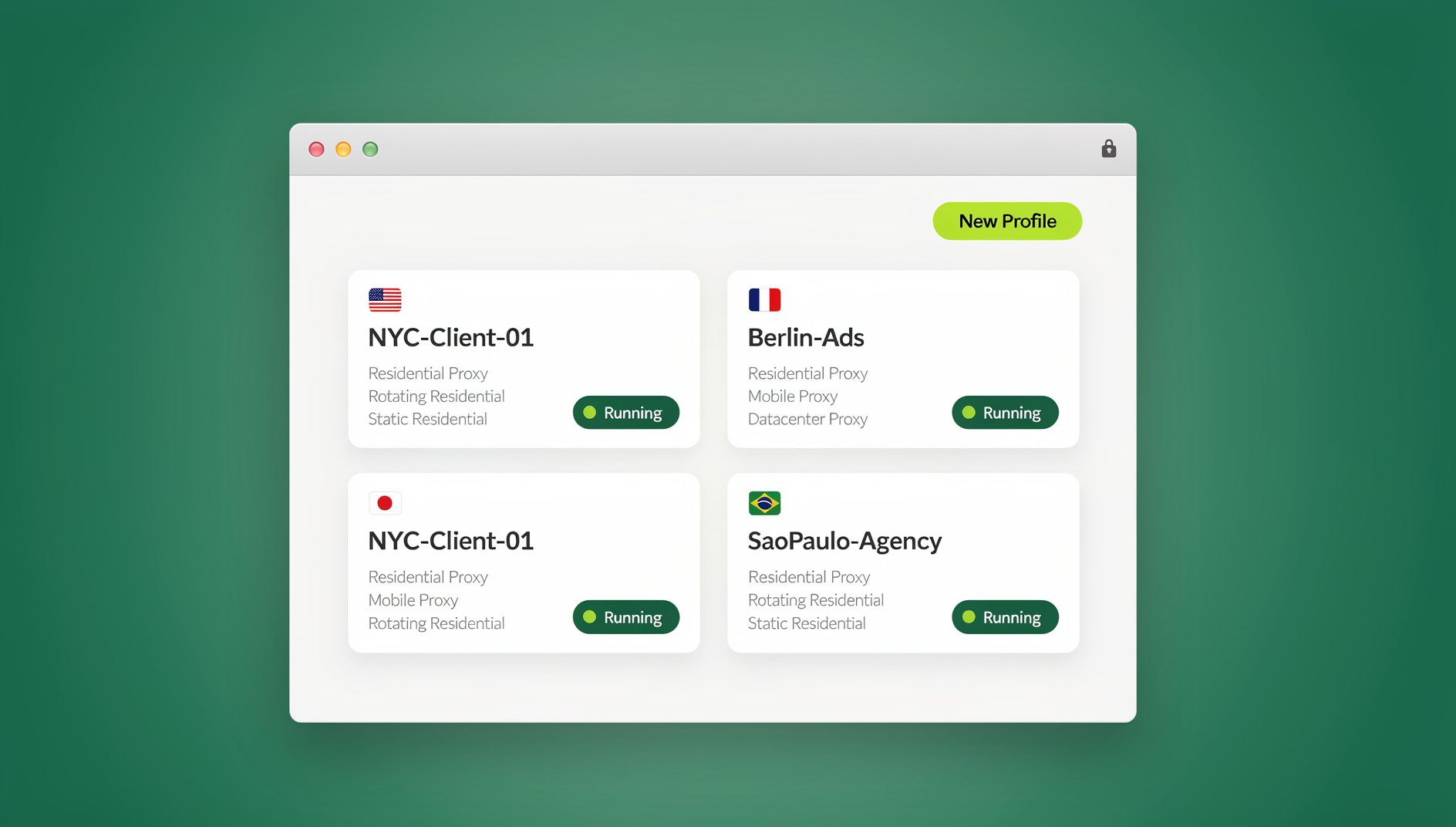
This is the specific problem Send.win is built to solve. Rather than a single browser tweaked with random values, Send.win gives every profile its own coherent, realistic fingerprint so each one presents as a genuinely different device to the sites you visit. You get two ways to run it:
- Sendwin Browser — a native, downloadable desktop app for Windows, macOS, and Linux. It’s local-first, so your profiles and sessions live on your machine, with encrypted cloud sync keeping everything backed up and available if you switch devices.
- Cloud browser sessions — profiles that run entirely in the cloud with zero local install, billed by cloud browsing time rather than a flat seat fee, useful when you need a session available from any device without setting up software first.
For teams running workflows across profiles, Send.win’s desktop app gives each profile its own isolated cookies, storage and fingerprint, rather than one shared browser context. It’s available starting on the Pro plan, not locked behind an enterprise tier, which matters if you’re a solo operator or small agency scaling up gradually. If you’re weighing Send.win against other fingerprint-management tools, our best antidetect browser comparison lines up the major options side by side.
Send.win Pricing at a Glance
Paid plans start at $19/mo for Pro, and your first card purchase is covered by a 7-day money-back guarantee, so you can test fingerprint isolation on your actual accounts before committing.
| Plan | Price | Profiles | Proxy Bandwidth | Seats | |
|---|---|---|---|---|---|
| Pro | $19/mo ($6.99/mo billed annually — 63% off) | 150 | 5GB | Included | 1 |
| Team | $49/mo ($20.99/mo billed annually — 57% off) | 500 | 20GB | Included | 16 |
Personal Privacy vs. Professional Multi-Account Needs
The right response to fingerprinting depends heavily on what you’re actually trying to achieve — the tools that solve one problem often make the other worse.
For Personal Privacy
Individual users are mainly worried about ad tracking across sites, price discrimination based on browsing history, general third-party data collection, and broader surveillance concerns. Privacy-hardened browsers like Brave, Firefox in strict mode, or Tor Browser are built for exactly this — reducing what any single site can learn about you as a person.
For Business and Professional Use
Business users have a different problem entirely: managing several legitimate accounts without triggering the fraud and multi-accounting detection that flags shared fingerprints, while presenting each profile as a believable, non-suspicious device rather than an obviously spoofed one. This is where a purpose-built browser profile manager like Send.win fits — realistic, internally consistent fingerprints generated per profile, not a single browser with values scrambled at random.
Where Browser Fingerprinting Is Headed
Privacy-Side Initiatives
- Google’s Privacy Sandbox aims to close off some fingerprinting vectors while preserving ad measurement
- Browser standardization efforts continue to try to reduce how many unique attributes are exposed by default
- Regulation like GDPR and similar frameworks increasingly treats fingerprinting for tracking as requiring consent
Counter-Trends Pushing the Other Way
- Third-party cookie deprecation is pushing more trackers toward fingerprinting as a fallback
- New browser APIs each tend to expose a little more fingerprinting surface, even unintentionally
- Mobile web growth means more fingerprinting activity even as individual devices vary less
- Fraud prevention demand keeps legitimate fingerprinting development funded and improving
🏆 Send.win Verdict
Browser fingerprinting works whether or not you use cookies, and no browser setting alone fully defeats it — you either blend into a huge crowd or you give each identity its own consistent, believable fingerprint. For personal privacy, a hardened browser like Brave or Tor gets you most of the way there. For anyone juggling multiple legitimate accounts on the same platforms, Send.win’s Sendwin Browser desktop app and cloud browser sessions generate a realistic, separate fingerprint per profile, so each profile keeps its own cookies, storage and fingerprint.
Try the Send.win cloud demo — a 3-minute preview without signup, 10 minutes a day with a free account.
Frequently Asked Questions
Is browser fingerprinting legal?
In most jurisdictions, yes. GDPR and similar privacy laws increasingly require consent when fingerprinting is used for advertising or tracking purposes, but fraud detection use cases are generally permitted without separate consent since they’re framed as a security necessity.
Can I completely prevent my browser from being fingerprinted?
Not entirely. Some fingerprinting techniques, like TLS fingerprinting, work even with JavaScript disabled. The realistic goal is reducing how unique your fingerprint is, or making it different on every visit, rather than eliminating collection altogether.
Does private or incognito browsing stop fingerprinting?
No. Private browsing modes stop your device from storing local history and cookies, but they don’t change any of the underlying attributes a fingerprinting script reads — your canvas render, WebGL output, fonts, and screen size all stay exactly the same.
How often does a browser fingerprint actually change?
Most fingerprints stay stable for weeks or months at a stretch. They shift when you update your browser, install or remove extensions, update your OS, or add new fonts — which is precisely why they’re so useful for long-term tracking.
Do VPNs protect against browser fingerprinting?
No. A VPN changes your IP address and apparent location, but it has no effect on your browser fingerprint. A site can still recognize you through fingerprinting even while you’re connected to a VPN.
What’s the difference between fingerprinting protection and an antidetect browser?
Fingerprinting protection (Brave’s Shields, Firefox’s strict mode) tries to make you blend in or reduce what’s collected on a single browser. A browser profile manager like Send.win instead gives you multiple separate, realistic profiles, each with its own consistent fingerprint, so you can run several distinct identities side by side with separate cookies and storage.
Can Selenium, Puppeteer, or Playwright scripts be fingerprinted too?
Yes — automated browsers often expose telltale fingerprint gaps like missing font sets or generic renderer strings, which is a major way bot detection systems catch automation. Running scripted workflows through Send.win is not possible, as Send.win has no automation interface, but each profile still keeps its own consistent fingerprint and isolated cookies and storage.
Why do two identical computers ever have different fingerprints?
Even matching hardware models can render canvas graphics or WebGL output slightly differently depending on driver version, OS patch level, installed fonts, and GPU firmware — small variances that are enough to produce two distinct fingerprint hashes from otherwise identical machines.