To disable browser fingerprinting, you need to change or randomize the technical signals your browser exposes — canvas rendering, WebGL data, installed fonts, screen resolution, and dozens of other details — because fingerprinting works without cookies and survives incognito mode entirely. Browser settings and privacy extensions each block a handful of these signals; a dedicated tool like Send.win goes further by generating a fresh, internally-consistent fingerprint for every browsing session, which is what actually breaks cross-site tracking and account linking.
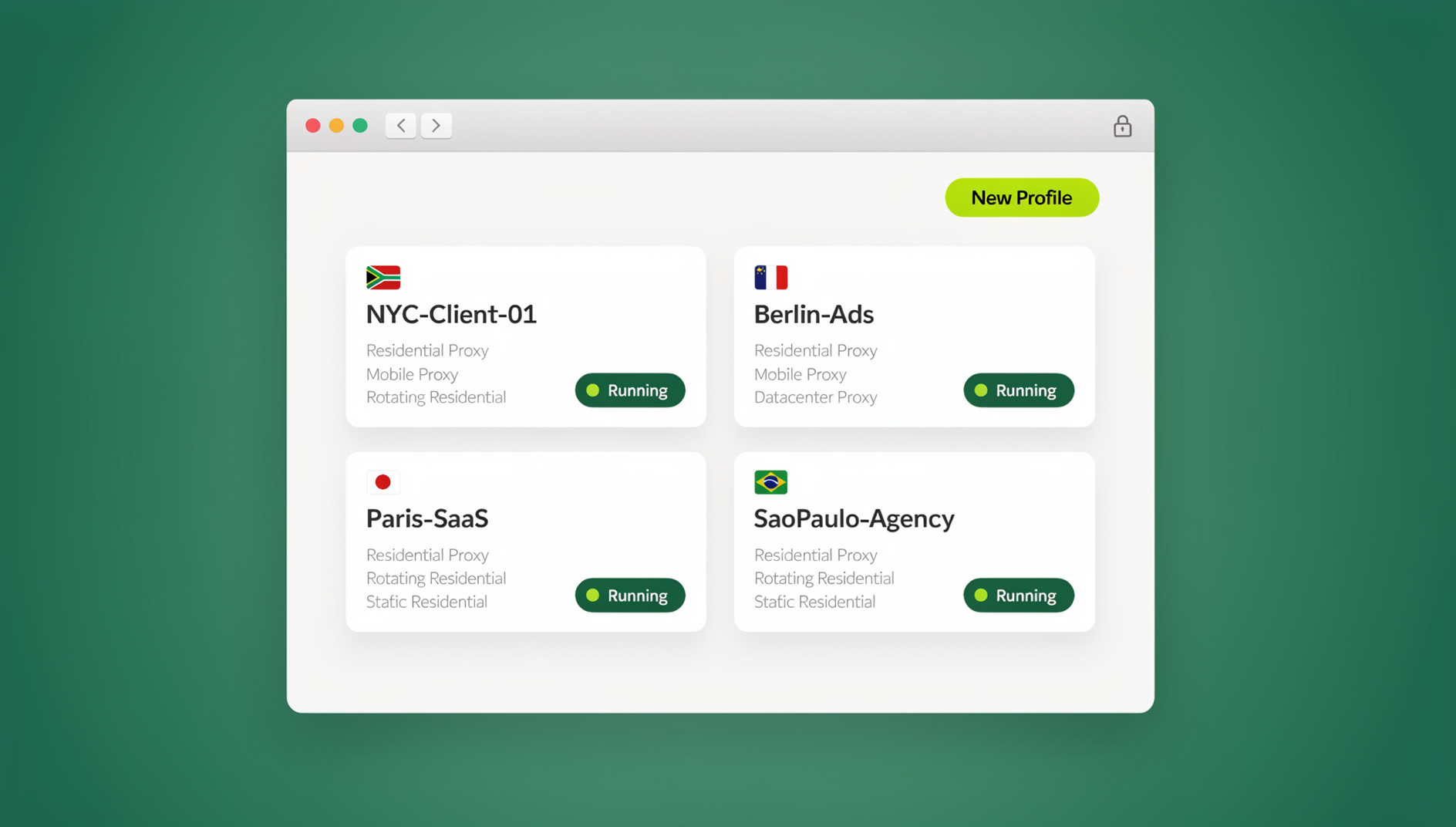
This guide breaks down what a fingerprint actually is, why the usual advice (incognito mode, ad blockers, “resist fingerprinting” flags) only gets you partway there, and how session-level fingerprint isolation closes the remaining gaps.
What Is Browser Fingerprinting?
Browser fingerprinting is a tracking technique that collects dozens of technical details about your browser and device to build a unique identifier — your “fingerprint” — without ever setting a cookie. Unlike cookies, which you can delete in two clicks, your fingerprint is calculated from your actual hardware and software configuration, so it regenerates identically the next time you visit, even from a different browser or a cleared profile.
What Data Points Make Up Your Fingerprint?
Fingerprinting scripts don’t need permission to read most of this — it’s exposed through standard web APIs that every site can query silently in the background.
Hardware signals
- Screen resolution and color depth
- GPU model and rendering capabilities (WebGL)
- CPU core count and device memory
- Touch-screen support
- Battery status API data
Software signals
- Browser type, version, and build
- Operating system and version
- Installed fonts
- Browser plugins and extensions list
- System language and timezone
- Canvas rendering output
- Audio context fingerprint
Network signals
- IP address and ASN
- DNS resolver behavior
- WebRTC local/public IP leaks
- HTTP header order and values
- TLS/SSL handshake fingerprint (JA3)
When combined, these data points create a signature unique enough that researchers have repeatedly found the overwhelming majority of browsers can be individually identified from this information alone, no cookie required. If you want the deeper technical breakdown of exactly how each signal is calculated, our guide on what a browser fingerprint actually is covers the full mechanics.
Why Browser Fingerprinting Is a Problem
1. It ignores everything you think protects you
Fingerprinting keeps working even when you:
- Delete all cookies
- Browse in incognito or private mode
- Clear your browser history
- Switch to a “different” browser on the same machine
Your fingerprint persists because it’s derived from your actual system configuration, not from anything stored locally that you can wipe.
2. Cross-site tracking
Third-party trackers use fingerprints to follow you across unrelated websites, build behavioral profiles over months or years, and link your activity across platforms for ad targeting — all without needing a login or a cookie to survive.
3. Account and multi-account linking
Platforms actively use fingerprinting to detect multi-accounting. Marketplaces link seller accounts that share a device signature, ad networks flag duplicate ad accounts, and social platforms use it to catch ban evasion — even when every other signal (IP, email, payment method) looks unrelated.
4. Price and content discrimination
E-commerce and travel sites use device fingerprints to serve dynamic pricing, show higher fares to repeat visitors, or adjust offers based on inferred hardware value.
How to Disable Browser Fingerprinting: The Standard Methods
Method 1: Built-in browser privacy settings
Firefox
Firefox has the strongest built-in fingerprint protection of the mainstream browsers.
Step 1 — Enable Strict Tracking Protection: Settings → Privacy & Security → select “Strict.” This blocks known fingerprinting scripts.
Step 2 — Enable Resist Fingerprinting: type about:config in the address bar, search for privacy.resistFingerprinting, and set it to true. This standardizes many fingerprint attributes across all Firefox users who enable it.
What this actually does: it rounds your screen resolution to common values, blocks font enumeration, and adds noise to canvas output. It can also break form submissions, video playback, and other site features, and — because so few people enable it — it can paradoxically make you stand out rather than blend in.
Chrome
Chrome’s built-in protection is limited to Settings → Privacy → Third-party cookies → Block third-party cookies, which stops cookie-based tracking but does nothing to randomize or block fingerprinting signals like canvas or WebGL output.
Brave
Brave ships stronger defaults: Settings → Shields → Fingerprinting blocking → “Strict” mode blocks most fingerprinting scripts and randomizes some attributes, though it still exposes enough of a consistent signature to be linkable across sessions in some cases.
Method 2: Privacy extensions
- Canvas Defender — adds noise to canvas fingerprinting output so it differs by session, but only protects the canvas vector, leaving WebGL, fonts, and audio untouched.
- Privacy Badger (EFF) — learns and blocks known trackers, but doesn’t randomize your fingerprint; it just blocks scripts it recognizes as trackers.
- uBlock Origin — blocks many fingerprinting scripts via filter lists, but doesn’t modify the underlying fingerprint for scripts it doesn’t catch.
Method 3: Disable JavaScript
Most fingerprinting techniques (canvas, WebGL, audio context, font enumeration) require JavaScript to run. Disabling it entirely prevents JavaScript-based fingerprinting completely, but it also breaks the vast majority of modern websites, making this impractical for anything beyond reading static pages.
Method 4: Tor Browser
Tor Browser standardizes its fingerprint so aggressively that every user looks nearly identical, which is genuinely strong privacy protection. The tradeoffs are real, though: browsing speed is significantly slower, and many sites actively block Tor exit nodes, making it impractical for daily account management or work.
Why These Methods Don’t Fully Solve the Problem
Incomplete coverage
Every method above covers some fingerprint vectors and misses others. Canvas might be protected while WebGL fingerprinting sails through untouched; fonts might be blocked while audio context fingerprinting remains fully exposed. Sites only need one uncovered vector to re-identify you.
The fingerprint paradox
Privacy tools can backfire. Because only a small minority of users enable aggressive settings like resistFingerprinting, doing so makes your traffic pattern itself unusual — your “privacy fingerprint” becomes a distinguishing feature in a crowd where almost everyone else looks default.
No actual randomization
Most browser settings and extensions standardize or block signals; they rarely randomize them per session. A blocked or standardized fingerprint is often still static and trackable over time — it just looks different from an unprotected one, not different from itself on the next visit.
Site breakage
Aggressive fingerprint blocking has real costs: forms fail to submit, video players refuse to load, checkout flows silently break, and there’s often no clear error message telling you why.
Send.win’s Approach: Fingerprint Isolation at the Session Level
Send.win takes a different approach than blocking or standardizing: every session gets its own consistent, realistic browser fingerprint, isolated from every other session you run. Instead of trying to look like “no one” (which is hard and breaks sites), each session looks like a distinct, ordinary user — and no two sessions share enough signal to be linked together.
Send.win runs in two modes, and both isolate fingerprints completely:
Sendwin Browser (native desktop app)
Sendwin Browser is a downloadable native application for Windows, macOS, and Linux. It’s local-first, meaning your sessions and profiles live on your machine with encrypted cloud sync layered on top — so you get fingerprint isolation per profile without depending on a remote server for every click, and your data still syncs securely if you switch devices.
Cloud browser sessions
For workflows that need zero local footprint, Send.win also offers sessions that run entirely in the cloud. Nothing installs on your device, the site only ever sees the cloud session’s isolated fingerprint, and usage is metered by cloud browsing time rather than a subscription tier for the browser itself.
What’s isolated per session
- Canvas: independent rendering noise per session
- WebGL: distinct GPU vendor/renderer reporting per session
- Fonts: separate font enumeration per profile
- Audio context: unique audio fingerprint per session
- Screen/viewport: consistent, plausible values per profile
- Timezone and locale: matched sets, not mismatched giveaways
Because each profile’s signals are generated as a coherent set — not a random grab-bag — the fingerprint reads as an ordinary device rather than an obviously spoofed one, which matters both for privacy and for avoiding detection systems that flag inconsistent hardware combinations.
Automation without exposing your real fingerprint
If you’re testing sites, monitoring competitors, or running scraping workflows, fingerprint consistency matters just as much for automated browsers as it does for manual ones — automation frameworks have their own detectable signatures, which our guide to Selenium browser fingerprint detection covers in depth. Send.win is a browser profile manager: each profile keeps its own consistent browser fingerprint, so profiles do not share one browser identity. Send.win has no automation interface — no API, SDK, headless mode or Selenium/Puppeteer/Playwright support on any plan.
Comparing Fingerprint Protection Methods
| Method | Protection level | Site compatibility | Ease of use | Multi-account safe? |
|---|---|---|---|---|
| Firefox Resist Fingerprinting | Medium | Some breakage | Easy | No — same fingerprint every session |
| Privacy extensions | Low–Medium | Good | Easy | No — same fingerprint every session |
| Tor Browser | High | Frequent blocks | Complex | No — identical for all Tor users |
| Brave Shields (Strict) | Medium | Good | Easy | Limited |
| Send.win | Session-isolated, consistent per profile | High — separate cookies, storage and fingerprint per profile | No configuration needed | Yes — every session isolated |
How to Test Your Fingerprint Protection
A handful of free tools let you see exactly what a site sees when it fingerprints you:
1. Cover Your Tracks (EFF)
The EFF’s fingerprinting test — the successor to the original Panopticlick project — is at coveryourtracks.eff.org. It runs a live test and reports how unique and trackable your browser currently looks.
2. AmIUnique
amiunique.org runs a comprehensive fingerprint analysis and shows every data point it collected, alongside how common or rare each value is among recent visitors.
3. BrowserLeaks
browserleaks.com breaks fingerprinting down into individual test pages — canvas, WebGL, fonts, audio, and a dedicated WebRTC leak check — so you can isolate exactly which vector is exposing you.
What to look for
Run the same test twice, once per session if you’re using session isolation. The canvas hash, WebGL renderer string, and font list should differ between sessions if isolation is actually working — if they’re identical every time, you’re still looking at one static, trackable fingerprint.
Best Practices for Fingerprint Protection
For general privacy browsing
- Use Firefox with
privacy.resistFingerprintingenabled if you’re not managing multiple accounts - Install uBlock Origin to cut down on tracking scripts generally
- Disable WebRTC in
about:configto stop local IP leaks - Layer a VPN on top for sensitive browsing sessions
For multi-account management
- Run a separate isolated session per account rather than relying on browser profiles alone
- Pair each session with its own proxy so IP address doesn’t undo the fingerprint isolation
- Never log into two accounts you want kept separate from the same session
- If you’re specifically managing ad accounts, see our breakdown of browser setups for ads management for platform-specific detection risks
For serious privacy or research work
- Combine session-level fingerprint isolation with residential proxies
- Rotate both fingerprint and proxy together, not just one or the other
- Avoid ever logging personal accounts into a session used for research or testing
🏆 Send.win Verdict
Browser settings and privacy extensions can reduce fingerprinting, but they standardize or block signals rather than isolating them — leaving you with a fingerprint that’s still static and still linkable over time. Send.win’s session-based isolation, available through the native Sendwin Browser desktop app or fully cloud-hosted sessions, gives every profile its own consistent, realistic fingerprint without breaking site functionality or requiring you to configure anything manually.
Try Send.win today — plans start at $19/mo, and your first card purchase is covered by a 7-day money-back guarantee.
Frequently Asked Questions
Can I completely disable browser fingerprinting?
Not in the sense of stopping fingerprinting scripts from running — most sites can still query canvas, WebGL, and font APIs. What you can do is make the resulting fingerprint useless for tracking, either by standardizing it (Tor’s approach) or isolating a distinct, consistent one per session (Send.win’s approach), so the signal no longer links your activity across sites or accounts.
Does incognito or private browsing mode prevent fingerprinting?
No. Incognito mode only stops your browser from saving local history and cookies on your own device. Your fingerprint is calculated from your hardware and software configuration, which is identical whether you’re in a normal window or a private one.
Will fingerprint protection slow down my browsing?
Browser extensions can add a small amount of overhead since they intercept and modify API calls in real time. Cloud browser sessions can actually feel faster for heavy multi-account work since rendering happens on remote infrastructure rather than your local device.
Do I still need a proxy if I’m already isolating my fingerprint?
Yes, for multi-account work. Fingerprint isolation stops fingerprint-based linking, but your IP address is a separate signal — sites can still connect two sessions that share the same IP even if every other fingerprint attribute is different. Pairing a unique proxy with each isolated session closes that gap.
Is browser fingerprinting legal?
Yes, in most jurisdictions fingerprinting itself isn’t illegal, though regulations like GDPR in the EU require disclosure when it’s used for tracking. Legality aside, you’re free to take steps to protect your own privacy regardless of how a site chooses to track visitors.
What’s the difference between fingerprint blocking and fingerprint isolation?
Blocking tries to stop a site from reading a signal at all, or to standardize it so every user reports the same value. Isolation, by contrast, lets the signal be read but ensures each session or profile reports its own distinct, self-consistent set of values — so tracking within a session works normally, but nothing links one session to another.
Can Send.win be used for browser automation and testing, not just manual browsing?
No. Send.win has no automation interface: no API, SDK, headless mode or Selenium/Puppeteer/Playwright support on any plan. Each profile keeps its own consistent browser fingerprint, so profiles do not share one browser identity.
How much does Send.win cost?
Send.win has no free trial. The Pro plan is $19/month or $83.88/year, and the Team plan is $49/month or $251.88/year; the first card purchase is covered by a 7-day money-back guarantee. The only free option is the cloud demo at send.win/demo-browser — a 3-minute preview without signup, 10 minutes a day with a free account. Full details are on the pricing page.