Chrome extensions for productivity are still one of the highest-leverage upgrades you can make to your daily workflow — a handful of well-chosen add-ons can save you hours every week without asking you to switch tools, learn new software, or change how you already work. This guide updates the classic “5 Chrome extensions” list for 2026: what’s still worth installing, what’s changed, and where a browser-level tool like Send.win fits in when your productivity problem isn’t a missing feature — it’s juggling too many logins, tabs, and client accounts inside a single browser window.
Whether you’re a solo freelancer bouncing between five client Gmail inboxes, a marketer running parallel ad accounts, or someone who just wants fewer tabs and less friction, the right combination of extensions plus smarter browser management can meaningfully change how much you get done before lunch.
Why Chrome Extensions Still Matter in 2026
Chrome’s extension ecosystem has matured a lot since the early “productivity hack” era. Manifest V3 tightened what extensions can do in the background, AI-assisted writing and summarization are now built into many tools by default, and browsers themselves have gotten better at tab management. None of that has made extensions irrelevant — if anything, the good ones have gotten more focused. The extensions that survive and stay popular in 2026 are the ones that solve one problem extremely well: capture a thought, fix your grammar, manage a password, block a distraction, or keep unrelated accounts from bleeding into each other.
That last problem — account bleed — is the one most “best Chrome extensions” lists still skip, and it’s arguably the biggest productivity drain for anyone managing more than one identity in a browser: client accounts, personal versus work logins, or multiple social profiles for the same platform. We’ll cover the classic extension picks first, then get into why a purpose-built multi-profile browser tool belongs on this list too.
The 5 Chrome Extensions Worth Installing in 2026
These five categories consistently show up in “how do you actually get more done” conversations among freelancers, marketers, and remote teams. Install one solid extension per category rather than three overlapping ones — redundant extensions are one of the biggest sources of the browser slowdown people blame on “too many extensions.”
1. Note-Taking and Quick Capture (Google Keep)
Google Keep’s Chrome extension remains one of the simplest ways to capture a thought, a screenshot, or a snippet of text without leaving the page you’re on. It syncs instantly across devices, supports checklists and reminders, and stays out of your way until you need it. For anyone who used to keep a messy pile of browser tabs open “just so I don’t forget,” a one-click capture extension replaces that habit almost overnight.
2. Writing and Grammar (Grammarly)
Grammarly is still the default recommendation for a reason: it checks tone, clarity, and grammar in real time across Gmail, Slack in the browser, Google Docs, LinkedIn, and virtually any text field on the web. In 2026 the AI rewriting suggestions have gotten noticeably better at matching your existing voice instead of flattening it, which is the complaint that used to get leveled at earlier versions.
3. Password and Login Management (Bitwarden or 1Password)
A password manager extension is no longer optional — it’s the baseline for both security and speed. Autofill alone saves minutes per day across dozens of logins, and a good password manager also flags reused or weak passwords before they become a breach. Bitwarden (open source, generous free tier) and 1Password (stronger team-sharing features) are the two most commonly recommended options in 2026, replacing older picks like LastPass after its well-documented security incidents.
4. Focus and Ambient Sound (Noisli)
Noisli generates customizable ambient background noise — rain, coffee shop chatter, white noise — directly from a Chrome extension, which is a small but genuinely effective way to drop into deep work faster than silence or a random playlist. Pair it with a strict tab limit and you’ll notice fewer “just checking one thing” detours.
5. Multi-Account and Tab Management (Send.win)
This is the category most “5 Chrome extensions” lists get wrong by treating it as a single extension problem. If your productivity bottleneck is logging in and out of multiple accounts on the same platform — client ad accounts, several Gmail inboxes, agency social profiles — no extension alone fixes that cleanly, because Chrome profiles and cookie-clearing tricks are clumsy at scale and risky for platforms that flag duplicate logins from the same fingerprint. This is exactly the gap Send.win was built to close, and it’s why it earns a spot on this list even though it’s a full browser tool rather than a lightweight add-on. We cover exactly how it works, step by step, in the section below.
Comparison Table: Productivity Extensions at a Glance
| Tool | Category | Best For | Free Option | Typical Cost |
|---|---|---|---|---|
| Google Keep | Note-taking | Quick capture, checklists | Yes, fully free | Free |
| Grammarly | Writing assistant | Email, docs, social posts | Yes, basic tier | Free–$12/mo premium |
| Bitwarden | Password manager | Autofill, security audits | Yes, generous free tier | Free–$10/yr premium |
| Noisli | Focus / ambient sound | Deep work sessions | Yes, limited sounds | Free–$4/mo premium |
| Send.win | Browser profile manager | Client accounts, ad accounts, teams | No free trial; free cloud demo | $19/mo Pro, $49/mo Team |
Individually, each of these tools solves a narrow problem well. Stacked together, they cover the four biggest drains on daily productivity: forgetting things, writing slower than you should, re-entering credentials, losing focus, and — the one people underestimate — wasting time and risking bans by juggling accounts the wrong way.
Where Send.win Fits Into Your Productivity Stack
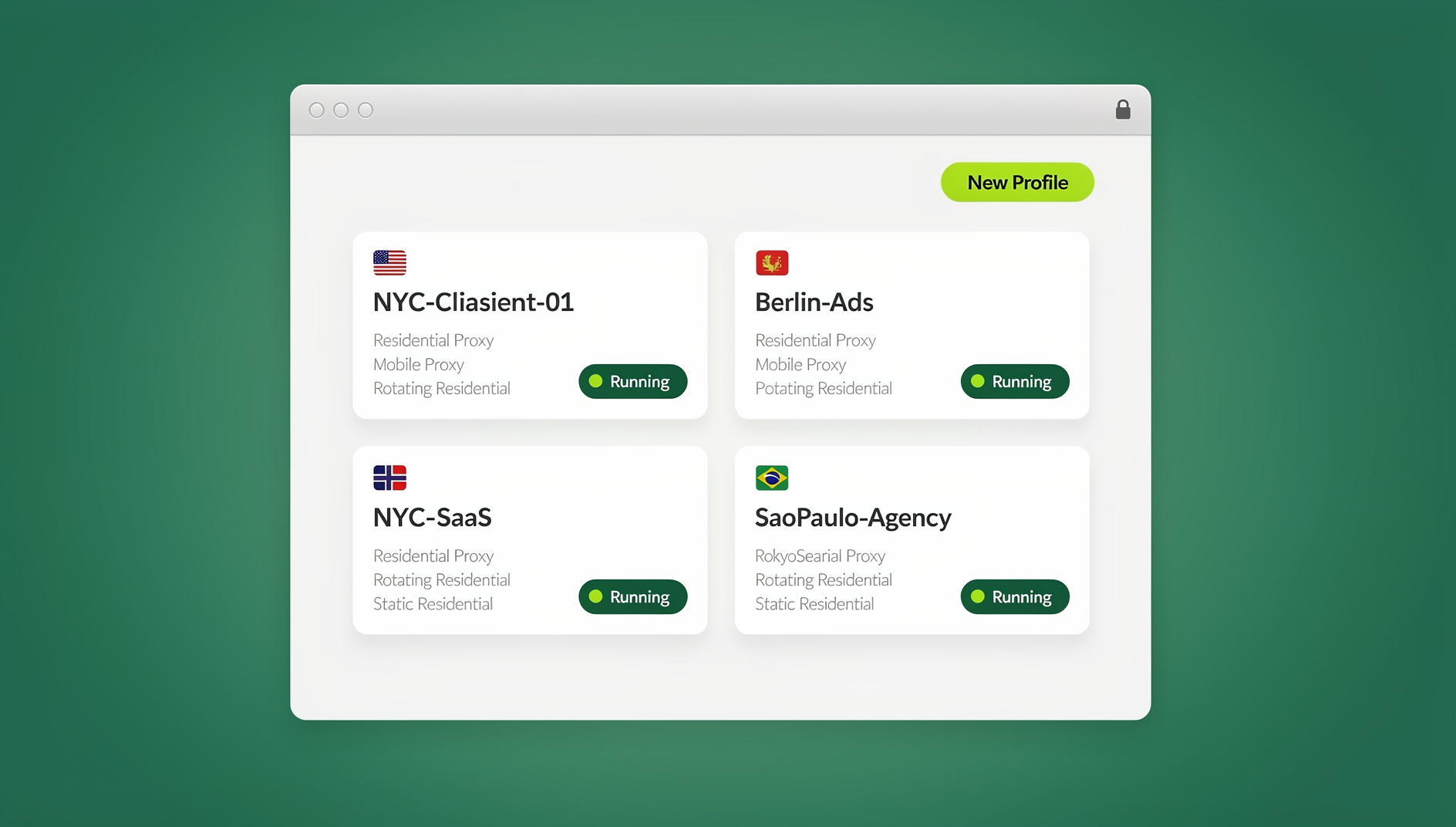
Send.win is a browser profile manager: instead of one Chrome window trying to hold every account you touch, it gives each account its own isolated browser profile with its own fingerprint, its own cookies, and (if you need it) its own residential or datacenter proxy. That means you can be logged into five client Facebook Business accounts, three Gmail inboxes, and a handful of marketplace seller accounts at the same time, in the same window layout, with separate cookies, storage and fingerprint per profile. If tab overload and constant re-login is your actual productivity killer — more than needing “one more extension” — this is the fix. For a deeper look at how profile isolation compares to juggling extensions and browser tabs, see our best Chrome extensions for productivity breakdown.
Here’s how to get set up in a few minutes:
- Try it before you pay. Send.win has no free trial, but the first card purchase is covered by a 7-day money-back guarantee, and you can preview it for free with the cloud demo at send.win/demo-browser — a 3-minute preview without signup, or 10 minutes a day with a free account.
- Download the Desktop app. Send.win ships a native Desktop app for Windows, macOS, and Linux — this is the primary way most users run their profiles day to day, not just a browser tab. Install it once and every profile you create launches as its own isolated browser instance from the same app.
- Create a profile per account. Each client, brand, or personal account gets its own profile with a unique, consistent fingerprint — no more guessing whether clearing cookies actually logged you out cleanly.
- Attach a proxy if you need one. Built-in proxy support lets you match a profile’s location to the account it belongs to, which matters for ad accounts and marketplace sellers especially.
- Share access with your team, not your password. On the Team plan you can share specific profiles with teammates without ever handing over the underlying login credentials.
That last point is worth dwelling on, because it’s the piece most “productivity extension” lists never touch: once you’re managing multiple accounts safely, the next productivity unlock is automating the boring parts of that workflow. If you’re new to the idea of separating logins by profile in the first place, our multi-login browser guide walks through the core concept before you get into automation.
Building a Realistic Productivity Stack, Step by Step
Installing five extensions in one afternoon rarely sticks. A more realistic rollout looks like this:
- Audit your current tabs and habits for one week. Note every time you open a tab “just to remember something,” retype a password, or re-check grammar manually. That log tells you which category above actually matters most for you.
- Install one extension per category, not three. Overlapping extensions (two password managers, two note apps) compete for the same keyboard shortcuts and slow Chrome down more than any single heavy extension would.
- Set up your accounts properly, not just your extensions. If any part of your work involves more than one account on the same platform, solve that with proper profile isolation before adding more extensions on top of a messy login setup.
- Declutter tabs weekly. A tab-management approach — whether that’s a dedicated extension or disciplined manual habits — keeps the other tools from getting buried. If tab sprawl is your main issue, our OneTab alternatives roundup covers several lightweight options.
- Review the stack monthly. Extensions get abandoned, replaced, or acquired more often than people expect. A five-minute monthly check keeps you from relying on something that’s quietly stopped being maintained.
For a broader menu of tools beyond just Chrome extensions — task managers, focus timers, writing tools, and more — our best productivity tools and sites guide is a good next stop once your extension stack is dialed in.
Common Mistakes That Cancel Out the Productivity Gains
- Installing too many extensions “just in case.” Every extension is a small amount of background memory and, more importantly, a permission grant. Ten half-used extensions is worse than three you actually rely on.
- Ignoring permission scope. An extension that asks for “read and change all your data on all websites” for a task that doesn’t need it is a real privacy risk, not paranoia.
- Using one browser profile for everything. Mixing personal, work, and client logins in the same Chrome profile is the single biggest cause of accidental account bans, awkward autofill mistakes (wrong email in the wrong reply), and slow context-switching.
- Never auditing what’s installed. Old extensions can change ownership and behavior after an update. A quarterly review of chrome://extensions takes five minutes and avoids nasty surprises.
- Trying to manage multiple accounts by hand. Manually logging in and out, clearing cookies, or using multiple physical devices to keep accounts separate burns hours every week that a proper multi-profile browser would give back immediately.
Extensions vs. a Dedicated Multi-Profile Browser: Which Do You Actually Need?
Not everyone needs Send.win — if you only ever use one account per platform, a good extension stack (Keep, Grammarly, a password manager, Noisli) plus Chrome’s native profile switching will cover you fine. The dividing line is simple: the moment you’re regularly logging into more than one account on the same site — a second Gmail, multiple client social pages, several marketplace seller accounts, parallel ad accounts for different clients — extensions stop being the bottleneck and account isolation becomes it. That’s specifically the problem a multi-login browser solves that no combination of Chrome extensions can, because the issue lives at the fingerprint and session level, not the page-content level extensions operate on.
🏆 Send.win Verdict
Chrome extensions like Keep, Grammarly, Bitwarden, and Noisli handle the small daily friction points well — but they can’t solve the bigger productivity drain of managing multiple accounts in one browser. Send.win closes that gap with isolated profiles, built-in proxies, and a native Desktop app for Windows, macOS, and Linux — turning account management from a manual chore into an organised, repeatable workflow.
Try Send.win today — the first card purchase is covered by a 7-day money-back guarantee, and you can preview it free with the cloud demo, to see how much time isolated profiles save compared to juggling logins by hand.
Frequently Asked Questions
What are the best Chrome extensions for productivity in 2026?
The most consistently recommended categories are note-taking (Google Keep), writing assistance (Grammarly), password management (Bitwarden or 1Password), focus/ambient sound (Noisli), and — for anyone juggling more than one account per platform — a multi-login browser tool like Send.win. Picking one solid extension per category outperforms installing many overlapping ones.
Do Chrome extensions actually slow down my browser?
A handful of well-built extensions have minimal impact. The slowdown people notice is almost always from running too many extensions at once, especially several that request broad permissions or run background scripts on every page. Auditing chrome://extensions every few months and removing anything you no longer use keeps performance in check.
Is it safe to give Chrome extensions access to my data?
It depends entirely on the permission scope and the developer’s reputation. Only install extensions from developers with a clear privacy policy, check what permissions they request before installing, and avoid anything asking for full access to all sites when the stated function doesn’t require it.
How many Chrome extensions should I actually install?
Most people get diminishing returns past five to seven active extensions. Focus on covering distinct categories (capture, writing, security, focus, account management) rather than stacking multiple tools that do the same job.
Can I use these extensions across multiple accounts without mixing data?
Native Chrome extensions generally share data across whatever profile they’re installed in, which is exactly the problem for anyone managing several accounts on one platform. A multi-login browser like Send.win solves this by giving each account its own isolated profile with separate cookies, storage, and fingerprint, so extensions and login sessions never bleed between accounts.
Does Send.win replace the need for separate productivity extensions?
No — Send.win solves a different problem. Keep your extensions for note-taking, writing, and passwords; add Send.win specifically for the account-isolation and multi-login layer that extensions were never designed to handle.
What’s the difference between Send.win’s Pro and Team plans for productivity use?
The Pro plan ($19/mo, or $83.88/yr) includes 150 profiles and 5GB of proxy bandwidth, which suits individual freelancers and solo operators. The Team plan ($49/mo, or $251.88/yr) adds 500 profiles, 20GB of bandwidth, 16 seats — the better fit for agencies and teams that need to share profiles and organise workflows.
Can I automate repetitive browser tasks across multiple accounts?
No. Send.win has no automation interface — no API, SDK, headless mode or Selenium/Puppeteer/Playwright support on any plan. Instead, each profile keeps its own isolated cookies, storage and fingerprint, so you can stay signed into multiple accounts and switch between them without logging in again.