Logging into multiple Facebook accounts in Chrome used to mean a messy cycle of signing out, signing back in, or juggling incognito windows that logged you out the second you closed them. In 2026, that workaround is outdated. Whether you run a personal profile alongside a business Page, manage several client accounts as an agency, or moderate a handful of community groups, you need a way to keep every Facebook login open, active, and isolated at the same time — without Facebook flagging the switching as suspicious.
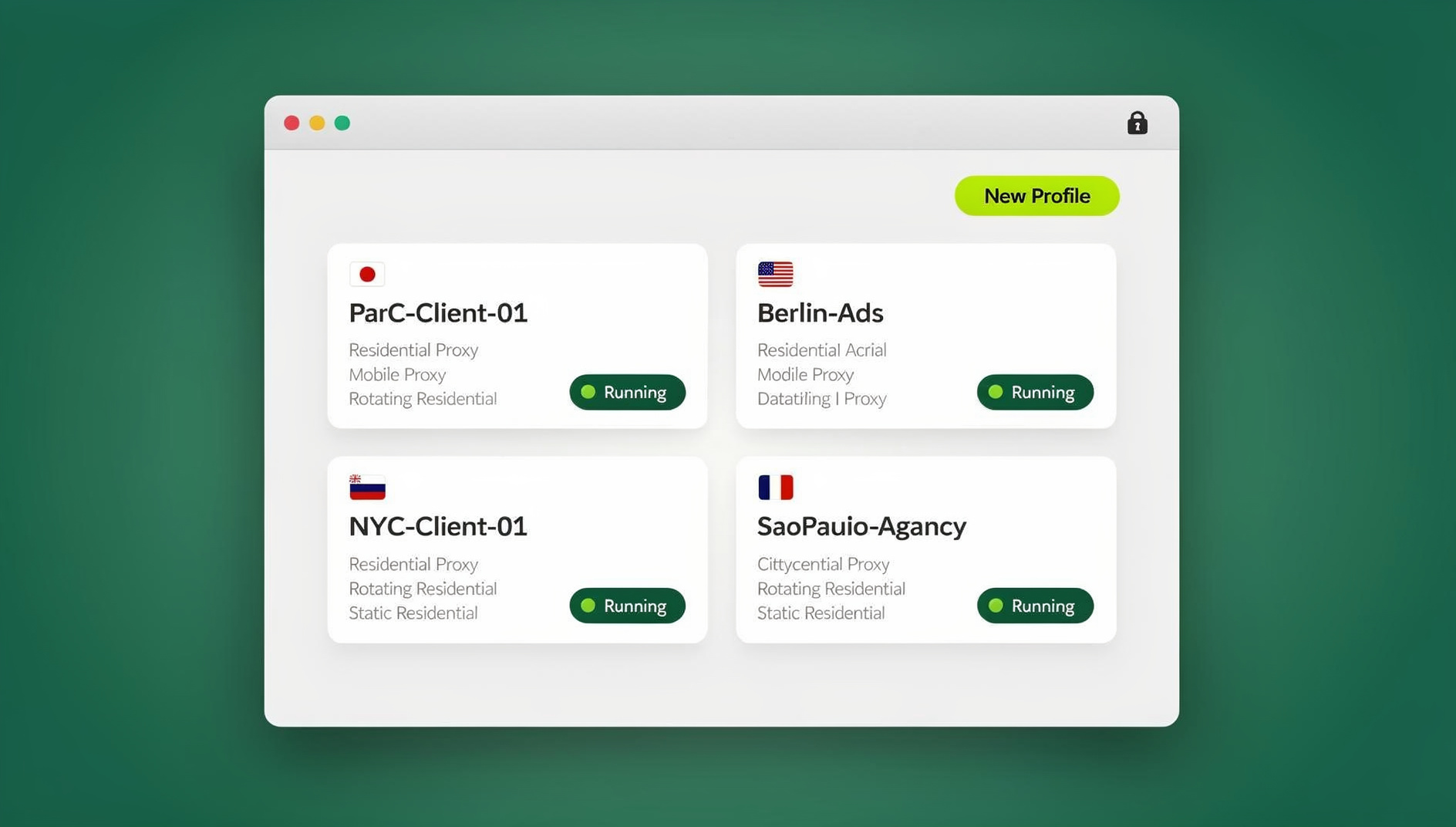
This guide walks through exactly how to log into multiple Facebook accounts in Chrome using a browser profile manager called Send.win, covers setting up the native Sendwin Browser desktop app and running sessions entirely in the cloud with no install. We’ll also cover the mistakes that get accounts flagged, how Send.win compares to Chrome’s built-in profile system, and what it actually costs.
Why You’d Need Multiple Facebook Accounts in Chrome
There’s nothing inherently shady about running more than one Facebook login. Some of the most common, entirely legitimate reasons people search for this include:
- Personal + business separation — keeping your personal profile private while running a Page or Business Manager under a separate login.
- Agency and freelance work — social media managers who handle five, ten, or fifty client Pages and need to switch between accounts throughout the day.
- Community and group management — admins who moderate multiple niche groups and want each identity kept distinct.
- Marketplace and reselling — sellers running several storefront profiles for different product categories or regions.
- Ad testing and media buying — marketers who need separate ad accounts to A/B test creative without cross-contaminating pixel data.
- Backup and recovery accounts — keeping a secondary account active in case a primary one is temporarily restricted.
The common thread: none of these use cases are about deception. They’re about organization. The trouble is that Chrome, on its own, wasn’t built with this in mind.
Why Chrome’s Built-In Options Fall Short
Chrome ships with two half-solutions for running multiple accounts, and both have real limits once you’re managing more than two Facebook logins.
Incognito Mode
Incognito windows let you log into a second account temporarily, but every tab shares the same underlying browser fingerprint, and the session disappears the moment you close the window. There’s no way to keep three or four Facebook accounts running in parallel across a workday — you’re constantly re-authenticating, which itself is a pattern Facebook’s security systems notice.
Chrome Profiles
Separate Chrome profiles are better — each one gets its own cookie jar and local storage — but they all still exit through the same IP address and expose a nearly identical device fingerprint (same OS build, same GPU, same installed fonts, same screen resolution, same canvas/WebGL signature). To Facebook’s fraud-detection systems, five “different” people logging in from an identical fingerprint and IP within the same hour looks a lot like one person operating five fake accounts — even when every account is 100% legitimately yours.
| Method | Separate Cookies | Separate Fingerprint | Separate IP/Proxy | Persistent Sessions | Team Sharing |
|---|---|---|---|---|---|
| Incognito windows | Yes (temporary) | No | No | No | No |
| Chrome profiles | Yes | No | No | Yes | No |
| Separate browsers | Yes | Partial | No | Yes | No |
| Send.win (multi-login) | Yes | Yes, per profile | Yes, built-in proxies | Yes | Yes |
That fingerprint and IP overlap is the real reason accounts get flagged — not the number of tabs open. Solving it requires a tool built specifically for multi-account browsing, which is where Send.win comes in.
What Is Send.win?
Send.win is a multi-login browser built for exactly this problem: running many accounts on the same site from a single machine, with each one isolated behind its own unique browser fingerprint and, optionally, its own proxy. Instead of the operating system, GPU, fonts, and canvas signature all matching across “different” logins, each Send.win session presents as a genuinely distinct device to Facebook.
Send.win is available two ways, and it’s worth knowing both exist before you pick a workflow:
- Cloud browser sessions — run an isolated session entirely in the cloud with zero local install, the fastest way to get started from any machine.
- Native Desktop app — a standalone application for Windows, macOS, and Linux that runs isolated browser sessions outside of Chrome entirely, with more stable long-running sessions and better handling for teams juggling dozens of profiles.
How to Log Into Multiple Facebook Accounts in Chrome (Step by Step)
Here’s the full walkthrough, from installation to running your first parallel logins.
Step 1: Set Up Send.win
- Go to send.win and sign up for a paid plan (the first card purchase is covered by a 7-day money-back guarantee).
- Choose your starting point: download the native Sendwin Browser installer for your OS (Windows, macOS, or Linux), or launch a cloud browser session straight from the dashboard with nothing to install.
- If you downloaded the app, run the installer and sign in with your Send.win account.
- Pin the dashboard tab or desktop app to your taskbar so it’s one click away.
Step 2: Create Your First Isolated Session
- Open Send.win — either the Desktop app or your cloud dashboard.
- Select New Session (sometimes labeled “saved session” in older versions).
- Give the session a name you’ll recognize later — for example, “FB – Personal” or “FB – Client A” — and optionally assign it to a group if you’re organizing by client or brand.
- Click Add or Create. A new isolated browser tab/window opens, running on its own fingerprint.
Step 3: Attach a Proxy (Strongly Recommended)
A unique fingerprint solves half the problem. The other half is IP address. If every session still connects from your home or office IP, Facebook can still correlate the accounts by network origin. Send.win has proxies built in, so from the session settings you can attach a residential or datacenter proxy matched to the account’s intended location — ideally a location and timezone that make sense for that account’s history. This is one of the most overlooked steps when people set up chrome multi account workflows, and skipping it is the single most common reason multi-account setups still get flagged.
Step 4: Log Into Facebook Inside the New Session
- Inside the new isolated tab, go to facebook.com.
- Log in with your second (or third, or tenth) account’s credentials as normal.
- Send.win saves the session — cookies, local storage, and login state — tied to that unique profile.
Step 5: Switch Between Accounts Instantly
From now on, opening that session from Send.win — whether the Desktop app or your cloud dashboard — drops you straight back into that Facebook account, fully logged in, with its own fingerprint and proxy intact. Repeat Steps 2–4 for every additional Facebook account you need. There’s no practical limit built into the workflow — agencies commonly run 20, 50, or more sessions side by side, each named and grouped for quick access. For a broader walkthrough of setting these up beyond just Facebook, see our guide on how to create sessions in Send.win.
Using the Sendwin Browser Desktop App vs. Cloud Sessions
Once you’re managing more than a handful of Facebook accounts, most people move from quick cloud browser sessions to the native Sendwin Browser desktop app (available for Windows, macOS, and Linux). The Desktop app runs each session as its own isolated browser instance on your machine, with encrypted cloud sync, which has a few practical advantages for heavy Facebook usage:
- More stable long sessions — less likely to get interrupted by a browser tab closing, a cloud session timing out, or a connectivity hiccup.
- Better performance at scale — running 30+ sessions locally taxes your system differently than running them all through cloud browsing time.
- Cleaner team workflows — easier to organize sessions into folders/groups when you’re not also trying to manage your own everyday browsing in the same window.
To get started, download the installer for your OS from the Send.win site, sign in with the same account you use for cloud sessions, and your existing sessions sync across automatically.
Managing Facebook Workflows With Send.win Browser Profiles
Best Practices for Running Multiple Facebook Accounts Safely
| Do | Don’t |
|---|---|
| Give each account its own isolated session and proxy | Reuse the same IP across five “different” accounts |
| Match the proxy’s location/timezone to the account’s history | Log in from a US proxy for an account that’s always been in Vietnam |
| Warm up new accounts gradually with normal activity | Immediately blast posts or friend requests from a brand-new session |
| Keep session names/groups organized as you scale | Let 40 unnamed sessions pile up with no structure |
| Use 2FA per account where possible | Share one recovery email/phone across every account |
If you’re managing Facebook alongside other platforms — Instagram, ad accounts, or a business Gmail — the same session-isolation principle applies everywhere. Our guides on adding a proxy to any session and on sharing sessions with your team cover the two features that matter most once you move past a single account.
Send.win vs Other Ways to Manage Multiple Facebook Logins
| Feature | Chrome Profiles | Second Browser | Send.win |
|---|---|---|---|
| Unique fingerprint per account | No | No | Yes |
| Built-in residential proxies | No | No | Yes |
| Native Desktop app | N/A | N/A | Yes (Windows/macOS/Linux) |
| Team session sharing without passwords | No | No | Yes |
| Automation API (Selenium/Puppeteer/Playwright) | No | No | No |
| Setup time | Low | Low | Low-Medium |
| Scales past 10 accounts cleanly | Poor | Poor | Yes |
If you only need two Facebook logins and rarely switch, Chrome profiles are fine. The moment you’re past three or four accounts — or you’re operating on behalf of clients — the fingerprint and proxy gaps in Chrome’s native tools start to matter, which is why so many agencies eventually move to a purpose-built chrome multi account tool instead.
Common Mistakes That Get Multi-Account Setups Flagged
- Switching accounts too fast. Rapidly toggling between five logins within seconds looks automated even when a human is doing it manually.
- Ignoring the proxy step. A perfect fingerprint setup with an identical shared IP still leaves a visible pattern.
- Using low-quality datacenter proxies. Facebook’s fraud systems have gotten much better at spotting known datacenter IP ranges; residential proxies matched to a real location perform far better.
- Copy-pasting the same bio, photos, or posting cadence across every account. Behavioral similarity is its own signal, separate from technical fingerprinting.
- Never logging in from the “home” account. If your primary personal account never gets used anymore because you’re only managing clients, that’s a pattern too — keep normal usage normal.
What Does It Cost?
Send.win has no free trial; paid plans start at $19/mo (Pro) or $49/mo (Team), and the first card purchase is covered by a 7-day money-back guarantee. You can also preview the cloud browser for free at the demo. Beyond that:
- Pro — $19/mo: 150 profiles and 5GB of proxy bandwidth, suited to individuals and small agencies running a handful of Facebook accounts.
- Team — $49/mo: 500 profiles, 20GB of bandwidth, 16 seats, and shared account access across staff.
Both plans include add-on bandwidth and extra profiles if you outgrow the base allowance, so you’re not forced to jump tiers the moment you add one more client account.
🏆 Send.win Verdict
If you’re logging into more than two Facebook accounts on the same computer, Chrome’s built-in profiles and incognito mode simply weren’t designed to keep your sessions organised at scale — the shared fingerprint and IP are the real risk, not the number of tabs open. Send.win solves both with per-profile fingerprint isolation and built-in proxies, backed by cloud browser sessions for quick, no-install setup and a native Desktop app for heavier daily use.
Try Send.win today — paid plans start at $19/mo with a 7-day money-back guarantee on your first card purchase, and your first isolated Facebook session takes under five minutes to set up.
Frequently Asked Questions
Is it against Facebook’s rules to have multiple accounts?
Facebook’s terms generally restrict one personal profile per person, but Pages, Business Manager accounts, and group-specific logins are explicitly supported use cases. Running multiple accounts for legitimate business, agency, or organizational purposes is common practice as long as you’re not using them to deceive, spam, or evade a ban on a specific account.
Can I log into multiple Facebook accounts in Chrome without any extra tool?
Yes, using separate Chrome profiles or incognito windows, but both share the same device fingerprint and IP address, which increases the chance Facebook’s automated systems flag the accounts as linked, especially once you’re managing more than two or three logins.
Will Facebook be able to tell I’m using Send.win?
Send.win isolates each session’s browser fingerprint and can route it through a separate proxy, so each account presents as a distinct device and location rather than obviously linked logins. No tool can guarantee accounts will never be reviewed, but proper isolation removes the most common technical signals platforms use to connect accounts.
Is Send.win a native app or a cloud service?
Send.win is a native Sendwin Browser desktop app for Windows, macOS, and Linux, plus cloud browser sessions you can run with zero local install straight from your dashboard. Both let you create and switch between isolated sessions, with the Desktop app tending to hold up better once you’re juggling dozens of accounts for extended periods.
How many Facebook accounts can I run at once with Send.win?
There’s no hard technical cap on sessions — agencies commonly run dozens at a time. Your plan’s profile limit (150 on Pro, 500 on Team) is the practical ceiling, and you can add more profiles as an add-on if you exceed it.
Do I need a proxy for every Facebook account?
It’s strongly recommended once you’re running more than one or two accounts. A unique fingerprint without a matching unique IP still leaves a detectable pattern, so pairing each session with its own residential proxy closes that gap.
Can my team share access to the same Facebook accounts?
Yes. Send.win’s Team plan lets you share sessions with teammates without handing over the actual password, and you can revoke access at any time — useful for agencies where multiple staff need to post to the same client Pages.