Chrome extensions for students can be the difference between a laptop that helps you get work done and one that’s a distraction machine with forty open tabs. In 2026, the browser is basically a student’s entire workspace — lecture notes, research papers, group project docs, part-time job logins, and a dozen half-finished assignments all live inside Chrome at once. The right handful of extensions can quietly fix that chaos: better writing, faster research, fewer distractions, and less time lost to repetitive busywork.
This guide replaces our old 2022 list with a fully updated set of picks for 2026, explains exactly why each one earns a spot, and — because so many students now juggle a personal Google account, a school account, group project logins, and a side hustle or two — covers what to do when extensions alone aren’t enough to keep your accounts organized.
Why Students Need the Right Chrome Extensions in 2026
Modern coursework rarely lives in one place. A single semester might involve a learning management system (Canvas, Blackboard, or Moodle), a citation manager, a shared Google Doc for group work, a task tracker, and a research database — all open in the same browser window. Without the right tools, that adds up to constant tab-switching, copy-paste errors, and missed deadlines.
A well-chosen extension does one job extremely well and gets out of your way. It should save you real time (not just look impressive), respect your privacy (student laptops are full of sensitive academic and financial data), and stay lightweight enough that it doesn’t slow down an already-aging laptop during finals week.
How We Picked These Extensions
Every extension on this list had to clear four bars:
- Genuinely useful for coursework — not a novelty, something you’d actually open every day.
- Free or generously free-tiered — students are budget-constrained by definition.
- Actively maintained — recently updated, responsive to Chrome’s manifest changes, no abandoned code.
- Reasonable privacy practices — minimal permissions and a clear, readable privacy policy.
A couple of extensions from older “best of” lists — including our own 2022 version of this post — got dropped this time around because of permission creep or ownership changes that raised privacy flags. We’ll note where and why below.
Overview: Best Chrome Extensions for Students in 2026
| Extension | Best For | Price | Why It Made the List |
|---|---|---|---|
| Grammarly | Writing & grammar | Free / Premium | Catches errors across every text field, not just Docs |
| Zotero Connector | Research & citations | Free | One-click citation capture from any journal or database |
| StayFocusd | Distraction blocking | Free | Hard time limits on the sites that eat your study hours |
| Todoist for Chrome | Task & deadline tracking | Free / Pro | Turns any webpage or email into a task in two clicks |
| Dark Reader | Eye comfort | Free | Dark mode on literally any website, adjustable brightness |
| Nimbus Screenshot & Screen Recorder | Screenshots & screen recording | Free / Pro | Annotate, record, and share in one tool — safer pick than older screenshot tools |
| Google Dictionary | Quick definitions | Free | Double-click any word for an instant definition popup |
| Video Speed Controller | Lecture videos | Free | Speed up or slow down any HTML5 video, including recorded lectures |
The Best Chrome Extensions for Students in 2026, Explained
1. Grammarly
Grammarly checks spelling, grammar, tone, and clarity in real time across nearly every text field in your browser — Google Docs, email, Canvas discussion posts, Slack, even social media captions. For students, that means fewer embarrassing typos in emails to professors and cleaner, more confident essay drafts.
Why students love it: it runs quietly in the background and only pops in when it has a useful suggestion, so it doesn’t feel like a nagging teacher looking over your shoulder. The free tier covers spelling, grammar, and basic clarity suggestions, which is enough for most coursework.
2. Zotero Connector
If Grammarly wasn’t on the original 2022 list’s radar for research, this pick fills that gap. Zotero Connector lets you save a webpage, PDF, or journal article to your Zotero library with a single click, automatically capturing the citation metadata (author, title, publication, date) so you’re not manually typing out APA or MLA references at 2am.
Why students love it: it integrates directly with Word and Google Docs to insert in-text citations and generate a full bibliography automatically — a genuine time-saver for research papers and lab reports.
3. StayFocusd
StayFocusd increases your productivity by limiting how much time you can spend on time-wasting websites. You set a daily allowance for distracting sites, and once it’s used up, those sites become inaccessible for the rest of the day — no willpower required, just a hard limit that Chrome enforces for you.
Why students love it: it turns “I’ll just check for five minutes” into an actual five minutes, because the extension cuts you off automatically. It’s especially effective during exam weeks when social media is the biggest threat to a study session.
4. Todoist for Chrome
Todoist’s browser extension lets you turn any webpage, email, or Canvas announcement into a task with a due date and priority level in a couple of clicks. For students juggling five classes’ worth of deadlines, that’s a much faster workflow than switching to a separate app and re-typing everything.
Why students love it: the free plan supports up to five active projects, which is plenty for a typical semester’s course load, plus recurring due dates for weekly readings or discussion posts.
5. Dark Reader
Dark Reader applies an intelligent dark mode to essentially any website, including ones that don’t offer their own dark theme. You can adjust brightness, contrast, and even apply it selectively to specific sites.
Why students love it: late-night study sessions are a reality of student life, and reducing screen glare measurably cuts eye strain during long research or writing sessions.
6. Nimbus Screenshot & Screen Recorder
This is where we’re updating our recommendation from the original list. Lightshot — our 2022 pick — has faced repeated scrutiny over the years for data-handling practices and permission scope, so for 2026 we recommend Nimbus Screenshot & Screen Recorder instead. It captures full-page screenshots, lets you annotate with arrows and text, and can record short screen videos for group project walkthroughs.
Why students love it: group projects almost always need a quick screen recording to explain a slide, a code snippet, or a spreadsheet formula — Nimbus does that without leaving the browser tab.
7. Google Dictionary
Google Dictionary lets you double-click any word on any webpage to see an instant popup with its definition, pronunciation, and part of speech. No new tab, no separate search — just highlight and go.
Why students love it: for dense academic reading — philosophy texts, scientific papers, legal cases — this shaves real time off comprehension without breaking your reading flow.
8. Video Speed Controller
Recorded lectures, tutorial videos, and MOOC content are a huge part of student life in 2026. Video Speed Controller adds on-screen playback controls to any HTML5 video, letting you speed up a slow-paced lecture to 1.5x or 2x, or slow down a dense technical walkthrough to 0.75x.
Why students love it: it works on nearly every video platform, not just YouTube, which most built-in speed controls don’t support.
Managing Multiple Accounts as a Student (Without Losing Your Mind)
Extensions solve the “too many tools” problem, but they don’t solve a different problem that’s become common for students in 2026: too many accounts inside the same browser. A typical semester might involve a personal Gmail, a school-issued Google Workspace account, a shared login for a group project’s testing account, a freelance or part-time job account, and a handful of trial accounts for AI research tools — all fighting for the same browser session, cookies, and saved passwords.
Chrome’s built-in profile switching helps a little, but it’s clunky for anything beyond two or three accounts, and it doesn’t isolate fingerprinting data or give you separate proxy/IP settings per account — which matters if you’re doing coursework that involves testing a web app from multiple accounts, running a small side-hustle store, or managing a campus club’s social media without mixing it up with your personal one.
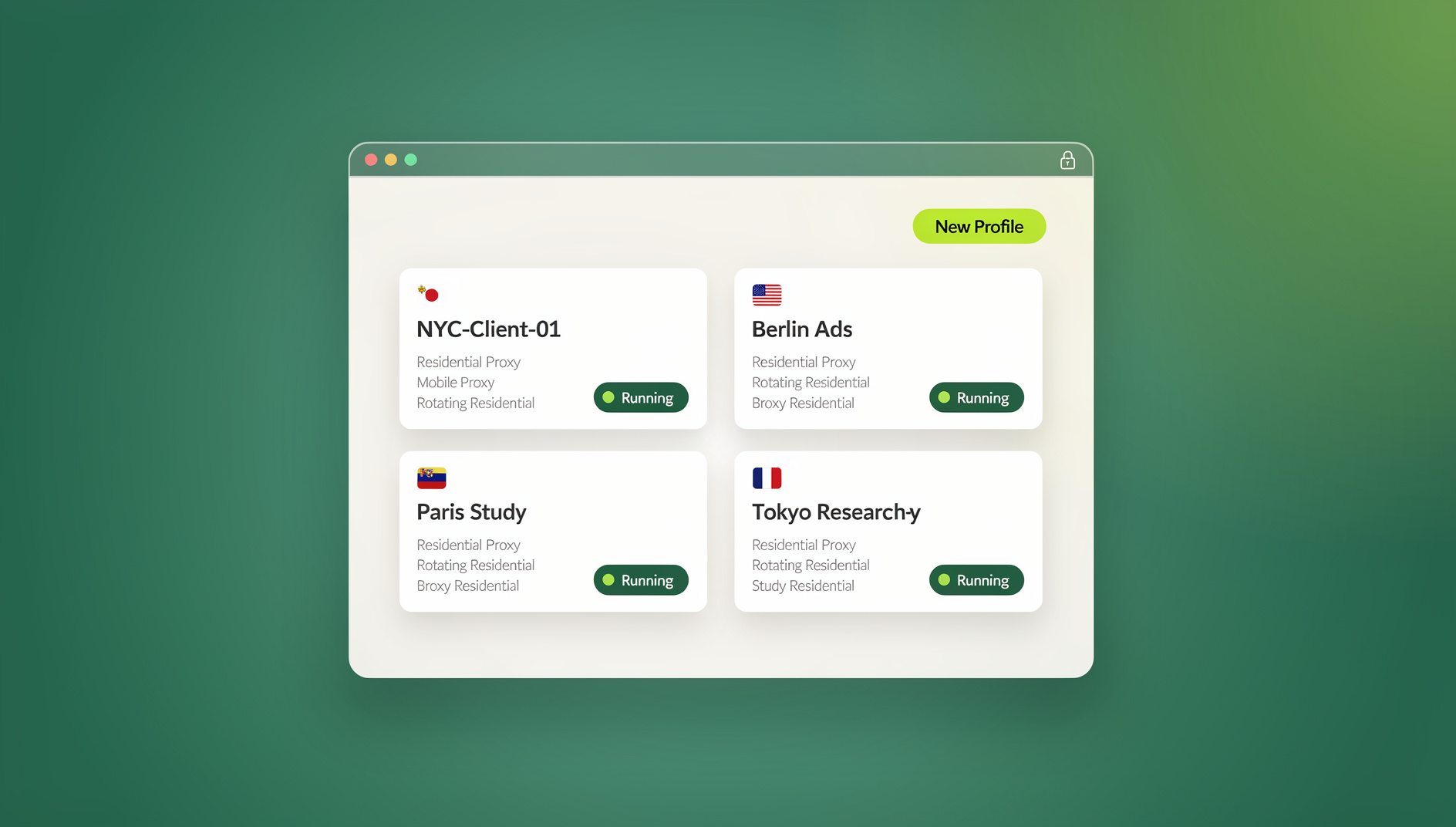
This is exactly the kind of workflow Send.win was built for. It’s not a Chrome extension — it’s a dedicated multi-login browser that gives every account its own isolated profile with a unique browser fingerprint, so your school account, your side hustle, and your group project logins never bleed into each other or trigger “suspicious login” flags. It’s available as a native desktop app for Windows, macOS, and Linux, so it runs as its own application rather than living inside your existing Chrome setup, and it includes built-in residential and datacenter proxies if a project genuinely requires a different IP per profile.
For students working on a data science, CS, or research assistant project that involves keeping multiple accounts separate, Send.win’s isolated profiles each keep their own cookies, storage and fingerprint, so research contexts stay cleanly separated instead of sharing one browser identity. If you’re already comfortable with a multi-login browser for keeping accounts separate, this is the natural extension of that idea for organised, multi-account work.
You don’t need this for a normal semester of coursework — for most students, the extensions above plus Chrome’s built-in profiles are plenty. But if you’re running a club’s social accounts, freelancing on the side, or working on a research project that touches multiple logins or automated browsing, it’s worth knowing the option exists before you end up locked out of an account for “unusual activity” that was really just you switching contexts too fast in one browser.
Chrome Extensions vs. a Dedicated Multi-Login Browser: What’s the Difference?
| Factor | Chrome Extensions | Multi-Login Browser (Send.win) |
|---|---|---|
| Where it runs | Inside your existing Chrome profile | Native desktop app (Windows/macOS/Linux) or a cloud browser session with no local install |
| Account isolation | Shared cookies/fingerprint within a profile | Each profile has a unique, isolated fingerprint |
| Best for | Writing, research, focus, task tracking | Managing separate accounts, projects, or side hustles safely |
| Proxy/IP control | Not available | Built-in residential and datacenter proxies |
| Automation support | Limited or none | No |
| Cost | Mostly free | No free trial; from $19/mo (7-day money-back guarantee on first card purchase) |
Step-by-Step: Building Your Student Browser Toolkit
- Audit your actual workflow first. Write down the five things you do most in your browser each week — writing, research, video lectures, task tracking — before installing anything.
- Install no more than 5-6 extensions. Every extension adds a small amount of memory and startup overhead; a bloated extension list is exactly the kind of slowdown that makes an old laptop feel unusable during finals week.
- Group similar accounts by context, not convenience. Keep your personal accounts, school accounts, and any side project or freelance accounts in separate Chrome profiles — or in fully isolated profiles inside a tool like Send.win if you’re managing more than two or three.
- Review extension permissions every semester. Chrome shows you exactly what data each extension can access — remove anything you no longer use or that asks for more access than its function requires.
- Back up your bookmarks and notes at the end of each term. Export bookmarks and any extension-stored data (Todoist projects, Zotero libraries) before a laptop wipe or graduation.
Between a lean, well-chosen set of extensions and a workable strategy for keeping your accounts organized — whether that’s Chrome profiles or a dedicated tool like Send.win, complete with its best chrome extensions for productivity counterparts for professional workflows — your browser stops being the source of chaos and starts being the tool that actually gets you through the semester. If you’re specifically wrestling with a personal and school Gmail account colliding in the same tab, our guide on how to manage multiple Gmail accounts walks through the exact setup. And if your bookmarks bar is already a disaster from a semester of saved articles and PDFs, a dedicated bookmark management extension is worth adding to the list above.
🏆 Send.win Verdict
Chrome extensions handle writing, research, and focus — but they can’t isolate accounts from each other. If your student life includes a personal account, a school account, a side hustle, or a research project that touches multiple logins, Send.win’s isolated profiles (available as a native desktop app for Windows, macOS, and Linux, plus a cloud browser that runs on Send.win’s servers in the EU) keep everything cleanly separated so one context never contaminates another.
Try the free Send.win cloud demo — a 3-minute preview without signup, and see how much lighter your browser feels with every account in its own isolated space.
Frequently Asked Questions
What are the best free Chrome extensions for students in 2026?
Grammarly, Zotero Connector, StayFocusd, Todoist for Chrome, Dark Reader, Nimbus Screenshot & Screen Recorder, Google Dictionary, and Video Speed Controller all have fully usable free tiers that cover the core needs of most coursework: writing, research, focus, task tracking, and lecture videos.
Do Chrome extensions slow down my laptop?
A handful of well-maintained extensions have minimal impact, but every extension does use some memory and can add a small amount of startup time. The rule of thumb is to keep your active extension count under six or seven and remove anything you haven’t used in a month.
Is Grammarly free for students?
Yes. Grammarly’s free tier covers spelling, grammar, and basic clarity suggestions, which is sufficient for most essays, emails, and discussion posts. Grammarly Premium adds tone detection, advanced style suggestions, and plagiarism checking for an extra cost.
How many Chrome extensions should a student install?
Somewhere between four and six is the sweet spot for most students — enough to cover writing, research, focus, and task tracking without meaningfully slowing down your browser or creating permission clutter you have to manage.
Are Chrome extensions safe for student privacy?
Most well-known extensions from reputable developers are safe, but always check what permissions an extension requests before installing. An extension that only needs to read text on a page shouldn’t be asking for access to your browsing history or every website you visit — that mismatch is a red flag worth avoiding.
What’s the difference between a Chrome extension and a multi-login browser like Send.win?
A Chrome extension adds a single feature inside your existing browser profile and typically shares cookies and fingerprint data with everything else in that profile. A multi-login browser like Send.win creates fully separate, isolated profiles — each with its own fingerprint and optional proxy — so different accounts never share data or history with each other.
Can I use Send.win instead of Chrome profiles for group projects?
Yes. Send.win lets each group member’s account, or each project’s test accounts, run in its own isolated profile that can be shared with teammates without handing over passwords, which is a cleaner setup than juggling multiple Chrome profiles or logging in and out repeatedly.
Does Send.win have a desktop app?
Yes. Send.win is available as a native desktop application (Sendwin Browser) for Windows, macOS, and Linux, where the full profile isolation and built-in proxy management live. You can also run a browsing session entirely in the cloud with no local install at all, metered by cloud browsing time instead.