Somewhere between your fortieth open tab and your third “I’ll read this later” folder, bookmarks stopped being a filing system and became a graveyard. If you have ever lost a critical login page, a client’s dashboard link, or a research thread you swore you’d get back to, you already know why a dedicated chrome extension for bookmark management matters more in 2026 than it did a decade ago. Chrome’s native star icon was built for a web with a few dozen sites worth saving — not for the hundreds of accounts, dashboards, and tools most professionals juggle today.
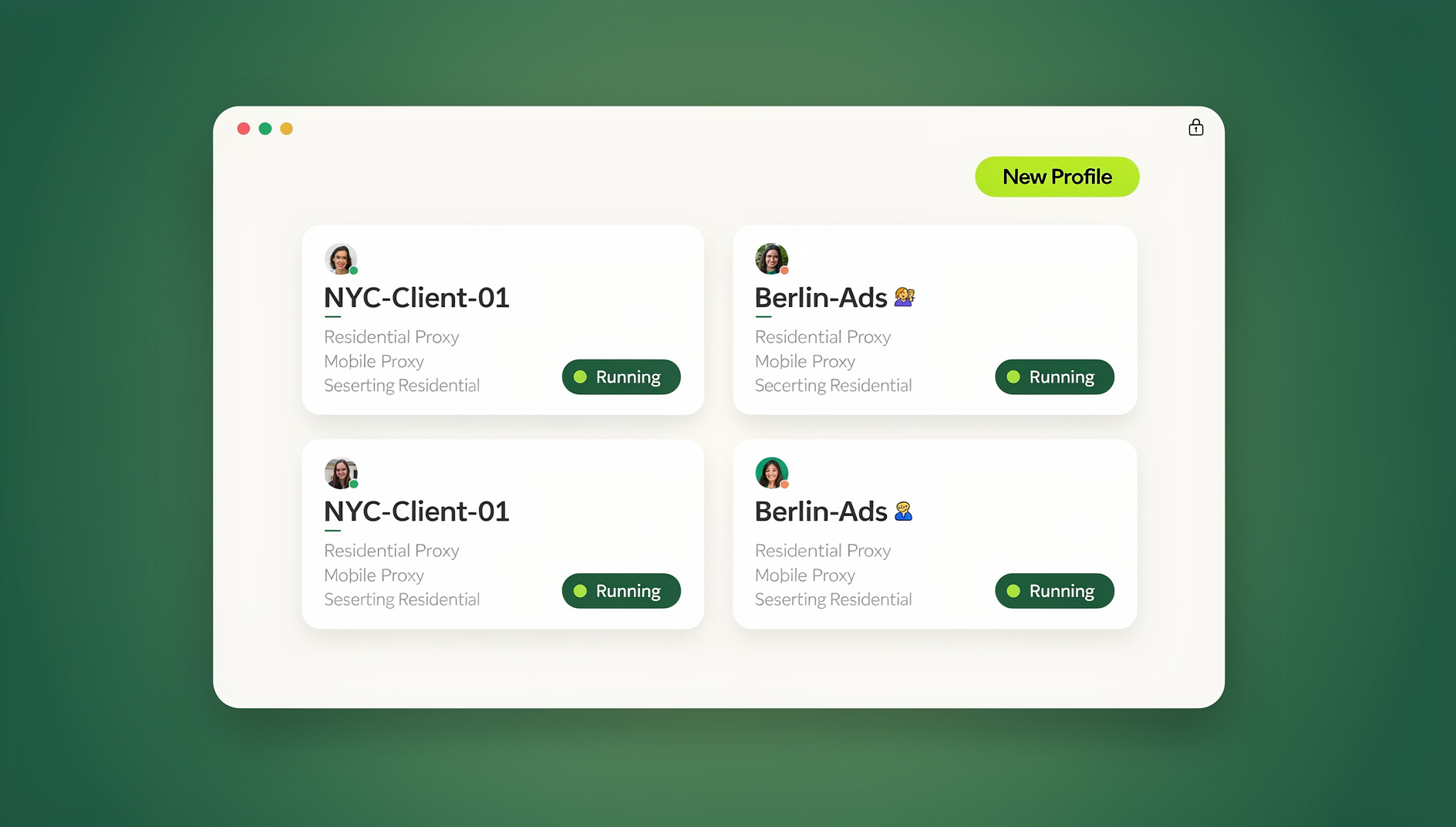
This guide covers what bookmark management actually means, how Chrome extensions solve (and sometimes fail to solve) the problem, a ranked breakdown of the best tools available right now, and — because bookmark chaos is almost always a symptom of a bigger multi-account problem — where a profile-based browser like Send.win fits into the picture. Whether you’re a solo freelancer with fifteen saved logins or an agency managing bookmarks across dozens of client accounts, there’s a workable system below.
What Is Bookmark Management, and Why Does It Still Matter in 2026?
A bookmark is simply a saved link to a webpage, stored so you can return to it without retyping the URL or digging through search results. Bookmark management is the layer on top of that — the tags, folders, search, syncing, and sharing that keep a growing pile of saved links usable instead of a scroll-forever list you never open.
The reasons people still bother with bookmarks in an era of instant search are practical, not nostalgic:
- Speed — one click beats typing a URL or searching for a page you’ve visited fifty times before.
- Reliability — search results shift; a bookmark points to exactly the page you saved.
- Organization — folders and tags let you group login pages, research, and tools by project or client instead of by memory.
- Continuity across devices — synced bookmarks mean the link you saved on your laptop is there on your work desktop too.
- Sharing — curated bookmark collections are a fast way to hand a teammate or client a reading list or resource set.
What a Bookmark Extension Actually Does
A browser extension is a small program installed from the Chrome Web Store that adds functionality Chrome doesn’t ship with by default. Bookmark-focused extensions typically replace or supplement Chrome’s built-in bookmark bar with visual boards, full-text search across saved pages, screenshot-based previews, shared team collections, and cross-device sync that goes beyond a simple Google account backup.
How to Install a Chrome Extension for Bookmark Management
Installing any of the tools below takes under a minute (Send.win is the exception — it isn’t a Chrome Web Store install; see its entry below for how it actually works):
- Open the Chrome Web Store in your browser.
- Search for the extension by name (e.g., “Raindrop.io” or “Toby”).
- Click Add to Chrome, then confirm the permissions prompt.
- Pin the extension icon to your toolbar (click the puzzle-piece icon, then the pin next to the extension name) so it’s one click away.
- Create an account with the extension if it requires one — this is what enables cross-device sync.
What You Gain From a Dedicated Extension
- A customized browsing experience tailored to how you actually work, instead of Chrome’s generic star-and-folder system.
- Automation of repetitive tasks — auto-tagging, auto-archiving, or one-click sharing.
- Added privacy and security in some tools, such as ad and tracker blocking bundled with the save function.
- Productivity boosts through quick access to frequently used tools, dashboards, and references.
- New browser functionality entirely — sidebars, visual boards, and full-page archiving that Chrome doesn’t natively support.
The Best Chrome Extensions for Bookmark Management in 2026
Below are the tools worth actually installing this year, based on what each does well and who it’s built for.
1. Raindrop.io
Raindrop is the closest thing to an all-in-one bookmark manager on Chrome. It handles bookmarks, highlights, and tabs in one place, and lets you clip articles, images, videos, and PDFs from across the web. Full-text search covers everything you’ve saved — including the contents of saved PDFs — and nested collections with tags make large libraries searchable rather than just scrollable. It’s a strong pick if you want one tool to replace your bookmarks, your read-it-later app, and your screenshot folder.
2. Send.win
Send.win isn’t a bookmark manager in the traditional sense — and it isn’t a browser extension at all. It’s Sendwin Browser, a native desktop application for Windows, macOS, and Linux that happens to solve a bookmark problem most “bookmark” extensions can’t touch: cross-contamination between accounts. If you manage several client accounts, ad accounts, or social profiles from one Chrome window, your bookmarks, cookies, autofill, and browsing history all blend into a single pool. Send.win instead gives every account its own isolated profile — its own bookmark bar, its own history, its own fingerprint — so “bookmarking” a login page for Client A never leaks into Client B’s session. Profiles run locally through the Sendwin Browser desktop app, or entirely in the cloud through a cloud browser session with zero local install, so profile-specific bookmarks stay available however you work.
3. Toby
Toby replaces your new-tab page with a visual dashboard of saved tab collections, grouped by project or workspace. Rather than bookmarking pages one at a time, you save an entire browsing session — every open tab — as a named collection you can reopen with one click. If you’d rather save, organize, and share tab collections as a group instead of managing individual bookmarks, this workflow is worth comparing against Toby directly.
4. Papaly (Bookmark Manager Speed Dial)
Papaly turns your new-tab page into a customizable speed-dial board and syncs it across browsers and devices. It’s built for people who want a visual home base rather than a folder tree: drag-and-drop reordering, shareable boards via short links, and a tab-reduction feature that unloads unused tabs to cut memory usage. Social media bookmark syncing is a nice extra if you’re juggling several platforms’ saved-post pages.
5. Lasso Bookmark Manager
Lasso is built around curated collections meant to be shared — with teammates, clients, or social followers. Items default to private, but you can invite collaborators to a single collection or an entire workspace, publish collections publicly, and push curated content straight to a WordPress site through Lasso’s plugin. Slack integration makes it a natural fit for content and marketing teams that need a shared “reading list” workflow.
6. Diigo Web Collector
Diigo goes beyond saving a link — it archives the page, lets you highlight and annotate directly on it, and keeps that annotated version available even if the original page changes or disappears. Group features make it useful for research teams sharing sources, and one-click social posting saves time if you cross-post the same finds to Facebook, X, or Quora.
7. Elink
Elink is a visual bookmarking tool built for people who eventually turn saved links into published content — newsletters, blog roundups, social bio links, or RSS-powered pages. Every saved bookmark can carry a custom image, edited title, and description, and collections can be exported directly into a newsletter or webpage. It’s less “personal bookmark folder” and more “content curation pipeline.”
8. Bookmark Sidebar
This extension adds a toggleable sidebar along the edge of your browser showing your entire bookmark tree without opening a new tab or menu. Drag-and-drop editing, one-click detail views, and a built-in checker for broken or redirected URLs make it a lightweight option for people who just want faster access to an existing, well-organized bookmark folder rather than a new system entirely.
9. OneTab
When your “bookmark problem” is actually forty open tabs you’re afraid to close, OneTab converts every open tab into a single, editable list with one click — instantly reclaiming memory and screen space. It’s less a long-term archive and more a triage tool, though saved lists can be renamed, locked, and restored individually or all at once. For a deeper look at tools built specifically for this kind of tab overload, see this roundup of options for decluttering browser tabs and getting back to a manageable window count.
10. Dropmark
“Add to Dropmark” is a fast-capture extension: click the toolbar button, right-click anywhere on a page, or drag-and-drop an item to save links, images, and screenshots straight into a Dropmark collection. It’s built for visually organizing references and files in one place rather than deep tagging or full-text search, which makes it a good fit for mood boards, asset collections, and quick-reference libraries.
Comparing the Top Chrome Bookmark Extensions
| Extension | Best For | Standout Feature | Typical Pricing |
|---|---|---|---|
| Raindrop.io | All-in-one bookmark + read-it-later | Full-text search across saved pages and PDFs | Free tier; paid Pro tier |
| Send.win (native desktop browser) | Multi-account professionals | Isolated bookmarks/cookies per profile | Pro/Team plans; 7-day money-back guarantee on first card purchase |
| Toby | Saving whole tab sessions | Visual dashboard of tab collections | Free; paid Teams tier |
| Papaly | Visual speed-dial home page | Cross-browser sync, shareable boards | Free tier; paid upgrade |
| Lasso | Team/social curation | Shared collections, WordPress publishing | Free tier; paid plans |
| Diigo | Research and annotation | Page archiving with highlights | Free tier; paid Premium |
| Elink | Turning bookmarks into content | Export to newsletters/webpages | Free tier; paid plans |
| Bookmark Sidebar | Faster access to existing bookmarks | Toggleable sidebar + broken-link checker | Free |
| OneTab | Tab overload triage | One-click tab-to-list conversion | Free |
| Dropmark | Visual asset collections | Drag-and-drop capture | Free tier; paid plans |
Where Traditional Bookmark Managers Fall Short
Every tool above solves the “too many links, not enough structure” problem. None of them solve a different, quieter problem: bookmarks live inside a browser profile, and most people only use one profile. If you log into Client A’s ad account, then Client B’s, then your own accounts, all in the same Chrome window, your bookmark bar becomes a mixed pile of everyone’s saved logins, your browsing history mixes together, and autofill starts suggesting the wrong client’s details in the wrong form. Folders help you sort the mess after the fact — they don’t stop it from happening.
This is the exact failure mode covered in this breakdown of Chrome extensions for managing multiple login sessions: bookmark clutter and account cross-contamination are usually the same root problem wearing two different names.
Send.win: Solving the Bookmark Problem Behind the Bookmark Problem
Send.win is a browser profile manager built for exactly this scenario. Instead of one shared browser identity holding every bookmark, cookie, and login you’ve ever saved, Send.win creates separate, isolated browser profiles — each with its own consistent fingerprint, its own cookies and local storage, its own browsing history, and yes, its own bookmark bar. Save a client’s dashboard link inside that client’s profile, and it stays there. Open a second client’s profile, and you get a clean bookmark bar with none of the first client’s saved links, cache, or session data bleeding through.
For anyone running a multi-login browser setup — agencies, e-commerce sellers running multiple stores, social media managers, or affiliate marketers — this turns bookmark management from a manual sorting exercise into something structural: the browser itself keeps each account’s saved links separate, with built-in residential proxies attached per profile so the IP and fingerprint match the account’s usual location, not just the bookmarks.
Beyond the Browser Tab: Desktop App and Cloud Browser
Two capabilities matter here that a Chrome extension alone can’t offer:
- Sendwin Browser (native desktop app) — Send.win ships as a dedicated desktop client for Windows, macOS, and Linux, so your isolated profiles (and their bookmarks) aren’t confined to a browser tab or dependent on Chrome staying open. It runs as its own local-first application, with encrypted cloud sync keeping profiles and bookmarks available across devices.
Setting Up Isolated Bookmarks by Account
- Create a Send.win account and choose a paid plan (Pro or Team); the first card purchase is covered by a 7-day money-back guarantee.
- Create a new profile for each account or client you manage — each gets its own fingerprint, cookies, and bookmark bar.
- Attach a proxy to the profile if the account needs to appear from a specific location; Send.win includes built-in proxy options per plan.
- Log into the account inside its dedicated profile and bookmark whatever pages you need — dashboards, admin panels, reporting tools.
- Switch profiles from the Send.win dashboard or desktop app to move between accounts without ever mixing bookmarks, cookies, or history.
- On the Team plan, invite collaborators to shared profiles so a whole team can access the same bookmarked resources without sharing passwords.
Chrome Bookmark Extension vs. Multi-Profile Browser: Which Do You Need?
| Situation | Best Fit | Why |
|---|---|---|
| One person, one set of accounts, too many saved links | Raindrop.io, Bookmark Sidebar, or OneTab | Pure organization problem — a dedicated bookmark extension solves it directly. |
| Saving and reopening whole browsing sessions | Toby or Papaly | Tab-collection tools are built for “reopen everything at once,” not single links. |
| Curating and sharing links with a team or audience | Lasso, Elink, or Diigo | Built-in sharing, publishing, and annotation features that plain bookmarks lack. |
| Managing multiple client, ad, or store accounts in one browser | Send.win | Isolated profiles prevent bookmark, cookie, and fingerprint cross-contamination between accounts. |
| Automating bookmark backups or bulk actions across accounts | Send.win Team plan (no automation interface) | Send.win has no Selenium/Puppeteer/Playwright support, so tasks cannot be scripted across profiles. |
Bookmark Hygiene Best Practices for 2026
- Audit quarterly. Run Bookmark Sidebar’s broken-link check or Diigo’s archive comparison to prune dead pages before your folder tree becomes unreliable.
- Separate personal and work saves by profile, not just folder. A folder is a suggestion; a separate browser profile is a wall. If accounts genuinely need to stay apart, isolate them structurally.
- Name bookmarks by purpose, not by page title. “Client A — Ad Dashboard” is searchable months later; the page’s default title often isn’t.
- Use full-text search tools (Raindrop, Diigo) for research-heavy saves where you’ll need to find a phrase, not just a URL, later.
- Back up periodically. Export your bookmark file manually from each profile so a lost device doesn’t mean a lost bookmark library.
- Don’t let “read later” become “read never.” If a saved-for-later folder hasn’t been opened in three months, archive it elsewhere or delete it — clutter slows down search across everything else.
🏆 Send.win Verdict
A dedicated bookmark extension like Raindrop or Toby is the right tool if your only problem is too many saved links. But if your bookmark chaos comes from juggling multiple client, ad, or store accounts in a single browser, no amount of folders and tags fixes the underlying cross-contamination — Send.win does, by giving every account its own isolated profile, bookmark bar, and fingerprint, backed by a native desktop app and a cloud browser.
Try Send.win today — choose a Pro or Team plan, with the first card purchase covered by a 7-day money-back guarantee, and give every account the clean, isolated bookmark bar it deserves.
Frequently Asked Questions
What is the best Chrome extension for bookmark management in 2026?
Raindrop.io remains the strongest all-around pick for pure bookmark management thanks to full-text search, PDF clipping, and nested collections. Toby and Papaly are better if you want to save entire tab sessions rather than individual links, and Send.win is the better fit if your bookmark clutter is actually caused by managing multiple accounts in one browser.
Are Chrome bookmark extensions free?
Most of the extensions covered here — Raindrop, Toby, Papaly, Lasso, Diigo, Elink, Bookmark Sidebar, OneTab, and Dropmark — offer a free tier that covers core saving and organizing features, with paid upgrades for team collaboration, higher storage limits, or advanced search. Send.win has no free trial; its Pro ($19/mo) or Team ($49/mo) plans are covered by a 7-day money-back guarantee on the first card purchase, and a free cloud demo is available.
Can I sync bookmarks across multiple devices?
Yes. Every extension in this guide syncs saved bookmarks across devices once you’re signed into an account, similar to how Chrome syncs its native bookmark bar through a Google account. Send.win profiles also sync across devices and the native Desktop app, so a profile’s bookmarks are available wherever you log in.
Why do my bookmarks get mixed up when I manage multiple accounts?
Because a single Chrome profile stores one shared bookmark bar, cookie jar, and browsing history for every account you log into inside it. Bookmarks, autofill data, and cached logins from different accounts blend together with no natural separation — which is precisely the problem a multi-profile browser like Send.win is built to prevent.
Is it safe to install multiple bookmark extensions at once?
You can run more than one, but it usually causes duplicate context-menu entries, redundant toolbar icons, and confusion over which tool actually saved a given link. It’s better to pick one primary bookmark manager for daily saving and use a second, narrower tool (like OneTab for tab triage) only for its specific purpose.
Does Send.win replace a bookmark manager entirely?
Not exactly — Send.win doesn’t add tagging, full-text search, or visual boards the way Raindrop or Elink do. What it replaces is the need to manually keep bookmarks separated by account: each isolated profile has its own native Chrome-style bookmark bar, so the separation is automatic rather than something you manage by hand.
What is the Send.win cloud browser, and who needs it?
It’s a cloud browser that runs on Send.win’s server in the EU, giving each profile its own cookies, storage, sessions and fingerprint settings. It’s built for agencies and teams managing dozens of accounts who want to keep each account’s browsing data separate without clicking through each profile manually.
Do I need to install the Send.win desktop app, or can I run it entirely in the cloud?
Neither is required on its own — Send.win isn’t a Chrome extension, so there’s nothing to “add to Chrome.” Many users run the Send.win Desktop app (available for Windows, macOS, and Linux) as their main way to launch and manage profiles locally, while others use a cloud browser session that runs entirely online with zero local install. The web dashboard covers day-to-day profile switching either way, and the desktop app plus cloud browser matter most once you’re managing scale — many profiles or proxies across a team.
How do I stop losing important bookmarks when a browser resets or a device is replaced?
Sync to an account-based extension (not just Chrome’s local bookmark bar) so links live in the cloud rather than only on one device, export a backup periodically, and for multi-account setups, keep each account’s bookmarks inside its own Send.win profile so a device reset doesn’t merge or wipe unrelated accounts’ saved links at once.